

If you sell across more than one sales channel — a marketplace like Amazon or eBay, a storefront like Shopify or your own website, plus a payment processor like Stripe or PayPal — every channel deposits money into your bank differently, taxes sales differently, and reports its fees differently. This guide shows how to keep all of that clean in your accounting software using Synder’s Per-Transaction Sync. Wherever we show an example, we use QuickBooks Online, but the same approach works with Xero and other supported accounting platforms — the concepts are identical, only the field names differ.
- Who this guide is for
- First, what a clearing account is
- How Synder handles multi-channel sales data in Per-Transaction Sync
- The five topics that matter for multi-channel selling
- Putting it together: a multi-channel Per-Transaction checklist
- Related guides
There is a companion guide for Summary Sync. If you would rather post one grouped entry per payout, read that one. This guide is Per-Transaction-only so that every topic can be explained the way it actually works when each order and refund posts individually, with a link to the specific deep-dive guide for each step.
Who this guide is for
- You sell on two or more channels (any mix of marketplaces, ecommerce stores, and payment processors).
- You want every order, fee, and refund recorded individually — for detailed reporting, itemized revenue, or inventory/COGS tracking.
- You are using — or plan to use — Synder’s Per-Transaction Sync, which posts one entry per transaction and then reconciles them to each payout.
First, what a clearing account is
A clearing account (also called a funds-in-transit account) is a temporary holding account that sits between your sales and your bank. When a customer pays, the money does not land in your checking account instantly — the channel holds it, subtracts its fees, and pays you out later as a lump-sum payout. The clearing account is where Synder parks that money in the meantime.
Think of it as a waiting room for your money:
- As each order posts, Synder records revenue, taxes, and fees, and the net amount owed to you goes into the clearing account.
- When the channel deposits the payout into your bank, Synder moves that same total out of the clearing account.
- When everything is set up correctly, the clearing account should return to zero once a payout is fully reconciled. A balance that never clears is your signal that something is off.
In Per-Transaction Sync, many individual entries flow into the clearing account and then reconcile against a single payout. Deep dive: Payouts, Clearing Accounts, and Reconciliation — Comprehensive Guide.
How Synder handles multi-channel sales data in Per-Transaction Sync
This is a sales-channel topic, not a marketplace-only one. Whether the money comes from a marketplace, a hosted store, or a standalone payment processor, Synder treats each connected channel as its own data source with its own clearing account and its own payout cycle. In Per-Transaction Sync, Synder posts a separate entry for every sale, fee, and refund, then groups those entries under each payout for reconciliation — giving you itemized, transaction-level detail that is ideal for product-level revenue, inventory, and COGS
Connect each sales channel as its own integration — every channel gets its own settings, clearing account, and payout cycle.
The ecommerce flow: Smart Reconciliation
Smart Reconciliation is Synder’s ecommerce flow. It solves a specific multi-channel problem: a payment processor tells you an amount was charged, but not what was sold.
This feature connects each payment with its matching order from your online store and enriches the transaction with the full order details — products, taxes, shipping, discounts, and customer information — instead of syncing only a payment amount and date.
Take Shopify + Stripe as an example. Shopify orders that are paid via Stripe come into Synder as Stripe transactions, using your Stripe integration settings. Each of those transactions is then enriched with the matching Shopify order data to provide correct line-item and discount information, and this enriched transaction is what gets posted to your accounting software — one order, one entry, with the real product detail attached.
This same store-and-gateway enrichment also happens in Summary Sync, just in a different shape — there it surfaces as an “ecommerce” mapping line on the processor rather than per-order matching. See the Summary Sync guide for that version.
Turning it on and what it covers
Before you rely on it, therefore, keep a few things in mind:
- It is included in standard Synder functionality and covers ecommerce platforms such as Shopify, WooCommerce, BigCommerce, eBay, Ecwid, Wix, and Squarespace, each with specific supported payment processors and matching rules.
- You control it under Settings → Match payments to store orders, where each platform-and-processor combination has its own toggle. Disable a combination and Synder syncs only payment-level data for that pair. That settings link appears only when Smart Reconciliation is enabled, your platform supports it, and a compatible processor is connected.
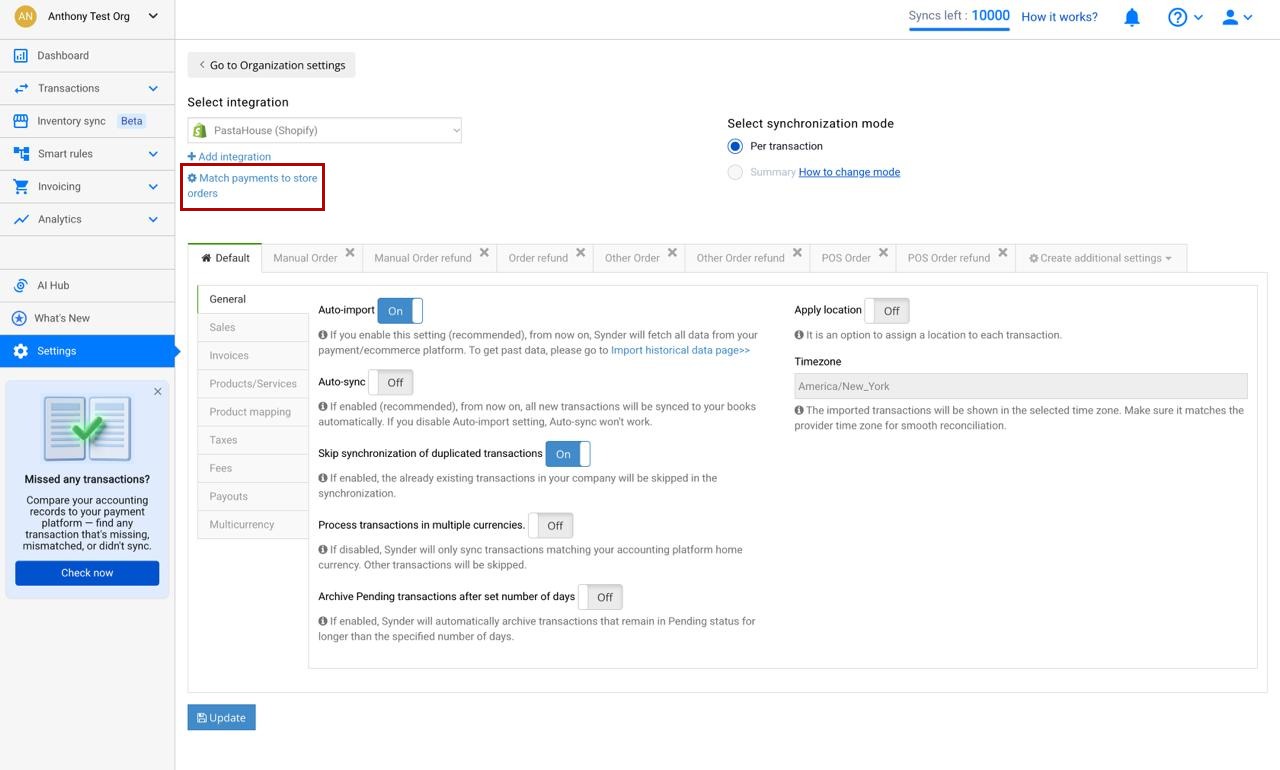
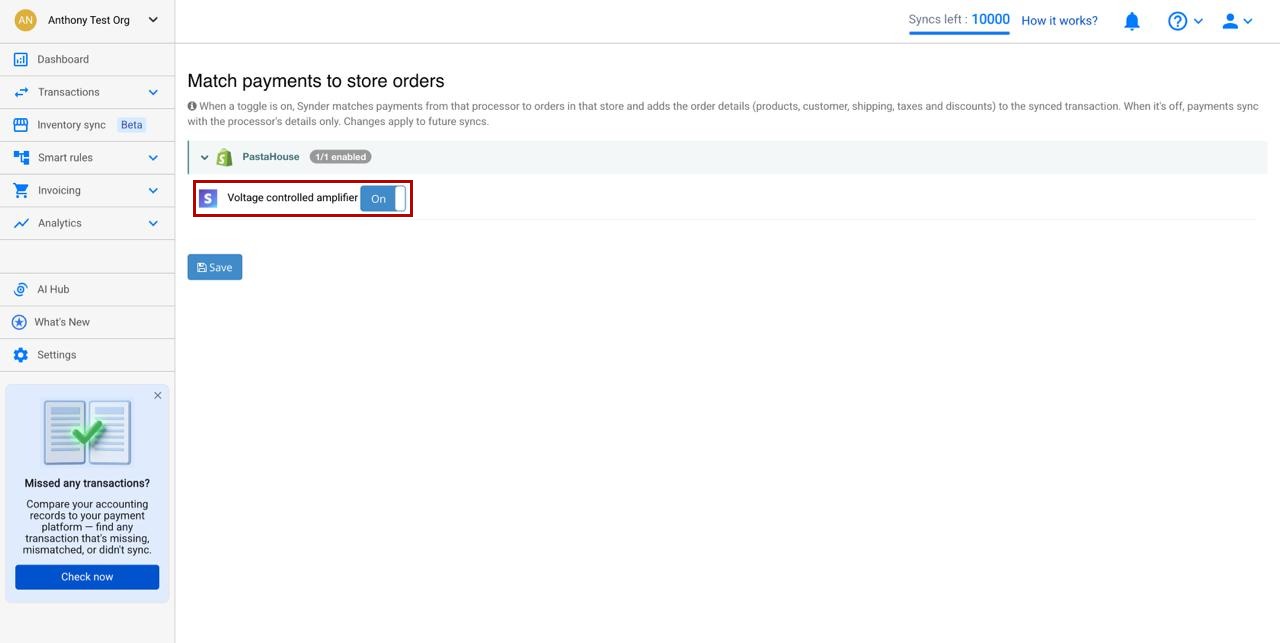
Confirm your exact platform-and-processor combinations in Smart Reconciliation: Availability and Supported Platforms. For the mechanics of sync overall, see Understanding the Fundamentals of Synchronization. Before your first sync, run the Settings Checklist.
More on the ecommerce flow: What Is Smart Reconciliation, and How Does It Work? · Summary Sync for Ecommerce: Things You Need to Know · How Is Data Collected in Synder · Shopify POS, Manual, and Other Orders · Customize Your Synder Shopify Settings (QBO).
The five topics that matter for multi-channel selling
Each of the five topics below can behave differently for each sales channel. For each one, we explain briefly how it is done in Per-Transaction Sync and link the specific guide that walks you through it.
1. Give each sales channel its own clearing account
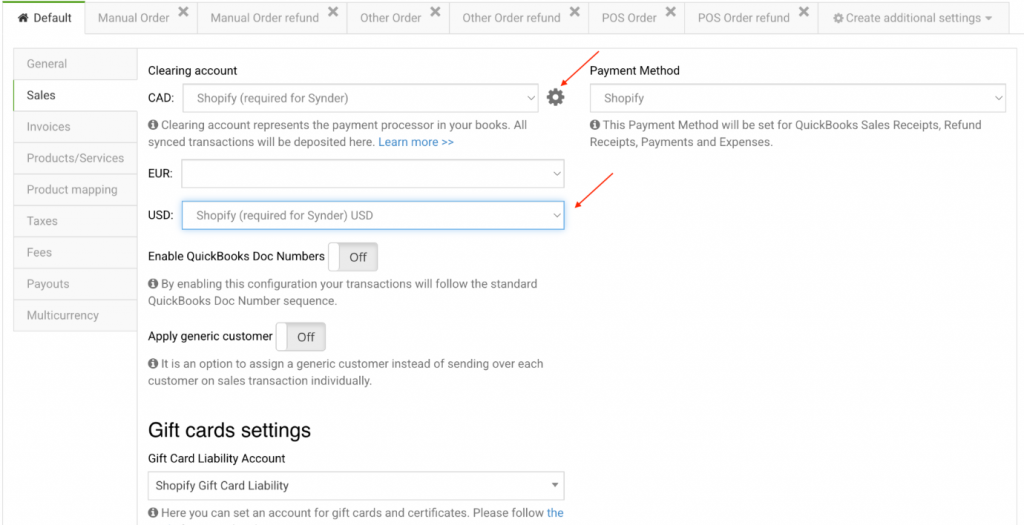
How it is done: Connect each sales channel as its own integration and assign each one a separate clearing account — for example “Amazon Clearing,” “Shopify Payments Clearing,” “PayPal Clearing.” Synder posts each channel’s transactions into its own clearing account and reconciles each payout against that same account. If channels share one clearing account you can never tell whose payout is whose, and the balance never resolves.
In each integration’s settings you pick that channel’s Clearing account (and the fee Category) — this is where you keep every channel separate.
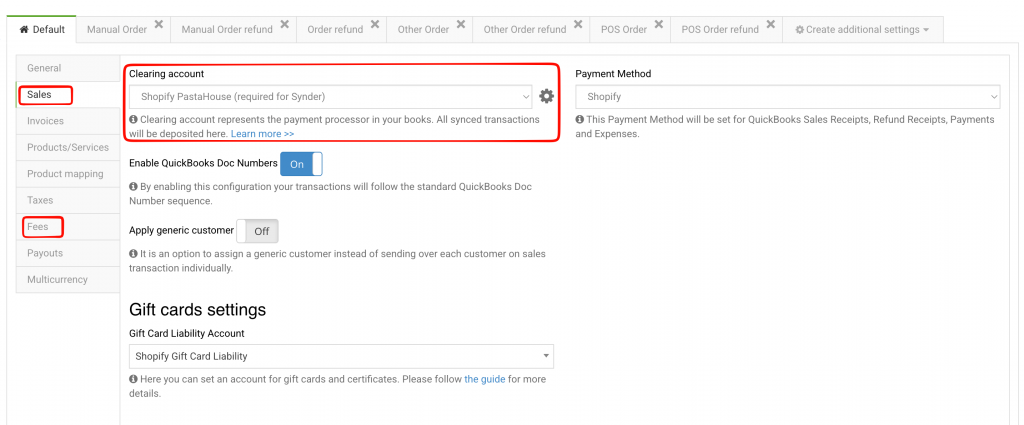
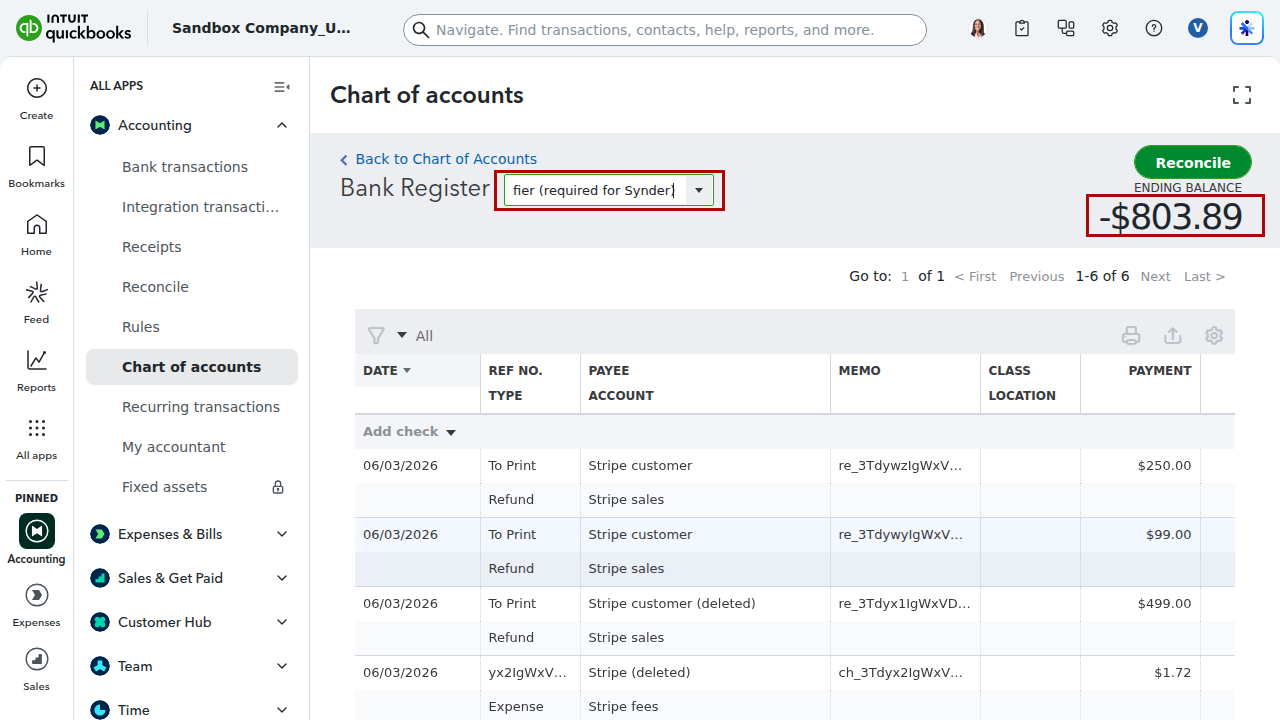
Channel-specific nuance: some platforms hold back reserves that affect when the clearing account zeroes out — see Amazon Account-Level Reserves and Stripe Balance Reserves. Deep dive: Payouts, Clearing Accounts, and Reconciliation.
2. Classification and categorization
How it is done: In Per-Transaction Sync there are two ways to get revenue and expenses onto the right accounts, and they work together.
1. Automatic income categorization by product match. Synder matches the products on each order to the products in your accounting software. When a product matches, Synder uses the income account already assigned to that product in your books — so income lands in the right account automatically, with no rule to build. Keep your product list and its income-account mapping tidy in your accounting software and most of your revenue categorizes itself. This is why product mapping matters: see Product Mapping and, for the full inventory/COGS picture, Managing Products, Inventory, and COGS in Synder.
2. Smart Rules, when automatic matching isn’t enough. When you need to go beyond the product’s income account — apply a Class, a Location, or a different Category based on the channel, product, or customer — use Smart Rules. A rule reads each incoming transaction and applies the label automatically, with no manual tagging. Because Smart Reconciliation enriches each transaction with product and customer detail, your rules have rich data to key off. Start with How Smart Rules Work in Synder, then use the rule that fits your goal:
- Classes by channel: Apply QuickBooks Classes Automatically; per product line, Assign Classes on Product Lines.
- Classes on fees/expenses: Apply Classes to Expenses Automatically.
- Locations: Apply Locations to Synced Transactions.
- Product categories: Apply Categories Using Synder and Classify Expenses Based on Products.
- On revenue-recognition entries: Apply Classes or Locations to Revenue Recognition Journal Entries.
3. Taxes
How it is done: Synder does not calculate tax — it records the tax your channel sends, and in Per-Transaction mode the Use tax codes setting (Settings → [Integration] → Taxes) controls how: ON posts it to the transaction’s dedicated tax field so it flows into tax reporting; OFF, if amounts are tax exclusive, posts it as a separate line item. Two multi-channel specifics:
- Who collected the tax. Marketplaces (Amazon, eBay, Etsy) act as facilitators and remit tax for you, so it should not post as a liability you owe; tax you collect directly is yours. See How Taxes Withheld by Amazon, eBay, Etsy, and PayPal Are Processed.
- Multiple tax regions. When you have nexus across regions, apply the correct rate by where the order ships using Smart Rules: Apply Non-US Sales Tax Based on Shipping Location and Apply VAT Based on Shipping Location.
Full tax model: Global Taxes for QuickBooks Online (Xero: Guide for Xero Users).
Find the Use tax codes toggle and the Marketplace Facilitator Tax Category selector under Settings → your integration → Taxes. Turn it ON to post tax to the dedicated tax field.
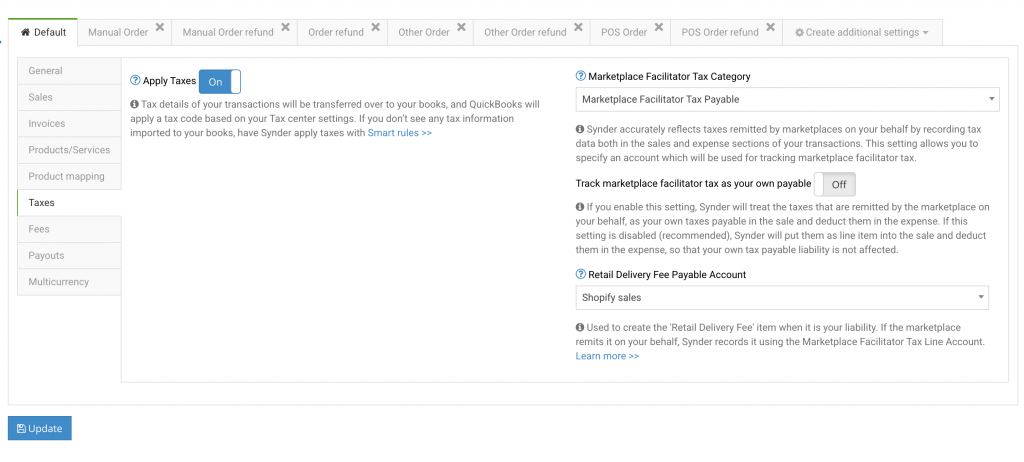
With Use tax codes ON, the tax your channel reports lands on the transaction’s dedicated tax field so it flows into tax reporting — not as a plain line item.
4. Multicurrency
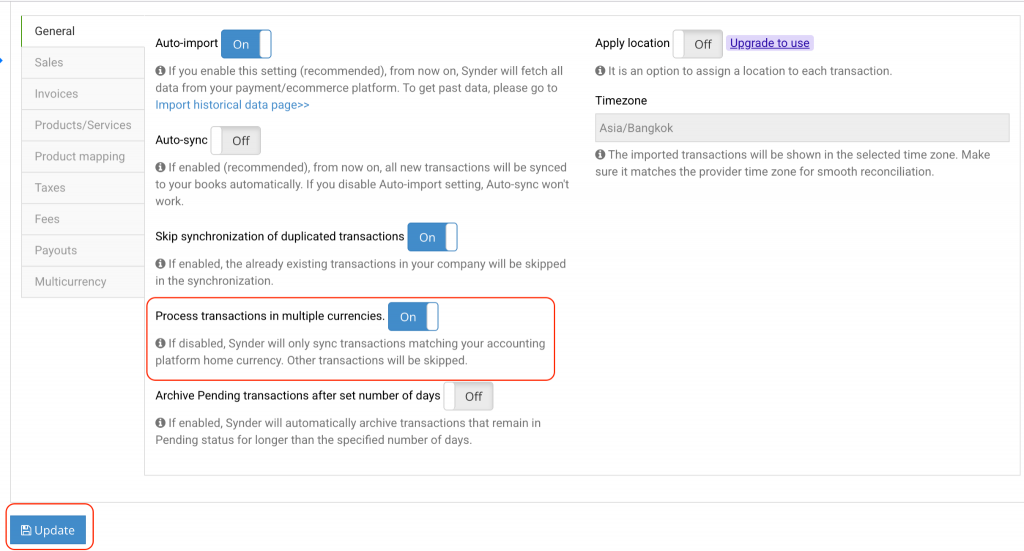
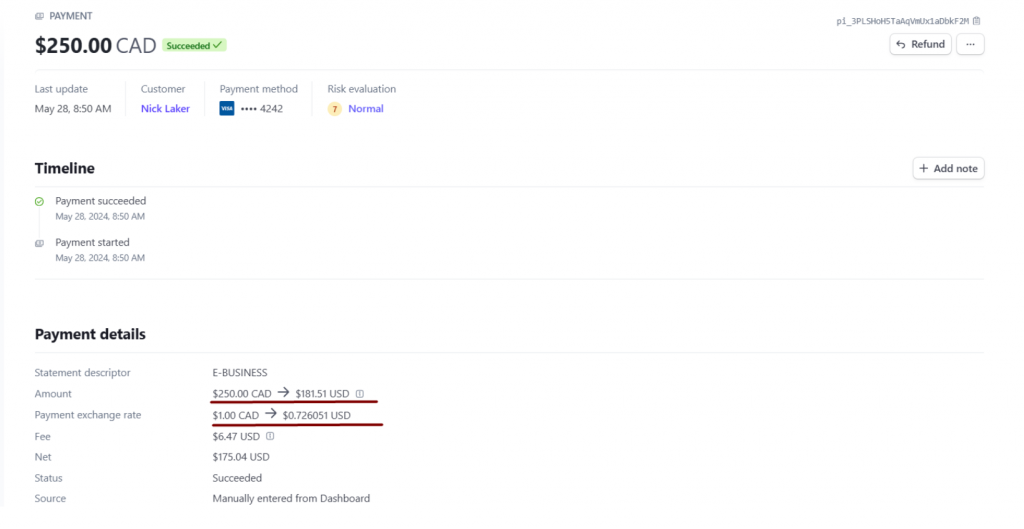
How it is done: The starting rule is the same in every mode — if you have any foreign-currency sales, enable multicurrency. How your processor pays out only decides how many clearing and bank accounts you need. If sales come in several currencies but the payout arrives in one currency, a single clearing account is fine and Synder adds a converting entry to bring the foreign activity into your payout currency. If payouts arrive in separate currencies to separate bank accounts, give each currency its own clearing and bank account with a one-to-one mapping. Remember that in QuickBooks Online, enabling multicurrency is irreversible, and you must also turn off Synder’s “Skip synchronization for foreign currency” toggle to sync foreign sales at all.
Deep dive: Sync Multicurrency Sales in Synder Per-Transaction Mode.
5. Discrepancy and reconciliation
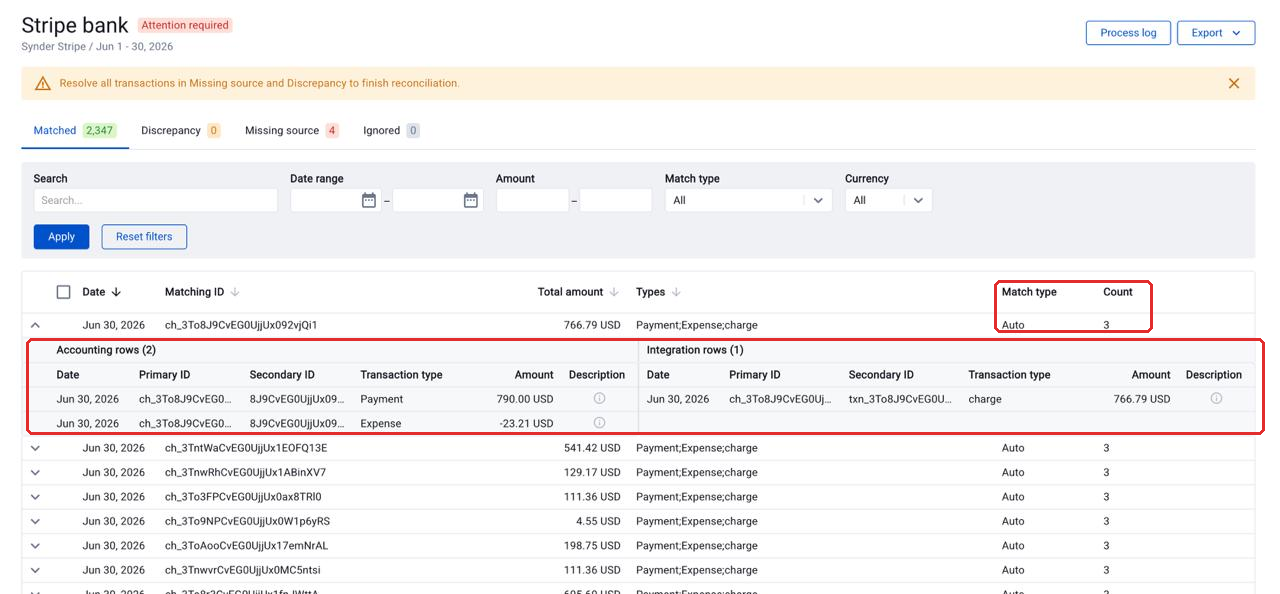
How it is done: After transactions post, each channel’s clearing account should zero out as its payout lands. In Per-Transaction Sync you reconcile by comparing Synder’s recorded transactions against the payment platform’s own records, then against your bank deposit:
- Compare payment-platform data with your accounting records: Transaction Reconciliation for Per-Transaction Sync.
- Xero-specific flow: Reconcile Xero with Synder.
- Channels without payout support: Reconcile Integrations Without Payout Support.
Putting it together: a multi-channel Per-Transaction checklist
- Connect each sales channel as its own integration and give it its own clearing account.
- Check Match payments to store orders so Smart Reconciliation enriches the platform-and-processor combinations you use.
- Build Smart Rules to apply Classes, Locations, and Categories automatically per channel and product.
- Set up taxes: let facilitator tax post distinctly, set Use tax codes per integration, and apply the right rate by shipping location.
- Enable multicurrency if you have any foreign-currency sales; use one clearing account for single-currency payouts, or a separate clearing + bank account per currency when payouts arrive in different currencies.
- After syncing, reconcile each channel’s transactions to its payout and confirm the clearing account returns to zero.
Related guides
- Prefer one grouped entry per payout? Read the companion guide: Multi-Channel Selling with Summary Sync.
Getting started
- Understanding the Fundamentals of Synchronization
- Settings Checklist: Configure Synder Before Your First Sync
- Smart Reconciliation: Availability and Supported Platforms
Ecommerce flow (Smart Reconciliation)
- What Is Smart Reconciliation, and How Does It Work?
- Summary Sync for Ecommerce: Things You Need to Know
- How Is Data Collected for Summaries in Synder
- Understanding Shopify POS, Manual, and Other Orders
- Customize Your Synder Shopify Settings (QuickBooks Online) (Xero)
Clearing accounts & payouts
- Payouts, Clearing Accounts, and Reconciliation — Comprehensive Guide
- Amazon Account-Level Reserves
- Stripe Balance Reserves
Classification with Smart Rules
- How Smart Rules Work in Synder
- Apply QuickBooks Classes Automatically
- Apply Locations to Synced Transactions
- Apply Categories Using Synder
Taxes
- Global Taxes for QuickBooks Online (Xero version)
- How Taxes Withheld by Amazon, eBay, Etsy, and PayPal Are Processed
Multicurrency
Reconciliation
- Transaction Reconciliation for Per-Transaction Sync
- Reconcile Xero with Synder
- Reconcile Integrations Without Payout Support
