

This guide shows you how to reconcile Xero with Synder using Synder’s Transaction Reconciliation feature in Manual mode. You’ll export an Account Transactions report from Xero, upload it into Synder, and match it against your payment platform data so every payment, fee, and refund posted by Synder lines up with what’s in your Xero clearing account.
For the full explanation of how Transaction Reconciliation works — what each result bucket means, and which integrations support Automated or Assisted modes — see Transaction Reconciliation for Per Transaction Sync. To get Xero connected to Synder in the first place, see How to Connect QuickBooks Online and Xero to Synder.
When to use this guide
Try Assisted mode first. If your integration supports it, Assisted mode is the recommended path for Xero Per-Transaction users. You export a single Account Transactions report, upload it, and Synder normalizes and maps everything automatically — no manual column mapping, so there is no risk of a mismapped ID sending every row to Missing source. Assisted mode also recovers original source-currency amounts, which Manual mode cannot do for multi-currency or FX transactions. See Assisted Transaction Reconciliation for Xero. Use the guide below if Assisted is not available for your integration, or if you prefer to map the columns yourself.
Use this guide when your payment integration is in Manual reconciliation mode (for example Square, WooCommerce, or another platform without a built-in Synder reconciliation connector) and your accounting platform is Xero. You’ll export an Account Transactions report from Xero, clean it up, and upload it into Synder alongside your payment-platform file.
Step 1 — Export the Account Transactions report from Xero
- Open Xero.
- Go to Reporting → Account Transactions.
- Select the needed account — this must be the same account where Synder posts payments, fees, and refunds (the Clearing account for that integration).
- Set the date range you want to reconcile.
- Choose these columns: Date, Source, Contact, Description, Reference, Gross, Net, Related account (Xero will lay them out in this order in the export).
- Set Grouping to None.
- Click Update.
- Export the report as XLSX.
Step 2 — Clean up the XLSX file
Xero adds a few header rows to the top of the export (report title, account name, date range). Synder expects column headers on row 1, so open the file and:
- Delete the first 4 rows so that the column headers (Date, Description, Reference, Contact, Gross, Net…) sit on the top row.
- Save the file.
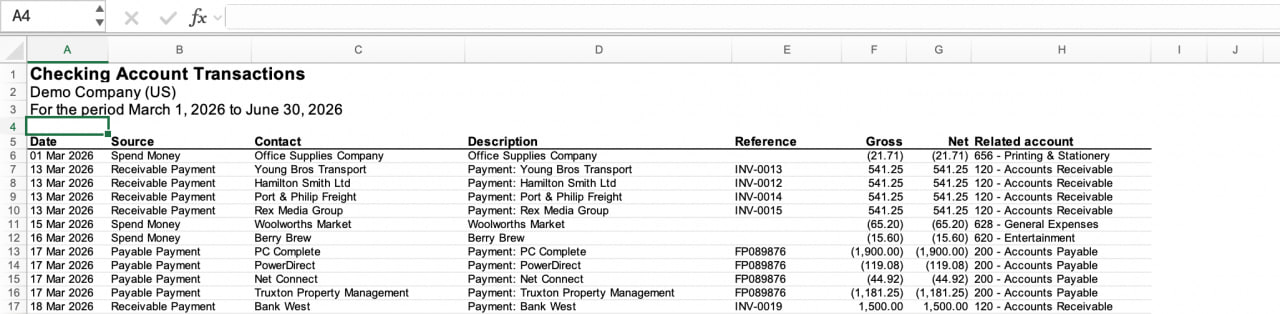
Sample file: Download an example Xero Account Transactions export to see the raw layout (4 metadata rows on top, headers on row 5) and what it should look like after cleanup.
Step 3 — Upload the file into Synder
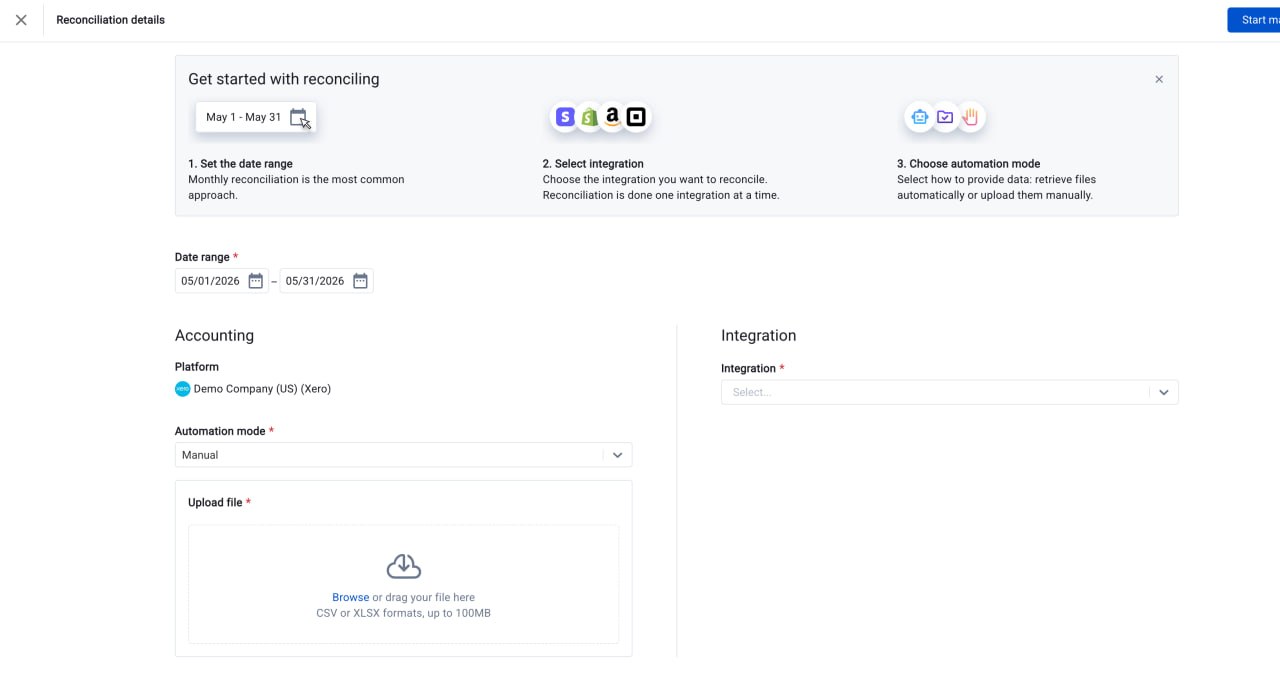
- In Synder, go to Transactions → Transaction Reconciliation.
- Click Run reconciliation and set the date range to match what you exported from Xero.
- Under Accounting, set the Import method to Manual and upload the cleaned Xero XLSX file (up to 100 MB).
- Under Integration, select your payment platform and upload its file the same way (or use Automated mode if that platform supports it).
- Click Map columns and map Synder’s required fields to your Xero columns:
Primary ID → Reference (Xero stores the transaction reference, e.g. INV-0013, here). Secondary ID → Reference (use the same column if Synder asks for both IDs). Amount → Gross (or Net, depending on what you’re matching). Date → Date. Description → Description. - Optional: save the mapping as a template so you can reuse it next time.
- Click Apply mapping, then Start matching.
Step 4 — Review your results
Once Synder finishes comparing the two files, your results are organized into four tabs.
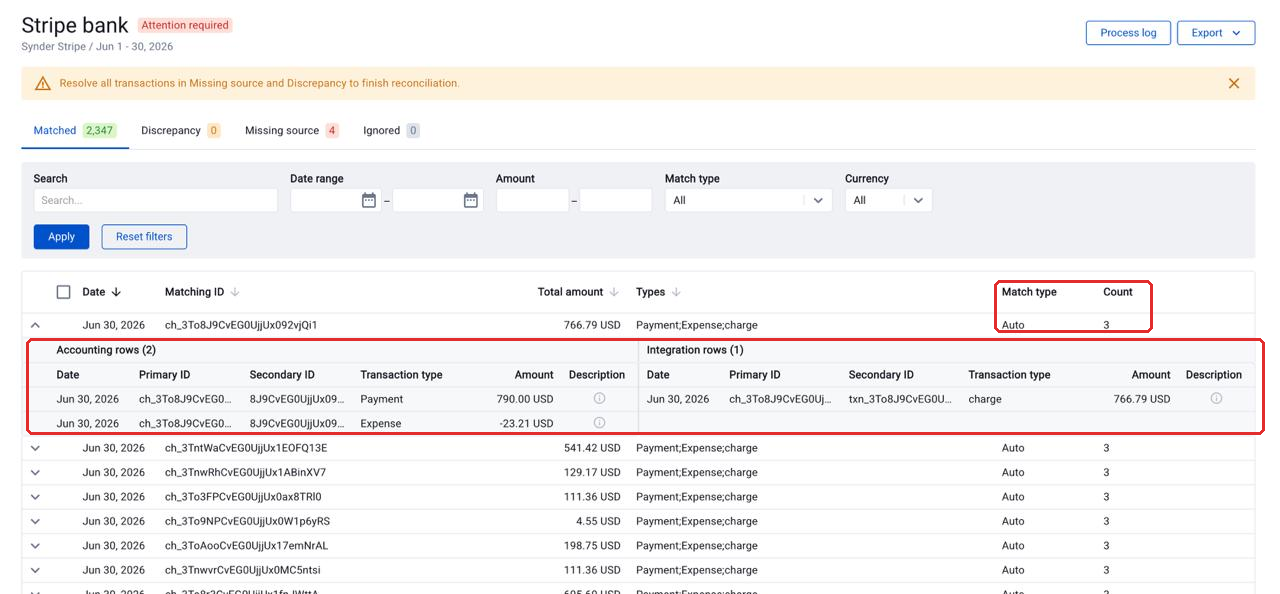
Matched
These transactions appear in both sources with matching IDs and amounts. They are fully reconciled — no action needed. Expand any matched row to see the individual Accounting rows and Integration rows that make up the match, along with their Primary ID, Secondary ID, Transaction type, and Amount. The Match type column shows whether Synder matched the row automatically (Auto) or you paired it yourself (Manual).
Discrepancy
These transactions matched by ID, but the amounts differ. Review them to understand the cause — common reasons include partial payments, currency differences, or fee adjustments.
In Manual mode, a discrepancy often points back to your column mapping rather than to a real accounting problem. Before investigating the transaction itself, check that you mapped Amount to the same basis on both sides — Gross against gross, or Net against net. Mixing the two produces discrepancies on every fee-bearing transaction.
Missing source
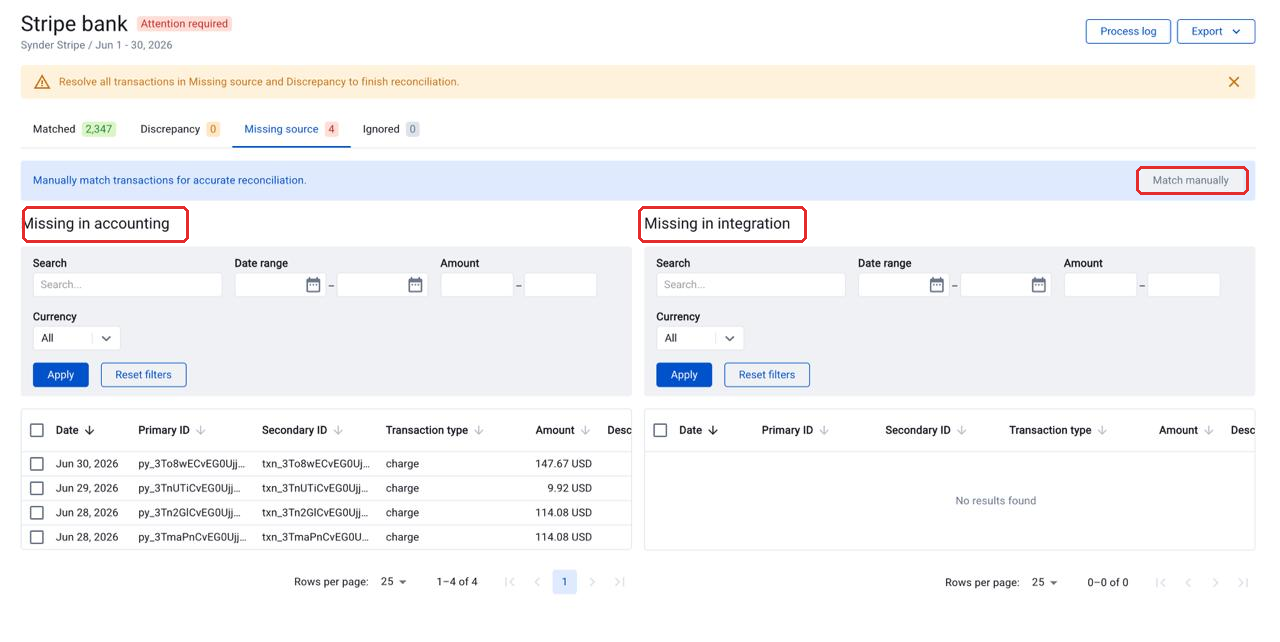
Synder could not find these transactions in the opposite source. The tab splits into two sections:
- Missing in accounting — transactions that exist in the payment platform but not in your Xero records. They may have been skipped during sync, excluded by a filter, or fall outside your sync date range.
- Missing in integration — transactions in your Xero records that were not found in the payment platform file.
Each section has its own search, date range, currency, and amount filters, and each keeps its own separate selection. If you know a transaction in one source corresponds to an entry in the other, you can pair them yourself and keep a full audit trail — see How to Use Manual Matching in Transaction Reconciliation.
Ignored
Transactions you manually marked as ignored. Use this tab for known or non-material discrepancies. To move items here, tick the rows you want on the Discrepancy or Missing source tab, then click Ignore in the selection bar that appears. The bar shows how many rows you selected and their combined total; click Clear all to start over. You can un-ignore transactions at any time and they return to their original category.
How Synder matches your transactions
Understanding the matching logic matters more in Manual mode than anywhere else, because you chose which Xero columns feed Synder’s ID fields. Synder runs a three-pass comparison based on transaction IDs:
- Pass 1 — Primary ID (Accounting) ↔ Primary ID (Platform)
- Pass 2 — Primary ID (Accounting) ↔ Secondary ID (Platform)
- Pass 3 — Secondary ID (Accounting) ↔ Secondary ID (Platform)
When Synder finds a match, it groups all related rows by that ID and compares the total amounts. If the totals match, the group goes to Matched. If the totals differ, it goes to Discrepancy. If no match is found after all three passes, the transaction goes to Missing source.
Important: transaction dates are not used for matching. Matching is based on IDs and amounts only. If you mapped Xero’s Reference column to Primary ID but your payment platform writes its ID somewhere else, every row will land in Missing source — remap and run again rather than working through the list.
If the reconciliation stops before you see results
Manual mode depends on two files you prepared yourself, so most failures happen while Synder is reading them. Click Process log to see how far each side got: Download source files, Normalize and map, then Match transactions.
If a step fails, the reconciliation stops there and the log explains why. The error names the file, the row, the column, the value it could not read and the reason — plus how many other rows have the same problem, so you know the size of the fix before you start. The most common cause in Xero exports is leaving the metadata rows at the top of the file; see Step 2.
Exporting your results
Click Export on the results page to download your data. You can export each tab separately — Export matched, Export discrepancy, Export missing source, or Export ignored — or use Export all for a 4-tab Excel file with every category. You can also download the normalized and mapped source files from the Process log, which is the fastest way to see exactly how Synder read your Xero export.
When your reconciliation is complete
Your reconciliation is complete when the Discrepancy and Missing source tabs both show zero transactions and the status changes to Reconciled. Ignored transactions count as resolved and no longer hold the reconciliation open.
For everything else — managing and cloning reconciliations, status filters, and sharing results with your team — see the main Transaction Reconciliation guide.
Tips and tricks
- Use Gross vs Net consistently. If your payment platform file reports gross amounts (before fees), map Synder’s Amount field to Gross; if it’s net of fees, map to Net. Mixing the two will produce phantom discrepancies.
- Pick the right clearing account. If your Synder integration posts fees and refunds into a separate account from payments, run the Xero report against the payments-and-refunds account — that’s where matches will line up.
- Stay inside your sync window. Only reconcile dates that Synder has actually synced to Xero. Reconciling beyond your last sync will surface false “Missing source” rows.
Related guides
- Transaction Reconciliation for Per Transaction Sync — full overview of import methods and result buckets
- How to Use Manual Matching in Transaction Reconciliation — pair transactions Synder could not auto-match, with a full audit trail
- Assisted Transaction Reconciliation for Xero — the recommended path when your integration supports it: one export, no column mapping
- What Is Smart Reconciliation, and How Does It Work?
- Payouts, Clearing Accounts, and Reconciliation — Comprehensive Guide
- Automatic Xero Clearing Account Reconciliation — the automated counterpart for Xero users
