

- When to Use Manual Matching
- How to Match Transactions Manually
- Matching Rules
- Reviewing Manual Matches
- How to Unmatch Transactions
- Important: Refresh and Delete
Transaction Reconciliation in Synder automatically matches transactions between your accounting system and payment integration based on IDs, dates, and amounts. However, some transactions may not match automatically — for example, when naming conventions differ, IDs are missing, or a manual entry was created in accounting to cover a deadline.
Manual Matching lets you pair these unmatched transactions yourself, while keeping a full audit trail so you and your team can always see what was matched to what.
Note: Manual matching differs from the Ignore function, which simply moves rows out of view with no traceable link. Use manual matching any time you need an auditable record — for example, when closing the books or preparing compliance reports.
When to Use Manual Matching
- A transaction appears as missing in accounting or your integration, but you know it corresponds to another entry
- You have created a manual journal entry in accounting to cover a transaction that failed, was canceled, or didn’t record correctly
- You have a deadline to close the books and need to reconcile transactions Synder couldn’t auto-match
- Synder’s auto-matching couldn’t pair transactions due to missing or different IDs, or naming convention differences
How to Match Transactions Manually
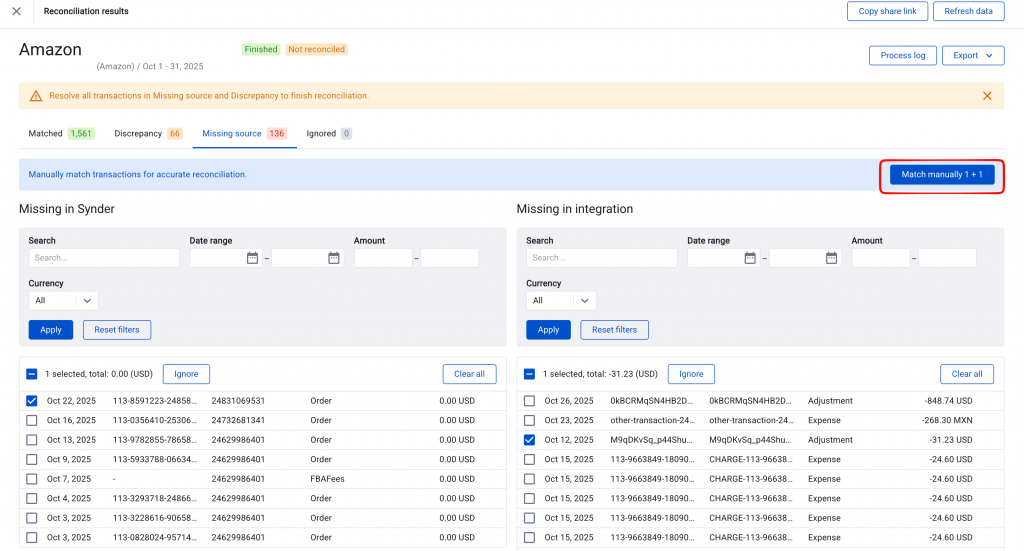
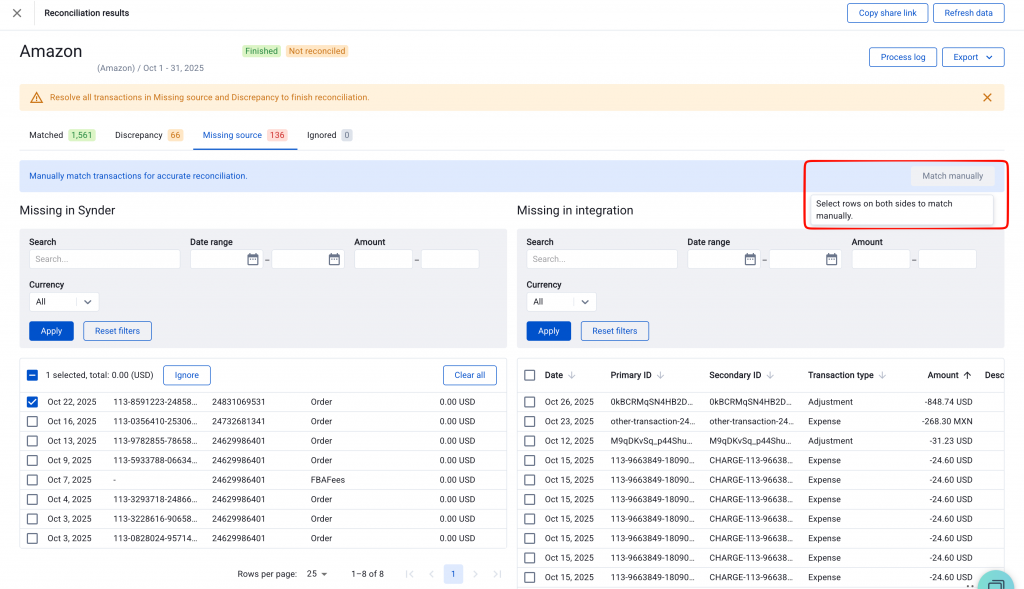
Manual matching works only on the Missing Source tab in Transaction Reconciliation. Additionally, the Match Manually button stays disabled until you select rows on both the accounting side and the integration side — so make sure to pick at least one row from each table before clicking it.
- First, open a reconciliation and go to the Missing Source tab.
- Next, select one or more rows on the accounting side (left table) using the checkboxes.
- Then, select one or more rows on the integration side (right table) using the checkboxes.
- Click the Match Manually button — Synder activates it only when you select rows on both sides.
- Finally, Synder validates your selection. If everything checks out, it matches the transactions.
Matching Rules
Before creating a manual match, Synder checks all of the following rules. If any rule fails, the match won’t go through.
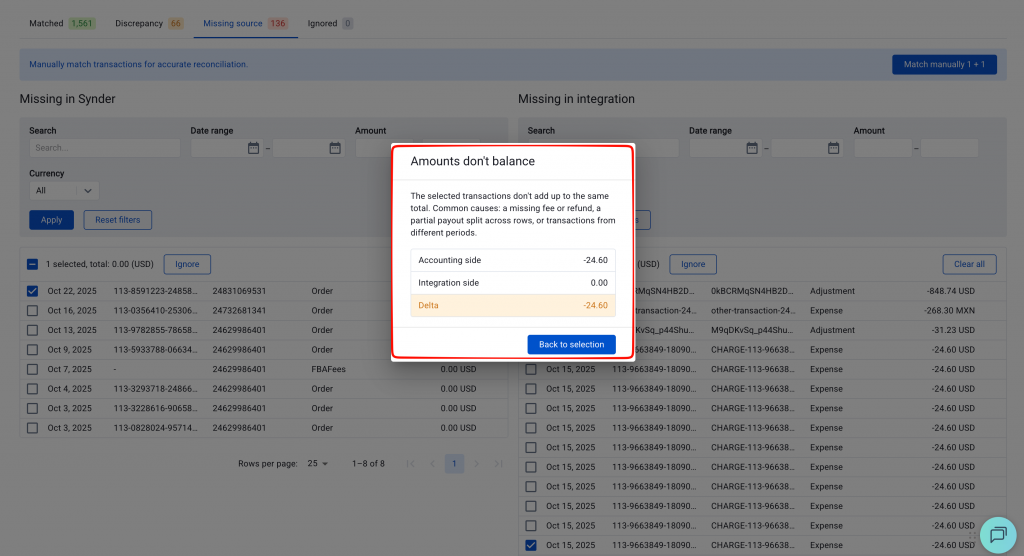
Amounts must balance
The total on the accounting side must equal the total on the integration side. If the totals don’t match, Synder shows an error message with the exact difference.
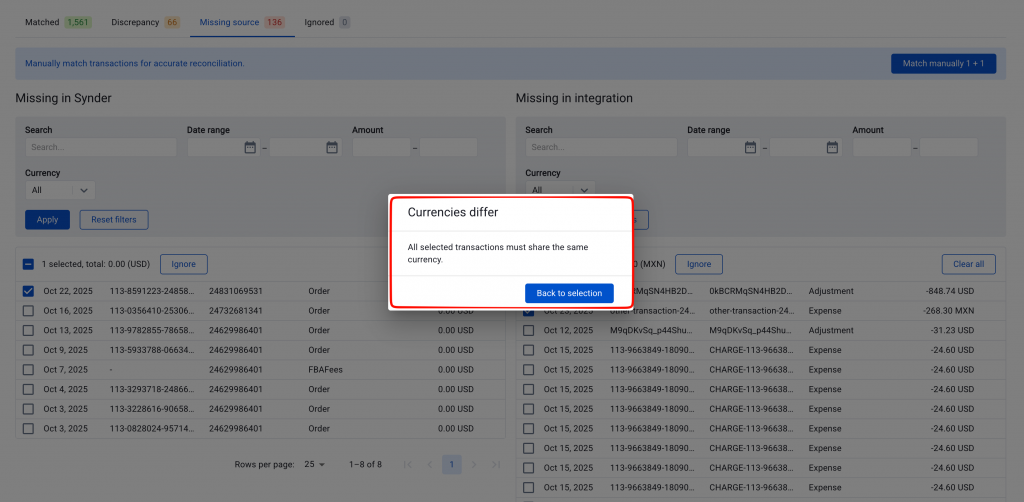
Same currency only
All rows you select must share the same currency. Synder does not support cross-currency matching.
200-transaction limit
You can select up to 200 rows at a time. If you go over this limit, Synder disables the Match Manually button. Simply deselect some rows and try again.
Rows must be unmatched
You can only select rows that don’t already belong to an existing auto or manual match.
Supported configurations: 1-to-1, 1-to-many, many-to-1, and many-to-many.
Special case: If the totals on both sides net to zero — for example, +$50 and –$50 on each side — the match still goes through. This covers legitimate scenarios like a charge and refund pair.
Reviewing Manual Matches
After matching, all transactions — auto and manual — appear together on the Matched tab. To tell them apart, use the Match Type column:
- Auto — Synder matched this automatically
- Manual — you matched this yourself
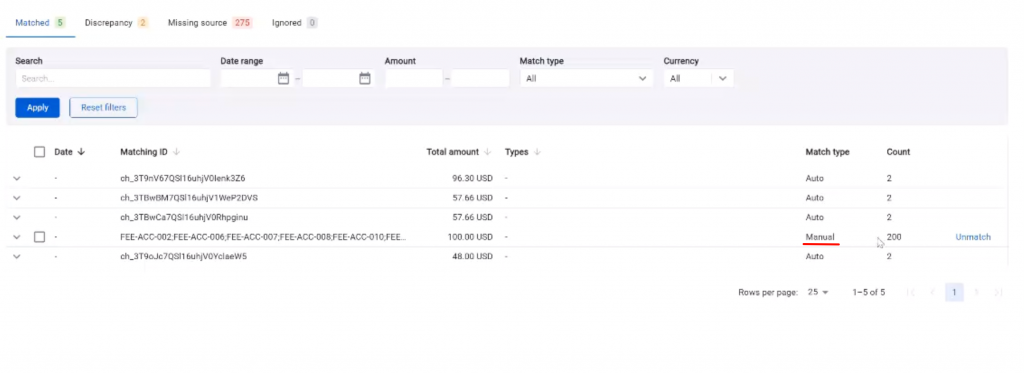
In addition, you can filter the Matched tab by match type using the Match Type filter.
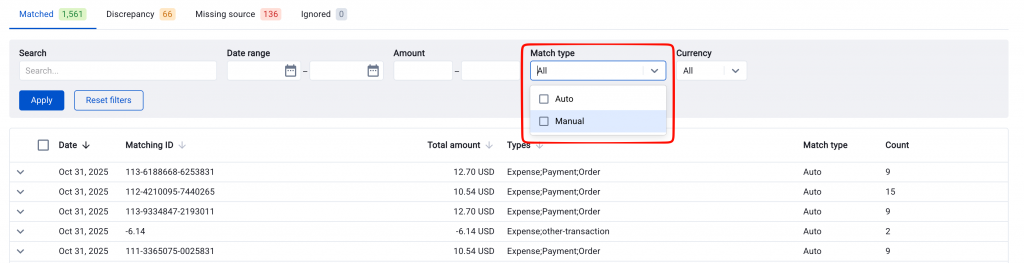
Note: When you export the Matched tab, Synder includes the Match Type column in the export file.
How to Unmatch Transactions
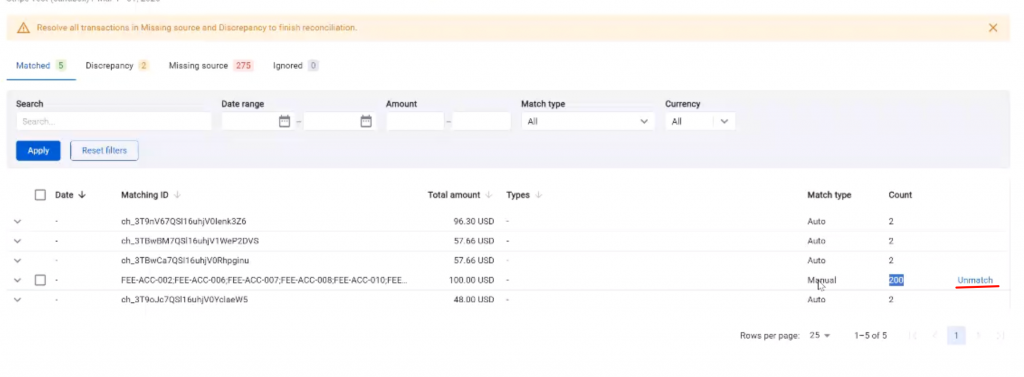
You can reverse a manual match at any time. Note that only Manual rows have an Unmatch option — Synder does not allow unmatching auto-matched rows.
Unmatch a single match
- First, go to the Matched tab.
- Then, find the manual match you want to reverse and click Unmatch.
Unmatch in bulk
- First, go to the Matched tab and check the boxes next to the manual matches you want to reverse.
- Then, click the Unmatch button that appears in the table header.
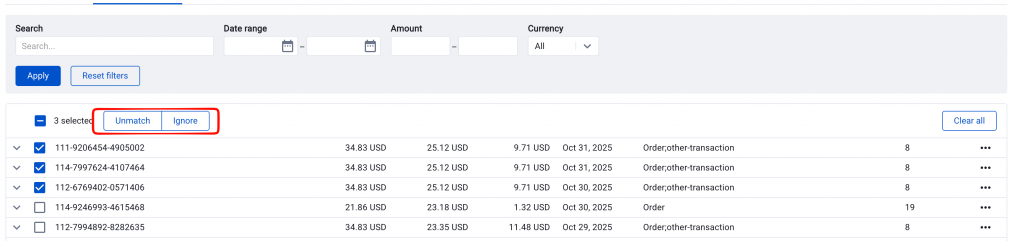
After unmatching, all rows return to the Missing Source tab — accounting rows go back to the accounting side, and integration rows go back to the integration side.
Unmatch from the Discrepancy tab
You can also unmatch rows on the Discrepancy tab — these are auto-matched pairs where the amounts don’t align. You can unmatch them one at a time or in bulk. Once you unmatch them, they move to the Missing Source tab and become available for manual matching.
Important: Refresh and Delete
- Refreshing a reconciliation clears all manual matches. Synder shows a confirmation modal before proceeding, so all previously matched rows return to Missing Source.
- Deleting and recreating a reconciliation for the same period also starts fresh — Synder does not carry over manual matches to the new reconciliation.
If you have any questions or need assistance with manual matching, feel free to reach out to the Synder support team — we are always happy to help.
Related guides
- Transaction Reconciliation for Per Transaction Sync — full overview of import methods and result buckets
- Summary Sync Transaction Reconciliation — the same workflow for Summary Sync organizations
- How to Reconcile Xero with Synder — Per-Transaction reconciliation for Xero users
- Assisted Transaction Reconciliation for Xero — uploading a Xero export in Assisted mode
