

This guide shows you how to set up Assisted Transaction Reconciliation for Xero in Synder — the recommended path for Xero Per-Transaction users. With Assisted mode, you export one Account Transactions report from Xero covering four accounts, upload it into Synder, and Synder normalizes and maps everything automatically. No manual column mapping required.
For a full explanation of Transaction Reconciliation — what each result bucket means and which integrations are supported — see Transaction Reconciliation for Per Transaction Sync. To connect Xero to Synder, see How to Connect QuickBooks Online and Xero to Synder.
- Assisted Transaction Reconciliation for Xero vs Manual mode
- Step 1 — Export the Account Transactions report from Xero
- Step 2 — Upload the file in Synder
- Step 3 — Review the results
- Balance reconciliation
- Common errors
- Manual mode (fallback)
Assisted Transaction Reconciliation for Xero vs Manual mode
- Assisted mode (recommended) — export one combined Account Transactions report covering four accounts, upload it, and Synder handles normalization and mapping automatically. Use this if your integration involves multi-currency payments, or if customers pay in a currency different from your Xero clearing account.
- Manual mode — upload any file and map the columns yourself. Simpler for single-currency setups, but cannot recover source-currency amounts for multi-currency or FX transactions. See Manual mode at the end of this guide.
Step 1 — Export the Account Transactions report from Xero
Assisted mode needs a single Account Transactions report covering four accounts for the same date range. One clearing account = one report and one reconciliation run. If you have multiple clearing accounts for a provider (e.g. a USD and a CAD Stripe clearing account), run a separate reconciliation for each.
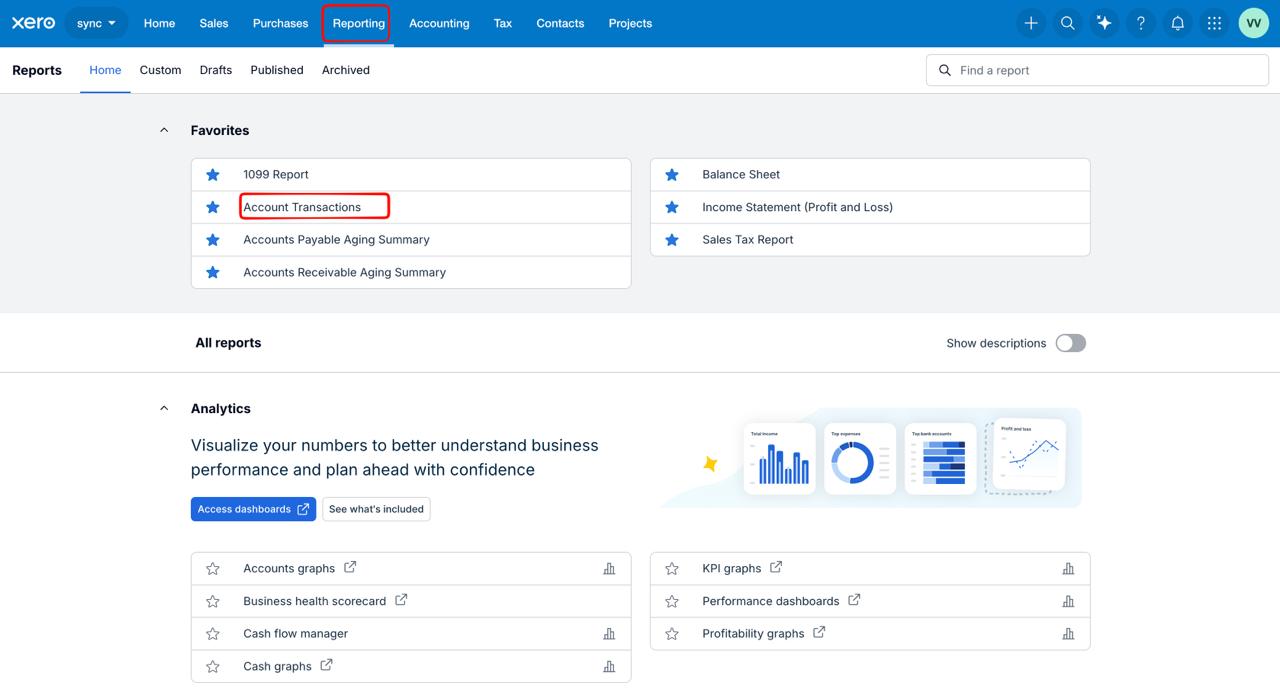
In Xero, go to Reporting → Account Transactions.
Configure the report with these four settings:
- Accounts — tick all four:
- Your clearing account for this provider (e.g. Stripe (required for Synder)) — required, Synder cannot process the file without it
- Accounts Receivable
- Accounts Payable
- Realized Currency Gains
- Date range — set it to match your reconciliation period. You cannot reconcile today’s date — the payment platform may not have finalized today’s transactions yet.
- Columns — select the required columns (see the table below). Verify that Running Balance, Debit, and Credit are all ticked — Xero does not always include them by default when Grouping = Account is set. Do not add Gross or Related account columns.
- Grouping / Summarising — set to Group by Account.
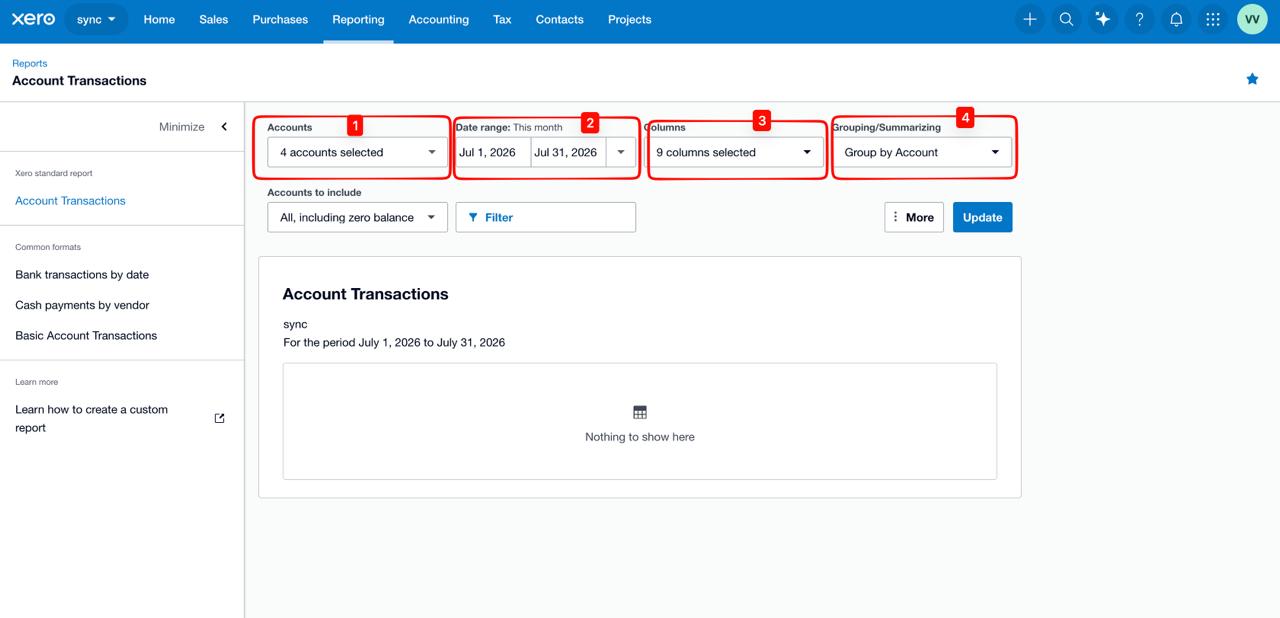
Click Update to generate the report, then Export as Excel. (This report has no CSV export option.)
Required columns
Which columns to select depends on whether your Xero organisation has multi-currency enabled:
| Multi-currency org | Single-currency org |
|---|---|
| Date | Date |
| Source | Source |
| Contact | Contact |
| Description | Description |
| Reference | Reference |
| Net (Source) | Net |
| Net (USD) / Net (EUR) / etc. (your base currency) | Debit |
| Currency | Credit |
| Debit (USD) / Debit (EUR) / etc. | Running Balance |
| Credit (USD) / Credit (EUR) / etc. | — |
| Running Balance (USD) / Running Balance (EUR) / etc. | — |
Step 2 — Upload the file in Synder
- In Synder, open Transaction Reconciliation.
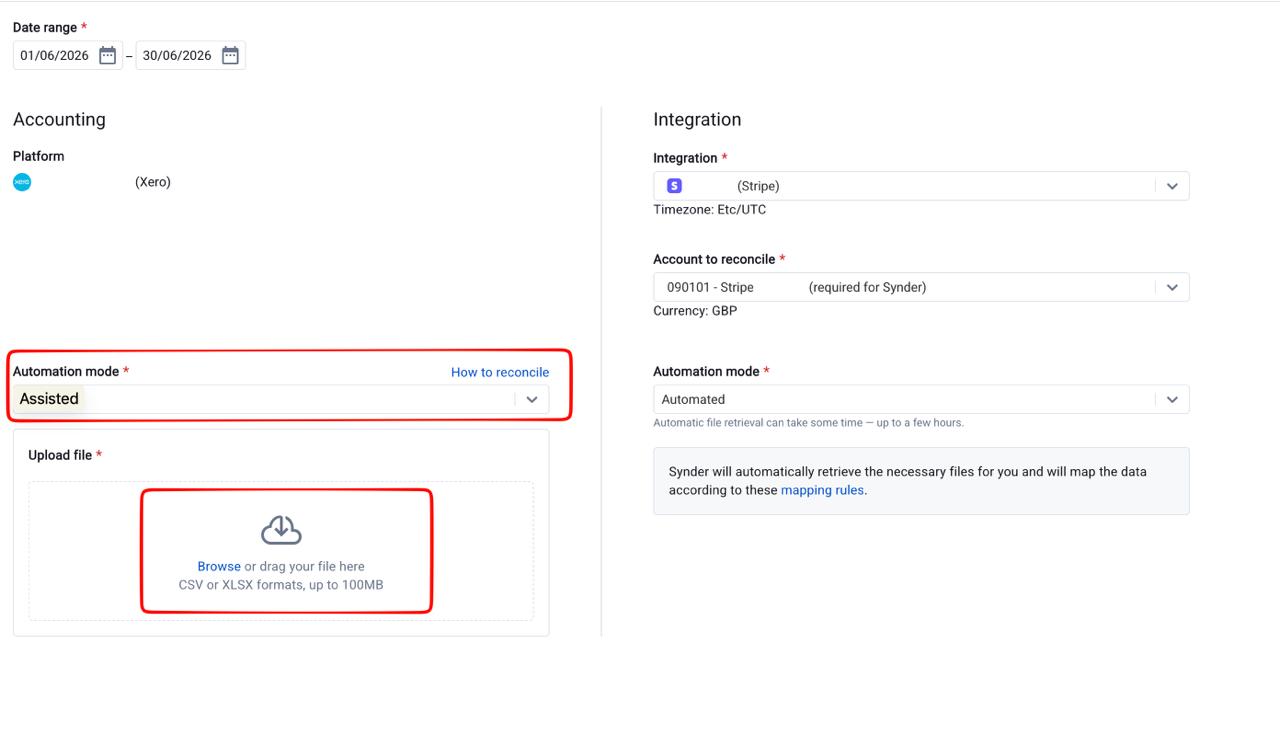
- Select Xero as your accounting platform and set Import method to Assisted.
- Upload the Excel file you exported from Xero.
- Synder validates the file, splits it into sub-reports by account, and maps everything automatically. No column mapping step is presented.
- Proceed to view your reconciliation results.
Step 3 — Review the results
Once Synder processes the file, your results are organized into four tabs:
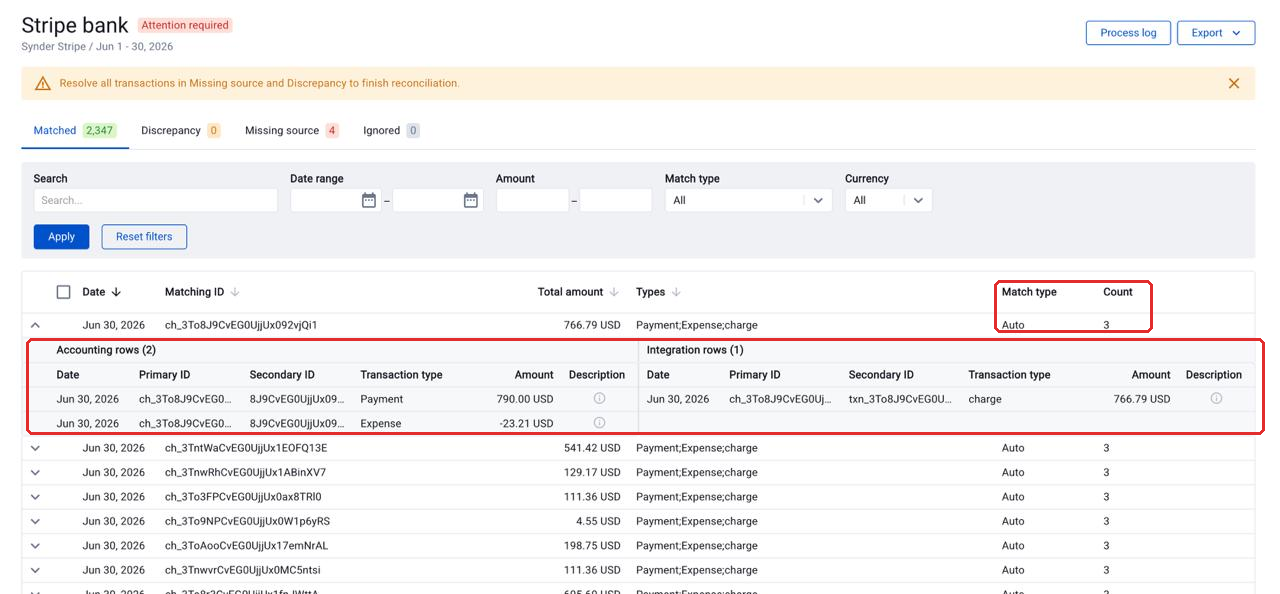
Matched
These transactions appear in both sources with matching IDs and amounts. They are fully reconciled — no action needed. You can expand any matched row to see the individual accounting and integration line items that make up the match, along with their Primary ID, Secondary ID, Transaction type, and Amount.
Discrepancy
These transactions matched by ID, but the amounts differ. Review them to understand the cause. Common reasons include partial payments, currency differences, or fee adjustments.
Missing source
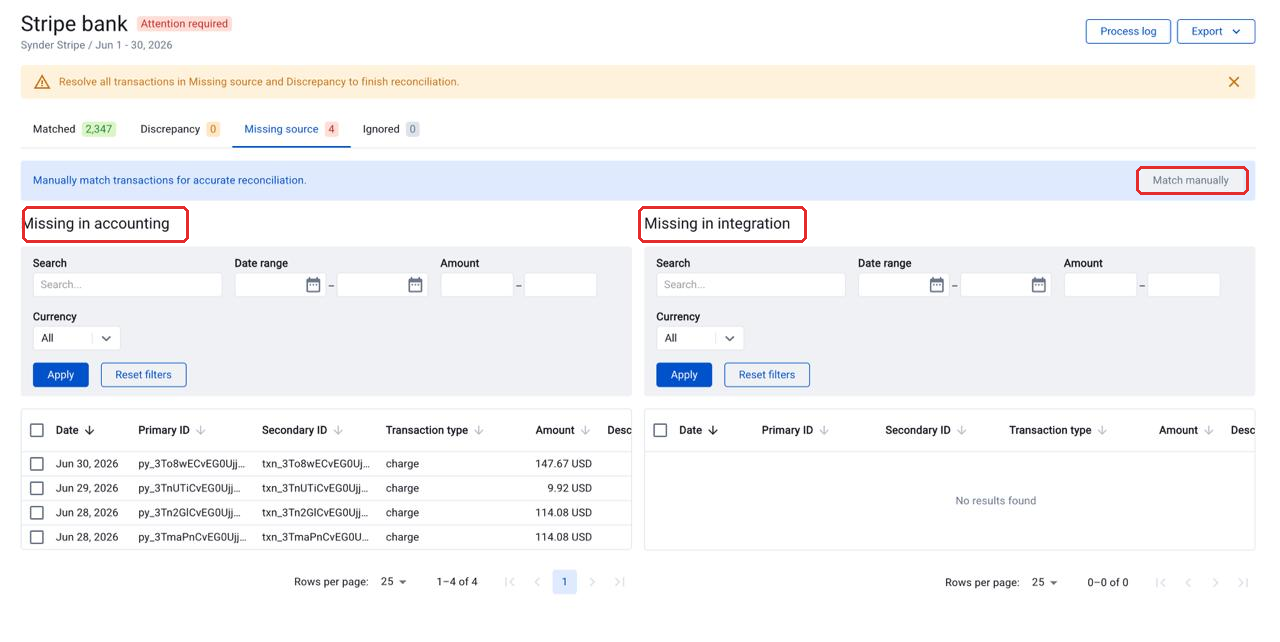
These transactions could not be found in the opposite source. The tab splits into two sections:
- Missing in accounting — transactions that exist in the payment platform but not in your Xero records. They may have been skipped during sync, excluded by a filter, or fall outside your sync date range.
- Missing in integration — transactions in your Xero records that were not found in the payment platform report.
Each section has its own search, date range, and amount filters to help you investigate. If you know a transaction in one source corresponds to an entry in the other, you can pair them manually using Manual Matching.
Ignored
Transactions you manually marked as ignored. Use this tab for known or non-material discrepancies. You can move items here from the Discrepancy or Missing source tabs — tick the rows you want, then click Ignore in the selection bar that appears. The bar shows how many rows you selected and their combined total; click Clear all to start over. Items can be un-ignored at any time.
Your reconciliation is complete when the Discrepancy tab and the Missing source tab both show zero transactions and the status changes to Reconciled.
Balance reconciliation
Alongside the result tabs, Synder shows a balance summary at the top of the reconciliation screen. It checks whether your accounting balance moved by the amount your transactions add up to — a quick, one-line health check on the whole period.
It compares the accounting beginning balance, the change from your synced transactions (the calculated ending balance), and the accounting ending balance, and flags any Difference between them. If the Difference is zero, the period is balanced. If it isn’t, Synder points you to the Discrepancy and Missing source tabs to review the transactions behind the gap.
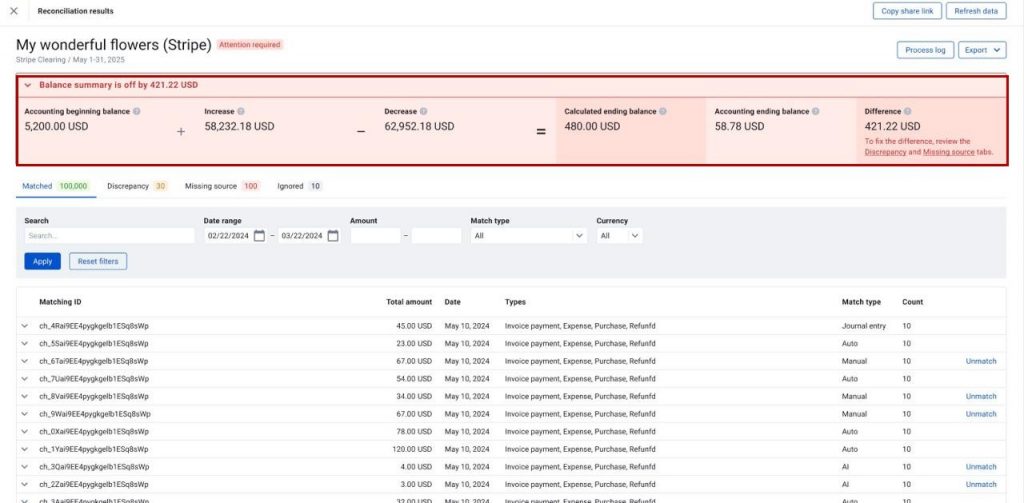
For a full walkthrough of the balance summary — reading the numbers, what a non-zero Difference means, and where the balances come from — see Balance Reconciliation in Transaction Reconciliation.
Common errors
“We couldn’t read this file as a Xero Account Transactions report.”
The uploaded file is not a valid Xero Account Transactions export, or was not exported with the required settings. Re-export exactly as described above and upload again.
“This report doesn’t look like it was exported with Grouping = Account.”
Go back to Xero → Reporting → Account Transactions and set Grouping / Summarise to Group by Account before exporting.
“Required column(s) missing from the Xero export: [column names].”
The most common missing columns are Running Balance, Debit, and Credit — Xero does not always tick these by default when Grouping = Account is set. Return to the column picker, add the missing columns, and re-export.
Clearing account section not found.
Synder could not find your clearing account in the uploaded file. Make sure you ticked the correct clearing account in Xero’s Account filter before exporting. The clearing account is required — without it Synder cannot process the file. The other three accounts (AR, AP, Realized Currency Gains) do not block the upload, but leaving them out can cause invoice payments and FX differences to appear as Missing source.
Manual mode (fallback)
Manual mode remains available if you prefer to map columns yourself. See the full walkthrough here: How to Reconcile Xero with Synder — Transaction Reconciliation Guide (Per-Transaction).
Note that Manual mode requires a different export — set Grouping to None and include the Gross and Related account columns. Re-export from Xero before switching modes.
Note: Manual mode cannot recover original source-currency amounts for multi-currency transactions or FX discrepancies. If customers pay in a different currency than your Xero clearing account, or if your integration produces realized currency gains/losses, use Assisted mode instead.
Reach out to the Synder team via online support chat, phone, or email with any questions you have – we’re always happy to help you!
