

Transaction Reconciliation answers one question: does every transaction in my sales platform have a match in my accounting? It works row by row. Balance reconciliation answers a second, different question: does the total change in my account balance match the activity my sales platform reported?
The two checks are independent, and you want both. Rows can all match while the totals still disagree — because of rounding, transactions dated just outside the period, or activity that reached the account from somewhere other than your sales platform. Totals can agree while individual rows are still unmatched, because two opposite discrepancies cancel out. Running both on the same screen is how you know a period is genuinely closed.
- Where to find it
- Reading the numbers
- When the Difference is zero
- When the Difference isn’t zero
- Where the balances come from
- How it affects the reconciliation status
- When balance reconciliation isn’t available
- Frequently asked
- Related guides
Summary Sync users: This guide covers the balance check that appears inside Transaction Reconciliation. It is not the same as Synder’s standalone Balance Reconciliation feature — the one where you set a starting balance that carries forward from one reconciliation to the next. You may see both in your account; for the standalone feature, see Balance Reconciliation Feature for Synder: Detailed Walkthrough.
Where to find it
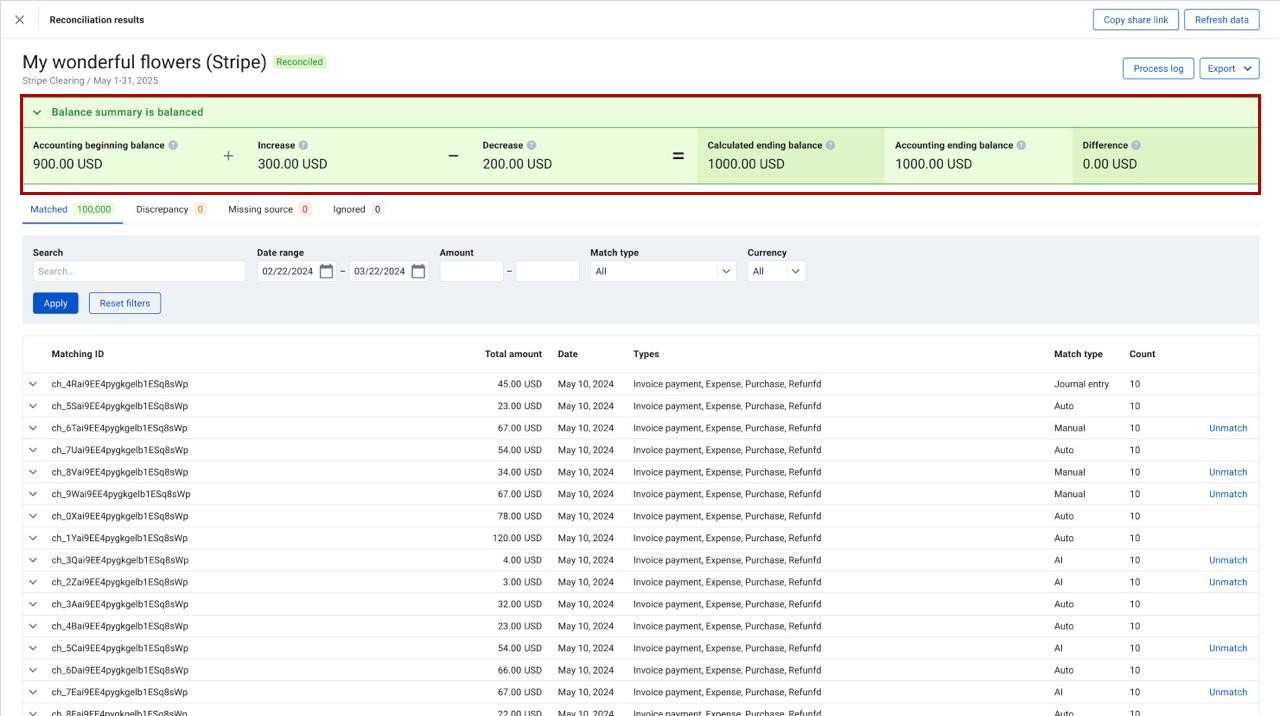
The balance block — headed Balance summary — appears at the top of a reconciliation’s results, above the transaction tabs. It stays in place as you move between tabs.
Also, you can collapse it with the chevron in its header if you want more room for the transaction list. It opens expanded by default, and collapsing it only applies to the reconciliation you’re currently looking at.
Reading the numbers
The block shows five amounts and a difference.
| Line | What it is |
|---|---|
| Accounting beginning balance | What the account was worth at the start of the reconciliation period, according to your accounting. |
| + Increase | Everything in your sales platform’s report for the period that moved the account balance up. |
| − Decrease | Everything in the same report that moved it down. |
| = Calculated ending balance | Accounting beginning balance, plus the increases, minus the decreases. What the account should be worth if the sales platform’s activity explains all of the movement. |
| Accounting ending balance | What the account is actually worth at the end of the period, according to your accounting. |
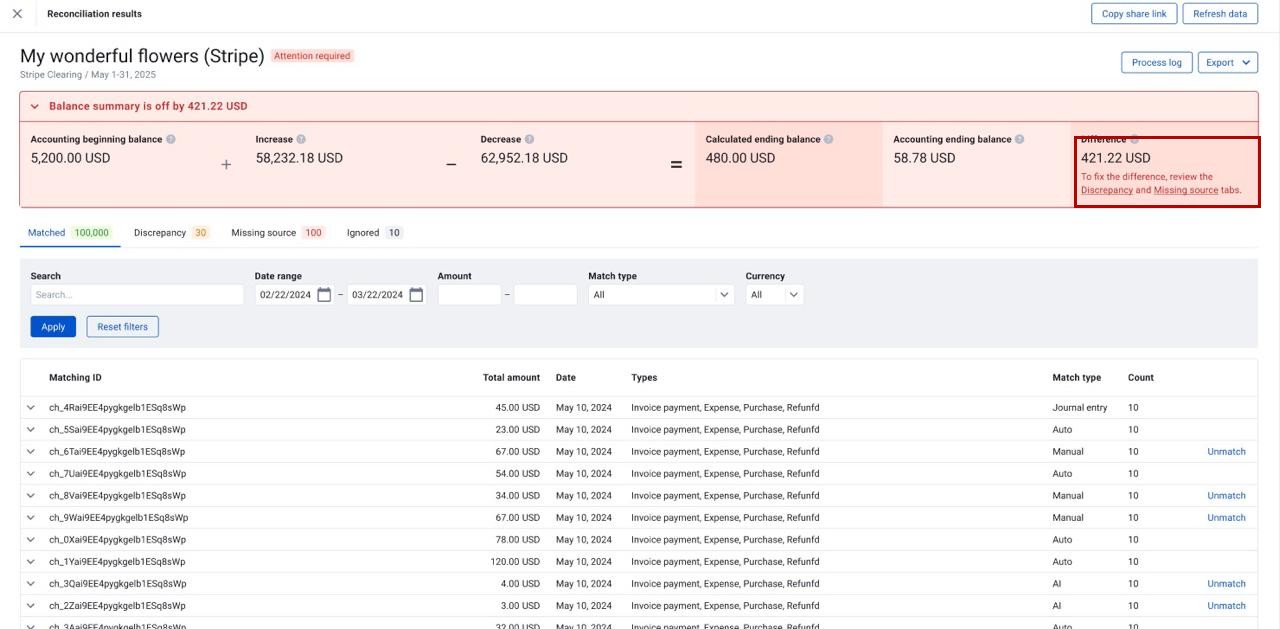
| Difference | Accounting ending balance minus Calculated ending balance. The gap between what your accounting says and what the sales platform activity accounts for. |
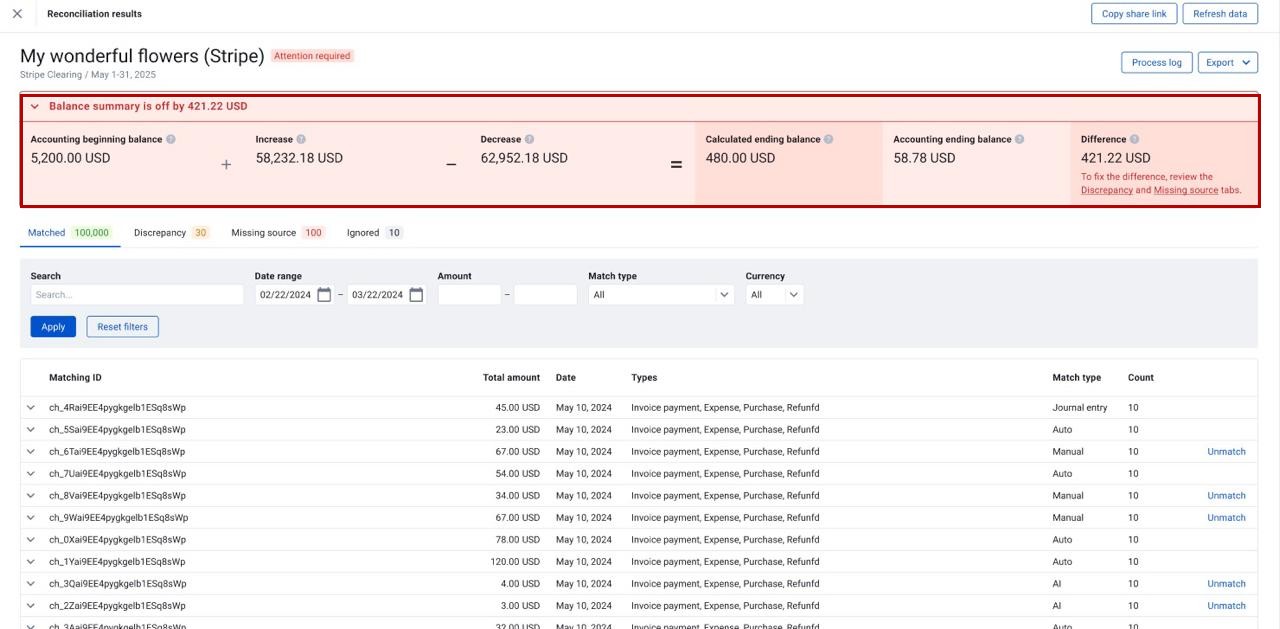
Importantly, Increase and Decrease come from your sales platform. They’re the sums of what the platform reported for the period, split by direction. The beginning and ending balances, however, come from your accounting. That’s what makes this a genuine end-to-end check: because the two sides come from two different places, balance reconciliation can compare them.
When the Difference is zero
In this case, the account’s balance movement accounts for every transaction the sales platform reported. So nothing is missing, and nothing extra has arrived. The header reads Balance summary is balanced, the block turns green, and the Difference reads 0.00.
When the Difference isn’t zero
In this case, something moved the account balance that the sales platform’s activity doesn’t explain, or something the platform reported never reached the account. So the header reads Balance summary is off by …, the block turns red, and shows the size of the gap.
When the Difference isn’t zero, it points you to the Discrepancy and Missing source tabs, where you can look at the rows involved. The links only appear when those tabs actually have rows in them — if both are empty, there’s nothing to navigate to.
A Difference doesn’t always mean a transaction is missing. Common explanations that have nothing to do with unmatched rows:
- Rounding. Your accounting and your sales platform may round to different precision.
- Timing. A transaction dated on the boundary of the period may fall inside the period on one side and outside it on the other.
- Out-of-period entries. Journal entries or manual adjustments posted to the account within the period, from a source other than your sales platform.
- Currency conversion. Small differences in the rate applied on each side.
Start with the transaction tabs if they have rows. If they’re clean and the Difference persists, the explanation is usually one of the above.
Where the balances come from
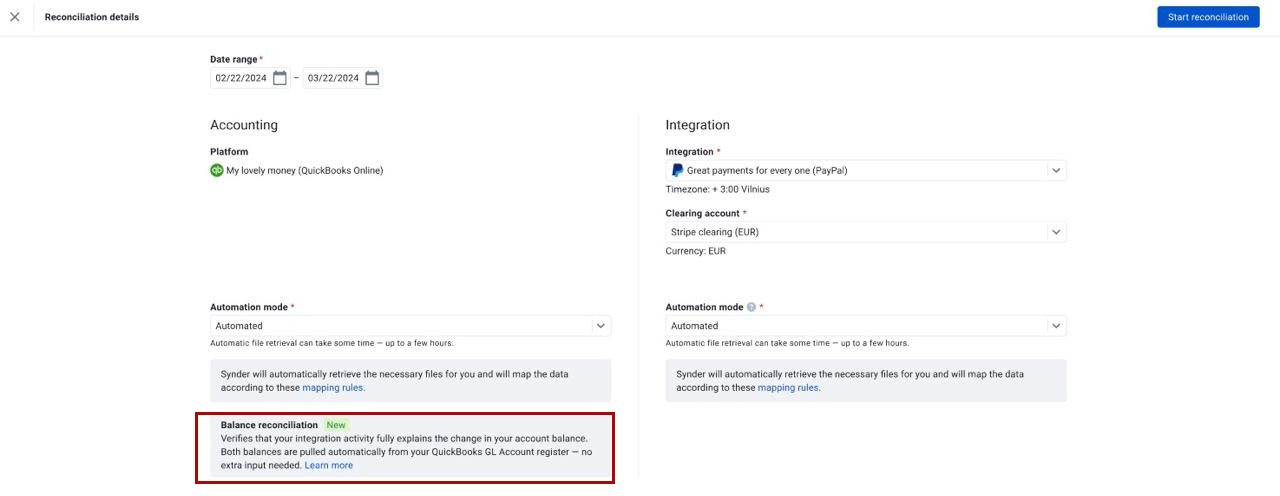
You don’t enter balances yourself. Instead, Synder reads them for you, and where they come from depends on how you set up the reconciliation.
| Setup | Where the beginning and ending balances come from |
|---|---|
| Automated | Pulled directly from that account’s records at the start and end of the period — from QuickBooks in Per Transaction sync, or from Synder’s data source in Summary Sync. No extra step for you. |
| Assisted (Xero) | Read from the Account Transactions report you upload for the reconciliation. The same file that powers transaction matching also supplies the balances, so there’s no separate upload. |
How it affects the reconciliation status
Each reconciliation carries a single status in its header. Balance reconciliation feeds into it:
- Reconciled — every transaction is matched or ignored, and the balance Difference is zero.
- Attention required — a transaction is unmatched, or the Difference isn’t zero, or both.
If balance reconciliation didn’t run for a reconciliation (see below), the status reflects your transactions alone. So a missing balance check doesn’t hold a reconciliation back — as long as every transaction is accounted for, the reconciliation still shows as Reconciled.
When balance reconciliation isn’t available
Sometimes the block won’t appear. However, transaction matching never changes — it runs exactly as it always has.
- Your sales platform reported more than one currency. Balance reconciliation compares a total from your sales platform against a balance in your accounting. If the platform reported transactions in several currencies but the account is held in one, there’s no way to compare the two without converting, and a converted figure wouldn’t be an independent check. You’ll see a short note in the reconciliation explaining this. The same platform can be supported one period and not the next — it depends on what’s in the report for that period.
- The accounting side is set to Manual. Balance reconciliation needs balances Synder can read. When the accounting side of a reconciliation is set to Manual, there are none to read, so the check doesn’t run.
- Something went wrong. Occasionally the balances can’t be retrieved. Refresh to try again, and contact our support team if it keeps happening.
Frequently asked
Does matching a transaction by hand change the Difference?
No. Matching simply pairs up two records that both sides already counted, so the totals don’t move. Instead, the Difference changes only when the account’s balance itself changes.
Why does my reconciliation say Attention required when all my transactions are matched?
Because the balance Difference isn’t zero. Both checks have to be clean for a reconciliation to be Reconciled. Look at the Difference line for the size of the gap, and the explanations above for likely causes.
Why is the Difference a round number that looks like a single missing transaction?
It may well be one. Check the Missing source tab first. If it’s empty, look for a journal entry or manual adjustment posted to the account during the period.
Can I turn balance reconciliation off?
There’s no on/off switch in this release. Balance reconciliation appears automatically wherever Synder can read the balances for you, and it doesn’t hold up your transaction reconciliation. If you’d like it out of the way, collapse the block using the chevron in its header.
Related guides
- Transaction Reconciliation for Per Transaction Sync — the row-by-row check that balance reconciliation sits alongside.
- Assisted Transaction Reconciliation for Xero — how to export and upload the Account Transactions report that supplies balances in Assisted setups.
- How to Use Manual Matching in Transaction Reconciliation — pairing rows by hand (note: this never changes the Difference).
Reach out to the Synder Team via online support chat, phone, or email with any questions you have — we’re always happy to help you!
