

- Marketplace Facilitator Tax
- Option 1: Record Withheld Tax Separately (Recommended)
- Configuration Steps
- Example Scenario
- Option 2: Track Marketplace Tax as Your Own Payable
- Configuration Steps
- Important Notes
- FAQ
This guide explains how Synder records marketplace facilitator tax — the tax that platforms like Amazon, eBay, and Shopify collect and remit on your behalf. It also describes the configuration options you can use to ensure accurate tax liability reporting.
Use this guide if:
- You sell through marketplaces (Amazon, eBay, Etsy, Walmart, Shopify, and others).
- The marketplace collects and remits tax on your behalf.
- You need to understand how Synder records withheld tax in your accounting system.
This guide does not apply if you collect and remit sales tax yourself.
Marketplace Facilitator Tax
Marketplace facilitator tax (also called tax withholding) is a sales tax that platforms collect and remit directly to tax authorities on the seller’s behalf. Even though you do not remit these taxes yourself, they still appear on your sales transactions and need proper recording in your books.
Synder supports tax withheld processing for the following platforms:
- Amazon
- eBay
- Etsy
- PayPal
- TikTok
- Walmart
- Shopify
- Faire
Synder offers two options for how to handle withheld taxes:
- Option 1: Record withheld tax separately (recommended)
- Option 2: Track marketplace tax as your own payable
Option 1: Record Withheld Tax Separately (Recommended)
This option prevents marketplace-collected tax from appearing as your liability. As a result, your tax reports accurately reflect only the taxes you owe.
Configuration Steps
- Go to Settings.
- Select your integration (for example, Amazon or Shopify).
- Open the Taxes tab.
- In Marketplace Facilitator Tax Category, choose the account you want Synder to use for tracking marketplace tax withholding.
- Make sure “Track Marketplace Facilitator Tax as your own payable” is OFF.
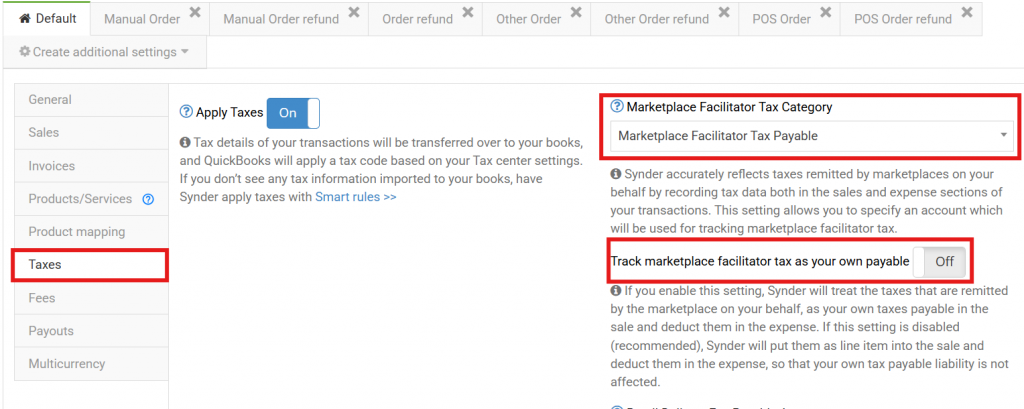
With this setting disabled, Synder records withheld taxes in the following way:
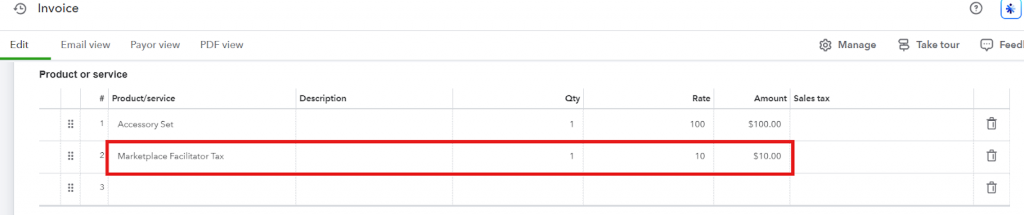
- Synder adds a non-taxable line item called Marketplace Facilitator Tax to the sale.
- This line item uses the Marketplace Facilitator Tax Category as its income account.
- Synder also creates a matching line in the expense to offset the amount.
- The expense line uses the same category account.
As a result, Synder clearly tracks all withheld taxes without inflating your Sales Tax Payable balance. This means your tax reports reflect only the taxes you actually owe.
Example Scenario
Consider a $100 sale with $10 tax (10%) and a $3 Amazon fee. Here is how Synder records it:
Sales Receipt:
- Product: $100
- Marketplace Tax: $10 (non-taxable line item)
Expense:
- Fee: $3
- Marketplace Tax: $10
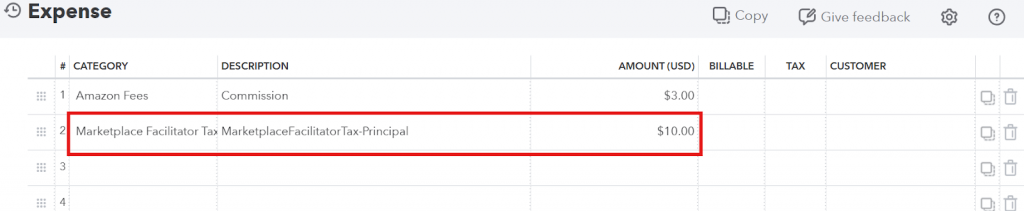
Because both the income and expense sides balance out, the withheld taxes do not inflate your liability.
Option 2: Track Marketplace Tax as Your Own Payable
This option records marketplace tax as part of your own tax liability. Choose this approach if your accountant prefers to see all taxes — including marketplace-remitted ones — in your Sales Tax Payable account.
Configuration Steps
- Go to Settings.
- Select your integration (for example, Amazon or Shopify).
- Open the Taxes tab.
- In Marketplace Facilitator Tax Category, choose the account you want Synder to use for tracking marketplace tax withholding.
- Turn ON the “Track Marketplace Facilitator Tax as your own payable” toggle.
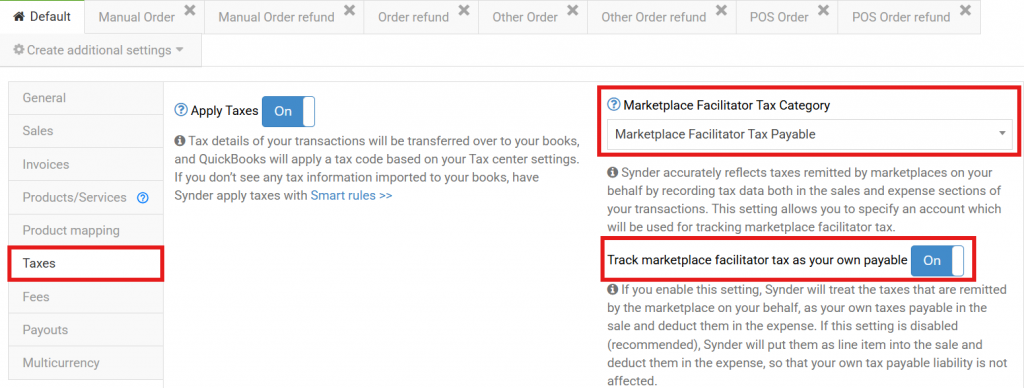
With this setting enabled, Synder records withheld taxes as follows:
- Synder records the tax in the tax field of the sale with an assigned tax code.
- The amount goes into the Sales Tax Payable account.
- The tax appears in tax reports and affects your liability balance.
- Synder creates an expense line to offset the tax amount and records it in the Marketplace Facilitator Tax Payable account you selected.
Keep in mind: Your reports will still show this tax as payable, even though the marketplace already remitted it.
Shopify-specific Behaviour
For taxes withheld by Shopify, A Marketplace Facilitator Tax line appears in the sale. If multiple taxes apply to the Shopify order, they are consolidated into a single line item, with the description field showing all the individual tax types.
Unlike other integrations, the offsetting entry for Shopify is recorded as a separate transaction with type – Sales Tax Adjustment.
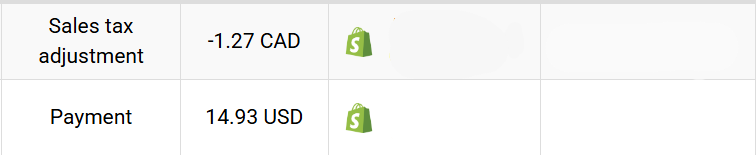
To ensure taxes are recorded as line items in Shopify, make sure you have Track Marketplace Tax as your own payable setting disabled. By default, this setting is disabled for Shopify integrations. You can choose to enable it if you prefer to treat those taxes as your own liability.
Note: If multicurrency is enabled and separate clearing accounts are configured for each currency, the Marketplace Facilitator Tax may be recorded in the foreign currency, while the Sales Tax Adjustment is recorded in the home currency. This behaviour is expected.
In multicurrency setups, Shopify includes the tax portion in the currency-specific payout and the Sales Tax Adjustment portion in the home currency payout.
Important Notes
- Shopify-specific behavior: For taxes that Shopify withholds, Synder adds a Marketplace Facilitator Tax line to the sale. If multiple taxes apply to the order, Synder consolidates them into a single line item and lists the individual tax types in the description field. Additionally, Synder automatically creates a Sales Tax Adjustment transaction to offset the tax amount.
- To ensure Synder records Shopify taxes as line items, keep the “Track Marketplace Tax as your own payable” setting disabled. Synder disables this by default for Shopify integrations. However, you can enable it if you prefer to treat those taxes as your own liability.
- QuickBooks Online limitation: You cannot use the default Sales Tax Payable account in expense lines in QuickBooks Online. To work around this:This approach allows proper offsetting in your reports.
- Create a sub-account under Sales Tax Payable.
- Use this sub-account in Synder settings.
- Some marketplaces may also remit the Colorado Retail Delivery Fee on behalf of the seller. In those cases, Synder treats the fee similarly to other marketplace-remitted taxes. For more details, check out our guide on the Colorado Retail Delivery Fee.
FAQ
- Why does my Sales Tax Payable show higher than expected, even though marketplaces already remitted some taxes?
If you have Track Marketplace Facilitator Tax as your own payable enabled, Synder records withheld tax as your liability and distributes it across tax agencies. To exclude marketplace-remitted tax from your liability, disable this option. - Which account should I select for Marketplace Facilitator Tax?
Use a dedicated account. The recommended approach is to create a sub-account under Sales Tax Payable. Do not use the following accounts:- Taxes Paid
- Default Sales Tax Payable (in QuickBooks Online)
- Does the Sales Tax Adjustment count as a chargeable transaction?
Yes. The Sales Tax Adjustment uses one sync credit and Synder records it as an expense in your accounting platform.
Reach out to the Synder Team via online support chat or email with any questions — we are always happy to help!
