

Expenses — no one likes them, but everyone needs to categorize them. Now Synder can apply classes to your expenses automatically, so you don’t have to do it by hand. This guide shows you how to apply classes to expenses with Synder’s Smart Rules feature.
Deciding which condition to use
First, you need a way to tell your expenses apart. Say you sell two products: one costs $20, and the other costs $400. You want to apply the Minor fees class to the fees on the first product, and the Major fees class to the fees on the second one.
In this example, the fee on the first product will rarely go above $10. The fee on the second product, on the other hand, will rarely fall below $10. So we’ll use the fee amount as the rule’s condition. Of course, you can pick any condition that fits your own business flow.
Creating your Smart Rule
- Go to Smart Rules → Rules → Create Rule.
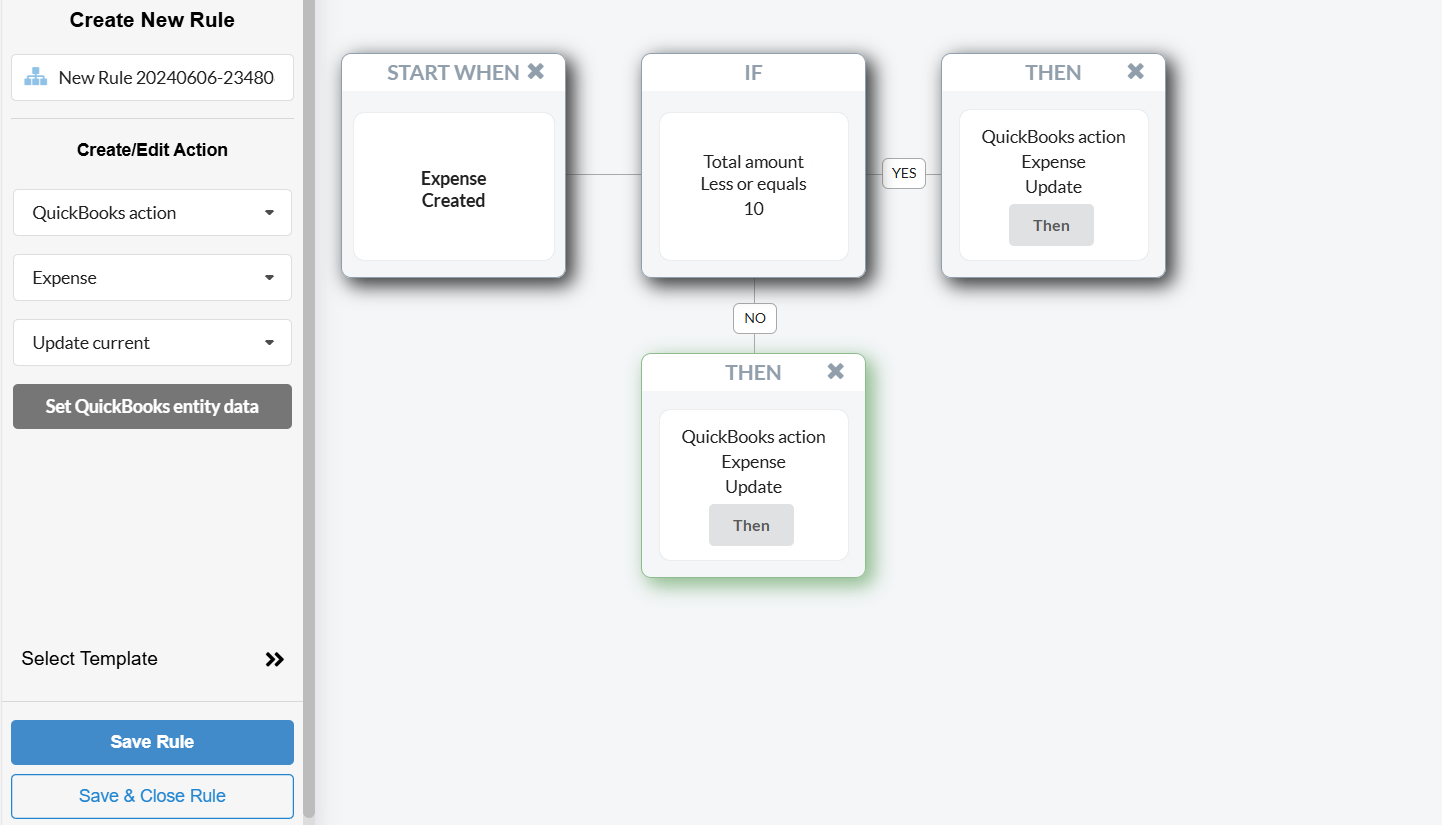
- Choose the trigger that starts your rule: Expense → Created. Now, each time Synder creates an expense in your QuickBooks, this rule fires.
- Choose the condition that tells your expenses apart: Total amount → Less or equals → 10. This way, Synder checks the condition and applies the rule when it matches.
Note: for your case, feel free to use any other condition that suits your business flow. - Finally, choose the action: QuickBooks action → Expense → Update current. This tells Synder to update the exact expense that triggered the rule.
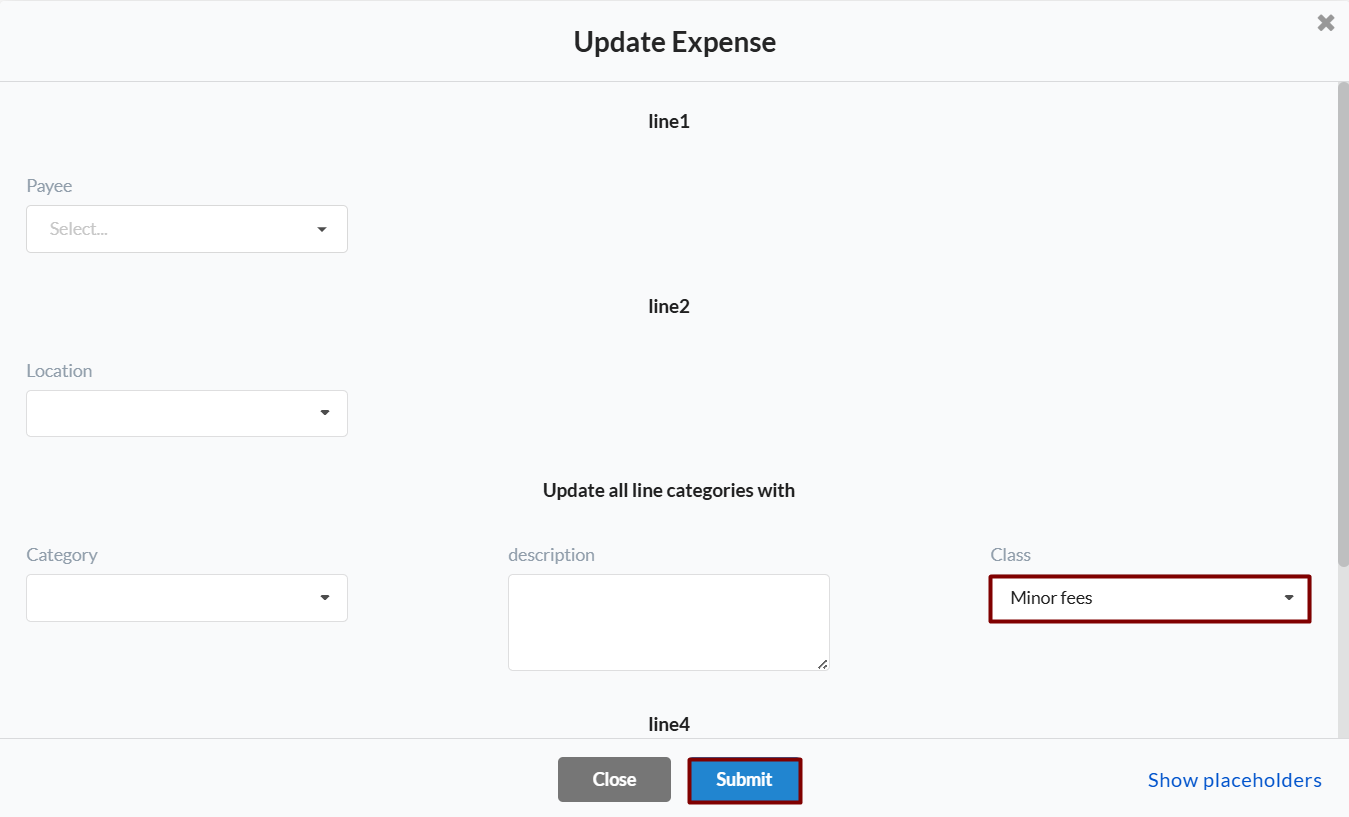
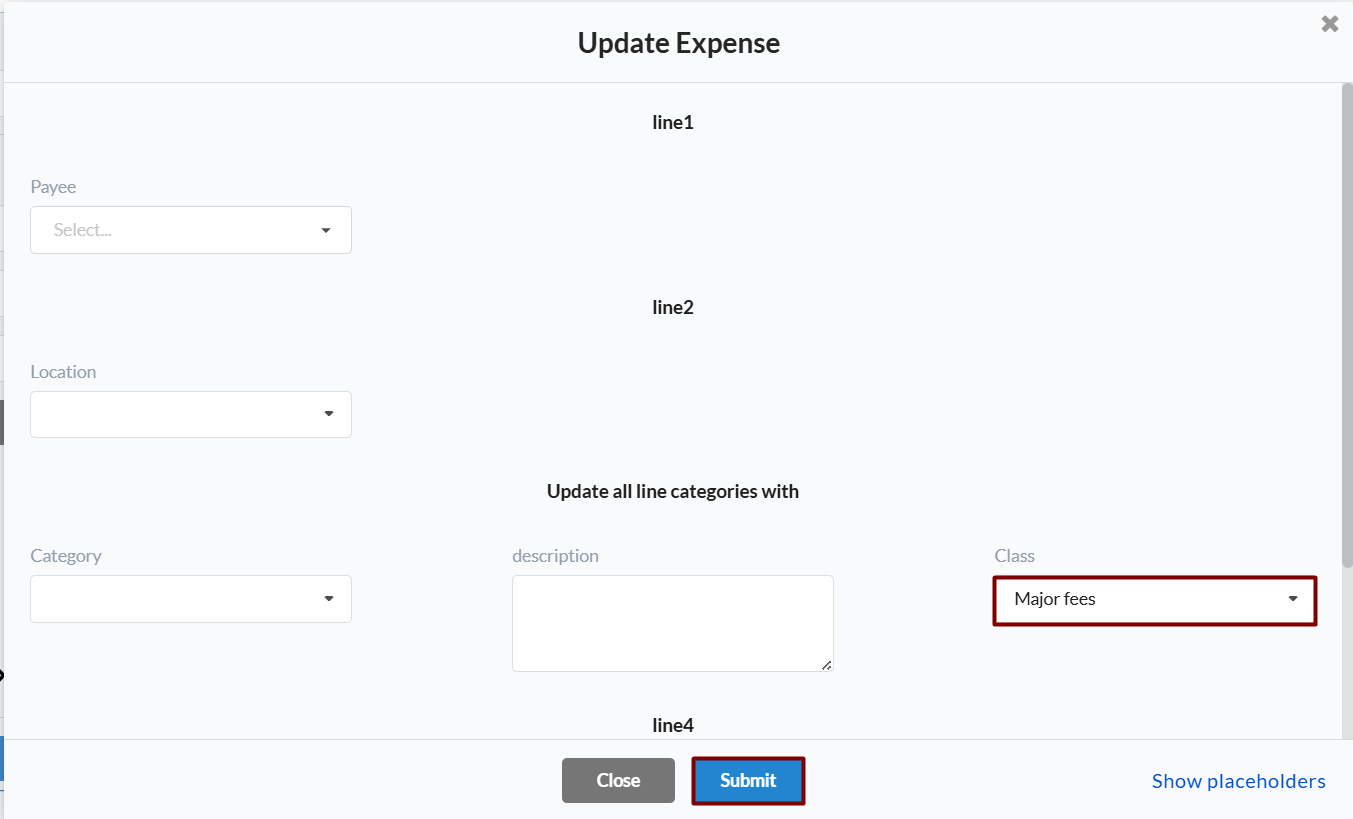
- Synder then shows you an expense template, where you select the class.
Note: set your classes up in QuickBooks first. If QuickBooks has no classes, this field won’t appear in Synder either. - Finally, repeat the action for the opposite case — when the condition isn’t met — if you also want Synder to update those expenses.
New to sync modes? See How Smart Rules Work in Synder.
Check the results
That’s it! Now sync a few transactions in the Platform transactions tab, and Synder applies the right class to each expense for you.
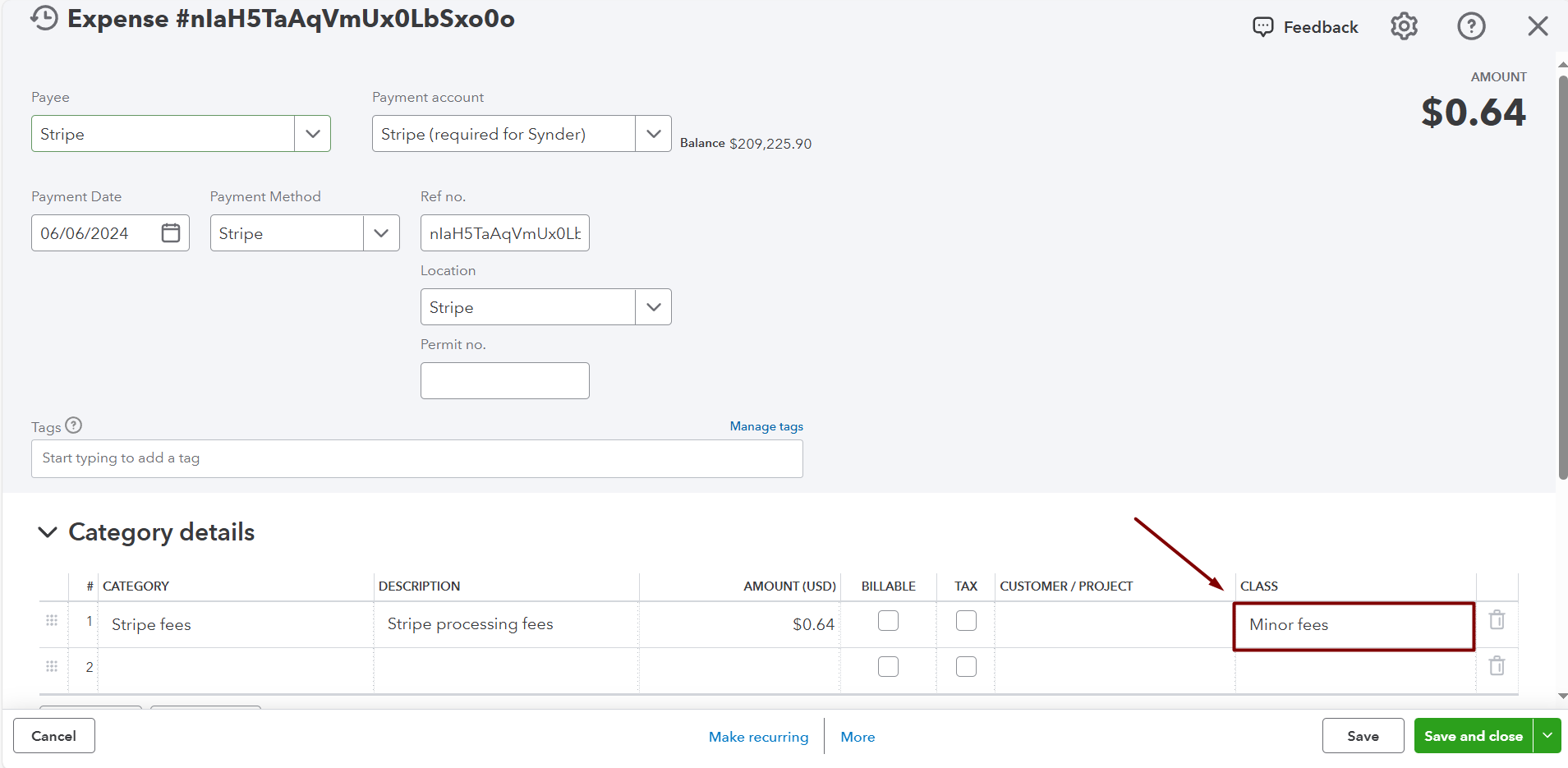
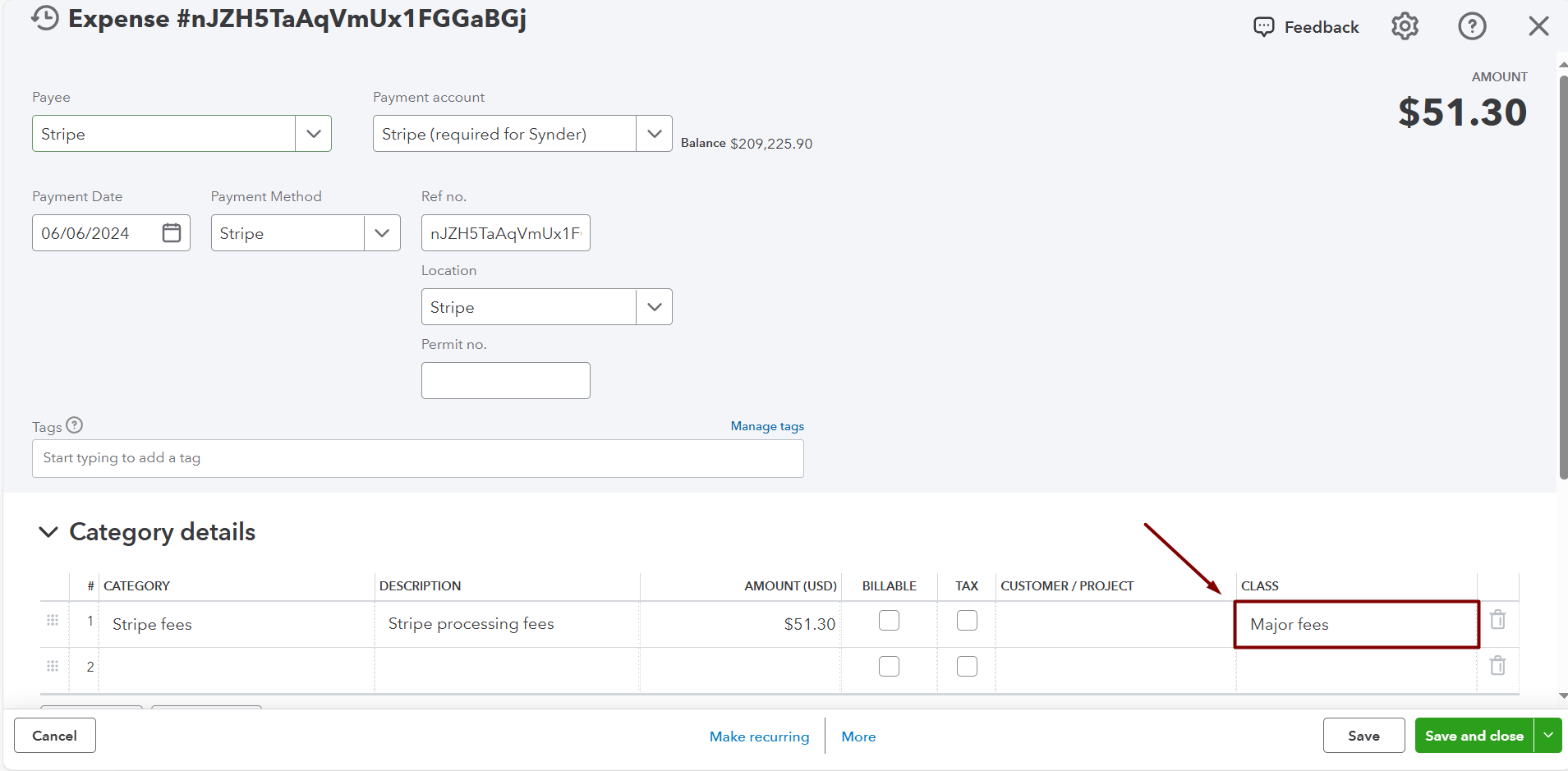
After Synder syncs a matching expense, the class is applied automatically. Here, the expense line is tagged with the Minor and major fees class in the Class column.
Reach out to the Synder team via online support chat, phone, or email with any questions you have – we’re always happy to help you!
