

This guide is for users on Per Transaction Sync who receive payments in currencies other than their accounting platform’s home currency.
When to use this guide
Use this guide if:
- You receive payments in currencies different from your accounting platform’s home currency, and
- You are using Per Transaction Sync in Synder.
Do not use this guide if you are on Summary Sync. Refer instead to: Multicurrency Sync for Summary Sync mode.
Before you start
Multicurrency must be enabled in your accounting platform before configuring Synder. This is a significant, permanent change to your books — read the details for your platform before proceeding.
QuickBooks Online
Plan requirement: Essentials, Plus, or Advanced. Not available on Simple Start.
Enabling multicurrency in QBO cannot be undone. Here is exactly what changes the moment you turn it on:
- Your home currency is permanently locked. It cannot be changed after enabling multicurrency. If you select the wrong home currency, the only fix is creating a new QBO file.
- A new Exchange Gain or Loss account is automatically created in your Chart of Accounts. QBO uses this account to record the difference between the exchange rate on the date a transaction is created (e.g., invoice date) and the rate on the date it is paid — this happens automatically on every foreign-currency transaction.
- Income and expense accounts always remain in your home currency and cannot be assigned a foreign currency. Only bank, credit card, and accounts receivable/payable accounts can hold foreign currencies.
- Once a transaction is posted to an account, that account’s currency cannot be changed.
- The Cash Flow Planner is automatically disabled.
- QuickBooks Payments and QuickBooks Bill Pay are not compatible with multicurrency and will stop working.
If you are not sure whether multicurrency is right for you, consult your accountant before enabling it.
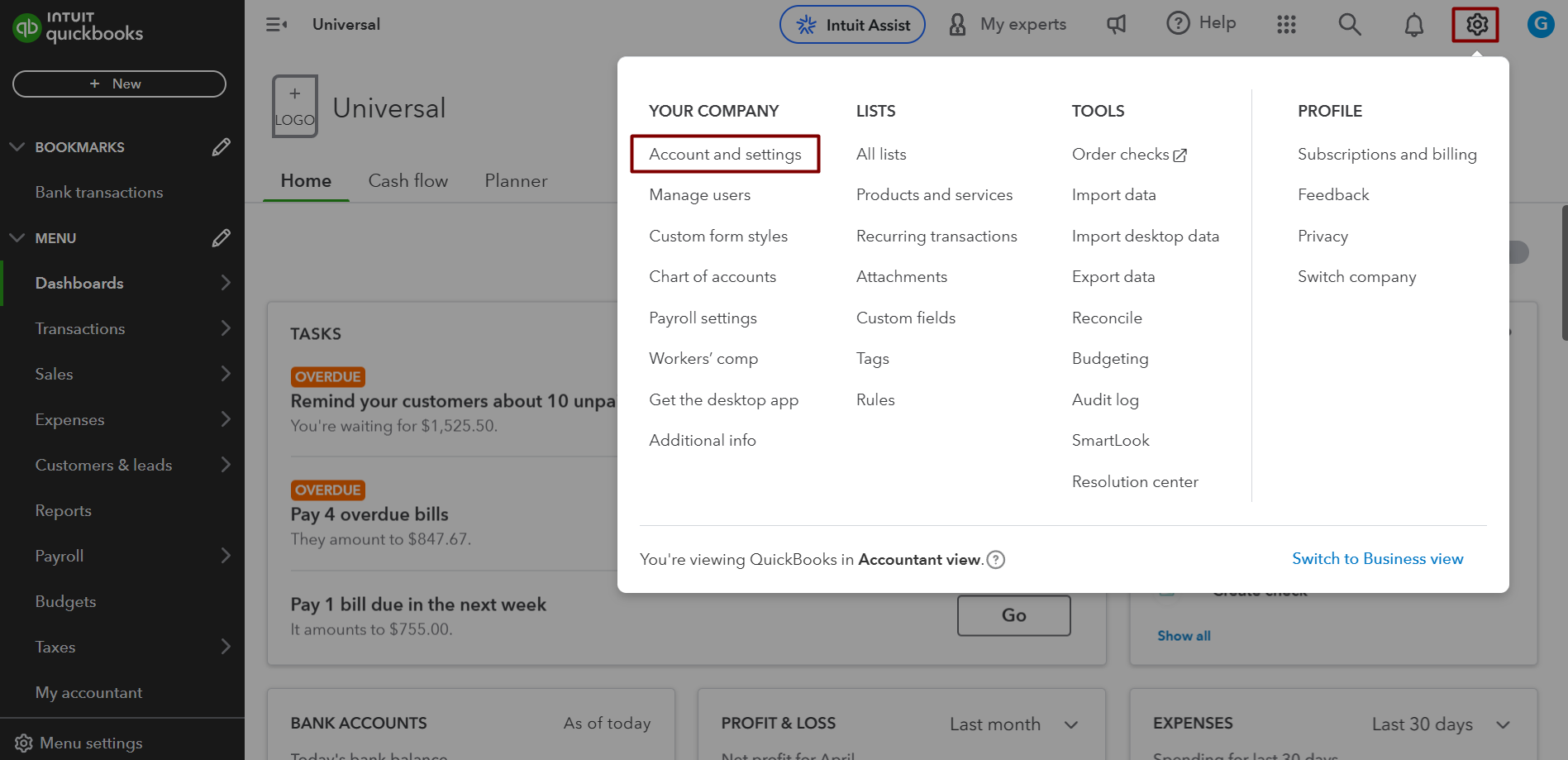
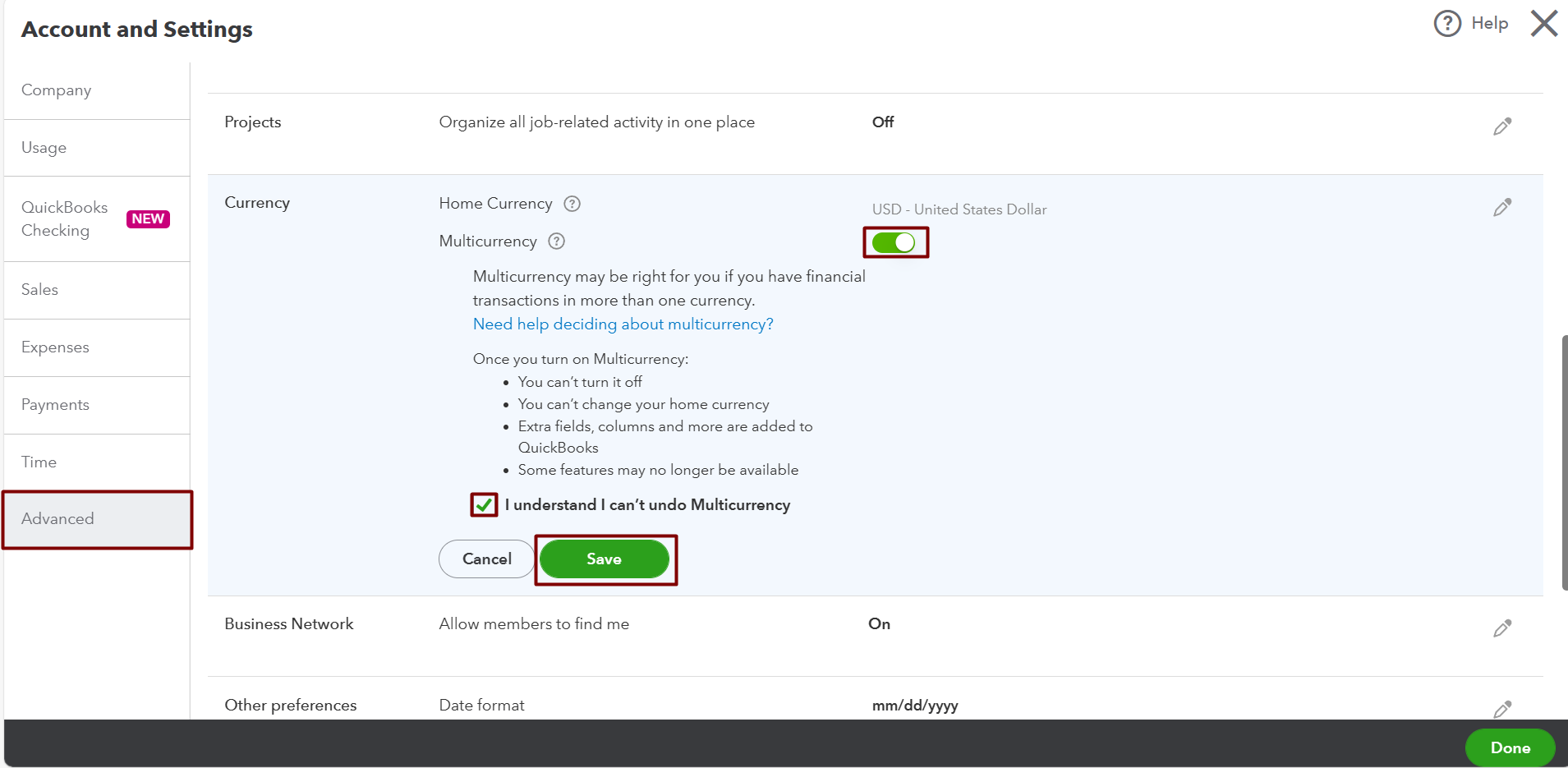
To enable: Gear icon → Account and settings → Advanced → Currency → check the Multicurrency box → confirm → Save.
Xero
Plan requirement: A Xero plan that includes multicurrency. In the US this is the Established plan — check xero.com/pricing-plans for your region.
Xero does not have a single multicurrency toggle. Multicurrency activates as soon as you add a foreign currency to your organization:
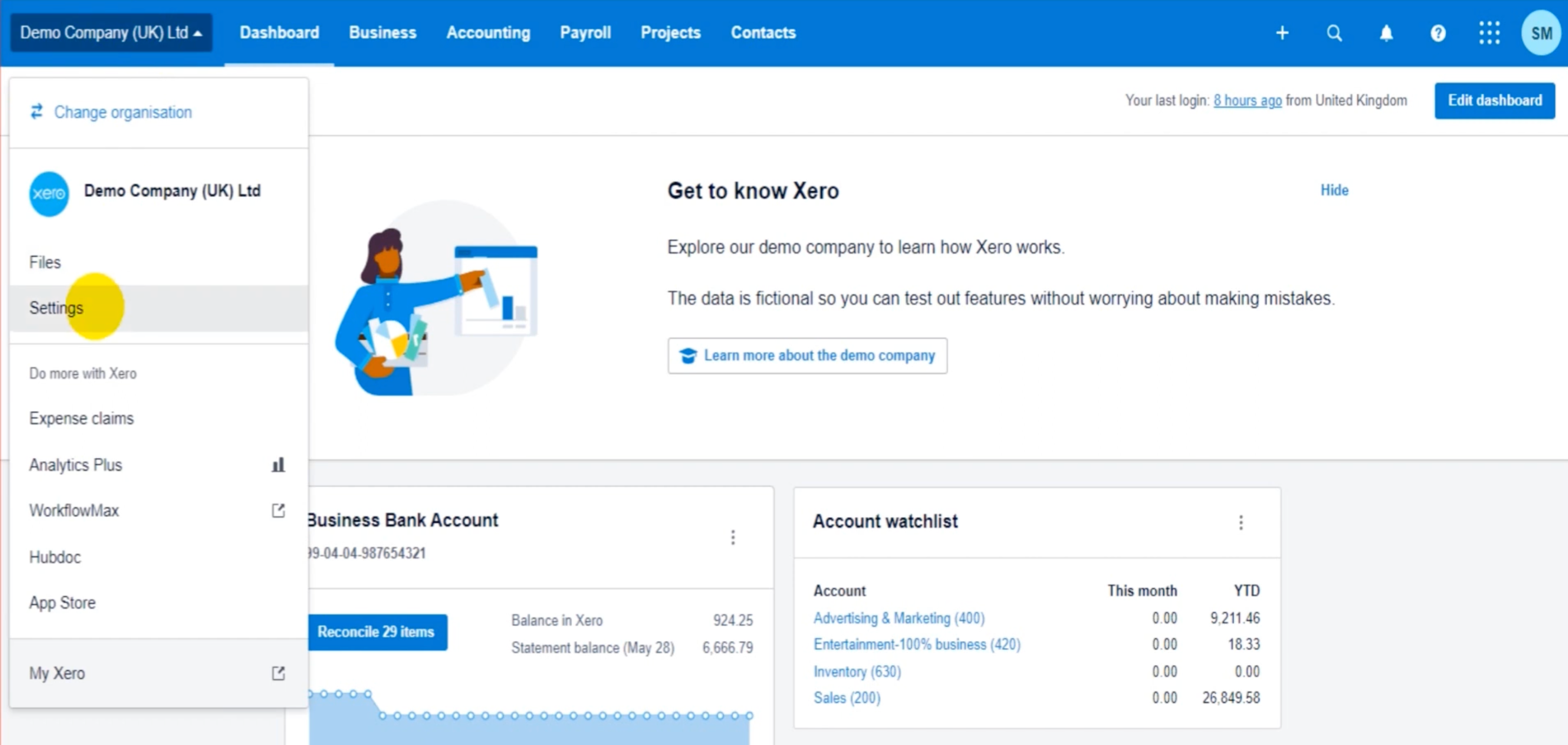
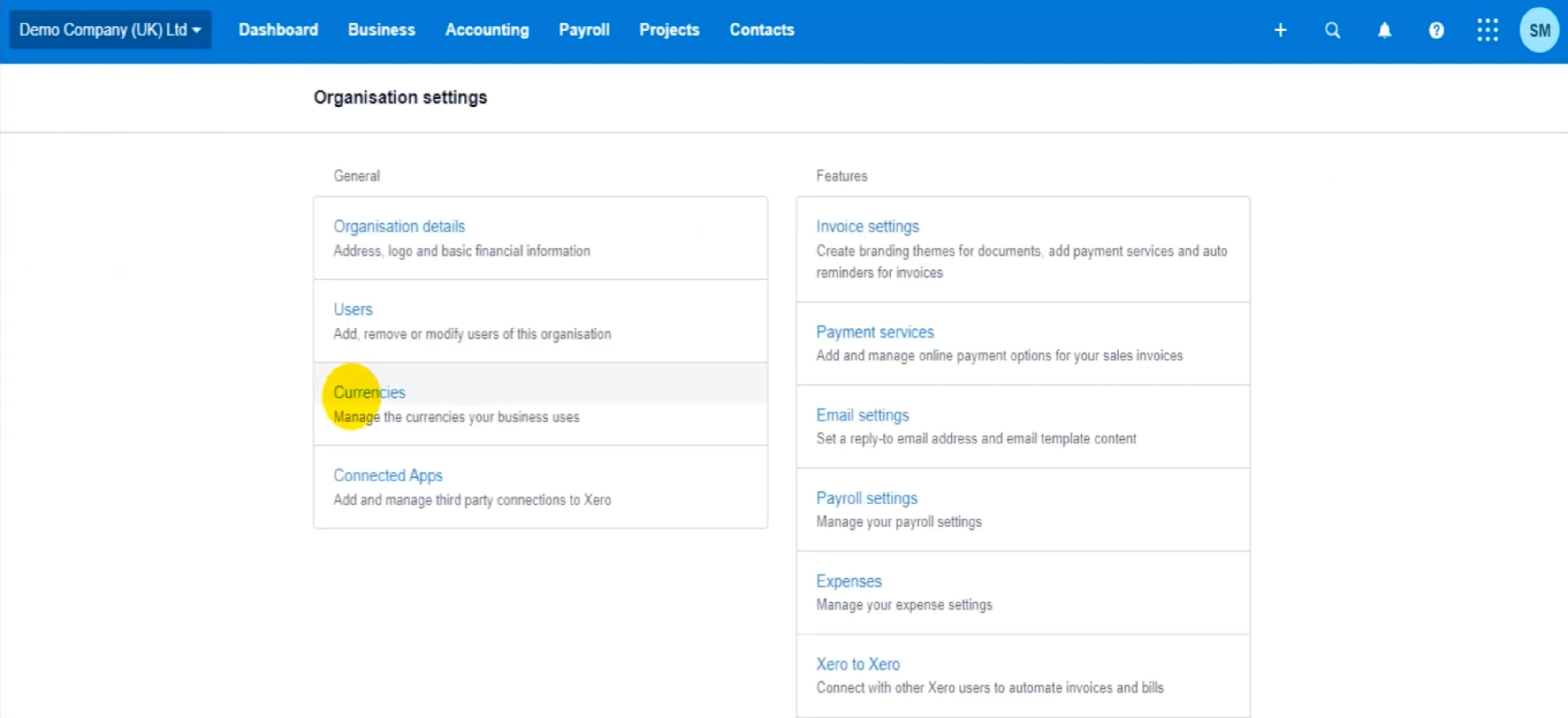
Settings → Currencies → Add Currency → select the currency → Add.
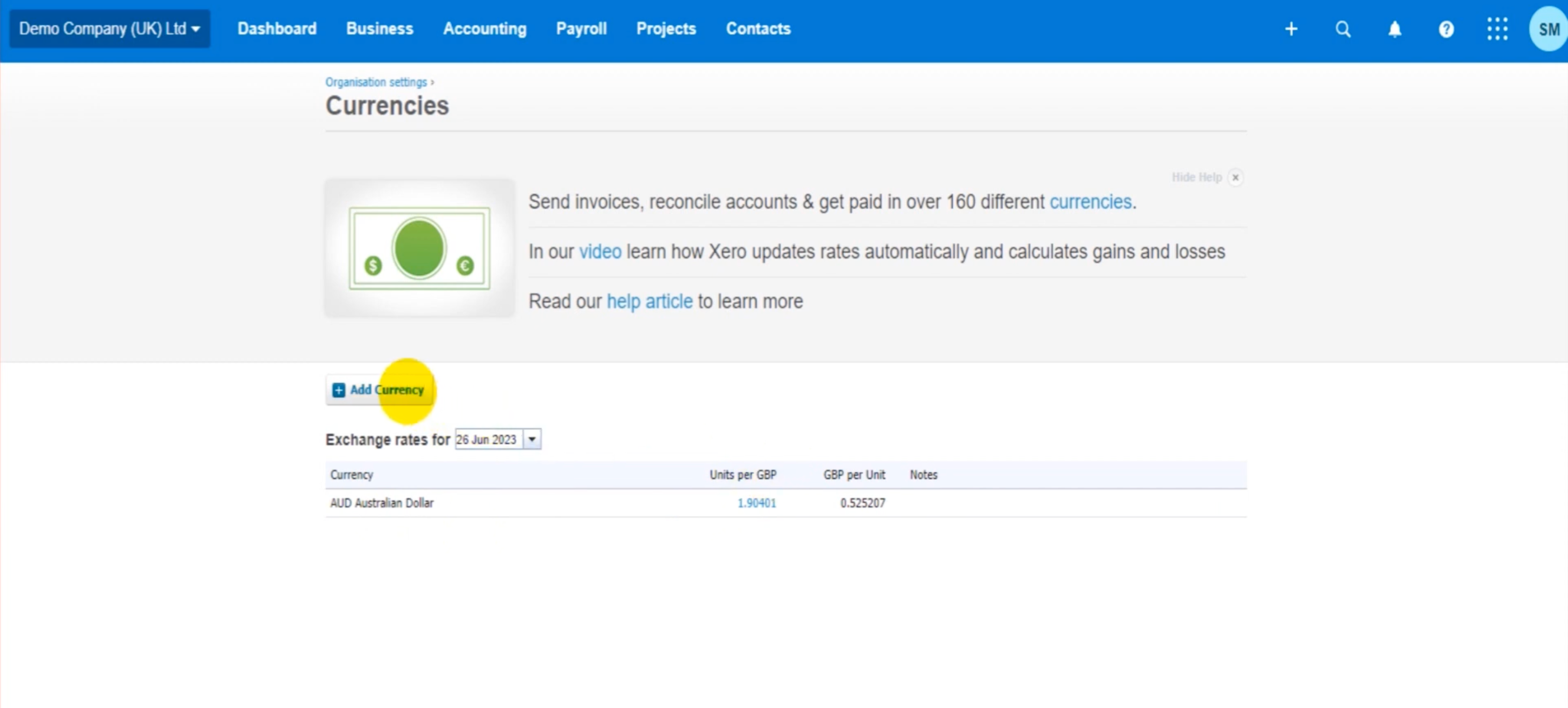
What this changes on your books:
- Foreign currencies can be assigned to bank accounts, invoices, and bills.
- Exchange rates from XE.com update in Xero hourly, so currency movements appear on individual transactions and in your reports in real time.
- Xero automatically tracks unrealised gains and losses (on open invoices and bills as rates fluctuate) and realised gains and losses (when those invoices or bills are paid) and posts them to dedicated accounts.
- Once a currency is actively used in transactions, it cannot be removed without affecting existing data.
Enable multicurrency in Synder
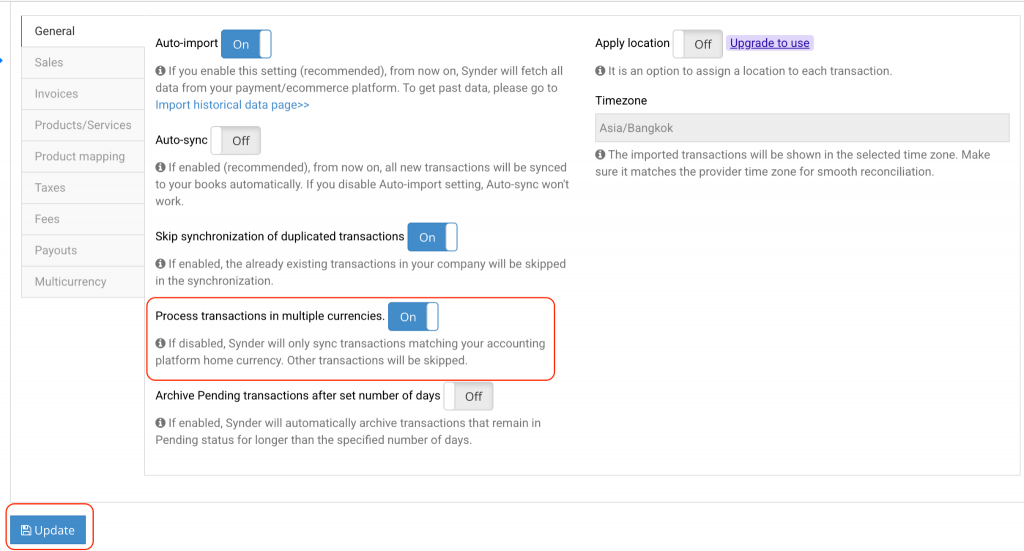
- Open Settings.
- Select your integration.
- Open the General tab.
- Enable Process transactions in multiple currencies.
- Click Update.
Choose your setup
The next steps depend on how your payment platform processes payouts.
Option A — Payouts in a single currency
If your processor converts all transactions into one payout currency, Synder uses a single clearing account in your home currency.
All transactions are recorded in that account and converted using the exchange rate provided by the payment processor (or your accounting platform’s rate, if the processor does not supply one).
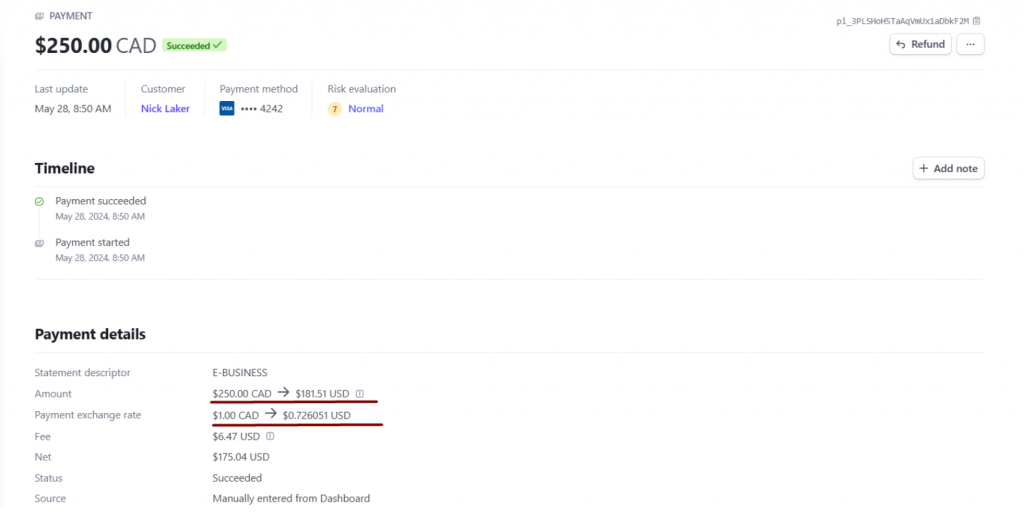
To verify: open the sales document and confirm the transaction was converted correctly.

No additional setup is required.
Option B — Payouts in multiple currencies
If you receive payouts in different currencies (for example, USD payouts to a USD bank account and CAD payouts to a CAD bank account), you must create a separate clearing account for each currency in your accounting platform and map each one in Synder.
Step 1 — Create the accounts
In QuickBooks Online:
- Go to the Gear icon → Chart of Accounts.
- Click New.
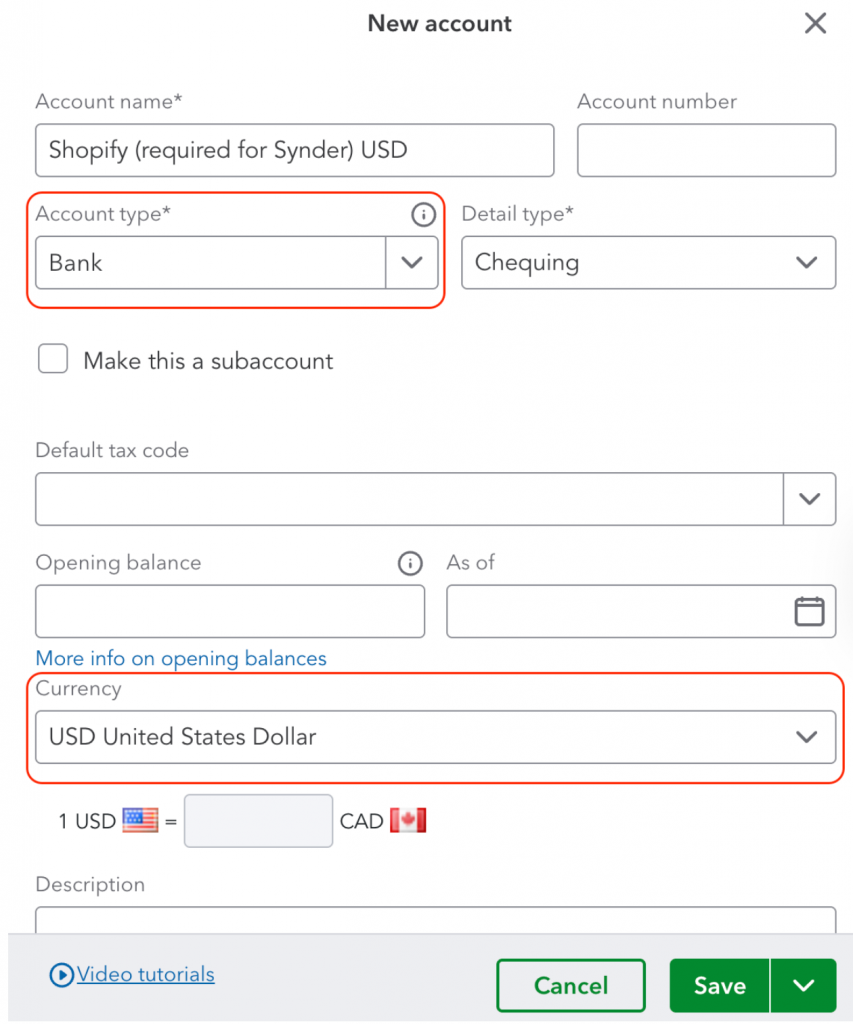
- Set Account type to Bank.
- Name the account to match the platform and currency (for example, Shopify USD).
- Select the correct currency.
- Click Save and close.
- Repeat for each currency you receive payouts in.
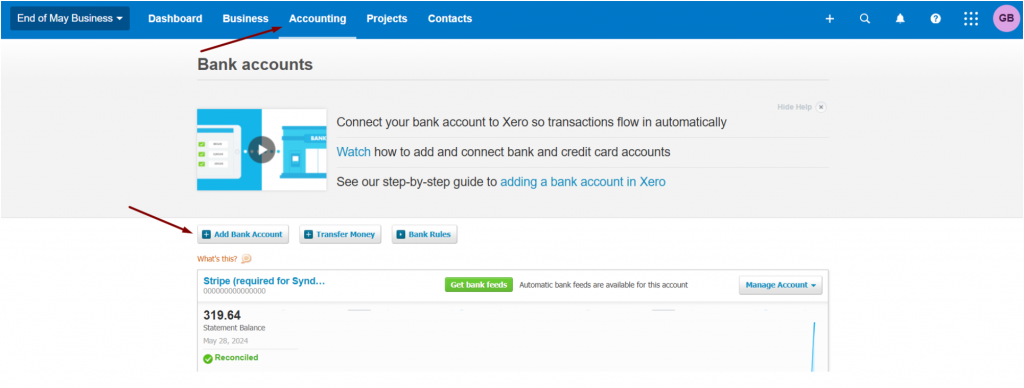
In Xero:
- Go to Accounting → Chart of Accounts.
- Click Add Bank Account.
- Enter the account name (for example, Stripe EUR).
- Select the correct currency and save.
- Repeat for each currency you receive payouts in.
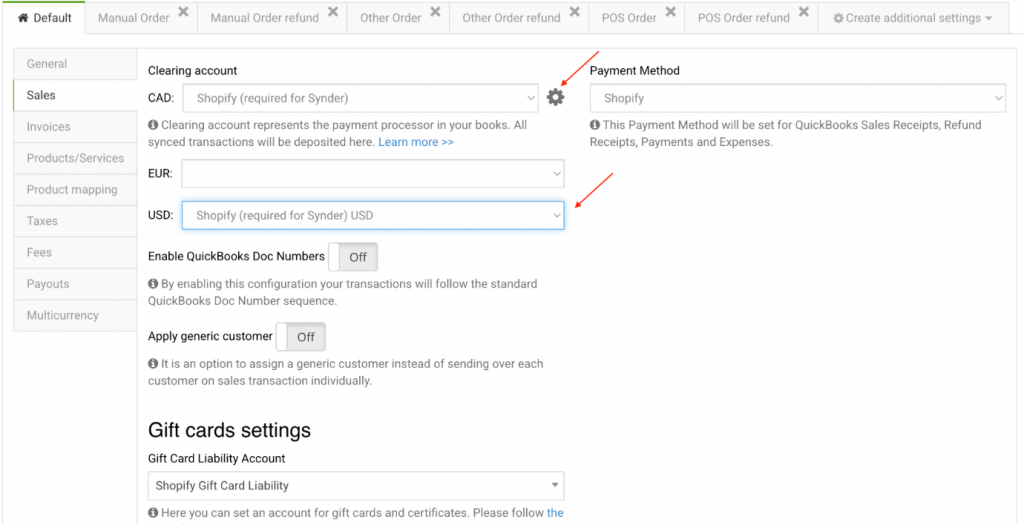
Step 2 — Map the accounts in Synder
- Go to Settings → Sales tab.
- Assign a clearing account per currency.
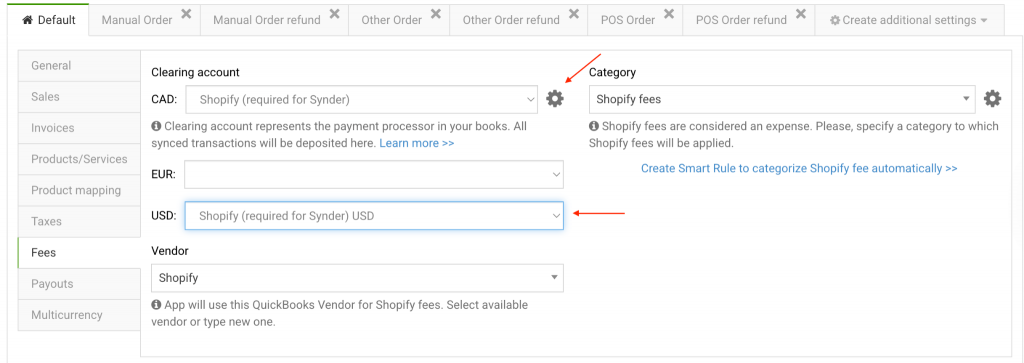
Fees and expenses:
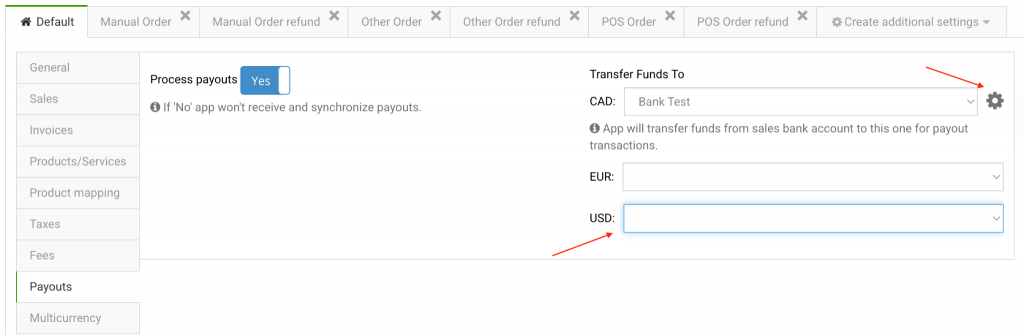
Payouts: open the Payouts tab → assign payout accounts per currency → click Update.
To verify: confirm that transactions post into the correct currency accounts.
Troubleshooting
Clearing account balance keeps growing and does not clear
Cause: the Payouts tab is not configured, so Synder has nowhere to transfer the funds.
Resolution:
- Go to Settings → select your integration → open the Payouts tab.
- For each currency, select the correct checking account.
- Click Update to save.
Future payouts will clear automatically. For past payouts, re-import historical data for the relevant period.
Balance Reserve transactions fail to sync
Error message: “The transaction currency must be the same as either the ‘From’ or the ‘To’ account currency.”
Cause: by default, Synder creates a single Balance Reserve account in your home currency. If you operate multicurrency clearing accounts, reserve transactions in other currencies will not match this account and will fail.
Resolution:
- QuickBooks Online: in the Chart of Accounts, create a new Other Current Asset account for each additional currency (for example, Balance Reserve CAD, Balance Reserve EUR).
- Xero: Balance Reserves sync as Invoices and Credit Notes. The Balance Reserve account must therefore be a Current Asset type — not a Bank type.
Then in Synder: go to Settings → General tab and click the Gear icon next to Balance Reserve account. Select the correct Balance Reserve account for each currency. Click Update to save.
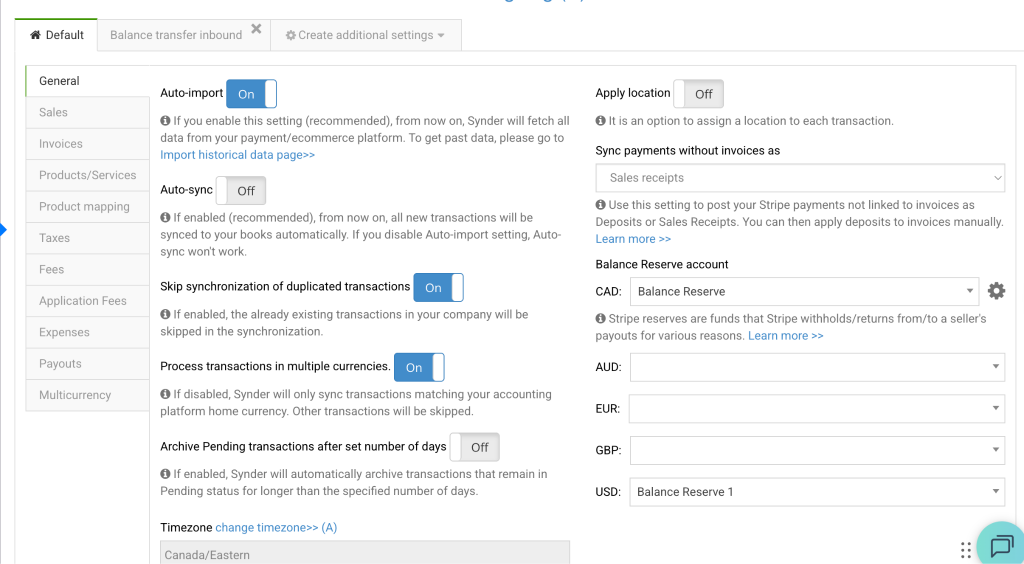
Important: never use the same account for Balance Reserve and Clearing for the same currency — this will create an unreconcilable balance.
Currency field not appearing in QuickBooks Online
Cause: Multicurrency has not been enabled in QBO yet. The currency selector only appears on accounts and transactions after multicurrency is active.
Resolution: Go to Gear icon → Account and settings → Advanced → Currency → check the Multicurrency box → Save. Return to Synder once done.
Common questions
Which exchange rate does Synder use for foreign-currency transactions?
Synder passes the exchange rate provided by your payment processor (for example, Stripe, Shopify, or PayPal) to your accounting platform. If the processor does not provide a rate, your accounting platform’s default exchange rate for that date is used instead.
Do I need separate clearing accounts for each currency?
It depends on your payout setup:
- If you receive payouts in multiple currencies (for example, USD and EUR to separate bank accounts), you need a dedicated clearing account per currency.
- If all payouts settle in a single currency (for example, everything converts to USD), a single clearing account in your home currency is sufficient.
What happens if I sync a foreign-currency transaction without enabling multicurrency?
The transaction is automatically canceled with a message indicating that the currency does not match your home currency. No data is posted to your books. To resolve this, enable multicurrency in both your accounting platform and Synder, then re-sync the affected transactions.
Next step
Once everything is configured correctly, proceed with reconciliation in your accounting platform: Per-Transaction: Shopify Clearing Account Reconciliation Guide.
Reach out to Synder Team via online support chat or email with any questions you have – we are always happy to help you!
