

- Who This Guide Is For
- How Synder Handles Taxes
- Per-Transaction Mode
- Summary Sync
- Handling Multiple Tax Rates From Different Regions
- When Your Payment Platform Sends No Tax Data
- Removing or Excluding Incoming Tax
Who This Guide Is For
This guide is for businesses that use Xero with Synder and need to record taxes correctly across their accounting.
Use this guide if you:
- Use Xero as your accounting platform
- Sell internationally or across multiple tax jurisdictions
- Have noticed that tax is not appearing — or is appearing incorrectly — in Xero after syncing
How Synder Handles Taxes
Synder does not calculate taxes. It reads the tax information your payment platform sends, and then records it in your accounting software. If your platform doesn’t carry tax on a transaction, Synder has nothing to pass through.
However, if your payment platform sends no tax data — for example, Stripe without Stripe Tax — there are custom solutions Synder can implement to handle this (Available on the Pro and higher tier plans). These are covered in the sections below.
Per-Transaction (PT) Mode
The Use tax codes Setting
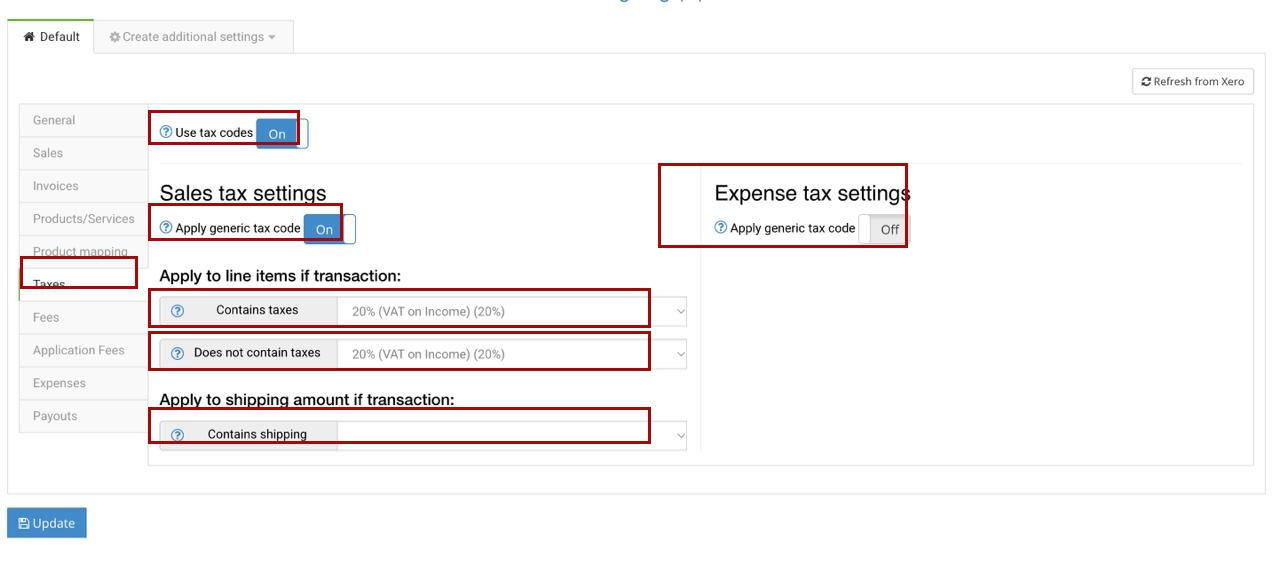
The core tax setting in Per-Transaction mode is Use tax codes, found under Settings → [Your Integration] → Taxes.
This toggle controls how tax amounts are recorded in Xero:
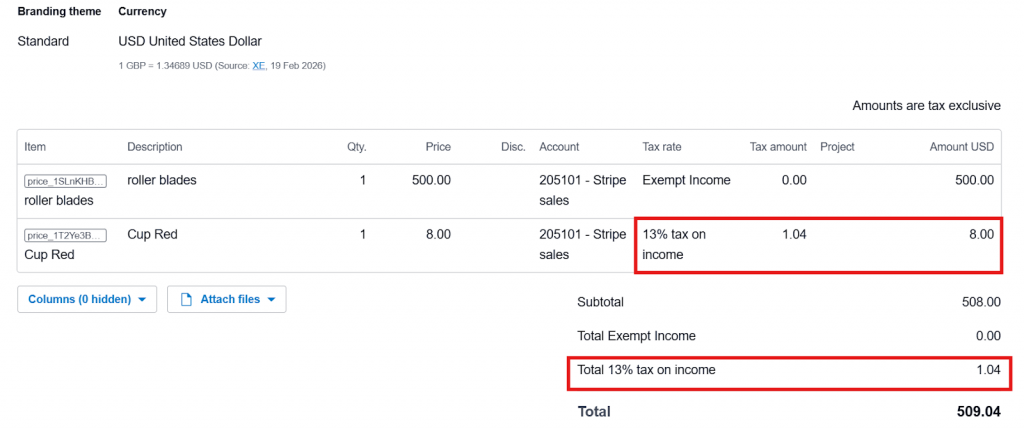
- Use tax codes ON — Tax posts to the dedicated tax field in the transaction. Xero recognises it as tax and includes it in tax reporting.
- Use tax codes OFF — Tax posts as a plain line item on the transaction. The amount is still recorded, but it will not appear in tax reports.
Note: Synder automatically detects whether the transaction is Tax Inclusive or Tax Exclusive based on the original transaction data — this is not something you configure in Synder.
Additional Settings for Xero
Enabling Use tax codes reveals the following additional settings:
Generic Tax Code
Lets you apply a specific tax code based on conditions rather than relying on matching the rate from your payment platform. There are three uses:
- Apply if a transaction contains taxes — Synder ignores the tax rate from your payment platform and applies your chosen code instead. Useful when your platform’s tax calculation is incorrect or you want to standardise to a single code.
- Apply if a transaction does NOT contain taxes — Synder applies a tax code only to transactions that arrive with no tax. This is the key setting when your payment platform sends no tax data at all (see the section below).
- Apply to shipping amount if the transaction contains shipping — Applies a specific tax code to the shipping line when shipping is present on the transaction.
Taxes on Expenses
Some jurisdictions require businesses to account for tax on payment processor fees. This setting lets you apply a tax code to fees recorded as expenses in Xero. Only the Generic Tax Code option is available here.
Important: For location-based tax routing (e.g. different tax codes per country or region), use Smart Rules in Per-Transaction mode to apply the correct tax code based on conditions such as shipping location or product name. For more complex multi-jurisdiction setups, contact Synder support about custom development (available on Pro plan and above).
Summary Sync
Activating Tax Tracking
Tax tracking in Summary Sync is not active by default. To start working with taxes in Xero:
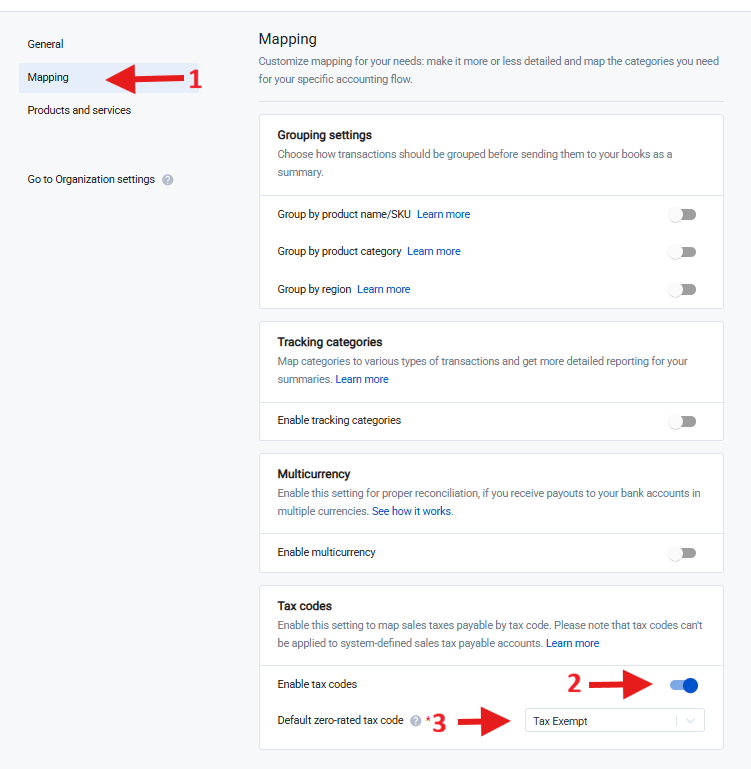
- Go to Settings → Mapping.
- Scroll down to Tax codes and enable them.
- Assign a default zero-rated tax code — this is required for all non-tax lines in your summaries (shipping, discounts, fees, etc.).
What Tax Tracking Does
Once enabled, Synder changes how it builds summary entries. For each tax amount in your transactions, Synder creates:
- A taxable sales amount line with the mapped tax code applied
- An offsetting zero-rated line to balance the entry
This structure ensures that taxable revenue is reported correctly, tax appears in Xero’s Tax Summary report, and income is not overstated.
Note: Synder always treats amounts as net (before tax) and calculates tax as exclusive in Summary Sync.
Mapping Your Tax Account (Taxes Payable)
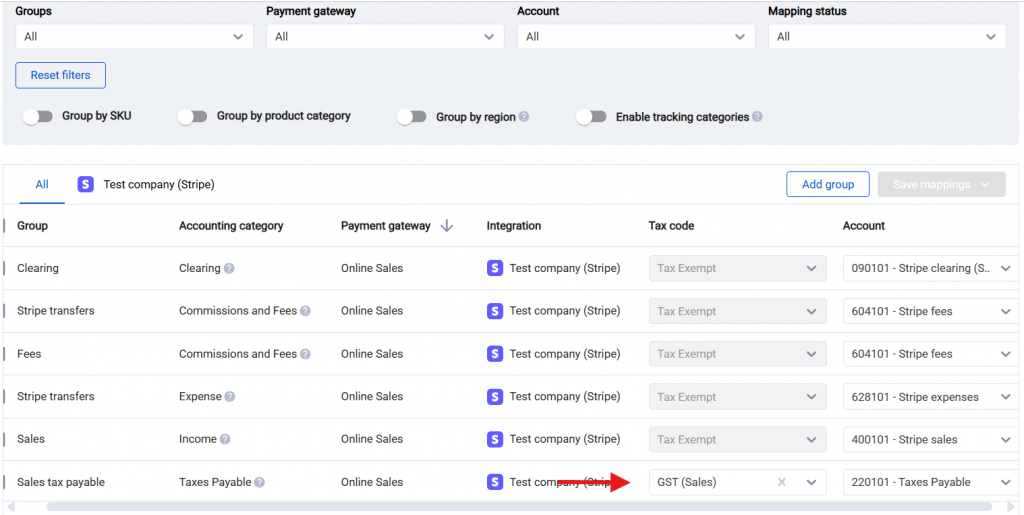
After enabling Tax Tracking and importing a transaction with tax, a new mapping line called Taxes Payable becomes available in your Mapping → Mappings list. You must map this line to your tax liability account in Xero.
Map it to a liability account of your choice. Only Output (sales) tax rates can be mapped to Taxes Payable lines in Xero Summary Sync — Input (purchase) tax rates are not supported.
Remember to assign the zero-rated tax code to all other (non-tax) mapping lines, or rely on the default zero-rated code set in Settings.
Changes only apply to newly generated summaries. After updating your mapping, rebuild existing summaries to reflect the new settings. See How to Rebuild Summaries.
Key Limitations
- Tax codes must exist first. Synder pulls tax codes directly from Xero. If the code you need doesn’t exist there, create it in Xero before trying to use it in Synder.
- Matching is by percentage only. Synder matches tax codes by rate — not by name or jurisdiction. If two codes share the same rate, Synder applies the one that sorts first alphabetically.
- Output tax only. Xero Summary Sync only supports Output (sales) tax rates. Input (purchase) tax rates on expenses are not supported. To account for tax on fees, either do it manually or use Per-Transaction mode. See How Synder Handles Taxes on Fees.
- Tax is always inclusive — Synder cannot increase the transaction total. When tax is applied, it is extracted from the existing amount, not added on top. A transaction of $100 with 20% tax becomes $80 net + $20 tax = $100 total. The income portion decreases; the total stays the same.
- Tax codes on expenses are not supported in Summary Sync. Switch to Per-Transaction mode to apply taxes to fees.
Handling Multiple Tax Rates From Different Regions
If you sell to customers in different countries or regions with different tax rates, you need a way to route each transaction to the correct tax code and account.
Summary Sync: Group by Region
Group by Region automatically splits your summary entries by the customer’s country or region, giving you a separate Taxes Payable mapping line for each — so you can assign the correct tax code and Xero account to each region independently.
Note: Enabling Group by Region splits all mapping lines by region — not just taxes. Sales, refunds, and shipping income lines will also be split.
To set it up:
- Make sure Tax Tracking is enabled (Settings → Mapping → Tax codes).
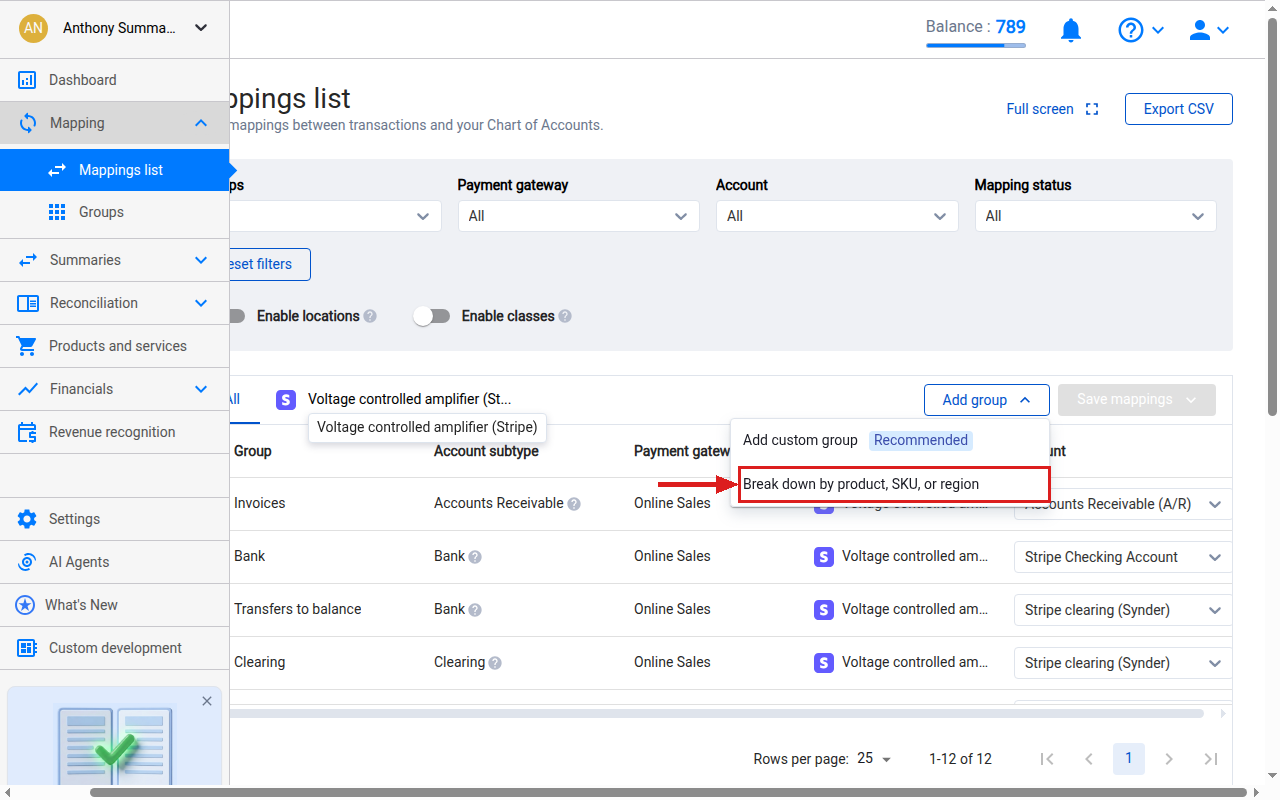
- Go to Mapping → Mappings list and click Add group.
- Select “Break down by product, SKU, or region”.
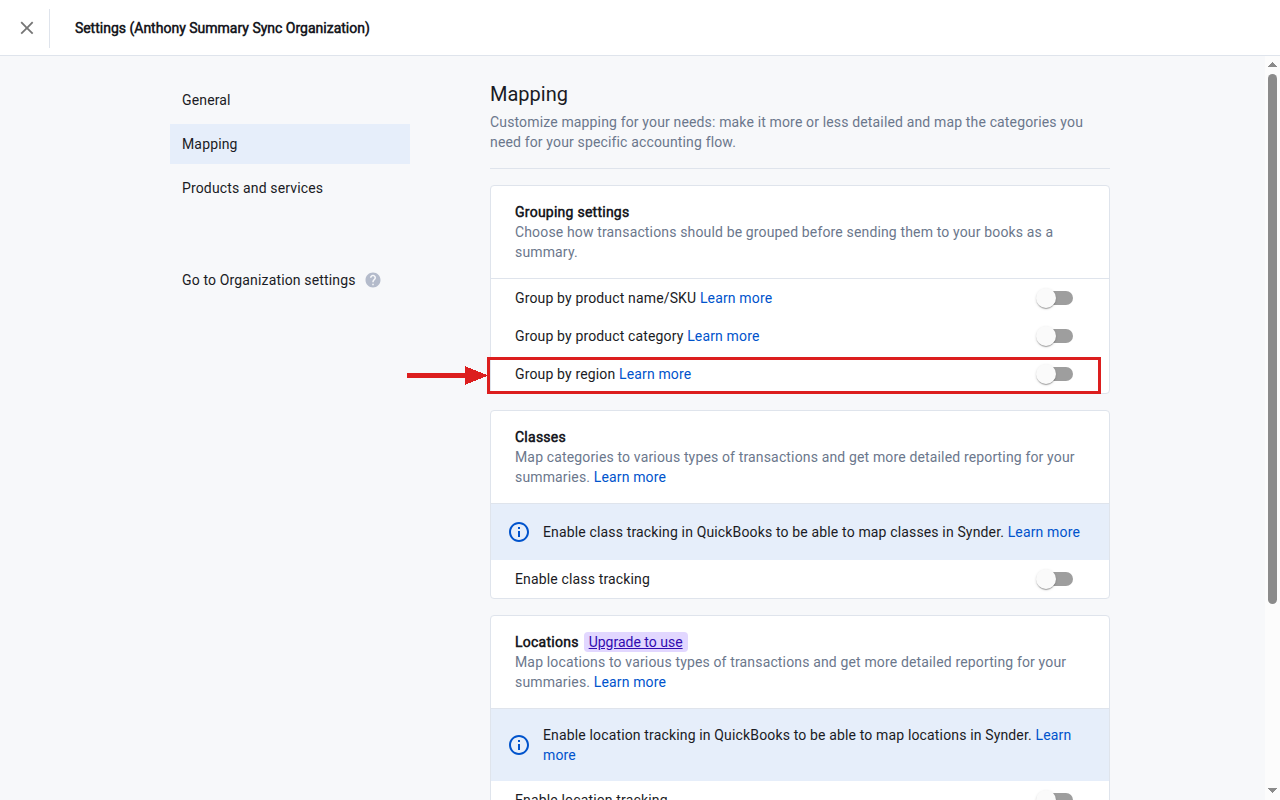
- In Settings → Mapping → Grouping settings, enable Group by region.
- Return to Mapping → Mappings list — you will now see a separate Taxes Payable line for each region. Assign the correct tax code and account to each.
- Save and rebuild existing summaries.
Unknown and N/A entries:
- Unknown — the transaction arrived without usable location data. Use Custom Groups (see below) to handle these.
- N/A — no shipping or billing address was present (common for subscription renewals). Assign to your default tax account.
Need more granular control? Use Custom Groups alongside Group by Region — for example, to split by city, customer, or description. Go to Mapping → Groups → Add group, set Type to Custom, define your conditions, and select Taxes Payable as the accounting category. Custom groups take priority; Group by Region handles everything that doesn’t match.
Per-Transaction: Smart Rules
Smart Rules (Recipes) let you route tax by shipping location automatically — no custom development required.
- Enable Use tax codes in your integration settings.
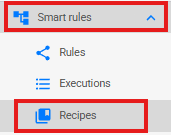
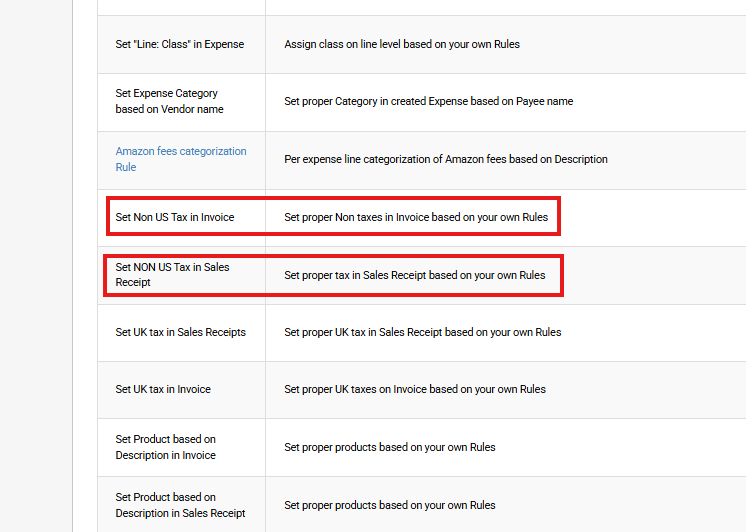
- Go to Smart Rules → Recipes and find “Set NON US Tax in Sales Receipt” or “Set Non US Tax in Invoice” — enable both if you use both transaction types.
- Click Try it out to open the recipe builder.
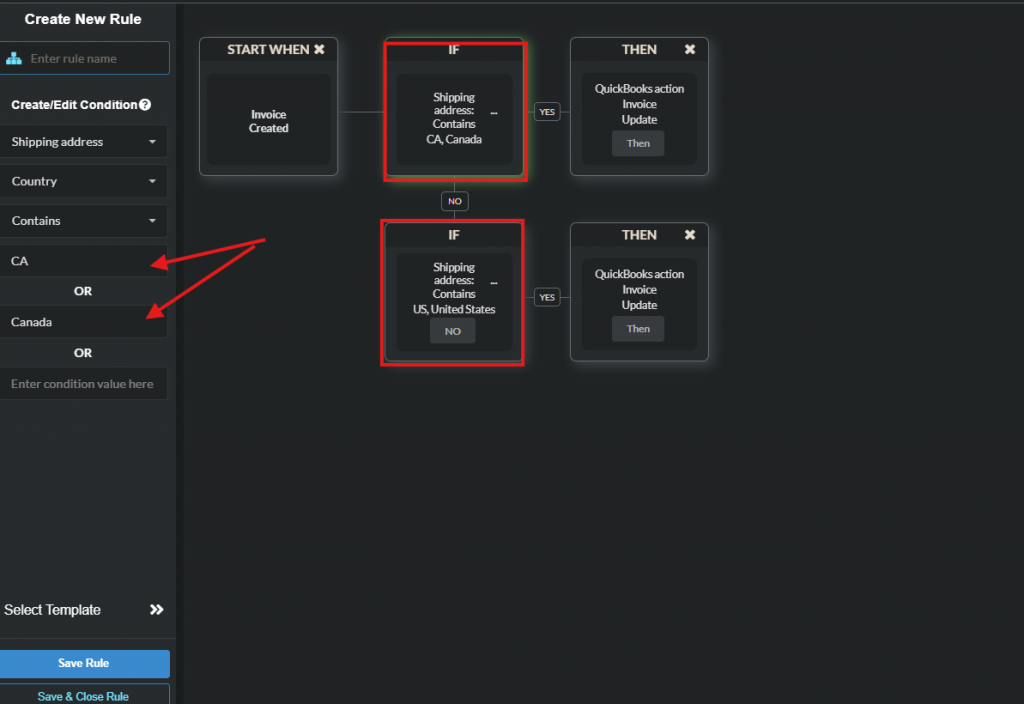
- In the IF block: set Shipping Address → Region → Contains → [region name or abbreviation].
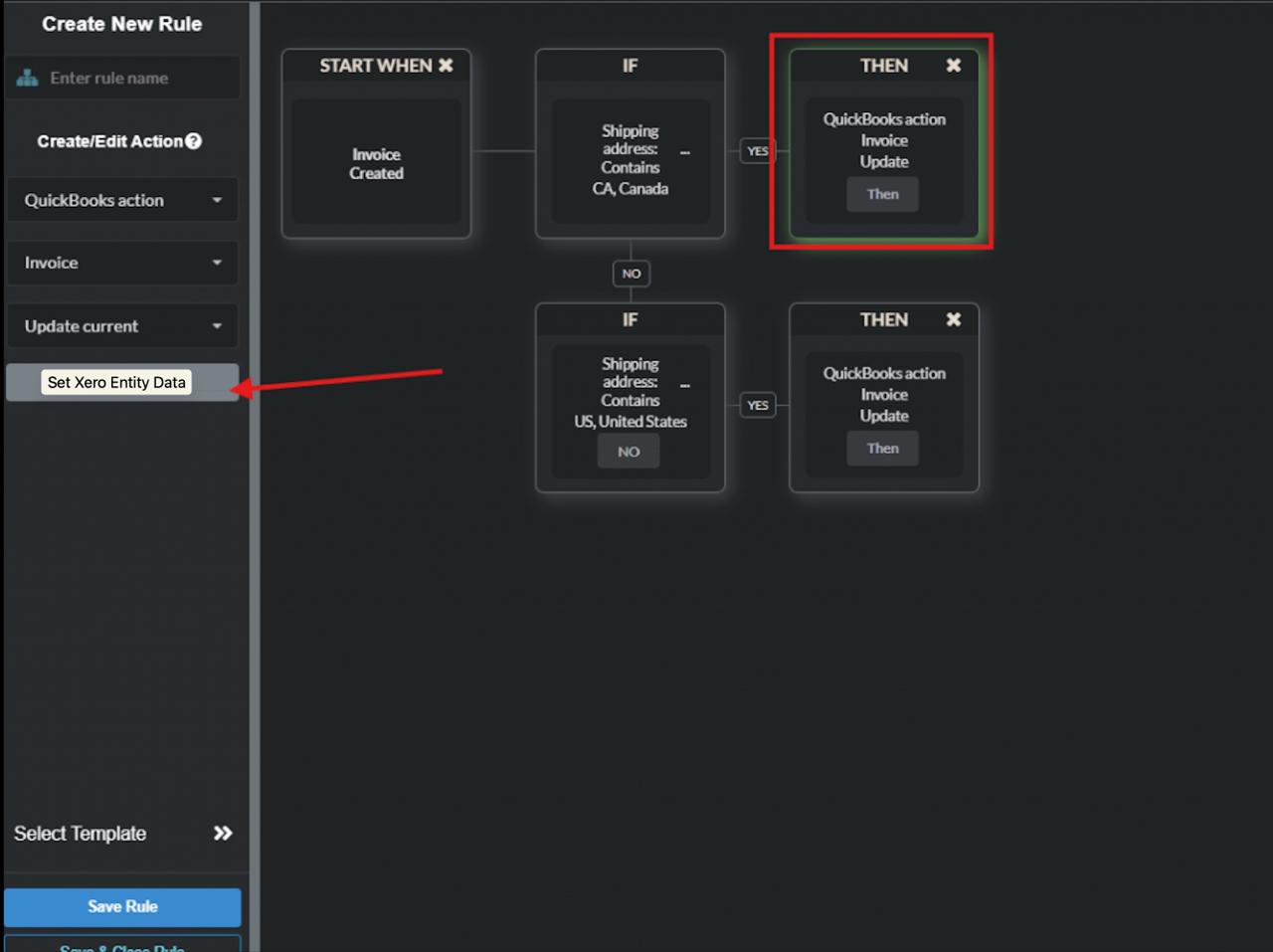
- In the THEN block: select Set Xero entity data → Tax → [your tax code].
- Add additional IF/THEN blocks for each region you sell to.
- Click Save & Close Rule.
Rule order matters — Synder applies the first matching condition. Arrange rules from most specific to least specific. See How to Apply Non-US Sales Tax Based on Shipping Location Using Recipes for a full walkthrough.
For more complex multi-jurisdiction setups that go beyond Smart Rules, custom development is available on the Pro plan and above. Contact Synder support to discuss your requirements.
When Your Payment Platform Sends No Tax Data
If your payment platform doesn’t include tax in transaction data — for example, Stripe without Stripe Tax, or certain PayPal setups — Synder has nothing to record. This is the most common reason tax is missing from your books after syncing.
Summary Sync: Group by Region can only route tax that already exists in transactions. If no tax data is coming through, a custom modification is required (available on Pro plan and above). Contact Synder support to arrange this. Any future changes to your setup will require the modification to be updated.
Per-Transaction: Use the Generic Tax Code → Apply if a transaction does NOT contain taxes setting to apply a blanket tax code to all untaxed transactions. For location-based routing across multiple regions, a custom modification is required (available on Pro plan and above) — contact Synder support.
Removing or Excluding Incoming Tax
If your payment platform sends tax data but you do not want it recorded in Xero — for example, because you handle tax filing separately or the incoming data is incorrect — this can be handled with a custom modification (available on Pro plan and above).
Contact Synder support with:
- Which payment platform the tax is coming from
- Whether you want tax excluded entirely or recorded to a separate account
- Whether this applies to all transactions or specific types
Reach out to the Synder team via live chat or email — we’re happy to help you find the right setup.
