

- How Synder Handles Products
- Product Name Settings
- What Synder Creates When No Match Is Found
- Preventing Synder from Creating New Products
- Product Mapping
- Inventory Items and COGS
- Sell physical products and need COGS to appear on your Profit & Loss report
- Want to control how Synder names or creates products in your accounting platform
- Need to prevent duplicate items from appearing in your accounting platform
- Want to use product mapping to route transactions to existing items
- Create a new product — Synder creates the item in your accounting platform using the type and accounts you configure
- Cancel the transaction — Synder does not sync until the product issue is resolved
- Apply a product mapping rule — Synder reroutes the transaction to a product you have pre-mapped
- Income account — where sales revenue is posted
- Expense account — for vendor purchases (if applicable)
- Your Shopify product names don’t match your accounting platform item names
- You want multiple platform products to roll up to a single item in your accounting platform
- You have a large catalog and don’t want Synder creating hundreds of new items in your accounting platform
- Go to Settings → [Your Integration] → Products/Services
- Select Use original product name and SKU
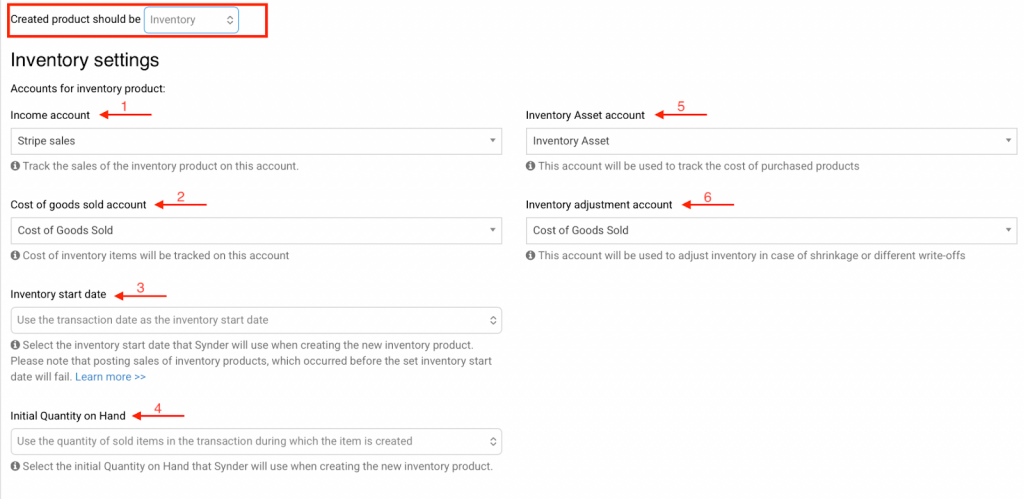
- Under Assign product type, select Inventory
- Configure the required accounts (see below)
- Income account — where sales revenue is posted (e.g. Sales of Product Income)
- Cost of Goods Sold (COGS) account — where the cost of each sold item is recorded on your P&L
- Inventory Asset account — tracks the value of stock you currently own
- Inventory start date — critical: transactions before this date will not post COGS. Set this to a date on or before your earliest Synder transaction.
- Change the Assign product type setting in Synder to Inventory
- Set the Inventory start date to before your earliest transaction
- Roll back the previously synced transactions in Synder
- Re-sync them — Synder will now create or match them as inventory items and COGS will post
- Shopify: Product variants (size, color, etc.) each create a separate item in your accounting platform by default, since they have separate SKUs. If you have many variants, consider using Product Mapping to consolidate them into fewer items.
- Amazon: COGS is supported. See the Amazon QBO settings guide for inventory configuration.
- TikTok: COGS is supported. See the TikTok QBO settings guide for details on discount and split seller mapping that affects COGS.
- Stripe: Product names can be parsed from the description field if no explicit product name exists — enable “Parse product from description” in settings. Note: Synder can only parse one product per description field.
- Square, PayPal: COGS follows the same inventory item logic. Ensure product names in your platform exactly match your accounting platform item names for correct matching.
- COGS is missing from P&L — The product is a Non-inventory or Service item. Change Assign product type to Inventory in Synder settings, or convert the existing item to Inventory type in your accounting platform.
- Duplicate products appearing in your accounting platform — A name mismatch between your sales platform and your accounting platform (e.g., capitalisation difference or extra space). Use Product Mapping to map the platform name to the correct item in your accounting platform, or standardise the names.
- Transaction canceled / failed status — Cancel sync is enabled and the product name from the platform doesn’t match any item in your accounting platform. Check the error in Platform Transactions → Explain for the specific missing product name.
- COGS appears as $0 or missing on some transactions — The inventory start date is set after the transaction date. Open the item in your accounting platform → Edit → adjust the start date. Then re-sync the affected transactions.
- Transactions fail after enabling inventory type — The inventory start date may not be set correctly. Ensure it is on or before the earliest transaction you want to sync with COGS.
- Managing Products and Services with Synder – Per Transaction Sync
- Synder Product Mapping Feature
- Cancel Synchronization if Item Not Found
- Transaction Can Not Be Synchronized Without Product or Service – Understanding Product Search Priority
- Customize Your Synder Shopify Settings (QuickBooks Online)
- Customize Your Synder Amazon Settings (QuickBooks Online)
- Customize Your Synder TikTok Settings (QuickBooks Online)
- Global Taxes in Synder: A Guide for QuickBooks Online Users
-
This guide covers how Synder handles products and services in Per Transaction Sync — from matching and creating items to setting up inventory tracking and Cost of Goods Sold (COGS).
⚡ Using Summary Sync? Product and COGS setup works differently in Summary Sync mode — Synder tracks costs internally rather than relying on inventory item types in your accounting platform. See COGS Tracking with Synder Summary Sync →
Use this guide if you:
This guide does not cover: Synder Summary sync and inventory management inside your accounting platform itself, or product setup inside your sales platform (Shopify, Amazon, etc.).
How Synder Handles Products
Every time Synder syncs a transaction, it needs to assign each line item to a product or service in your accounting platform. The process works in three steps:
Step 1 — Synder looks for an existing match
Synder searches your accounting platform for an existing product using the name or SKU from the transaction. The match must be exact — spacing, capitalisation, and special characters all count.
You can configure whether Synder searches by name or SKU first — see the Product Search Priority setting.
Step 2 — If a match is found
Synder assigns the transaction to that existing product. Revenue is posted to the income account linked to that product in your accounting platform. If the product is an Inventory item, your accounting platform automatically calculates and posts COGS — no extra configuration needed in Synder.
Step 3 — If no match is found
Synder’s behavior depends on your settings:
Product Name Settings
In Settings → Products/Services, you choose how Synder records the product name for each transaction. This choice determines whether COGS tracking is possible.
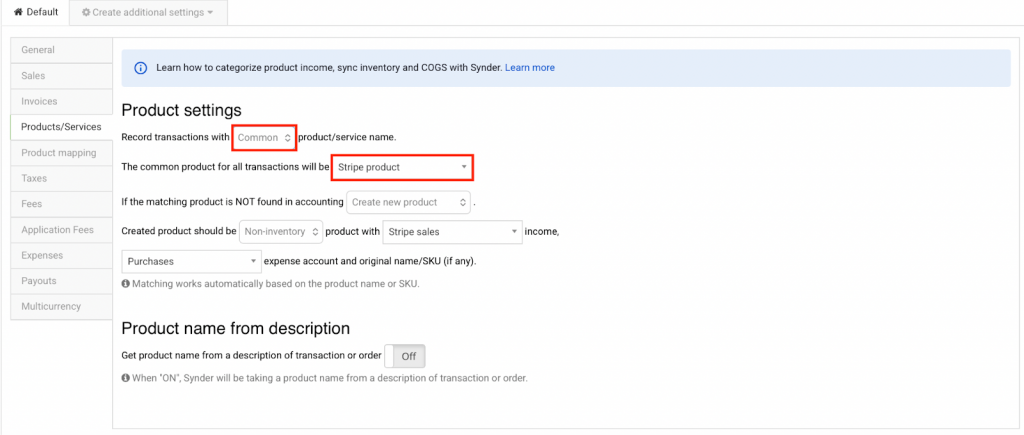
Option 1: Use a Common Product Name
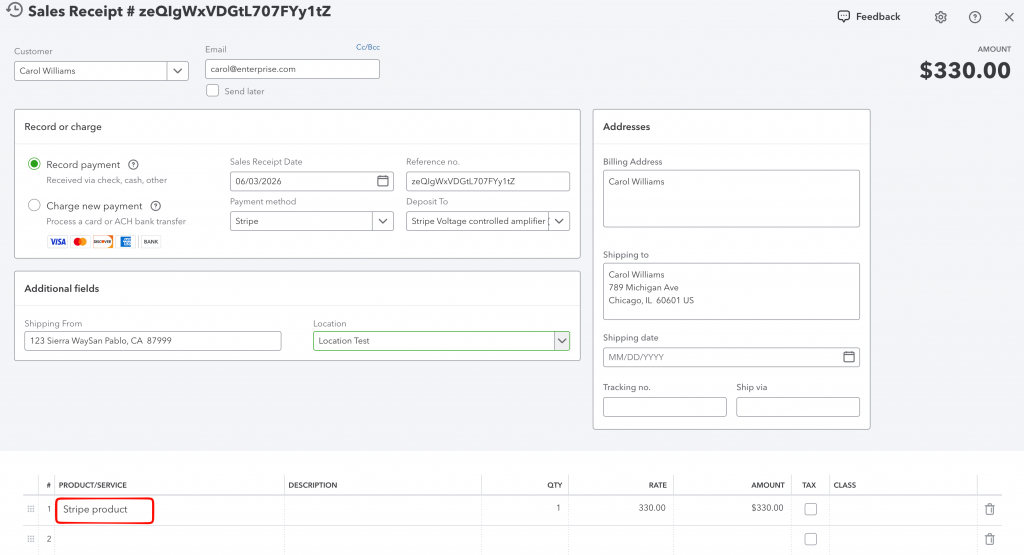
All transactions from this integration are posted to a single generic item in your accounting platform — for example, “Shopify Sales” or “Stripe Product”. Use this when you do not need item-level reporting.
Important: The common product name option does not support COGS tracking. If you need COGS, use Option 2.
What this looks like in your accounting platform: Every sales receipt or invoice will show the same generic product name on every line, regardless of what was actually sold.
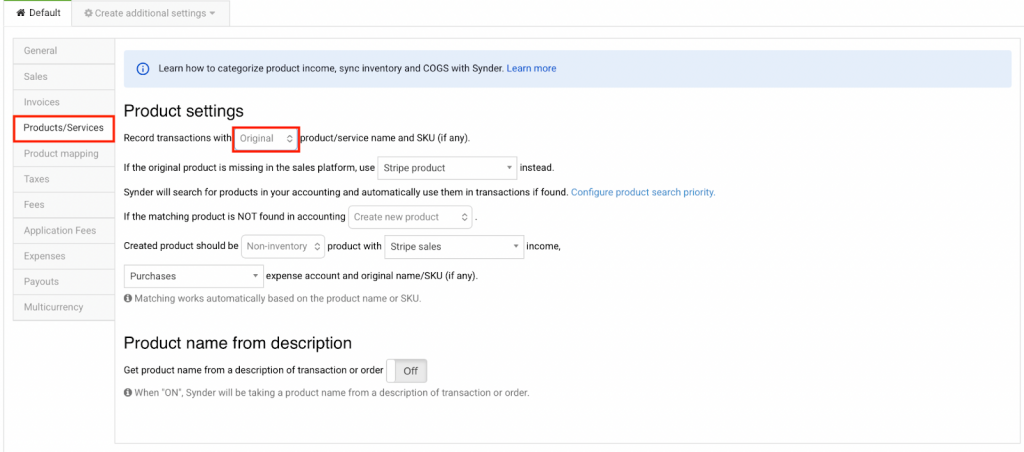
Option 2: Use Original Product Name and SKU
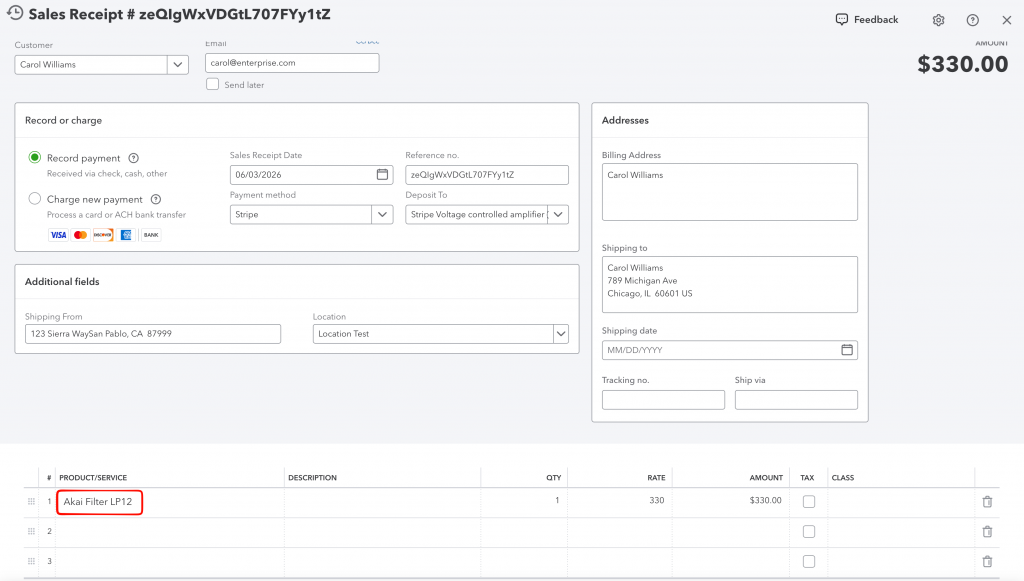
Synder reads the actual product name and SKU from each transaction and tries to match it to an existing product in your accounting platform. This is required for COGS tracking and item-level P&L reporting.
What this looks like in your accounting platform: Each sales receipt or invoice will show the actual product name or SKU from your sales platform — matching what your customer ordered.
Default product when name is missing
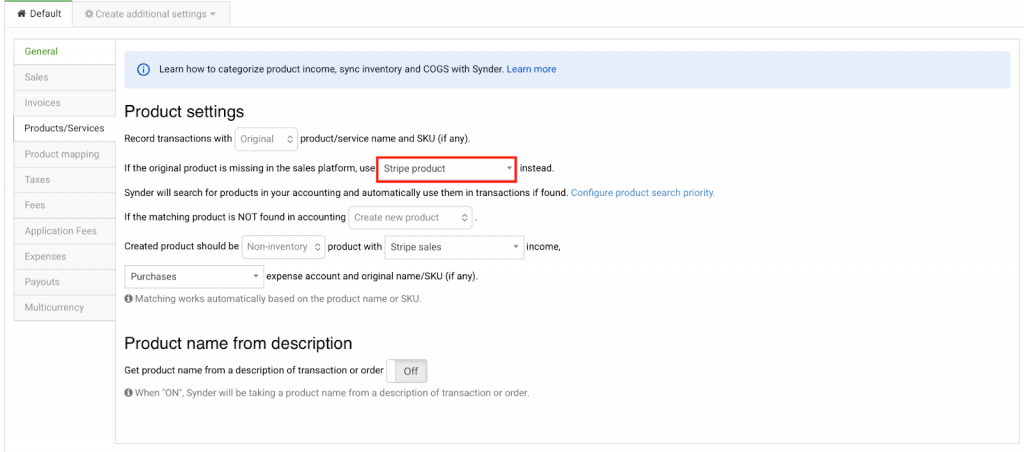
If a transaction has no product name (which can happen with certain payment processors), Synder falls back to a default product you specify in the “use … instead” field.
What Synder Creates When No Match Is Found
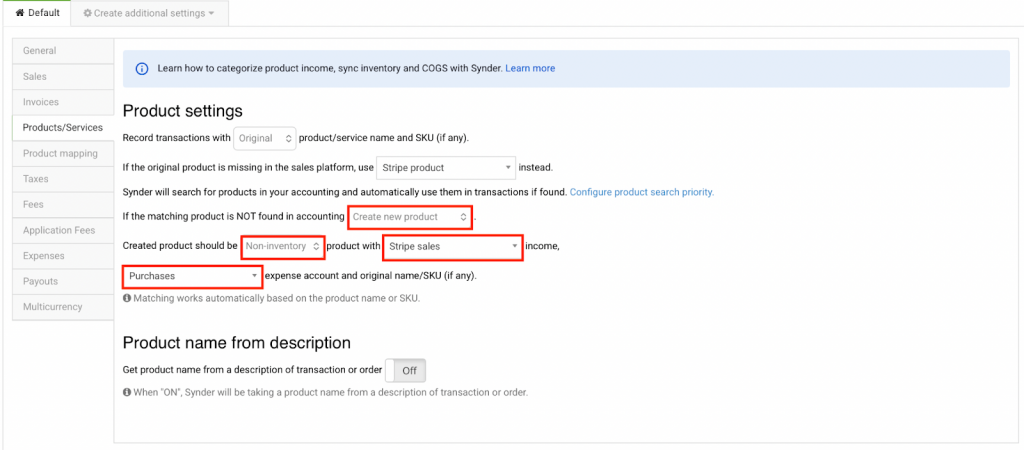
When Synder cannot find an existing product in your accounting platform and is configured to create one, the item type depends on your Assign product type setting in Products/Services.
Non-inventory or Service items (default)
Non-inventory and Service items do not track stock levels or trigger COGS. This is Synder’s default. Use this when you do not need to track physical inventory.
Inventory items
Set Assign product type to Inventory and Synder will automatically create new products as inventory items in your accounting platform — enabling COGS tracking from the first sync. You do not need to manually pre-create every product in your accounting platform; Synder handles that for you.
For full details on accounts, setup steps, and what COGS looks like in your accounting platform, see the Inventory Items and COGS section below.
Preventing Synder from Creating New Products
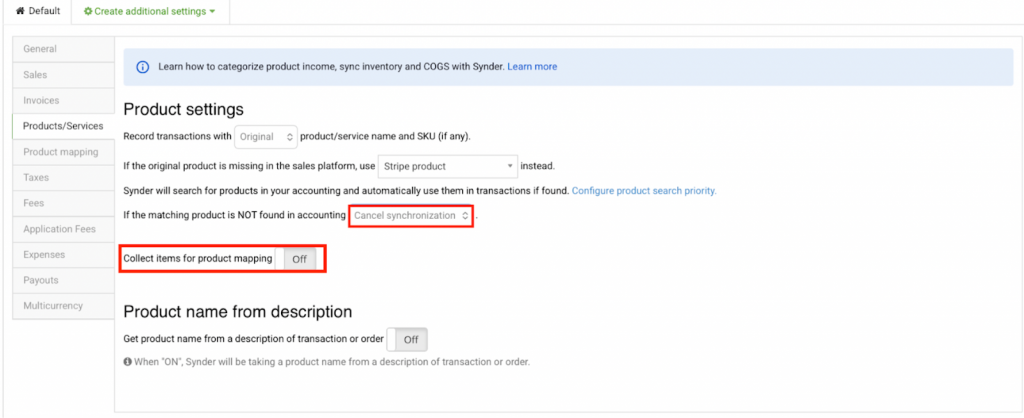
If you want strict control over what appears in your accounting platform’s product list, enable “If the matching product is NOT found — Cancel synchronization” in your settings.
When this is on, any transaction that references a product not found in your accounting platform will be canceled rather than synced. See the full guide: Cancel Synchronization if Item Not Found →
Where you see the error
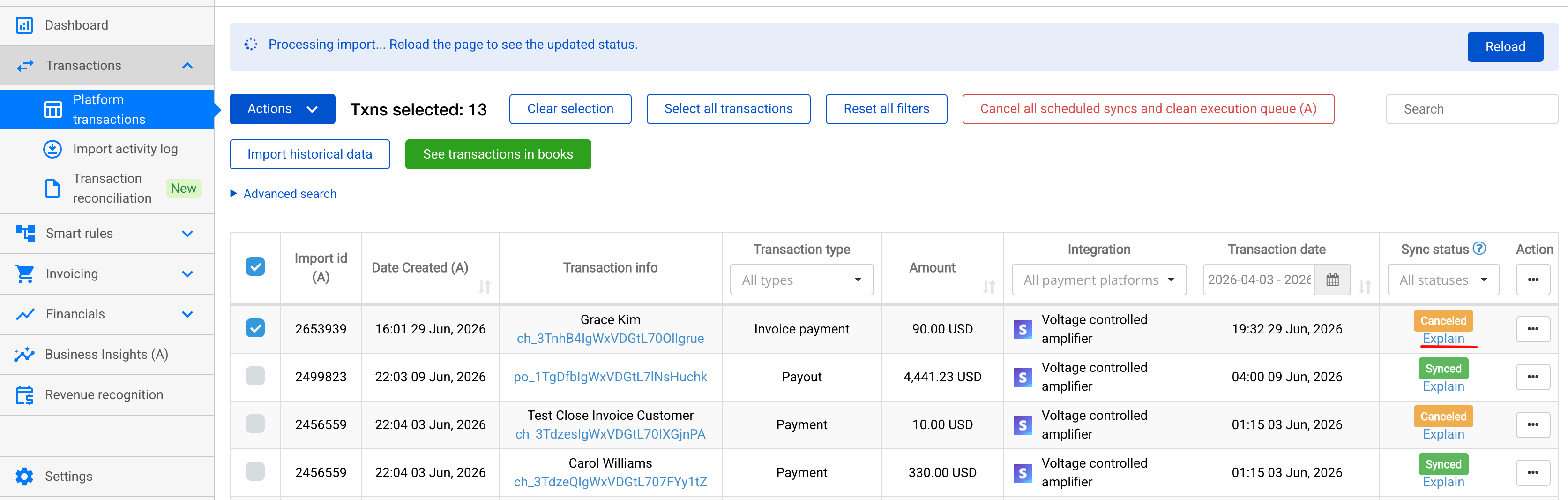
When a transaction is canceled due to a missing product, go to the Platform Transactions tab in Synder. Find the transaction with Failed status, then click Explain to view the error log. The message will show exactly which product name was missing from your accounting platform.

Collect Items for Product Mapping
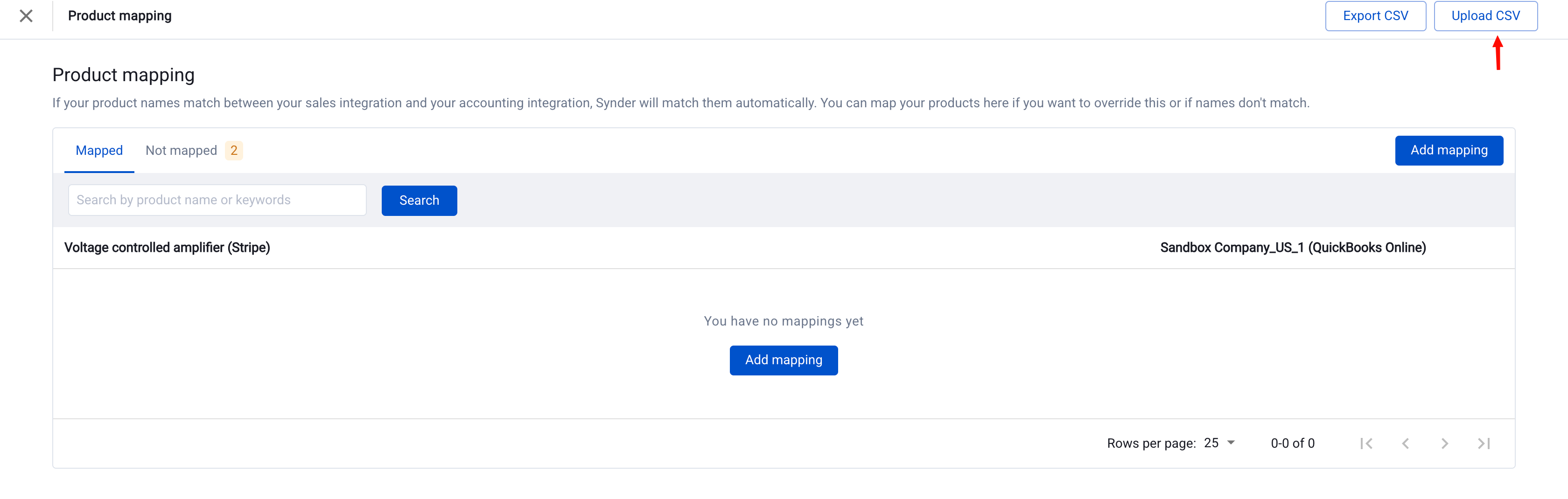
When Cancel synchronization is enabled, a second option appears: “Collect items for product mapping”. When turned on, Synder logs the names of all unmatched products into the Product Mapping page, where you can map them to existing items in your accounting platform instead of creating new ones.
Product Mapping
Product mapping lets you manually route a product name from your sales platform to a specific existing product in your accounting platform — without relying on exact name matching. This is useful when:
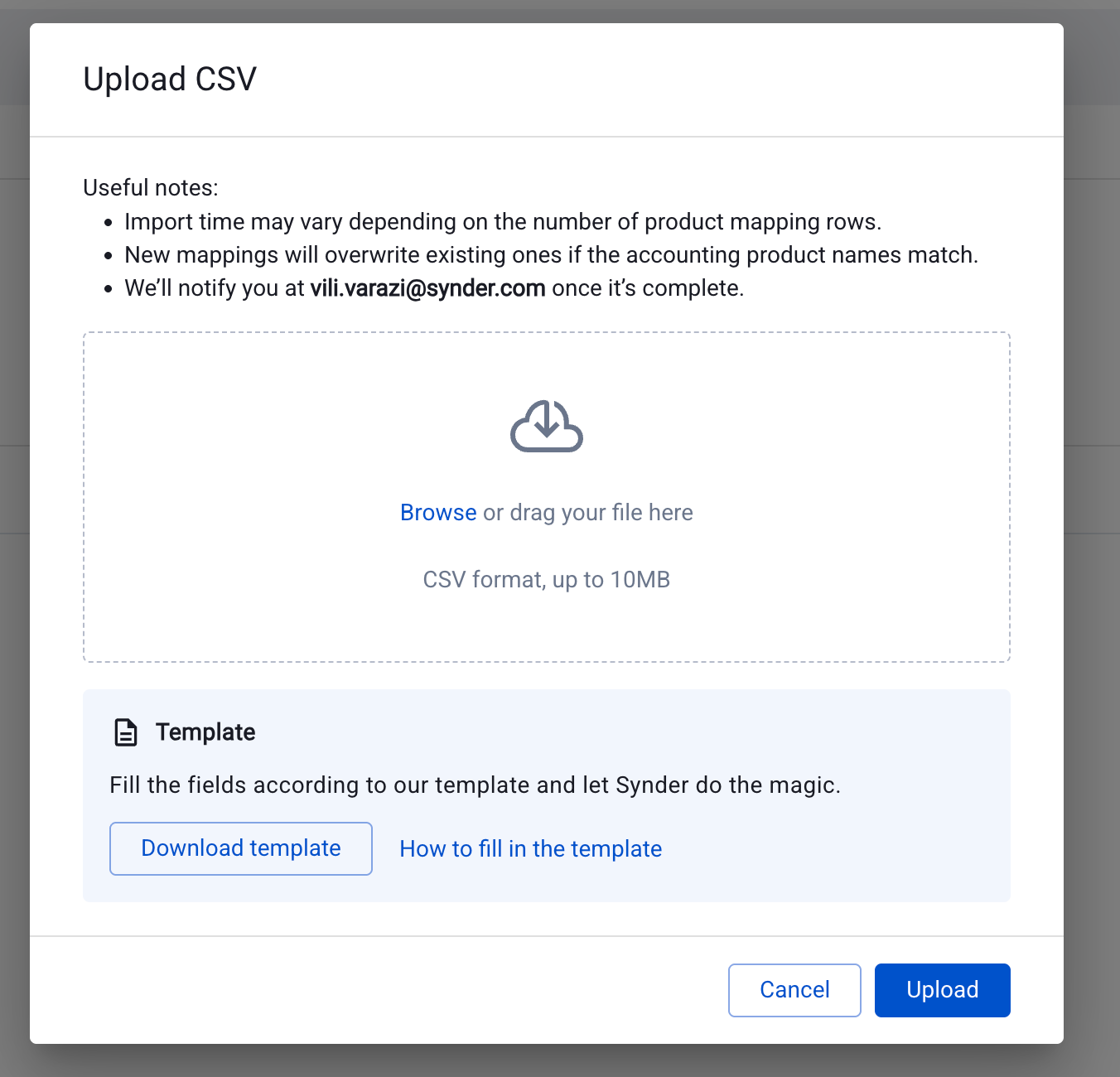
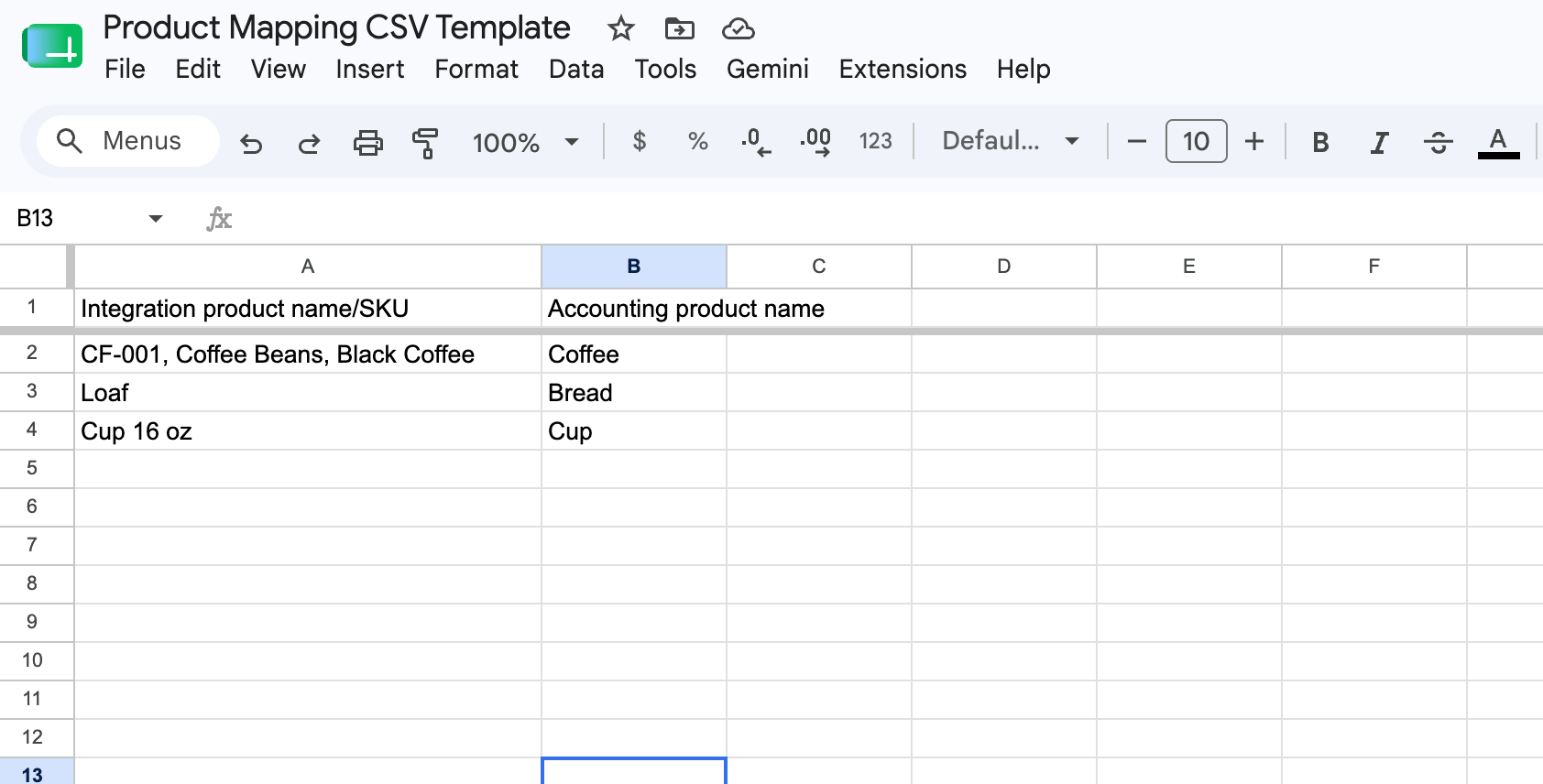
For full setup instructions — including how to use the CSV upload for bulk mapping — see the dedicated guide: Synder Product Mapping Feature →
Inventory Items and COGS
If you sell physical products and need Cost of Goods Sold to appear on your Profit & Loss report, your products must be set up as Inventory items — not Non-inventory or Service items. This section explains how that works and how to set it up through Synder.
How COGS works
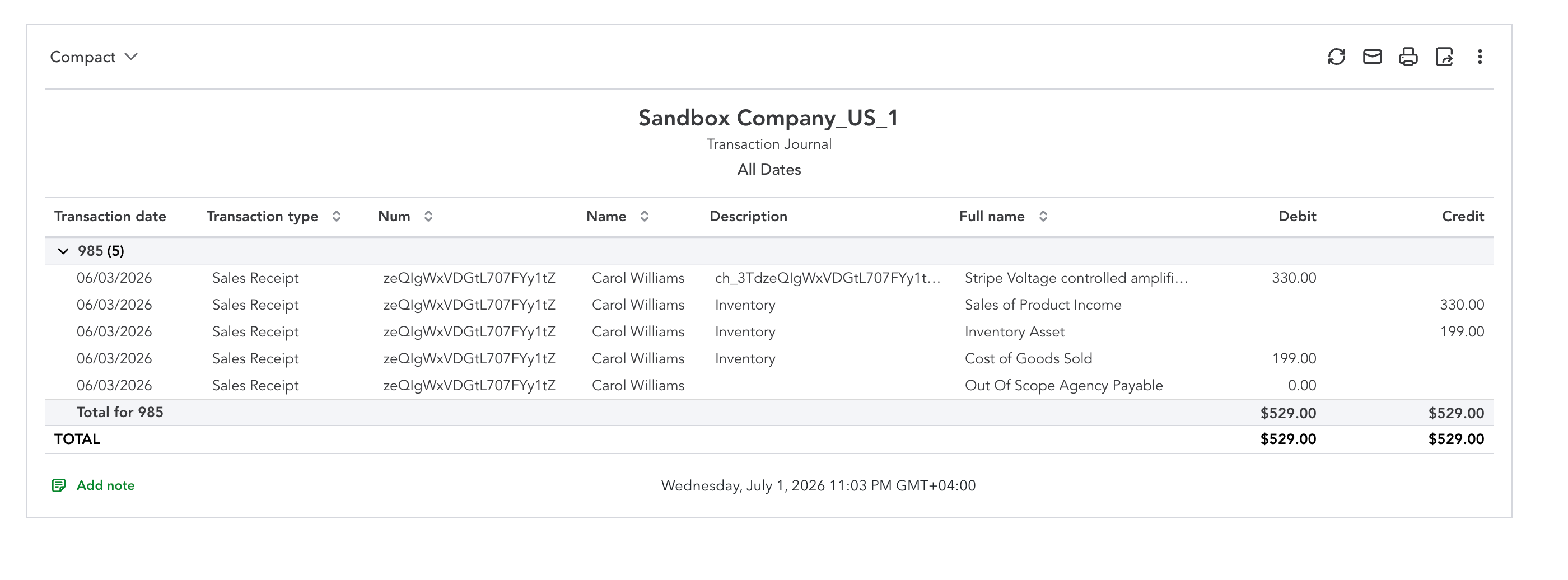
When a product is set as an Inventory item, your accounting platform calculates COGS automatically. Each time a sale is recorded, it deducts the cost from your Inventory Asset account and posts it to your COGS account on the P&L.
Synder does not calculate COGS — your accounting platform does. Synder’s job is to match or create the product and record the sale. The cost calculation happens automatically in your accounting platform.
How Synder creates inventory items
You do not need to pre-create every product in your accounting platform manually. Synder can create inventory items for you:
When Synder encounters a product that doesn’t exist in your accounting platform yet, it will create it as an inventory item using the accounts you specified. Future transactions with that product will match to the created item automatically.
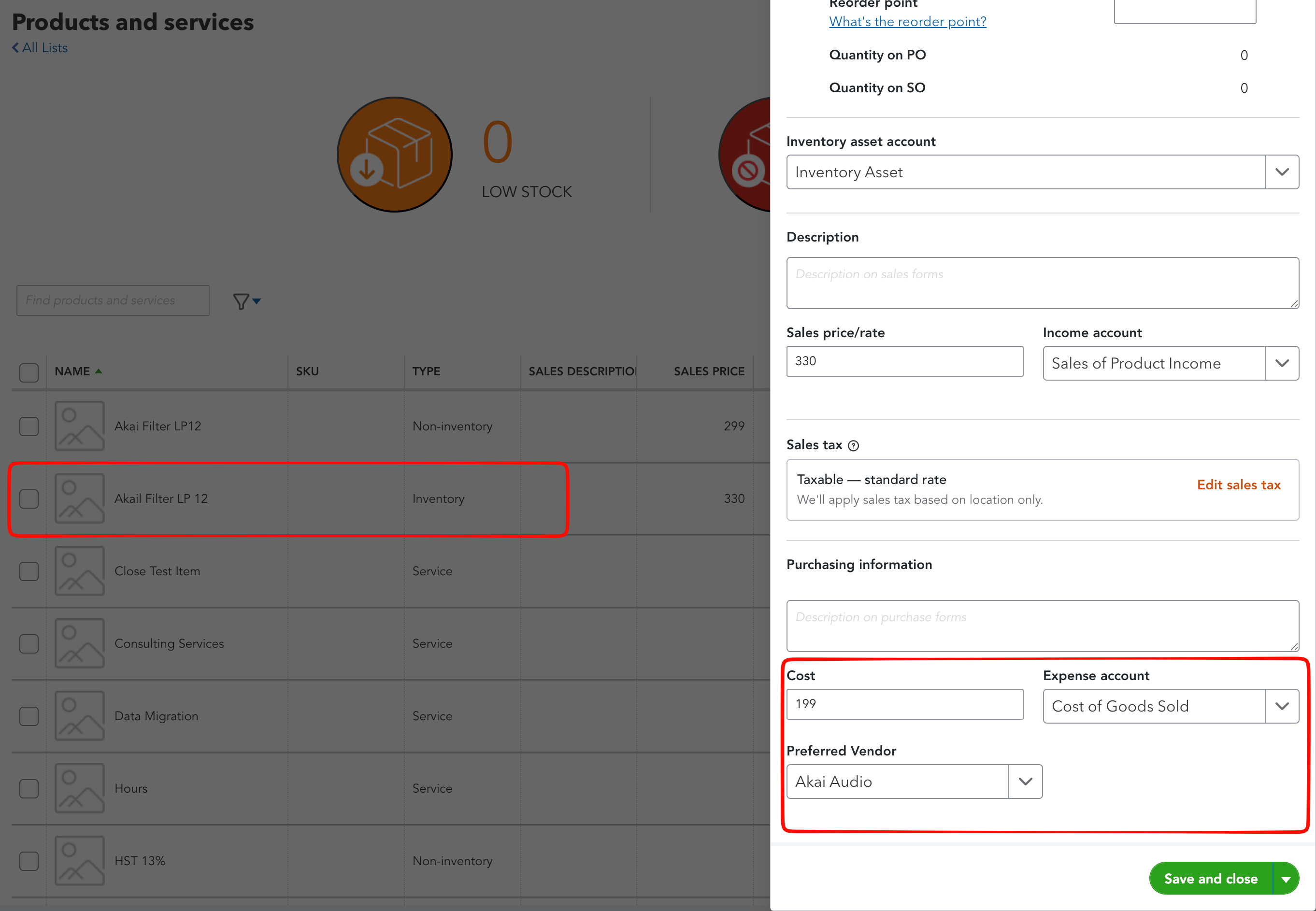
Required accounts for inventory items
⚠️ Inventory start date matters. If you are enabling COGS for the first time on an existing account, set the start date to when you began using Synder. Transactions dated before this date will show a sync error or post without COGS.
What COGS looks like in your accounting platform
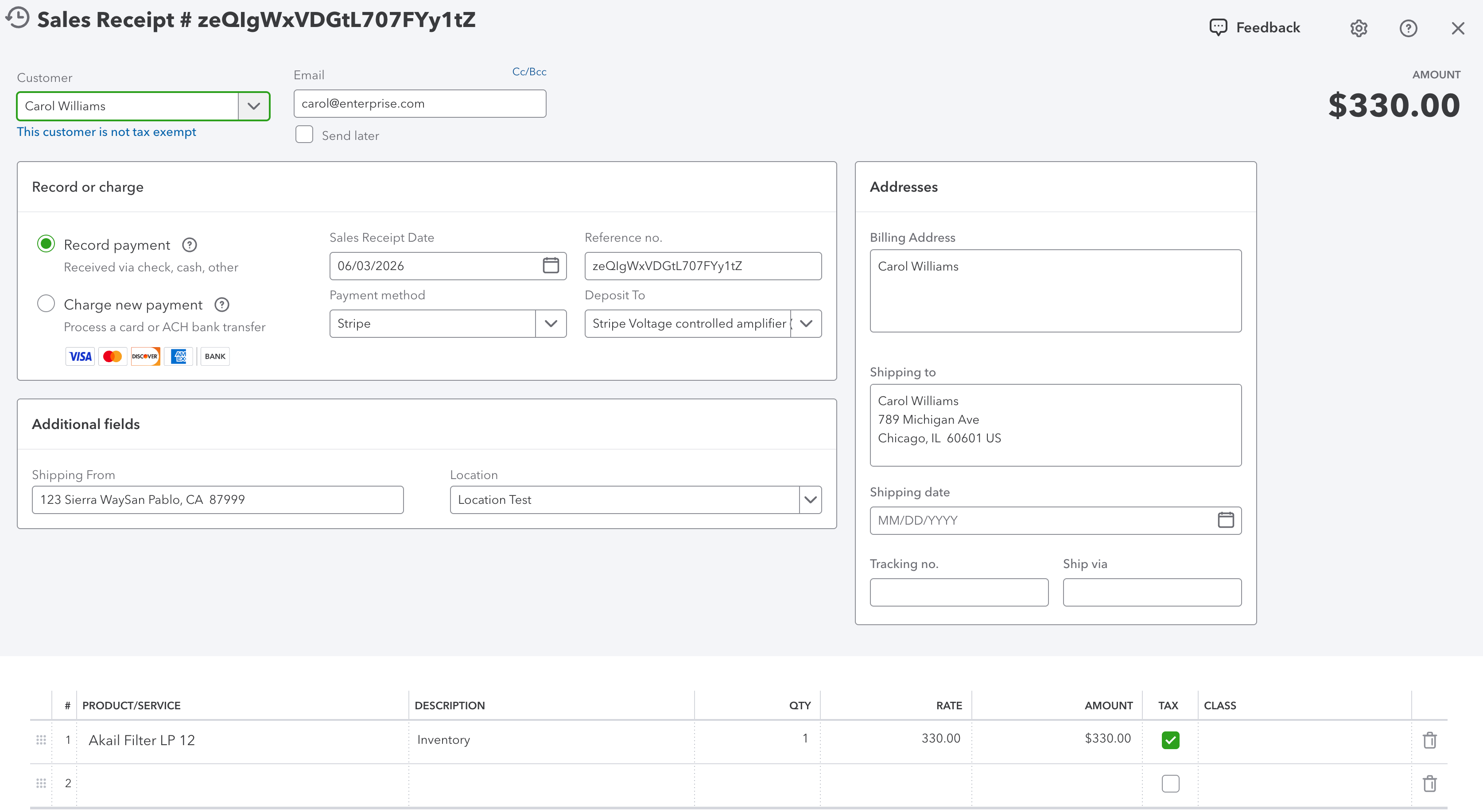
Once inventory items are configured, each synced sale automatically triggers a COGS entry. The line item on the sales receipt or invoice will link to your inventory product, and your Profit & Loss report will show the COGS amount under the account you specified — matched to the sales for that period.
COGS for existing transactions (retroactive backfill)
If you previously synced transactions using Non-inventory or Service items and now want COGS, you need to:
💡 Large backfills take time. Rolling back and re-syncing a large date range can be a significant process. Contact Synder support if you need help planning a backfill for a large account.
