

Pro/Premium TikTok is available on Pro and Premium plans. All settings and features in this guide are included in your plan. View plan details →
Overview
After connecting your company and accounts, configure the TikTok – QuickBooks Online integration settings. These settings determine how transactions, invoices, fees, expenses, and payouts are recorded in QuickBooks Online.
The TikTok settings are organized into the following sections:
- 1. General
- 2. Sales
- 3. Invoices
- 4. Products and Services
- 5. Product mapping
- 6. Taxes
- 7. Fees
- 8. Payouts
- 9. Multicurrency
How to Access TikTok Settings
To access your TikTok settings in Synder:
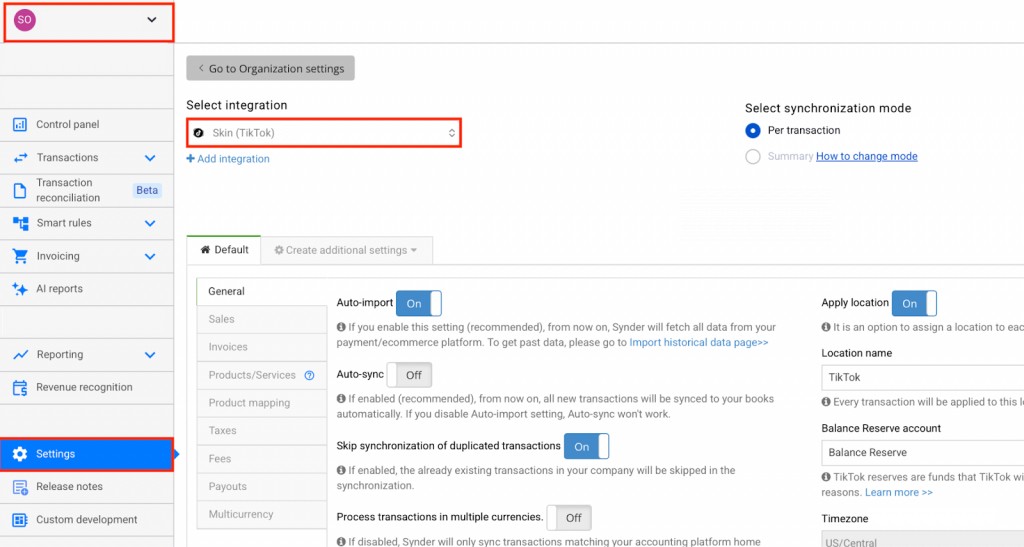
Option 1: From the main menu
- Select the appropriate organization from the top-left corner
- Click Settings in the left-hand menu
- Choose TikTok from the dropdown list
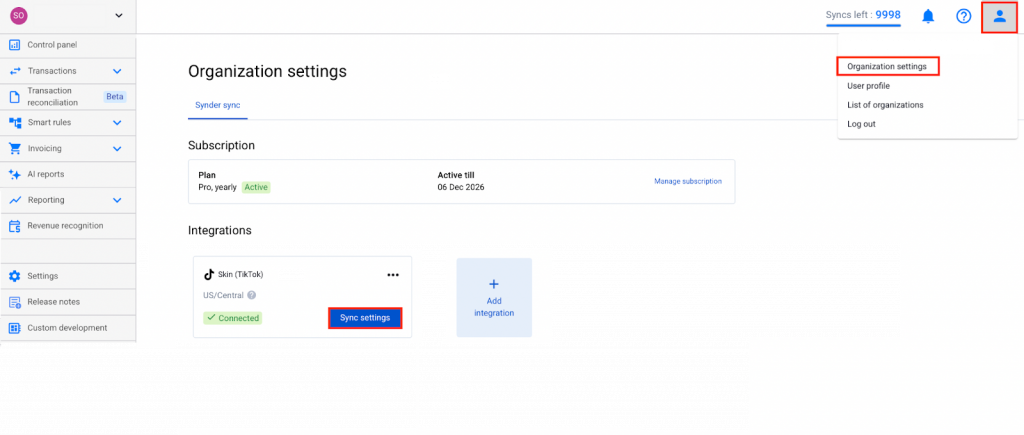
Option 2: From Organization Settings
- Click the person icon in the upper-right corner
- Select Organization settings
- Click Sync settings under TikTok
1. General
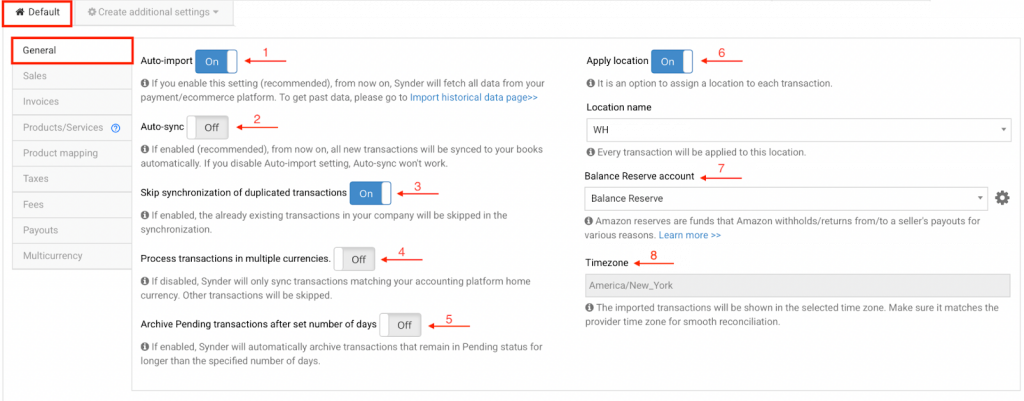
- Auto-Import – First, this setting lets Synder import transactions from TikTok automatically, without affecting your sync balance or syncing them to QuickBooks Online. Alternatively, disable it to import transactions manually.
- Auto-Sync – Next, this setting lets Synder sync transactions automatically after import. Alternatively, disable it to sync transactions manually from the Platform Transactions tab.
- Skip Synchronization for Duplicated Transactions – In addition, Synder skips any transaction that already exists in QuickBooks Online with the same ID, so you avoid duplicates.
- Process Transactions in Multiple Currencies – When enabled, Synder syncs all transactions regardless of currency. Otherwise, Synder syncs only transactions in your home currency.
- Automatically Archive Pending Transactions – Also, Synder removes pending transactions that TikTok never finalized. To archive one manually, however, go to the Platform Transactions tab, locate the transaction, click the three dots, and select Archive.
- Apply Location – Then, assign a QuickBooks Online location to your synced transactions. Simply enable this setting and select a location.

- Balance Reserve account – Additionally, TikTok reserve balances are funds that TikTok withholds from seller payouts. Because these funds cover potential risks such as chargebacks, returns, and claims, Synder tracks them separately. For more detail, refer to Per-Transaction Sync: Synchronizing TikTok Balance Reserves
- Timezone – Finally, this setting displays your TikTok account timezone, so transaction dates align between TikTok and QuickBooks Online.
2. Sales
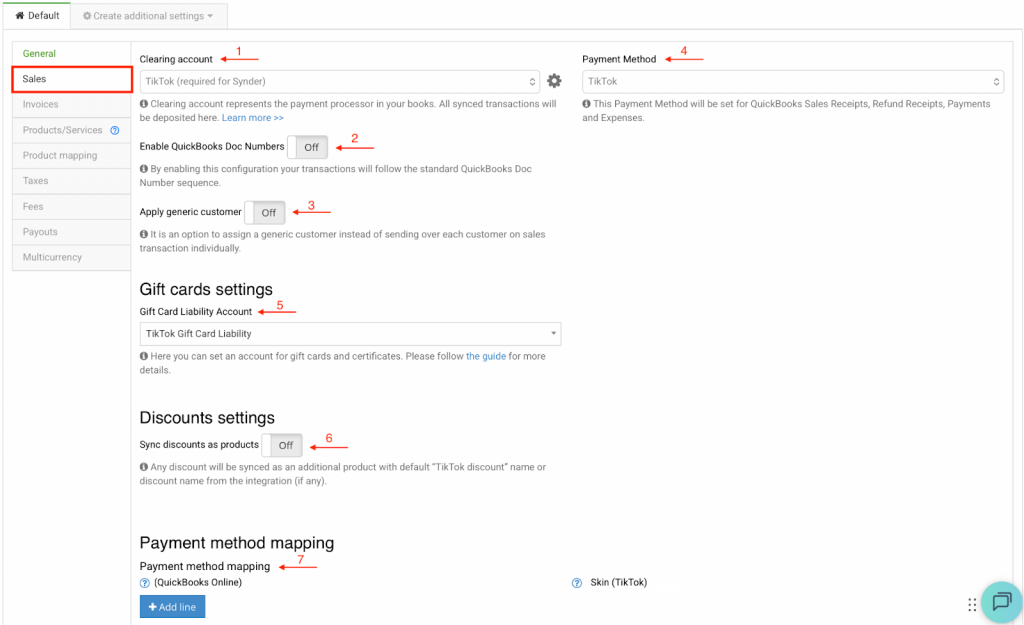
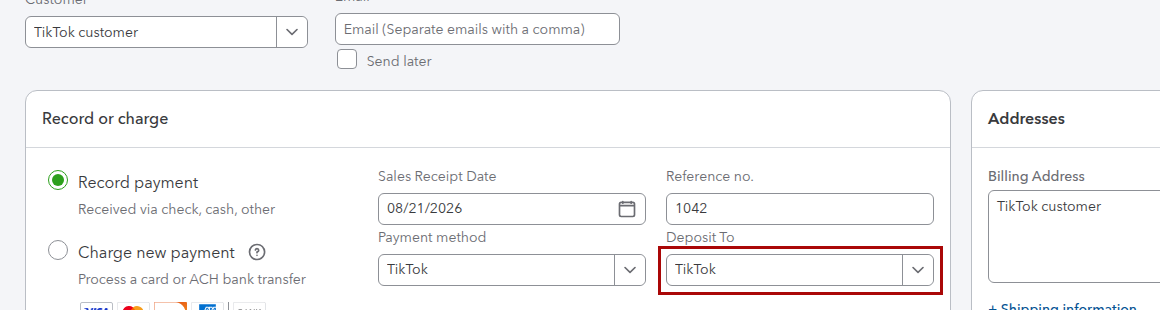
- Clearing Account – First, this is a buffer account where Synder deposits QuickBooks Online sales receipts, refund receipts, and payments before moving them to your main accounts.
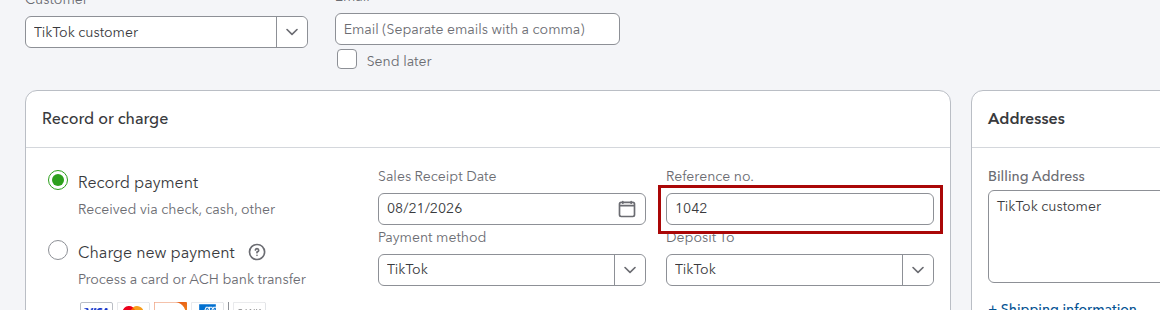
- Enable QuickBooks Doc Numbers – When enabled, your transactions follow the standard QuickBooks document numbering sequence. When disabled, however, Synder assigns the DocNumber from the payment processor number instead.
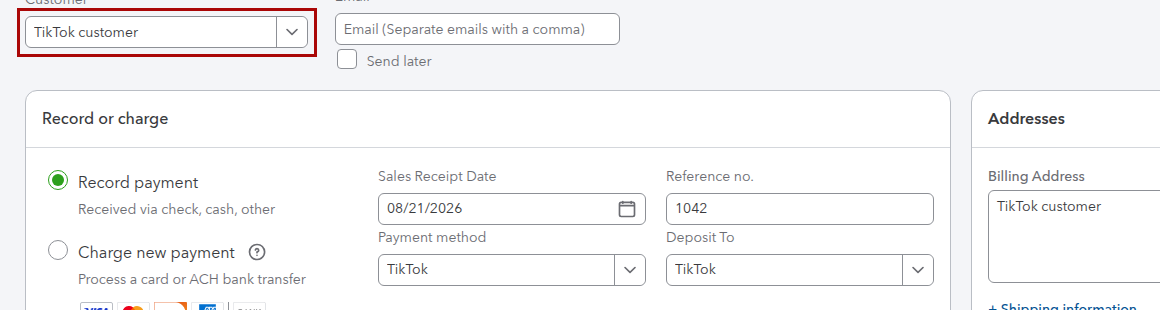
- Apply Generic Customer – Next, Synder assigns a single customer name to all transactions, so your QuickBooks Online customer list stays consolidated. For convenience, select or enter a default name, such as “TikTok Customer.”
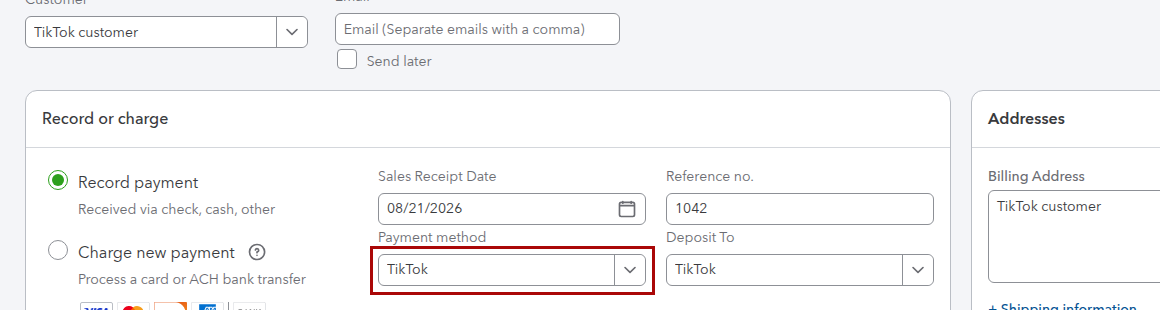
- Payment Method – Then, select the default payment method (cash, check, or credit card) that Synder uses for sales receipts, refund receipts, payments, and expenses.
- Gift Card Liability Account – Also, select the account that Synder uses to record gift cards and certificates. For more detail, refer to How to Account for Gift Card Sales Using Synder.
- Sync Discounts as Products – In addition, Synder can sync discounts as separate products, such as “TikTok Discount,” so you can track them in detail in the Profit and Loss report.
- Payment Method Mapping – Finally, Synder retrieves the payment method used in TikTok and includes it in the transaction description, so you can map the matching payment method in QuickBooks Online.
3. Invoices
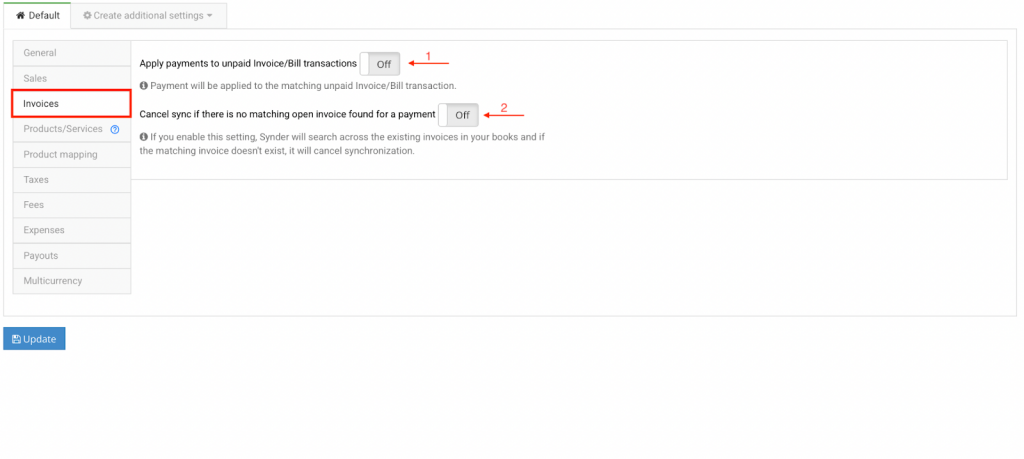
- Apply payments to unpaid Invoice/Bill transactions – When enabled, Synder automatically applies a payment as soon as it matches an unpaid invoice, and then closes that invoice.
- Cancel sync if there is no matching open invoice found for a payment – Otherwise, Synder does not sync a payment that matches no open invoice, so it prevents incorrect entries.
4. Products and Services
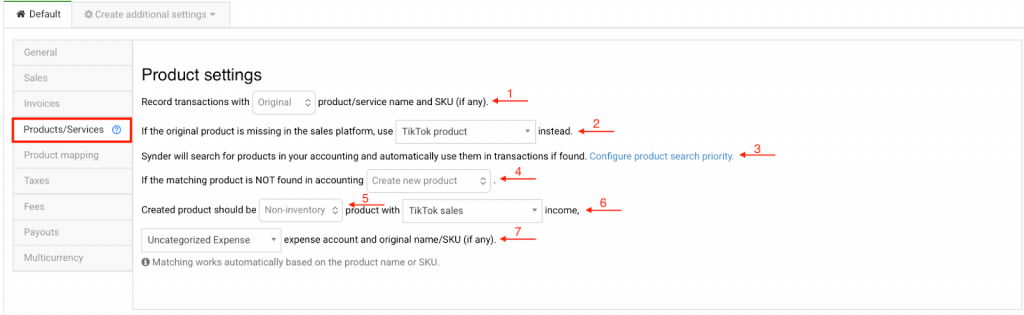
- Record transactions with Original/Common product/service name and SKU – First, select whether Synder records transactions with the original product name or a common one. In that case, Synder matches original names to existing products by name or SKU, and creates a new product whenever no match is found. Meanwhile, common product names help standardize future transactions.

- If original product is missing – Then, if the original product is missing on the sales platform, Synder uses the item or SKU you select instead.
- Configure product search priority – Also, set whether Synder searches by SKU or product name first when it matches products between TikTok and QuickBooks Online. For more detail, refer to Product Search Priority.
- If the matching product is not found – Next, if no product match exists in QuickBooks Online, Synder can either create a new product or cancel the transaction sync.
- Assign product type – Then, select the product type for newly created items: Non-inventory, Inventory, or Service. For details, refer to the inventory section below.
- Assign income account – Additionally, select the income account that Synder uses for this product.
- Assign expense account – Finally, select the expense account that Synder uses for this product.
Inventory
Synder supports inventory tracking for items that already exist in QuickBooks Online. However, inventory item names must exactly match the names in your payment processor. Because QuickBooks Online requires a starting stock level (Quantity on Hand) that Synder cannot access, Synder cannot create inventory items. Still, existing inventory items sync correctly, and QuickBooks Online then updates their stock levels automatically. For more detail, refer to Managing Products and Services with Synder – Per Transaction Sync.
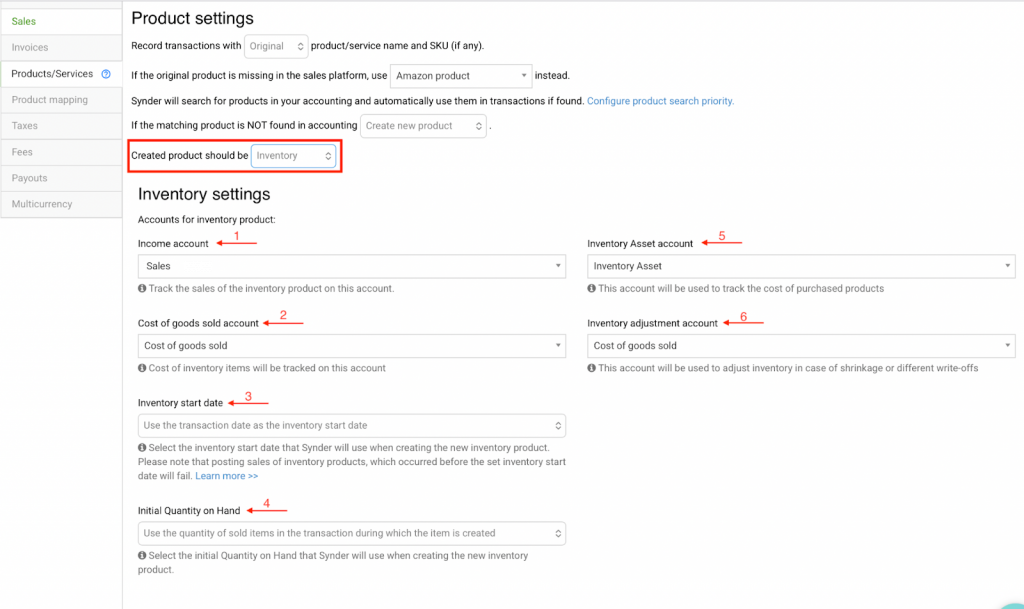
- Income Account – Select an income account to track sales for the inventory product.
- Cost of Goods Sold (COGS) Account – Select a COGS account to track costs for the inventory product.
- Inventory Start Date – Select the start date Synder will use when creating the inventory product. Sales of inventory products that occurred before this date will not post.
- Initial Quantity on Hand – Select the initial Quantity on Hand for the inventory product.
- Inventory Asset Account – Select an inventory asset account to track the cost of purchased products.
- Inventory Adjustment Account – Select an inventory adjustment account to track shrinkage or other write-offs.
5. Product mapping
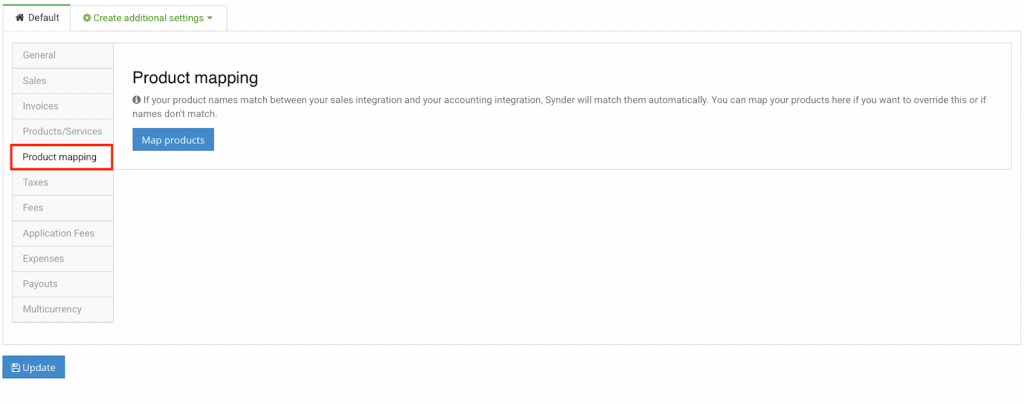
Synder identifies existing products in your accounting company and applies them to transactions. If product names in your payment platform do not exactly match those in QuickBooks Online, enter the payment platform product names in the right field to map them to the corresponding QuickBooks Online product names in the left field. Refer to Product mapping feature.
6. Taxes
Sales Tax Settings for U.S.-Based QuickBooks Online Companies
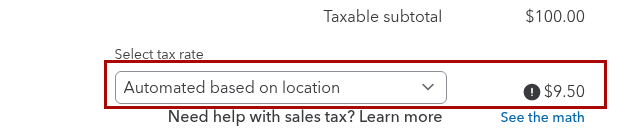
Most U.S.-based QuickBooks Online companies use Automated Sales Tax. Specifically, this feature applies sales tax automatically based on the sale or company address, and QuickBooks Online then calculates the tax rate automatically.
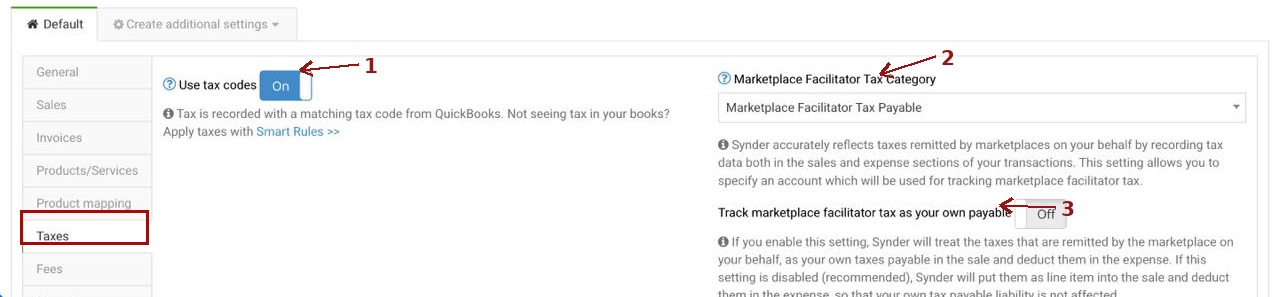
- Use tax codes – First, enable this setting so Synder records taxes in the dedicated tax field for accurate reporting. When disabled, if amounts are tax exclusive, Synder records taxes as a separate line item instead.

- Marketplace Facilitator Tax Category – Next, Synder records marketplace-remitted taxes in both the sales and expense sections of your transactions. Use this setting to choose the account for tracking marketplace facilitator tax. For more detail, refer to Marketplace Facilitator Tax.
- Track marketplace facilitator tax as your own payable – When enabled, Synder records marketplace-remitted taxes as your tax payable and then deducts them as an expense. When disabled, however, Synder records these taxes as a line item and deducts them without affecting your tax payable. For more detail, refer to Marketplace Facilitator Tax.
Sales Tax Settings for Non-US QuickBooks Companies
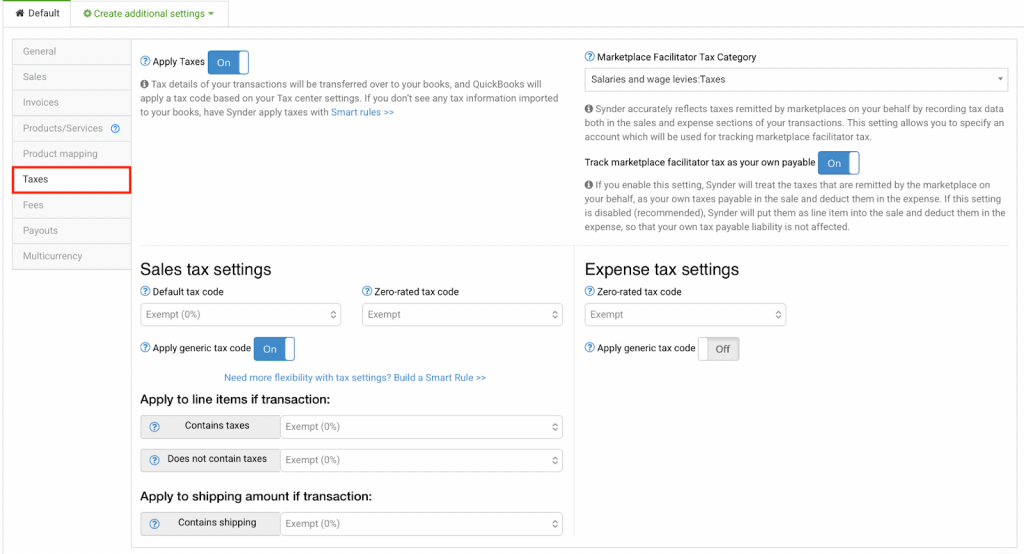
If your payment processor calculates taxes, then Synder records them automatically in QuickBooks Online. However, if the payment processor (for example, Stripe, Square, or PayPal) does not calculate taxes, configure your Synder tax settings so it applies and records taxes in QuickBooks Online. For more detail, refer to How sales tax works in Synder.
7. Fees
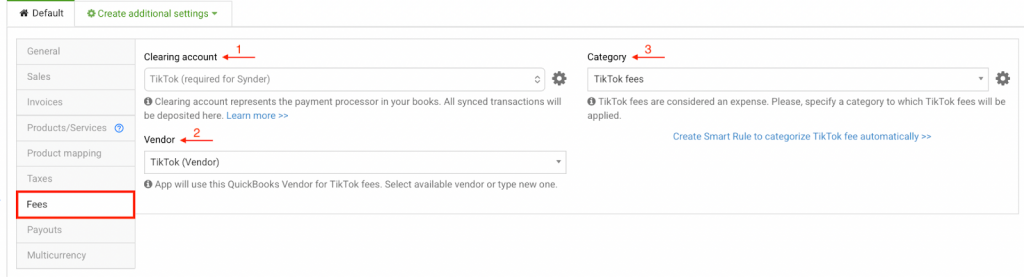
- Clearing Account – First, select the clearing account where Synder records TikTok fees. As a best practice, use the same account as the Sales clearing account for consistency.
- Vendor – Next, select a QuickBooks Online vendor for TikTok fees. For simplicity, choose an existing vendor or enter a custom name to consolidate all TikTok fees under one vendor.
- Category – Finally, select the expense category in QuickBooks Online for TikTok fees, so you can track and report processing costs accurately.
8. Payouts
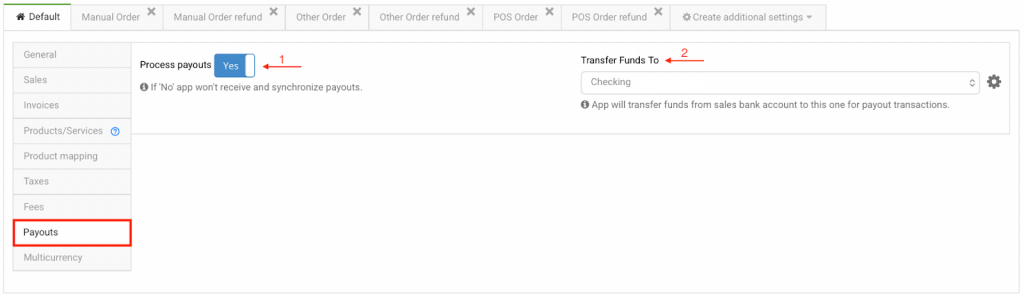
The Payouts tab tracks TikTok payouts, which are bulk transfers from your payment processor to your bank (daily, weekly, monthly, and so on). Specifically, Synder records these as transfers from the clearing account to the checking account. As a result, syncing payouts alongside sales and expenses keeps your cash flow accurate and simplifies reconciliation.
- Process payouts – When enabled, Synder tracks TikTok payouts and creates transfers to your checking account. When disabled, however, Synder does not sync payouts, and it does not clear the clearing account automatically.
- Transfer Funds To – Finally, select the QuickBooks Online checking account for your TikTok payout deposits.
9. Multicurrency
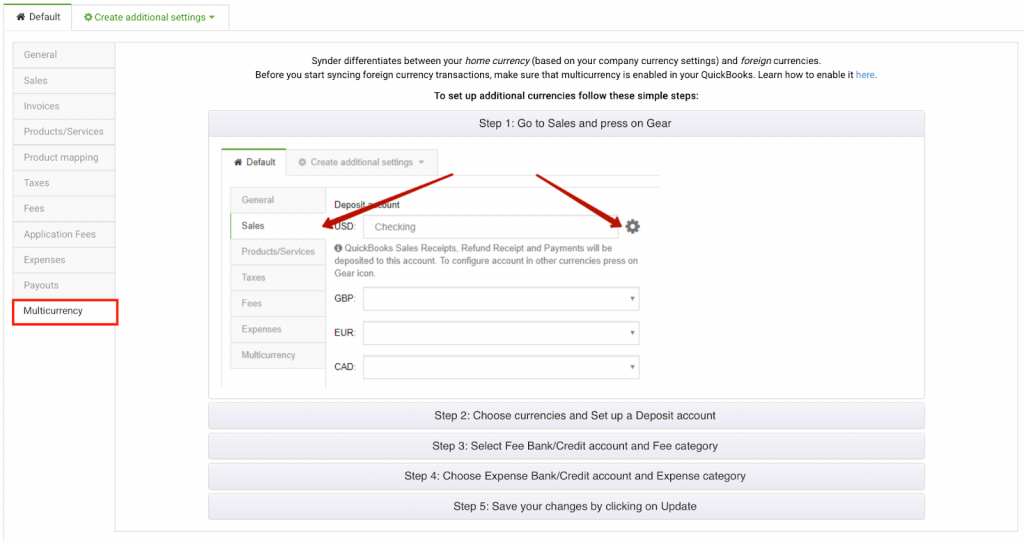
Synder supports multi-currency. The application does not perform currency conversions. Instead, it transfers conversion rates from your payment processor to QuickBooks Online to maintain accuracy. Conversion rates may differ between QuickBooks Online and TikTok on the same day; recording the rate from the original source is required whenever available.
Multi-currency is automatically enabled in Synder if it is enabled in QuickBooks Online. Configure accounts to reflect actual money flow. For example, use separate checking accounts if payouts occur in different currencies. Payouts typically occur in a single currency, while sales may occur in multiple currencies.
To customize multi-currency settings, refer to the Multicurrency tab and Synchronize Multicurrency Transactions Correctly guide.
Reach out to Synder Team via online support chat or email with any questions you have – we are always happy to help you!
