

- Where to find the Synder Dashboard
- Per Transaction Dashboard
- Overview Tab
- Synchronization Issues Tab
- Summary Sync Dashboard
- When the Synder Dashboard saves you time
- FAQ
- Relevant Guides
The Synder Dashboard is your single overview of integrations, data imports, mappings, summaries, and sync activity. It opens by default when you sign in. The Dashboard is for monitoring and navigation only — every block links to the page where you actually take action.
In short, use this guide to understand each Dashboard block, triage failed syncs in bulk in Per Transaction mode, or run a quick health check across companies. For single-transaction fixes, head to the Transactions list instead.
Where to find the Synder Dashboard
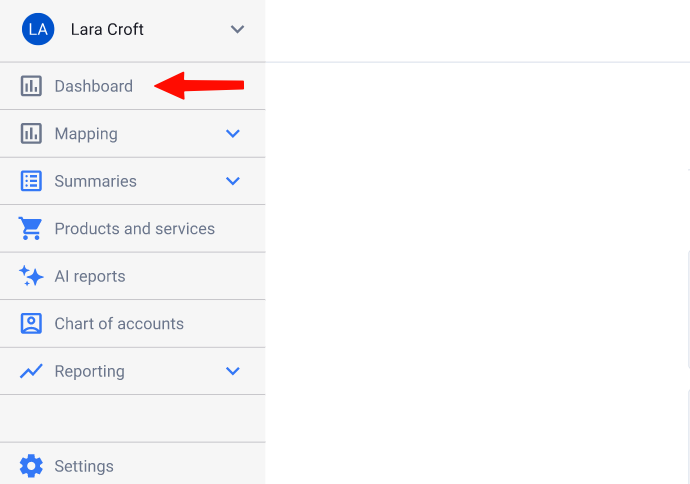
Access the Synder Dashboard via the left-hand menu near the top; it opens by default after sign-in.
Per Transaction Dashboard
Overall, this mode splits into two tabs: Overview and Synchronization Issues.
Overview Tab
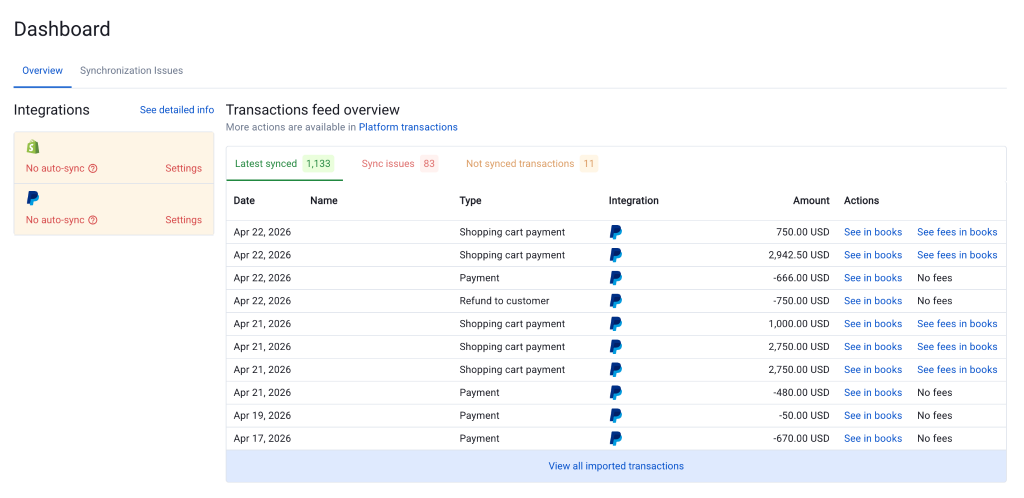
The Overview tab shows integration states (Auto-sync is on, partially on, or off, each with a Settings link) and a recent sync feed across Latest synced, Sync issues, and Not synced transactions sub-tabs.
The View all imported transactions link opens the full Transactions list for bulk actions.
Synchronization Issues Tab
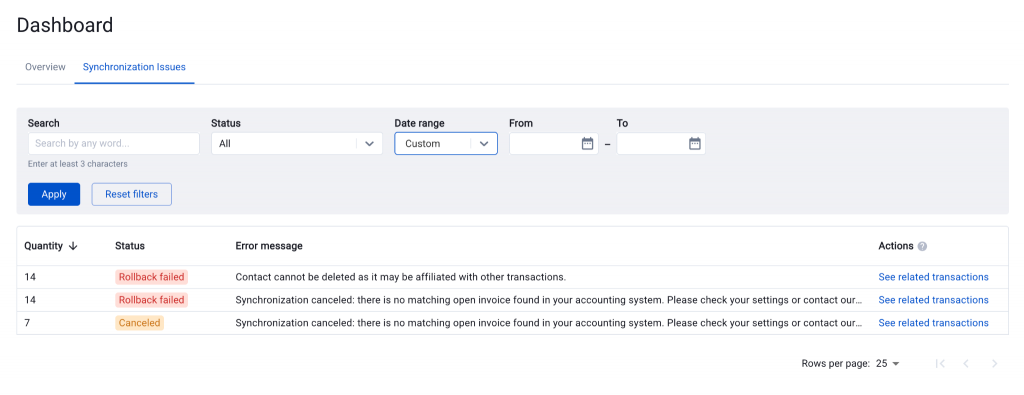
The Synchronization Issues tab groups errors by message with transaction counts for bulk triage. Click See related transactions for a pre-filtered list (up to ~500 at a time).
Filters include search, status, and date range. As a result, you can troubleshoot all your errors in bulk instead of going through them one by one.
Summary Sync Dashboard
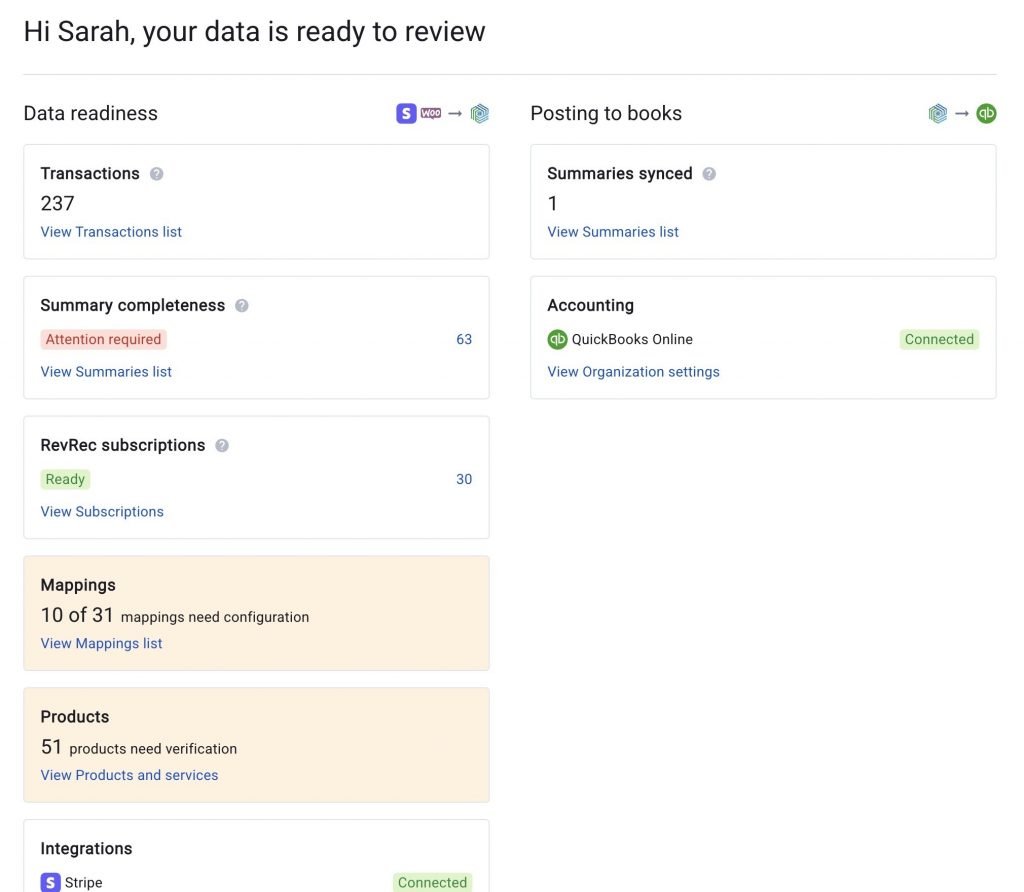
However, the Summary Sync Dashboard is a single-page, two-column layout: Data readiness (left) and Posting to books (right). It covers the last 90 days with counts and links. The header shows your data prep status.
Now, let us go through them block by block.
Transactions imported
Imported transactions from connected platforms in the last 90 days.
Summary Completeness
Reports the state of the underlying transactions feeding your summaries. Clicking a count opens the Summaries list filtered to that status.
- Attention required — “Some difficulties occurred while preparing these summaries. Please review the alert and address the issues to sync.” Typical causes: unverified products, missing required mapping.
RevRec subscriptions
Visible only to users who have Revenue Recognition enabled and shows subscription data for revenue recognition.
- Incomplete — “Synder can’t complete the processing of transactions for the recognition schedules. Contact the support team for help.”
- Updating schedule — “The subscription schedules are currently being updated.”
- Generating entries — “Recognition entries are being generated for the subscriptions.”
- Ready — “The subscription data is fully processed.”
- Trial — “The subscriptions contain 0 invoices only.”
Mappings
In other words, this block tells you whether your mappings are fully set up. If anything is missing, Synder highlights the number to show that action is needed. Click View Mappings list to jump straight to the unconfigured ones and finish setup.
Products & Services
Shows whether you have verified all your products. The block only appears when unverified products would actually block syncing (i.e. when the setting “Disable sync for summaries with unverified products” is ON).
Integrations
Lists every integration account connected to your organization. Each row shows: integration icon, account name, platform name (Stripe, Shopify, Amazon, and so on), and a connection-status badge.
- Connected — the integration is healthy.
- Connection lost — you need to reconnect the integration.
Note: Whenever any integration shows this state, the orange “Connection lost” banner also appears at the top of the Dashboard.
Summaries synced
Total number of summaries that are currently posted to your accounting system.
In addition, the View Summaries list link opens the Summaries list filtered to synced summaries.
When the Synder Dashboard saves you time
For example, the scenarios below show real-world cases where the Dashboard saves time through quick insights and direct navigation.
- First-time setup with bulk failures (Per Transaction)
You’ve connected Shopify to QuickBooks Online and see many failed transactions. The Synchronization Issues tab groups them by error (e.g., “Entity cannot be synchronized without Product or Service” with 312 affected). Fix the root cause, click See related transactions, and resync the batch in one go. - An adjustment on the accounting side breaks syncs
For example, a teammate renames a tax code or archives an income account in QuickBooks Online or Xero, causing silent failures. Synchronization Issues highlights the new error group with the exact message and count at login—fix the setting and clear the backlog without guesswork. - Bookkeeper reviewing multiple clients
Managing several Synder accounts leaves no time for deep dives. Per client, the Dashboard shows Mappings configured, Products verified, integrations Connected, and Synchronization counts clean—so you can spot issues in seconds and prioritize the worst. - Silent integration disconnection
Token expirations or platform password changes disconnect integrations quietly, leading to missing data. In that case, the orange Connection lost banner and the integration badge alert you immediately — one click to Go to Organization settings reauthenticates and resumes sync. - Recurring summary issues (Summary Sync)
Daily Summaries show Partially synced or Attention required trends. Dashboard blocks surface counts in Summary completeness and Synchronization—click to open affected summaries, read alerts, fix causes, and rebuild. - Auto-sync turned off unexpectedly (Per Transaction)
A teammate disables auto-sync during troubleshooting, or it switches off after a connection issue, piling up transactions. The Integrations panel flags Auto-sync is off—click Settings, re-enable the toggles you need, and process the backlog.
FAQ
Where do I find the Dashboard?
First, click Dashboard in the left-hand menu—it’s near the top of the navigation. Synder also opens the Dashboard by default the moment you sign in, so most users won’t need to navigate to it manually.
Why doesn’t my Summary Sync Dashboard have a Synchronization Issues tab?
At the moment, the grouped error view is available in Per Transaction sync only. In Summary Sync, the Synchronization block on the Dashboard already shows you the per-status counts (Failed, Partially synced, Ready to sync, and so on), and clicking any of those counts takes you straight to the matching tab on the Summaries list—that’s the equivalent path for Summary Sync users today.
What’s the difference between the Synchronization Issues tab and the Transactions list? (Per Transaction)
In short, the Transactions list shows every transaction, one per row, regardless of whether it synced. The Synchronization Issues tab shows one row per unique error message with a count of how many transactions it affects. Use Synchronization Issues when you want to triage failures and act on them in bulk; use the Transactions list when you already know which specific transaction you want to inspect.
Why am I only seeing about 500 transactions when I open a large error group? (Per Transaction)
When you click See related transactions, the filtered view uses a saved search. The saved search returns up to ~500 results at a time, and the UI shows a warning when a group is bigger. Fix the underlying setup, resync the visible batch, then open the group again to load the next ~500.
Why didn’t the error group disappear right after I re-synced?
There’s a short refresh lag of a few minutes between sync completion and the Dashboard. If a group you’ve already fixed still shows, give it a moment and refresh — it will clear once Synder catches up.
Do synchronization issues include warnings, or only failures?
In other words, it includes only failed and canceled synchronizations. Transactions in the Synced with warnings status still count as posted to your books, so they aren’t surfaced as a group here. If you want to review warnings, open the Transactions list and filter by status.
My Dashboard shows zero transactions but I know I have data. Why?
Counts on the Summary Sync Dashboard reflect the last 90 days only. Older transactions are still in your books but won’t appear in the counters. If you’ve just connected an integration, give the import time to finish — the Preparing your data state switches to Your data is ready to review automatically.
Relevant Guides
Synder’s help center has dedicated guides for the most common errors. For instance, here is a quick reference from the frequent Synchronization Issues entries to the right article:
- “No matching product found in accounting” → Adjust product search priority.
- “Account was not found in your company” → Error: Account Was Not Found in Your Company.
- “No items available to sell” (Xero) → Error: ‘No Items Available to Sell’ (Xero).
- “There is no income account associated with item” → Fix “No Income Account Associated with Item XX”.
- “Track Quantity on Hand” → How to Fix the “Track Quantity on Hand” Error.
- Inventory products sync fail → How to Fix Inventory Products Sync Fail.
- Invoice/total discrepancy (“Expected total: X, actual calculated total: Y; discrepancy: Z”) → Synder Sync Errors: Troubleshooting Guide.
- Tax-related errors → How to Fix Errors With Taxes in Synder.
- Stripe customer name mismatch (QuickBooks Online) → How to fix Stripe customer name.
- Stripe payout failures → Stripe Payout Failures and Reconciliation.
- Failed Smart Rule → How to Fix a Failed Rule.
- Multi-currency conflict (“Record all customer and supplier transactions in the currency assigned to them”) → Summary Mode section of the Sync Errors Troubleshooting Guide.
- Partially synced summary → Summary Mode Errors in the Sync Errors Troubleshooting Guide and How to rebuild summaries.
- Missing transactions (nothing failed but expected data isn’t there) → How to find missing transactions in Synder.
- QuickBooks Desktop connection issues → QuickBooks Desktop Connection Troubleshooting Guide.
If your error isn’t listed here, start with the master Synder Sync Errors: Troubleshooting Guide—it’s the most comprehensive reference for diagnosing and fixing sync errors in Synder.
Reach out to Synder Team Of course, you can also reach us via online support chat or email with any questions you have – we are always happy to help you!
