

Sync score on the Per Transaction Dashboard shows what share of your imported transactions is in your books for the selected period. It counts the transactions Synder is responsible for syncing and leaves out the ones that are not yet synced or show issues, giving you an accurate view of your sync activity.
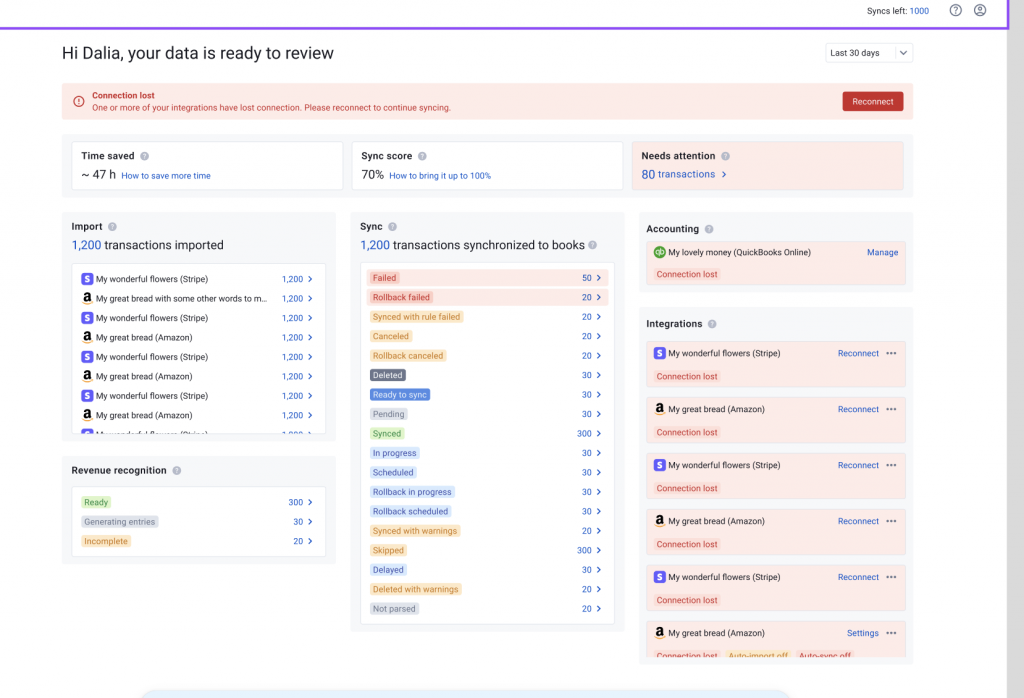
Use this guide to understand what the score counts, what lowers it, and how to bring it up to 100%.
How to read Sync score
Sync score tells you how much of your sales and payment activity in the selected period has made it into your books correctly. At 100%, every transaction Synder is responsible for is in your books, and anything lower means some transactions still need to be synced or fixed.
- Synder shows the score as a whole percentage and rounds it down, so 99.9% shows as 99%. You see 100% only when every counted transaction is in your books.
- If the score is below 100%, this guide can help you understand how to bring it up.
- If there are no counted transactions for the selected period, the Dashboard shows No data.
Important: Right after you connect an integration or import historical data, many transactions wait to sync at the same time, so the score can drop for a while. It climbs back as those transactions sync.
Sync score follows the date range selected at the top of the Dashboard. The default range is the last 30 days. Synder counts transactions by their transaction date, not by the date it synced them.
How to improve Sync score
The way to raise this number is to get every transaction you want recorded into your books, and to clear what stopped on the way.
- Resolve transactions that need your attention. The Needs attention block contains all possible statuses of transactions that may need your attention or review. It counts transactions in 8 statuses: Failed, Rollback failed, Synced with rule failed, Canceled, Rollback canceled, Synced with warnings, Deleted with warnings, and Not parsed. They all lower the score until they are resolved.
- Click the Needs attention number to open these transactions for the selected period.
- Click Explain on a transaction to see why it needs attention. The fix is usually a setting or data change, either in Synder or in your accounting system.
- Sync the transaction again. If it already reached your books (Synced with warnings or Synced with rule failed), roll it back first, then sync it again.
To fix errors in bulk, open the Troubleshooting tab and go to Synchronization issues, where failed and canceled transactions are grouped by error message. - Sync transactions that are ready. For example, Ready to sync transactions are imported but not yet in your books, so they lower the score. Open the Transaction list, review Ready to sync transactions, and sync those you want recorded.
- Use auto-sync to keep new transactions from piling up. With auto-sync on, Synder sends imported transactions to your accounting system automatically, so they do not wait in Ready to sync for you to sync them by hand. Auto-sync works going forward, so earlier transactions may still need to be synced manually.
Clear what is waiting or rolled back
- Decide what to do with rolled-back transactions. A rolled-back transaction shows as Deleted and still counts against the score, because you usually roll a transaction back to fix it and then sync it again.
- If the transaction belongs in your books, fix the cause and sync it again.
- If it should never be in your books, archive it in Synder. Archived transactions are not counted toward your sync score. To archive a transaction, click the three dots in the Action column of the Transaction list and select Archive.
Important: Transactions that are In progress, Scheduled, Rollback in progress, or Rollback scheduled finish on their own. The score updates as they complete.
How Sync score is calculated
Sync score is the share of counted transactions that are in your books: Synder divides Synced and Skipped transactions by all counted transactions, multiplies by 100, and then rounds down. Every transaction in the selected period falls into 1 of 4 groups:
| Group | Statuses | Counted in the score | What it means |
|---|---|---|---|
| In your books | Synced, Skipped | Yes, raises the score | The transaction is in your books. Skipped means Synder found the same transaction already in your books and did not create a duplicate. |
| Needs attention | Failed, Rollback failed, Synced with rule failed, Canceled, Rollback canceled, Synced with warnings, Deleted with warnings, Not parsed | Yes, lowers the score | Synder could not complete the sync or rollback, or the transaction synced but not fully correctly. |
| Waiting or rolled back | In progress, Scheduled, Rollback in progress, Rollback scheduled, Ready to sync, Deleted | Yes, lowers the score | The transaction is on its way to your books, has not been synced yet, or was rolled back. |
| Not counted | Pending, Delayed, Excluded from sync | No | Pending is waiting for the payment processor to finalize the payment. Delayed and Excluded from sync are held back on purpose by your Smart Rules or custom sync modifications. |
Important: Synced with warnings and Synced with rule failed transactions are in your books, but they do not raise the score because the sync is not fully correct. To resolve them, click Explain to see why, fix the cause in Synder or in your accounting system, then roll the transaction back and sync it again.
Example: one month for a Shopify store
Example configuration: a Shopify store syncs to QuickBooks Online. Over the selected period, 555 transactions are imported:
- 460 Synced and 20 Skipped, so 480 are in the books
- 12 Failed
- 20 Ready to sync and 8 Scheduled
- 35 Pending, waiting for the payment processor
| Group | Transactions | Counted in the score | In your books |
|---|---|---|---|
| In your books | 480 | 480 | 480 |
| Needs attention | 12 | 12 | 0 |
| Waiting or rolled back | 28 | 28 | 0 |
| Not counted | 35 | 0 | 0 |
| Total | 555 | 520 | 480 |
480 ÷ 520 = 92.3%, so the Dashboard shows 92%. If the 20 Ready to sync transactions are synced, the 12 failed ones are fixed and synced again, and the 8 scheduled ones finish, all 520 counted transactions are in the books, and the score reaches 100%.
Important: The 35 Pending transactions do not lower the score. Once the payment processor finalizes them, however, they move to another status and start counting.
What does not affect Sync score
- Pending, Delayed, and Excluded from sync transactions.
- Archived transactions, which are not counted anywhere on the Dashboard.
- Transactions whose transaction date falls outside the selected date range.
- Transaction amounts. Every counted transaction has the same weight, whether it is $5 or $5,000.
Related guides
Reach out to the Synder team via online support chat or email if you have questions about a specific transaction or setup.
