

Time saved on the Per Transaction Dashboard is an estimate of the bookkeeping work Synder completed for you during the selected period. It is based on completed sync activity and the automated steps applied to those transactions, compared to how long it would, on average, take to do that work by hand. It does not measure the exact amount of time you or your bookkeeper would have spent.
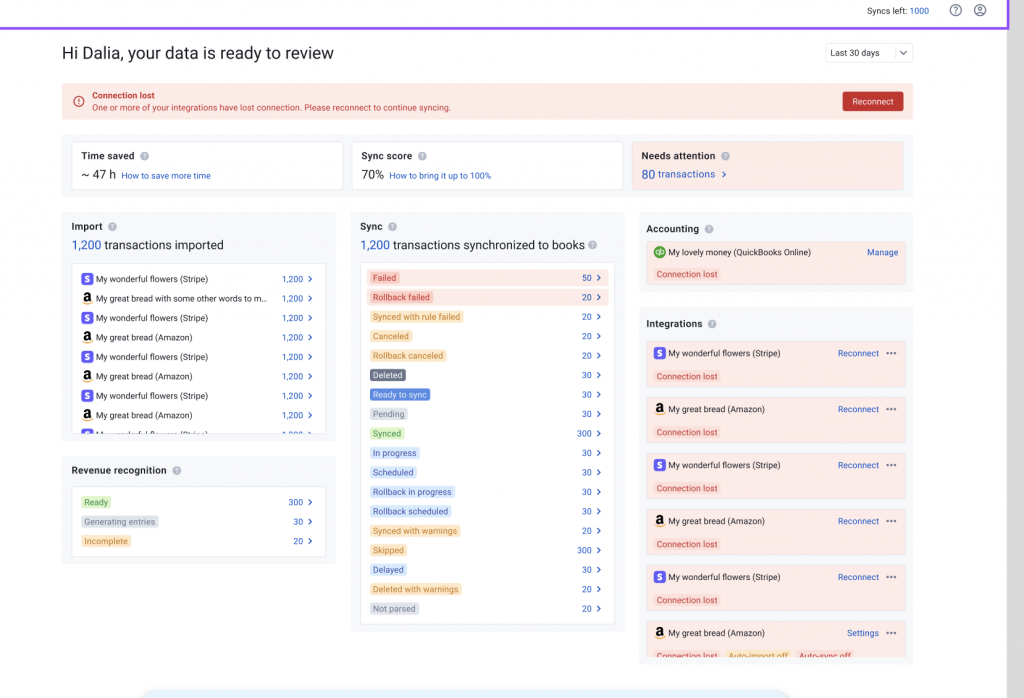
Use this guide to understand what the number includes, what accounting work it represents, and how to let Synder handle more of the work you would otherwise do manually.
How to read Time saved
Time saved follows the date range selected at the top of the Dashboard. The default range is the last 30 days.
- If the estimate is 1 hour or more, the Dashboard shows an approximate whole-hour value.
- If it is more than 0 but less than 1 hour, the Dashboard shows Under 1h.
- If there is no counted activity for the selected period, the Dashboard shows No data.
Important: Time saved is available only for activity tracked from May 1, 2026 onward. Selecting an earlier date range does not recreate time for activity before that date.
Edge case: Time saved can increase even when the other Dashboard cards show no synced transactions for the period. Time saved uses the sync date, while the other cards use the transaction date. This can happen after syncing historical transactions and is expected.
How to increase Time saved
The most useful way to increase this number is to let Synder complete more of the bookkeeping work you already want automated.
- Sync transactions that are ready. Imported transactions do not contribute until they are successfully posted to your accounting system. Open the Transaction list, review Ready to sync transactions, and sync those you want recorded.
- Use auto-sync to put transaction posting on autopilot. Once transactions are imported into Synder, they are synced to your accounting system automatically, without you having to log in and trigger each sync. If a transaction cannot be synced, Synder flags the issue for review, so you only need to step in when something needs attention. Auto-sync works going forward, so earlier transactions may still need to be synced manually.
- Resolve transactions that need attention. The Needs attention number counts transactions in 8 statuses: Failed, Rollback failed, Synced with rule failed, Canceled, Rollback canceled, Synced with warnings, Deleted with warnings, and Not parsed. A transaction that has not completed successfully cannot contribute the same way as a completed sync. If the Needs attention number is greater than 0, some transactions need to be reviewed and possibly resolved.
- Click the Needs attention number to open these transactions for the selected period.
- Fix the underlying setting or data issue, then sync when needed. To fix errors in bulk, open the Troubleshooting tab and go to Synchronization issues, where failed and canceled transactions are grouped by error message.
- Keep the platforms you use connected. Synder can only automate data it can import. If you sell or get paid through a platform that is not connected, that activity stays outside this Dashboard metric. Also reconnect any integration showing Connection lost.
Hand more post-sync work to Synder
- Let Synder take over the work you still do after sync. If you still create or fix entries in your books by hand after a sync, Synder can take over that work in 4 ways:
- Smart Rules. If you keep making the same change after sync — a class, location, category, tax treatment, product, or customer — a Smart Rule can make it automatically. You can build rules yourself or with the AI Smart Rules builder.
- Custom sync modifications. If Smart Rules cannot handle your case, the Synder team can build a custom solution for your syncs.
- Match payments to store orders. If your payments come from a payment processor and your orders come from a separate e-commerce integration, Synder can match each payment to its order and add the order details to the synced transaction. Turn this on in Settings, under Match payments to store orders.
- Revenue recognition. If you post deferred and recognized revenue by hand every month, Synder can post it for you. In Per Transaction mode, this is available for QuickBooks Online on Pro plans and higher.
How Time saved is calculated
The estimate increases based on the accounting records and additional automation Synder completes during a successful sync. This is why two accounts with the same number of transactions can show different Time saved.
| Work Synder does | Manual work it approximates | How it is counted | Estimated time |
|---|---|---|---|
| Creates an accounting record | Create the relevant sale, payment, fee, refund, transfer, or other accounting record and complete the fields needed for that record. | Once per accounting record created. One platform transaction can create more than one accounting record. | 1 min |
| Matches a processor payment to its e-commerce order | Identify the correct order and payment, make sure the payment is applied to the correct sale, and use the order detail needed for the accounting record without recording the same activity twice. | Once per matched transaction (for example, a PayPal payment matched to the Shopify order it paid for). | 4 min |
| Applies a Smart Rule | Make the recurring edit yourself, such as changing a class, location, category, tax treatment, product, or customer. | Once for each rule execution. | 2 min |
| Applies a custom sync modification | Make the same custom adjustment by hand on each affected transaction. | Once each time the custom modification runs. | 2 min |
| Applies revenue recognition | Work out how much of the revenue belongs to each period, then post the deferred and recognized amounts yourself. | When Synder applies revenue recognition to the sync. | 2 min |
Important: The values above are estimates used to calculate the Dashboard metric. They are not a time study of your own bookkeeping process, so your actual time saved can be higher or lower.
Example: one month for a Shopify store
Example configuration: a Shopify store takes payments through PayPal and records each matched order in QuickBooks Online as an invoice plus a payment. Over the selected period, 420 orders are imported and successfully synced.
- 420 orders create 840 accounting records: 420 invoices and 420 payments.
- Synder matches 420 PayPal payments to the corresponding Shopify orders.
| Counted work | Volume | Time each | Estimated total |
|---|---|---|---|
| Accounting records created | 840 | 1 min | 840 min |
| Payments matched to orders | 420 | 4 min | 1,680 min |
| Total | 2,520 min = 42h |
In this example, the Dashboard shows about 42 hours for the period. If one Smart Rule also fires once on each of the 420 orders, that adds 840 minutes, bringing the estimate to about 56 hours.
Important: This example describes one configuration, not every Shopify or PayPal setup. The accounting records Synder creates depend on your platform, accounting system, and settings.
What does not add to Time saved
- Transactions that are imported but have not been successfully synced yet.
- Elements that are not directly linked to syncing but still save time on bookkeeping, such as product mapping, transaction reconciliation, and various settings.
Related guides
Reach out to the Synder team via online support chat or email if you have questions about a specific transaction or setup.
