

Troubleshooting in Synder helps you see how your data is flowing and catch problems early. In Per Transaction mode, it brings together three tabs: Synchronization issues, Import activity log, and Sync speed. Use it to fix sync errors in bulk, review what Synder imported, and understand how quickly your data moves into your books.
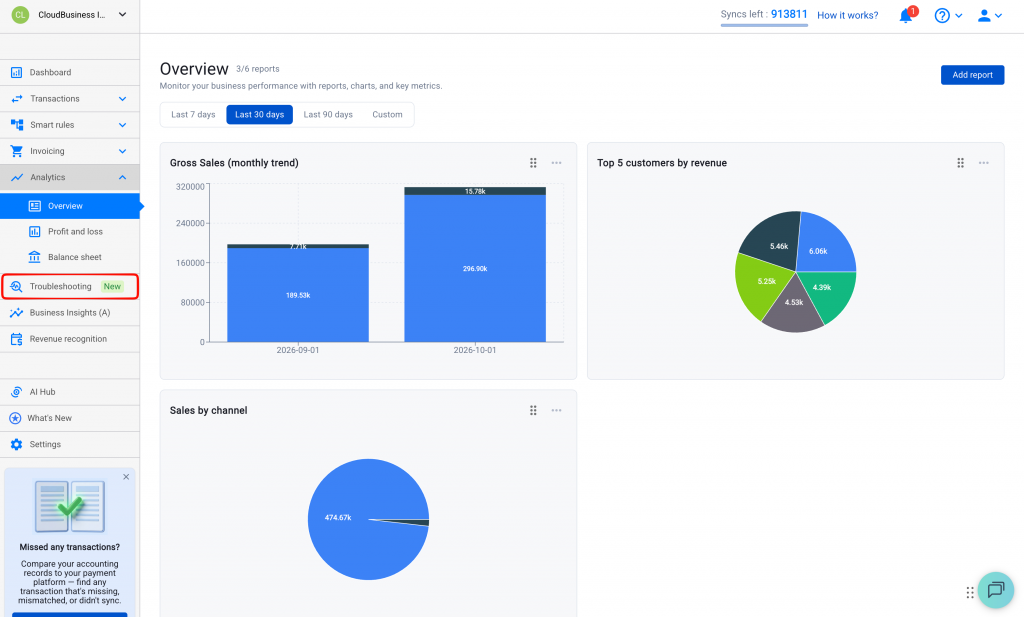
Open Troubleshooting from the left-hand menu.
Synchronization issues
The Synchronization issues tab groups failed and canceled transactions by their error message, so you can fix a whole group at once instead of opening transactions one by one.
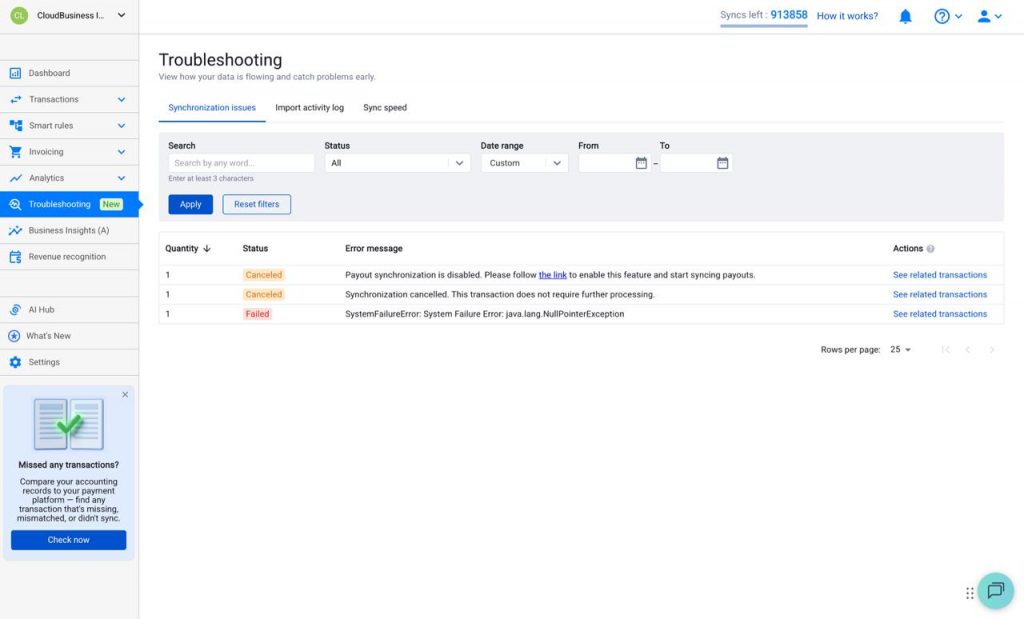
Each row shows:
- Quantity — how many transactions share the same error.
- Status — for example, Canceled or Failed.
- Error message — the reason the transactions did not sync.
- Actions — See related transactions opens a pre-filtered list of the affected transactions so you can resolve and resync them together.
Use the Search, Status, and Date range filters at the top to narrow the list, then click Apply (or Reset filters to clear them). Search requires at least 3 characters.
Import activity log
The Import activity log shows the list of imports from your connected integrations into Synder. Use it to confirm what was imported, when, and whether each import finished. For a breakdown of what each import type means, see the in-app guide of import types.
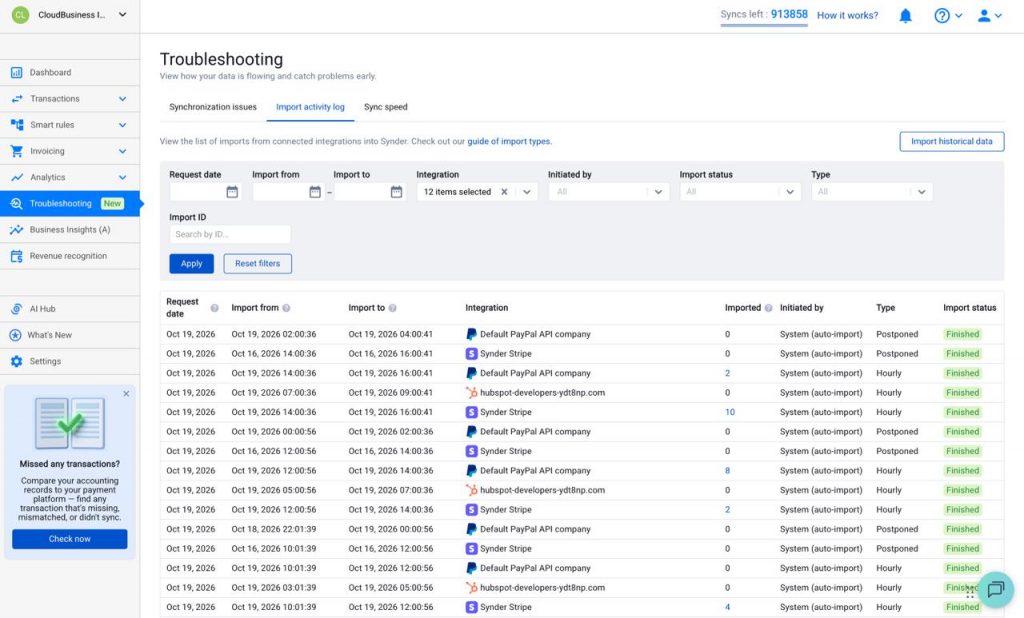
Each row shows:
- Request date — when the import was requested.
- Import from / Import to — the date range the import covered.
- Integration — the connected account the data came from.
- Imported — how many transactions were imported.
- Initiated by — for example, System (auto-import) or a manual request.
- Type — for example, Hourly or Postponed.
- Import status — for example, Finished.
Filter by Request date, Import from/to, Integration, Initiated by, Import status, Type, or Import ID, then click Apply. To pull in older data, use Import historical data.
Sync speed
The Sync speed tab helps you get a grasp of how quickly synchronization happens. It presents two graphs:
- Transaction volume by platform — how many transactions moved through Synder over time, broken down by integration.
- Sync time process breakdown — the average time each sync step takes, so you can see where time is spent (for example, queries to the payment integration, Synder internal processing, and querying or posting to your accounting system).
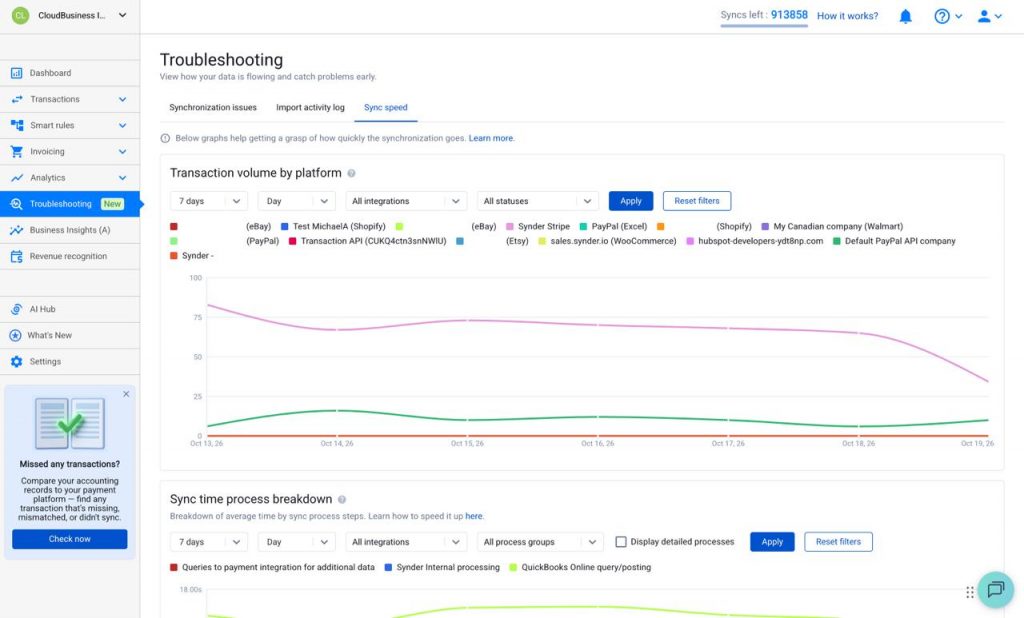
Each graph has its own filters — time range (for example, 7 days), grouping (for example, Day), integrations, and status or process group — with Apply and Reset filters controls. Turn on Display detailed processes on the second graph to see a finer breakdown.
More troubleshooting in Synder
For related help, see Synder Dashboard Guide and How to Review Your Synced Transactions and Fix Errors. To learn how sync statuses work, see QuickBooks Online for your accounting side.
Reach out to the Synder team via online support chat or email if you have questions about a specific transaction or setup.
