

- Where to find the Summary Sync Dashboard
- What the Dashboard shows
- Data readiness
- Posting to books
- Acting on what the Dashboard flags
The Summary Sync Dashboard is your single overview of how ready your data is and how much of it has posted to your books in Summary Sync mode. It opens by default when you sign in, and it is for monitoring and navigation — each block links to the page where you take action.
Use this guide to understand each block on the Summary Sync Dashboard and what to do when one needs your attention. If you use Per Transaction sync instead, see the Synder Dashboard Guide (Per Transaction).
Where to find the Summary Sync Dashboard
Open the Dashboard from the left-hand menu near the top. Synder also opens it by default right after you sign in, so most users will not need to navigate to it manually.
What the Dashboard shows
The Summary Sync Dashboard is a single-page, two-column layout covering the last 90 days:
- Data readiness (left) — whether the data behind your summaries is complete and correctly set up.
- Posting to books (right) — how much of that data has been synced to your accounting system.
The header shows your overall data-prep status. Every count is a link, so you can click straight through to the list that needs attention.
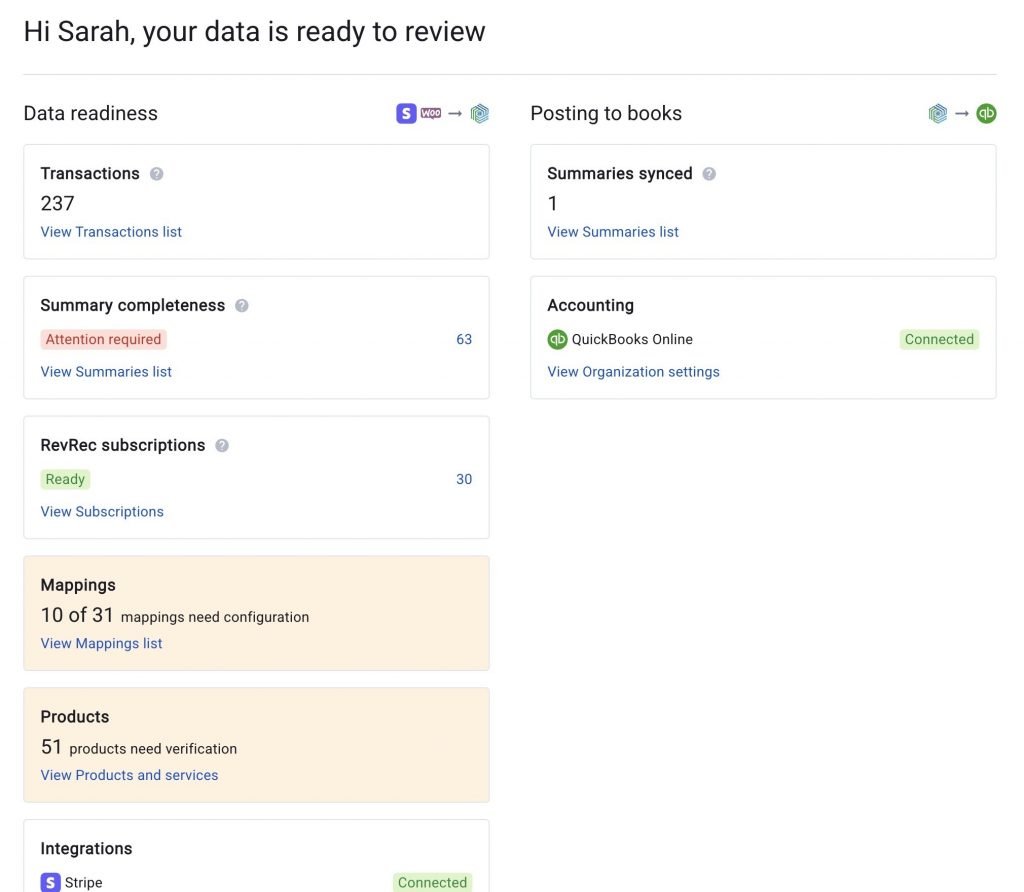
Data readiness
These blocks tell you whether your data is ready to sync cleanly.
Transactions imported
The number of transactions imported from your connected platforms in the last 90 days.
Summary Completeness
Reports the state of the underlying transactions feeding your summaries. Click a count to open the Summaries list filtered to that status.
- Attention required — “Some difficulties occurred while preparing these summaries. Please review the alert and address the issues to sync.” Typical causes: unverified products, or a missing required mapping.
Mappings
Tells you whether your mappings are fully set up. If anything is missing, Synder highlights the number to show that action is needed. Click View Mappings list to jump straight to the unconfigured ones and finish setup.
Products & Services
Shows whether you have verified all your products. This block only appears when unverified products would actually block syncing — that is, when the setting Disable sync for summaries with unverified products is ON.
RevRec subscriptions
Visible only when Revenue Recognition is enabled; shows the state of your subscription data for revenue recognition.
- Incomplete — “Synder can’t complete the processing of transactions for the recognition schedules. Contact the support team for help.”
- Updating schedule — “The subscription schedules are currently being updated.”
- Generating entries — “Recognition entries are being generated for the subscriptions.”
- Ready — “The subscription data is fully processed.”
- Trial — “The subscriptions contain 0 invoices only.”
Posting to books
These blocks show your connections and how much data has reached your books.
Integrations
Lists every integration account connected to your organization. Each row shows the integration icon, account name, platform name (Stripe, Shopify, Amazon, and so on), and a connection-status badge:
- Connected — the integration is healthy.
- Connection lost — you need to reconnect the integration.
Whenever any integration shows Connection lost, an orange “Connection lost” banner also appears at the top of the Dashboard.
Summaries synced
The total number of summaries currently posted to your accounting system. The View Summaries list link opens the Summaries list filtered to synced summaries.
Acting on what the Dashboard flags
When a block highlights a number, it is pointing you to something to fix before your next sync:
- Summary Completeness: Attention required — open the flagged summaries, review the alert, and resolve the cause (often an unverified product or a missing mapping), then sync.
- Mappings — finish the unconfigured mappings from the Mappings list.
- Products & Services — verify the flagged products so summaries are no longer blocked.
- Integrations: Connection lost — reconnect the integration to resume importing.
Reach out to the Synder team via online support chat or email with any questions you have — we are always happy to help you!
