

Square is the most widely used POS system among small and mid-sized businesses, holding roughly 27–28% of US POS installations, which means a large share of QuickBooks users are also Square merchants. The problem is that Square batches payouts and sends QuickBooks one net deposit. And without the underlying detail, that number is almost impossible to reconcile accurately.
This article covers every method for recording Square transactions in QuickBooks Online, from manual entry to full automation, so you can choose the approach that fits your transaction volume and accuracy requirements.
TL;DR
- Square’s net deposits obscure the detail: QuickBooks only sees what hits your bank, while you need to split out sales, refunds, fees, and taxes separately for clean books.
- Manual entry works for low volume: Recording individual sales receipts, fees, and deposits by hand is accurate but unsustainable once transaction counts climb.
- The native Square Connector is a solid starting point: Intuit’s built-in integration automates imports but has limits around custom categorization and multi-platform workflows.
- Automation covers the gap at scale: Third-party tools sync transaction-level detail, handle fees automatically, and make monthly reconciliation reliable even at high volumes.
Why recording Square transactions in QuickBooks is harder than it looks
Square’s payout structure is built around net deposits, and that’s where the accounting complexity intensifies. Every time Square sends money to your bank account, it combines sales from multiple days, subtracts processing fees (typically 2.6% + $0.10 per in-person transaction), and deposits a single net amount. QuickBooks, watching your bank feed, sees only that net number, with no way to know what made it up.
Square doesn’t send this level of detail to QuickBooks automatically unless you use an automation tool, which is why many sellers end up manually editing or splitting transactions just to avoid overstating income.
If you record only the deposit, you’re understating gross revenue and missing fee deductions. If you record gross sales without tracking fees separately, your profit numbers are off, and your bank reconciliation won’t balance. A Gartner survey of 497 accountants found that 59% make several financial errors every month, with manual work being one of the main causes. It’s the kind of workload that Square’s net-deposit structure tends to add more of.
There are also timing issues to account for – a refund processed on Wednesday can land in Friday’s payout, and chargebacks follow a different schedule again. Once transaction volume grows past a few hundred per month, tracking these differences by hand becomes a genuine time drain. Accounting firms working with Square and QuickBooks Online (often alongside other platforms) report spending around 6–8 hours per client each month on manual data entry. After switching to an automated tool, reconciliation time drops by up to 50%, which makes a real difference once you’re handling multiple clients.
How to record Square transactions in QuickBooks Online
There are three ways to get Square data into QuickBooks, and the right one depends mostly on how many transactions you’re processing each month and whether you need individual transaction details in your books.
Before you start: where each transaction type belongs
Before you pick a method, it helps to know where each piece of Square data should land in QuickBooks.
| Transaction type | Where it goes in QuickBooks | Notes |
| Daily gross sales | Sales receipt → Square Clearing account | Use one receipt per day or one per transaction |
| Square processing fees | Expense → Bank Service Charges (or similar) | Pull fee total from Square’s payout report |
| Refunds | Credit memo or refund receipt | Reduces gross sales; must match payout timing |
| Tips | Income account of your choice | Keep separate from product revenue |
| Sales tax collected | Sales Tax Payable (liability) | Don’t record as income |
| Net payout deposit | Bank deposit → links clearing account to checking | Should equal Square’s transferred amount |
This applies whether you’re entering transactions manually or reviewing what an automated sync has posted.
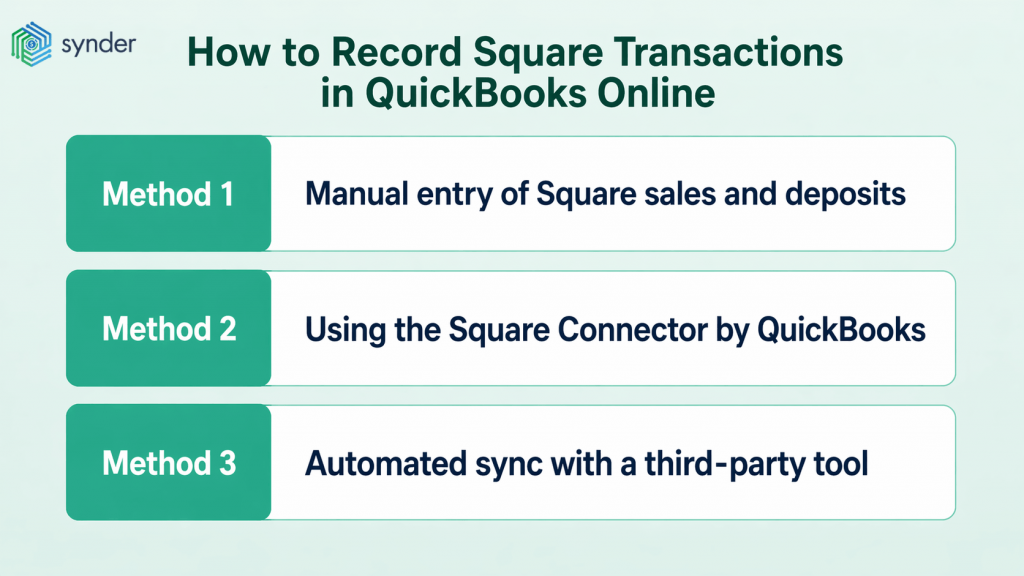
Method 1: Manual entry of Square sales and deposits
Manual recording makes sense if you’re running fewer than 50–100 Square transactions per month, because it gives you complete control and forces familiarity with how the numbers are supposed to flow, which is useful before you automate anything.
The standard approach works like this:
- Record gross sales as a sales receipt (or multiple receipts) in QuickBooks.
- Create a bank deposit that matches the net amount Square actually sent.
- Post Square processing fees to a separate expense account.
- When the deposit appears in your bank feed, match it to the bank deposit, not to the individual sales receipts.
Method 2: Using the Square Connector by QuickBooks
Intuit offers a native integration called the Square Connector by QuickBooks, available through the QuickBooks App Store, and it automatically imports sales, refunds, payouts, adjustments, and other transactions directly into QuickBooks while linking each sale and refund to its corresponding payout from Square. Processing fees record automatically to an expense account of your choice.
Setup takes a few minutes:
- Connect your Square account through the Apps section in QuickBooks Online.
- Map your Square accounts to the correct QuickBooks accounts.
- Choose which expense account should receive processing fees.
From there, transactions are imported on an ongoing basis without any manual downloads.
The native connector handles most of what a typical single-location Square merchant needs, since it removes the daily data entry work, keeps fee mapping consistent, and shows you what makes up each deposit. It’s a reasonable choice for businesses that only use Square, don’t need custom transaction categorization, and have a straightforward chart of accounts.
Where it runs short: custom product or class mapping isn’t deeply configurable, there’s no conditional logic for routing transactions to different income accounts based on product type or location, and if you’re running Square alongside Shopify, Stripe, PayPal, or other platforms, you’d need a separate connector for each with no unified view across them.
Method 3: Automated sync with a third-party tool
For businesses processing more than a few hundred Square transactions per month, or running Square alongside other payment platforms, a dedicated accounting automation tool is worth considering, because the meaningful difference from the native connector is granularity. Instead of importing at the payout level, these tools sync individual transaction details, including product names, customer data, tax breakdowns, discount amounts, and fees, mapped to the right QuickBooks accounts without manual intervention.
Synder is such an accounting automation tool that helps businesses sync their ecommerce and financial data across 30+ platforms. For Square to QuickBooks integration specifically, it offers two sync modes:
- Per Transaction sync, which brings every individual sale into QuickBooks as a separate record with full line-item detail.
- Summary Sync, which posts one consolidated journal entry per day, month, or payout period, covering sales, fees, taxes, refunds, and discounts.
Per Transaction sync is the right fit if you track inventory in QuickBooks, run customer-based reports, use QuickBooks classes or locations, or need to close open invoices against Square payments. Summary Sync makes more sense for high-volume merchants who use QuickBooks mainly for reconciliation and tax reporting and don’t need individual customer or product data going through.
A bookkeeping firm that manages Square and QuickBooks Online clients described the shift after switching to automated Per Transaction sync:
Synder saves me at least 10 hours a month on manual data entry and reconciliation. It gives me the ability to manage multiple income streams and separate clearing accounts for different locations, making month-end close so much easier and more accurate. It’s 100% worth the money.
Christina Testolin, Founder and CEO of LedgerZ Bookkeeping
Beyond basic sync, Synder also supports customizable Smart Rules – conditional logic that routes transactions to specific accounts or classes based on product names, transaction amounts, locations, or other criteria. For a coffee shop running multiple Square terminals at different locations, these customizable rules can automatically split revenue by location without any manual reclassification at month-end.
If you want to see how this can be tailored to your Square and QuickBooks workflow, you can book a demo with Synder.
How to reconcile Square transactions in QuickBooks Online
Regardless of how you recorded transactions, reconciling Square follows the same logic: you’re matching what Square reports in its payout summary against what QuickBooks has recorded, and confirming that what got to your bank account equals the sum of all those parts.
The key is to reconcile at the payout level, not the order level, because Square batches multiple days of orders into single payouts, and trying to match individual transactions to a single deposit will never get you to zero.
Before starting, pull Square’s payout report for the period, which shows gross sales, fees deducted, refunds, and the resulting net deposit, which is the same number that should appear in your bank feed. Then in QuickBooks:
- Go to Accounting → Reconcile.
- Select your Square Clearing account (if using manual or automated sync with a clearing account).
- Set the ending balance to match Square’s payout gross amount for the period.
- Check off the sales receipts and fee entries until the difference reaches zero.
- Complete the reconciliation, then move to your bank account reconciliation and match the net payout deposit.
The most common reasons reconciliation doesn’t balance are refunds from a different period showing up in this payout, tips sitting under the wrong account, or Square fees that weren’t entered at all. If you’re chasing a difference, downloading Square’s detailed transaction CSV for the period makes it much easier to find where the numbers stopped agreeing.
Conclusion: recording Square transactions in QuickBooks
Getting Square and QuickBooks to reconcile cleanly comes down to one principle: record gross sales, fees, and deposits as separate entries; don’t let the net deposit get into your books uncategorized. Whether you do that manually, through Intuit’s native Square Connector, or via a more configurable automation tool depends on your transaction volume and how detailed your QuickBooks reporting needs to be.
For most businesses running fewer than 100 transactions a month, the native connector does the job well enough. Past that threshold, or if you’re managing Square alongside other sales channels, an automation tool that handles individual transaction detail, fee mapping, and multi-platform reconciliation in a single workflow tends to pay for itself pretty quickly.
FAQ
How do I categorize Square transactions in QuickBooks Online?
Sales receipts from Square are typically mapped to a sales income account, such as “Sales” or product-specific income accounts. Tips go to a separate income account, sales tax collected goes to a Sales Tax Payable liability account rather than income, and fees go to an expense account. If your business uses QuickBooks classes or locations, an automation tool with Smart Rules can apply the right class to each transaction based on product name, location, or other criteria, without any manual reclassification.
How do I record Square fees in QuickBooks?
Square fees should go to a dedicated expense account, typically “Merchant Fees,” “Bank Service Charges,” or “Payment Processing Fees.” If you’re entering transactions manually, pull the fee total from Square’s payout report for the period and record it as an expense transaction dated to the payout date. If you use the Square Connector or a third-party sync tool, fees map to your chosen expense account automatically during import.
What happens to Square refunds in QuickBooks?
Refunds reduce your gross sales for the payout period in which Square processes them, which may be a different period than the original sale. In QuickBooks, they should be recorded as refund receipts or credit memos, linked to the original customer account if you track customers. Under manual recording, pull refund totals from Square’s payout report; under automated sync, refunds map to the appropriate accounts automatically and are included in the payout reconciliation.
What’s the difference between recording individual Square transactions vs. daily summaries?
Individual (per transaction) recording brings each sale into QuickBooks as a separate line item with customer, product, and tax detail, and it supports inventory tracking, customer-based reports, and class/location reporting. Daily summary recording posts one aggregated journal entry per day covering total sales, fees, taxes, and refunds, which is simpler to manage, but without individual transaction detail. High-volume merchants with more than a few hundred transactions a month typically prefer summaries, while businesses that track inventory or run customer reports in QuickBooks tend to get more from per-transaction records.
Can I back-sync historical Square transactions into QuickBooks?
Yes. Most sync tools, including Synder, support historical data import and let you pull past Square transactions into QuickBooks for any date range the platform makes available. Manual import is also an option using Square’s CSV export, which you can upload to QuickBooks or enter via a journal entry. If you’re catching up on months of unrecorded transactions, working from payout summaries backward is faster than recreating individual sales receipts.