

Your Amazon deposit will rarely match your sales, and that’s completely normal. Amazon deducts marketplace fees, refunds, and sales tax it withholds before sending your payout, so the amount that reaches your bank account is really the result of dozens of separate transactions rolled into one number. To reconcile it properly, you need to break that payout back into its individual pieces inside QuickBooks Online, so your books reflect your actual revenue and expenses rather than just the cash you received.
Whether you’re an Amazon seller, an in-house bookkeeper, or the accountant responsible for month-end close, this guide walks through the full process. You’ll learn why payouts don’t match sales, how to read an Amazon settlement report, set up your chart of accounts, record the activity with journal entries, deal with refunds that show up in later periods, and match everything in the QuickBooks bank feed.
TL;DR
- Don’t start with the bank deposit. It only shows what’s left after Amazon has deducted fees, refunds, reserves, and marketplace-facilitator tax. The settlement report is what explains the payout.
- A clearing account makes reconciliation much easier. Record each settlement there first, then match the payout when it reaches your bank account. If the balance doesn’t return to zero, something is probably missing.
- Refunds don’t always belong in the same month as the sale. Record them in the settlement where Amazon reports them instead of trying to move them back into an earlier period.
- Separate your fees. Referral fees, FBA charges, storage costs, advertising, and reimbursements all tell you something different about your business. Putting everything into one “Amazon Fees” account hides that detail.
- You can keep doing this manually as long as it makes sense. When monthly reconciliation starts taking hours instead of minutes, automating the journal entries usually saves more time than it costs.
Why Amazon payouts never match your QuickBooks bank balance
Amazon doesn’t pay you the full value of every sale. It collects the customer’s payment first, then deducts marketplace fees, refunds, and the sales tax it remits on your behalf before sending you what’s left. So your bank account receives the final payout, not the original sales total.
If you record the deposit as revenue, your income will be understated, and the fees and other deductions inside the payout won’t be reflected correctly. From what we’ve seen working with hundreds of ecommerce businesses, Amazon is usually the most complicated sales channel to reconcile manually because of the number of adjustments packed into each payout.
Timing adds another layer. Amazon generally pays sellers on a 14-day settlement cycle, so a sale made at the end of September may not be included in a payout until October. Amazon can also hold back part of your balance as a reserve for potential returns or chargebacks, which means even completed sales don’t always appear in the payout you were expecting. That’s why your bank statement isn’t enough to reconcile Amazon activity. The settlement report is what shows how Amazon calculated each payout, making it the record to work from.
What’s actually included in an Amazon payout
A single Amazon payout is made up of much more than sales. Depending on your activity during the settlement period, it can include:
- Product sales and shipping income
- Gift wrap charges
- Referral fees
- Fulfillment fees (FBA)
- Storage fees
- Advertising costs
- Promotional rebates
- Refunds
- Sales tax Amazon collected as a marketplace facilitator
Each of these should be recorded differently in QuickBooks. If you book the entire deposit as one amount, you lose the detail that tells you what you’re actually earning from selling on Amazon and where your costs are coming from.
| Sales tax is an area that often causes confusion. In most US states, Amazon acts as a marketplace facilitator, meaning it calculates, collects, and remits sales tax on your behalf. That tax reduces your payout, but it isn’t your revenue or your expense. Recording it as a cost, or leaving it out altogether, will throw off your profit and loss statement. |
Learn more about marketplace facilitator tax.
How to read an Amazon settlement report before touching QuickBooks
Before you record anything in QuickBooks, download the settlement report from Amazon. It’s the report that explains exactly how Amazon arrived at the payout you received, making it the starting point for every reconciliation.
You can find it in Seller Central:
- Reports
- Payments
- Date Range Reports (the Transaction View includes line-level detail)
Generate a report for the month or settlement period you’re reconciling, then download it. It separates your activity into income, fees, and other deductions and shows the total amount transferred to your bank account. That’s the number you’ll match to the corresponding deposit in QuickBooks.
Before you import anything, take a few minutes to review the report. Pay attention to three things:
- Settlement dates. Check the start and end dates for the settlement period. They tell you which sales, fees, and other activities belong in this payout.
- Income and deductions. Keep the income lines, such as product sales, shipping credits, and gift wrap, separate from deductions like referral fees, FBA fees, refunds, and advertising costs.
- Reserve and pending balances. These reduce your current payout because Amazon is still holding those funds. Comparing them with your settlement helps explain why the deposit may be lower than expected.
QuickBooks Online chart of accounts setup for Amazon sellers
Getting your chart of accounts right from the start makes the rest of the reconciliation process much easier. A little setup now helps you avoid recategorizing transactions later.
Here’s what you’ll want to create:
- A dedicated Amazon clearing account (some sellers call it Amazon Holding or Amazon Receivable). This account temporarily holds the value of each settlement until the payout reaches your bank account, giving you a place to reconcile the gross activity against the final deposit.
- Separate income accounts for product sales, shipping income, and gift wrap. Keeping these separate gives you a clearer picture of where your revenue is coming from.
- Separate expense accounts for referral fees, FBA fulfillment fees, and storage fees instead of combining everything under a single “Amazon Fees” account. That makes it much easier to understand your costs and notice when a particular fee starts increasing.
It’s also worth creating a Sales Returns and Allowances contra-revenue account just for Amazon refunds. Refunds reduce revenue, so they shouldn’t be recorded as operating expenses.
| One rule to stick to throughout the process: don’t post Amazon deposits directly to a sales account or your bank account. Record them through the clearing account first, then match the bank deposit against that balance. |
Manual versus automated reconciliation: how to decide
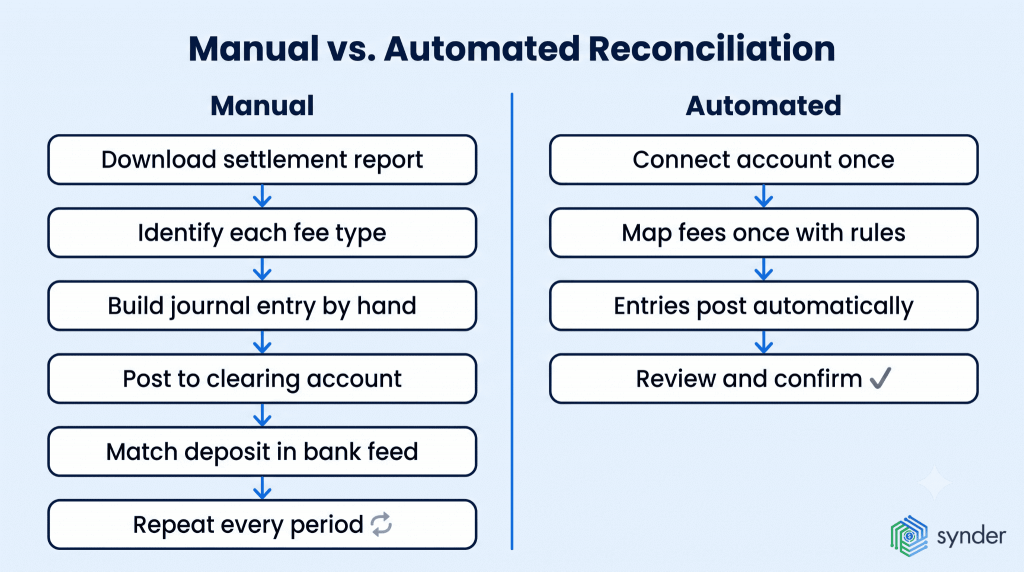
You can reconcile Amazon payouts manually, or you can use software to prepare the accounting entries. There’s no single right choice. It mostly depends on how much Amazon activity you’re dealing with every month.
For sellers with lower order volume and one marketplace, manual reconciliation is often enough. It takes time, but the process is straightforward. As your business grows, though, the amount of work grows with it. More orders usually mean more fees, more refunds, more adjustments, and more settlements to work through every month.
That isn’t unique to Amazon sellers. Ledge’s 2025 month-end close benchmark survey found that only 18% of finance teams close their books within three days, while half spend more than a week getting through the close. Reconciliation was one of the most common reasons the process took longer.
If reconciliation is starting to take a significant part of your month-end close, it may be time to look at automation.
| Manual | Automated | |
| Getting started | Set up your chart of accounts, then you’re ready to begin. | Connect Amazon and QuickBooks, configure your mappings, and complete the initial setup. |
| What happens each month | Download the settlement report, prepare the journal entries, and match each payout yourself. | Review the entries that have already been prepared, then confirm they’re correct. |
| As your business grows | Every new order, fee type, refund, or sales channel adds more work. | The monthly process stays much the same, even as transaction volume increases. |
| Possibility of mistakes | Manual entry makes it easier to overlook a settlement line or categorize something incorrectly. | Lower, because the settlement details are imported and assigned to the accounts you’ve already configured. |
| Usually a good fit for | Sellers with lower transaction volume or a single Amazon marketplace. | Businesses processing larger volumes or selling across multiple channels. |
| The ongoing investment | Your time every month. | A subscription that generally grows with your transaction volume. |
Whichever approach you choose, the accounting stays the same. You’re still recording the same sales, fees, refunds, and payouts. The difference is whether you’re entering each line yourself or reviewing entries that have already been prepared.
Check our article 6 Best Amazon Automation Tools for Accounting, Operations, and Reporting.
What automating the Amazon-to-QuickBooks process looks like
If you don’t want to build journal entries from every settlement report yourself, software can take care of much of that work. Synder connects Amazon Seller Central with QuickBooks Online and imports the transactions behind each payout, including orders, fees, refunds, reimbursements, and the payout itself.
Instead of deciding how every fee should be categorized each month, you set those rules once. With Smart Rules, referral fees, FBA fulfillment fees, storage costs, shipping charges, and other Amazon transactions are mapped to the QuickBooks accounts you choose. The same mapping is then used for future settlements unless you decide to change it.
You can also decide how much detail you want in QuickBooks. Some businesses prefer every order to be recorded separately, complete with SKUs and itemized fees. Others would rather post summary entries by day, month, or payout. Both options are available.
Marketplace facilitator tax is recorded separately, so it doesn’t inflate your Sales Tax Payable balance. If you’re receiving payouts in different currencies, those transactions are converted automatically as well, without the rounding differences that often come with manual calculations.
You’ll still review your books every month and decide how the accounts should be mapped. The software simply removes the repetitive work of building the entries from each settlement report.
| If you’d like to see how that process works with your own Amazon data, you can book a demo with Synder. |
How to record Amazon sales, fees, and refunds as journal entries in QuickBooks
If you’re recording Amazon settlements by hand, the clearing account is where you’ll do most of the work. Everything in the settlement report gets recorded there first. Once Amazon sends the payout, you match the bank deposit to that same account. When you’re done, the clearing account should be back at zero.
Here’s the process.
- Start with your sales. Record the full sales amounts from the settlement report, not the payout Amazon deposited into your bank account. For example, you might credit Product Sales for $3,355.45 and Shipping Income for $11.81, then debit the Amazon clearing account for the combined amount. That way, you’re recording what you actually sold before Amazon takes anything out.
- Next, record the deductions. Referral fees, FBA fees, storage charges, advertising costs, and any other Amazon fees should be posted to their own expense accounts. Credit the clearing account for the same total because those charges reduce the amount Amazon pays you.
- Then record any refunds. If the settlement includes a $27.94 refund, debit Sales Returns and Allowances for that amount and credit the clearing account. Refunds reduce your revenue. They shouldn’t be treated like another operating expense.
- Check the clearing account before moving on. At this point, its balance should match the payout shown in the settlement report. If it doesn’t, don’t guess. Go back through the report because something has probably been missed, or one of the entries has been posted to the wrong account.
- Record the payout when it reaches your bank. Debit your bank account and credit the Amazon clearing account for the deposit amount. That should clear the balance.
If there’s still money left in the clearing account after you’ve recorded the deposit, the settlement and your journal entries don’t match yet. Most of the time, you’ll find a missing fee, refund, reserve adjustment, or another transaction that hasn’t been recorded.
Refunds are one of the most common places where mistakes happen. They’re easy to post as an expense because they reduce the payout, but that’s not what they are. A refund reduces revenue, so it belongs in a contra-revenue account such as Sales Returns and Allowances.
If you’d rather not build these journal entries every month, software like Synder can create them from the settlement report automatically. Sales, fees, refunds, reimbursements, and payouts are recorded using the account mappings you’ve already set up. You still review the entries before posting them, but you don’t have to build each one yourself.
Rad, a Colorado recovery-tools company that sells tens of thousands of units every month through Amazon and Shopify, spent around 40 hours a month entering sales, fees, and refunds into QuickBooks before automating the process. Automating more than 150,000 records has made a real difference for them, cutting down both the time and cost of managing the books.
How to handle Amazon refunds that span two settlement periods
This happens more often than you’d think. A sale can be included in one settlement, while the refund for that same order doesn’t appear until the next one. Amazon may not process the refund until weeks later, sometimes as much as 30 days after the original settlement.
When that happens, leave the original settlement alone. Trying to move the refund back into the earlier period usually creates more work because you’ll end up reconciling two settlements instead of one. Record the refund where Amazon reports it. That’s the settlement that reduced your payout.
It also helps to keep a simple list of returns you’re still waiting to see in a settlement. Nothing complicated. Just enough to compare against future payouts so you know every refund has eventually come through.
If you’re using accrual accounting, you have another option. Some businesses record a refund reserve based on their expected returns, so the cost is recognized in the same period as the related revenue. Most cash-basis sellers don’t need to go that far. Recording the refund when it appears in the settlement is usually the right approach, and it’s a lot easier to manage.
One settlement at a time. That’s generally the easiest way to keep everything straight. Small timing differences stay within the settlement where they belong instead of turning into bigger reconciliation problems later in the year.
Match every transaction to its settlement period, not its order date
Refunds make this easy to see, but the same idea applies to every transaction in an Amazon settlement. The date that matters for reconciliation isn’t when the customer placed the order. It’s the settlement where Amazon reports the transaction.
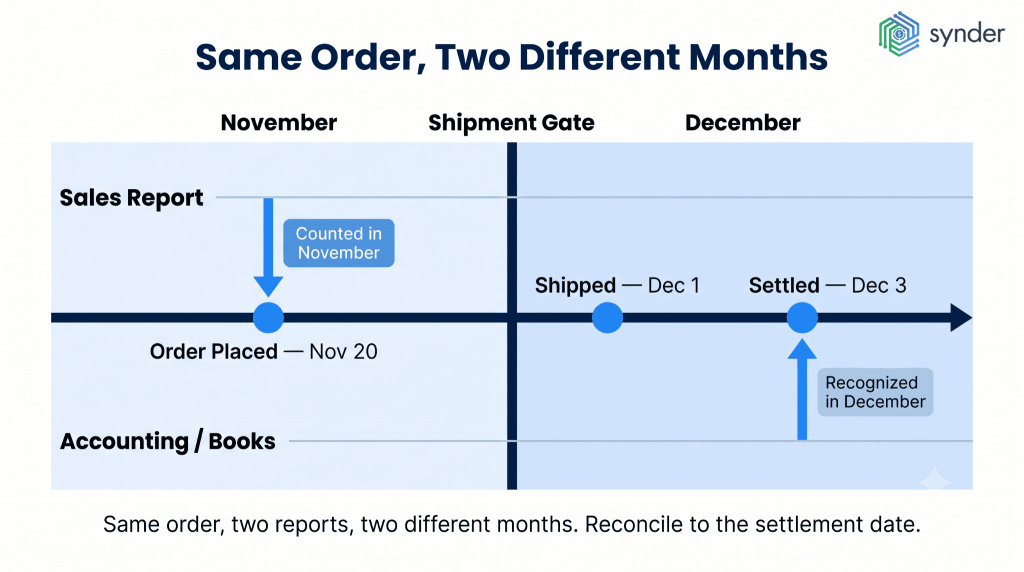
Amazon growth strategist Brittany McCormick explains it this way on LinkedIn:
The key control point is the Shipment Gate. Revenue is not real for accounting until an order actually ships and is settled. In this example: – Order placed: November 20 – Shipped: December 1 – Settled: December 3 So: – Sales reports it in November – Accounting recognizes it in December Same order. – Two different months.
Brittany McCormick, Owner of Story Box Management and Amazon Growth Strategist
It’s a useful way to think about every settlement. Before assigning a transaction to a month, check where it appears in Amazon’s settlement report rather than when the customer placed the order. That one habit clears up a lot of the timing questions that come up during month-end, whether it’s a refund, a reserve release, or a fee that wasn’t deducted until weeks later.
If you’re using Synder, you don’t have to keep track of those relationships yourself. Refunds are matched to their original orders by ID and recorded in the settlement where they appear. Return-related fees are posted separately instead of being combined with the refund, and FBA reimbursements for lost or damaged inventory are imported and recorded in the appropriate accounts automatically.
How to match Amazon deposits in the QuickBooks Online bank feed
Once you’ve recorded the settlement, there’s one last step. Match the payout that reached your bank account to the clearing account entry you already created.
Here’s how to do it:
- Go to Banking, then Review, and find the Amazon deposit in your bank feed.
- If you’ve already recorded the journal entry against the clearing account, QuickBooks will often suggest a match. Select Find Match and link the bank deposit to that existing entry.
- If nothing is suggested, don’t worry. Search by the settlement amount and transfer date to find the correct transaction and match it manually. That approach also makes it easier to work through several Amazon payouts at once if they’ve built up in your bank feed.
Before you move on, check two things:
- The deposit date. Make sure the date in QuickBooks matches the settlement transfer date rather than the settlement close date. Amazon doesn’t always use the same date for both.
- The clearing account. After you’ve matched the deposit, the clearing account should be back at zero. If it isn’t, something is still missing from the settlement, or one of the entries has been posted incorrectly.
This is also the point where manual reconciliation starts taking much time. Recording a settlement isn’t usually the difficult part. Working through deposit after deposit in the bank feed is.
How to reconcile FBA storage fees, long-term storage fees, and inventory adjustments
FBA fees can be easy to miss because they don’t show up in every settlement. Then, one month, they’re there, and the numbers look completely different from the month before.
Monthly storage fees should have their own expense account rather than being grouped with your regular fulfillment costs. Long-term storage fees deserve a separate account too. They’re charged on a different schedule, and if you suddenly see that balance jump, it’s often a sign that inventory has been sitting in Amazon’s warehouses for longer than expected, not that something went wrong with your bookkeeping.
Inventory reimbursements are different again. If Amazon loses or damages your FBA inventory, it pays you back. That reimbursement isn’t a reduction of your cost of goods sold. It’s income, so it should be recorded in an Other Income account. If you offset it against COGS instead, your margins won’t tell the full story.
When you’re reviewing the settlement report, it’s worth filtering for the FBA Inventory Reimbursement transaction type. That makes those credits much easier to find and record separately.
Dermeleve, a skincare company selling through Amazon, Shopify, and Stripe, dealt with exactly this issue. Storage fees, transaction fees, marketing fees, and restocking fees were all mixed, making reconciliation harder than it needed to be. After automating the way those transactions were categorized into separate accounts, the company reduced its monthly reconciliation variance against QuickBooks Online to less than 0.5% across more than 170,000 transactions. That gave the team much more confidence in its reporting for compliance and FSA/HSA documentation.
Synder has allowed me to remain independent in my role and accomplish more things in less time. Before, I would have had to hire additional staff at a cost of $5,000-$6,000 a month to help me operate the accounting department. By cutting out data entry, we’re saving on labor costs while improving efficiency by removing the errors.
Andy Pozniak, CFO at Dermeleve
Common Amazon reconciliation errors in QuickBooks and how to fix them
Most reconciliation problems come down to the same handful of mistakes. They usually aren’t difficult to fix, but they can throw your books off if you don’t catch them early. One of the questions accountants hear most often is why Amazon fees don’t match what’s in QuickBooks. In many cases, the answer is surprisingly simple: the payout was recorded as sales, or several different fee types were combined into one expense account.
| Mistake | What usually happened | What you’ll notice | How to fix it |
| The bank deposit was recorded as sales | The payout was posted as revenue instead of the gross sales from the settlement. | Revenue is understated, or settlements are counted twice. | Record gross sales in your income accounts and route the payout through the clearing account. |
| Marketplace facilitator tax wasn’t recorded separately | The tax Amazon remitted on your behalf wasn’t accounted for correctly. | Income on the profit and loss report is overstated. | Record the withheld tax separately. It isn’t revenue or an expense. |
| All Amazon fees went into one expense account | Referral fees, FBA charges, storage, and advertising were grouped. | It’s difficult to see where your Amazon costs are coming from. | Give the main fee types their own expense accounts. |
| The payout went straight to the bank account | The clearing account was skipped. | Transactions don’t match properly, and reconciliation becomes much harder. | Record the settlement through the clearing account before matching the bank deposit. |
| Several settlements were reconciled together | Multiple settlement periods were combined into one reconciliation. | Small timing differences build up from one month to the next. | Work through each settlement separately and make sure the clearing account returns to zero before moving on. |
These mistakes become more expensive as transaction volume grows. Ledge’s benchmark data found that many finance teams spend between 20 and 50 hours every month on cash reconciliation alone. For many of them, reconciliation is the part of the month-end close that takes the longest, not the reporting that comes after it.
Final thoughts on reconciling Amazon payouts in QuickBooks Online
At first glance, reconciling Amazon payouts can feel harder than it should be. The bank deposit is just the final payout after Amazon has already deducted fees, refunds, reserves, and marketplace-facilitator tax. Once you start working from the settlement report instead of the deposit, the process becomes much easier to follow.
Everything else builds on that. Record the full sales amount, keep fees in their own accounts, use a clearing account for every settlement, and record refunds in the settlement where Amazon reports them. If the clearing account returns to zero after you’ve matched the payout, you’ve usually got everything where it belongs.
The process doesn’t really change as your business grows. Early on, many sellers handle it with monthly journal entries and a bit of time. Later, when order volume and sales channels increase, the same accounting can be automated. You’re still following the same reconciliation process. You’re just spending more time reviewing the numbers and less time entering them.
FAQ
What is a refund to Amazon Pay balance?
A refund to an Amazon Pay balance sends the money back to the customer’s Amazon Pay balance instead of the card or payment method they originally used. From an accounting perspective, it doesn’t change how you record it. It’s still a reduction of revenue, so it should be posted to a contra-revenue account such as Sales Returns and Allowances in the settlement period where the refund appears.
How do I reconcile a refund in QuickBooks Online generally?
Record the refund through the same clearing or holding account you used for the original sale. Debit your returns account, credit the clearing account, and then let the bank deposit offset that balance when the refund appears in a later payout. If everything has been recorded correctly, the clearing account should still return to zero without any manual adjustments.
How do I do payment reconciliation on Amazon?
Start with the settlement report in Seller Central rather than the bank deposit. The settlement report shows every sale, fee, refund, and tax amount that makes up the payout. Record those transactions in QuickBooks using a clearing account, then match the bank deposit when it arrives. Once the clearing account is back at zero, you’ve reconciled that payout.
Can I automate Amazon adjustment refund tracking and posting?
Yes. Software that connects Amazon with QuickBooks Online can import adjustment refunds and reimbursements directly from your settlement reports and record them in the accounts you’ve already mapped. You still review the entries before posting them, but you don’t have to enter every refund and reimbursement yourself.