

This guide walks you through the Synder interface in Per Transaction Sync mode — what each section of the left-hand menu is for, and the key buttons you will use on each page. Think of it as a map rather than a manual: for step-by-step instructions on each task, we link out to its dedicated guide. If you use Summary Sync instead, the layout differs slightly.
Dashboard
Your starting point. The Dashboard gives you an at-a-glance view of your sync health — an Overview tab with your integrations and a live transactions feed (latest synced, sync issues, and not-synced counts), plus a Synchronization Issues tab for anything that needs attention. Use it to spot problems before digging into individual transactions.
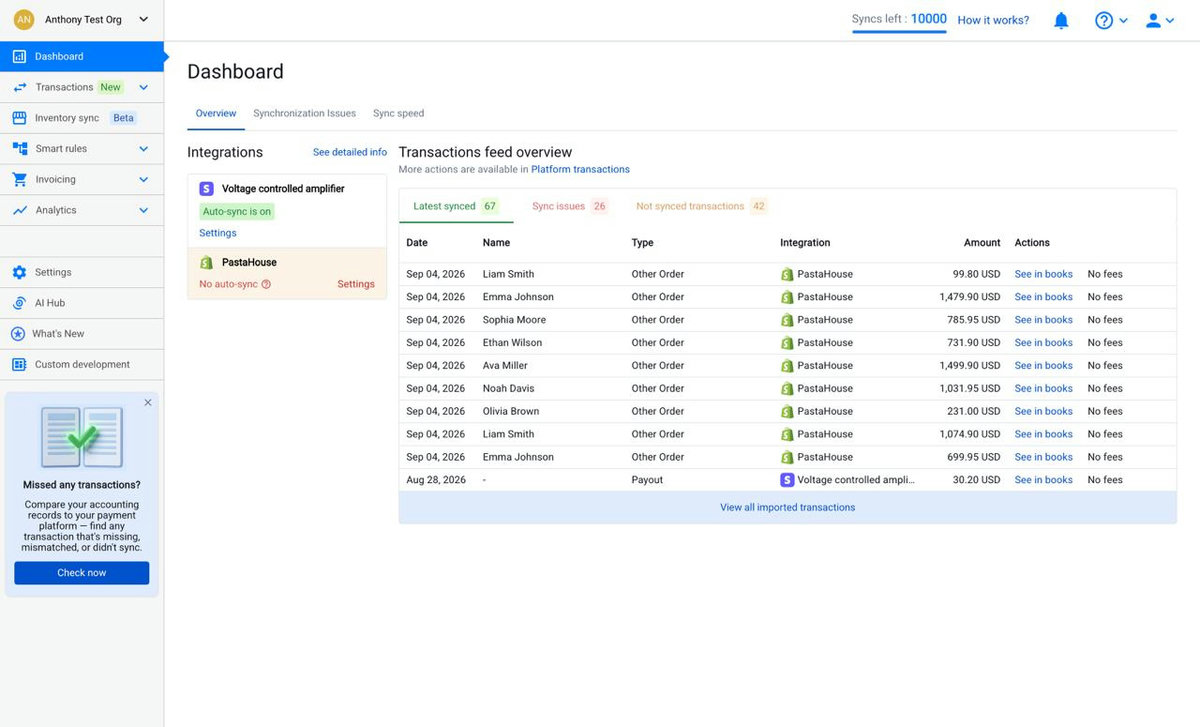
Full walkthrough: Synder Dashboard Guide.
Transactions
The core of Per Transaction mode. This section contains three pages: Transactions list, Import activity log, and Transaction reconciliation.
Transactions list
This is the Transaction List — every transaction Synder imported from your connected sales and payment platforms, shown with its current sync status. It is the page you will work from most. Here is what you can do:
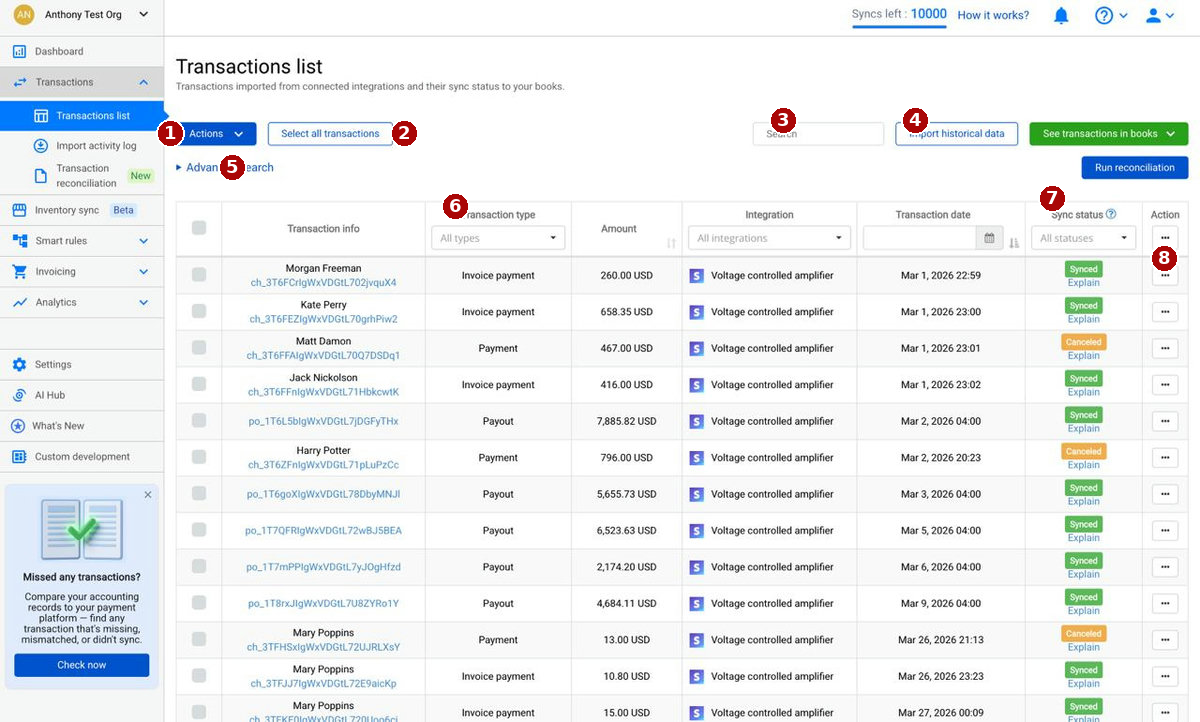
- 1. Actions — run bulk operations on the transactions you select: Sync, Rollback, Cancel, or Archive.
- 2. Select all transactions — apply an action across the whole filtered list, not just the current page.
- 3. Search — find a specific transaction by ID or customer.
- 4. Import historical data — bring in past transactions from your connected integrations.
- 5. Advanced search — open extra search criteria beyond the basic filters.
- 6. Filters — narrow the table by transaction type, amount, integration, date, and status. Reset all filters clears them.
- 7. Sync status — shows where each transaction stands (for example, Ready to Sync or Synced). On synced rows, Explain shows how the transaction was recorded in your books.
- 8. Row menu (…) — act on a single transaction from the three-dot menu at the end of its row.
Import activity log
A record of every import request, so you can see which periods are already covered and whether an import ran automatically or was triggered manually. Synder imports on a schedule — frequently throughout the day, plus periodic catch-up imports. The Import historical data button here lets you pull in past data on demand.
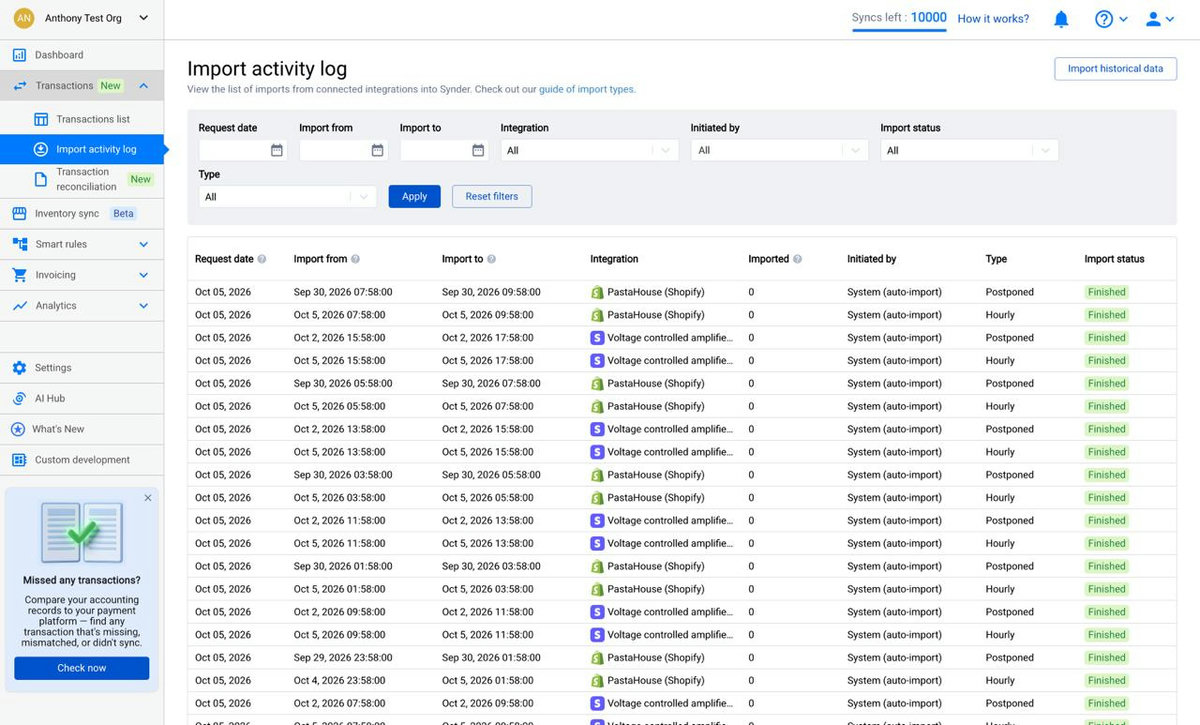
Details: Import Activity Log: Types of Import Requests.
Transaction reconciliation
Compares your data against your accounting system to spot discrepancies and keep your books accurate. The Run reconciliation button starts a check, and the list shows each period with its reconciliation status.
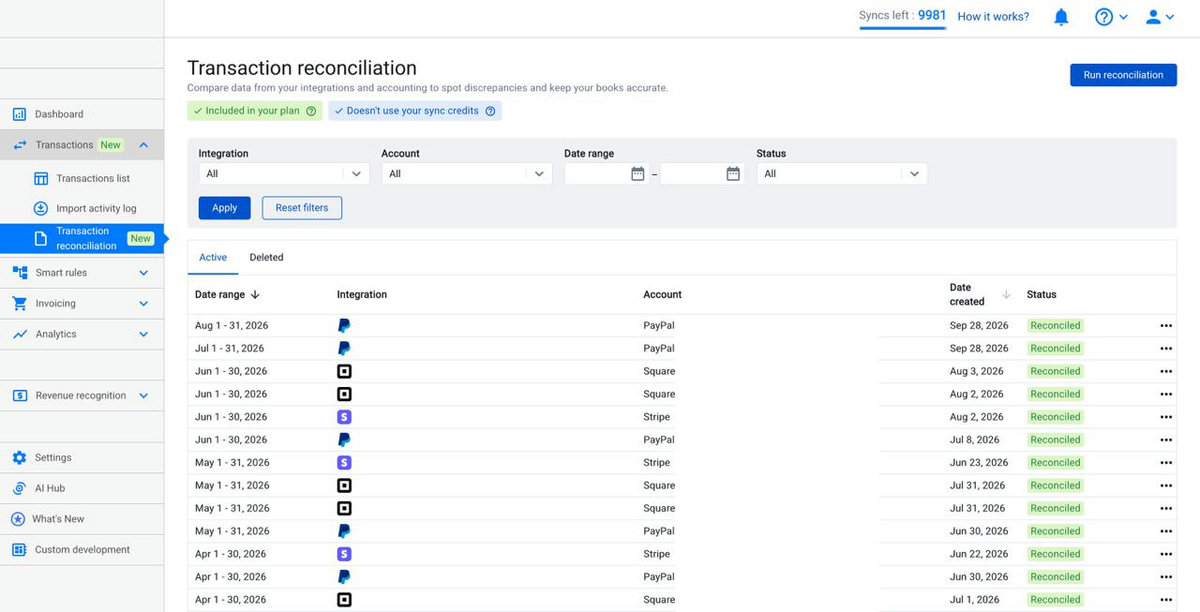
Learn more: Transaction Reconciliation for Per Transaction Sync, How to Use Manual Matching, and Balance Reconciliation.
Smart rules
Automate how transactions are categorized and processed. Rules is where you build and manage your rules (use Create rule to add one); Executions shows which rules fired on which transactions; Recipes offers ready-made rule templates you can apply.
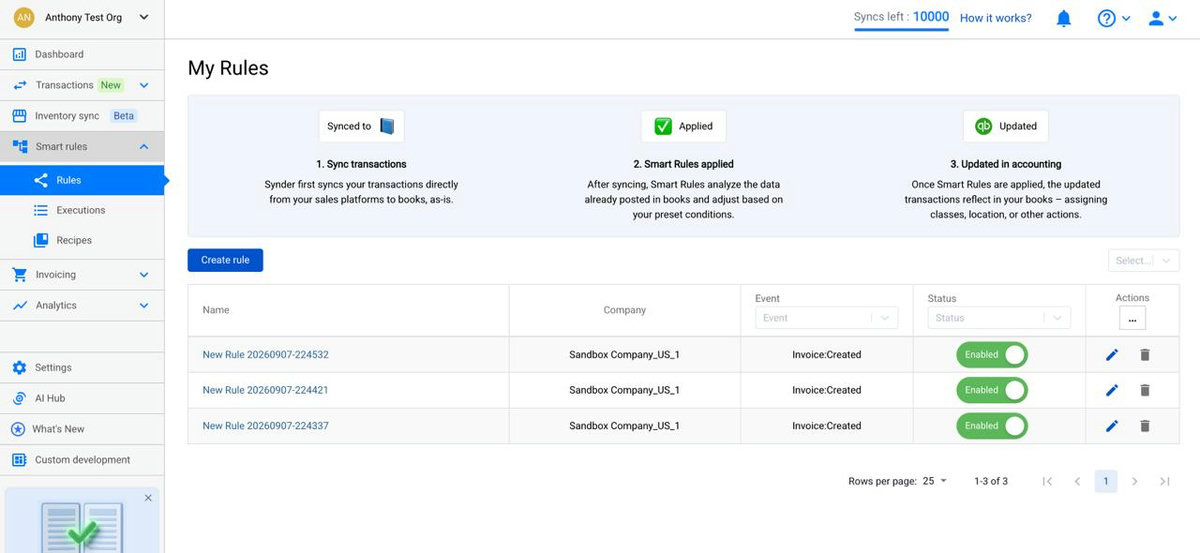
Learn more: Smart Rules for Xero: Entities, Actions and Limitations.
Invoicing
Create and send invoices directly from Synder, powered by Stripe and Square. Invoices lists your invoices and holds the New Invoice button; Payment links lets you generate shareable payment links for your customers.
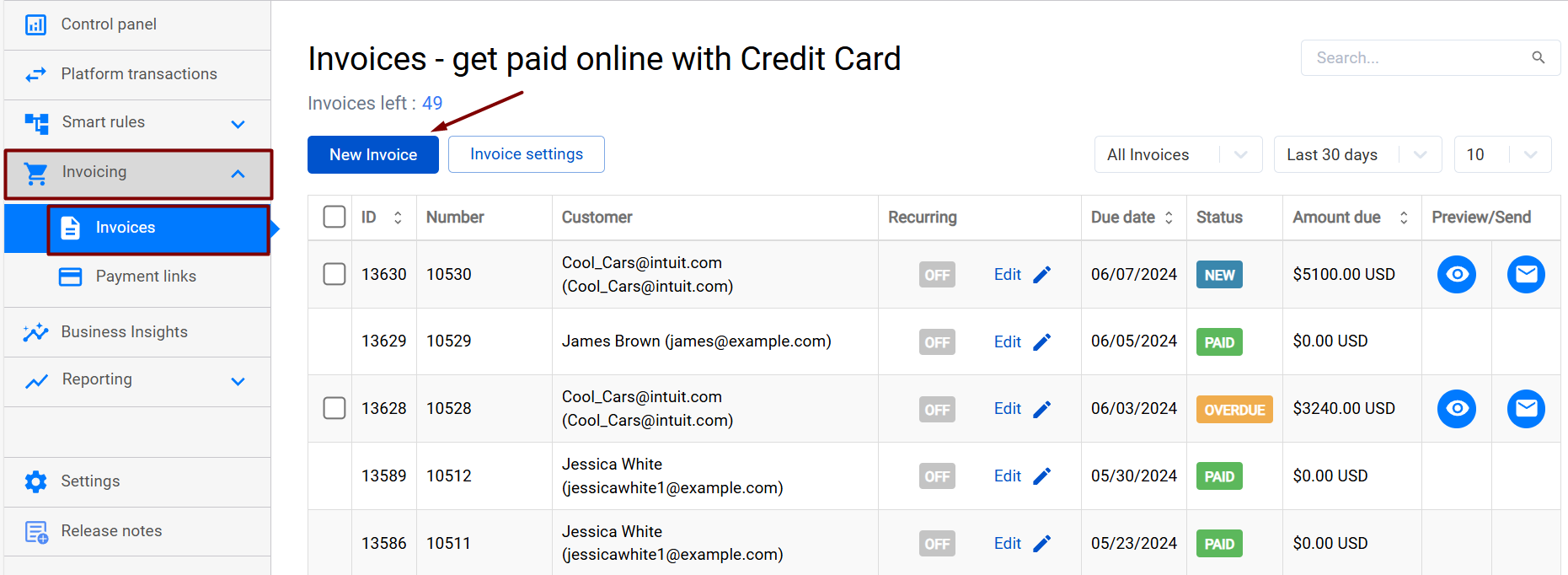
Learn more: How to Create Invoices with Synder.
Analytics
Your reporting hub — financial reports built from your synced data. Overview summarizes key metrics with charts, Templates is the report catalog, My reports holds the ones you have saved, and statements such as Profit and loss let you review the numbers without leaving Synder.
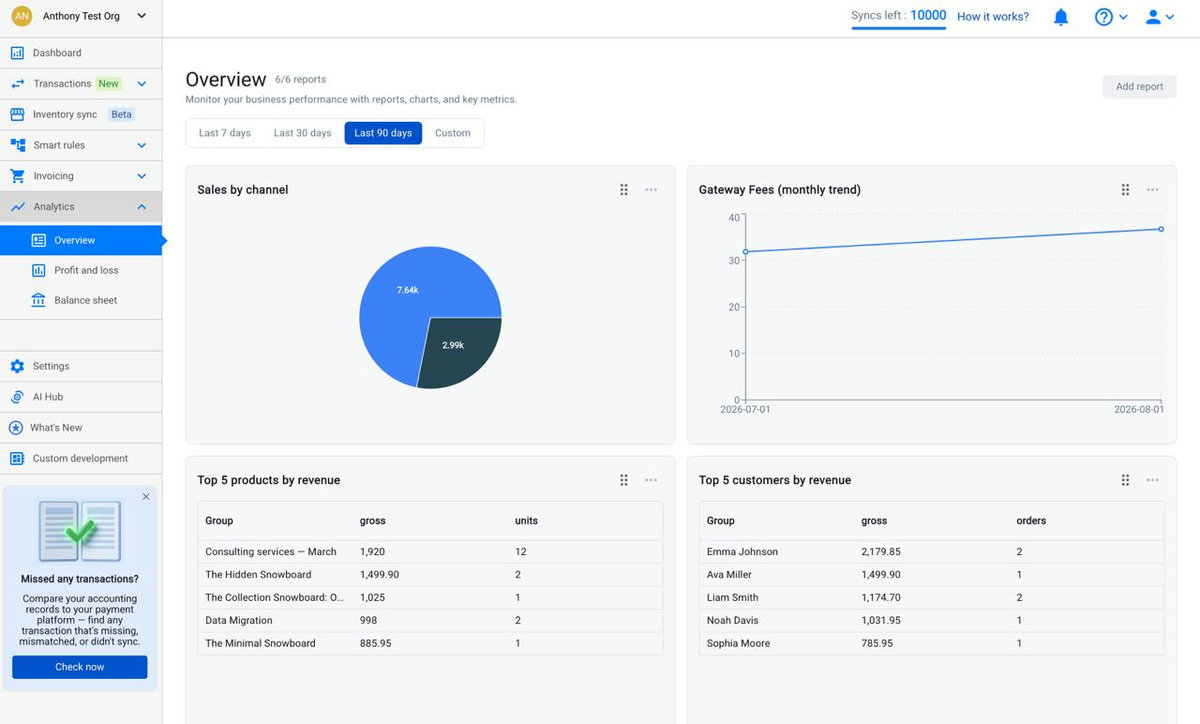
Full walkthrough: Analytics Tab in Synder: Overview, Reports, Profit and Loss, and Balance Sheet.
Settings
Opens the general Settings page, where you configure how Synder behaves before and during sync — integrations, accounts, taxes, and sync preferences. It is worth reviewing these before your first sync.
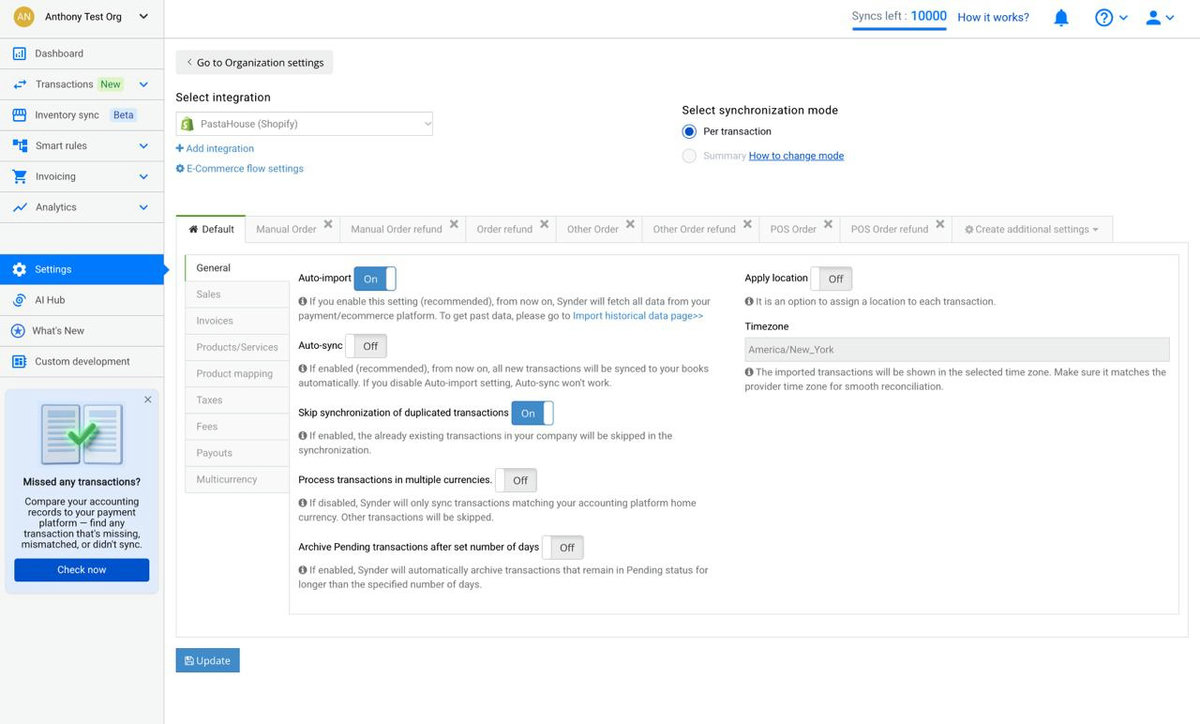
Learn more: Configure Core Settings.
Reach out to the Synder team via online support chat, phone, or email with any questions you have – we’re always happy to help you!
