

Overview:
- Before you start: load your Xero data
- What you can build rules around
- The three action types
- What you can update, entity by entity
- Tracking categories instead of classes and locations
- Examples
Sync mode note: Smart Rules run in Per-Transaction mode only. They are not available in Summary Sync (Daily Summary) on any platform. If your Xero organization syncs in Summary mode, use the Grouping feature instead — it is the Summary-mode substitute for Smart Rules.
New to Smart Rules? Start with How Smart Rules Work in Synder for the full walkthrough.
▶ Watch: automate Xero categorization with Smart Rules
Before you start: load your Xero data
Synder does not pull Xero data automatically. This keeps API usage under control. Until you load it, your rule dropdowns stay empty.
In the rule builder, click Fetch data from Xero at the bottom of the left panel. Synder then pulls your accounts, contacts, items and tracking categories.
The panel also shows a Last fetched timestamp. Added a new account, contact or tracking category in Xero? Click the button again to pull it in.
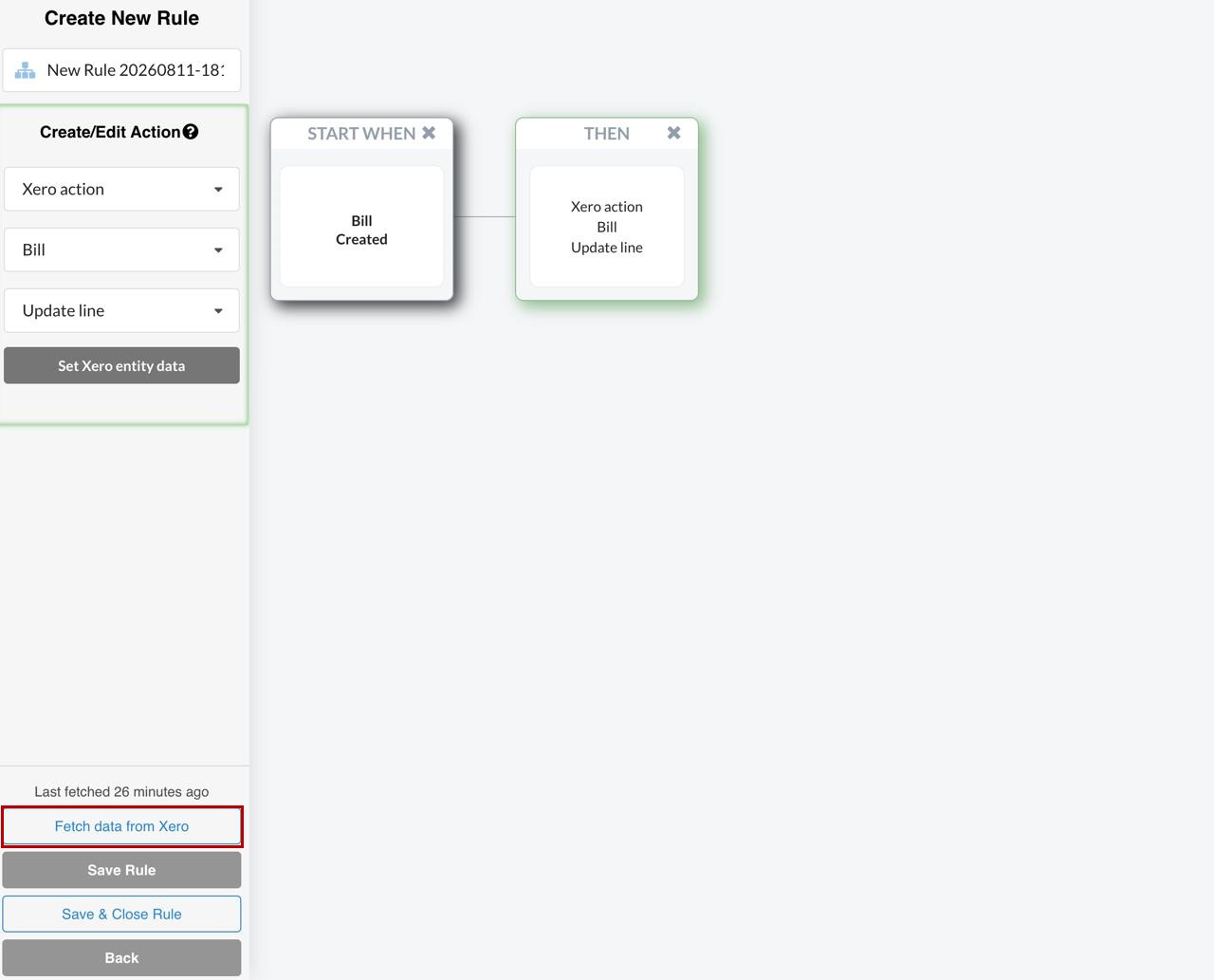
For the full walkthrough see Accessing Xero Entities in Smart Rules Dropdowns.
What you can build rules around
Xero gives you 10 entities to use as triggers:
- Bill
- Bill Payment
- Contact
- Invoice
- Invoice Payment
- Item
- Purchase Credit Note
- Purchase Credit Note Payment
- Sales Credit Note
- Sales Credit Note Payment
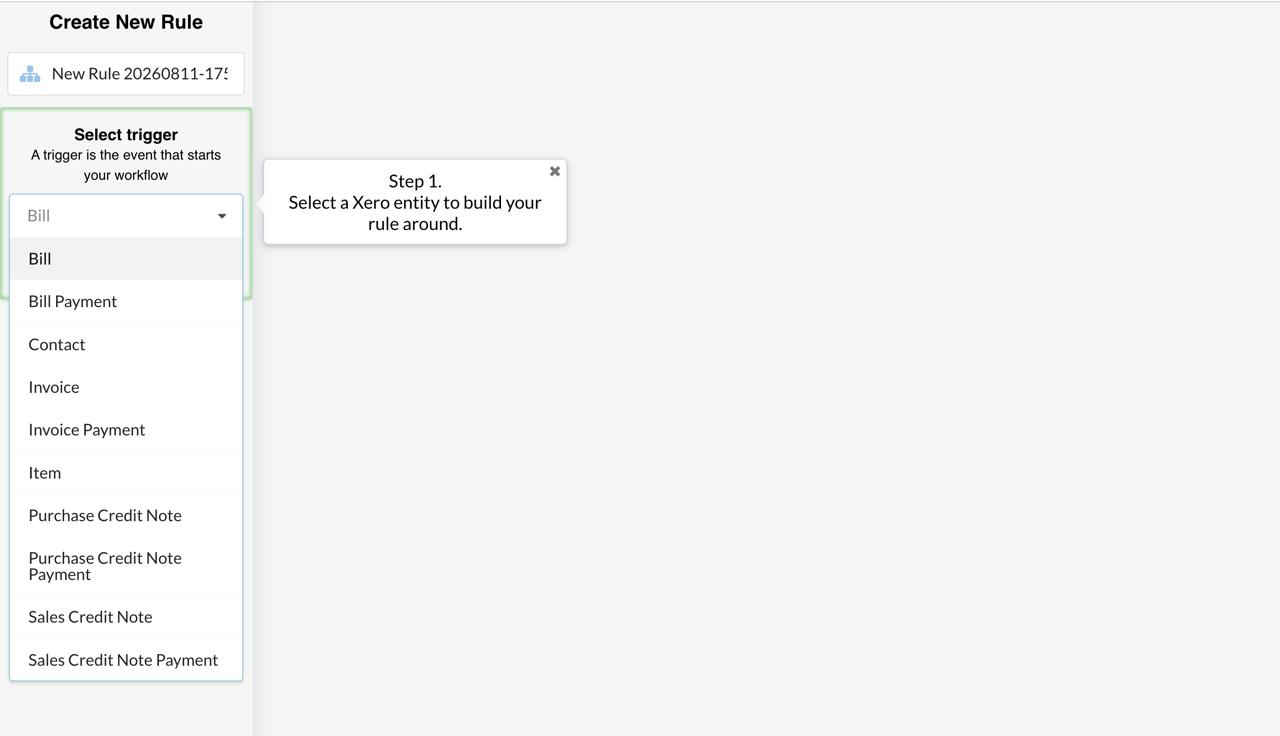
Note: Xero has no Sales Receipt. Where a QuickBooks guide uses a sales receipt, use Invoice instead. Invoice is the one entity you get on all three platforms.
Bank Transfers (payouts) are not available in Smart Rules for Xero at all, because the Xero API does not allow updating them.
The three action types
Every Xero rule ends in one of three actions:
- Update current — updates the whole transaction that triggered the rule, including all of its lines.
- Update line — updates the individual line that matched your condition.
- Send email — sends a notification instead of changing the transaction.
Which of the three you get depends on the entity. See the next section.
What you can update, entity by entity
Invoices and Bills
Invoices and Bills support Update current and Update line. You can change any available field: reference, contact, item, description, account, tax rate and tracking categories.
On unpaid invoices and bills you can update anything. On paid ones, three fields cannot be changed:
- Line: Item
- Line: Tax Rate
- Amounts are (Tax Exclusive / Tax Inclusive / No Tax)
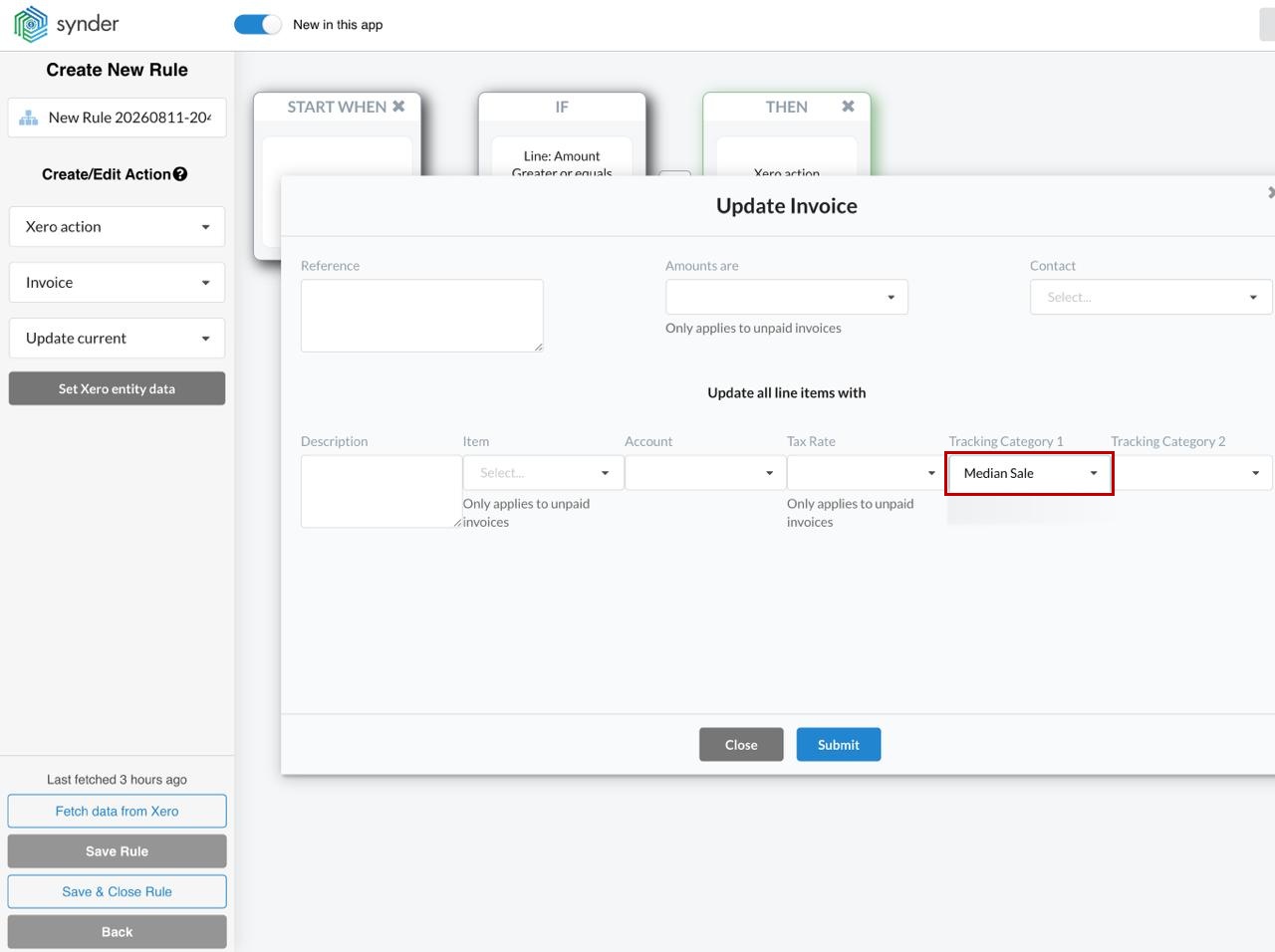
This is a Xero API limitation. Synder plans to lift it in a future release. Synder flags these fields in the action window. The label reads Only applies to unpaid invoices or Only applies to unpaid bills. You therefore see the limit while you build the rule, not after a sync.
Everything else — including tracking categories — applies to paid invoices and bills without issues.
Contacts and Items
Contact and Item support Update current only. You can change every available field. QuickBooks Online works the same way.
Credit Notes and Payments
Sales Credit Notes, Purchase Credit Notes and all Payment entities support Send email only.
- Credit notes — the Xero API does not allow Synder to update them.
- Payments — a payment holds nothing to update, so Synder offers only the common actions.
You can still build useful rules on these entities. See Examples below.
The Invoice trigger is Created only
In Xero, invoices can only trigger a rule when they are Created. There is no Sent or Updated trigger — polling Xero for those events would consume a large amount of API calls.
Tracking categories instead of classes and locations
Xero uses tracking categories where QuickBooks uses classes and locations. The action window offers Tracking Category 1 and Tracking Category 2. Xero supports up to two active tracking categories at a time.
Synder matches tracking categories on the option name. Make sure the option exists in Xero before you use it in a rule. If you add a new one, click Fetch data from Xero again so it appears in the dropdown.
Examples
The three examples below cover one action type each.
Example 1: assign a tracking category to larger invoices
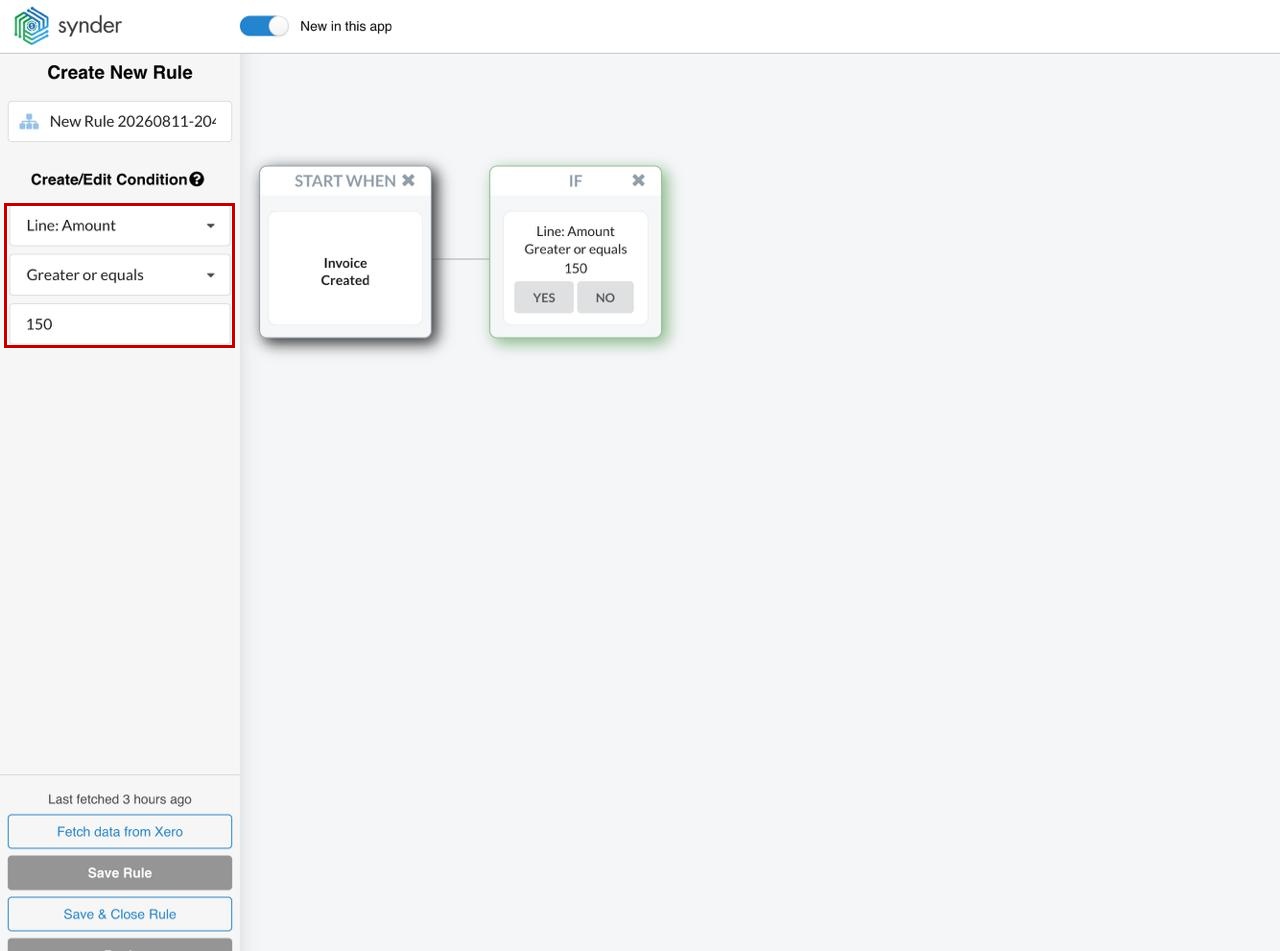
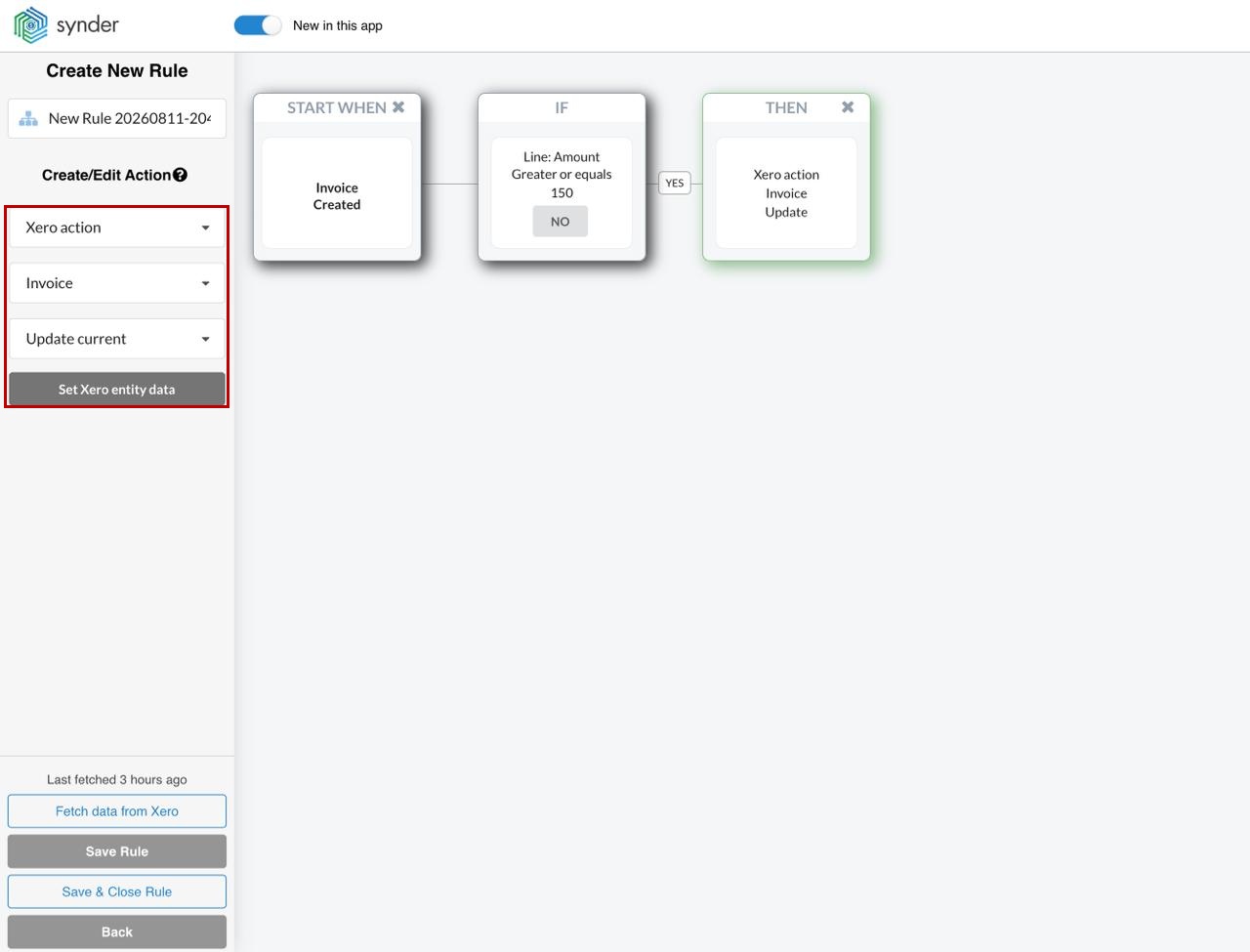
The rule: Invoice → Created · IF Line: Amount is greater or equals 150 · THEN Xero action → Invoice → Update current → set Tracking Category 1.
This is the Xero equivalent of applying a class in QuickBooks, and it works on both paid and unpaid invoices.
1. Select Invoice → Created as the trigger, then click Condition.
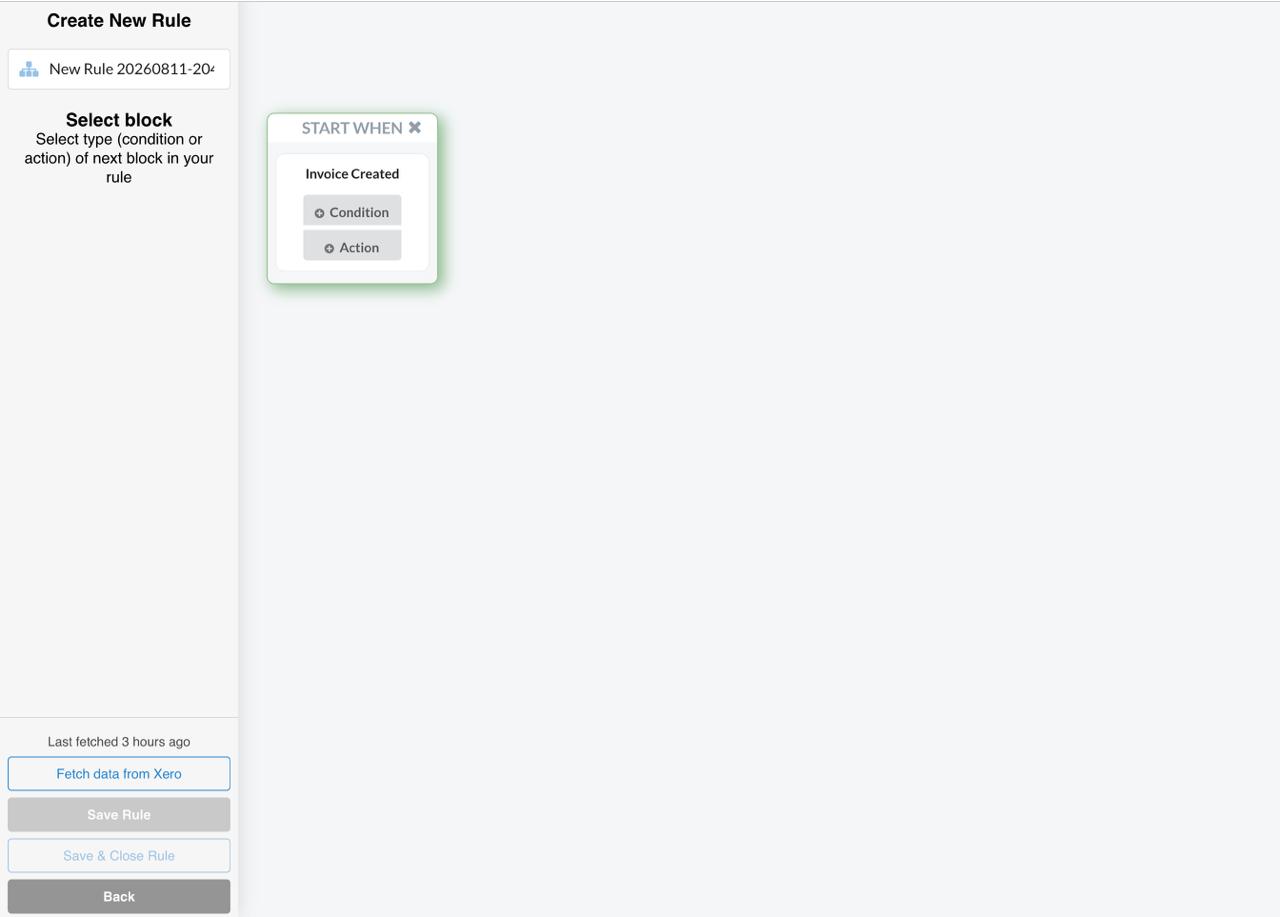
2. Set the condition to Line: Amount → Greater or equals → 150, then click Yes.
3. Add an Action block and choose Xero action → Invoice → Update current → Set Xero entity data.
4. In the Update Invoice window, pick your category under Tracking Category 1 and click Submit. Save the rule. Every new invoice of 150 or more now carries that tracking category.
Notice the Only applies to unpaid invoices labels under Amounts are, Item and Tax Rate. Tracking categories carry no such limit. That is why this rule works on paid and unpaid invoices alike.
Example 2: set the account on bill lines
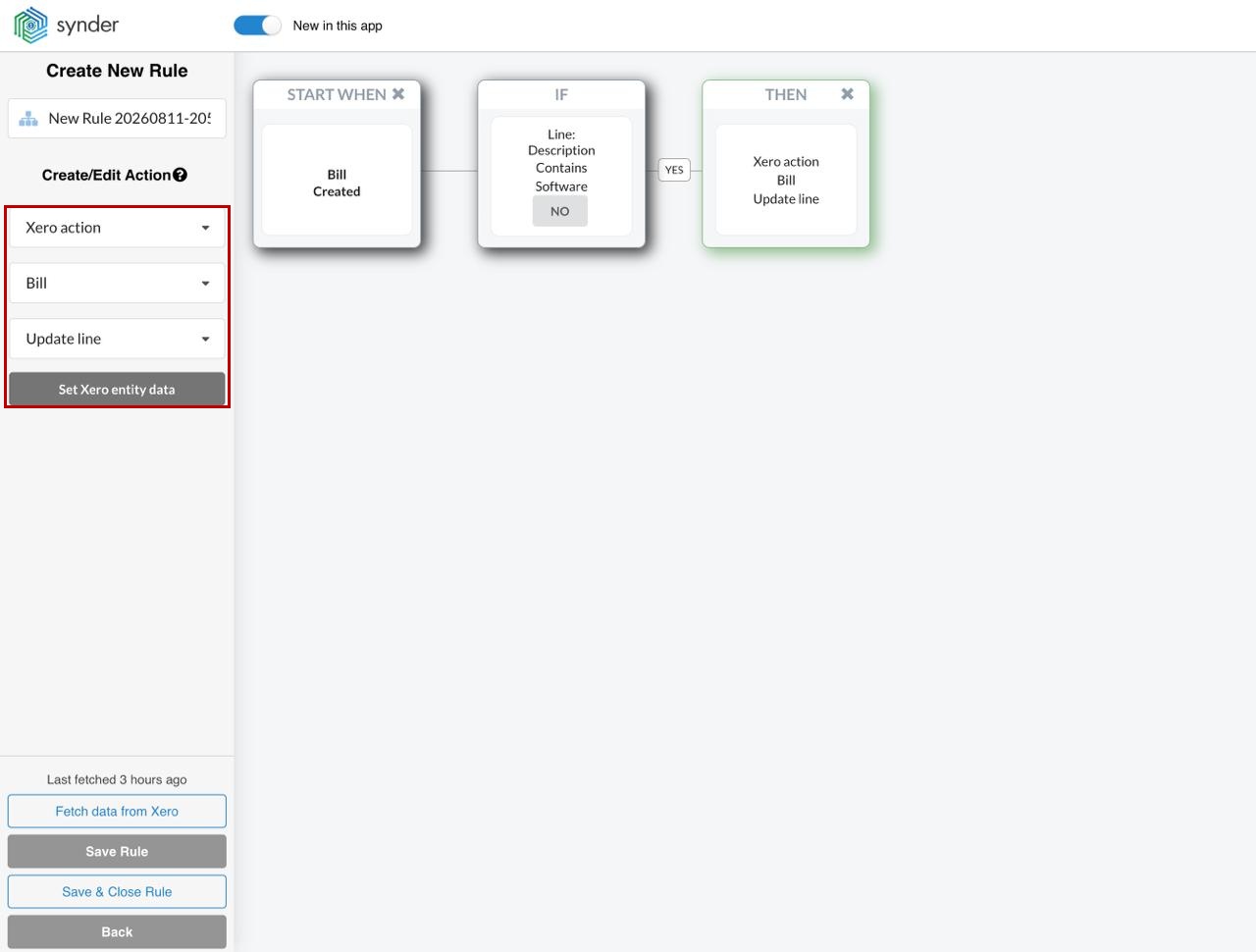
The rule: Bill → Created · IF Line: Description contains a keyword · THEN Xero action → Bill → Update line → set Account.
Update line changes only the line that matched your condition. That is what you want when one bill mixes several kinds of expense. Update current would apply the same value to every line.
1. With a Bill → Created trigger and a Line: Description condition in place, choose Xero action → Bill → Update line.
2. In the Update line Bill window, choose the Account you want that line posted to and click Submit.
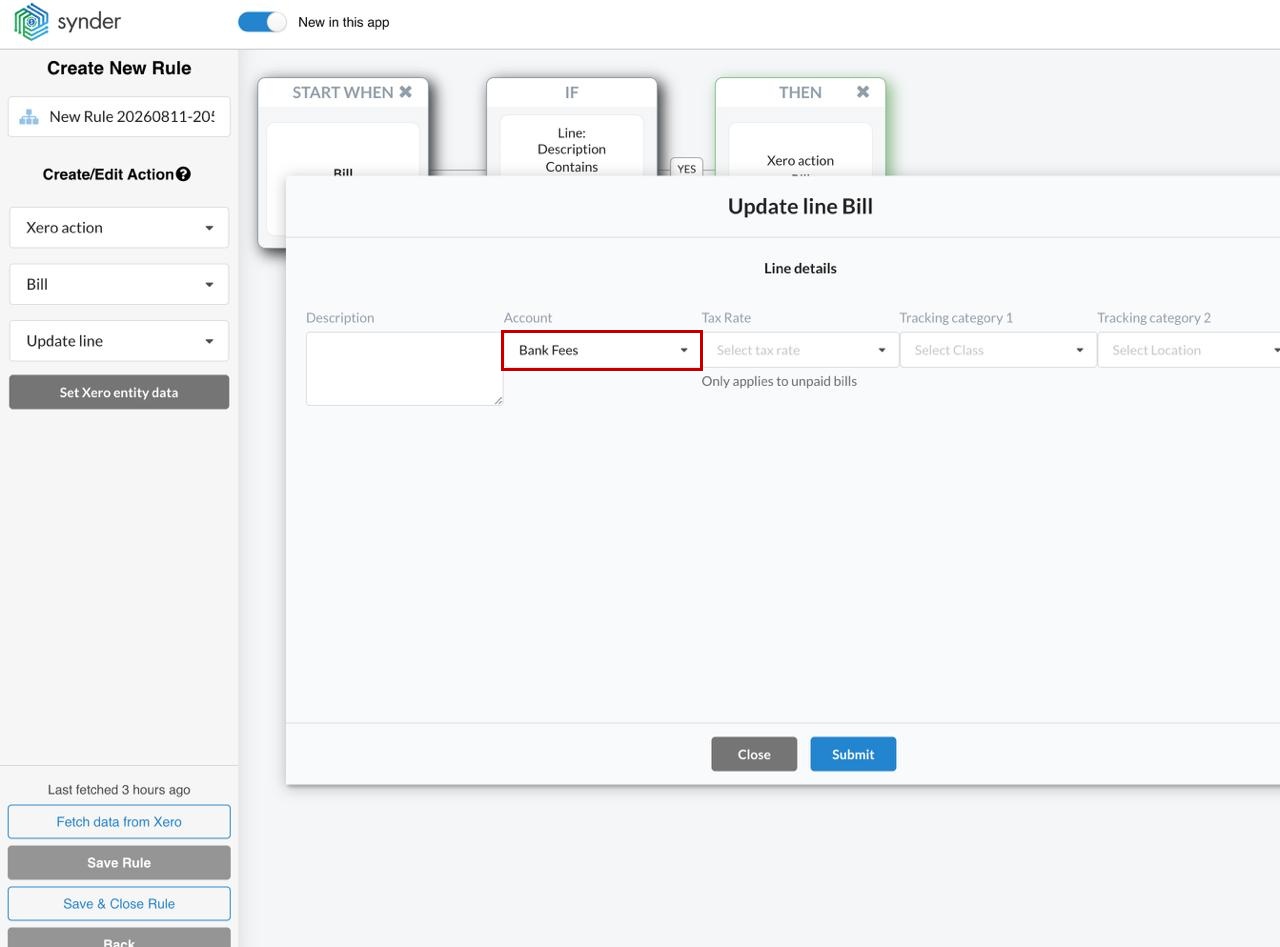
Note: the Tax Rate field in this window carries the Only applies to unpaid bills restriction. Account, Description and the tracking categories do not.
Example 3: get an email when a credit note is created
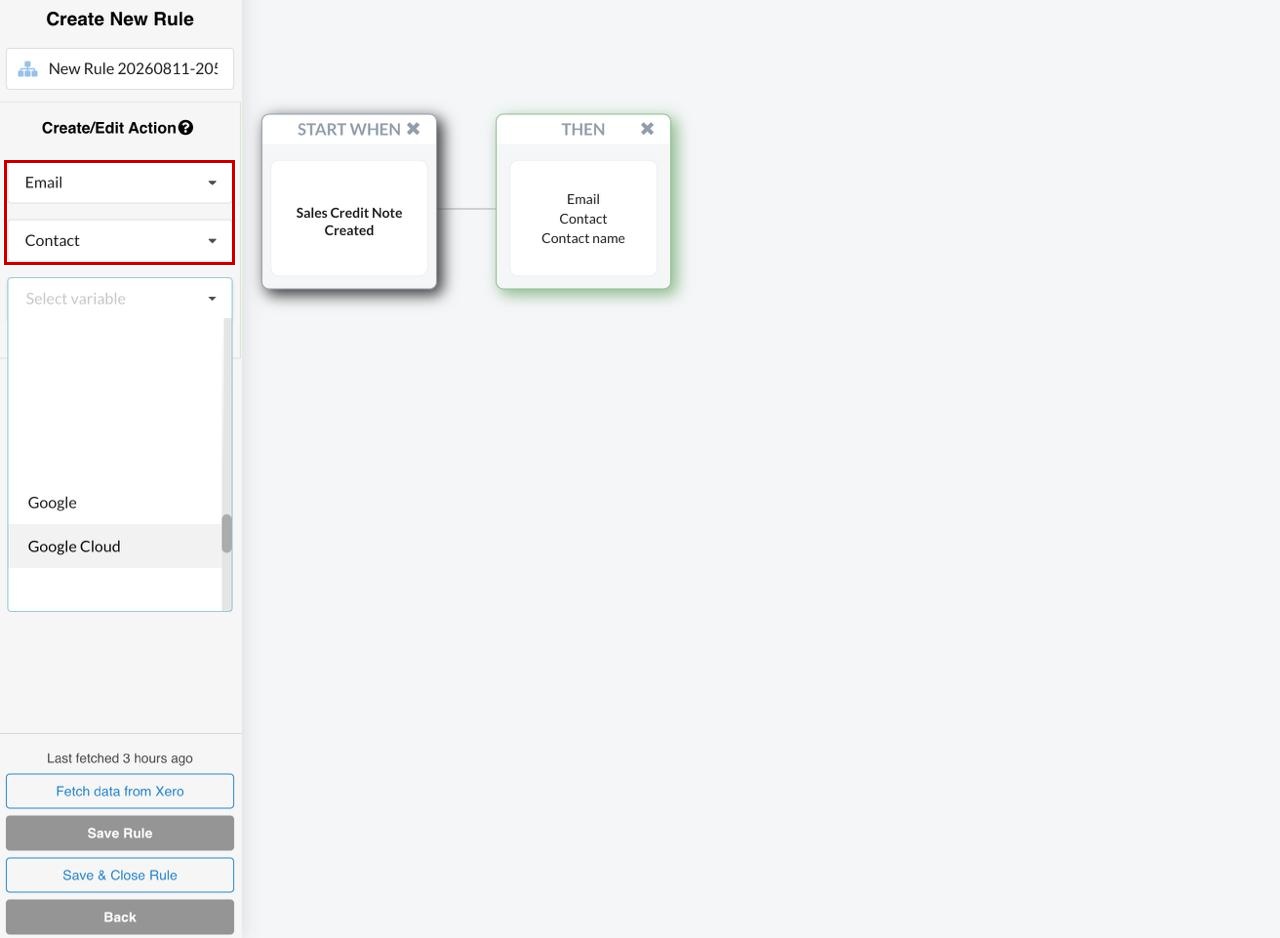
The rule: Sales Credit Note → Created · THEN Email.
You cannot update credit notes. They can still trigger a notification, which helps when refunds need sign-off.
1. Select Sales Credit Note → Created as the trigger, add an Action block, and choose Email. Pick Contact and then the contact you want the address taken from.
2. Add a Reply-To email address and a subject, then write the message. Click the message body to open the full Message editor. There you can format the text and use the template helper to add transaction details.
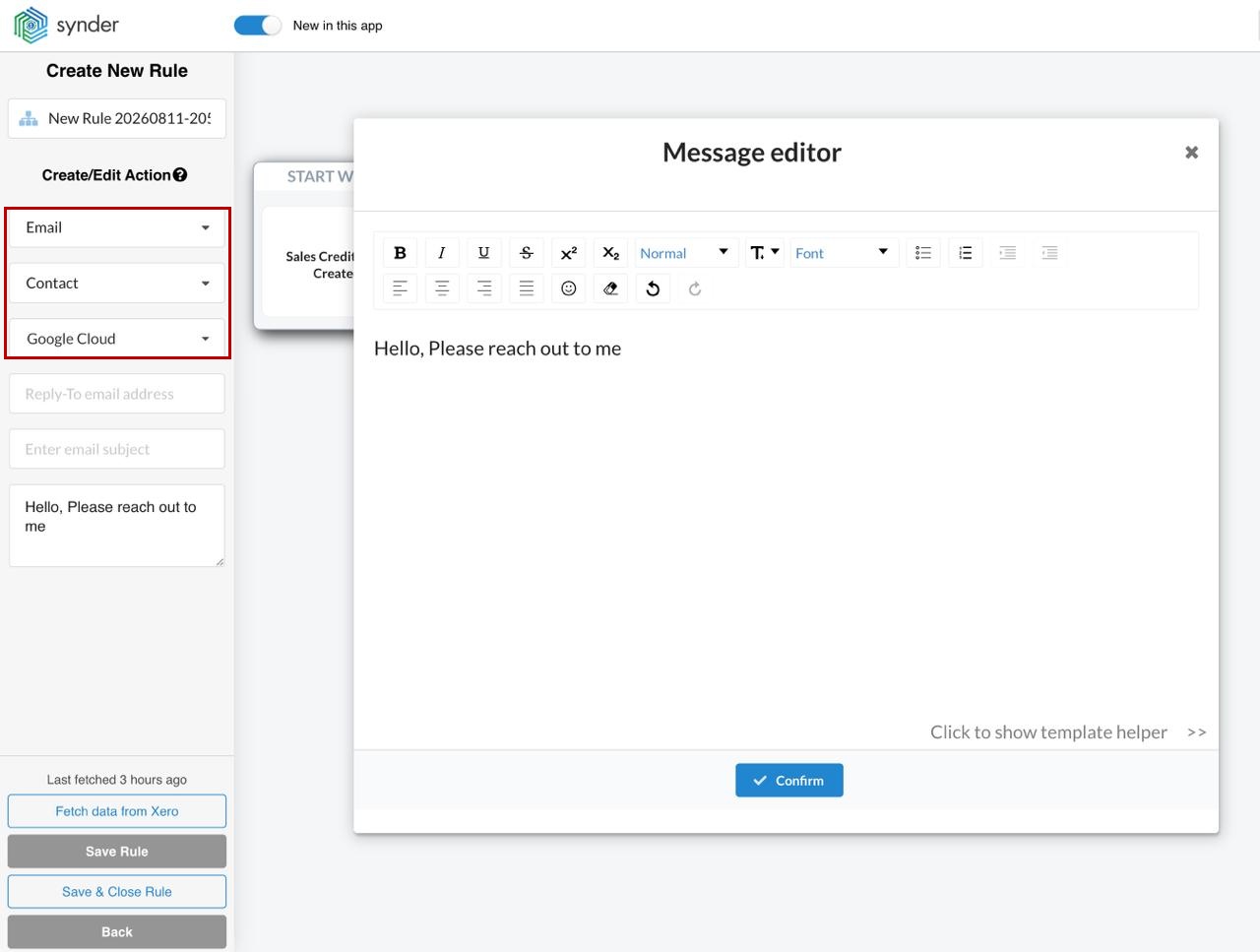
3. Click Confirm, then save the rule.
For the full walkthrough, see How Smart Rules Work in Synder. For QuickBooks Desktop specifics, see Smart Rules for QuickBooks Desktop.
Reach out to the Synder Team via online support chat, phone, or email with any questions you have – we’re always happy to help you!
