

When using Smart Rules with Xero, the dropdown menus in your rule conditions and actions are populated directly from your Xero account. These lists need to be refreshed before they will appear — they do not load automatically.
This guide explains how to fetch your Xero data so that accounts, contacts, and tracking categories are available to select in your Smart Rules.
▶ Watch: automate Xero categorization with Smart Rules
Why Dropdowns May Be Empty
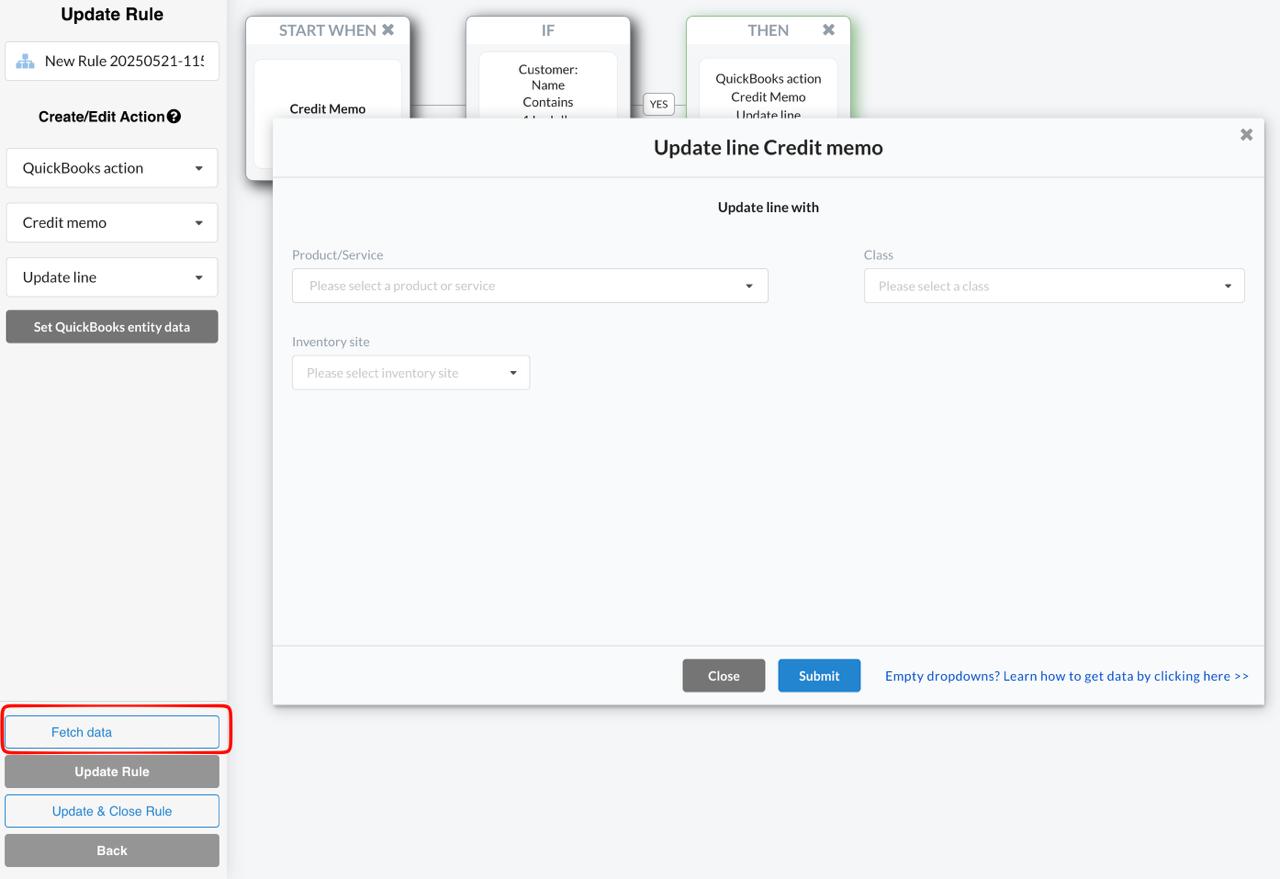
The first time you open a Smart Rule with Xero, the dropdowns may be empty or show no options. This happens because Synder has not yet pulled the latest data from your Xero account for use in rules.
You will see a hint message: “Empty dropdowns? Learn how to get data by clicking here >>”
How to Fetch Xero Data
- In Synder, go to Smart Rules in the left sidebar
- Open any existing Smart Rule, or click Add rule to create a new one
- At the bottom of the left panel, click Fetch data from Xero
- Wait a few seconds while Synder retrieves your Xero accounts, contacts, and tracking categories
- The dropdowns in your rule conditions and actions will now be populated with your Xero data
New to sync modes? See How Smart Rules Work in Synder.
When to Fetch Data Again
If you add new accounts, contacts, or tracking categories in Xero and they do not appear in your Smart Rules dropdowns, click Fetch data from Xero again to refresh the list. Synder does not pull changes from Xero automatically — you control when the refresh happens.
Above the button you will see a Last fetched timestamp, showing how long ago your Xero data was loaded. Use it to check whether your dropdowns are up to date before you build or edit a rule.
Reach out to the Synder team via online support chat, phone, or email with any questions you have – we’re always happy to help you!
