
A PayPal NetSuite integration automatically posts PayPal sales, processing fees, refunds, and payouts into NetSuite as journal entries, mapped to the income, expense, clearing, and bank accounts you choose. It replaces the CSV exports, column mapping, and hand-keyed entries that manual PayPal accounting in an ERP requires.
How big that manual job gets depends on how much you sell through PayPal. PayPal’s global reach and reliability make it the go-to payment platform for ecommerce and digital businesses. Yet as transaction volumes rise, keeping that data accurate in NetSuite becomes increasingly complex. In Q1 2026, PayPal processed $464 billion in total payment volume, up 11% year-over-year, across 6.5 billion transactions. At that quarterly pace, PayPal is on track to surpass $1.8 trillion in annual TPV, underscoring why manual reconciliation in NetSuite no longer scales.
The simplest and most reliable approach is to automate PayPal-to-NetSuite synchronization with an accounting tool like Synder, which automatically syncs every transaction, fee, refund, and payout across all accounts and currencies for clean, real-time reconciliation.
TL;DR
Here’s a quick breakdown before we get into details.
- PayPal makes selling easy, but getting all sales, fees, refunds, and payouts into NetSuite manually quickly becomes a mess once volume grows.
- Integrating PayPal with NetSuite automates all of that without CSV exports or late-night journal entries. Your data lands in the right accounts automatically, whether you sync daily, monthly, or per payout.
- Synder Sync handles this by syncing PayPal transactions (including multi-currency and multiple PayPal accounts), posting sales, fees, taxes, refunds, and chargebacks to the right NetSuite accounts, and matching each PayPal payout to its bank deposit so month-end close starts with reconciled data.
- You end up with clean books, faster month-end close, and saving up to 40 hours a month without losing accuracy or control.
Now let’s look at how the PayPal–NetSuite integration actually works.
What is a PayPal NetSuite integration?
After setup, a PayPal NetSuite integration posts to your ledger on the schedule you set, with no file export and no re-keying.
What arrives in NetSuite on that schedule depends on the sync mode. Synder, an accounting automation platform built by CloudBusiness Inc. in San Francisco, for example, offers two. Summary Sync posts aggregated journal entries daily, monthly, per payout, or over a custom period. Per Transaction mode posts each PayPal transaction individually, which is what makes line-by-line reconciliation possible.
The examples below use Summary Sync unless stated otherwise.
When customers pay through PayPal, Synder generates a summarized entry in NetSuite once the day closes. For example, a daily summary for October 23 would post on October 24, reflecting total PayPal sales, fees (e.g., $3 on every $100 sale), and net revenue, all consolidated into accurate journal entries.
If a refund occurs, it can be reflected in NetSuite through summarized journal entries. In our example, it’ll be a $100 debit to income (reducing revenue) and a $3 credit to expenses (reversing related fees).
When PayPal deposits, let’s say, $10,000 into your bank account, this amount is matched to the summarized journal entries rather than individual transactions, supporting accurate reconciliation. The deposit clears out of the PayPal clearing account, the NetSuite GL account that mirrors your PayPal balance between the sale and the settlement.
For multi-brand operations, you can even connect several PayPal accounts (for example, one USD and one EUR) and map each to the correct NetSuite subsidiary, revenue, and bank accounts.
Integration options
Before you begin, it’s worth understanding the main ways to connect PayPal and NetSuite.
Native NetSuite connector
NetSuite’s built-in PayPal integration supports PayPal Express Checkout for web stores built on SuiteCommerce, but it’s a tool to accept payments. It doesn’t automatically post processing fees or refunds. Many businesses find themselves exporting PayPal statements monthly to fill these gaps manually – a workable approach for low volume, but unsustainable for growing operations.
Third-party tools
Synder connects 30+ sales and payment platforms to QuickBooks Online, QuickBooks Desktop, Xero, Sage Intacct, and NetSuite, is SOC 2 Type II certified, and serves 20,000+ businesses and 200+ accounting firms. Synder Sync is its product that automates the entire workflow: syncing sales, fees, refunds, and payouts directly into NetSuite via daily, monthly, or custom date range journal entries with GL account mapping you configure once. This ensures streamlined reconciliation, offers multi-account support, and historical import capabilities.
Custom builds or middleware
Developers can connect PayPal’s REST API to NetSuite’s SuiteTalk API (SOAP or REST), or use middleware like MuleSoft. A custom build also has to create and maintain a NetSuite Integration Record with OAuth 2.0 credentials, and re-authorize it whenever those credentials rotate. While this allows deep customization, it requires ongoing engineering resources and high upkeep costs. Unless your PayPal process is highly specialized, pre-built automation tools are cheaper and more reliable.
Generally, for 95 percent of businesses, third-party automation software like Synder offers the best balance of control, completeness, and scalability.
Step-by-step setup with Synder
Here’s how to integrate PayPal and NetSuite using Synder in three simple steps.
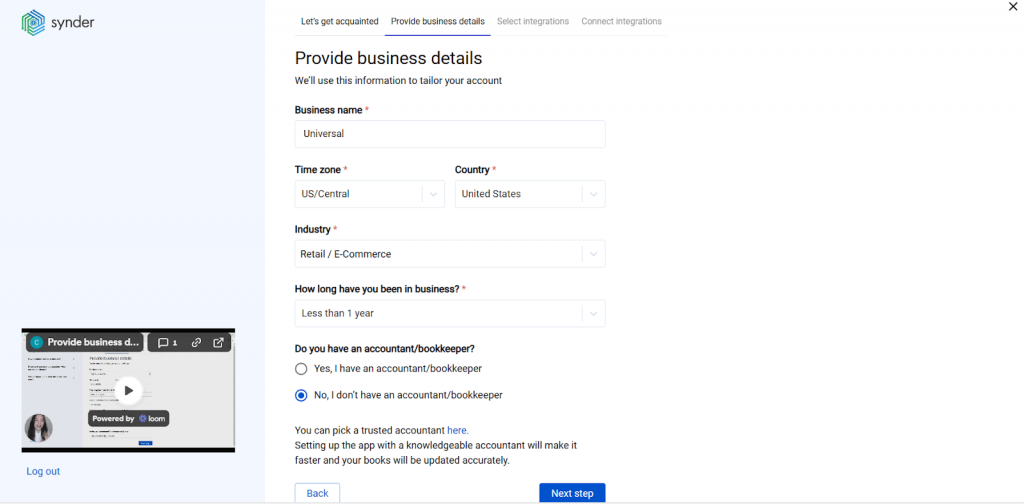
1. Connect your accounts
Follow these steps to connect PayPal and Oracle NetSuite in Synder and start syncing your transactions automatically.
Step 2: Select your platforms
When prompted, select the platforms you’d like to integrate. You can connect multiple platforms at once, but for now, make sure to select PayPal (your payment processor) and Oracle NetSuite (your accounting platform).
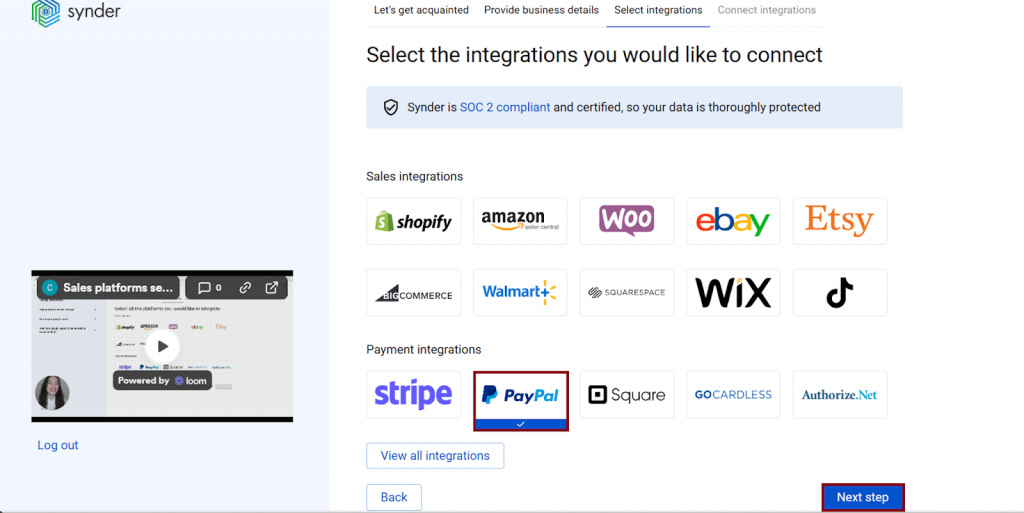
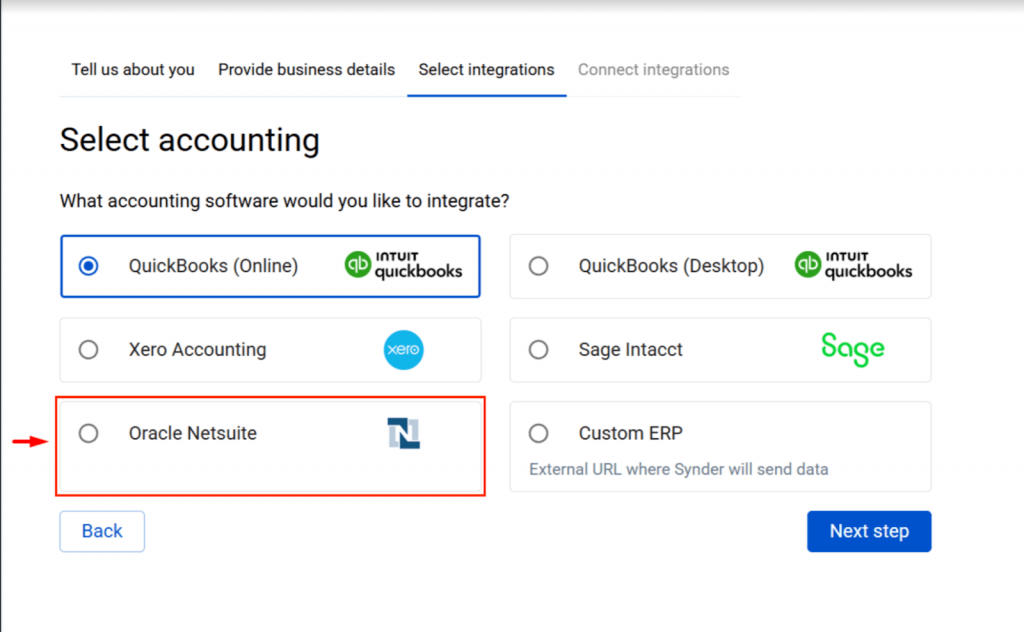
You can always return later to add more integrations.
Step 3: Connect Oracle NetSuite
To connect NetSuite, you’ll need to provide your integration credentials from a NetSuite Integration Record with Token-Based Authentication (TBA) enabled:
- Account ID
- Consumer Key
- Consumer Secret
- NetSuite Role (Internal ID)
If you’re unsure where to find these, refer to our detailed setup guide:
👉 How to Create a NetSuite User and Retrieve Integration Credentials
Step 4: Connect your PayPal account
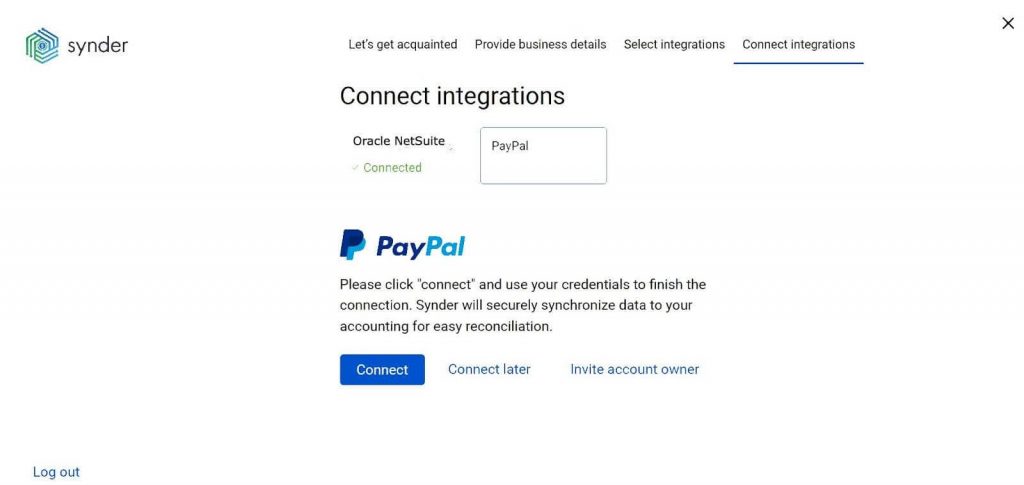
Click Connect next to PayPal and grant Synder permission to access your account through PayPal’s OAuth authorization screen. If you don’t have admin access in PayPal, use the Invite account owner option to send the connection link to the appropriate person.
After authorization, PayPal will appear as an active integration.
Step 5: Configure your settings
To finalize your setup, you’ll be prompted to:
- Choose an account in NetSuite to represent PayPal payouts (usually your Checking account).
- Review fee, sales, and refund mappings for accuracy.
- (Optional) Enable automatic synchronization to have Synder post your PayPal transactions to NetSuite automatically.
Once completed, Synder will start importing and syncing your PayPal data to NetSuite.
Connecting PayPal to an existing Synder organization
If you already have a Synder organization connected to NetSuite, you can easily add PayPal:
- Go to Organization Settings → Integrations.
- In your Synder account, select your Organization (top-left corner).
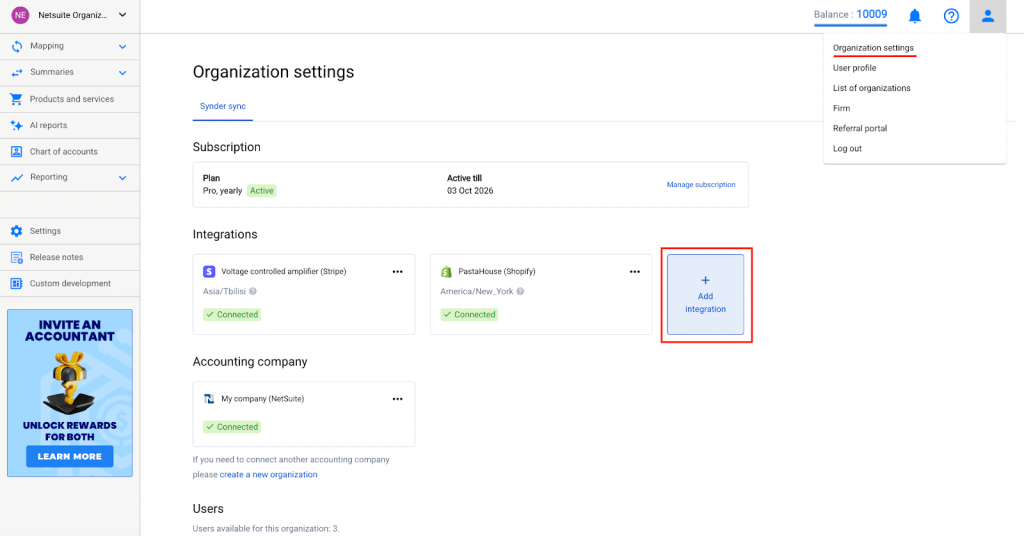
- Click Add integration and select PayPal.
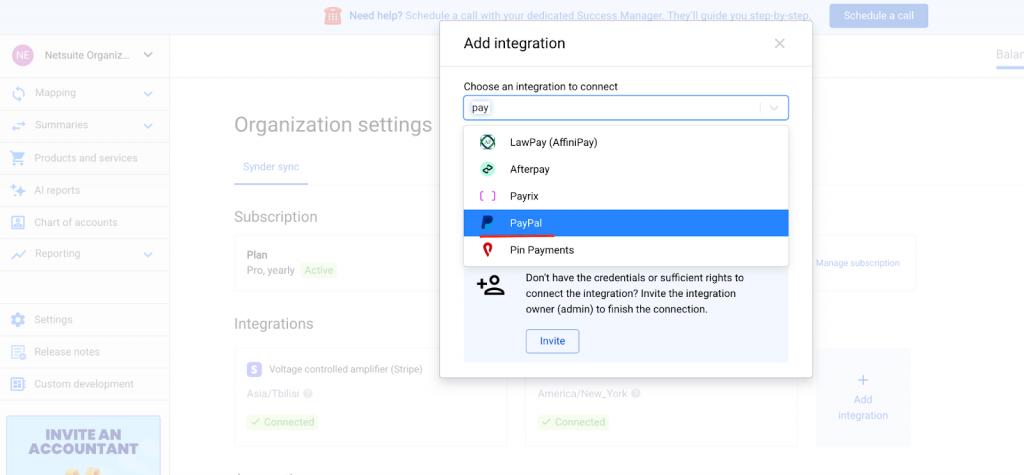
- Authorize the connection through your PayPal account. Alternatively, if you don’t have admin rights, send an invitation to the account owner.
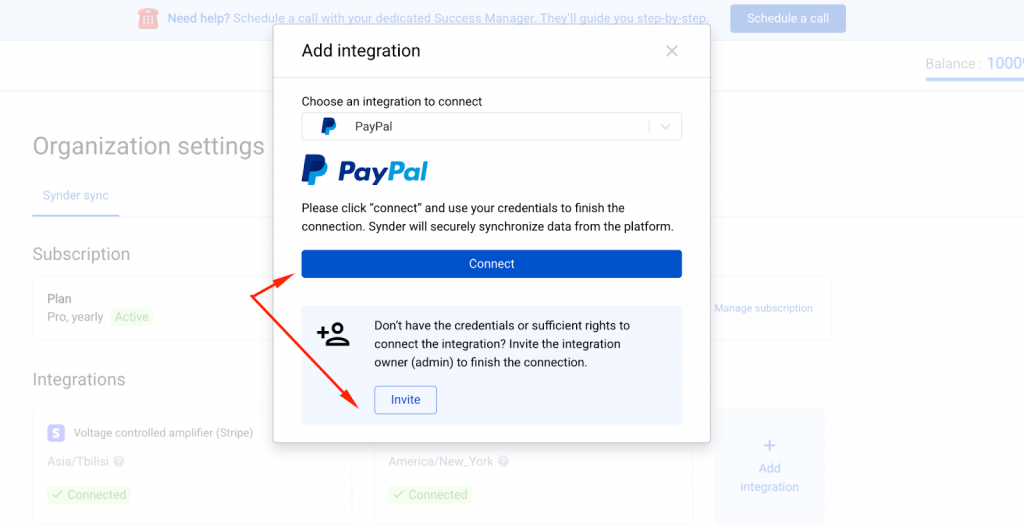
Your PayPal account is now connected and ready to sync with NetSuite. Review your configuration one more time before proceeding.
2. Map general ledger accounts
- Sales → Income account
- Payments → Clearing account (representing PayPal’s balance)
- Processing fees → Expense account
- Refunds → Income account (to offset sales in P&L; can be separated if preferred)
- Payouts → Bank account
This mapping ensures every PayPal event lands in the right spot in your chart of accounts. If you’re running multi-currency PayPal accounts, Synder handles currency conversion automatically using NetSuite’s base currency settings.
How the PayPal clearing account works
The PayPal clearing account is a NetSuite GL account that mirrors your PayPal balance, holding funds between the moment a customer pays and the moment PayPal settles to your bank. Synder credits the gross sale amount to clearing when the sale posts, then debits the processing fee from the same account.
What remains in clearing is the net payout PayPal still owes you.
When the settlement arrives, a second journal entry moves that net amount out of clearing and into your bank account, and the clearing balance returns to zero.
Take the $100 sale from earlier. The sale credits $100 to clearing and debits $3 to your processing-fee expense account, leaving $97 in clearing. PayPal then settles $97 to your checking account; the payout entry debits bank $97 and credits clearing $97, and the account zeroes out.
A non-zero clearing balance mid-period is not an error. It is your outstanding PayPal balance – money PayPal is still holding. A balance that persists after the payout has posted points to a fee, refund, or settlement entry that never made it into the period.
3. Test and go live
Run a test transaction through PayPal and confirm that NetSuite shows the corresponding sale, fee, and bank deposit.
Verify the test in this order:
- Open the journal entry. In NetSuite, go to Transactions → Financial → Journal Entries and find the entry for the sync period.
- Check the income account. The credit should equal your gross PayPal sales for the period, not the net deposit.
- Check the expense account. The debit should equal the total PayPal processing fees for those same transactions.
- Check the clearing-account balance. After a test sale with no payout yet, it should equal gross sales minus fees.
- Review the Sync History tab in Synder. Confirm the sync status, the date range covered, and the transaction count for the batch.
Once verified, activate automatic sync. From then on, PayPal transactions will flow to NetSuite as journal entries, which aggregate transactions (daily, monthly, custom period) without manual intervention, keeping your books clean and audit-ready.
How to reconcile PayPal payouts with bank deposits
To reconcile a PayPal payout in NetSuite, match one bank-statement deposit to one journal entry that moves the same net amount out of the clearing account. With Synder’s reconciliation feature, that happens in three steps, and only the last one is yours:
- PayPal settles to your bank. PayPal transfers the net payout – gross sales minus processing fees and refunds – to your business checking account.
- Synder posts the payout journal entry. The entry credits the PayPal clearing account and debits the NetSuite bank account for the settled amount. With per-payout sync selected, one journal entry corresponds to one settlement.
- You confirm the match. The journal entry and the bank-statement deposit carry the same figure, so confirming takes one click in your bank reconciliation.
Expect a posting-date timing difference. PayPal dates the payout when it releases the funds, and the bank credits the account 1-2 business days later, so the two dates rarely agree even when the amounts do. Match on amount and payout reference, then let the dates differ.
A residual balance in the clearing account after the payout has posted is the signal to investigate, and you do not have to do it by eye. Synder’s Transaction Reconciliation matches every line in the clearing account against PayPal’s records and returns each one as matched, discrepancy, or not matched.
A discrepancy row shows the amount in accounting, the amount in PayPal, and the delta between them; a not-matched row is a transaction present on one side only, such as a fee or refund that never reached the books.
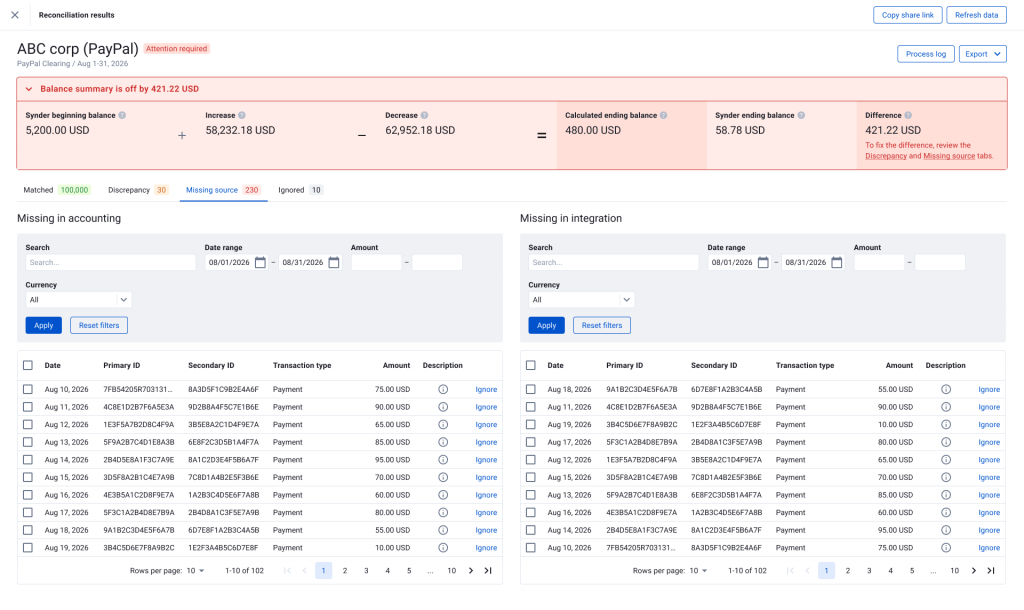
Transaction Reconciliation covers NetSuite in Per Transaction sync mode; if you sync summaries, Balance Reconciliation checks the period against PayPal’s reported starting and ending balances before those summaries post.
How to choose the right tool for PayPal–NetSuite integration
When choosing a PayPal–NetSuite integration, focus on how completely the solution handles your data flows. The best tool should not only move data between systems but also ensure every transaction lands correctly in your general ledger, ready for reconciliation. Here’s what to look for and why Synder stands out in each area.
1. Accurate sales transaction sync
Every PayPal sale should appear in NetSuite with the correct date and amount without duplicates or missing data. Tools that only import partial information lead to mismatched records.
Why Synder: It posts summarized sales data into NetSuite, such as daily, monthly, or per payout, creating accurate journal entries that reflect all sales, payments, and fees in real time. Per Transaction mode posts each PayPal sale into NetSuite as its own record for teams that need transaction-level detail. For high-volume sellers, like fashion or electronics retailers, this eliminates manual entry and ensures your sales totals always match PayPal reports.
2. Fee import and categorization
Payment processing fees often go unnoticed but can distort margins if not tracked properly. The integration should import all PayPal fees and expenses: both processing fees from sales and expenses from purchases made via PayPal, and post them to the appropriate expense accounts in NetSuite.
Why Synder: Synder automatically records every PayPal fee line item, mapping it to your chosen expense account in NetSuite. This means you always see true net revenue by channel, which is critical for accurate profitability reporting.
3. Refunds and chargebacks handling
Refunds and chargebacks are inevitable – and costly. According to the 2026 LexisNexis True Cost of Fraud Study, every $1 lost to fraud now costs US ecommerce merchants $5.13 when factoring in chargebacks, fees, and operational overhead. Without proper automation, accountants waste hours searching for missing reversals or disputed transactions. A strong integration must link every refund or chargeback back to its original sale.
Why Synder: Synder records PayPal refunds, disputes, and chargebacks in NetSuite through summarized journal entries, automatically reducing income and reversing related fees. While individual links between refunds and payments aren’t created in Summary Sync, the journal entries provide a clear and traceable record of all reversals.
4. Multi-account support
If your business operates across multiple brands or regions, you probably manage more than one PayPal account. Your integration should make that easy, not add complexity.
Why Synder: Synder lets you connect unlimited PayPal accounts under one NetSuite environment. Each account can map to a different subsidiary or GL structure, giving you full visibility across all entities without extra setup or manual consolidation. Separate USD, EUR, and GBP PayPal accounts, for example, can each map to their own NetSuite subsidiary and GL accounts inside a single Synder Organization.
5. Multi-currency support
Global sales often mean dealing with multiple currencies, and conversions can quickly become a source of errors. PayPal processed $1.79 trillion in total payment volume in 2025, up 7% year over year, on a platform that sends payments in approximately 140 currencies across roughly 200 markets and lets account holders hold balances in 24 of them. A good integration handles this automatically.
Why Synder: Synder handles multicurrency PayPal transactions by sourcing exchange rates from a trusted third-party provider and posting them in the correct base currency within NetSuite, ensuring consistent and reliable reporting. Entries post in the transaction currency and convert to the subsidiary’s base currency through NetSuite’s Multi-Currency feature, so consolidated reports stay in one currency without manual adjustment.
6. Audit-ready transparency for every transaction
Finance teams and auditors need full transparency. Each synced transaction should carry identifiers linking back to the PayPal source.
Why Synder: Each NetSuite journal entry created through Synder is backed by detailed source data available in the Summary preview. Users can download the Raw Data Report to review the exact composition of every journal entry, ensuring transparency, easy verification, and cleaner financial records. Synder holds SOC 2 Type II certification, which covers the security controls applied to the PayPal and NetSuite data moving through the integration.
How businesses benefit from automating PayPal–NetSuite integration
When you automate your PayPal NetSuite integration, you gain measurable efficiency that truly changes how your finance team works. Here’s what that looks like in practice:
Save time and reduce human error
Manual reconciliation is slow and error-prone. With automation, you can cut repetitive tasks dramatically and close books faster. Synder reduces manual accounting work by up to 40 hours each month, as PayPal sales, fees, and refunds are summarized and posted into NetSuite through aggregated journal entries for the selected period: daily, monthly, per payout, or custom.
Gain a single source of truth
When PayPal data syncs automatically, your ERP becomes the single, accurate record of all JEs. Synder’s automation can handle thousands of transactions accurately, which gives businesses unified, audit-ready data across all payment platforms.
Scale effortlessly
As your business expands across new PayPal accounts, currencies, or regions, your integration should scale without reconfiguration. Synder grows with you. For instance, companies that began with one PayPal account now manage multiple global accounts in NetSuite seamlessly, all through one connected dashboard.
Accelerate month-end closing
By the time your accounting team starts the close, PayPal data is already synced, organized, and ready for reconciliation. Synder users report that what once required 5–10 hours of manual work per week is now fully automated, freeing up time for analysis instead of admin.
Reduce reconciliation headaches
PayPal payouts often make reconciliation messy. The right integration automatically matches each payout journal entry to the corresponding deposit on your bank statement. Synder’s payout matching ensures every PayPal settlement mirrors your NetSuite bank records, eliminating unexplained differences and saving hours each close.
PayPal’s payment transactions grew 7% year over year to 6.5 billion in Q1 2026, and per-transaction accounting work grows with that volume unless it is automated. Synder delivers the accuracy, scalability, and audit-ready control needed to keep PayPal and NetSuite perfectly aligned at any scale.
Takeaway
Choosing the right PayPal NetSuite integration requires more than simple data transfer. Accuracy, automation, and scalability are key to maintaining control as your business expands. Synder combines complete transaction sync, payout matching, and multi-account support for advanced automation and SOC 2 Type II–certified security. This allows finance teams to close faster, keep books accurate, and ensure every PayPal transaction is properly reflected in NetSuite.
FAQ
Do I need a developer to set up the PayPal NetSuite integration?
No developer is required when you use a pre-built connector. An accountant or finance admin with an Account ID, Consumer Key, and NetSuite Role ID can complete the setup in about 30 minutes. A developer is only needed for a custom build against PayPal’s REST API and NetSuite’s SuiteTalk API.
What NetSuite permissions do I need before connecting PayPal?
The NetSuite integration role needs Web Services and Token-Based Authentication enabled, with Transactions and Financial records permissions. Enable Web Services under Setup → Company → Enable Features. Use a dedicated custom integration role rather than Administrator, so access is limited to the records the sync writes to.
Full steps are in Synder’s NetSuite credentials guide.
What PayPal to NetSuite sync schedule options are available?
Synder offers four Summary Sync schedules for NetSuite: daily, monthly, per payout, and a custom date range. Daily creates one entry per calendar day, monthly one per month, and per payout one per settlement. Per Transaction mode is the alternative, posting each PayPal transaction individually. Choose per payout when you reconcile against bank deposits, since each journal entry then matches a single bank transaction.
How are PayPal refunds and chargebacks recorded in NetSuite?
Synder records PayPal refunds and chargebacks in NetSuite as journal entries that debit income and credit fee expenses. On a $100 sale carrying a $3 fee, a full reversal debits $100 to income and credits $3 back to expenses. A chargeback that arrives weeks after the sale is recorded on its own date, so it appears in the period it settles rather than the period of the original sale.
Can I manage PayPal refunds directly from NetSuite?
Refunds are initiated in PayPal, not in NetSuite. Synder then posts the matching reversal to NetSuite automatically, so the accounting side is complete without extra steps. The workflow stays split across two systems: the action happens in PayPal, the record happens in NetSuite.
Can I import historical PayPal transactions after setup?
Synder’s historical import feature backfills up to 3 years of PayPal activity into NetSuite, the maximum window PayPal’s API allows. Backfilled sales, fees, and refunds use the same GL mapping as your ongoing sync, so historical entries post to the same accounts as everything that follows.
How does the PayPal NetSuite integration simplify month-end closing?
Month-end close starts with PayPal payouts already matched to bank deposits, which removes the manual matching step entirely. Synder users cut closing time by up to 50%, and the hours previously spent correcting posting errors disappear with them.
Can accountants standardize the PayPal NetSuite setup across multiple clients?
Each client gets its own Synder Organization, with a separate NetSuite connection and its own GL mapping. The setup workflow is identical from client to client – connect PayPal, connect NetSuite, map accounts – even when every client’s chart of accounts differs. Firms managing several clients can apply through the Synder Partner Program.