

To reconcile Shopify payments in Xero, you transfer all of your sales, fees, refunds, and taxes to a clearing account, then reconcile each Shopify payout against the deposits you’ve received in your bank feed. The reason this is important is simple – results rarely turn out as you expect. For example, your Shopify dashboard may show sales amounting to $4,823 while your bank feed shows deposits of only $4,512. This means you need to take into account any fees and refunds already issued by Shopify.
This is a situation everyone who uses Shopify and Xero experiences, whether they run a one-man show or a multi-million dollar business. In this guide, we will explain how the process works, how to reconcile your payments manually, why it is impossible to do so, and how automation reconciles everything for you.
TL;DR
- Shopify pays out net, not gross: every deposit is sales minus fees, refunds, and chargebacks, so it rarely matches a single order.
- A clearing account is key: send all sales and fees to a clearing Shopify account, and then reconcile the payout with the bank feed.
- Manual reconciliation works at low volume: spreadsheets and accounting entries work well until you get a lot of payments and orders.
- Automation syncs the breakdown for you: integration tools will post all sales and fees, as well as pre-reconcile payouts from the bank.
- Clean books depend on the details: fees, sales tax, and double-counting across gateways are where reconciliation usually goes wrong.
Does Xero work well with Shopify?
Yes, Xero pairs well with Shopify, but the two don’t communicate with each other natively in a way that handles reconciliation on their own. Shopify does not have any accounting engine built into it, while Xero cannot recognize how to allocate sales, fees, and taxes from the payout. However, the connection can be made with the help of an integration layer that could be a custom-made bank rule, native connector, or specialized synchronization app. And it is becoming more common to make use of embedded automation in this area: Gartner projects 30% improvement in financial close due to embedded AI in cloud ERP and accounting solutions by 2028.
Why Shopify payouts don’t match your sales in Xero
The first important point to remember is that the payments you receive through Shopify Payments do not come in individually for each transaction. The company processes all of your sales transactions within a certain timeframe, takes out its fees, accounts for the refund transactions or chargebacks, and transfers the balance in one payment into your bank account.
And this is precisely why reconciliation seems more difficult than it really is. You’ve got one clean entry in your Xero bank feed, but it consists of many other parts. Trying to reconcile this entry with your own sales will result in an imbalance, forcing you to spend the next few hours trying to figure out where the discrepancy comes from. According to our conversations with hundreds of ecommerce companies, reconciliation is one of the most time-consuming processes each month, and this very thing is the reason behind that.
What does it look like in terms of the actual Xero bank feed? It’s one deposit entry that just doesn’t add up until you separate it into many entries.
Learn everything you need to know about Shopify bookkeeping.
Multi-gateway stores: where it becomes complex
It gets more tangled when you receive payments through multiple gateways, and due to the vast scale of Shopify’s business, there are many stores in that situation: by the end of 2025, Shopify generated $11.55 billion in revenue and supported 6.81 million active stores. And in the first quarter of 2026 alone, merchants sold another $100.7 billion through the platform.
A quick example: a store can use Shopify Payments for one transaction, PayPal for another, and the buy now, pay later option for a third type, all of which pay out separately, and thus require reconciliation. One of the merchants at Shopify we spoke with found reconciling to be “a real pain and a mess” since you cannot match the revenue with the fees on each platform.
This is what reconciliation entails, and you will definitely require a structure that will separate money, revenue, and the cash in your bank account. This kind of structure is called a clearing account.
How the clearing account makes reconciliation possible
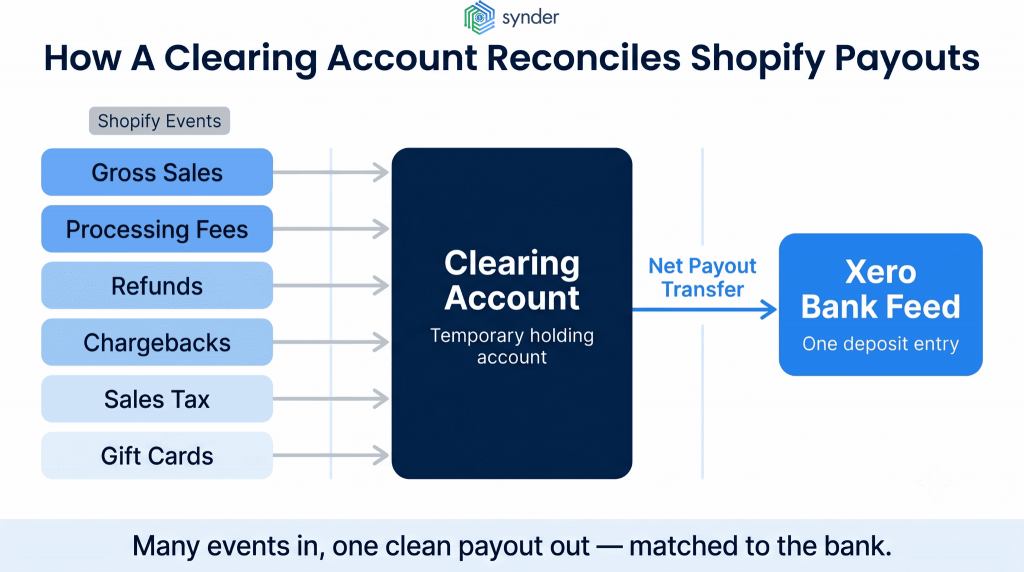
In Xero, a clearing account serves as a temporary account where all funds associated with a payment gateway are held. It acts as a temporary holding account. Each sale, chargeback, refund, and tax are recorded in the clearing account first, and then once the money comes from Shopify, an entry is made to move it from the clearing account to the checking account.
This is the solution to the problem of matching. The payment that you record will match your bank statement exactly because they are both capturing the same thing – the payout transaction. Every detail that needs to be captured in the clearing account (gross sales, fees, refunds) stays where it belongs. When everything is recorded correctly, the ending balance of the clearing account should equal the actual balance held in your Shopify Payments account at that moment. If it matches, your integration is working, and if it doesn’t, you’ve found a discrepancy worth investigating.
What actually goes into that clearing account, and what stays out? Six components flow through it, and knowing where each one comes from in Shopify makes the mapping straightforward.
| Component | What it is | Where to find it in Shopify | Account type in Xero |
| Gross sales | The full order value before any deductions | Orders, or the Sales finance report | Revenue / income |
| Processing fees | Shopify’s cut on each transaction | Settings, then Payments, then Payouts | Expense |
| Refunds | Money returned to customers | Orders, filtered by refunded | Contra-revenue |
| Chargebacks | Disputed payments reversed by the bank | Settings, then Payments, then Disputes | Contra-revenue / expense |
| Sales tax | Tax collected on orders | Sales finance report, tax lines | Liability |
| Gift cards | Store credit issued or redeemed | Products, then Gift cards | Liability |
What belongs in the clearing account
There are three types of transactions that occur in the clearing account and have some effect on how the reconciliation will be done:
- Sales income: the total amount of the order before deducting anything, mapped to the revenue accounts.
- Processing fees: the fee charged by Shopify, recorded separately as an expense, so as to reflect the true cost of the sales transaction.
- Refunds and chargebacks: The amount you refund to the customers reduces the clearing account and needs to be accounted for so that the payout can match.
It is important to understand why commission fees should be accounted for separately, as not doing so will lead to inaccuracies in profit and even tax calculations.
Matching the payout to your bank feed
After entering all the sales and fees in the clearing account, the next step would be to transfer those funds. While reconciling your bank accounts in Xero, the transaction from the Shopify deposits in the bank feed would need to match the transaction you created in the clearing account. If everything is set up well, Xero will automatically offer to match these two. This is pretty much what it takes to reconcile Shopify in Xero.
How do you reconcile Shopify payments in Xero manually?
If you’re working at a manageable volume, you can reconcile Shopify in Xero by hand. It’s a time-consuming task, but if you are disciplined enough and have good tracking, it works just fine.
The 5-step manual workflow
The following order is used most often by bookkeepers:
- Download your Shopify payout report. In Shopify: Settings → Payments → Payouts. Write down every amount of money that went out and the date of payout.
- Match payouts to deposits. Line up every Shopify payout to its equivalent deposit in the Xero bank feed by amount and date.
- Break down each payout into components. Include sales revenue, refunds/returns, Shopify fees, sales taxes, and gift cards/store credits in your payouts.
- Add the payout in Xero. Enter the transaction using bank deposits or a journal entry where you enter payout minus fees and returns into your clearing account.
- Reconcile monthly. In the Reconcile tab, reconcile your cleared deposits with the Shopify payouts and make sure sales, refunds, and fees match.
This workflow is well-known for bookkeepers, and it is ok when the volume of payouts is manageable. The problem starts when there is a lot of work involved, and you have to execute these 5 steps over and over again.
When does manual reconciliation stop scaling?
The volume tipping point
Each growing business eventually reaches a point where reconciliations no longer become a simple weekly activity and starts creating bottlenecks. For expanding ecommerce stores, manually entering data takes up too much time. Here’s what the Operation Manager at Rad, a Colorado-based company specializing in recovery and self-care tools, told us:
When our bookkeeper had to do it manually, it was taking between 5-10 hours a week of importing data, adding data, changing forms, and sheets.
Meghan S., Operations Manager at Rad
Correct reconciliation speed depends on monthly volumes of your business:
| Monthly volume | Recommended cadence | Why |
| Under 100 orders | Monthly | Low payout count keeps the breakdown manageable in one sitting |
| 100 to 500 orders | Weekly | Catches fee and refund discrepancies before they pile up |
| 500 to 2,000 orders | Twice weekly | Payout frequency and gateway mix make weekly too coarse |
| 2,000+ orders | Daily, or automation only | Manual entry can’t keep pace without errors creeping in |
The math is simple, but merciless. With 50 transactions a month through one payment gateway, where fees for Shopify Payments can be around 2.9% + 30 cents, manual reconciliation is easy enough. But when you’re scaling to hundreds of transactions per month via Shopify Payments, PayPal, and financing payments, with different payout schedules and fees for each, the reconciliation gets more work. Multi-currency accounting, inventory management, and county-level sales tax (all real needs we’ve heard from Shopify sellers using Xero) will make a spreadsheet method unmanageable.
This is when people decide to go for automation. Manual reconciliation is not necessarily bad. It just doesn’t work for scale anymore. What’s then the difference that automation makes?
How automation handles Shopify-Xero reconciliation
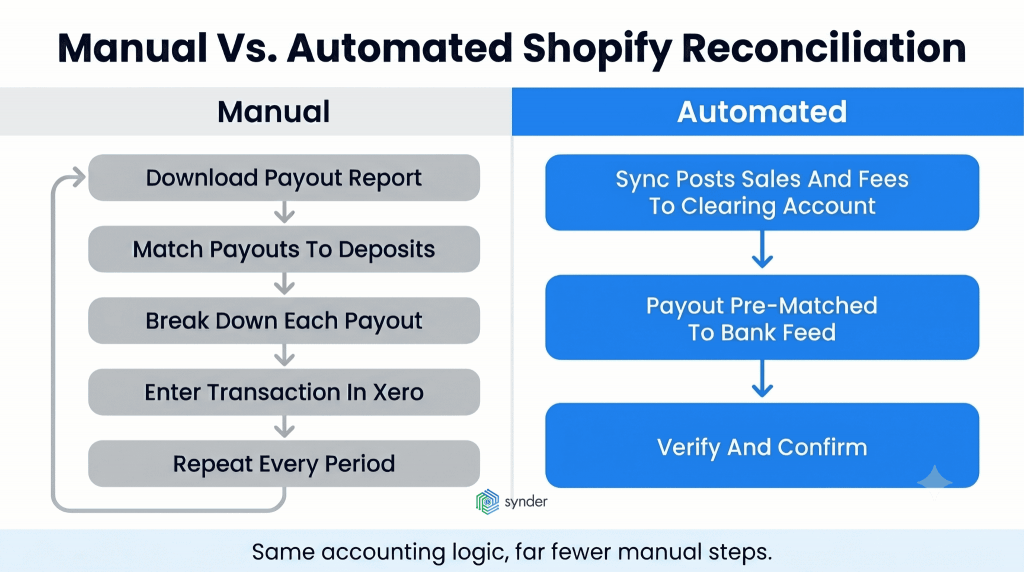
Automation tools act as an intermediary between Shopify and Xero, where they do the most tedious work. They ensure that the entire process of all transactions is reflected in the clearing account, and the transfer of funds is pre-matched with your bank statement. This saves you the trouble of having to input the sales, fees, and refund transactions yourself.
According to McKinsey, finance teams that adopt automation spend 20–30% less time crunching data, redirecting those hours toward analysis. What does this look like once it’s running in your Xero file?
Synder is a great example. It’s an accounting automation platform that syncs ecommerce and financial data across 30+ platforms into systems accounting software like Xero. It offers two sync approaches:
- Per Transaction sync records each sale individually with full customer, product, and tax details, which keeps your inventory and reporting granular
- Summary Sync posts consolidated entries per platform for a period or payout to keep your books lean when you don’t need order-level detail.
For Shopify and Square summaries, records will be split by each payment gateway to ensure separate transactions for Shopify and PayPal payments. Separating records by gateway helps eliminate the issue of double-counting.
The reconciling advantage can be seen in the bank feed. Once the payout is recorded, the system automatically prepares a transaction from the clearing account to your checking account. While reconciling the transaction in the Xero interface, the bank transaction will be automatically pre-matched; all you need to do is verify it.
To make this work, you need to have both your ecommerce store and the relevant payment gateway connected, since gateways like Stripe carry only basic data, and the store fills in the product, customer, and tax details.
How this works
A well-configured sync handles the error-prone parts by default:
- Fees booked separately
- Tax on its own line
- Gateway-level separation
You do save time when you automate data sync. SleepEh, a Canadian ecommerce retailer running Shopify alongside a brick-and-mortar location, was manually entering every product into both Shopify and its accounting system and reconciling sales by hand. After automating the sync, the team saves 2 to 3 hours per week and reports 100% accuracy in syncing Shopify sales data, which adds up to 12 to 18 full workdays a year recovered from manual entry and duplicate cleanup.
The same holds true for accounting firms, only on a higher level. In the case of Vilms Consulting, an accounting firm that helps businesses selling on Shopify, Amazon, PayPal, and Stripe, the company used to spend many hours manually sorting through raw data and reports from the platforms. By importing and organizing the information directly at its source, the accounting firm decreased the time spent on manual handling of ecommerce data. According to the owner:
Synder saves us around 30% to 50% of time working, because it allows us to skip over the data entry. Once you get comfortable with how it integrates, you can just trust the process. The platform will show you if there’s a hiccup or a misfire and tell you exactly where it is.
Michelle Vilms, Owner of Vilms Consulting
| If you want to see how the clearing-account flow and payout matching work on your own data, you can book a demo with Synder. |
Common Shopify-to-Xero reconciliation mistakes and how to fix them
No matter whether you reconcile the books manually or automatically, similar errors may affect your financial statements, and it is better for you to know their names. One of the bookkeepers, Khadiza Binta Mahbub, who also works as a QuickBooks and Xero ProAdvisor, has listed some of the major ones on LinkedIn:
Common Mistakes to Avoid:
Khadiza Binta Mahbub, bookkeeper, QuickBooks and Xero ProAdvisor
- Importing every single order (clutters the books);
- Ignoring Shopify fees;
- Forgetting to account for sales tax liabilities;
- Double-counting income (Shopify + Stripe/PayPal).
But most reconciliation problems do not arise from one big mistake but are rather a result of several minor mistakes that occur over a period of a month and make the books not reflect reality. The following table gives the most common causes of such problems and their remedies.
| Mistake | What it breaks | How to fix it |
| Importing every single order at the line level when you don’t need it | Clutters the books and slows reconciliation | Use summarized entries unless you need order-level detail for inventory or invoicing |
| Ignoring Shopify processing fees | Overstates revenue, hides true cost of sales | Record fees as a separate expense line in the clearing account |
| Forgetting sales tax liabilities | Inaccurate tax filings, understated liability | Keep tax as its own line so it’s never buried in net sales |
| Double-counting income across gateways | Inflated revenue when Shopify and PayPal both record the same sale | Reconcile each gateway’s payouts separately through its own clearing account |
| Matching deposits directly to sales | Numbers never agree, hours lost hunting the gap | Route everything through a clearing account, then match the transfer |
Reconciling Shopify payments in Xero: what to remember
Well, what exactly does Shopify reconciliation in Xero entail? The answer to that is simple: the key thing is to be able to separate what you earned from what actually arrived in the bank. Since Shopify deducts fees, refunds, and other adjustments before sending payouts, a clearing account helps you do that. No matter whether you go the manual route or automate it, this is the only way to do it correctly.
The manual option works perfectly fine and can be a great educational experience since it allows seeing the right way the bookkeeping should be done. However, when the order volume grows, and you use multiple gateways, then going through a weekly breakdown takes more and more time, and you have better things to do than spending hours on this process. Automation keeps the same accounting principles but allows you to do it without recording and matching manually.
FAQ
How often does Shopify pay out, and how does that affect reconciliation?
Shopify Payments payouts occur on a rolling basis – often several business days, depending on banks and regions. Each payout bundles multiple orders net of fees and refunds, so reconcile the payouts individually, not the orders. Compare each payout with a corresponding transfer to the clearing account.
What is bank reconciliation in the context of Shopify and Xero?
The process of bank reconciliation involves checking whether all transactions in Xero are equal to those made in your bank during the same period. For Shopify merchants: check each payout deposit in your bank feed against related sales, commissions, and refunds.
Do I need to record every individual Shopify order in Xero?
Not necessarily. Order-level reporting would be needed for inventory accounting and invoicing purposes. In order to maintain clean accounts with proper bookkeeping, use summarized entries per payout. Recording all orders into Xero will cause clutter when it is unnecessary.
Why doesn’t my Shopify clearing account balance to zero?
If your Shopify clearing account does not balance out, then most likely there is a mistake. It can be the absence of a particular commission charge, return, or payout. Another possible reason is improper synchronization of the gateway. The final number should equal the Shopify payment account balance.