To reconcile PayPal in Xero correctly, record each part of a transaction separately: gross sale, processing fee, refunds, and net payout. PayPal deducts its 3.49% + $0.49 PayPal Checkout fee before sending payouts and batches multiple orders into one deposit. A $100 sale can arrive as $96.02 days later, bundled with dozens of other transactions.
This guide covers each reconciliation step and the transaction types that create mismatches. The goal: your PayPal balance in Xero matches your actual PayPal account every month. Getting there takes three things:
Choose between manual reconciliation, Xero’s native feed, and automation based on your transaction volume
Match gross sales, fees, and net payouts to the correct Xero accounts
Handle refunds, chargebacks, payment holds, and multi-currency conversions
TL;DR
- Record each part of a PayPal transaction separately. The gross sale, fee, refund, and payout each get their own entry in Xero.
- Import each period once. One import method per date range keeps duplicate transactions out of your books.
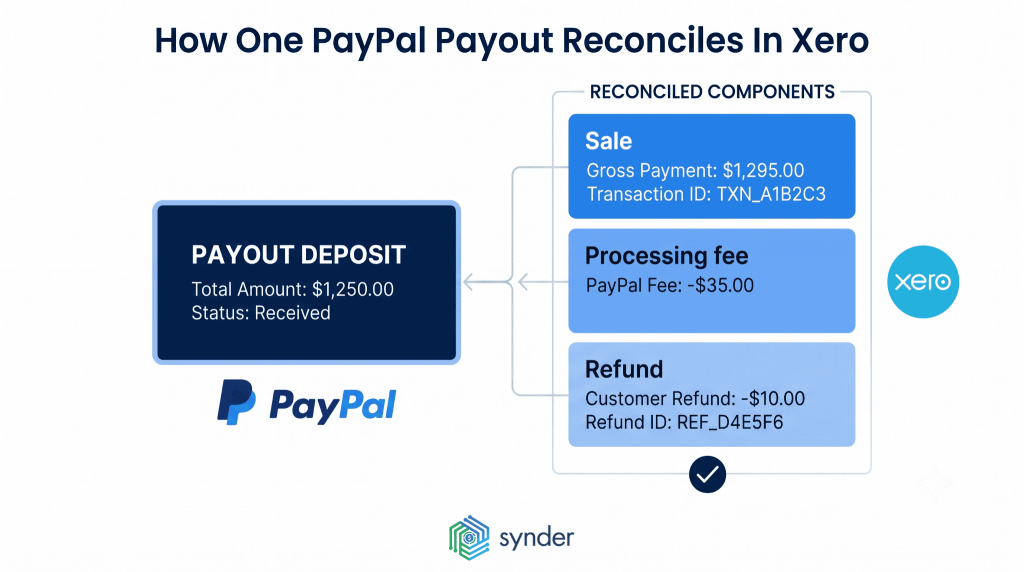
- Match each payout to the transactions behind it. A PayPal deposit equals the sales it settles, minus fees and refunds.
- Give refunds, chargebacks, and holds their own entries. Netting them into a deposit hides why your PayPal balance changed.
- Choose a method that fits your volume, then verify monthly. Manual entries, Xero’s native feed, and automation suit different scales, and a monthly balance check confirms the setup works.
Why your PayPal deposit and your Xero bank line don’t match
Open your Xero bank feed and compare a PayPal deposit with the sale that generated it. Most of the time, the numbers won’t match. A $100 order might reach your bank as $96.02 after fees, be included in a payout with other transactions a few days later, or arrive after PayPal has converted it into another currency. The difference between what your customer paid and what actually reached your bank is behind most PayPal reconciliation problems.
There are three main reasons this happens. PayPal deducts its processing fee before sending the payout. Refunds and chargebacks are usually included in later payouts instead of being tied back to the original sale. And for international payments, PayPal uses its own exchange rate when converting currencies. It’s common for a single payout to include all of these at once, which is why the bank deposit won’t match your Xero bank line until each piece has been recorded correctly. The sections below explain how to handle each one.
Troubleshooting your Xero bank reconciliation when PayPal balances don’t match
When the PayPal balance in Xero differs from PayPal’s own balance, the gap traces back to a specific transaction type. Start your Xero bank reconciliation check by running two reports for the same date range: Xero’s Bank Summary report for the PayPal account and PayPal’s Monthly Statement report. Then check each item below in order.
- Missed fees. A sale recorded at its net amount, or a fee line left uncoded, leaves both revenue and expenses short by the fee. In Xero, PayPal fees need their own expense entries, even when they arrive inside a payout.
- Duplicate imports. Importing PayPal transactions to Xero twice, through the feed and a CSV file or through the feed and an app, doubles every line in the overlap.
- Unmatched refunds. A refund recorded without its credit note, or at the wrong amount, leaves the original sale overstated.
- FX timing. PayPal converts at its own rate on the conversion date, while Xero applies its own rate, so converted amounts differ until you record PayPal’s actual rate.
- Held funds and reserves. PayPal can hold payments for up to 21 days, so money already recorded as a sale may not be in the available balance yet.
- Disputes and chargebacks. For US retail and ecommerce merchants, the total cost of fraud reached $5.13 for every $1 of direct loss, according to LexisNexis Risk Solutions’ 2026 study, and part of that cost reaches your books as reversals and fees. A reversed payment, its dispute fee, and any funds PayPal holds during the case are separate entries, and missing one throws the balance off.
- Transfers coded as income. A withdrawal from PayPal to your bank moves money between two of your own accounts, so coding it as income on the bank side counts the same sale twice in your Xero bank reconciliation. In Xero, reconcile PayPal to checking deposits with a transfer between the two accounts instead.
Step-by-step: how to reconcile PayPal in Xero
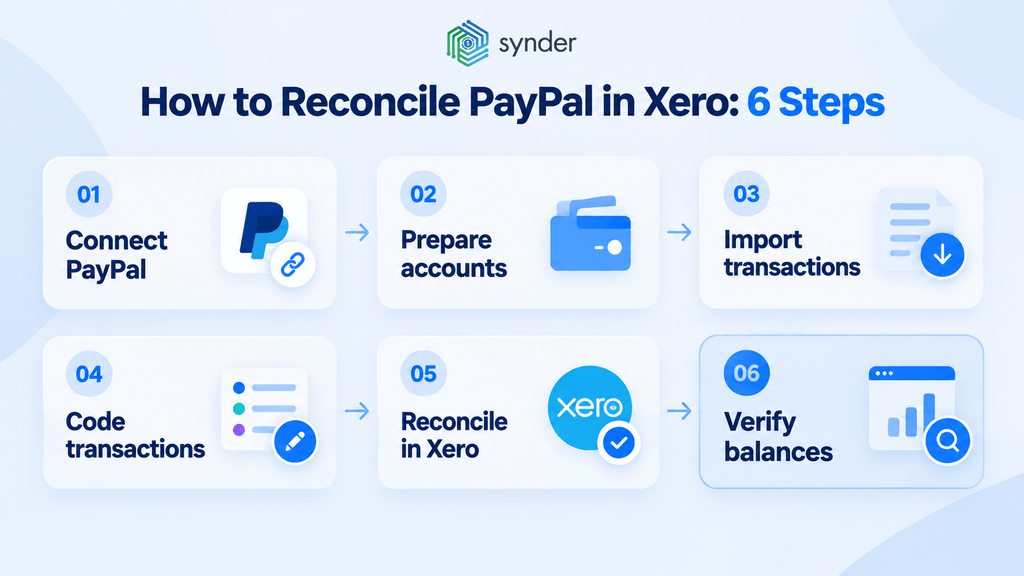
To reconcile PayPal in Xero, follow six steps: connect the account, prepare the accounts it posts to, import each period once, code every line, reconcile, and verify the balance.
- Add PayPal to Xero as a bank account. Go to Accounting → Bank accounts → Add Bank Account, search for PayPal, sign in, and select each currency balance you want to import.
- Prepare the accounts. Use the PayPal bank account as your PayPal clearing account, and create a PayPal Fees expense account alongside your sales accounts.
- Import each period once. Choose one way to import PayPal transactions into Xero for each date range: manual entries from PayPal reports, the Xero PayPal feed, or a third-party app.
- Code every statement line. Match sales to invoices or record them as Receive Money, record fees as Spend Money, match refunds to credit notes, and record withdrawals to your bank as transfers.
- Reconcile PayPal in Xero. Go to Accounting → Bank accounts, click Reconcile [number] items on the PayPal account, and confirm each suggested match. Use Find & Match when one statement line covers several transactions.
- Verify the Xero reconciliation. Compare the Statement balance with the Balance in Xero on the PayPal account, then check both against your PayPal balance on the same date. The Statement balance reflects the lines imported from PayPal, the Balance in Xero reflects the transactions recorded in Xero, and the two match once every line is reconciled.
How to connect PayPal to Xero
The first thing to do is connecting PayPal and Xero. You can either import your PayPal activity yourself or let it sync automatically. In practice, that gives you three options. Which one works best depends on how many transactions you process, how many details you want in Xero, and how much time you’re willing to spend on reconciliation. The import method also shapes the rest of your PayPal reconciliation: Xero can only match what the import brings in.
Manual journal entries from PayPal reports
If you only process a small number of PayPal transactions each month, or you want complete control over every entry, you can skip the feed and work from PayPal’s monthly reports instead. Some accountants prefer this approach when cleaning up complicated books. Instead of working through dozens of imported transactions, they disconnect the feed and record one journal entry based on the monthly report. Every payment, fee, refund, and transfer still needs to be split and coded manually, so it’s accurate, inexpensive, and practical for low transaction volumes. Beyond a few dozen transactions each month, it usually becomes too time-consuming.
The native Xero PayPal feed
Xero’s built-in PayPal feed adds PayPal as a separate bank account and imports your activity automatically. Payments, fees, withdrawals, and refunds each appear as their own transaction, and there’s no extra cost beyond your Xero subscription. Importing the data is only the first step, though. The feed brings the transactions into Xero, but you still need to decide which lines are sales, which are fees, which are transfers, and how to deal with holds or currency conversions. For a consultant sending the occasional invoice or a business with a small number of subscription payments, that may be enough. As transaction volume grows, the number of individual feed lines can become difficult to manage.
Third-party automation tools
Third-party tools sync PayPal transactions to Xero automatically, and many of them pull data from your other sales channels too. Instead of recording each payout as one transaction, they break it down into the sales, processing fees, refunds, transfers, and other activity behind the payout before anything reaches your books.
How much detail you get depends on the tool.
- Some tools sync every individual order, giving you a complete transaction history.
- Other solutions create summarized settlement entries, which keep your ledger shorter and easier to scan.
- Some, including Synder, let you switch between detailed transaction sync and summary entries, so you can choose the approach that works best for your business.
There’s a subscription cost, of course. Once your transaction volume starts growing, the time you save will usually make up for it.
How Synder automates PayPal reconciliation in Xero
Synder is an accounting automation platform (Y Combinator S21, SOC 2 Type 2 certified, Xero Growth App 2025) that syncs payments, fees, refunds, and taxes from 30+ sales and payment platforms into Xero.
On top of that sync, its auto-reconciliation features check PayPal data before and after it reaches Xero. Payout matching breaks every PayPal payout into the underlying sales, fees, refunds, and chargebacks, so the deposit in Xero ties out to the sum and bank reconciliation runs on clean inputs. Transaction Reconciliation then checks every line in the PayPal clearing account against PayPal’s own records, including one-to-many, many-to-one, and many-to-many matches, and flags anything that doesn’t tie 100%. For summary entries, Balance Reconciliation verifies each period against PayPal’s starting and ending balances before anything posts to Xero.
When a line doesn’t match, Synder shows the full transaction journey between PayPal and Xero, so you can trace the discrepancy, fix it, sync rolled-back entries, and re-run reconciliation inside the tool. Every balance reconciliation keeps an audit trail you can download or revisit at month-end. The data behind these checks stays detailed: gross sales and processing fees are recorded separately, PayPal’s own exchange rates are used for multi-currency transactions, and the same checks cover PayPal alongside Shopify, Stripe, Amazon, and other connected platforms, in per-transaction or summary mode.
| If you’d like to see how that works with your own accounting setup, you can book a demo with Synder. |
Manual vs automated PayPal reconciliation: Xero methods compared
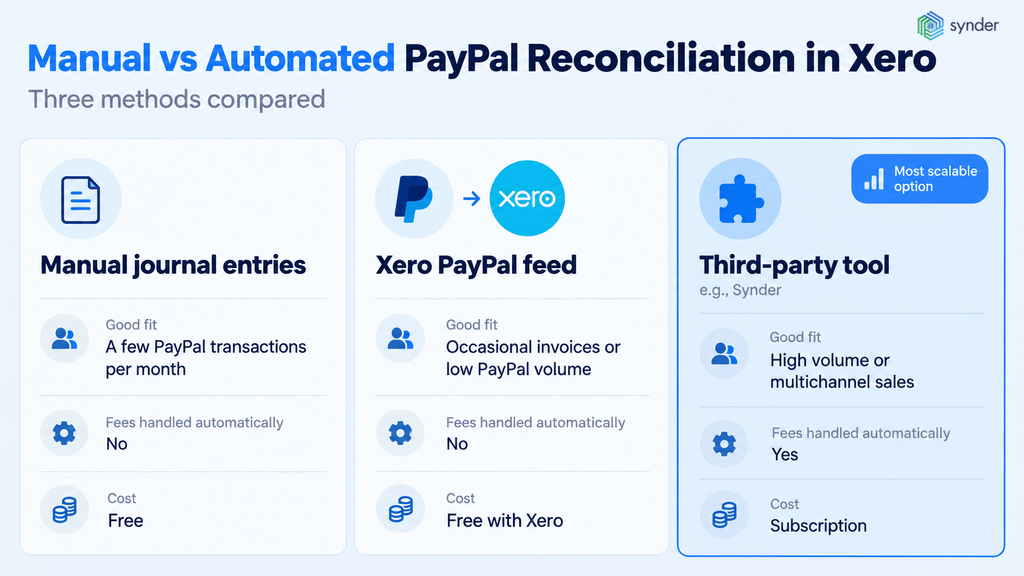
The table below maps each method to the business it fits.
| Method | A good fit if… | Handles fees automatically | Cost |
| Entering journal entries from PayPal reports manually | You only have a few PayPal transactions to record each month. | No | Free |
| Using Xero’s built-in PayPal feed | You mostly send occasional invoices or don’t process many PayPal payments. | No | Free with Xero |
| Connecting PayPal with a third-party tool (e.g., Synder) | You handle a high volume of transactions or sell across multiple channels. | Yes | Subscription |
How to choose between manual and automated PayPal reconciliation
Four factors decide whether manual or automated PayPal reconciliation fits your business: transaction volume, the number of sales channels, the number of currencies, and the number of PayPal accounts.
Choose manual entries or the Xero PayPal feed if:
- You process a few dozen PayPal transactions a month or fewer.
- PayPal is your only sales channel.
- You sell in one currency from one PayPal account.
Choose PayPal reconciliation process automation if:
- You process hundreds of PayPal transactions a month.
- You sell through PayPal plus at least one other channel, such as Shopify, Stripe, or Amazon.
- You receive payments in more than one currency.
- You run several PayPal accounts or entities into one Xero file.
What multi-channel PayPal sellers see in practice
Multiple channels are the norm among businesses that look into automation: in Synder’s sales demo notes, 73 of the 76 requests that mention both PayPal and Xero also name at least one other sales channel. At Healthy Meals Direct, a meal prep business selling through PayPal and Shopify with books in QuickBooks Online, reconciliation took 3 to 4 hours a day before automation and 30 to 45 minutes a day after it.
How to prevent and fix duplicate PayPal transactions in Xero
Most Xero duplicate transactions PayPal sellers run into appear when two sources import the same activity, either through overlapping date ranges or through two connections recording the same sale. Check these four causes first:
- Feed and file overlap. A CSV upload covering dates the PayPal Xero bank feed already imported adds every line twice.
- Feed start date set too early. The first Xero PayPal import pulls in months you already recorded by hand.
- Feed and app overlap. Connecting PayPal to Xero through both the native feed and an app records each sale twice if the feed lines are also coded as sales. Use the feed lines only to match against the app’s entries.
- Bank feed and PayPal feed overlap. A withdrawal appears in both feeds, and it is one transfer, not two deposits.
In Xero, import PayPal transactions for a new date range only after checking the last date the feed already covers.
To detect and clean up duplicates in Xero:
- Run Xero’s Duplicate statement lines report for the PayPal account.
- Compare suspected pairs by PayPal Transaction ID where the statement line shows it, or by date, amount, and payer.
- Delete the extra unreconciled statement line from the account’s bank statements view. Xero’s Statement exceptions report then records the deleted line for your audit trail.
- If the duplicate is already reconciled, unreconcile it first, then remove the extra transaction.
Xero PayPal integration tools can stop duplicates before they reach Xero. On Essential plans and above, Synder checks your books before each sync and skips any transaction that already exists in Xero with the same ID.
When should you choose an automation tool?
A few common signs can help you tell when you’ve reached the manual reconciliation limit.
Transaction-volume signals
For many businesses, manual reconciliation starts becoming difficult at around 500 transactions a month. Work that used to take a few minutes can turn into hours of reviewing transactions one by one, and it’s easier for mistakes to slip through. Synder’s 2025 survey of 424 senior finance leaders across ecommerce and SaaS found that automating work such as reconciliation saved teams an average of 8.36 hours per employee every month, about the equivalent of a full workday. If reconciliation is taking that much time every month, it’s probably a good time to look at automation.
Multi-channel signals
The same order can come into Xero through two different connections and end up being counted twice, while reconciling PayPal, Shopify, Stripe, and Amazon separately means repeating the same work over and over.
For instance, Tentho, an accounting firm whose clients sell across PayPal, Stripe, Shopify, and Amazon, ran into exactly that problem. Their systems didn’t consolidate the different sales channels, and complex PayPal transactions were being grouped into single journal entries. After automating, the firm consolidated all of those platforms into clean books, saving about 150 minutes a month on PayPal reconciliation and around 10 hours a month overall. As Tentho’s Strategy and Finance Manager put it:
Synder’s more user-friendly than the other platforms. Everything can be housed under one roof, rather than individual accounts. We can deliver more detailed information to the client, more advice, more guidance. We can lean less towards the data entry and more into streamlining the financial side of the business.
Edward Dick, Strategy and Finance Manager at Tentho
Multi-entity signals
Multiple PayPal accounts feeding into the same Xero file are difficult enough to handle. Add different currencies or business units, and keeping everything straight by hand becomes a real challenge. Every account has its own payouts, processing fees, and currency conversions to reconcile. A tool that consolidates all of those accounts into one Xero file and breaks each payout into its individual parts makes the whole process far easier to keep on top of.
How automated PayPal-Xero reconciliation works
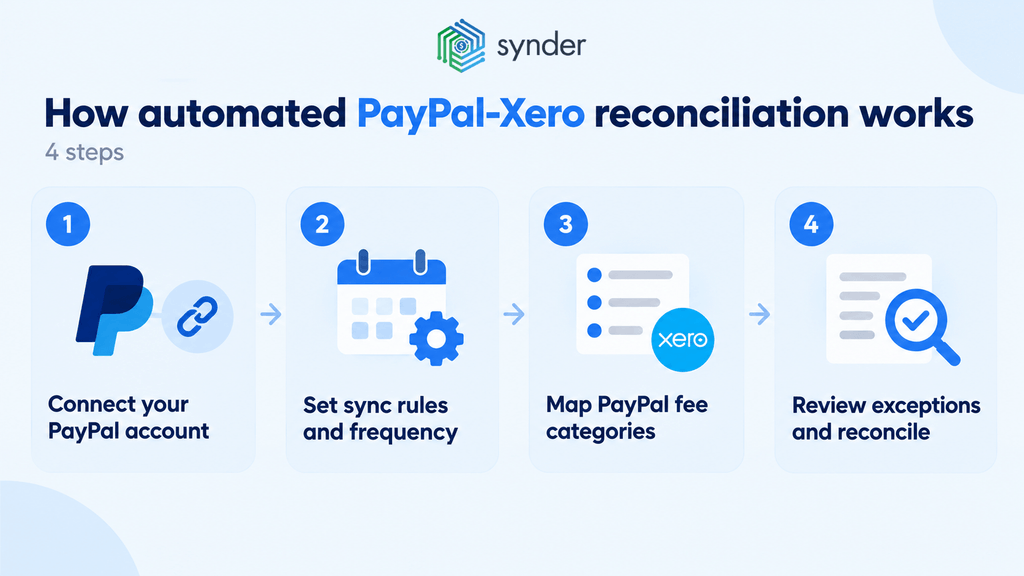
Automated PayPal reconciliation in Xero replaces manual line coding with a sync: the app pulls each PayPal transaction through the API, posts it to Xero with fees separated, and records the payout so it matches the bank deposit. In Synder, an accounting automation platform (Y Combinator S21, SOC 2 Type 2 certified, Xero Growth App 2025) that connects 30+ sales and payment platforms to Xero, setup takes four steps.
- Connect your PayPal account. Connect PayPal with Xero through Synder by linking both accounts.
- Set sync rules and frequency. For Xero, sync PayPal data in one of two modes: Per Transaction mode records every sale, fee, and refund individually, while Summary Sync mode posts daily or monthly summaries to Xero. Imports run daily on the Basic plan and hourly on higher plans.
- Map PayPal fee categories. Assign fees, refunds, and the clearing account to your Xero chart of accounts. In Per Transaction mode, Smart Rules then apply conditions you define to every PayPal transaction entering Xero; in Summary Sync mode, Groups split each summary by the categories you choose.
- Review exceptions and reconcile. Open Synder’s reconciliation results, review only the transactions flagged as unmatched, and fix and re-run any that don’t tie out.
With mappings in place, each PayPal payout reaches Xero already split into its parts, with the transfer from the clearing account to your bank recorded so it matches the deposit, which leaves only the exceptions for review. For Tentho, the accounting firm described above, which works in QuickBooks Online, this workflow saves about 30 minutes per client each month on PayPal alone.
What is the best app to record PayPal fees in Xero automatically?
The best tool to sync PayPal transactions to Xero automatically is also the best one for fees: it separates gross sales, fees, and payouts without manual coding. Xero’s built-in PayPal feed and Synder handle that job differently:
| Attribute | Xero’s native PayPal feed | Synder |
| Sync method | Imports PayPal statement lines into Xero daily | Syncs through the API in Per Transaction or Summary Sync mode, daily or hourly by plan |
| Fee handling | Fees import as lines you code yourself or with bank rules | Records fees as separate expense lines automatically |
| Multi-currency | One feed per PayPal currency balance | Uses PayPal’s exchange rates or separate mappings per currency |
| Payout splitting | None; each line is matched by hand | Breaks each payout into sales, fees, refunds, and chargebacks |
| Pricing (October 2026) | Included in your Xero subscription | From $52/month billed yearly; 15-day free trial |
| Xero App Store rating | Built into Xero, not rated | 4.7 out of 5 from 147 reviews |
With the native feed, the Xero PayPal split fee work stays manual: you divide each line into the sale and the fee yourself. Other apps on the Xero App Store offer a PayPal Xero payments integration too, so compare each listing on the same six attributes before you choose.
For accounting firms: managing PayPal reconciliation across multiple Xero clients
Accounting firms manage PayPal reconciliation across multiple Xero clients by building one standard setup and repeating it in every client file. Tentho reports the effect on QuickBooks Online: about two hours saved per client each month across all its clients’ platforms. A standard setup has four parts:
- Standardized chart of accounts. The same PayPal clearing, PayPal Fees, and refund accounts in every client file.
- Repeatable bank rules. The same Xero bank rules for recurring PayPal fee and transfer lines, recreated in each organization.
- Xero HQ. The practice view of all client organizations, with access to each file from one login.
- One automation account. Each client’s Xero file connects as its own organization, and in Synder each Xero company is a separate organization with its own integrations and settings.
Delegating PayPal reconciliation follows the same structure: one person maintains the template and mappings, and staff review only the flagged transactions for each client.
At Decimal, an accounting firm with clients on both QuickBooks Online and Xero, automating PayPal, Stripe, Shopify, and Amazon data cut manual entry and saved 6 to 8 hours per client each month. The same per-client setup covers Stripe Xero reconciliation and Shopify Xero reconciliation alongside PayPal.
Can you link PayPal to Xero as a bank account?
You can link PayPal to Xero directly: in Xero accounting, PayPal gets its own bank account, so adding a PayPal account to Xero works like adding any other bank. Before you can start reconciling PayPal transactions, you’ll need to set PayPal up as its own bank account in Xero. The setup only takes a few minutes:
- Open Accounting in Xero, go to Bank Accounts, and select Add Bank Account.
- Search for PayPal, sign in with your PayPal credentials, and choose the correct currency for the account.
- Create a separate PayPal account instead of linking PayPal to your main bank account. Keeping them separate makes transfers between the two much easier to reconcile later.
- Assign PayPal processing fees to a processing-fee or bank-charges expense account, so they appear correctly on your profit and loss statement instead of being rolled into the net deposit.
- If you accept payments in more than one currency, enable multi-currency before connecting the account. From there, decide whether you’ll convert everything into your home currency or maintain a separate PayPal account for each currency.
- Choose the feed start date carefully. If you go back too far, Xero can import historical PayPal transactions you’ve already recorded.
If you need to import historical PayPal data, you can use the feed start date, a CSV file, or an automation tool. Just stick to one import method for each time period. Combining a bank feed with a CSV import for the same date range is one of the most common causes of duplicate transactions.
How do you reconcile PayPal fees, refunds, and chargebacks in Xero?
With PayPal set up as its own account, the rest of the reconciliation process becomes much more straightforward. You need to record each part of a transaction separately instead of treating the net deposit as a single amount.
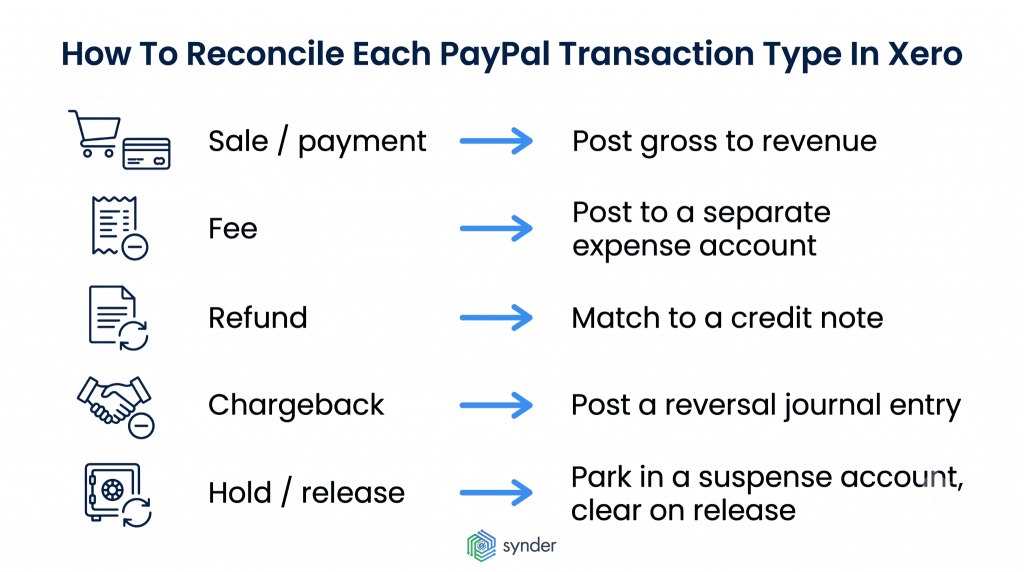
The transaction types below are the ones that most often cause reconciliation problems.
How do I deal with PayPal transaction fees on Xero?
PayPal processing fees usually appear in Xero as their own “spent” transaction. Record the fee with a Spend Money transaction and assign it to your processing-fee expense account. Keep it separate from the gross sale, which should be recorded as revenue. Recording the two separately gives you an accurate picture of both your sales and your processing costs.
Gross sales are the full amount the customer paid, and the net payout is what remains after PayPal deducts its fee. That is how to record PayPal fees in Xero so they stay visible on the profit and loss report: post the gross amount to revenue and the fee to a PayPal Fees expense account. When dealing with PayPal fees, Xero bank rules take care of the repetition: create a rule that matches the description PayPal uses for fee lines and codes them to that account.
PayPal’s standard US rate for invoicing and checkout is 3.49% plus $0.49 per transaction, while standard card payments are typically charged at 2.99% plus $0.49. The exact fee depends on the payment method, your region, and PayPal’s current pricing, so the amount can vary over time.
Posting refunds and credit notes
A refund is recorded much like a sale, just in reverse. Create a credit note in Xero, then match it to the refunded PayPal transaction. That way, both your revenue and your customer records stay accurate.
If you’re issuing a partial refund, enter only the amount that was actually returned, not the full invoice value. Matching the refund to the original sale, instead of recording it separately, keeps your revenue from being overstated.
PayPal does not return the original processing fee when you refund a payment, fully or partially, so the fee stays on your books as an expense. To tie a refund to its original sale, use the paypal_reference_id field in PayPal’s Transaction Detail report, which points each refund to the originating settlement. In Per Transaction mode, Synder records each refund as its own transaction for the same customer as the original sale.
Handling chargebacks and disputes
A chargeback cancels out a payment you’ve already recorded, so it needs to be recorded the same way. Create a journal entry for the reversed payment along with any dispute fee, then reconcile both against the matching PayPal transaction.
If a chargeback isn’t matched properly, your accounts receivable stays higher than it should, and the difference can continue carrying over from one reconciliation period to the next.
PayPal charges a $15 standard dispute fee, or $30 for high-volume merchants, and a $20 chargeback fee on card payments made outside a PayPal account or guest checkout. Track each case in PayPal’s Resolution Center and record the fee in the same period as the reversal.
Reconciling PayPal hold and release transactions
PayPal sometimes places funds on hold before releasing them, especially for newer accounts or higher-value orders. The money may appear in your PayPal balance, but it isn’t available yet.
Record the held amount in a suspense account instead of posting it directly to sales, and note in the description whether the transaction is a hold or a release. Once PayPal releases the funds, move the amount out of the suspense account and into sales or your bank account. That brings the suspense balance back to zero and keeps a temporary hold from affecting your revenue.
A PayPal reserve differs from a one-off hold: PayPal keeps a percentage of each transaction and releases it on a schedule, so part of every payout arrives later than the sales it belongs to. In Xero, reconcile PayPal money held in a reserve through the same suspense account.
How to match batched PayPal payouts to individual sales in Xero
In PayPal reconciliation, matching a batched payout means showing that one bank deposit in Xero equals the sales PayPal settled in it, minus the fees and refunds.
- Pull PayPal’s Balance Reconciliation report for the days the payout covers.
- List every sale, fee, refund, and adjustment that makes up the payout.
- In Xero, open the bank deposit line and use Find & Match to select the PayPal transfer, or the group of transactions, that sums to the deposit.
- If a small difference remains, add an adjustment for the missing fee or refund in the Find & Match window before you reconcile.
- Confirm that the PayPal account balance in Xero drops by exactly the payout amount.
Synder automatically breaks down batched PayPal payouts into individual sales, fees, refunds, and chargebacks, posting each line item to the Xero account it’s mapped to.
Which PayPal reconciliation report to compare with the Xero bank reconciliation report
Learning how to reconcile PayPal reports with accounting software such as Xero starts with picking the report that answers your question and compare it with Xero’s Bank Reconciliation report:
- Balance Reconciliation Report (BRR). PayPal’s recommended report for daily payments, fees, refunds, disputes, and withdrawals, with the exact net settled amount per transaction.
- Settlement Report (STL). A summary of balance-affecting transactions, which PayPal now lists for legacy merchants.
- Disbursement Reconciliation Report (DRR). Matches automated payouts to your bank against payment activity and tracks failed payouts and bank returns.
- Transaction Detail Report (TDR) or Activity Download Report. Every transaction, including the paypal_reference_id that links refunds and reversals to the original sale.
- Monthly Statement report. Monthly balances and activity, for comparison with Xero’s Bank Summary report.
How do I reconcile PayPal Pay in 3 transactions in my bookkeeping?
To reconcile PayPal Pay in 3 transactions, record each one as a regular PayPal sale for the full purchase amount, because PayPal pays the merchant upfront and collects the installments from the buyer. Pay in 3 is PayPal’s UK product, and US buyers see Pay in 4 and Pay Monthly, which settle the same way.
The fee is where the two markets differ:
- UK Pay in 3. Included at the standard PayPal rate of 2.99% + £0.30, with no separate BNPL fee.
- US Pay Later options. 4.99% + $0.49 per transaction, 1.5 percentage points above the 3.49% PayPal Checkout rate.
Because US Pay Later fees run higher, post them to a separate expense account, such as PayPal Pay Later Fees, if you want the cost visible on the profit and loss report. PayPal can add a payment_source_subtype field to your Transaction Detail report that identifies Pay Later transactions on request.
Pay in 4 makes up most of PayPal’s US installment lending. A Federal Reserve analysis published in June 2026 estimates that US BNPL providers issued $156.7 billion in credit in 2025, including $26.5 billion from PayPal, 95% of it pay in 4.
A deferred payment clearing account isn’t needed for any of these products. The same Federal Reserve note describes the mechanics: the provider remits the purchase price net of merchant fees to the retailer and collects the remaining payments from the consumer.
Refunds follow the standard credit note workflow. Record only the refunded amount against the original sale, while PayPal adjusts the buyer’s remaining installments on its side and keeps the original fee.
Reconciling multi-currency PayPal balances in Xero
Multi-currency transactions are often where reconciliation starts to get difficult. PayPal and Xero don’t usually use the same exchange rate, so even when everything else is correct, the numbers may not line up. The good news is that you can avoid most of those differences by setting things up properly from the start. Before you connect any PayPal account that receives foreign payments, make sure multi-currency is enabled in Xero.
When PayPal converts a sale before payout
If PayPal converts a foreign-currency sale before sending the payout, it uses its own exchange rate. That rate is often different from the one Xero would apply, which is why the amount recorded in Xero may not match the amount that reaches your account unless you use PayPal’s actual conversion rate for the transaction.
A clearing account helps keep everything in balance. Record the payment to the clearing account first, post the sale, then transfer the funds from the clearing account to your checking account. Once the payout is complete, the clearing account should return to zero.
If you’re still holding a foreign-currency balance at the end of the reporting period, run Xero’s revaluation tool to recognize any unrealized foreign exchange gains or losses.
Holding multiple PayPal currency accounts in Xero
If you keep PayPal balances in more than one currency, you’ll need to decide how you want to organize them in Xero. One business that came to us had eight PayPal accounts, each handling more than ten currencies. Mapping every account and currency one-to-one would have meant creating about 80 separate accounts in Xero.
Most businesses choose one of two approaches. You can consolidate everything into your home currency to keep your chart of accounts simpler, or create separate sub-accounts for each currency to preserve the original currency values. In the second setup, each currency has its own clearing account and checking account, so nothing is converted unless you decide to convert it.
Learn more about PayPal bookkeeping and accounting.
What’s changed in 2026: the best way to reconcile PayPal transactions in accounting software
Two changes in effect for 2026 affect PayPal reconciliation in Xero and other accounting software: Xero’s developer pricing and the Form 1099-K reporting threshold.
Xero developer pricing. On March 2, 2026, Xero retired its revenue-share model for app partners and moved to five tiers (Starter, Core, Plus, Advanced, and Enterprise) priced by connections and API data egress. PayPal-Xero apps now pay Xero based on how many Xero organizations connect and how much data they pull, so if you integrate PayPal with Xero through an app, check whether its pricing changed after the switch.
The rate limits did not change with the new tiers. Every PayPal and Xero integration still gets 5,000 API calls per day and 60 per minute for each connected Xero organization, which caps how often a high-volume store’s PayPal data can sync.
Form 1099-K threshold. The One, Big, Beautiful Bill restored the federal reporting threshold to more than $20,000 in payments and more than 200 transactions a year. Form 1099-K reports the gross amount of payment transactions, so tie it to gross sales from PayPal in Xero, not to net deposits.
How do you know your PayPal-Xero reconciliation is working?
A simple way to check that everything is set up correctly is to compare the PayPal balance in Xero with your actual PayPal balance on the same date. If the numbers match, you’ve recorded everything correctly. If they don’t, the difference usually tells you where to start looking.
Before you rely on the process for all your PayPal transactions, try it with a small batch first. Reconcile a few recent transactions, including a sale with a processing fee, a refund, and a transfer, then check that each one was recorded the way you expected. If you work with multiple currencies, include a converted payment as well and make sure the clearing account returns to zero after the payout.
Make the same comparison every month instead of leaving it until year-end. Finding one missing transaction is usually quick. Finding the cause of several months’ worth of differences is a lot more work.
Wrapping up: how to reconcile PayPal with accounting software like Xero
Reconciling PayPal in Xero starts with recognizing that the amount arriving in your bank account usually won’t match the original sale. PayPal deducts processing fees, customers request refunds, chargebacks happen, payments can be placed on hold, and exchange rates affect international transactions. Record each of those separately instead of treating the net deposit as a single sale, and your revenue, expenses, and cash balance will stay accurate. The same logic applies when you reconcile PayPal or Stripe accounts in Xero: record every part of a transaction separately, and the balances match.
The best approach depends on how much PayPal activity you’re dealing with. If you only process a small number of transactions, Xero’s built-in PayPal feed or monthly journal entries may be all you need. As the number of transactions grows, or if you’re selling across multiple channels or working with multiple currencies, keeping everything updated manually takes a lot more effort. That’s when automation often becomes the more practical option.
Whatever method you use, compare the PayPal balance in Xero with the balance in your PayPal account every month. It’s much easier to track down one missing transaction while you’re closing the books than to work through several months of differences later.
FAQ
What are the payment processing fees for using Xero?
Xero doesn’t charge transaction processing fees. You pay for your Xero subscription, while the payment processing fees come from your payment provider, in this case, PayPal. Record those PayPal fees in Xero as a separate expense. They aren’t a Xero charge.
Do I need a clearing account to reconcile PayPal in Xero?
Not necessarily. If you only use one currency and your PayPal activity is fairly simple, you can reconcile everything without a clearing account. Once you’re working with multiple currencies or using automation, though, a clearing account becomes much more useful. It gives payments, currency conversions, and transfers a place to move through before they’re matched, making it easier to check that every part of a PayPal payout has been recorded correctly.
How do I reconcile PayPal transactions in Xero step by step?
Reconciling PayPal transactions in Xero step by step means importing PayPal activity once and coding each line before you match it:
- Add PayPal to Xero as a bank account.
- Import each period with one method only.
- Record sales at the gross amount and fees as expenses.
- Match refunds to credit notes and withdrawals to bank transfers.
- Reconcile each statement line and check the balance against PayPal.
Why is my PayPal balance in Xero different from PayPal?
A PayPal balance in Xero that differs from PayPal points to a missed or doubled entry. Check these causes in order:
- Uncoded or missing processing fees
- Transactions imported twice
- Refunds or chargebacks without matching entries
- Withdrawals coded as income
- Held funds and currency conversion differences
How do I match PayPal payouts to sales and fees when orders are batched?
PayPal payouts with batched orders are matched by breaking each deposit into the sales, fees, and refunds behind it. Pull PayPal’s Balance Reconciliation report for the payout period, then use Find & Match in Xero to select the transactions that add up to the deposit.
How do I handle PayPal refunds, chargebacks, and held funds in Xero?
PayPal refunds, chargebacks, and held funds each need their own entry in Xero. Match refunds to credit notes and keep the original fee as an expense, record chargebacks together with their dispute fee, and keep held funds in a suspense account until PayPal releases them.
How do I record PayPal Pay Later payments in Xero?
PayPal Pay Later payments, including Pay in 3 and Pay in 4, are recorded in Xero as regular sales for the full purchase amount. PayPal pays the merchant upfront and collects the installments from the buyer, so no deferred revenue or receivable entry is needed.
What’s changed in PayPal-Xero reconciliation in 2026?
PayPal-Xero reconciliation in 2026 reflects two changes: Xero’s connection- and usage-based pricing for app partners, effective March 2, and the restored Form 1099-K threshold, which ties federal reporting to gross PayPal sales instead of net deposits.
How do I reconcile a returned PayPal payment in Xero?
A returned PayPal payment is reconciled in Xero according to who returned it. A refund you issue in PayPal gets a credit note matched to the refund line, while a bank-level return, such as a returned ACH payment, reverses the original deposit, so remove the payment from the invoice and reconcile the return line against it.
How do I reconcile PayPal or Stripe accounts in Xero?
You reconcile PayPal or Stripe accounts in Xero the same way: set each processor up as its own bank account, record gross sales and fees separately, and match every payout to the bank deposit as a transfer. A multi-channel tool can handle both in one workflow.
What is the best PayPal Xero integration?
The best PayPal Xero integration depends on your volume. Xero’s native feed suits a few dozen transactions a month, while a third-party tool that splits payouts into sales, fees, and refunds suits higher volumes, several sales channels, and multiple currencies.
How often should I reconcile PayPal in Xero?
At least once a month. If you’re processing a larger number of PayPal transactions, it’s a good idea to reconcile every week instead. Keeping up with it regularly makes it much easier to spot missing or duplicate transactions while they’re still fresh, instead of untangling a much bigger list of differences at month-end.