Ever wondered why the amount you receive from PayPal doesn’t match the sales you’ve recorded in QuickBooks Online? Between processing fees, refunds, and occasional holds, the amount that reaches your bank can differ significantly from your sales. To account for these differences, you need a separate PayPal account in QuickBooks where you can track each transaction and reconcile withdrawals.
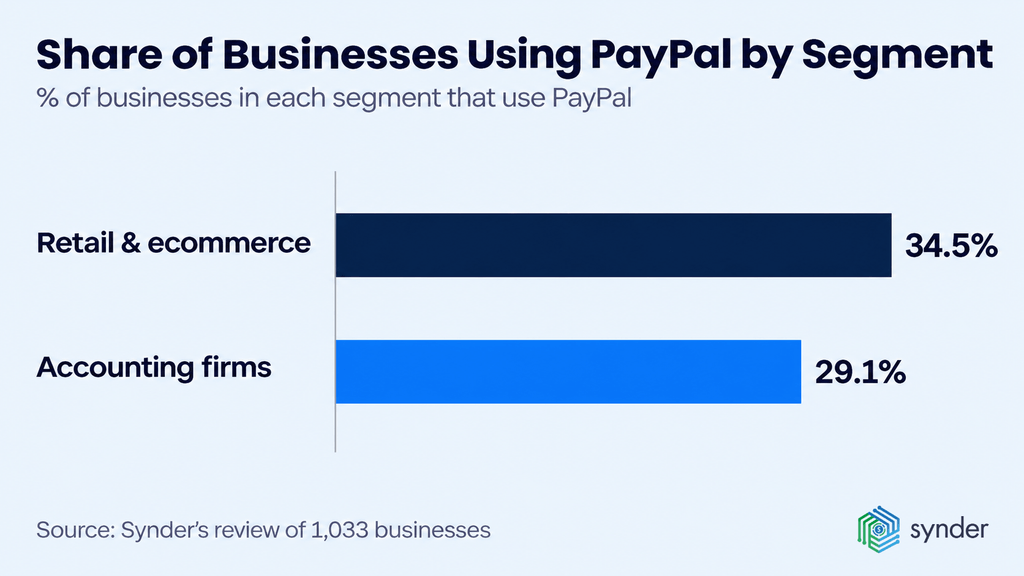
And it’s a common challenge: 36.4% of retail and ecommerce businesses in Synder’s research reported reconciliation issues. With the right setup, however, reconciling PayPal is a quick check you do once a month.
In this guide, we’ll walk you through how to reconcile PayPal in QuickBooks Online, from setting up your account to handling fees, refunds, holds, and currency conversions. We’ll also cover how to resolve common discrepancies and when it makes sense to automate the process.
TL;DR
Here’s how to reconcile PayPal in QuickBooks Online so your balance matches your PayPal statement:
- Give PayPal its own Bank-type account in QuickBooks Online.
- Record each sale at its full amount and post the PayPal fee as an expense.
- Record withdrawals as transfers to checking, not as income.
- Reconcile monthly until QuickBooks matches the PayPal statement balance.
- If a difference remains, check held funds and currency conversions.
- Choose manual entry, Intuit’s apps or a sync tool based on your volume and currencies.
Why PayPal is harder to reconcile than a bank account
PayPal is harder to reconcile because it behaves like a wallet: customer payments go into your PayPal balance first, and the money reaches your bank only when you withdraw it. Your checking account in QuickBooks sees that withdrawal, while your sales records see the individual payments behind it. In between, PayPal deducts fees, processes refunds and holds funds, so the two sides of PayPal and QuickBooks Online stop matching as soon as you treat PayPal deposits as sales.
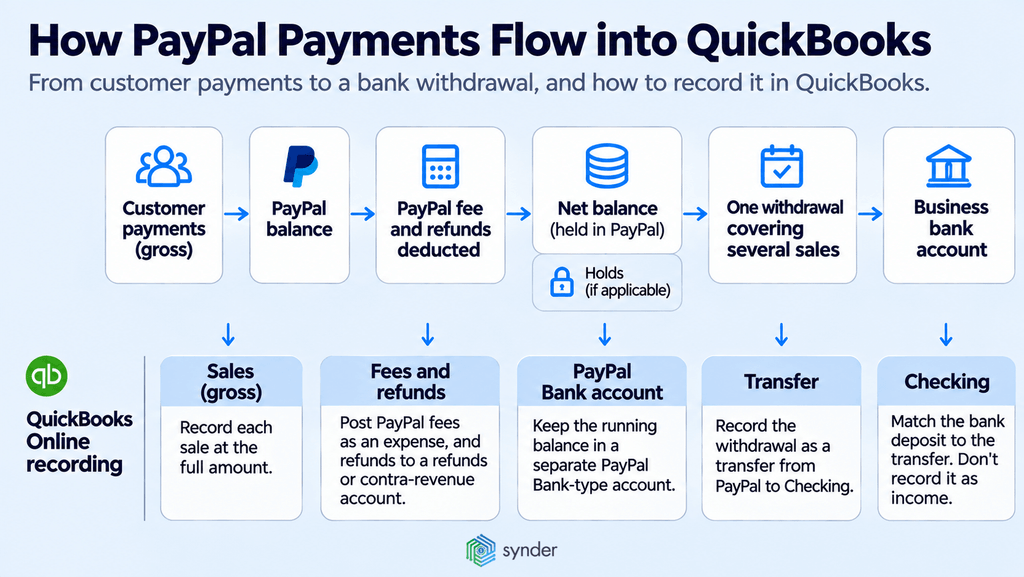
Here’s how that works over one week. A business makes three PayPal sales, refunds part of one order on Wednesday, and withdraws the whole balance on Thursday.
| Day | PayPal activity | Gross | PayPal fee | Change to PayPal balance | PayPal balance |
| Mon | Sale A | $100.00 | −$3.50 | +$96.50 | $96.50 |
| Mon | Sale B | $60.00 | −$2.20 | +$57.80 | $154.30 |
| Tue | Sale C | $40.00 | −$1.60 | +$38.40 | $192.70 |
| Wed | Partial refund of Sale B | −$20.00 | – | −$20.00 | $172.70 |
| Thu | Withdrawal to bank | – | – | −$172.70 | $0.00 |
Example only – amounts are illustrative, not PayPal’s actual fee rates.
In this example, the three sales add up to $200, but Thursday’s withdrawal brings only $172.70 to the bank. The $27.30 difference is the $7.30 in PayPal fees plus the $20 refund from Wednesday. If you record that $172.70 deposit as sales, your revenue comes out $27.30 too low, the fees never reach your expense account, and the refund doesn’t appear in your books at all.
This helps explain why 35.7% of retail and ecommerce companies in Synder’s review of 1,033 businesses reported difficulties accounting for fees and payouts.
And those fees and payouts are spread across a huge number of transactions: PayPal processed 6.8 billion payment transactions in the third quarter of 2026. For businesses receiving payments through PayPal, this means tracking individual transactions and reconciling them against withdrawals to the bank.
Before you start: set up a PayPal clearing account in QuickBooks Online
A PayPal clearing account is a Bank-type account in QuickBooks that holds your PayPal activity until the money moves to your bank. Because it mirrors PayPal, its balance should match your PayPal balance and return toward zero after each withdrawal.
Intuit’s own clearing account guide names Bank as the best account type for this. With a Bank-type account, you can receive customer payments into it, transfer money out of it to checking, and reconcile it with the QuickBooks Reconcile tool, just as you would a regular bank account.
Before you record any transactions, work through this short setup checklist:
- Create one PayPal account per PayPal balance or currency. In the chart of accounts, choose Bank as the account type and give it a clear name, such as “PayPal Bank.”
- Create a PayPal fees expense account. This is where PayPal processing fees go, so they never reduce your sales.
- Decide where refunds and chargebacks post. A refunds or contra-revenue account handles refunds, and a separate chargebacks expense account keeps disputes visible.
- Set the opening balance. It should equal your PayPal balance on the start date you choose.
- Choose how sales post. Pick a Sales Receipt, a Deposit or a payment against an invoice, and stick with the same choice every month.
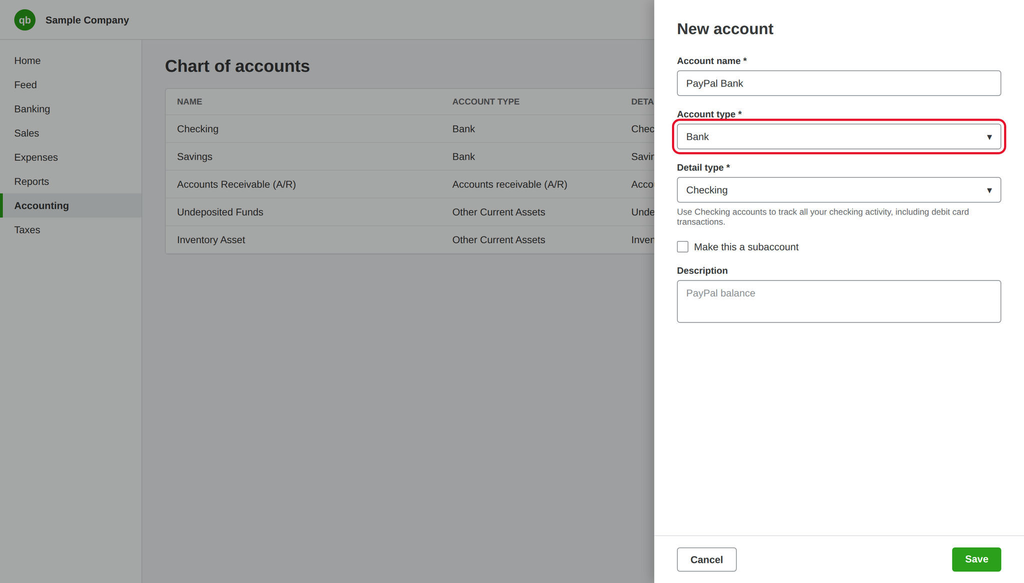
In practice, this QuickBooks PayPal account is your PayPal clearing account. If you use Intuit’s Connect to PayPal app, you don’t even have to create it yourself, because the app sets up a “PayPal Bank” account automatically, separate from your business bank account.
Accounting automation tools follow the same structure. Synder, for example, is an accounting automation platform that syncs PayPal and 30+ other sales and payment platforms into QuickBooks Online. It posts each PayPal sale, fee, refund and payout through a PayPal clearing account that should net to zero when PayPal pays out, in both the Per Transaction and Summary Sync modes of Synder Sync.
3 ways to import PayPal transactions into QuickBooks
There are three ways to import PayPal transactions into QuickBooks: manually from PayPal reports, through Intuit’s native PayPal apps, or with a third-party sync tool. Which PayPal and QuickBooks integration makes sense for you depends on how many PayPal transactions you have, how many currencies you use, and whether some of your PayPal payments come through Shopify.
Manual: export PayPal to QuickBooks with a CSV file
With the manual route, a PayPal export to QuickBooks starts with a CSV download from PayPal’s reports. You then upload that file as bank transactions to the PayPal Bank account, or post one summary journal entry for the month.
This method gives you full control over every entry, but it also leaves all the work with you. The file only covers the period you download, and you have to split out fees, refunds and conversions yourself, so it suits a business with a handful of PayPal payments a month in one currency.
Native: connect PayPal to QuickBooks with Intuit’s apps
Intuit offers three PayPal connections for QuickBooks Online, and they handle history, multi-currency and Shopify sales differently. That’s why it pays to check which one you’re using before you rely on its limits:
- Connect to PayPal app: This app syncs every 3 hours and imports transactions that affect your PayPal balance into the For Review tab on the Banking screen. Because it brings in each gross sale together with its fee, the fee is added as an expense in the PayPal account when you match or add the sale. It can import up to 18 months of history, but only at first setup, and it doesn’t import temporary holds and releases or support multi-currency.
- Connect to PayPal 2.0: This version imports sales transactions daily, including sales, refunds and shipping fees, and lets you set a start date up to 90 days back. Intuit recommends adding PayPal transactions through Integration transactions first and then matching them on the Banking tab, so bank deposits aren’t added twice.
- PayPal Connector by QuickBooks: This app syncs most transaction details from PayPal into QuickBooks Online, but it can’t import PayPal transactions that originate from Shopify.
When you link PayPal to QuickBooks through one of these apps, PayPal transactions appear in QuickBooks for you to review and match.
Third-party: use a PayPal QuickBooks Online integration
A third-party PayPal to QuickBooks integration connects to PayPal’s API and posts sales, fees, refunds and payouts to QuickBooks automatically. These tools, such as Synder, sync PayPal with QuickBooks Online and let you choose between one entry per transaction and one summary entry per day or payout. Synder also covers the checking side: its Transaction Reconciliation matches the lines in your PayPal clearing account against PayPal’s own records and flags anything that doesn’t tie, so you review only the mismatches.
They handle cases the native apps leave out, such as multi-currency balances, longer history imports and PayPal payments from Shopify orders. But it’s worth considering the cost, as third-party tools require a paid subscription, while Intuit’s PayPal apps are free.
PayPal and QuickBooks Online import options compared
The table below puts the PayPal and QuickBooks Online connection options side by side, based on Intuit’s help pages as checked in November 2026.
| Method | Sales detail and fees | Holds, multi-currency, Shopify-origin PayPal sales | History import |
| CSV import (manual) | Whatever you map; you split fees yourself | You record holds and conversions manually; one file per currency | Any period you download from PayPal |
| Connect to PayPal app | Gross sale and fee linked in one deposit; syncs every 3 hours | Holds and releases not imported; no multi-currency; Shopify-origin not stated by Intuit | Up to 18 months, at first setup only |
| Connect to PayPal 2.0 | Sales, refunds and shipping fees, imported daily | Not stated by Intuit | Start date up to 90 days back |
| PayPal Connector by QuickBooks | Most transaction details | PayPal transactions from Shopify can’t be imported | Up to 2 years |
| Third-party sync tool (e.g., Synder) | Per transaction or summary; fees on separate lines | Multi-currency supported; PayPal payments from Shopify synced when both platforms are connected | No Synder limit; capped only by what PayPal’s API returns |
Intuit’s PayPal options compared (checked Nov 2026)
How to reconcile PayPal in QuickBooks Online step by step
To reconcile PayPal in QuickBooks Online, you compare the PayPal account in QuickBooks with your PayPal statement for the same month and tick off transactions until the difference is 0.00. The six steps below assume you’ve already finished the setup checklist.
1. Download your PayPal statement for the month
Start with the PayPal statement, because its ending balance is the number QuickBooks has to match. In PayPal, go to Reports > Payments > Statements, choose the month, and request the CSV version, as described in Synder’s PayPal clearing account reconciliation guide. Once the file is ready, open it, find the Balance column for the last day of the month, and note that amount as your statement ending balance.
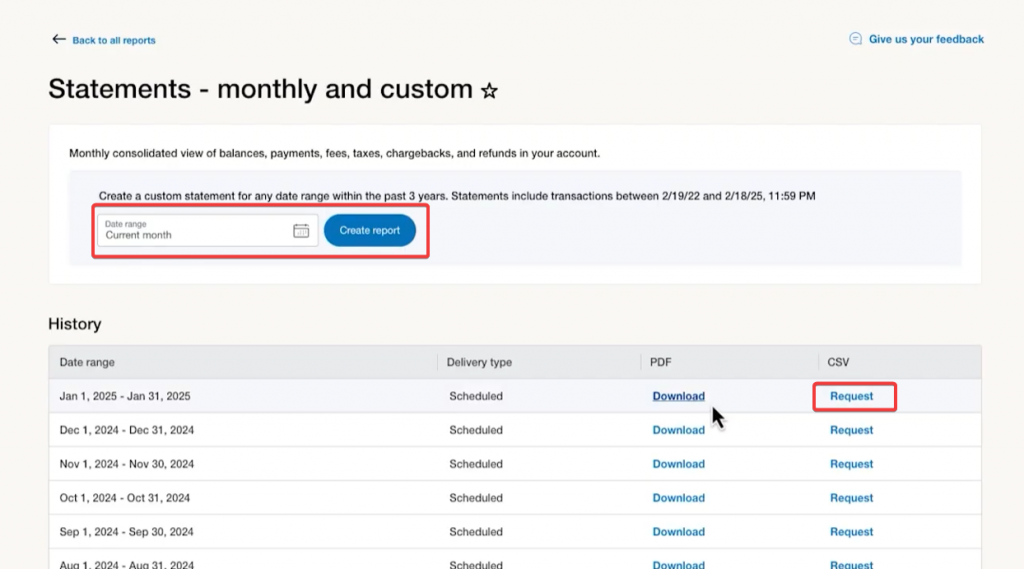
2. Get every PayPal transaction into QuickBooks
Whichever way you import PayPal into QuickBooks Online, make sure every transaction that changed your PayPal balance during the month is in your books. Go to Transactions > Bank transactions, select the PayPal Bank account, and clear the For Review tab by adding, matching or excluding each item.
If you use Connect to PayPal 2.0, follow the order Intuit recommends: add transactions from Integration transactions first, then match them on the Banking tab. Adding them straight from the Banking tab can record the same sale twice.
3. Record PayPal fees
PayPal fees belong in an expense account instead of being subtracted from revenue. When you record a sale at its net amount, you understate revenue and the fee disappears from your P&L, so always start from the gross sale.
You can record fees in two ways:
| Method | How it works | Keeps the PayPal account in balance? | Best for |
| Fee per transaction | Record each sale gross and its fee as a separate expense line | Yes, after each sale | Businesses that need fee detail per order |
| Monthly fee entry | Record sales gross all month, then one expense for the statement’s total fees | Only at month-end, after the fee entry | Low-volume accounts |
The per-transaction method matches how the Connect to PayPal app handles fees, since it adds the fee as an expense when you match or add the sale. The monthly method is simpler, but your PayPal account in QuickBooks stays higher than PayPal’s balance until you post the fee entry, so reconcile only after it’s in.
Fee detail per transaction was exactly what Healthy Meals Direct needed. The meal-prep business sells through Shopify and PayPal across 30+ locations and keeps its books in QuickBooks Online. Once Synder Sync started breaking out its PayPal processing fees automatically in Per Transaction mode, the team stopped tracking fees by hand, and daily reconciliation dropped from 3-4 hours to 30-45 minutes. Victoria Martinez, Customer Service Manager at Healthy Meals Direct, said:
Instead of 3 or 4 hours, I now dedicate around 30–45 minutes to the task of reconciling transactions and making sure everything is perfect in our books.
Victoria Martinez, Customer Service Manager at Healthy Meals Direct
4. Match PayPal payouts and transfers to bank deposits
Each PayPal withdrawal should be recorded as a Transfer from the PayPal Bank account to your checking account. Later, when the deposit shows up in your checking account’s bank feed, you match it to that transfer.
Warning: If you add the bank deposit as income instead, you count the same sales twice, once as PayPal sales and again as a bank deposit.
Keep in mind that one withdrawal is one transfer, even when it covers several days of sales. In the earlier example, the $172.70 withdrawal is a single transfer, while the three sales, three fees and one refund stay in the PayPal account.
5. Open the Reconcile tool and enter the statement ending balance
Go to Accounting > Reconcile and choose the PayPal Bank account. Then enter the statement ending balance and end date from step 1 and select Start reconciling.
QuickBooks also shows a beginning balance carried over from your last reconciliation. If it doesn’t match last month’s PayPal ending balance, stop here and check the troubleshooting section before you go on.
6. Tick transactions until the difference is 0.00
Now tick each transaction that appears on the PayPal statement. As you go, QuickBooks updates the cleared balance, and you’re done once the difference reaches 0.00. At that point, select Finish now and save the reconciliation report.
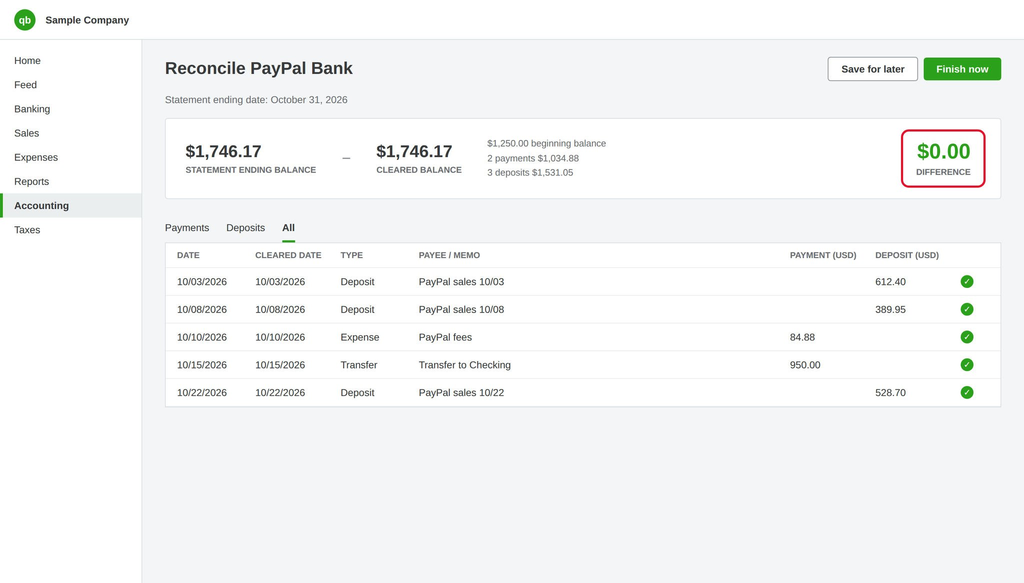
If a difference is left over, resist the urge to post an adjustment just to reach zero. Instead, find the cause using the troubleshooting table in the “PayPal won’t reconcile?” section further down.
Month-end PayPal reconciliation checklist
To keep reconciling PayPal data with QuickBooks consistent from one month to the next, run through this checklist each time:
- PayPal statement for the month downloaded and ending balance noted
- For Review tab cleared for the PayPal Bank account
- Every balance-affecting PayPal transaction recorded in QuickBooks
- Fees and refunds posted to their own accounts
- Withdrawals recorded as transfers to checking and matched to bank deposits
- Holds, reserves and releases noted with expected release dates
- Difference on the Reconcile screen at 0.00
- Reconciliation report saved
Tricky PayPal transactions: refunds, chargebacks, holds and currencies
Refunds, chargebacks, holds, invoice payments and currency conversions change your PayPal balance in different ways, so they need separate entries in QuickBooks. The table below shows how to record PayPal transactions in QuickBooks Online by PayPal transaction type.
| PayPal transaction type | Money in or out | What it is | Where it posts in QuickBooks |
| Payment Received | In | Customer payment, gross amount | Sales Receipt or invoice payment deposited to the PayPal Bank account |
| Fee | Out | PayPal processing fee | PayPal fees expense account |
| Refund | Out | Money returned to the buyer | Refund Receipt paid from the PayPal Bank account |
| Fee Reversal | In | Fee returned by PayPal | Credit to the PayPal fees expense account |
| Chargeback / Dispute Activity | Out | Funds taken back for a buyer dispute | Chargebacks expense account, or a refund against the sale |
| Temporary Hold | Neither (not available) | Funds held but still in the PayPal balance | No entry; note it on the reconciliation |
| Hold release | Neither (available again) | Held funds released | No entry if the hold wasn’t recorded |
| Transfer to bank | Out | Withdrawal to your business bank account | Transfer from the PayPal Bank account to checking |
| Currency conversion | Out of one balance, into another | PayPal converts between currency balances | Transfer between PayPal currency accounts |
| Payment Sent | Out | You paid a supplier with PayPal | Expense or bill payment from the PayPal Bank account |
Refunds
When you refund a PayPal sale, PayPal shows a refund line that reduces your balance. In QuickBooks, you record a Refund Receipt from the PayPal Bank account for the refunded amount, which keeps the original sale at full value and shows the refund on its own line.
PayPal sometimes returns part of the original fee as well. In that case, record the returned amount as a fee reversal, a credit to your PayPal fees expense account, and check the fee line on the refund in your PayPal activity to see exactly how much came back.
Chargebacks and disputes
A chargeback appears in PayPal as a “Dispute Activity” or chargeback line that takes money out of your balance. You can record it as a payment from the PayPal Bank account to a chargebacks expense account or as a refund against the original sale, as long as you use the same treatment every time.
If you win the dispute, PayPal returns the funds. You then record that money coming back into the PayPal Bank account, posted to the same account you used for the chargeback.
Holds and reserves
Held funds are part of your PayPal balance, but you can’t withdraw them until PayPal releases them. Because the Connect to PayPal app doesn’t import temporary holds and releases, QuickBooks and PayPal can show different available amounts until the hold ends.
Longer reserves need a little more tracking. A rolling reserve stays in your PayPal account balance in QuickBooks until PayPal releases it, so a balance that matches the reserve amount isn’t an error. What helps is noting each reserve’s release date and checking it off once the money becomes available.
PayPal payments for open invoices
When a customer pays an open QuickBooks invoice through PayPal, the goal is to close the invoice at its full amount while keeping the PayPal balance right. Here’s how:
- Select + New > Receive payment, then choose the customer and the open invoice.
- In Deposit to, choose the PayPal Bank account (not Undeposited Funds) and enter the full invoice amount.
- Record the PayPal fee as an expense from the PayPal Bank account.
That way, QuickBooks PayPal payments close invoices at full value, and the PayPal account still matches PayPal once the fee is recorded.
Multi-currency QuickBooks Online PayPal accounts
If you hold PayPal balances in more than one currency, turn on multi-currency in QuickBooks Online and create one QuickBooks PayPal account per currency balance. PayPal currency conversions then become transfers between those accounts, and each account reconciles to its own currency statement.
The native Connect to PayPal app doesn’t support multi-currency, so this is one area where third-party tools differ. Synder, for example, applies QuickBooks exchange rates at the time of sync, because PayPal’s API doesn’t provide rates, and it leaves PayPal’s internal currency conversions out of the sync.
PayPal won’t reconcile? Common causes and fixes
When the PayPal bank feed doesn’t match your PayPal statement in QuickBooks Online, start by looking for a missing, duplicated or misdated transaction. Before you chase any difference, though, confirm that your PayPal report time zone (PST or UTC) matches the dates you use in QuickBooks.
For more details, see this PayPal clearing account reconciliation guide.
| Symptom | Likely cause | Fix |
| Bank balance and In QuickBooks balance don’t match | Import delay, or transactions still in For Review | Wait for the next sync, then add or match items in For Review |
| Same sale appears twice | Sale added from the bank feed and also entered or synced another way | Delete or exclude the duplicate and keep one source per transaction |
| Income too high | PayPal withdrawal added as income in checking | Change it to a transfer from the PayPal Bank account and match the bank deposit to it |
| Negative PayPal account balance | Withdrawals recorded, but the sales behind them are missing | Import the missing sales or check the start date of your connection |
| Statement and register differ by a held amount | Temporary holds and releases not imported by Connect to PayPal | Note the hold; it clears when PayPal releases the funds |
| Not imported by the native app | Intuit’s connection doesn’t support some PayPal types, e.g., Authorization, Fee Reversal, Temporary Hold, Reserve Hold, Pending Balance | Enter the balance-affecting ones, such as Fee Reversal, manually, or use a sync tool |
| Transactions on the wrong day around month-end | PayPal report time zone differs from your QuickBooks dates | Match time zones before comparing balances |
| Beginning balance changed | A previously reconciled transaction was edited or deleted | Run the Reconciliation Discrepancy report and restore the changed transaction |
The list of unsupported transaction types comes from Intuit’s comparison of its PayPal connections.
How to clean up months of unreconciled PayPal transactions
If you’ve taken over a client file with months of unreconciled PayPal activity, the fastest way through is to work forward from one clean date instead of fixing transactions at random. A backlog like this adds to work that already takes up a large part of the week: accountants lose about five hours a week moving, re-entering or reconciling information across tools.
To clear a PayPal backlog, follow this order:
- Pick a clean start date. Use the last date when the PayPal account in QuickBooks matched PayPal, or the first day of the current fiscal year.
- Set the opening balance. Make it equal the PayPal statement balance on that date.
- Bring in the history. The Connect to PayPal app imports history only at first setup (up to 18 months), so for older periods you’ll need a CSV import or a sync tool with a longer history import.
- Reconcile month by month. Close each month at 0.00 before you open the next one.
- Fix deposits booked as revenue. Turn any PayPal withdrawals recorded as income in checking into transfers from the PayPal Bank account.
Transaction-level detail makes this kind of cleanup much faster, which is what Tentho found. The accounting firm’s clients sell through Stripe, PayPal, Shopify and Amazon, and Tentho used to consolidate PayPal mass payments into a single journal entry. After moving to Synder Sync, the firm records each transaction’s sales, fees and other components separately, and it now saves about 30 minutes per client each month on PayPal alone, or 150 minutes a month on PayPal reconciliation.
Reconciling PayPal next to Shopify Payments and Stripe
If you sell through several payment processors, give each one its own clearing account in QuickBooks Online and reconcile each to its own statement. A Shopify store, for example, might keep separate accounts for Shopify Payments, Stripe and PayPal.
The biggest risk here is recording the same order twice when PayPal is a payment method in Shopify: once from the Shopify side and once from PayPal. On top of that, Intuit’s PayPal Connector can’t import PayPal transactions that originate from Shopify, so Shopify stores need another route for those PayPal sales.
For the other payment rails, see these guides on how to reconcile Shopify payments in QuickBooks Online and how to reconcile Stripe payments in QuickBooks.
Manual, native app or QuickBooks PayPal integration: which to use
The best way to automate PayPal reconciliation, and the best PayPal QuickBooks integration for you, depends on four things:
- Your monthly volume
- How many PayPal accounts and currencies you use
- Whether PayPal payments also come through Shopify
- How much history you need to import
In short, manual entry fits a few transactions a month, a native app fits one PayPal account in one currency, and a sync tool fits higher volume, several channels or several currencies.
| Criteria | Manual (CSV) | Native QuickBooks PayPal app | Third-party sync tool |
| Monthly PayPal volume | Low | Low to moderate | Any |
| Number of PayPal accounts | One | One or more (Connect to PayPal) | Several |
| Currencies | Any, recorded by hand | One (no multi-currency) | Several |
| PayPal sales from Shopify | Recorded by hand | Can’t be imported (PayPal Connector) | Synced when both platforms are connected |
| Fees per transaction | You split them | Linked to each sale (Connect to PayPal) | Per transaction or summary |
| History | Whatever you download | Up to 18 months at first setup (Connect to PayPal); 90 days (2.0) | Depends on the tool, e.g. Synder has no limit |
A native app or CSV import covers the basics for a single account in one currency. It’s time to switch once you add a second currency or sales channel, need fees recorded per transaction, or need more history than the native app can import.
Synder covers the cases in the right-hand column. It doesn’t limit how much history you import, so you can bring in as much PayPal history as PayPal makes available, which helps with the backlog cleanup described earlier, and it keeps each platform’s transactions under its own clearing account, so PayPal payments from Shopify orders stay apart from Shopify Payments. For a walkthrough, watch the video below.
FAQ
Am I supposed to reconcile my PayPal account every month in QuickBooks?
Yes, you should reconcile your PayPal account in QuickBooks every month, just like any bank account, against the PayPal statement ending balance. Doing it monthly keeps any difference limited to one month of activity, which makes it much easier to trace.
How do I record PayPal transactions in QuickBooks Desktop?
You record PayPal transactions in QuickBooks Desktop with the same clearing-account logic: set PayPal up as a Bank account, record sales gross, post fees as an expense, and record withdrawals as transfers to checking. The difference is that QuickBooks Desktop doesn’t have the Connect to PayPal app that QuickBooks Online uses. To connect PayPal to QuickBooks Desktop, you either import PayPal into QuickBooks Desktop from PayPal’s CSV reports or use a third-party QuickBooks Desktop PayPal integration, such as Synder’s PayPal QuickBooks Desktop integration in Per Transaction mode. Either way, reconcile PayPal and QuickBooks Desktop each month against the PayPal statement ending balance, as you would in QuickBooks Online.