

- Dashboard
- Mapping
- Summaries
- Reconciliation
- Products and services
- Analytics
- Revenue recognition
- Settings
- AI Hub
- Custom development
- What’s New
This guide walks you through the Synder interface in Summary Sync mode — what each section of the left-hand menu is for, and the key buttons you will use on each page. Think of it as a map rather than a manual: for step-by-step instructions on each task, we link out to its dedicated guide. If you use Per Transaction Sync instead, the layout differs slightly.
Dashboard
Your starting point. The Dashboard gives you an at-a-glance view of where your data stands — a Data readiness column (transactions imported, summary completeness, mappings, and connected integrations) and a Posting to books column (summaries synced, synchronization status, and your accounting connection). Use it to confirm everything is ready before you sync.
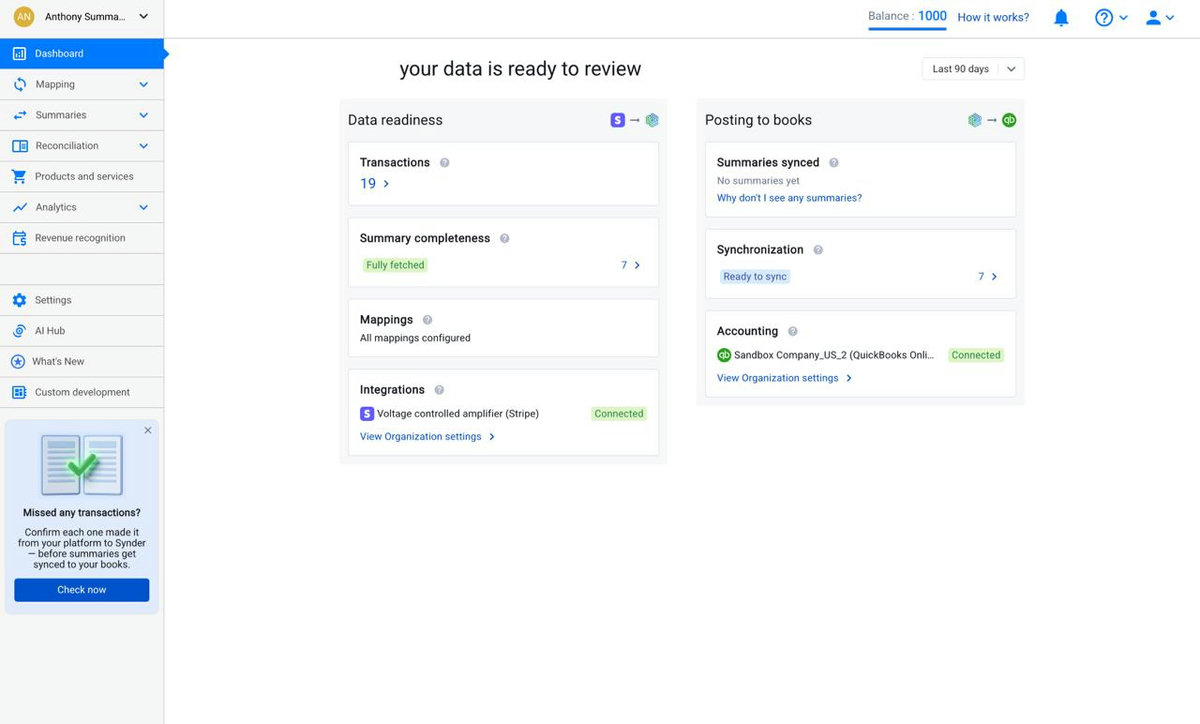
Full walkthrough: Synder Dashboard Guide.
Mapping
Controls how your transactions are translated into accounting entries. It has two pages: Mappings list and Groups.
Mappings list
Create mappings between your transactions and your Chart of Accounts — this is where each group of transaction lines is pointed at the right account, class, region, or tax code. Key controls include the Account dropdowns per row, the filters (Groups, Payment gateway, Account, Mapping status), the Currency selector, the Enable tracking categories toggle, and Export CSV.
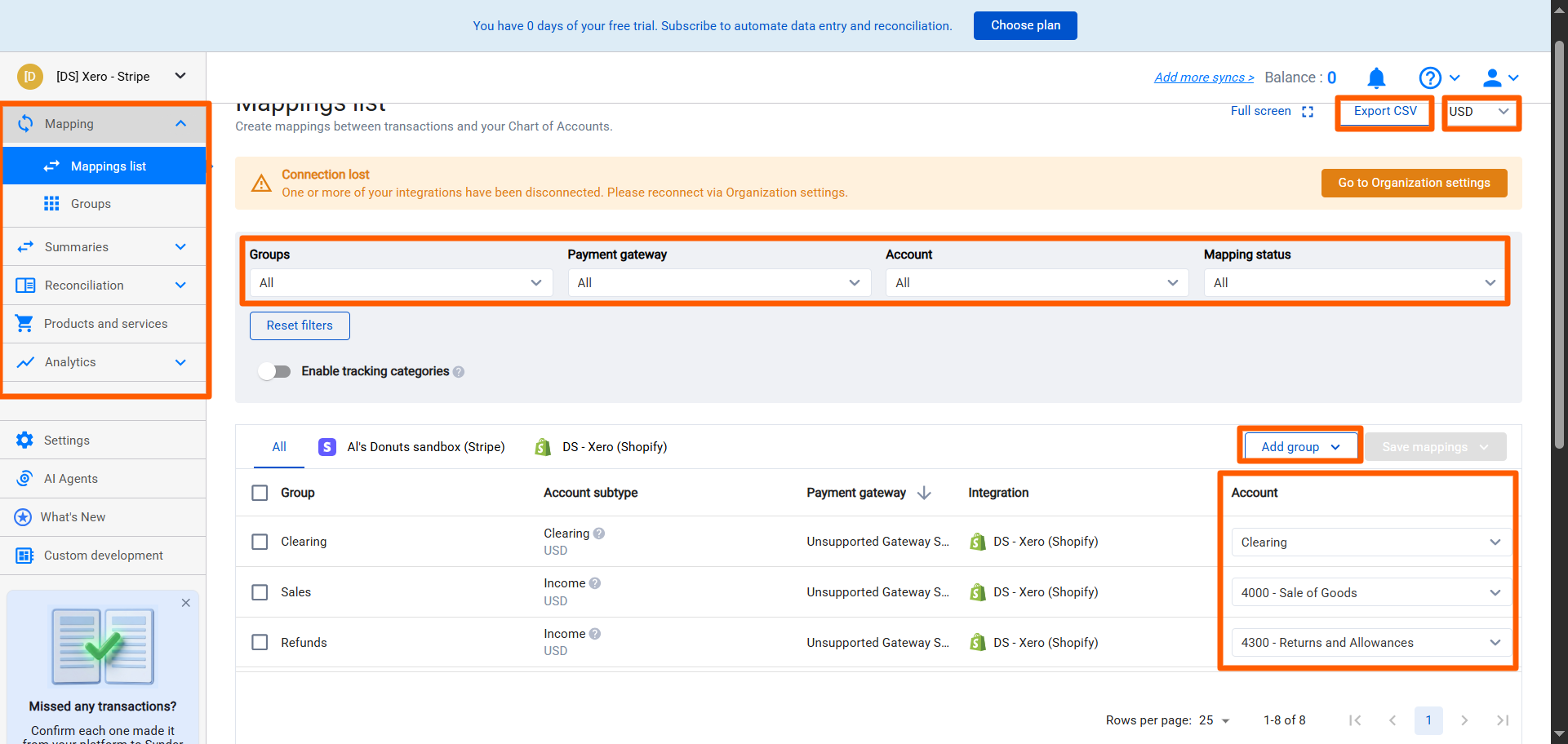
Learn more: Multi-Channel Selling with Summary Sync.
Groups
Bundle transactions into meaningful groups based on your own rules. The page lists both default groups and any custom groups you create, each with its account type and subtype. Use Add group to create a new one, and the filters to find an existing group.
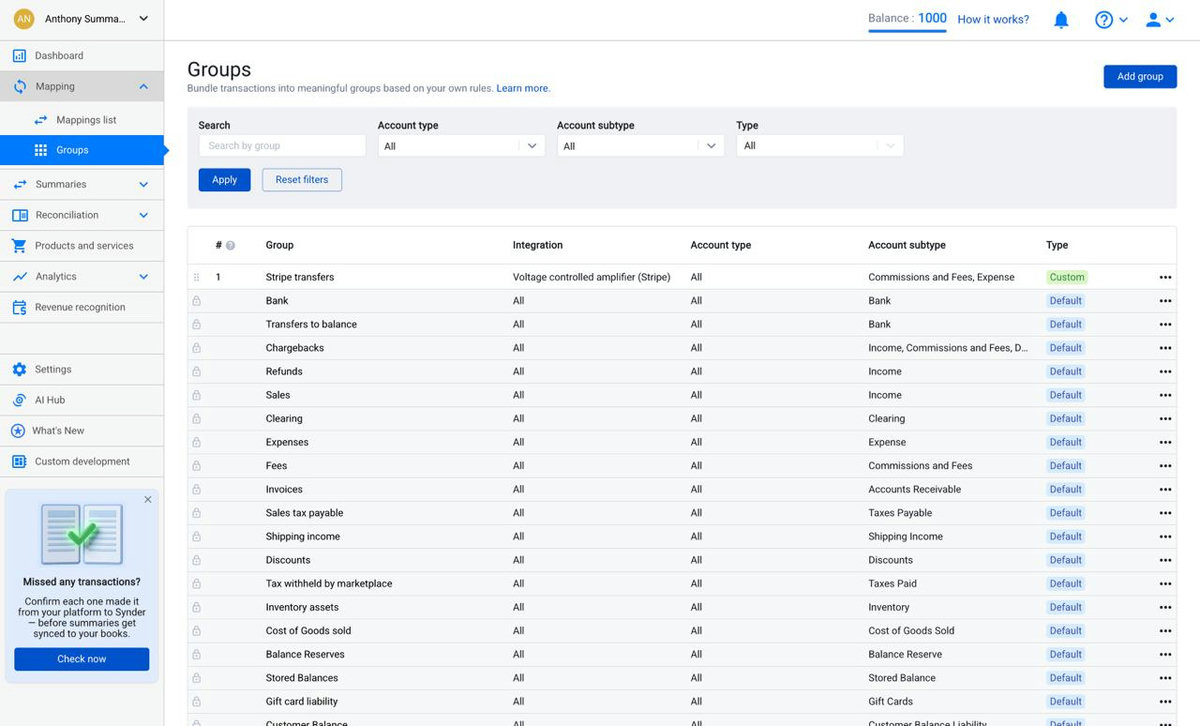
Learn more: Multi-Channel Selling with Summary Sync.
Summaries
The heart of Summary Sync. This section contains Summaries list, Register, Transactions list, and Import activity log.
Summaries list
View your summarized entries and their sync status to your books. Each row is one period with its completeness and sync status; status tabs let you filter (for example, Ready to sync or Synced to your books). Use Generate summary to create a summary manually, and Import historical data to bring in past data.
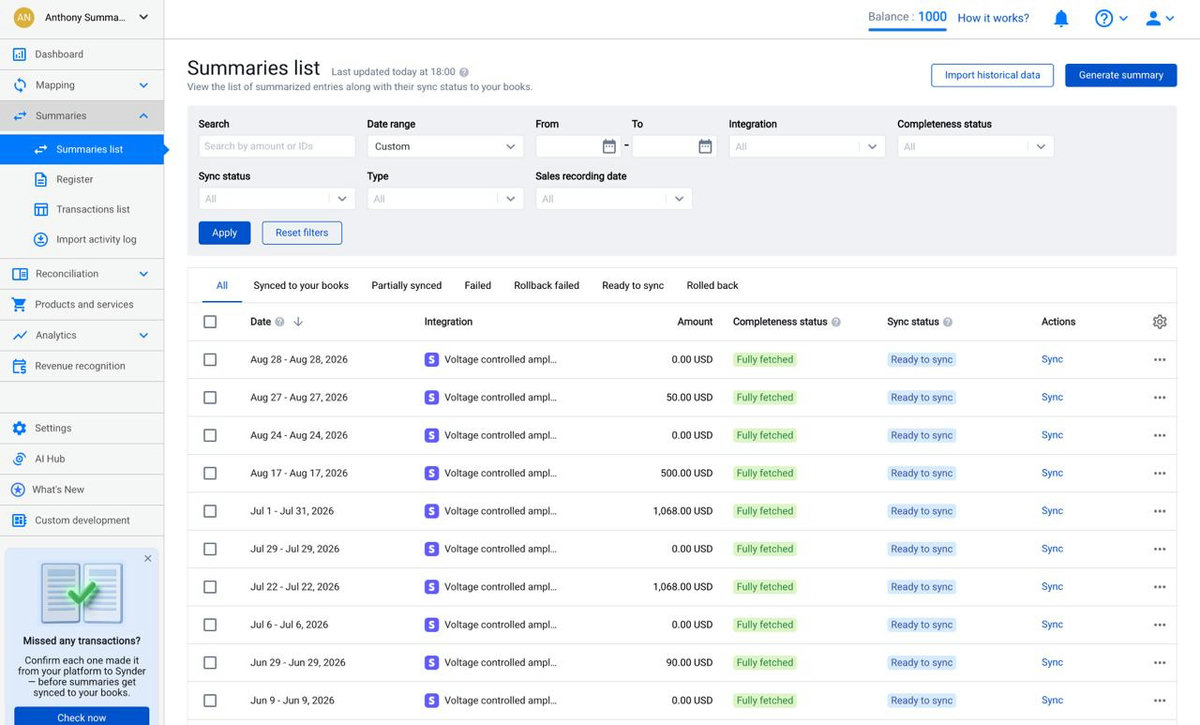
Learn more: How to Manually Generate a Summary in Summary Sync.
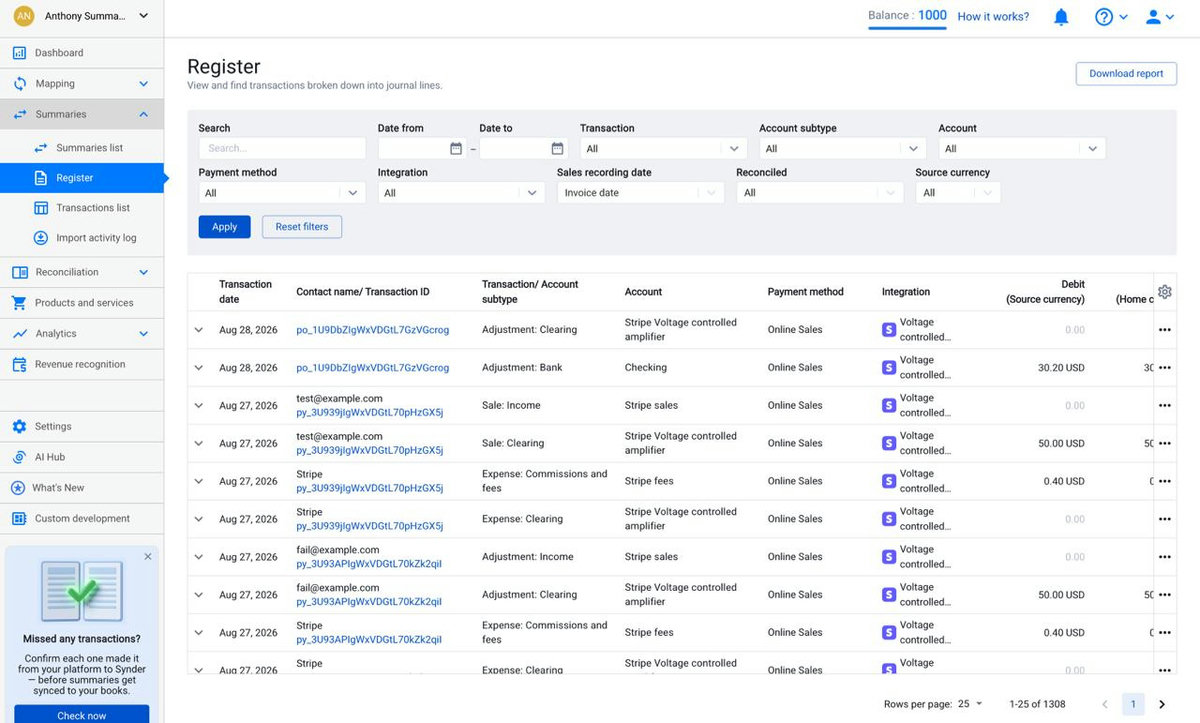
Register
View and find your transactions broken down into individual journal lines — the account-level detail behind your summaries. Rich filters (date, account, payment method, integration, reconciled status, currency) help you locate a specific line, and Download report exports what you see.
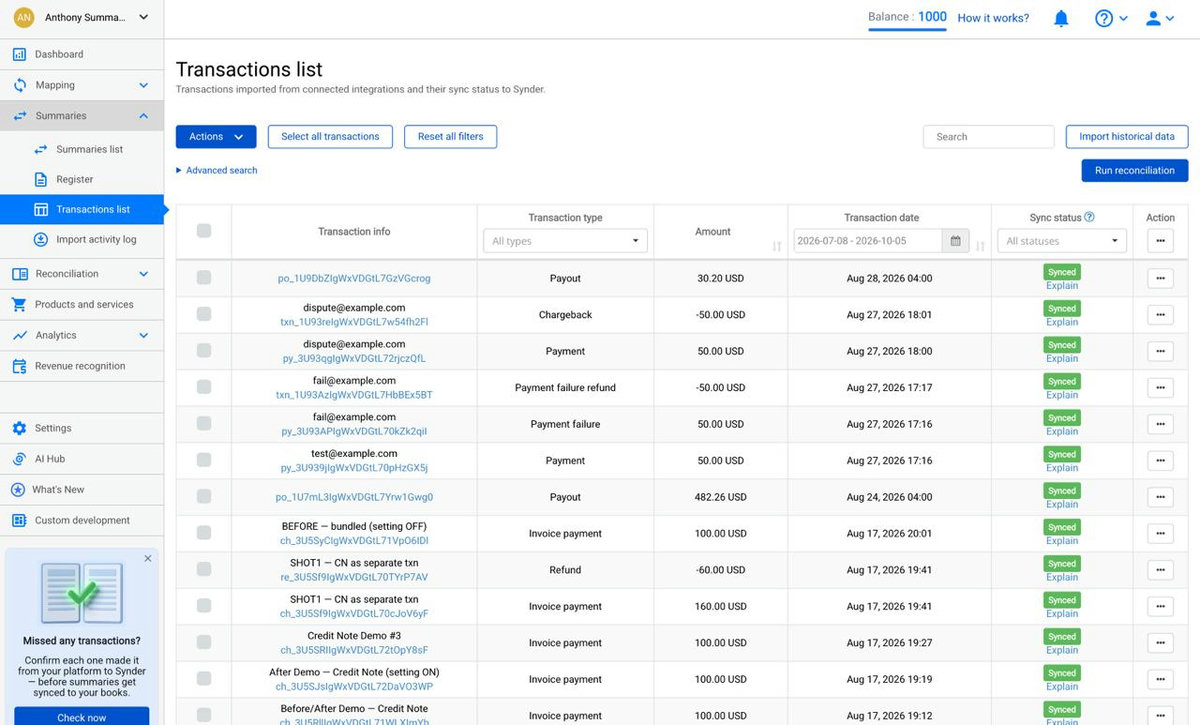
Transactions list
The list of transactions imported from your connected integrations, shown with their sync status — the same raw-transaction view available in Per Transaction mode. From here you can Search, filter, use Actions for bulk operations, Import historical data, and Run reconciliation.
Import activity log
A record of every import request, so you can see which periods are already covered and whether an import ran automatically or was triggered manually.
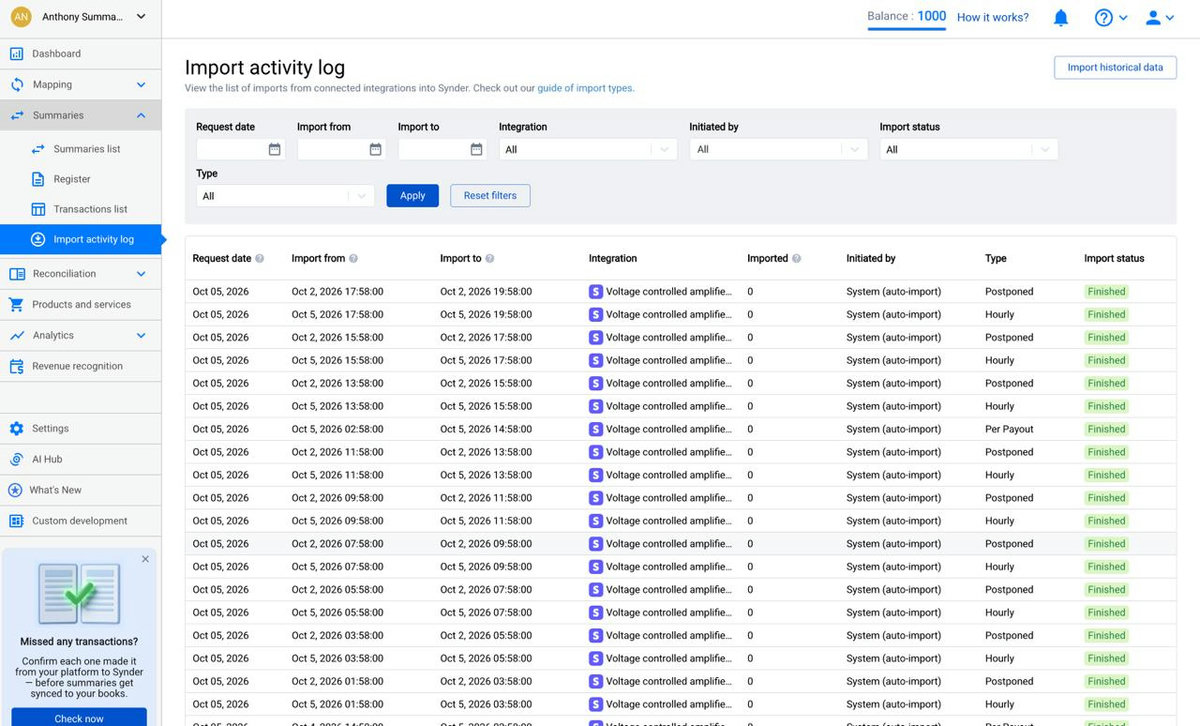
Details: Import Activity Log: Types of Import Requests.
Reconciliation
Compares your Synder data against your accounting system to spot discrepancies and keep your books accurate before and after syncing.
Learn more: Summary Sync Transaction Reconciliation and Balance Reconciliation.
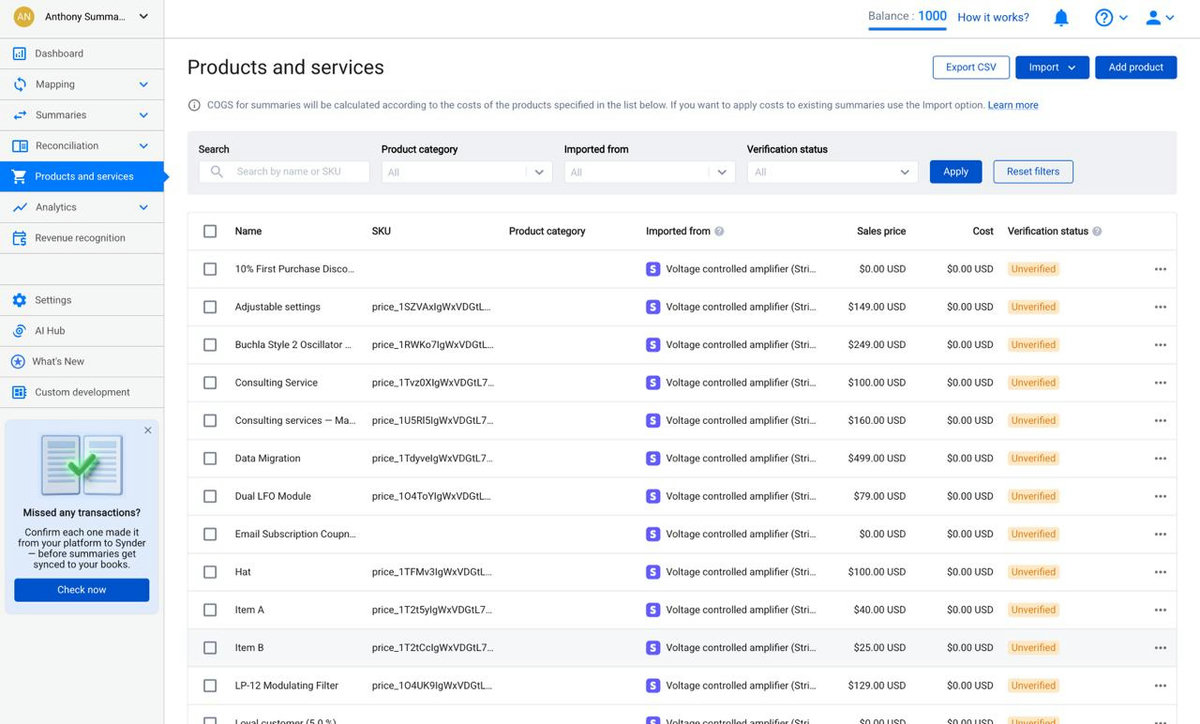
Products and services
Your product catalog, used to calculate COGS for summaries based on the cost of each product. The list shows each product’s sales price, cost, and verification status. Use Add product, Import, or Export CSV to manage it.
Analytics
Your reporting hub — financial reports built from your synced data, including an Overview with key metrics and statements such as Profit and loss and Balance sheet.
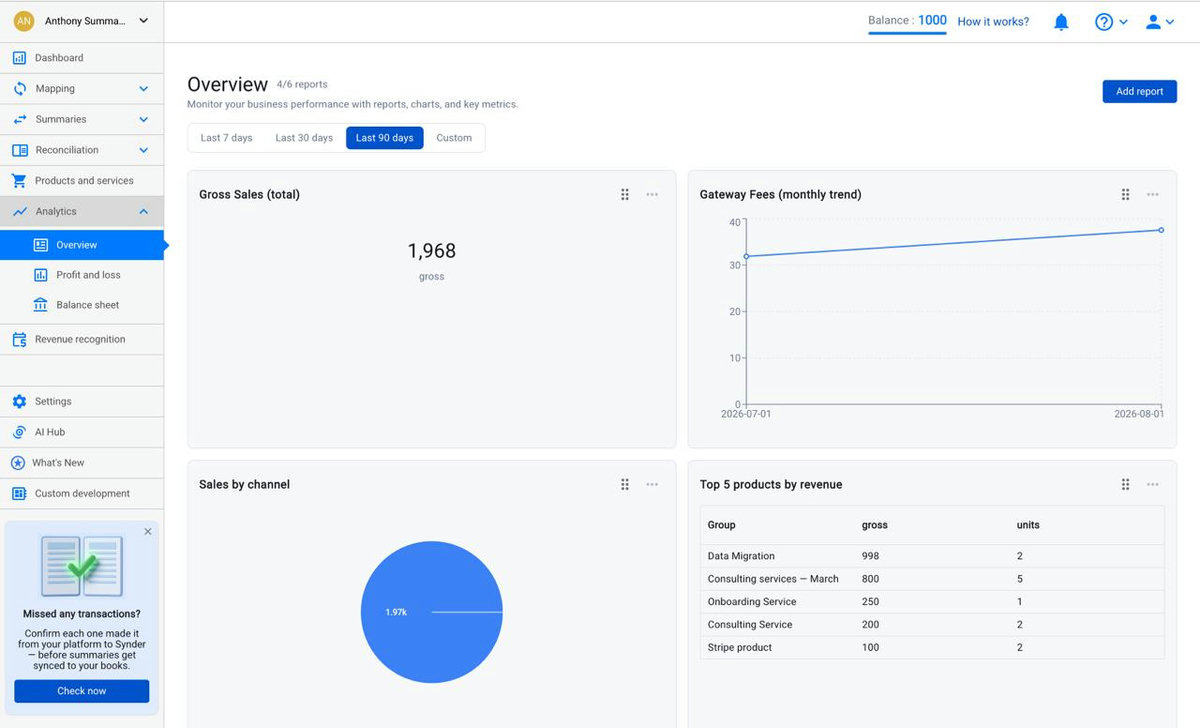
Full walkthrough: Analytics Tab in Synder: Overview, Reports, Profit and Loss, and Balance Sheet.
Revenue recognition
Where Synder RevRec recognizes revenue over time from your subscriptions and invoices — building recognition schedules and the related reports. It is available as an add-on.
Learn more: Synder RevRec: Getting Started.
Settings
Opens the general Settings page, where you configure how Synder behaves before and during sync — integrations, accounts, taxes, and sync preferences. It is worth reviewing these before your first sync.
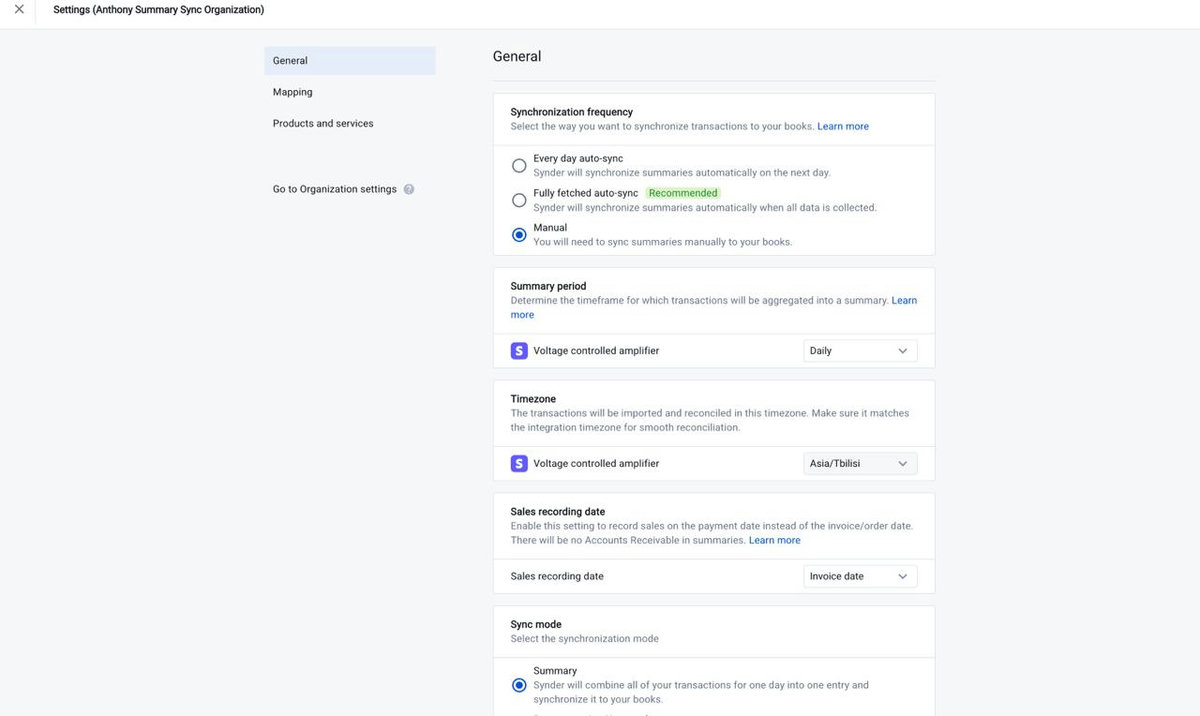
Learn more: Configure Core Settings.
AI Hub
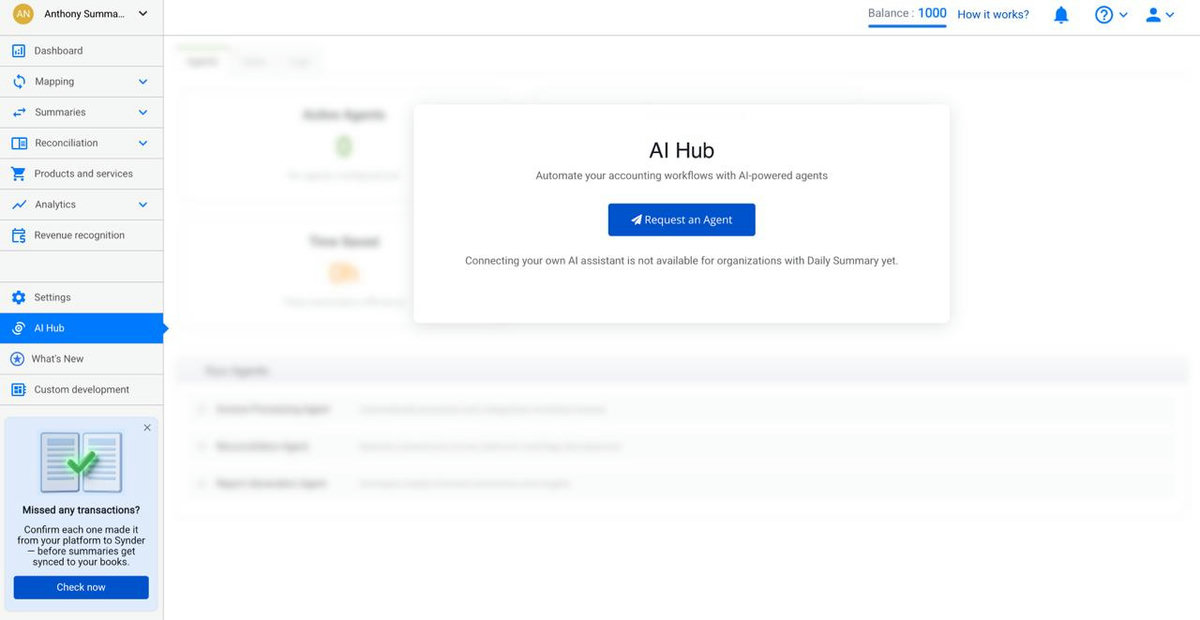
Automate your accounting workflows with AI-powered agents. From here you can Request an Agent for tasks such as reconciliation or report generation.
Custom development
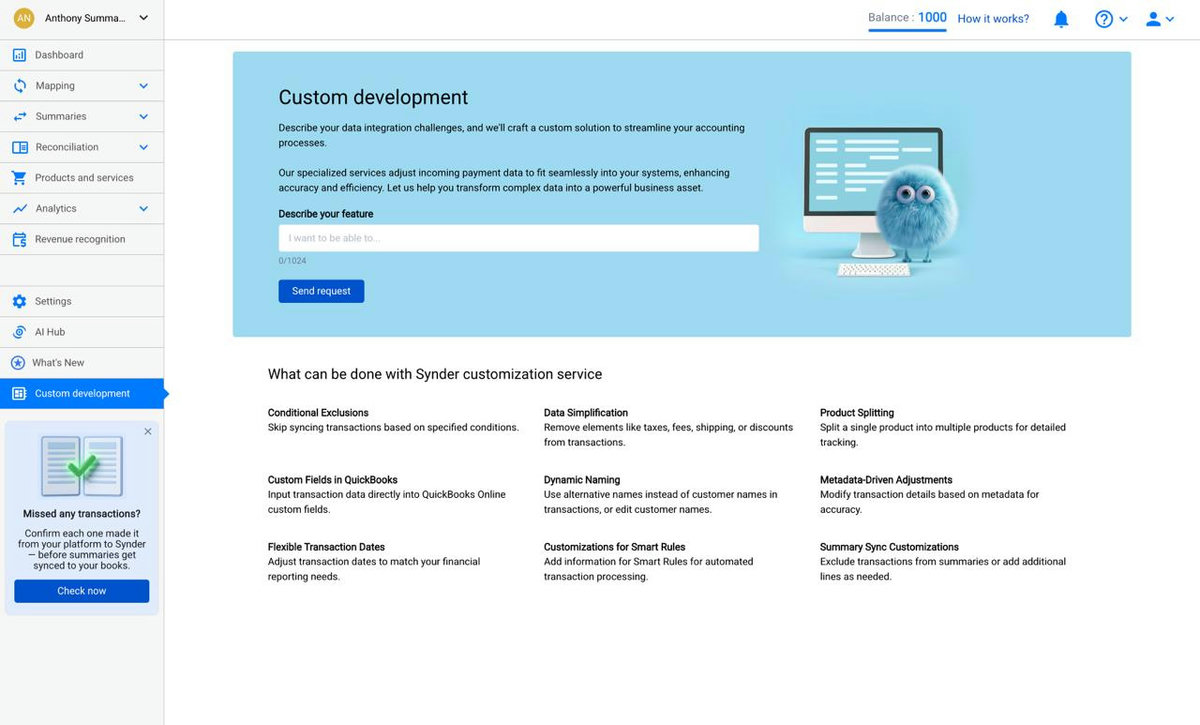
Request a tailored solution when your workflow needs something beyond the standard settings — for example conditional exclusions, custom naming, or summary customizations. Describe what you need and press Send request.
What’s New
Opens the in-app changelog, where Synder posts the latest features and improvements.
Reach out to the Synder team via online support chat, phone, or email with any questions you have – we’re always happy to help you!
