

In Summary Sync, Synder normally builds summaries automatically based on your chosen summary period — daily, weekly, monthly, or per payout. However, Synder also lets you manually generate a summary for a specific date range whenever you need one, without changing your overall setup.
This guide explains when to use manual generation and walks you through the full flow. Use this guide to understand:
- When to manually generate a summary
- How to generate, review, save, and sync one
- What to watch for so you avoid duplicate or missing data
When to manually generate a summary
Your automatic summary period covers most situations. Still, a few cases call for a manual summary:
- You need a different period for one stretch of time. For example, you reconcile a specific range for an audit or you have a non-standard accounting period. Generate that one summary manually and keep your daily or monthly setup untouched.
- You accidentally deleted an automatically generated summary. Deleted summaries do not come back on their own. To restore the data, generate a new summary manually for the same period.
- Transactions are stuck or failed in the original summary. When transactions get stuck in the initial summary, generating a fresh summary for that period can help them proceed and reach your books.
- You switched aggregation modes and left a gap. Changing modes (for example, Daily to Monthly) can leave a stretch of days without an automatic summary. Generate that gap manually so no data is missed. See Summary Sync: Aggregating Data by Day, Payout, Month, or Custom Periods for the full mode-switch logic.
Before you start
- A manual summary can cover a period of up to 31 days. For longer stretches, generate several summaries.
- Per-payout summaries cannot be generated manually. Because per-payout aggregation gathers transactions by the payout they belong to, it is a more complex process. If you need help with a payout period, contact Synder support.
- Check whether a summary already exists for the dates you plan to cover. Overlapping ranges can record the same transactions twice, so review first to keep your books clean.
How to manually generate a summary
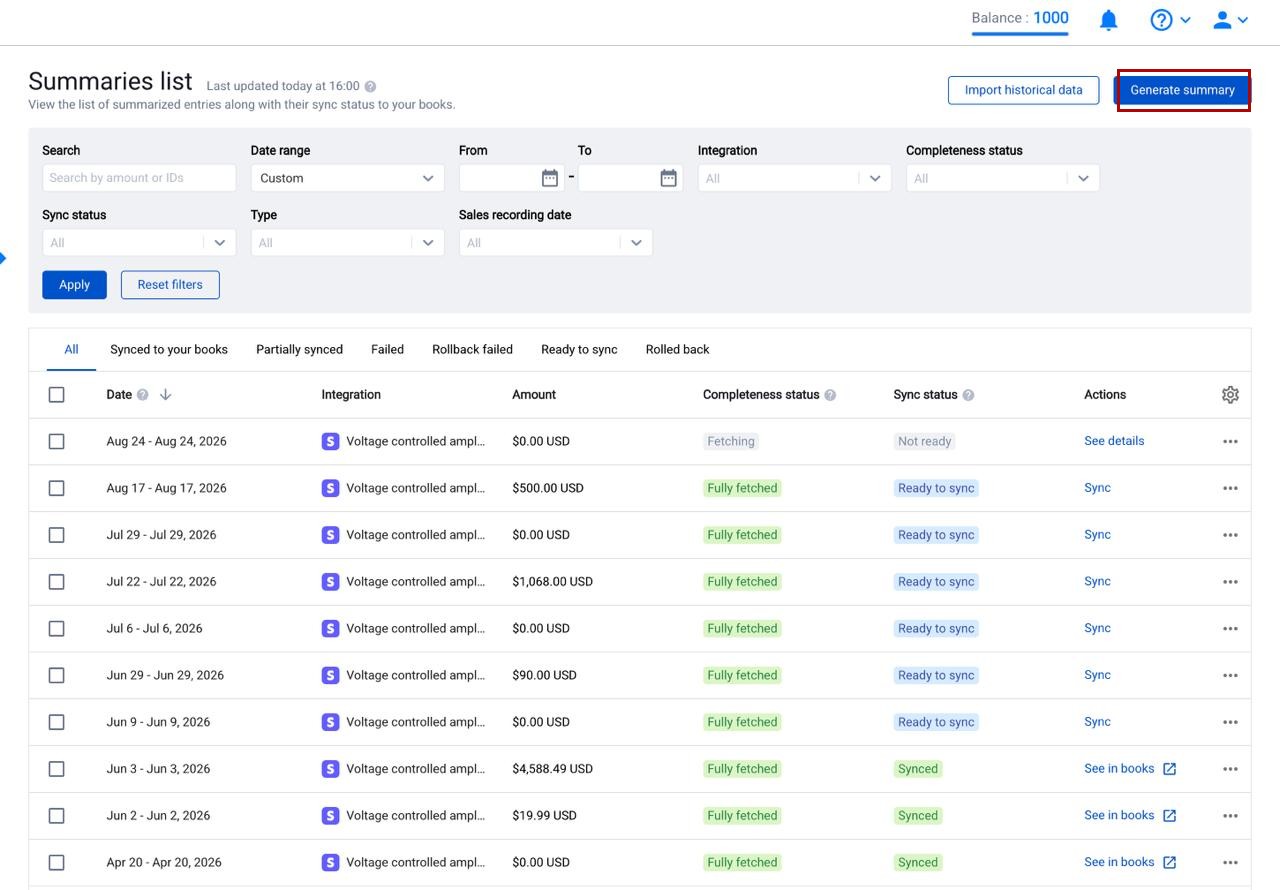
Step 1. Open the Summaries list from the left-side menu, then click Generate summary in the top-right corner.
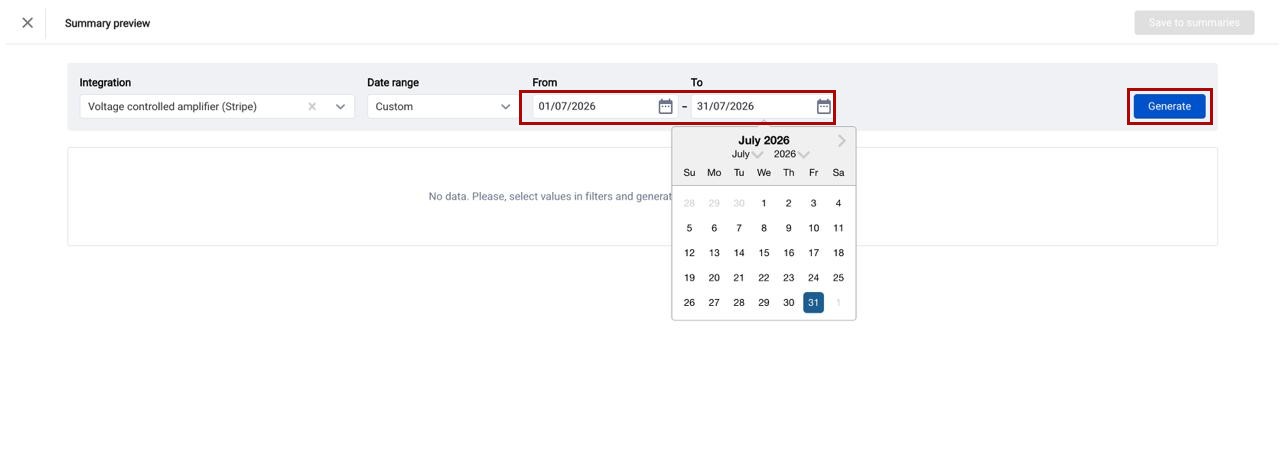
Step 2. In the Summary preview window, select the integration you want the summary for. Next, set the date range using the From and To fields. Finally, click Generate.
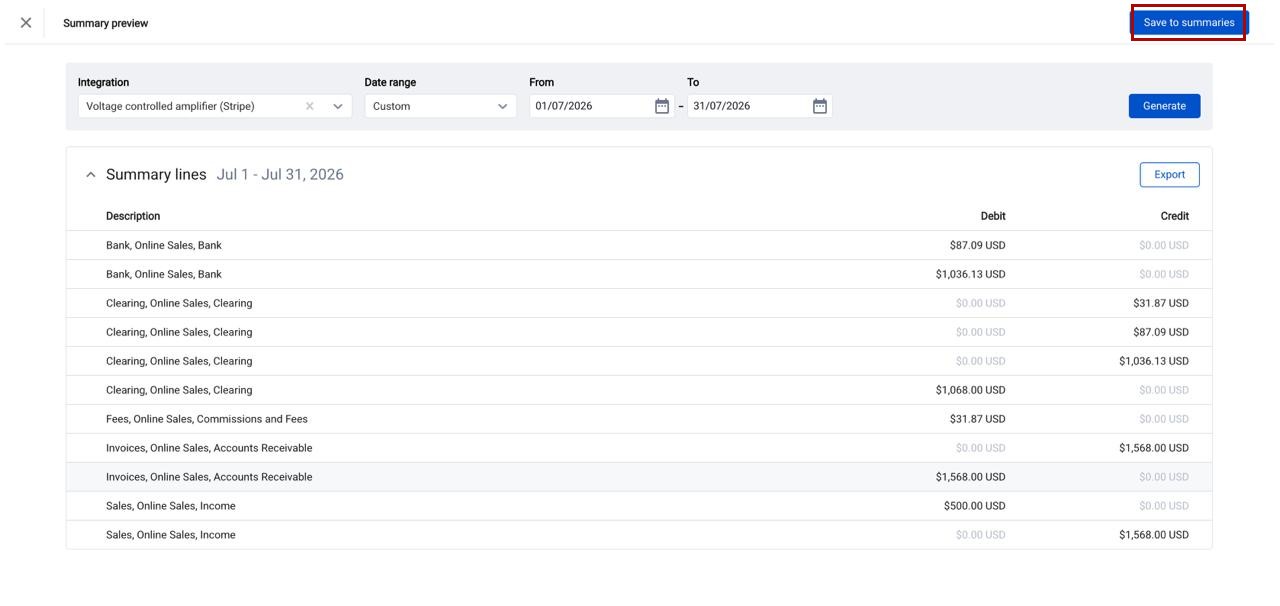
Step 3. Synder builds a preview of the summary lines for that period, grouped by debit and credit. Review the numbers to confirm they look right. When you are satisfied, click Save to summaries.
Step 4. The summary is now saved and appears in your Summaries list. A manually generated summary stays in Ready to sync status until you sync it. To post it to your books, click Sync.
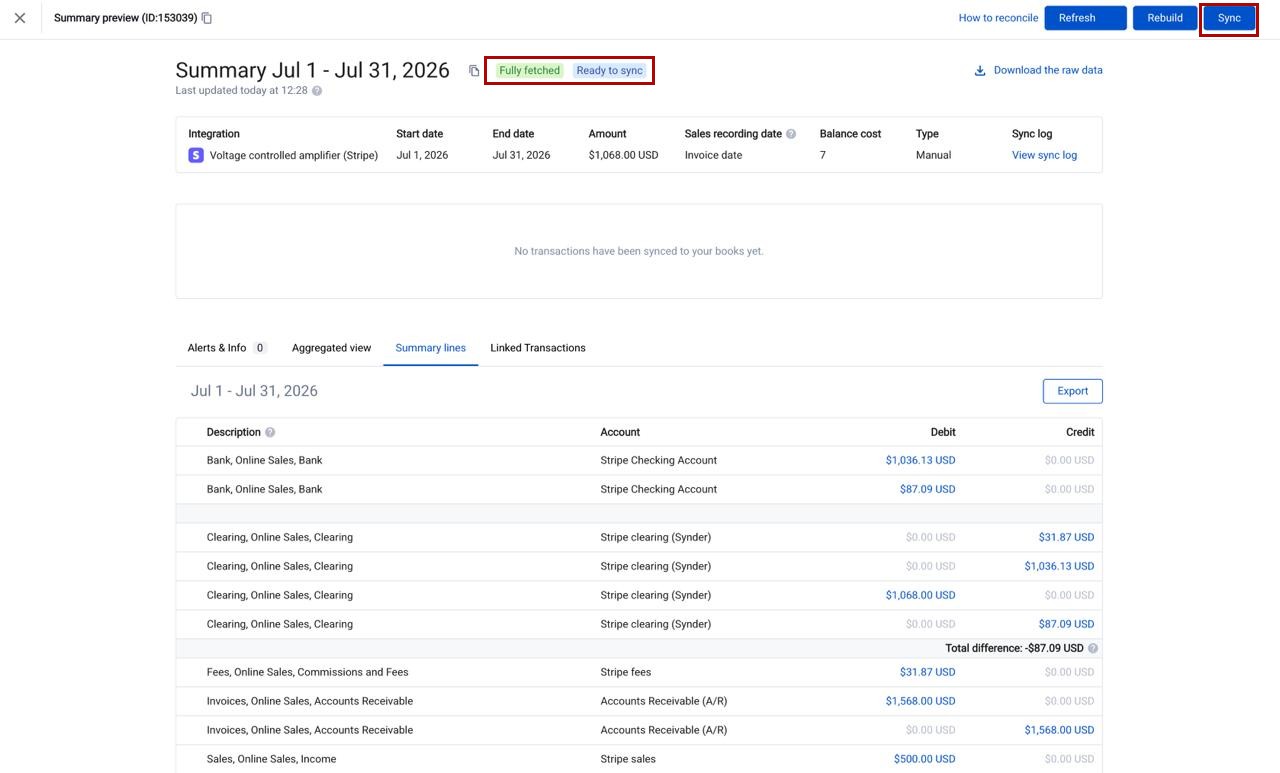
From the saved summary you can also use Refresh to re-check for late transactions, Rebuild to reconstruct the summary from scratch, or Sync to record it in your accounting platform.
Understanding the statuses
Each summary shows a completeness status and a sync status so you always know where it stands:
- Fetching / Not ready — Synder is still collecting transactions for the period, so the summary is not ready yet.
- Fully fetched — all transactions for the period have been collected.
- Ready to sync — the summary is complete and waiting for you to sync it to your books.
- Synced — the summary has been posted to your accounting platform.
Important notes
- Avoid duplicates. If a manual summary overlaps a period that already has a summary, the same transactions can land in two summaries. To check, download the Register report from Summaries → Register and review the Summary ID column: one Summary ID per transaction is correct, two means a duplicate, and none means the transaction is not recorded anywhere. Delete or regenerate summaries as needed to fix discrepancies.
- Late transactions are handled automatically. When new transactions arrive for a period that was already synced, Synder usually creates a Sync Adjustment containing only the new transactions — you do not need to regenerate the whole summary for that. Manual generation is for structural fixes like the cases above, not routine late arrivals.
- You control automatic creation. If you want to stop Synder from creating automatic summaries entirely and manage periods yourself, set the integration’s summary aggregation mode to None.
Related guides
- Summary Sync: Aggregating Data by Day, Payout, Month, or Custom Periods
- How Summary Sync Works: User Guide
- Summary Sync Transaction Reconciliation: Verify Your Data Before You Sync
FAQ
What is the maximum date range for a manual summary?
Each manual summary can cover up to 31 days. For a longer period, generate several summaries back to back.
Can I get back a summary I deleted?
Not automatically. A deleted summary does not return on its own, so you need to manually generate a summary for that same period to restore the data.
Can I generate a per-payout summary manually?
No. Per-payout summaries are built by matching transactions to their payout and cannot be generated manually. Contact Synder support if you need help with a payout period.
Do I still need to sync a manual summary?
Yes. A manually generated summary stays in Ready to sync status until you sync it, unless auto-sync posts it for you. Click Sync to record it in your books.
