

Stripe takes its cut before the money reaches your bank account. That gap between what a customer pays and what you receive has to be recorded correctly in your books, and it has real stakes. If it’s off, your revenue is inaccurate, your fees are missing from your reports, and month-end becomes harder to reconcile.
Besides, the IRS now uses AI-powered data analytics to cross-reference your reported income against third-party processor data, and it can impose penalties reaching 10% of tax payable or up to $25,000 per notice of non-compliance for businesses with inaccurate records. Mismatched records between Stripe and Xero are exactly the kind of discrepancy these programs flag.
This article walks you through how Stripe fees work in Xero, how to set up your accounts properly, how to pass fees on to customers, and how to keep reconciliation from turning into a monthly ordeal.
TL;DR
- Stripe charges different fees: That deduction happens before payout, so what gets to your bank never matches the invoice total without the right accounting setup.
- A clearing account is the structural fix: Setting up a dedicated Stripe account in Xero captures gross sales and fees separately, so your revenue figures stay accurate.
- Automation closes most of the gap: Tools that sync Stripe to Xero automatically can reduce reconciliation to a quick monthly review rather than a multi-day manual task.
What are Stripe fees?
Stripe charges 2.9% + $0.30 for standard domestic card transactions in the US, with international cards running higher at 3.1% + $0.30, plus a 1.5% cross-border fee. These percentages don’t sound dramatic, but at scale they do add up. For example, a business processing $50,000 per month is looking at roughly $1,450–$1,500 in monthly Stripe fees just for standard transactions, nearly $18,000 per year.
Here’s the full picture of Stripe fees you may encounter:
| Fee type | Rate | Notes |
| Standard card (online, US) | 2.9% + $0.30 | Applies to most domestic credit/debit card payments |
| In-person card (Stripe Terminal) | 2.7% + $0.05 | Lower rate for card-present transactions |
| Manually entered card | 3.4% + $0.30 | Added 0.5% for card-not-present risk |
| International card | 3.1% + $0.30 | Extra 0.2% on top of standard rate |
| Cross-border fee | +1.5% | Applied when card is issued outside the US |
| Currency conversion | +1% | Applied when Stripe converts currencies |
| ACH Direct Debit | 0.8% (max $5) | For bank transfer payments; most cost-effective for larger amounts |
| Dispute / chargeback fee | $15 | Charged when a customer disputes a transaction |
| Dispute counter fee (from June 2025) | $15 (refundable if you win) | New fee for contesting a chargeback |
| Instant payouts | 1% of payout | For same-day transfers to your bank |
| Stripe Billing (recurring) | 0.5–0.8% of billing volume | For subscription and recurring payment management |
| Stripe Radar (advanced fraud) | $0.02 per screened transaction | For businesses enabling advanced fraud rules |
Learn more about Stripe fees.
How Stripe fees affect your Xero books
The accounting issue is structural, not just numerical. Stripe deducts fees before transferring funds to your bank.
What experts say
In a LinkedIn post about recording Stripe fees correctly in accounting software, True North Bookkeeping, a Certified QuickBooks ProAdvisor firm serving businesses across the US and Canada, wrote:
If you use a payment service like Stripe or Square, I’m going to take a wild guess and say 99% of you have had this question! Most processors deposit your sales *net* of your merchant fees. For example, you might see $97 hit your account when you made a sale that was actually priced at $100. What’s missing in this equation is the 3% merchant fee that Stripe held back! Ideally, your books would be adjusted to reflect the *gross* sales amount of $100 and the $3 merchant fee.
True North Bookkeeping, Certified QuickBooks ProAdvisor
Takeaway for Stripe and Xero users
If your Xero books only reflect the net deposit, two things happen:
- Your revenue is understated (you record $97 instead of the actual $100 sale).
- Your Stripe fees disappear from view (the $3 fee is never captured as an expense).
The correct approach is to record the full $100 as revenue and log the $3 fee separately as a processing expense.
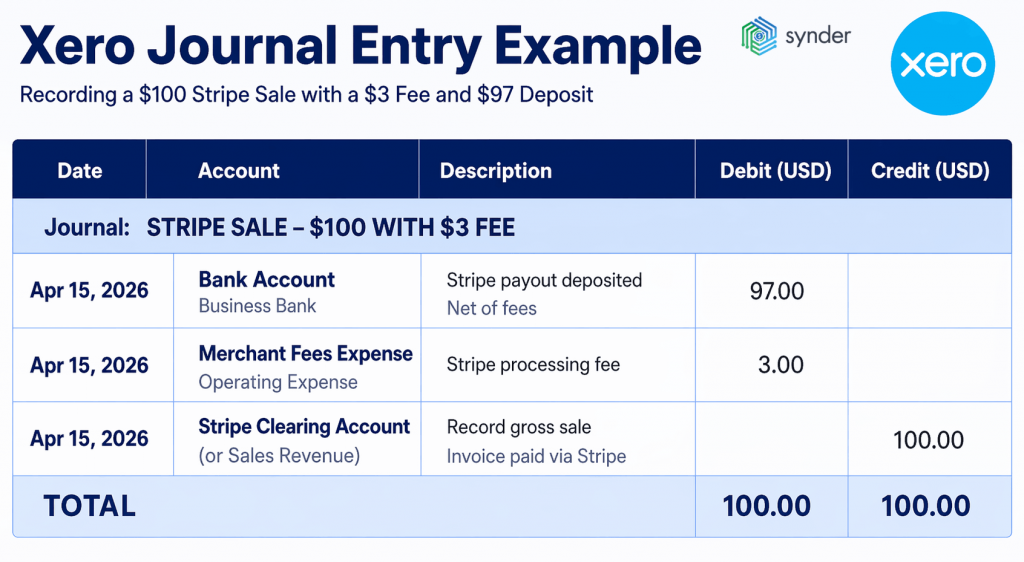
In short, recording only the $97 deposit does not change your bottom line, but it hides what processing costs you as a percentage of revenue and makes your gross sales figures unreliable for any kind of trend analysis or benchmarking.
How to set up your Xero chart of accounts for Stripe fees
Getting this right upfront prevents most reconciliation problems downstream. The core structure you need in Xero involves two accounts: a bank-type clearing account to represent your Stripe balance, and an expense account to capture the processing fees
A clearing account in Xero is a bank-type account (but not a real bank) used for matching and reconciling payment processor transactions.
- Go to Accounting > Advanced > Chart of Accounts.
- Click Add Bank Account.
- Enter a name like Stripe Clearing Account.
- Choose Other as the account type.
- Do not connect it to a bank feed.
For the expense side, add a separate account to capture Stripe fees. Call it “Stripe Fees,” “Payment Processing Fees,” or whatever fits your chart of accounts conventions.
Having a dedicated account gives you a clear picture of how much you’re spending on processing each month, which is useful for budgeting and financial analysis, and it simplifies reconciliation.
Once this structure is in place, the flow works like this:
- Sales receipts post to the clearing account at full invoice value.
- Fees post to the expense account.
- Net payout transfers from the clearing account to your actual bank account.
When Stripe sends the payout, the clearing account balances to zero, which is how you know every transaction has been accounted for correctly.
Here’s a summary of the setup:
| Account | Type in Xero | Purpose |
| Stripe Clearing Account | Bank / Other | Records gross payments and transfers; balances to zero on reconciliation |
| Stripe Fees (or Payment Processing Fees) | Expense | Captures the 2.9% + $0.30 deducted per transaction |
| Your business bank account | Bank | Receives net payouts from Stripe |
Manual vs automatic recording of Stripe fees in Xero
There are two ways to handle Stripe fees in Xero: manually or through automation, and the right choice depends on your transaction volume.
Manual recording
With Xero’s native Stripe integration and scheduled payouts, the process is manageable at low volumes. Xero pulls in transactions, creates fee entries, and helps match payouts to bank deposits. If you’re handling under ~100 payments a month, reviewing and confirming matches is usually enough.
The problem is scale. Once payouts group dozens of transactions, each with fees, refunds, or currency differences, reconciliation becomes time-consuming. Manual payouts add even more work, since everything has to be matched individually.
Automating Stripe fee recording in Xero
Automation works by pulling gross transaction amounts, fees, and payouts directly into the right Xero accounts, then matching each payout to the corresponding bank deposit.
For instance, Synder, an accounting automation tool that syncs financial data across 30+ platforms, including Stripe and Xero, can sync transactions individually. In the Per Transaction sync mode, it records the gross sale, the processing fee, and any refund as separate, linked entries, so each transaction carries full detail: customer name, invoice reference, fee amount, and Stripe charge ID. In Summary mode, Synder groups transactions by day, month, or payout period and posts consolidated entries to Xero, which is faster for high-volume businesses that don’t need line-by-line detail.
A financial Manager at an accounting firm described the shift this way:
I don’t need to go back and check transactions one by one in Stripe anymore. All of the invoices and payments automatically go to QuickBooks, which makes the whole reconciliation process much easier. I just need to go there once at the end of the month and check the balance — that’s it. That’s why I offer Synder to any client who uses Stripe.
Fereshte Moradi, Financial Manager at numbercrunch
If you want to see how this works in practice, you can book a demo with Synder.
How to pass Stripe fees on to customers in Xero
Some businesses choose not to absorb Stripe fees and instead pass them on to customers. Xero supports this through invoice surcharges, but there are a few limitations to understand before using it.
How the surcharge works in Xero
You can enable a surcharge so that when a customer pays via Stripe, an extra percentage is added to the invoice total.
To set it up:
- Go to Settings → Payment Services.
- Select your Stripe connection.
- Enable the surcharge option.
- Enter the percentage you want to apply.
- Save.
To make the surcharge visible on invoices, you’ll also need to update your advanced invoice template by adding the relevant field code. This ensures the fee appears when the customer clicks Pay Now and is included in the final amount.
Remember that Xero applies a fixed percentage, while Stripe fees vary by card type and location. This means the surcharge won’t always match your actual cost. A 2.9% rate usually works for domestic cards, but if you process more international or premium cards, the gap becomes more noticeable.
| Practical considerations: Check local regulations before applying surcharges. In the US, rules vary by state and often limit how much you can pass on. Also consider how this looks to customers. Some businesses avoid line-item fees and adjust pricing instead. |
GST, VAT, and tax on Stripe fees
Stripe fee tax treatment is often less obvious than the accounting itself. The key question is whether GST or VAT applies.
In the US, Stripe fees are generally not taxed and are recorded as a deductible expense (usually under merchant fees or bank charges).
In VAT/GST countries like the UK, Australia, or Canada, it’s more nuanced. Fees may or may not include tax depending on your region, and Xero can apply the wrong tax code by default. It’s worth confirming the correct treatment, since misapplied tax on fees can lead to compliance issues.
| A useful habit: when Stripe sends its monthly fee invoice, reconcile it against your fee expense account in Xero and confirm the tax codes are applied correctly. |
Stripe fees in Xero: what to take away
Getting Stripe fees right in Xero comes down to having the right structure in place before transactions start flowing. A Stripe clearing account, a dedicated expense account for fees, and a consistent reconciliation routine are the foundations. From there, the question is just whether you handle that reconciliation manually or automate it based on your volume.
The clearing account approach keeps your revenue figures accurate, your expense tracking clean, and your bank reconciliation manageable. Whether you absorb fees or pass them to customers, the recording logic is the same: full invoice amount as revenue, fees as expense, net payout as a bank transfer. Keep that structure consistent, and Stripe fees in Xero stay under control.
FAQ
How does a Stripe payment appear as an invoice in Xero?
When a customer pays a Xero invoice via Stripe, the invoice is automatically marked as paid for the full amount. Xero then creates a separate transaction for the Stripe processing fee. The net amount – invoice total minus the fee – is what arrives in your bank account when Stripe makes its payout.
Can I add a 3% fee on Stripe invoices sent through Xero?
Yes, but Xero’s built-in surcharge option applies a fixed percentage to all Stripe card payments, not a dynamic per-transaction rate. To add a 3% surcharge, go to Settings > Payment Services in Xero, select your Stripe connection, and enter 3% in the surcharge field. Note that Stripe’s standard domestic rate is 2.9%, so a 3% surcharge would slightly over-recover on standard transactions but may not fully cover international card rates.
What account category should Stripe fees go into in Xero?
Stripe processing fees are a bank charge or merchant fee, typically categorized as an operating expense. In your Xero chart of accounts, you can label the account “Stripe Fees,” “Payment Processing Fees,” or “Merchant Service Charges.” Keep it separate from other bank fees for cleaner reporting, especially if you want to track processing costs as a percentage of revenue over time.
Does Xero automatically handle Stripe fees during reconciliation?
Yes, if you’re using Xero’s native Stripe integration with automatic payouts enabled. Xero will import fee transactions alongside payment transactions and create matching entries in your designated fee account. For manual payout schedules or invoices created outside Xero, you’ll need to use the Find & Match feature to reconcile fees manually.

![All You Want to Know About Donation Receipts [Synder Guide]](https://synder.com/blog/wp-content/uploads/sites/5/2022/12/all-you-want-to-know-about-donation-receipts-1-260x195.jpg)