
Reconciling Square payments in Xero comes down to matching each net payout that reaches your bank with the individual sales and deductions behind it. Once those numbers line up, your books stay accurate, and month-end closes are much easier. If they don’t, you’ll usually be left with a clearing account balance that never quite returns to zero.
That’s a common issue. In most cases, it happens because Square sends a single net payout to your bank, and that amount doesn’t correspond to any individual sale. This guide explains why payouts don’t match, how to set up Xero, the steps to reconcile everything correctly, and the edge cases that most often cause problems.
TL;DR
- Square payouts combine multiple sales, fees, refunds, taxes, and other adjustments into one net deposit, so they won’t match your bank feed on their own.
- Set up a clearing account, separate accounts for fees and tips, and the correct tax codes before you start. Then match each payout to the transactions behind it.
- Record processing fees, tips, sales tax, refunds, and chargebacks separately. Doing that keeps your reports accurate and helps your clearing account balance back to zero.
- You can reconcile everything manually, use the official Square-Xero integration, or automate the process with a connector if you process a higher volume of transactions or manage multiple locations.
Why Square payouts don’t match your Xero records
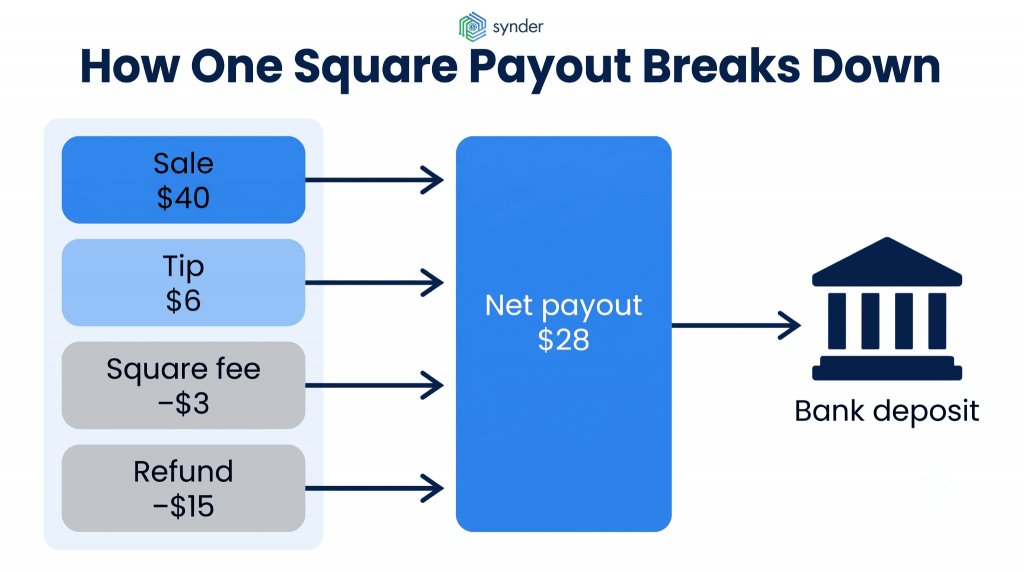
With nearly 4 million merchants, Square is the largest payment provider in the US by merchant count, so the way it structures payouts affects the books of a huge number of Xero users. A Square payout is a summary of activity, which means a single deposit can include dozens of separate transactions. Square groups transactions into daily payouts, so a $40 order, a $6 tip, a $15 refund, and Square’s fee on each card sale are all rolled into one deposit. Your bank feed shows that one amount, while your sales records contain individual invoices. They won’t match on their own because the deposit already reflects fees, refunds, and other adjustments.
This is where manual reconciliation starts taking more time, especially as transaction volume grows. From what we’ve seen in conversations with hundreds of ecommerce and retail businesses, reconciliation is consistently one of the most time-consuming month-end tasks.
Can you integrate Square with Xero?
Yes. There are a few ways to connect Square and Xero, and the best option depends on your transaction volume, the number of sales channels you manage, and how much detail you want to keep in your books.
Manual entry
With this approach, you export your Square sales and payout data, then manually record the sales, fees, and net deposits in Xero. Each payout is matched to the transactions behind it. There’s no additional cost beyond your Xero subscription, and you stay in full control of the bookkeeping. But as transaction volume grows, the process usually becomes slower and more prone to mistakes. That’s why most businesses only rely on manual entry when they’re processing a relatively small number of transactions.
The native Square-Xero integration
Square connects to Xero through the Xero App Store, and the official integration is powered by Amaka. It can sync either a daily sales summary as a single invoice or each order individually. Payments, fees, gift cards, tips, and tax are all included, making it a solid free-to-start option for businesses with a single location.
The limitations are worth understanding before you depend on this setup. The sync runs once a day, so the data in Xero is always at least a day behind. If you use the summary option, multiple transactions are combined into a single invoice, which means you lose customer- and product-level detail. Data also moves in only one direction, from Square to Xero.
There are a couple of other things to keep in mind as your business grows. If you’re using Xero’s entry-level plan, the monthly limit on invoice creation can stop the sync before the month is over if your transaction volume is high. Multi-location and multicurrency businesses are supported, but they often need additional clearing accounts, which means more reconciliation work.
A third-party connector
A third option is to use a dedicated connector, such as Synder. It is an accounting automation platform that syncs data from more than 30 sales and payment platforms into six accounting systems, including Xero. For Square, Synder records the full details of every transaction, including sales, fees, payouts, refunds, adjustments, taxes, and gift cards. You can choose Per Transaction sync for line-by-line records or Summary Sync for batch entries per chosen period/payout.
It also supports multi-currency payouts using the correct conversion rates and can import historical Square data. As a result, it’s well suited to higher-volume sellers, businesses selling across multiple channels, and accounting firms managing several clients.
| To see the Square-to-Xero flow in practice, you can book a demo with Synder. |
How to set up Square in Xero
No matter which method you choose, start with your account structure. Most reconciliation problems begin there. If you map your accounts correctly from the start, matching payouts becomes much easier. Without that step, the same discrepancies are likely to keep showing up each month.
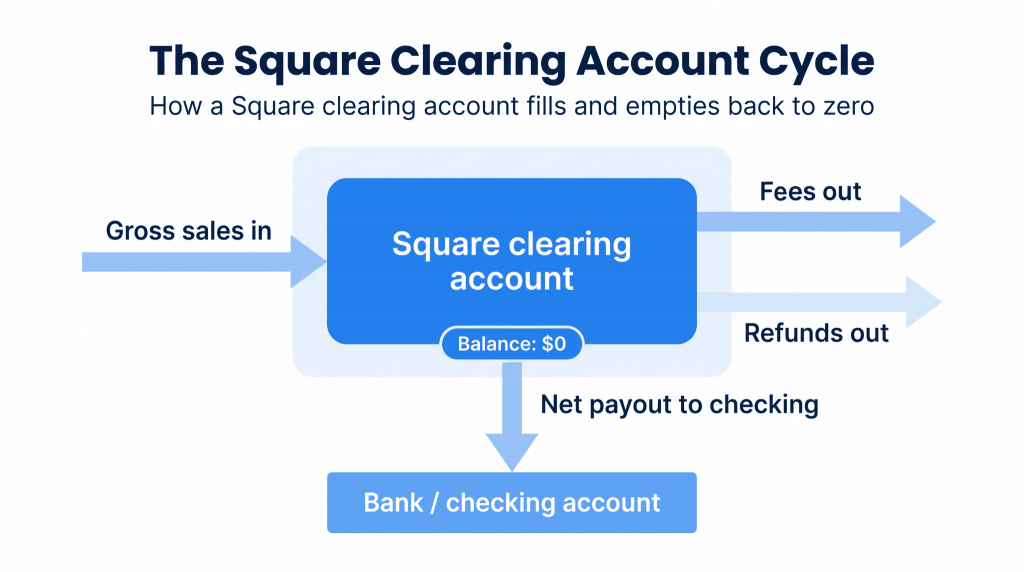
The key is a clearing account, often called Square clearing account or, if you’re using the official integration, Square Balance. It represents money that Square is holding before it’s deposited into your bank account:
Gross sales flow into this account → fees and refunds come out of it → the remaining balance is transferred to your checking account as the net payout.
Once every transaction has been recorded correctly, the balance should return to zero after each payout cycle. That’s usually the clearest sign that your books are in order.
Set up these three accounts before connecting anything:
- A Square clearing account (current asset) to hold funds between the sale and the bank deposit.
- A Square fees expense account to record processing costs separately from sales.
- A Checking account that matches the real bank account where Square payouts are deposited.
Before running your first sync, double-check that your tax rates and default sales accounts are mapped correctly. If the tax coding needs to be corrected later, you’ll have to resync summaries and match those transactions again.
Step-by-step: reconciling Square payments in Xero
After your accounts are mapped and the connection is set up, the remaining work happens in Xero’s bank reconciliation screen. You’ll match each Square payout to the transactions behind it, whether those transactions were entered manually, imported through the native integration, or synced by a connector.
If you’re using a connector such as Synder, it records the sales, fees, and refunds in Xero automatically. You’ll still complete the final reconciliation in Xero by matching the bank deposit to those entries. The goal is the same every time: confirm that the net deposit in your bank feed matches the transactions that make up that payout.
1. Open the reconciliation screen. Go to Accounting, select Bank Accounts, and open the account that receives your Square payouts. Click the three dots under More actions, then choose Reconcile account.
2. Find the payout deposit. Locate the Square payout in your bank feed. Since each payout is net of fees and usually combines multiple sales, you’ll typically be matching one deposit against several transactions that add up to the same total.
3. Match the transactions. Click Find & match. Xero will search for existing transactions that equal the payout amount, usually the sales included in that payout. Before confirming, review the date, reference, and amount to make sure everything lines up.
4. Allocate the fees. Square processing fees should be recorded in your fees expense account instead of reducing your sales. If your integration posts fees as a separate transaction, check that they were assigned to the correct account.
5. Confirm and reconcile. When the selected transactions match the deposit, click OK. The adjustment option is best reserved for small differences, such as rounding or a minor bank fee.
| If the numbers don’t match, it’s usually better to leave the reconciliation for the moment and come back after checking the underlying transactions. Forcing a match often creates a discrepancy that shows up again at month-end. Before you finish, confirm that your clearing account balance has returned to zero. |
How to handle Square fees, tips, and refunds correctly
Processing fees, tips, and refunds are the transactions that cause the most confusion. Each one needs to be recorded differently if you want your reports to stay accurate.
Record Square processing fees as a separate debit to your Square fees expense account. That way, they don’t disappear into the net payout amount. Keeping fees on their own line also makes it much easier to see what you’re paying to accept card payments and notice if those costs change over time.
Tips and sales tax should each have their own account. Customer tips belong in a dedicated tips account because, in many cases, they represent money owed to staff, not revenue for your business. Sales tax should be assigned the correct tax code at the point of sale so it’s posted to the appropriate liability account. If either one ends up in your sales account, your revenue will be overstated, and you may not notice the problem until it’s time to file your taxes.
Refunds and chargebacks also need different treatment. Record a refund as a negative receive-money transaction and match it to the original payout so it reduces revenue for the correct product and reporting period. For chargebacks, create a spend-money transaction and include a memo describing the dispute. That gives you a clear audit trail if you decide to challenge it.
| Type of transaction | How you should record it in Xero | What it helps with |
| Processing fees | Record them as a debit to a dedicated Square fees expense account. | You can see exactly what card processing costs are and track how they change over time. |
| Customer tips | Post them to a separate tips account instead of including them in gross sales. | In many cases, tips are money you owe staff, not business revenue. |
| Sales tax | Apply the correct tax code so the amount is posted to the appropriate liability account. | This helps avoid GST/VAT and sales tax reporting errors. |
| Refunds | Record a negative receive-money transaction and match it to the original payout. | Revenue is reduced for the correct product and reporting period. |
| Chargebacks | Create a spend-money transaction and add a memo about the dispute. | You’ll have an audit trail if the payment is contested. |
If you record these transactions the same way every time, your clearing account is much more likely to balance back to zero. And after you’ve worked through the process manually a few times, many businesses start looking at whether it’s worth continuing to do it by hand.
When to automate Square and Xero reconciliation
According to the 2025 Emerging Trends in Accounting AI report, a survey of 424 senior finance leaders, 54% now automate bank reconciliation, and more than half have reduced their month-end close by three to five days.
If you’re still reconciling Square payouts by hand, this is the point where automation can make a noticeable difference. Synder’s auto reconciliation breaks each Square payout into the individual charges, fees, refunds, and chargebacks behind it, so the deposit matches the transactions that created it. It also compares every clearing account entry with Square’s records and flags anything that doesn’t match exactly. Instead of reviewing every transaction, you only need to check the exceptions. Synder reports 100% reconciliation accuracy and about 50% less time spent on month-end close.
The difference becomes even clearer in day-to-day bookkeeping. LedgerZ Bookkeeping, an outsourced accounting firm serving clients across software, construction, hospitality, and ecommerce, switched its Square workflow to automated per-transaction sync. As a result, the firm saved 120 hours a year during month-end close, along with about 10 hours per client every
Founder Christina Testolin describes the change:
Synder saves me at least 10 hours a month on manual data entry and reconciliation. It gives me the ability to manage multiple income streams and separate clearing accounts for different locations, making month-end close so much easier and more accurate.
Christina Testolin, Founder of LedgerZ Bookkeeping
Common Square and Xero reconciliation errors and how to fix them
Most reconciliation issues between Square and Xero come back to the same few mistakes. Here are the ones you’ll run into most often, along with the usual fix.
- Duplicate transactions: These usually happen when both the direct bank feed and the Square feed are importing the same account, causing each deposit to appear twice. Turn off the duplicate feed, so only one source imports the transactions.
- Unmatched payouts: In most cases, this comes down to timing. Square may settle a payout on one day, while the deposit doesn’t reach your bank feed until another. Match the payout by amount instead of date, or expand the date range in the reconciliation screen.
- A clearing account that won’t return to zero: This is usually caused by a missing transaction or an entry posted to the wrong account. Review the payout step by step until you find the unallocated fee or unmatched sale that’s keeping the balance open.
- Incorrect tax coding: Missing or incorrect tax codes can lead to GST, VAT, or sales tax errors that don’t become obvious until filing time. Check your tax rates when you set everything up, then review them periodically to make sure they’re still correct.
Conclusion: making Square and Xero reconciliation routine
Reconciling Square in Xero gets much easier once you think of each payout as a net summary of many transactions. A clearing account, separate records for fees, tips, and refunds, and a consistent match-and-confirm process keep your books accurate and your clearing account returning to zero, whether you handle everything manually or use a connector to do the work.
Whether it’s worth automating depends largely on your transaction volume and how much time you spend on reconciliation. A single store processing a handful of transactions each day may be perfectly well served by the native integration and a monthly review. Businesses with multiple locations, or accounting firms managing dozens of clients, usually notice the time savings much sooner. Start with a clean setup, get comfortable with the manual workflow, and move to automation once the volume makes it worthwhile.
If you’d like to learn more, check out our complete guide to Square accounting automation.
FAQ
How often should I reconcile Square payments in Xero?
It’s best to match each payout as it appears in your bank feed. For most businesses, that means spending a few minutes every day or every few days instead of leaving everything until month-end. Keeping up with reconciliation throughout the month makes it much easier to identify and fix discrepancies because they’re tied to a specific payout.
What’s the difference between reconciling in Square and reconciling in Xero?
Square shows you the gross sales, fees, and payout totals behind each deposit, but that’s only part of the process. The actual reconciliation happens in Xero, where you confirm that the deposit in your bank feed matches the transactions recorded in your books. Square’s payout reports give you the details you need to verify the match.
Do I need the paid Xero plan to reconcile Square payments?
Reconciliation is included in Xero’s standard plans, so you don’t need a special tier to use it. The main difference is the integration you choose. The official Square-Xero integration is free, while third-party tools require a subscription. Which option makes the most sense depends on your transaction volume and the number of sales channels you manage. Also keep in mind that entry-level Xero plans limit the number of invoices you can create each month, which can become a factor for high-volume sellers no matter which connector you use.
Can I manage multiple Square locations or accounts in Xero?
Yes. If you have multiple Square locations or separate Square accounts, you can track them in Xero. The native integration offers limited support for this setup. A third-party connector gives you more flexibility by assigning transactions to individual locations or separate clearing accounts, making it easier to report revenue and fees for each store instead of combining everything into one total.
Can I import past Square transactions into Xero?
Yes. You can import historical Square data into Xero instead of starting from the current date. The native integration only syncs new transactions, so you’ll need another method for earlier activity. Synder supports historical imports directly. You choose a start date, import as many past Square transactions as your plan allows, and sync them to Xero so previous periods can be reconciled the same way as current ones