
PayPal and QuickBooks Online can be connected in three different ways. You can record the activity yourself, switch on an automatic connection, or use a sync tool that breaks each payout into its individual parts before anything reaches QuickBooks. Most guides only explain the automatic connection, so they miss the other two options that are often a better fit when the default approach doesn’t work.
No matter which method you choose, the data still needs to be recorded correctly. That’s the part that often catches people off guard. Fees, refunds, and currency conversions all need to be assigned to the right accounts in your chart of accounts. You make those decisions once, usually with your bookkeeper or accountant, and they’ll affect your books for the rest of the year. Software can move the data, but it won’t decide how your accounting should be set up.
TL;DR
- Three ways to connect PayPal and QuickBooks Online: manual recording, the native feed, or a third-party sync tool.
- Your transaction volume usually determines the best option. A few dozen transactions a month are manageable by hand, while thousands are much easier to handle with automation.
- Fees, refunds, and sales tax still need to be mapped. The connection imports the data, but it doesn’t choose which accounts those amounts should post to.
- A sync tool can automate reconciliation by recording each payout so it automatically matches the corresponding bank deposit when it appears in QuickBooks.
What “integration” means inside QuickBooks Online
In QuickBooks Online, an integration is an authorized connection between your company file and an external service that lets data move automatically, without exporting and importing CSV files. The authorization is the key part. You grant permission to a specific service, it sends or retrieves selected record types, and QuickBooks records them according to the rules you’ve already configured.
This setup isn’t unique to payment platforms. Payroll providers work the same way. For example, RUN Powered by ADP connects to QuickBooks Online through its General Ledger feature, mapping wages, taxes, and deductions to the accounts you choose and sending that information after each payroll run, as described in ADP’s own setup guide. Ecommerce platforms, inventory systems, and expense tools all follow the same basic model. The difference comes down to the data they send, and payment processors usually produce the most complex records to account for.
Three ways to move PayPal data into QuickBooks Online
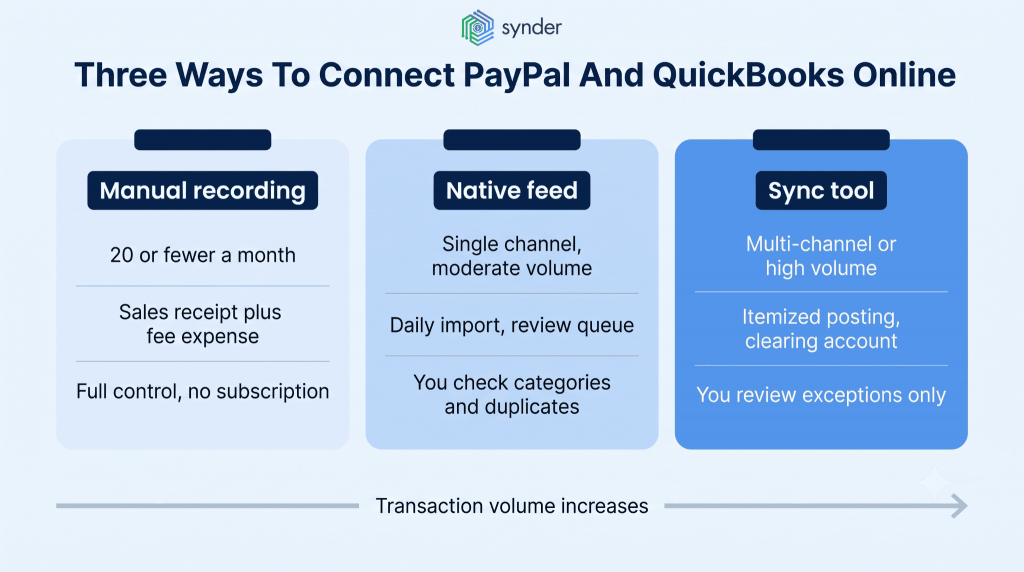
There’s no single method that’s right for everyone. Transaction volume usually decides which approach makes the most sense. If you’re a consultant receiving eight payments a month, paying for automation probably isn’t necessary. You can record everything manually in about ten minutes. A multi-channel business processing thousands of transactions doesn’t really have that option. For most sellers using a single sales channel, the best fit falls somewhere in between.yPal refunds become seamless, with each one perfectly tied back to the original sale without you ever having to dig around manually.
Method 1: recording the activity yourself
Intuit documents a manual workflow that starts with recording a sales receipt for what you sold, entering the PayPal processing fee as a separate expense, and then matching the net deposit when it reaches your bank account. Once you’re dealing with more than a small number of transactions, you can speed things up by formatting a CSV to match QuickBooks’ import requirements and using Upload from file.
The downside is the amount of manual work involved. It also leaves more room for mistakes. Every transaction is another chance to mistype a figure or post it to the wrong account. A common shortcut is to record only the $196.02 that reached your bank instead of the original $200 sale and the separate $3.98 processing fee. By the end of the year, both your revenue and your cost of sales will be understated.
Method 2: letting QuickBooks pull it in
The native option comes in two versions. One connects PayPal as a bank account, bringing activity into the Bank transactions tab so you can review, categorize, and match each entry. The other uses the dedicated Connect to PayPal 2.0 app, which imports sales data daily and records it as accounting documents instead of simple bank feed transactions. In both cases, PayPal processing fees are imported with the transaction and attached when you add or match it, so the expense is recorded as part of the workflow instead of relying on you to enter it later.
Setup is quick. Open Transactions, go to Bank transactions, select Link account, search the list of providers, choose the PayPal account that matches yours, and complete the authentication.
The two options have the same limitations. Categorization relies on pattern matching, so unusual transactions can end up in the wrong accounts. Sales tax comes across as a single total, and not being broken down by jurisdiction. Temporary holds aren’t imported, and if your storefront is connected as well, the same order can sometimes appear twice.
Method 3: running it through a sync tool
Third-party connectors take things a step further by breaking down each PayPal payout before anything is posted to your books. Synder is an accounting automation tool that syncs ecommerce and payment data from PayPal and more than 30 sales and payment platforms into QuickBooks Online, QuickBooks Desktop, other accounting software, and ERP systems.
Synder uses a clearing account to track your PayPal balance. It records sales, fees, refunds, and other related entries there first, then posts a transfer to your checking account for the exact payout amount. That gives the bank deposit waiting in For Review an exact match. Processing fees are recorded as separate expense entries, so your profit and loss statement reflects the correct net results. You can also import up to three years of historical data, compared with the native connection’s 18-month limit. For syncing, you can choose Per Transaction for complete transaction detail or Summary Sync to create a single journal entry for each period or payout.
Before switching to a sync tool, make sure you disconnect the native PayPal feed. If both connections stay active, the same transactions can be imported twice.
| If you’d like to see how this works with a week’s worth of your own data before deciding on your account mappings, you can book a Synder demo. |
Comparing the three connection methods
| Method | Best for | Pros | Things to keep in mind |
| Manual recording | Businesses with around 20 transactions a month or less, closed periods, or historical gaps | Full control, no subscription cost, and the flexibility to enter transactions manually or import them in bulk | You still need to record every sale, fee, refund, and transfer yourself, or prepare and categorize CSV files before importing |
| Native QuickBooks feed | Single-channel businesses with a moderate number of transactions | Daily imports, PayPal fees recorded with each transaction, and a built-in review workflow | You’ll still need to review categorization, watch for duplicate entries, and handle sales tax and foreign currency details |
| Third-party sync tool | Multi-channel businesses or sellers with high transaction volume | Automatically records sales, fees, refunds, and payouts, supports clearing account reconciliation, and lets you choose between summary and per-transaction sync | Initial account mapping is still required, along with occasional reviews of any exceptions |
How to connect PayPal to QuickBooks Online with a sync tool
The setup happens inside the sync tool. Following the steps in the right order makes things much easier. First, connect both accounts. Then let the tool create its clearing account, choose the bank account where your PayPal payouts are deposited, and run a test with a single transaction before turning on automatic syncing.
What to have ready first
- Admin access to both QuickBooks Online and PayPal, or login credentials with enough permissions. If your access is limited, you’ll need the account owner to approve the connection before setup can be completed.
- The QuickBooks Online company file you’ll be syncing to. Each organization connects to one accounting file, so accounting firms usually repeat the setup for every client.
- Your business’s country and time zone, since these settings determine how transaction dates and taxes are recorded.
- The bank account where PayPal sends your payouts, so the connector can match deposits correctly.
The setup steps
- Create your account and enter your organization details. Your country and time zone determine how transactions are dated and how taxes are recorded. If either setting is wrong, every synced transaction will reflect it.
- Choose your accounting platform and payment platform. Select QuickBooks Online and PayPal from the list of supported integrations. If you use more than one payment processor, you can connect them during the same setup.
- Connect QuickBooks Online. Sign in with your QuickBooks credentials, choose the correct company file, and confirm the connection.
- Connect PayPal. Sign in to your PayPal account and approve the permissions when prompted.
- Choose the bank account that receives your PayPal payouts. Synder creates the clearing account in your chart of accounts automatically, so this is the only account you’ll need to select yourself.
- Import your historical data. Use the Historical Import tab if you need older transactions. Until you do, the dashboard only displays your most recent activity.
- Sync one transaction and review it in QuickBooks. Check that everything looks right before turning on automatic syncing.
Testing on one transaction first
The last step is easy to skip, but it’s worth taking a few minutes to do. A properly synced transaction should include the customer name, billing and shipping addresses, invoice and due dates, product or service details, any discounts, sales tax, and the total amount. The PayPal processing fee should appear as a separate accounting entry.
If anything doesn’t look right, roll the sync back and adjust your settings. That removes the transaction from your books and restores the clearing account to its previous balance, so you can sync the same transaction again instead of fixing dozens or hundreds of incorrect entries later.
Once both the transactions and their related payout have synced, your clearing account balance should match your actual PayPal balance. That’s one of the quickest ways to confirm the setup is working as expected. The payout will also appear in the Banking tab with a matching transfer already in place, so all that’s left is to click Confirm.
Synder settings worth deciding before you automate
A few settings are worth reviewing before you switch on automatic syncing because they’ll shape how your books are organized going forward.
Payments can be applied to existing unpaid invoices instead of being recorded as separate sales. Products can be mapped to a single generic item and income account, or to a default product whenever a transaction doesn’t include one. If you want sales tax recorded in QuickBooks, you’ll also need to enable tax syncing and choose a category for marketplace facilitator tax.
Smart Rules let you customize things even further. You can assign classes based on product names for sales receipts and invoices, apply locations automatically, or calculate tax according to the shipping address. Once you’re happy with the configuration, turn on Auto Sync. Just remember that any changes you make later won’t apply until you save and update the settings.
What PayPal costs once it’s running through your books
QuickBooks doesn’t process PayPal payments, so it doesn’t charge processing fees on them. There’s also no separate QuickBooks fee for connecting PayPal. The expenses you see in your books reflect PayPal’s pricing, and the rates vary depending on how the customer pays. Below are the current fees for U.S. merchants:
| Payment type | US rate |
| PayPal Checkout, Guest Checkout, Pay with Venmo | 3.49% + $0.49 |
| Standard credit and debit card payments | 2.99% + $0.49 |
| Send/receive money for goods and services | 2.99% |
| QR code transactions | 2.29% + $0.09 |
| PayPal Pay Later | 4.99% + $0.49 |
| International commercial transactions | Add 1.50% |
Two rates that behave differently in the ledger
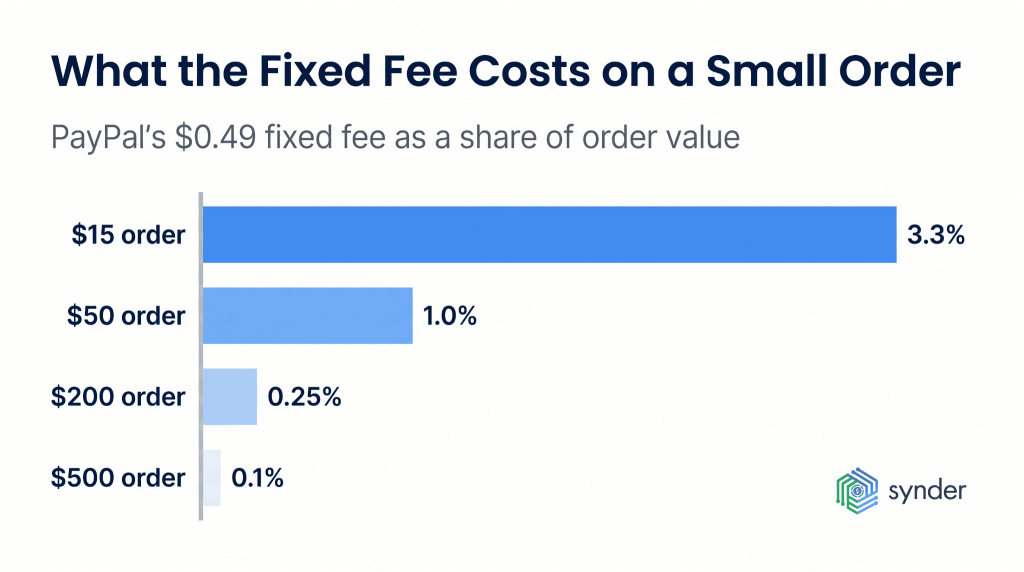
The fixed fee often has the biggest effect on smaller orders. That $0.49 applies to every one of the 25.4 billion payment transactions PayPal processed in 2025, no matter how much the customer spent. On a $500 invoice, it’s barely noticeable. On a $15 sale, though, it adds more than 3% by itself, which pushes the effective processing cost well above the advertised percentage. Your fee expense account should make that visible, and doesn’t fold everything into the net deposits.
Refunds create another accounting wrinkle. PayPal doesn’t charge a separate fee to issue a refund for a commercial transaction, but it also doesn’t return the processing fee you originally paid. That means a fully refunded $200 sale still leaves a processing fee expense in your books. If the refund is recorded as nothing more than a reversal of the sale, your fee expense account will gradually fall out of line.
Disputes have their own fees as well. A chargeback costs $20, while a standard dispute in U.S. dollars costs $15. Currency conversion adds a 3% spread on most transactions, which is one reason businesses selling in multiple currencies often find that PayPal’s reported totals don’t exactly match the amounts reaching their bank accounts.
Get a complete guide on PayPal seller fees.
Common PayPal integration problems and how to fix them
Most QuickBooks Online issues start before the data ever reaches the ledger. They’re usually caused by the way transactions are imported. Synder’s 2025 Emerging Trends in Accounting AI report, based on a survey of 424 senior finance leaders across ecommerce and SaaS, found that 62% report integration issues with the tools they already use. PayPal users tend to run into the same problems again and again, and fortunately each one has a well-established solution.
Duplicate orders in QuickBooks
This usually happens when both your storefront and PayPal send the same order into QuickBooks. The storefront records the gross sale, while PayPal imports the net payout after fees. Because the amounts are different, QuickBooks doesn’t recognize them as the same transaction. If the duplicates aren’t caught, revenue ends up overstated.
A clearing account prevents that. Sales are recorded there first, and each PayPal payout clears the balance as it comes through. When everything has been reconciled correctly, the clearing account should return to zero. Intuit recommends this approach for PayPal and other payment processors.
Sales tax imported as one total
PayPal sends sales tax as a single figure, and that’s exactly what QuickBooks imports. There’s no breakdown by state, county, or other tax jurisdiction. If you sell across multiple locations, you’ll either need to rebuild those details from PayPal’s reports each reporting period or use a sync tool that separates tax into individual lines during the import process.
Transactions that never appear
Sometimes it looks as though the connection has stopped working, but the issue starts earlier. QuickBooks can only display the data PayPal sends it. Some transaction types aren’t imported at all. Temporary holds and releases stay out of the feed, and uncleared transactions won’t appear until they’ve cleared.
Before entering missing transactions manually, check their status in PayPal first. Otherwise, it’s easy to create duplicates when those transactions eventually sync.
If the authorization itself has expired, reconnecting from QuickBooks alone often doesn’t solve it. Remove the existing permission inside PayPal under Account Settings and Account access, then authorize the connection again. If you’re stuck in a sign-in loop or a verification screen, opening the connection in a private browser window or using a different browser often resolves the problem.
Spending time fixing the same entries every month
Some businesses eventually reach the point where manual corrections become part of every month-end close. Tentho, an accounting firm handling Stripe, PayPal, Shopify, and Amazon data for its clients, ran into exactly that issue. Mass payouts were being condensed into single journal entries, leaving the more complicated transactions to be sorted out by hand. After switching to automation, the firm reduced PayPal reconciliation work by 150 minutes each month, or roughly 30 minutes per client.
Synder’s more user-friendly than the other platforms. Everything can be housed under one roof, rather than individual accounts. We can deliver more detailed information to the client, more advice, more guidance.
Edward Dick, Strategy and Finance Manager at Tentho
Automating month-end reconciliation
If you’re handling reconciliation manually, month-end usually means comparing PayPal’s activity totals with the matching balances in QuickBooks and checking that the clearing account has returned to zero. With a few dozen transactions, that might take twenty minutes. With a few thousand, it can easily take a full day. By then, any discrepancies have already worked their way through the books, and tracking them back to the source takes much longer.
Synder’s auto reconciliation shifts that work much earlier in the process. Transaction Reconciliation compares every entry in the clearing account against PayPal’s records and flags only the transactions that don’t match, so you’re reviewing exceptions. It also handles one-to-one, one-to-many, and many-to-many matches, reflecting how PayPal transactions are often structured when a single payment is separated into a sale and a processing fee.
Balance Reconciliation checks the bigger picture. Before any summary entries are posted, it compares your opening and closing balances with PayPal’s balances for the same period. You also get a downloadable audit trail for each reconciliation. If something doesn’t match, you can see the entire transaction flow in one place, adjust the settings, roll the transaction back, sync it again, and rerun the reconciliation without leaving the tool.
What this looks like with high transaction volume
Healthy Meals Direct uses QuickBooks Online, PayPal, and Shopify across more than 30 locations. Today, more than 100,000 transactions are categorized automatically. The same setup also produces the sales tax breakdown needed for New York State’s Prompt Tax filings, which had previously been one of the most time-consuming reports for the team to prepare manually.
We’re saving real time with Synder. Instead of 3 or 4 hours, I now dedicate around 30–45 minutes to the task of reconciling transactions and making sure everything is perfect in our books. That’s over 70 hours saved each month, which I can now dedicate to more strategic parts of my role. The team is thrilled with the time savings and the clarity Synder provides.
Victoria Martinez, Customer Service Manager at Healthy Meals Direct
And their results aren’t unusual. In Synder’s survey, more than half of 424 finance leaders reported shortening their financial close by three to five days.
Learn more about PayPal bookkeeping.
Conclusion: what the PayPal QuickBooks Online integration gets you
Connecting PayPal and QuickBooks Online takes care of moving the data between the two systems, and that alone saves a lot of manual work. In 2026, there aren’t many good reasons to enter PayPal transactions into your books one by one. But the connection is only one part of the process. Clean financial records depend on the accounting decisions you make before the first transaction syncs, including where fees, refunds, disputes, and currency conversions should be recorded. Those settings are worth checking from time to time to make sure they’re still producing the results you expect.
The right integration method mostly comes down to your transaction volume and the way you sell. If PayPal is your only payment processor and you’re handling a few dozen transactions each month, the native QuickBooks connection combined with a clearing account will usually do the job. As your business grows, though, things become more complicated. Selling across multiple channels, accepting several currencies, or processing enough transactions that investigating an issue takes hours instead of minutes changes the picture. At that stage, it’s often worth using a sync tool that handles the mapping automatically. Whichever method you choose, comparing your QuickBooks records with PayPal’s own reports every month is still one of the best ways to keep your books accurate.
FAQ
How often are my PayPal transactions updated in QuickBooks Online?
Intuit’s PayPal app imports sales transactions once a day, and bank feed connections generally refresh on a similar schedule. New sales can take a few minutes to appear after they’re processed. If you don’t see recent activity, try using the Update or Refresh button before assuming there’s a problem with the connection.
Can I add multiple PayPal accounts at once?
Yes, but you’ll need to connect each PayPal account separately and choose the correct listing during setup. If a PayPal account is already linked to another QuickBooks company by a different user, that connection has to be removed before it can be connected again.
What happens to my records if I disconnect PayPal from QuickBooks Online?
Disconnecting PayPal only stops new transactions from syncing. Everything that’s already been added to your books stays exactly where it is. One thing to keep in mind is that any transactions still waiting for review in the bank feed will disappear when you disconnect the account. It’s a good idea to finish reviewing those items before removing the connection or switching to a different PayPal listing.
Why does my CSV upload keep failing?
Most CSV import errors come down to formatting. QuickBooks expects either three columns, Date, Description, and Amount, or four columns: Date, Description, Credit, and Debit. The most common issues are zeros entered where cells should be left blank, numbers appearing by themselves in the Description column, or leaving the header as Amount instead of using separate Credit and Debit columns. If you’re finding yourself reformatting the same CSV every month just to get it into QuickBooks, a sync tool like Synder can eliminate the upload process.
Does the native PayPal feed handle multiple currencies?
The native connection imports the transactions PayPal reports, including converted amounts, but it doesn’t create foreign exchange gain and loss entries automatically. Synder applies QuickBooks exchange rates when transactions are synced because PayPal’s API doesn’t provide its own exchange rates. It also leaves internal transfers between PayPal currency balances out of your accounting records.