
The sales data is available on your Clover register, but the trick is getting it into QuickBooks without having to type out a report every month. There are three ways you could do it. You could periodically prepare your own journal entries, switch on Clover’s native tool, or use an independent connector to move the data automatically.
It is a mainstream issue, as Clover generated sales revenues of $3.3 billion in 2025, an increase of 23% from the year before, and powers the registers for a good percentage of the small merchants using QuickBooks for accounting purposes. They all face a common challenge – the sales figures are here, accounting figures are there, and nothing bridges them except for you.
TL;DR
- You can integrate Clover with QuickBooks using three methods: by manually entering journal entries, using Clover Sync, or connecting the two through a third-party integration. The best choice is determined by your transaction amount and level of detail you want to see in your accounting books.
- The proper mapping of accounts is the key step in your setup. Your sales, tax, processing fees, and every payment type should have corresponding QuickBooks accounts assigned, as well as your Clover deposits in relation to your bank transactions.
- When there are some issues with the process, it is most likely due to the setup. Authentication errors, duplicates, and tax code mapping problems are always related to configuration issues.
Why connect Clover to QuickBooks Online
The manual entry of Clover’s sales into QuickBooks can work for some time, but there are chances of making errors such as a transposed figure, a missed refund, or a tax total that doesn’t match. Most likely, the errors will go unnoticed until it’s time to reconcile your accounts. By then, correcting these errors can take much longer than entering the journal entries in the first place.
With integration, the process becomes more efficient and the accuracy of the records in QuickBooks will match what is recorded in Clover.
Integration methods and tools for Clover and QuickBooks
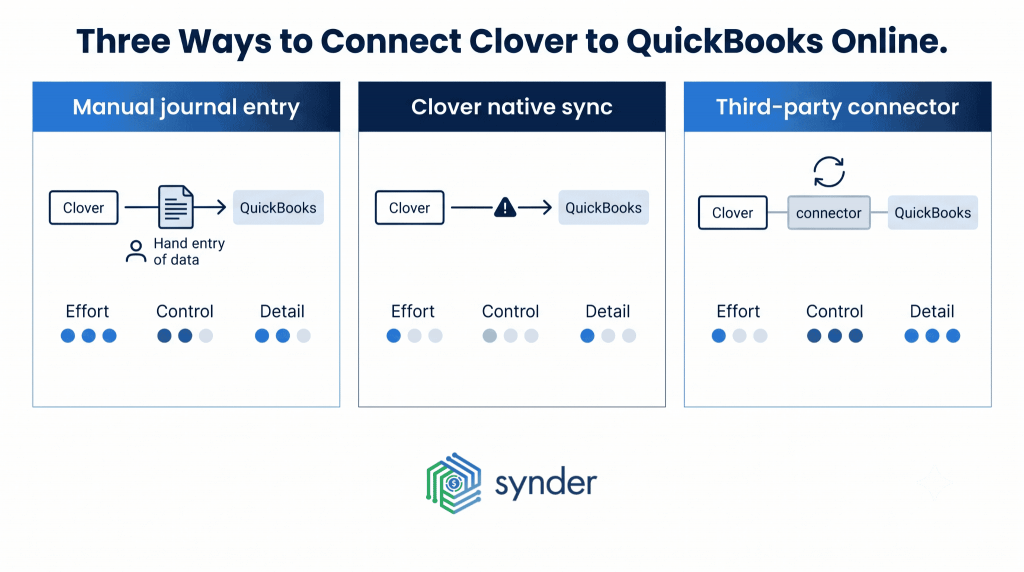
There are three principal approaches that will allow you to transfer information from Clover to QuickBooks Online. All of them help reach the same aim, but differ in terms of effort required, transaction detail retention, and control over the accounting.
Manual journal entry
With the manual journal entry method, you summarize a reporting period in one balanced entry using your Clover reports. Gross sales are recorded as a credit, discounts and refunds as debits, and card payments move through a clearing account until the matching bank deposit arrives.
The biggest advantage is control. It doesn’t cost anything beyond your time, you decide exactly how each figure is recorded, and QuickBooks won’t save the entry unless it balances, so basic math errors are easy to catch. Many accounting firms prefer this approach because the same journal entry template can be reused for clients using different point-of-sale systems.
The drawback is that it takes manual effort. Someone will have to export the report from Clover and update the journal every reporting period. Having a template will facilitate the process. In reality, it will be just a matter of copying and pasting, but it is not automated. This is generally not a big deal if there is only one venue.
Clover’s native sync
Clover includes a built-in accounting sync that connects directly with QuickBooks Online. The main benefit is that it’s easy to get started. There’s no separate app to install and no additional subscription, so it’s often the first option businesses try when exploring automation.
The limitation is reliability. The native sync has documented authentication issues with some QuickBooks accounts, and businesses that begin with it often switch to a connector or back to manual journal entries after the connection fails more than once. It also doesn’t give you much flexibility over account mapping, so it’s generally better suited to testing the workflow than to a long-term bookkeeping process.
Third-party connectors
Third-party connectors range from simple summary-sync tools to full accounting automation platforms. Synder, for example, offers two sync options. You can record every Clover sale individually with a per-transaction sync or post one consolidated daily summary. In both cases, it records sales, taxes, refunds, Clover fees, and payouts, so your books stay ready for reconciliation. Customizable Smart Rules let you automatically categorize transactions by location, category, or payment type, while duplicate detection helps prevent repeat entries. If you’re bringing over older records, you can also import years of historical Clover data and roll it back or resync if needed.
That kind of flexibility becomes more valuable as a business grows. Healthy Meals Direct, a meal-prep company operating more than 30 locations on QuickBooks Online, was spending 3-4 hours every day on manual reconciliation. The team also lacked store-level and county-level sales visibility, and sales tax wasn’t broken down clearly enough to make New York State’s monthly PromptTax filings easy to prepare. After automating with Synder, the reconciliation process dropped immensely. Sales are now categorized by store and county as they come in, and sales tax is separated accurately to support each county’s filing requirements.
We’re saving real time with Synder. Instead of 3 or 4 hours, I now dedicate around 30–45 minutes to the task of reconciling transactions and making sure everything is perfect in our books. That’s over 70 hours saved each month, which I can now dedicate to more strategic parts of my role. The team is thrilled with the time savings and the clarity Synder provides.
Victoria Martinez, Customer Service Manager at Healthy Meals Direct
| If your Clover sales span multiple locations or tax jurisdictions, book a Synder demo to see how categorization works with your own data. |
| If you choose… | How it works | It’s usually a good fit if… | Keep this in mind |
| Manual journal entry | You post one balanced journal entry for each reporting period using your Clover report. | You want full control over your books, have lower transaction volume, or manage multiple clients with the same process. | Every reporting period still requires manual work. |
| Clover native sync | Clover connects directly to QuickBooks Online through its built-in integration. | You want to try an automated connection without adding another app. | Connection and authentication issues are fairly common. |
| Third-party connector | The software syncs Clover data automatically, either transaction-by-transaction or as summary entries. | You process a high volume of sales, run multiple locations, or want to minimize manual bookkeeping. | You’ll pay a subscription fee and spend a little time on the initial setup. |
How to connect Clover to QuickBooks Online
Using a third-party connector is the approach most businesses choose. While each tool has its own setup process, the overall flow is very similar. You create an account, connect your sales and accounting platforms, and let the connector move data between them.
- Create an account and connect QuickBooks. Sign up with the connector you’ve chosen and connect your QuickBooks Online company first. Most tools will ask you to choose a sync mode at this stage, either a daily summary or per-transaction sync, so pick the one that matches the level of detail you want in your books.
- Select your sales platforms. Choose every service you use to accept payments. You can connect them during setup or come back and add more later if your business expands.
- Connect your Clover account. Authorize the connection using a Clover administrator account, or ask the account owner to approve it if you don’t have admin access. Most connectors also create a Clover clearing account automatically, allowing card sales to be recorded there before the matching bank deposits appear.
- Run a test sync before going live. Sync a small date range first and compare the results with your Clover reports. If any account mappings need to be adjusted, it’s much easier to make those changes while you’re reviewing only a handful of transactions.
A successful test run is a good sign that the setup is working as expected. If the numbers reconcile on a small sample, they’ll generally reconcile the same way once you start syncing your full transaction volume.
What Clover data syncs to QuickBooks and where it posts
It helps to know exactly what comes over from Clover and where each item ends up in QuickBooks. Once the mapping is set up correctly, your reports become much easier to read because each payment type is recorded in the right place. The last step is reconciliation. The deposits reported by Clover should match what’s in your QuickBooks bank feed, and when they do, you know the month has closed cleanly.
| Clover data | It posts to… | Why it’s recorded there |
| Sales by category | Income account(s) | Tracks revenue, either in one sales account or split by retail, online, and in-store sales. |
| Sales tax collected | Sales tax liability | Keeps tax you owe separate from the revenue you’ve earned. |
| Processing fees | Expense (or COGS) | Records payment processing costs separately so revenue isn’t overstated. |
| Card payments | Clearing / asset account | Holds card payments until the matching bank deposit is reconciled. |
| Cash and checks | Holding / asset account | Keeps the funds there until they’re physically deposited into the bank. |
| Gift cards | Liability | Records the amount owed when gift cards are sold and reduces the balance when customers redeem them. |
Common problems with Clover QuickBooks integration and their solutions
Integration problems are primarily connected to the set-up rather than syncing itself. If discovered during your first tests, they can be easily resolved. Otherwise, it can be hard to notice that something is wrong until the amount of erroneous data accumulates.
Authentication failures
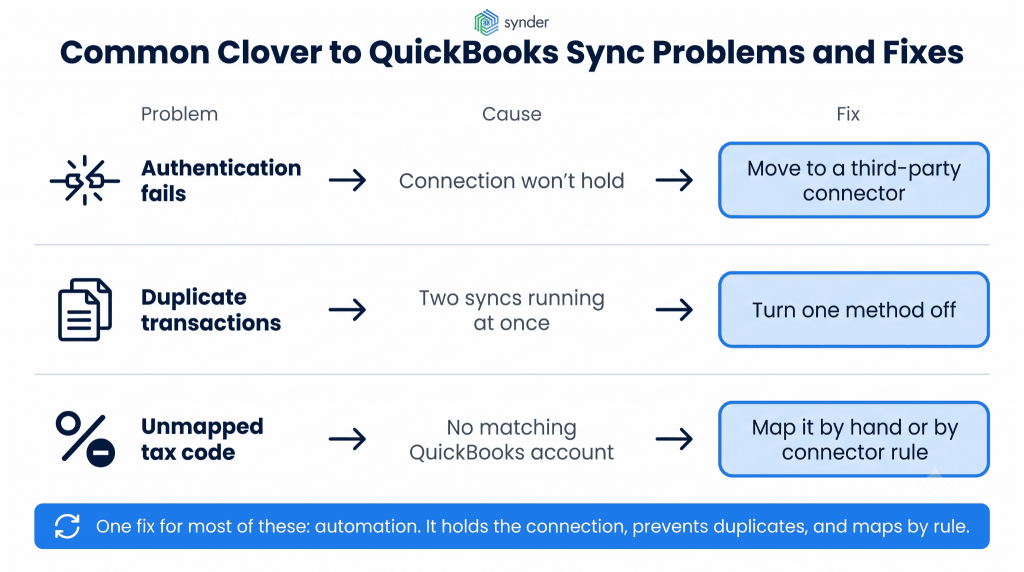
It is the most common problem companies face when integrating their Clover and QuickBooks accounts. The native synchronization does not maintain its connection to QuickBooks Online and either cannot establish it at all or disconnects unexpectedly after a few days of work, resulting in untransferred Clover sales. That’s why many companies decide to integrate using accounting automation software.
Duplicate transactions
When you have both Clover’s built-in sync mechanism and third-party connector working, they would each record the same sales in your QuickBooks. Your revenue will be overstated, and reconciling will soon become a nightmare.
The solution here is quite straightforward – choose one mechanism that you want to use, switch the second off entirely, and delete duplicates before they get recorded in your reports.
Unmapped tax codes
Another reason for syncing to fail is an unmatched Clover tax code. Such an issue typically arises either during the initial integration or when a new tax rate has been introduced.
What you need to do here is map this tax code to a relevant QuickBooks account. Just taking some time to check your mappings before syncing automatically may save you from further headaches.
How automation solves these problems
The automation systems are created to overcome such complications before they even happen. The connections remain live, they help prevent duplicates, provide tax mappings automatically, and also allow importing historical Clover data.
You’ll continue reconciling your books with the bank feed, but after the initial setup, the problems that have occurred every month will not repeat.
Learn more about QuickBooks POS systems.
Conclusion
The best way to integrate QuickBooks and Clover will depend on your transaction volume and needs. You can opt for either the journal entry approach or the summary entry, depending on whether you have one business location and lower transaction volume. However, as your business expands to multiple locations and starts dealing with higher transaction volume or even multiple jurisdictions for sales taxes, the use of a third-party solution would be the better choice.
Regardless of your approach, the process remains the same. Map your transactions and your taxes according to the appropriate QuickBooks accounts. Then test the integration on a date range and compare the results with those in your Clover account. Only after verifying that your Clover deposits match those in your bank feed can you set up a one-time auto-sync.
FAQ
Do I need QuickBooks if I already use Clover?
Yes, as the two programs cater to different aspects of your company. Clover logs and processes the sales transactions, whereas QuickBooks is an accounting program that deals with expenses and payroll. All companies have both of these programs, which work together and send sales data directly to the books.
What accounting software integrates with Clover?
QuickBooks Online is the platform most businesses connect to Clover. Clover can also integrate with other accounting systems, including Xero. In practice, the connection is usually made manually, through an automation tool, or Clover’s built-in sync.
Can I sync historical Clover sales after connecting to QuickBooks?
Not really. Most of the systems synchronize just starting from the day that they get connected, so syncing the old months is a separate task: to export a Clover sales report for those months and to import them manually. Some third-party software, such as Synder, works in a different way. They will export your entire history of Clover transactions within a single import and let you re-sync it when needed.