


Amazon has evolved into one of the most competitive and high-volume ecommerce ecosystems in the world. What began as a marketplace for smaller sellers now supports large-scale operations. Recent data shows that more than 55,000 independent Amazon sellers generate over $1 million in annual sales, and third-party sellers account for over 60% of total Amazon sales.
As revenue grows, accounting complexity grows with it. Amazon’s settlement-based payout system, layered fee structure, marketplace facilitator tax rules, and reserve mechanics require a different bookkeeping approach than traditional businesses. This article explains why Amazon accounting works differently, how settlements should be recorded, the limitations of manual methods, and when automation becomes the more accurate and efficient solution.
TL;DR
- Amazon payouts bundle sales, refunds, fees, taxes, and reserves into one net deposit, making bookkeeping more complex than traditional sales.
- Recording only the bank deposit hides expenses, distorts margins, and misstates tax liability.
- Manual settlement breakdowns improve accuracy but become time-consuming and error-prone as volume grows.
- Automation software like Synder syncs settlement data correctly, categorizes all Amazon fee types, and keeps clearing accounts accurate.
- At 100+ monthly orders or multi-channel sales, automation typically saves time, reduces accounting costs, and prevents expensive reporting mistakes.
Why Amazon accounting differs from traditional bookkeeping
Amazon operates fundamentally differently from brick-and-mortar businesses or even most other ecommerce platforms. Your financial activity flows through Amazon’s payment system, not directly to your bank account, which creates a disconnect between actual sales activity and what hits your checking account.
Every two weeks, Amazon processes a settlement that combines multiple transaction types into a single net deposit. This settlement includes gross sales, customer refunds, Amazon fees, chargebacks, tax collections, reserves, and various adjustments. What appears as one line item in your bank feed actually represents hundreds or thousands of individual transactions.
This complexity means you can’t simply categorize the bank deposit as “sales income” and call it a day. You’ll miss critical expense deductions, misreport your tax liability, and have zero visibility into which fees are eating your margins. As your business scales, these blind spots become expensive problems.
Amazon’s payment structure and settlement reports
Amazon settles payments on a regular schedule, typically every 14 days, though this can vary based on your seller account settings. During each settlement period, Amazon collects all your transactions and calculates a net amount after deducting applicable fees and reserves.
Your settlement report breaks down everything that contributed to your payout. For example, you might see:
- $10,000 in product sales
- $300 in shipping revenue
- $75 in customer refunds
- $250 in chargebacks
- $850 in Amazon fees
- $100 held in reserves
The actual deposit hitting your bank account would be $8,725.
These settlement reports are available through Amazon Seller Central and contain the detailed transaction data you need for accurate QuickBooks entries. The challenge is transforming this data into properly categorized accounting records. Many sellers download these CSV files and attempt to manually parse them, but Amazon’s fee structure includes dozens of different charge types that need accurate categorization.
Manual recording methods and their limitations
When you’re just starting, the simplest approach is to record only the net amount that lands in your bank account every two weeks. You create a bank deposit in QuickBooks matching the amount Amazon transferred and categorize it to sales income. This takes about five minutes per settlement, but misses all expense details that Amazon deducted from your gross sales. Those fees are legitimate business expenses you’re leaving on the table at tax time.
A more accurate manual approach involves creating detailed journal entries that break down each settlement component, where you’d create entries debiting and crediting your clearing account, income accounts, and expense accounts accordingly.
Example of a journal entry for Amazon settlement
| Account | Debit | Credit |
| To record gross sales and shipping revenue | ||
| Amazon clearing account | $10,300 | |
| Sales income | $10,000 | |
| Shipping income | $300 | |
| To record customer refunds | ||
| Sales returns & refunds | $75 | |
| Amazon clearing account | $75 | |
| To record Amazon fees and expenses | ||
| Amazon referral fees | $450 | |
| Amazon FBA fees | $300 | |
| Amazon storage fees | $100 | |
| Amazon clearing account | $850 | |
| To record net deposit from Amazon | ||
| Checking account | $9,375 | |
| Amazon clearing account | $9,375 | |
| TOTALS | $20,600 | $20,600 |
Net deposit calculation: $10,000 + $300 – $75 – $850 = $9,375
This gives you complete visibility but requires up to 60 minutes per settlement and becomes error-prone as transaction volume increases.
Automated solutions: Connecting Amazon to QuickBooks efficiently
Automation tools eliminate the manual data entry burden by syncing Amazon settlement data directly into QuickBooks with proper categorization. These integrations pull your settlement reports, break down all transaction components, and create the appropriate accounting entries automatically.
One of the most popular choices is Synder, an accounting automation platform designed specifically for ecommerce sellers who need accurate multi-channel bookkeeping. It connects your Amazon Seller Central account directly to QuickBooks Online and handles the complex fee categorization that makes Amazon accounting so challenging.
What sets Synder apart for Amazon sellers is its approach to settlement accuracy. Instead of syncing transactions immediately, Synder waits for critical confirmations to ensure 100% precision:
- Holds Amazon payouts in the “Pending” status until the bank confirms receipt of the transfer
- Waits until settlement reports are fully available
- Finalizes exchange rates for foreign currency transactions before posting
This prevents the common issue of recording transactions prematurely with incorrect amounts or exchange rates.
When you use Synder for Amazon QuickBooks integration, the software automatically syncs your settlement data once all confirmations are complete. It categorizes all Amazon fee types into appropriate expense accounts, tracks refunds separately, handles sales tax properly, and creates clearing account entries that reconcile perfectly with your bank deposits.
Ready to eliminate manual Amazon data entry? Schedule a demo to see exactly how Synder handles your Amazon settlement structure.
Setting up Synder for Amazon QuickBooks integration
Here’s how to get started.
1. Create your Synder account – Sign up at Synder’s registration page to create a free trial account.
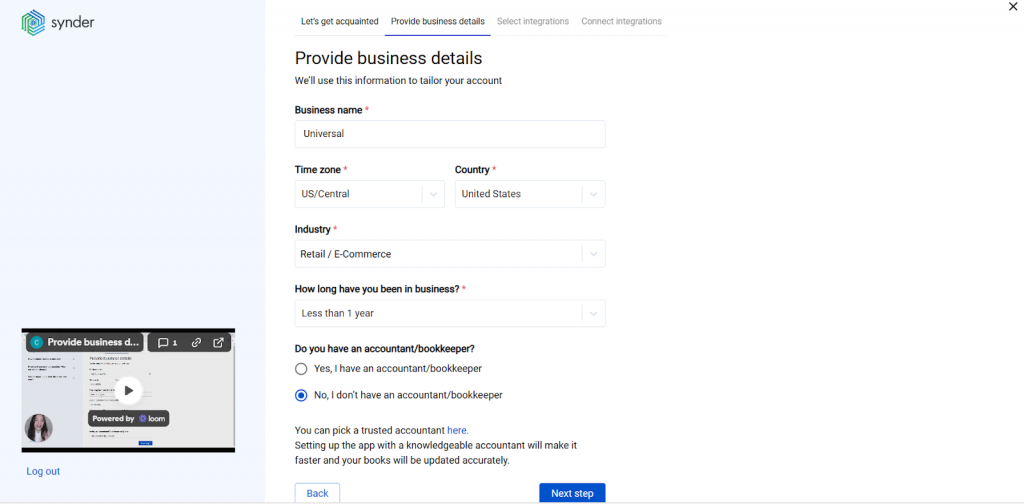
2. Provide your business details – Fill in information about your business during the organization setup process and click Next step.
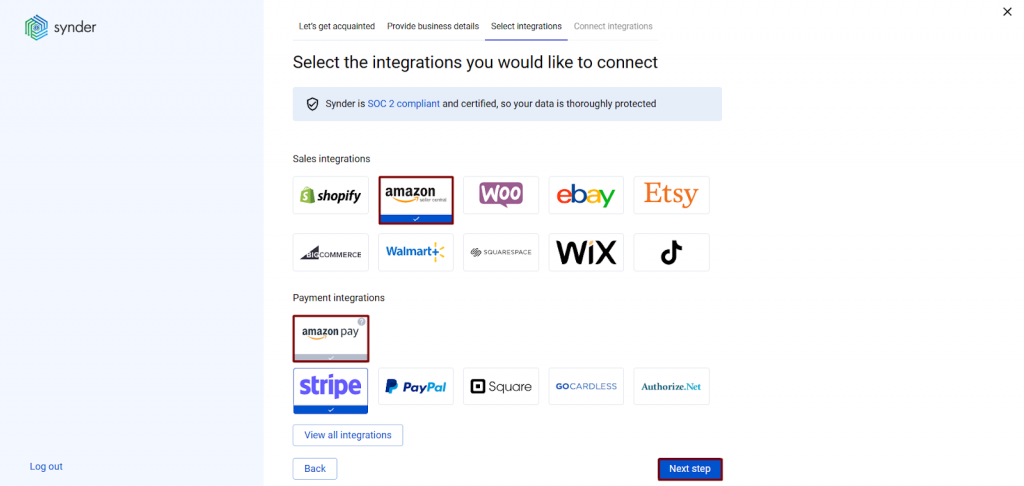
3. Select the platforms you’d like to integrate – Click View all integrations to see available platforms. Mark Amazon, along with any other platforms you use. You can connect them all at once or skip some and add them later.
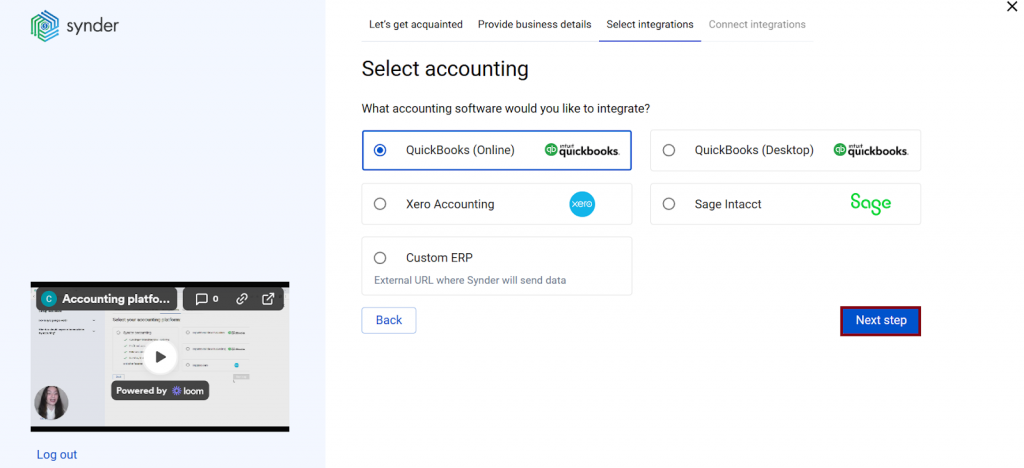
4. Connect your accounting platform – Select QuickBooks Online and click Next step.
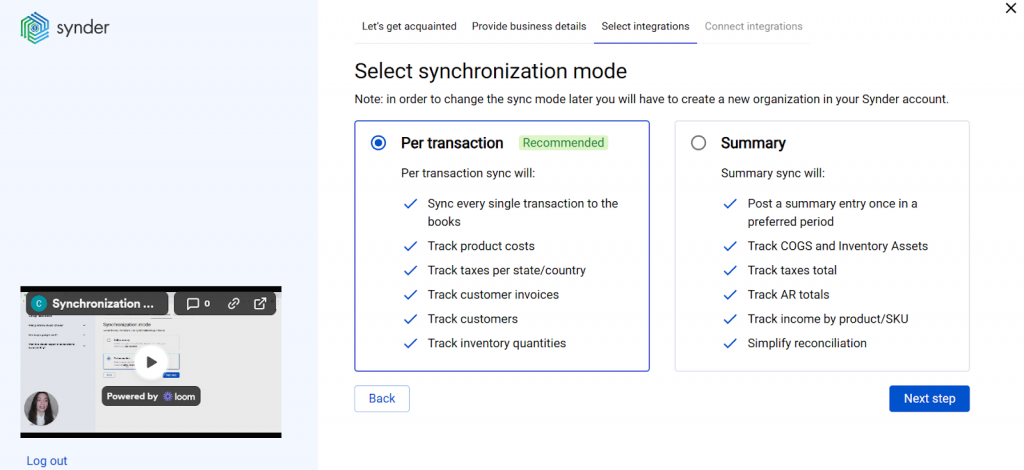
You’ll be prompted to choose your sync mode: Summary Sync mode (one consolidated journal entry per selected period) or Per Transaction mode (each sale as a separate sales receipt).
5. Connect your Amazon store – Select your Amazon region from the dropdown and click Connect. 
Note: If you’re not an admin, select Invite account owner to complete this step.
6. Set up the Amazon integration – Choose the bank account where you receive Amazon payouts (usually your checking account). This allows smooth one-click reconciliation of your Amazon transactions.
How Synder helps real businesses handle complex Amazon settlements across multiple channels
Synder gives growing businesses tangible, measurable benefits:
- Saves dozens of bookkeeping hours each month through automated fee categorization
- Lowers accounting costs by eliminating the need for additional headcount
- Improves margin visibility with separated referral, FBA, storage, and advertising fees
- Speeds up month-end close with accurate, settlement-based syncing
For example, Dermeleve, an ecommerce brand selling across Amazon, Shopify, and wholesale, struggled to track Amazon’s layered fee structure while managing four sales channels. Manual tracking made it difficult to understand true storage, referral, and fulfillment costs.
After implementing Synder, their CFO gained automated, detailed fee breakdowns and 99.5% reconciliation accuracy across more than 170,000 transactions annually. What once required extensive manual effort and would have demanded a multi-person accounting team is now managed efficiently by one finance leader, saving both time and salary costs while improving financial clarity.
Comparing Amazon recording methods
Choosing the right approach depends on your transaction volume, accuracy needs, and available time. Here’s how the methods stack up:
| Recording method | Accuracy level | Fee detail | Best for |
| Net deposits only | Low – missing expense details | None captured | Very small sellers under $50K annually |
| Manual breakdown | Medium – prone to data entry errors | Complete but labor-intensive | Sellers wanting details without automation costs |
| Automated sync (Synder) | High – up to 100% accuracy | Automatic categorization | Growing businesses with 100+ monthly orders |
When to move from manual to automated Amazon accounting
If you’re processing 100+ orders per month, selling across multiple channels, or paying hourly bookkeeping fees, automation typically pays for itself. The time saved on data entry and reconciliation quickly offsets software costs, while improved accuracy prevents expensive mistakes.
The real tipping point is when bookkeeping starts slowing down growth: if you’re spending more time fixing spreadsheets than making decisions, it’s time to automate.
Common problems with recording Amazon sales and how to handle them
Below are the most common problems Amazon sellers face and how to handle them correctly.
Problem #1: Confusing marketplace facilitator tax with your own sales tax liability
Many sellers don’t clearly separate the tax Amazon collects on their behalf from the tax they are responsible for remitting. Since marketplace facilitator tax never reaches your bank account, it’s easy to either ignore it completely or mistakenly record it as income or liability.
How to handle it:
- Record self-collected tax in a dedicated sales tax liability account
- Record marketplace facilitator tax separately so it doesn’t inflate what you owe
- Regularly review settlement reports to confirm both tax types are treated correctly
Clear separation prevents compliance issues and overstated liabilities.
Problem #2: Clearing account never returns to zero
If you don’t use a proper clearing account or fail to reconcile it, balances start accumulating and no longer reflect Amazon’s actual pending funds.
This usually happens when:
- Refunds are missed
- Fees aren’t fully recorded
- A payout hasn’t been matched properly
How to handle it:
- Set up a dedicated Amazon clearing account
- Record sales as increases, and fees/refunds as decreases
- Move funds from clearing to checking when payouts occur
- Reconcile after each settlement so the clearing account returns to zero
If it doesn’t zero out, investigate immediately.
Problem #3: Recording net revenue instead of gross sales and refunds
A common shortcut is recording only the net payout amount. For example, a $100 sale and $20 refund get recorded as $80 revenue. This hides actual sales volume and distorts return rates.
How to handle it:
- Record gross sales separately
- Record refunds as separate entries
- Track fee categories individually
This preserves margin visibility and keeps performance analysis accurate.
Problem #4: Lumping all Amazon fees into one expense account
Combining all fees into one account removes visibility into what’s actually driving costs.
How to handle it:
- Create separate expense accounts for major fee categories
- Track advertising separately from fulfillment and referral fees
- Review fee trends monthly to understand margin pressure
Granular tracking leads to better operational decisions.
Problem #5: Weak or inconsistent reconciliation process
Many sellers reconcile only their bank account and ignore the clearing account, tax liability balances, or inventory alignment. Over time, small discrepancies compound.
How to handle it:
- Reconcile monthly at minimum
- Compare clearing balance to Amazon’s pending balance
- Verify sales tax liability matches what you actually owe
- Confirm COGS aligns with inventory levels
- Keep settlement reports organized by date for audit readiness
Consistent reconciliation of Amazon payments, fees and refunds is what keeps your accounting clean, predictable, and defensible.
Recording Amazon sales in QuickBooks: Key takeaways
Amazon accounting is complicated because it’s built around settlements, not individual transactions. Every payout bundles sales, refunds, fees, taxes, and reserves into one net transfer, which makes simple bank-based bookkeeping unreliable and incomplete.
You can record only the net deposits and lose visibility. You can manually break down every settlement and spend hours reconciling. Or you can automate the structure so every component is categorized correctly from the start.
For growing sellers, accurate books mean clear margins, clean reconciliation, and confident decisions. When your accounting reflects how Amazon actually operates, scaling becomes far easier and far less stressful.
FAQ
Does Amazon integrate with QuickBooks?
Amazon doesn’t provide a native, robust integration with QuickBooks. While QuickBooks offers an Amazon Seller Connector, it’s known for data sync issues and incomplete transaction handling. Most Amazon sellers use specialized ecommerce accounting tools like Synder that are designed specifically to handle Amazon’s complex fee structures and settlement processes.
How do I integrate QuickBooks with Amazon?
You can integrate Amazon with QuickBooks using third-party automation tools like Synder that connect Amazon Seller Central to QuickBooks Online through secure API connections. QuickBooks doesn’t offer a direct, reliable Amazon integration, so specialized ecommerce accounting platforms handle the sync, fee categorization, and reconciliation automatically.
How do I record an Amazon return in QuickBooks?
Amazon returns should be recorded as separate refund transactions that reduce your sales revenue. Create a credit memo or refund receipt in QuickBooks for the returned amount, categorizing it to the same income accounts as the original sale. Automated tools like Synder handle return syncing automatically by pulling refund data from your settlement reports.
Why do some accountants avoid QuickBooks Online for Amazon sellers?
Some accountants prefer QuickBooks Desktop or other platforms because they’re accustomed to those tools, but QuickBooks Online works perfectly well for Amazon accounting when properly configured. The real issue isn’t the platform but rather the complexity of Amazon’s data structure. Proper integration tools solve these challenges regardless of which QuickBooks version you use.
How often should I sync Amazon sales to QuickBooks?
The ideal sync frequency depends on your business size and reporting needs. Small sellers can sync after each biweekly Amazon settlement, while larger businesses benefit from daily or even hourly syncs for real-time financial visibility. Automated tools let you set your preferred schedule and handle syncing automatically.