

- Invoice Matching Window (±45 Days)
- Invoices Are Voided, Not Deleted, When Re-synced
- Rollback Restrictions
- Payouts and Clearing Account Reconciliation
- Transaction Volume Limitations Due to API
- Before Changing Settings, Refresh Cache
This guide covers the known limitations of Synder’s Xero integration — behaviors driven by the Xero API that differ from how Synder works with other accounting platforms.
Use this guide if:
- You use Synder with Xero in Per-Transaction (PT) or Summary Sync mode
- You encountered unexpected behavior in Xero after a sync or rollback
- You want to understand what Synder can and cannot do in Xero before you start
This guide does not cover:
- How to connect Synder to Xero or configure your initial settings
- Step-by-step rollback instructions — see How to Roll Back Summary Sync Transactions in Xero
Invoice Matching Window (±45 Days)
When a payment arrives in Synder, it searches for an existing open invoice in Xero to apply it to. Xero’s API only returns invoices from the past 45 days for matching. If the original invoice is older than 45 days, Synder will not find it and will create a new invoice and payment instead, leaving the original invoice open and unpaid.
| Scenario | Result |
|---|---|
| Payment arrives within 45 days of the invoice | Payment applies to the existing invoice ✅ |
| Payment arrives more than 45 days after the invoice | New invoice + payment created; original invoice stays open ⚠️ |
What to do: If you see a duplicate invoice in Xero, check whether the original is older than 45 days. Void the new duplicate entry and manually apply the payment to the original invoice directly in Xero.
Invoices Are Voided, Not Deleted, When Re-synced
Xero’s API does not allow deleting approved invoices — it only allows voiding them. When you re-sync a transaction via Synder, it voids the existing invoice and creates a new one with the updated data.
If you see a voided invoice alongside a new active one in Xero after an order edit, this is expected behavior. The voided entry is the original; the new one reflects the update. No action is needed.
Rollback Restrictions
Synder can roll back most Xero transactions automatically, but several restrictions apply depending on your sync mode.
Per-Transaction Mode
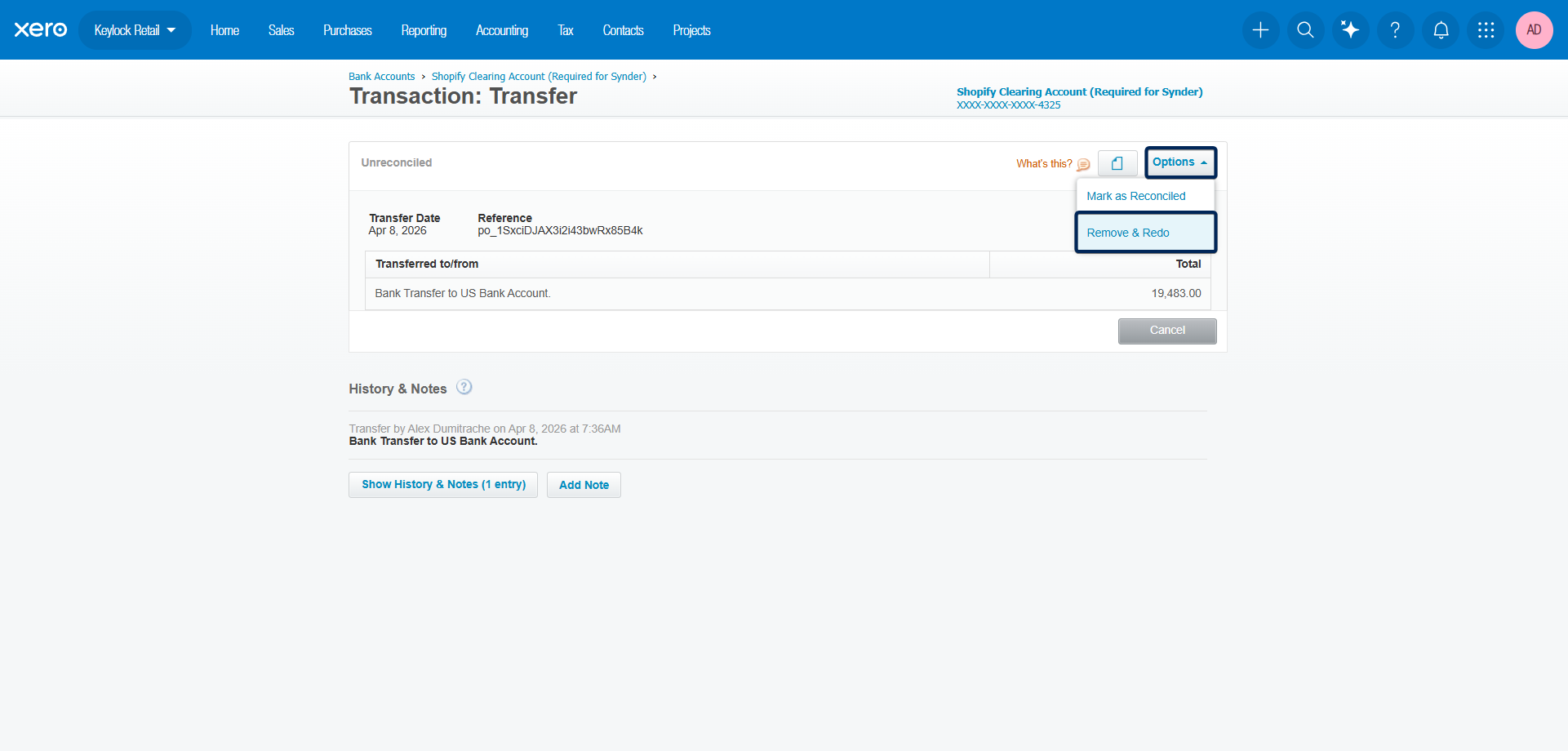
Payout transfers cannot be rolled back through Synder. When a payout is synced, Synder creates a bank transfer in Xero. Xero’s API does not allow third-party apps to delete bank transfers. To remove a payout transfer, delete it directly in Xero.
Summary Sync Mode
Three transaction types must be deleted manually in Xero before a Summary Sync rollback can complete. Synder cannot remove these via the API:
- Overpayments
- Bank Transfers
- Credit Notes
If your rollback fails with a “transaction could not be located” error, go to Synder → Summaries → Summaries list, open the affected Summary, and click View sync log to identify which type caused the issue.

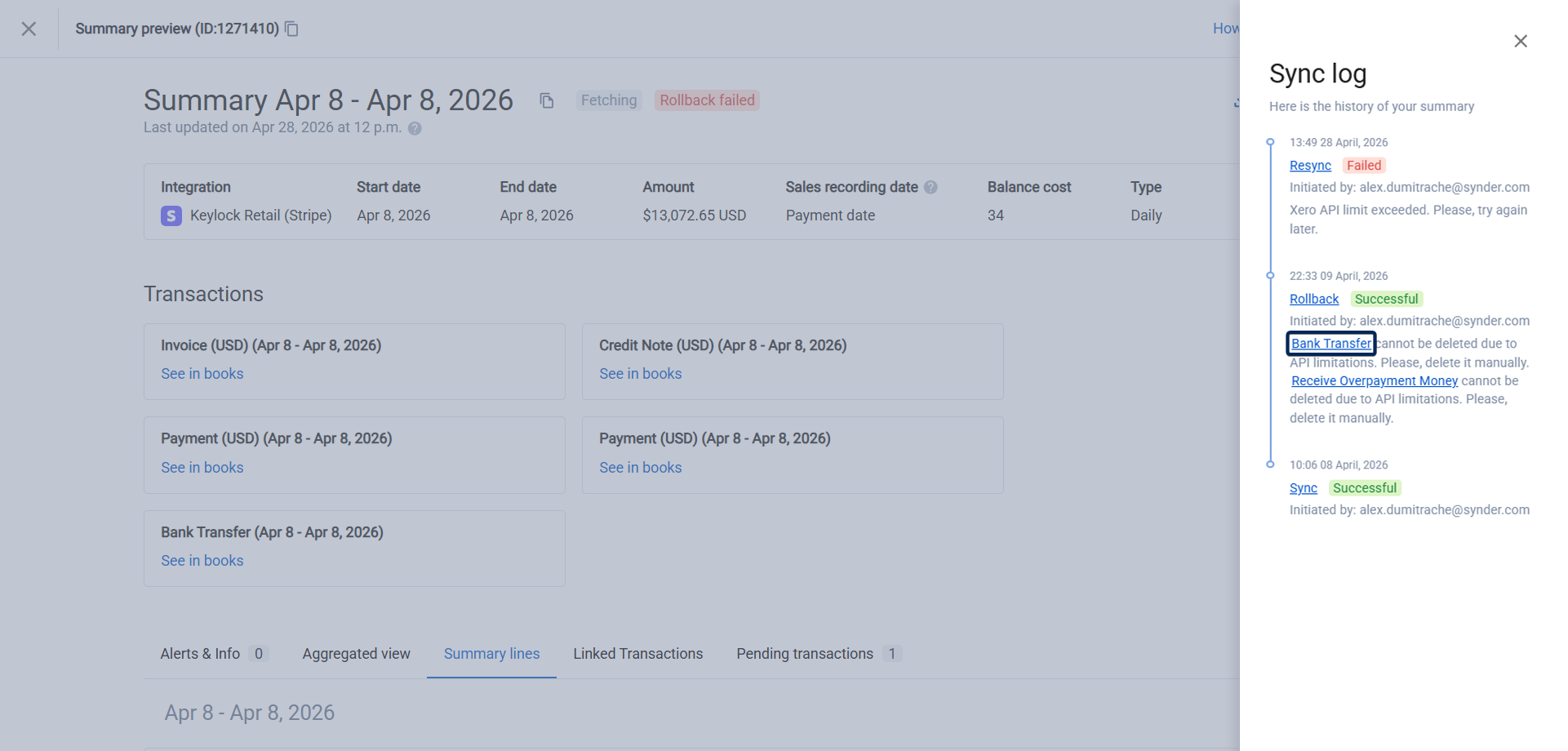
Open the transaction in Xero and delete it using Options → Remove & Redo (Overpayments and Bank Transfers) or Credit Note Options → Void (Credit Notes). Then return to Synder and re-run the rollback.
For the full rollback walkthrough, see: How to Roll Back Summary Sync Transactions in Xero
Additional Restrictions (Both Modes)
- Synder cannot roll back transactions in closed accounting periods
- Transactions matched to another entity in Xero (e.g., a transfer matched to a bank deposit) cannot be rolled back until its unmatched first
- Rollback will fail if a product or account referenced in the original sync was later deleted in Xero
Payouts and Clearing Account Reconciliation
When Synder syncs a payout, it creates a bank transfer from the clearing account to your checking account in Xero. The checking account side of that transfer gets reconciled through your bank feed. The clearing account side does not — Xero’s API does not allow third-party apps to mark bank transfers as reconciled, so the clearing account entry will always show as Unreconciled until you confirm it manually in Xero.
Go to Xero → Accounting → Bank Accounts, open the clearing account, and match the transfer to the corresponding bank statement line.
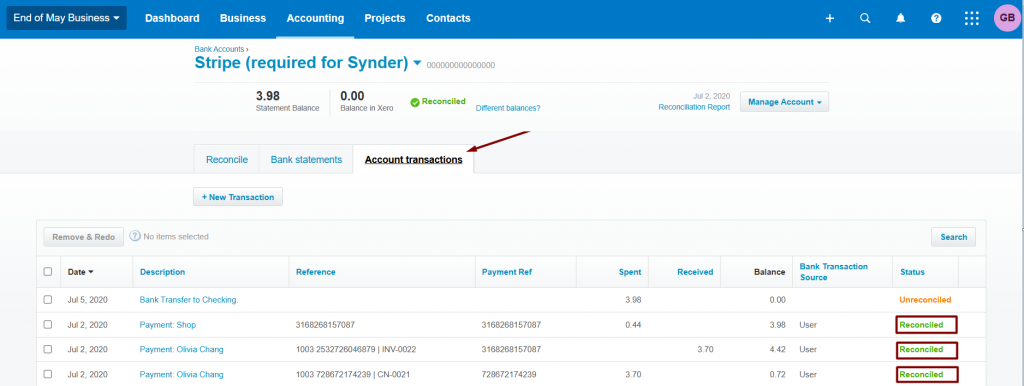
Note: Regular income and expense transactions (not payouts) in the clearing account can be marked as reconciled automatically. Enable the Auto-reconcile Xero transactions setting in Synder to do this. See: Automatic Xero Clearing Account Reconciliation
Smart Rules in Xero
Smart Rules are available for Xero in Per-Transaction mode. You build a rule the same way as in QuickBooks: pick a trigger, add conditions, choose an action. What you can build differs, because the Xero API sets its own limits.
The main differences:
- Xero offers three action types only: Update current, Update line and Send email.
- Credit notes and payments cannot be updated. Rules on those entities can only send an email.
- Bank transfers and payouts are not available in Smart Rules for Xero at all.
- Xero has no Sales Receipt. Use Invoice instead, and note that invoices trigger on Created only.
- On a paid invoice or bill, three fields cannot be changed: Item, Tax Rate and Amounts are.
- Xero uses tracking categories where QuickBooks uses classes and locations.
For the entity list, the action types and the full set of limits, see Smart Rules for Xero: Entities, Actions and Limitations. To tag transactions by department or location, see How to Assign Xero Tracking Categories Using Smart Rules.
For Summary Sync users, Custom Groups cover similar account mapping needs.
Important: Synder does not load your Xero data into the rule builder automatically. Before your accounts, contacts, items and tracking categories appear in the dropdowns, click Fetch data from Xero at the bottom of the left panel. See: Accessing Xero Entities in Smart Rules Dropdowns
Transaction Volume Limitations Due to API
Per-Transaction mode works reliably for businesses with up to approximately 1,000 invoices per month. Above that threshold, sync performance may degrade due to Xero API rate limits on invoice creation.
If your transaction volume consistently exceeds this, switch to Summary Sync. Summary Sync consolidates transactions into periodic summaries, reducing API calls and avoiding rate limit issues.
Before Changing Settings, Refresh Cache
Synder caches your Xero settings — accounts, tax rates, and tracking categories. If you make any changes in Xero (new account, renamed tax code, updated category), Synder will not pick them up automatically. Refresh the settings manually before your next sync.
Note: the Smart Rules builder has its own refresh. Refreshing your settings here does not fill in the rule dropdowns — for those, click Fetch data from Xero inside the rule builder.
See: How to Update Your Xero Settings
FAQ
Why does Xero show a duplicate invoice after a Shopify order was edited?
Xero does not allow deleting approved invoices via API. When Synder re-syncs the updated order, it voids the original invoice and creates a new one. The voided entry is the old version; the new active one is correct. No action is needed.
Why is my payout transfer showing as Unreconciled in Xero?
Xero’s API does not allow third-party apps to mark bank transfers as reconciled. Synder syncs payout transfers with Unreconciled status by design. Go to your Xero clearing account and match the transfer manually to the bank statement deposit.
Why did my rollback fail with “transaction could not be located”?
This happens when your Summary Sync contains an Overpayment, Bank Transfer, or Credit Note that Synder cannot delete via the Xero API. Delete those records manually in Xero first, then re-run the rollback. See the rollback guide for steps.
Why did Synder create a new invoice instead of applying a payment to my existing one?
The original invoice is likely older than 45 days. Xero’s API only surfaces invoices from the past 45 days for payment matching. Void the duplicate entry Synder created and apply the payment to the original invoice manually in Xero.
Can I use Smart Rules with my Xero integration?
Yes — in Per-Transaction mode. Before your Xero entities appear in the rule dropdowns, click Fetch data from Xero at the bottom of the left panel. Keep in mind that Xero offers three action types only, and that credit notes, payments and bank transfers cannot be updated. See Smart Rules for Xero: Entities, Actions and Limitations and Accessing Xero Entities in Smart Rules Dropdowns. For Summary Sync, use Custom Groups for account mapping.
Reach out to the Synder Team via online support chat or email with any questions you have – we are always happy to help you!
