

This guide explains how to roll back transactions synced in Summary mode from Synder to Xero, and how to handle records that Synder cannot delete automatically.
Use this guide if:
- You use Summary mode in Synder with Xero as your accounting platform
- You need to roll back previously synced summary transactions
- You received an error after a rollback stating that certain transactions could not be located in your books
What to Know Before You Start
Synder can automatically delete most transaction types during a rollback. However, three transaction types must be deleted manually in Xero before the rollback can complete successfully:
- Overpayments
- Bank Transfers
- Credit Notes
If any of these exist in Xero from a previous sync, Synder will not be able to remove them. The rollback will return an error indicating the transactions could not be located.
How to Manually Delete Leftover Transactions in Xero
Complete these steps for each transaction type that caused the rollback error.
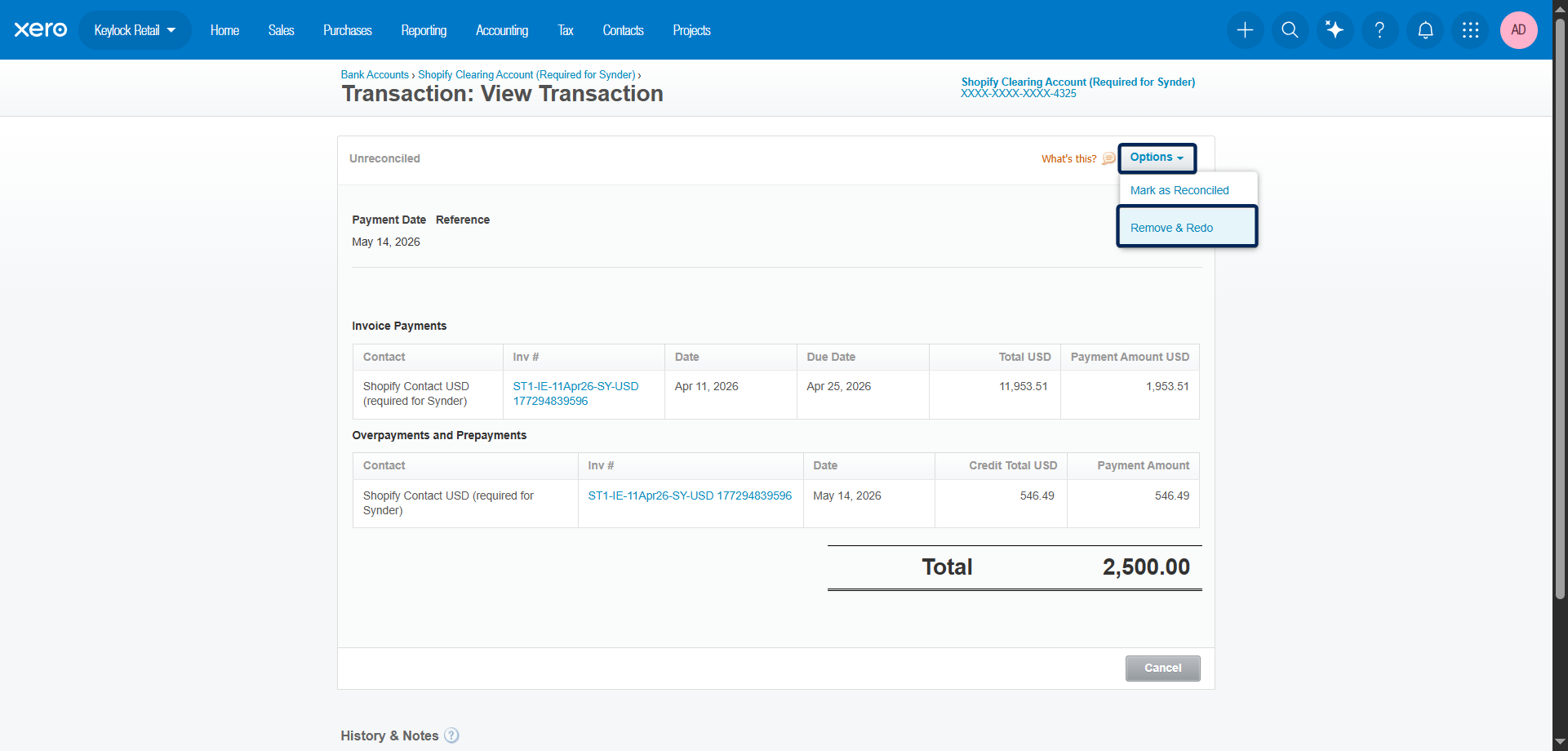
Overpayments:
- In Synder, go to Summaries → Summaries list
- Open the relevant Summary → View sync log.
- Locate the overpayment transaction linked to the failed rollback and click on the link.

- In Xero, click on Options → Remove & Redo.
Bank Transfers:
- In Synder, go to Summaries → Summaries list
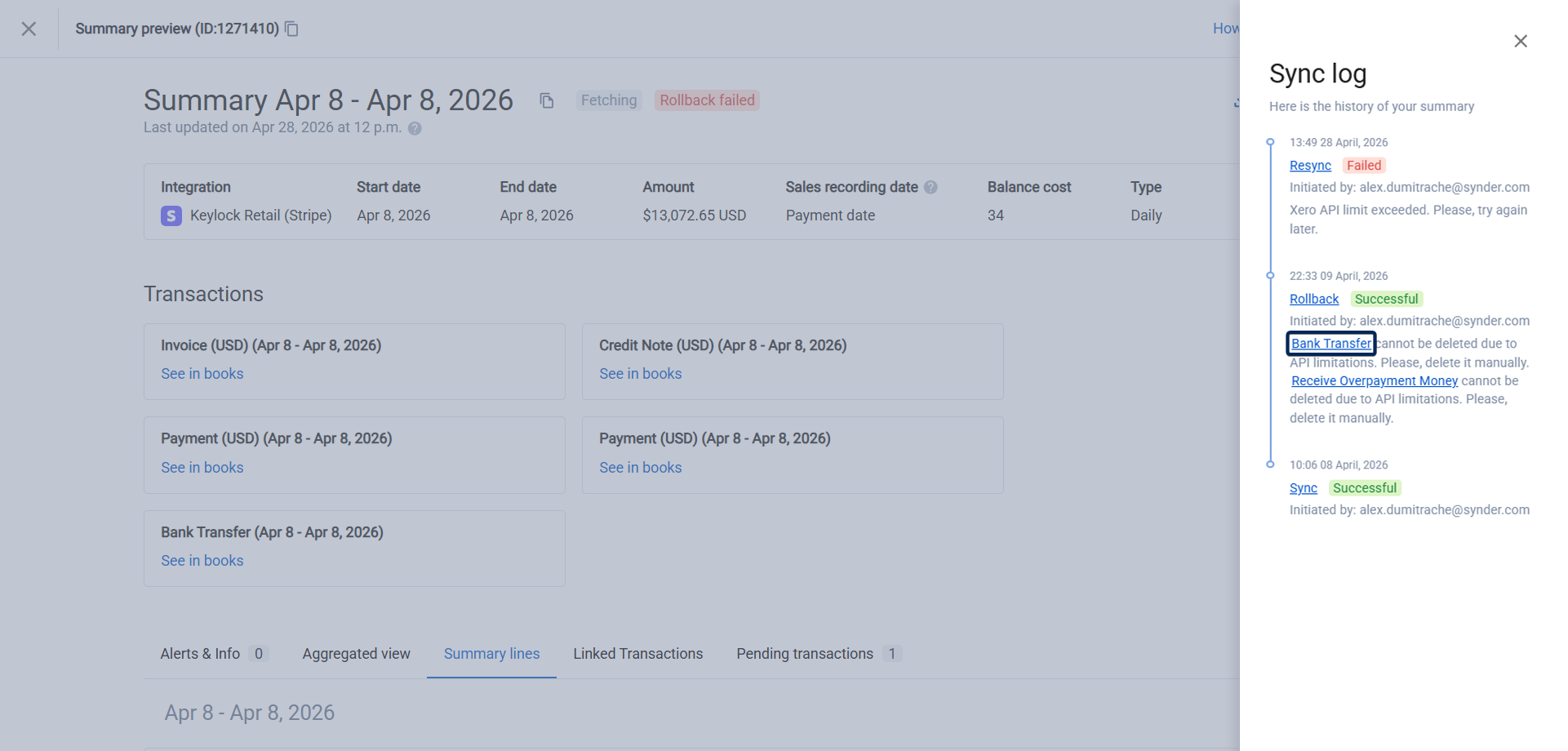
- Open the relevant Summary → View sync log.
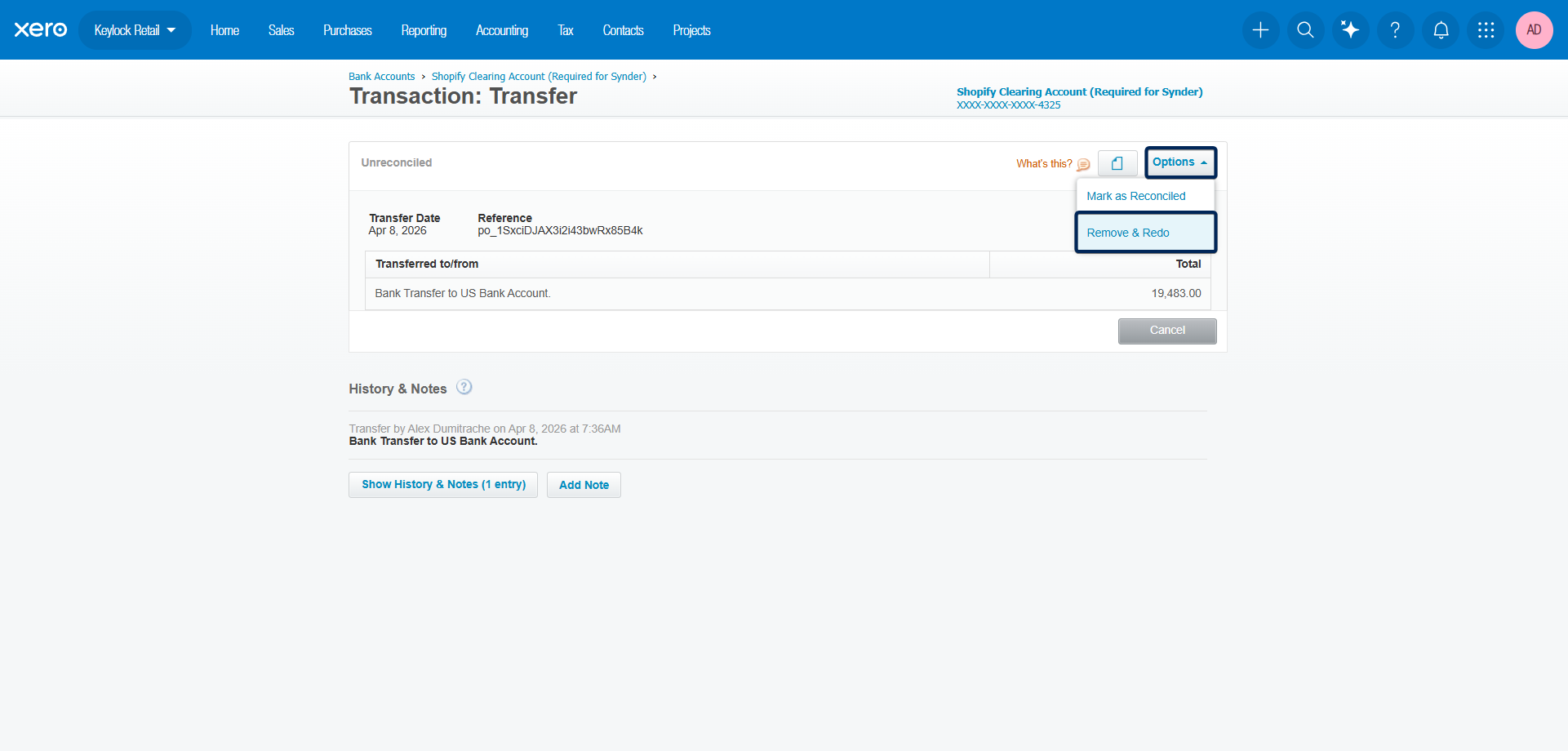
- Locate the bank transfer transaction linked to the failed rollback and click on the link.
- In Xero, click on Options → Remove & Redo.
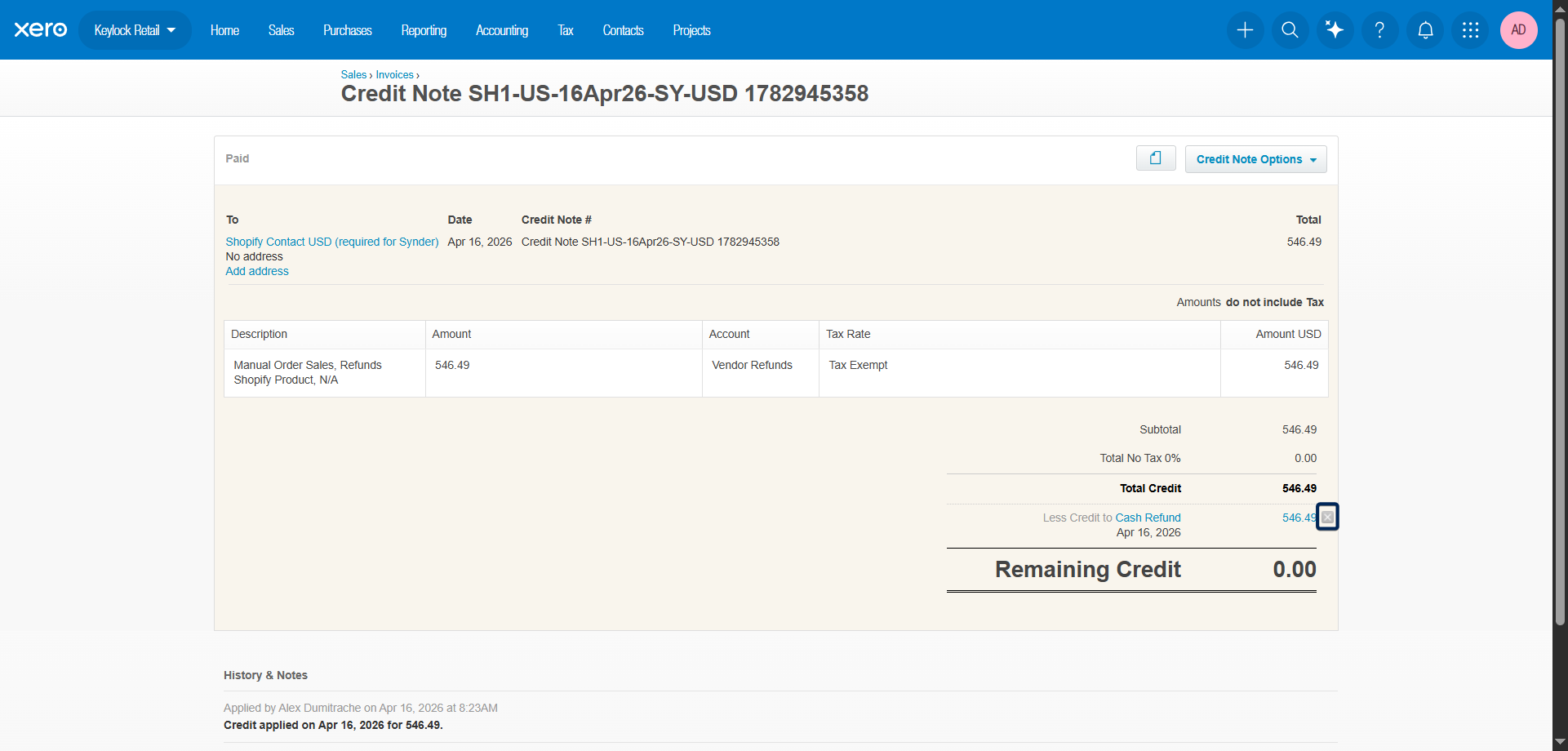
Credit Notes:
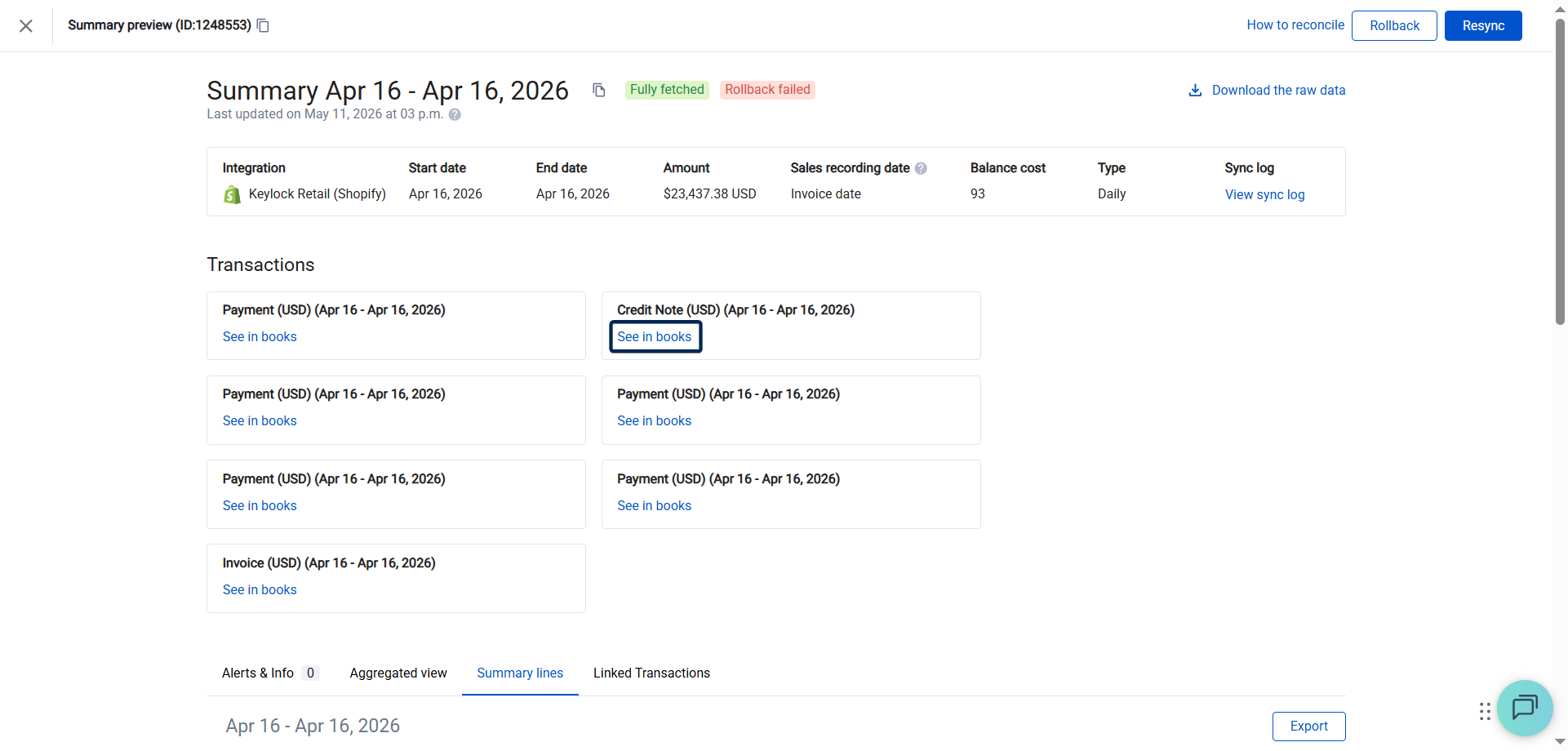
- In Synder, go to Summaries → Summaries list
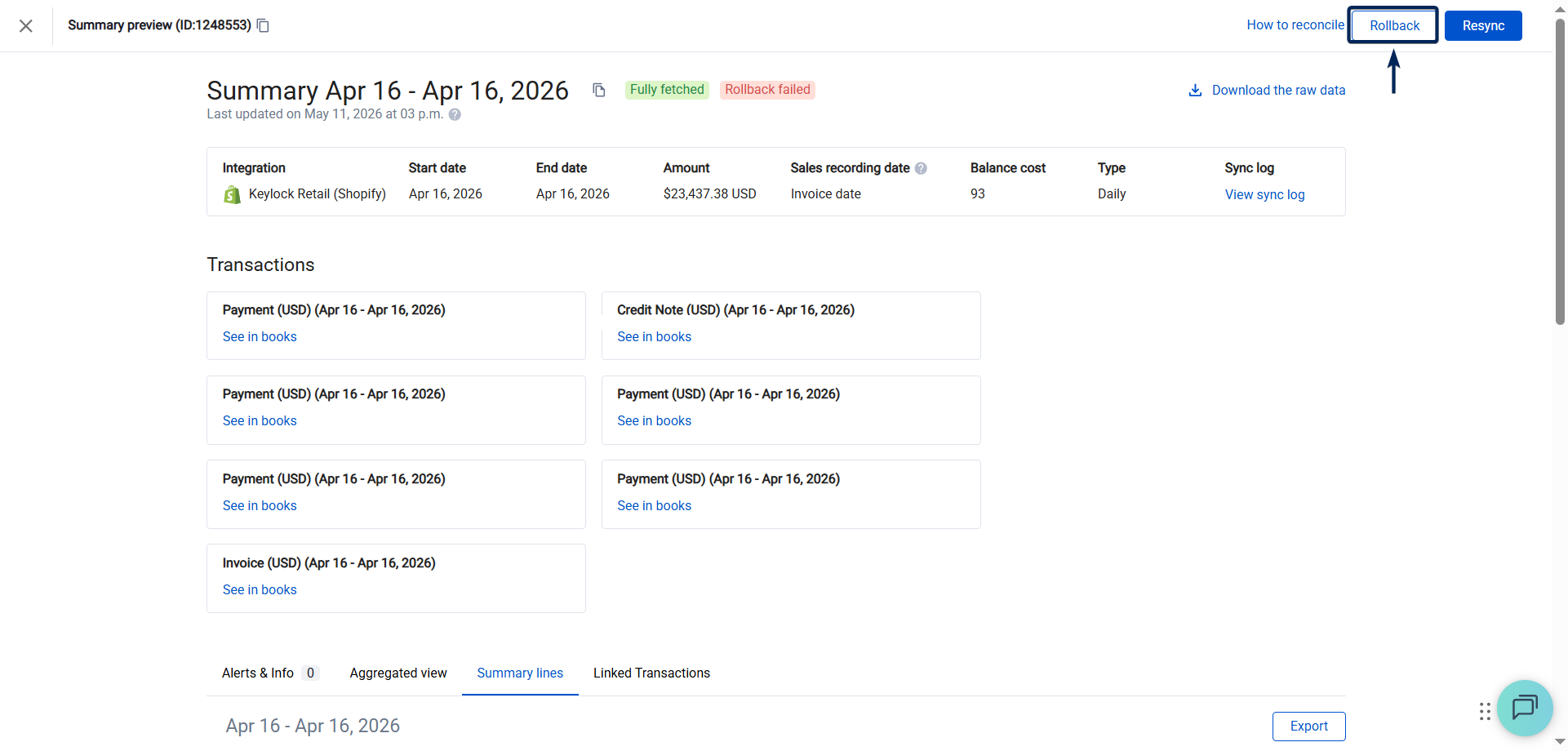
- Locate the credit note and click on the See in books link
- Click on the X icon next to the applied credit.
- Click on Credit Note Options → Void
Once all leftover records are deleted, return to Synder and run the rollback again.
How to Confirm It Worked
The rollback is complete when:
- No error message appears in Synder after running the rollback
- The synced entry in the History tab shows a Rolled Back status
- The corresponding transactions are no longer visible in Xero
Limitations & Important Notes
- Synder cannot delete Overpayments, Bank Transfers, or Credit Notes automatically. This is a Xero API restriction – these record types require manual deletion directly in Xero.
- A partially completed rollback may leave your books in an inconsistent state. Always complete the manual deletion steps and re-run the rollback before attempting a new sync.
- Deleting a Credit Note in Xero is irreversible. Make sure the credit note was created by Synder and is not needed before deleting it.
- Synder cannot roll back closed accounting periods
- Any entities that are matched to another entity cannot be rolled back. For example, if a payment is matched to an invoice, it cannot be deleted unless it is unmatched.
FAQ
Why did my rollback fail with a “transaction could not be located” error? This happens when Xero contains Overpayments, Bank Transfers, or Credit Notes that Synder cannot delete through the API. You need to delete these manually in Xero and then re-run the rollback.
Can I resync after completing the rollback? Yes. Once the rollback completes without errors, you can adjust your settings if needed and resync.
Do I need to delete all three transaction types, or only specific ones? Only delete the types mentioned in the error message. If the error only references Credit Notes, you only need to delete those.
Will manually deleting these records in Xero affect my other data? Only the specific records tied to the failed sync should be deleted. If you are unsure which records were created by Synder, contact support before deleting anything.
What if the rollback keeps failing after I delete the records? Reach out to the Synder support team with the error message and the name of the integration – this will help investigate faster.
Reach out to Synder Team via online support chat or email with any questions you have – we are always happy to help you!
