

Ready to switch to Synder from another integration tool — for example Webgility, A2X, Bookkeep, Connex, or a custom Zapier setup? This guide walks you through a clean cutover into QuickBooks Online or Xero. Because the steps are the same whatever you move from, from here on we’ll simply call it your previous sync tool.
First, you’ll learn how to choose a cutover date. Then you’ll close the books, move the leftover clearing balance, and handle open invoices and bills. Finally, you’ll start syncing, so nothing doubles up and your books stay clean when you switch to Synder.
Who this guide is for
Right now you sync an e-commerce or payment platform into your accounting system through another tool, and you want to switch to Synder. Therefore, this guide covers what to decide before you switch, how to pick your cutover date, and what to do with the leftover balances and open items, so your books stay clean across the line.
Why teams switch to Synder — and what it does about it
These are the most common reasons teams move off their previous sync tool, and the Synder capability that addresses each. If any of these are why you’re switching, you’ll want to keep them in mind as you set up.
- Lump-sum payouts with no detail. If your previous tool posted a single deposit per payout with no breakdown, Synder can record per-transaction detail — individual orders, fees, refunds, taxes, and discounts — so every line is traceable in your books.
- Inventory and fee breakdowns that didn’t reconcile. Synder maps fees, discounts, shipping, and taxes to their own accounts, so each payout reconciles to the penny against the bank deposit. For inventory and cost of goods, see Managing products, inventory, and COGS in Synder (Per-Transaction sync) or its Summary-mode counterpart, COGS tracking with Synder Summary Sync.
- Payments applied to the wrong invoice. Synder can match an incoming payment to the correct open invoice, and for partial or split payments it supports applying payments by order number rather than defaulting to the oldest balance. See how invoice and payment matching works in Multi-channel selling with Per-Transaction sync, and the FAQ on split payments below.
- Multi-gateway and split payments across processors. When one order is paid partly through one gateway and settled through another (for example part via Shopify Payments, the remainder via PayPal), Synder can apply both to the same invoice.
Matching your old setup: sync mode and custom rules
- Wanting transaction-level customer detail. In Per Transaction (PT) sync, each order syncs individually with customer and line-item detail — useful if you review orders one by one. Summary Sync instead posts periodic summarized entries. Compare the two in Per-Transaction sync and Summary sync.
- Custom rules, mappings, or automations on your old tool. Did your previous tool run special rules, custom configurations, or automations? Tell your Synder onboarding contact what they did. Synder has Smart Rules and its own custom configuration. In most cases we can rebuild the same outcome on the Synder side, so reach out before you switch and nothing gets lost in the move.
1. Before you switch to Synder — the mental model
- Disconnect your previous tool once you switch. After your cutover date, remove the old tool’s connection so it can’t keep syncing. If both tools run at once, you may get duplicate entries. The clearing balance it already posted stays on your books, and you settle it in step 4. Your history also stays in your accounting system. So keep the old tool only long enough to confirm Synder syncs cleanly, then cancel it.
- Synder picks up going forward from a date you choose (the “cutover date”). Everything before that line stays where your previous tool put it, while everything after comes from Synder. (If instead you’re moving between accounting systems, see how to switch the connected accounting software in Synder.)
- The books meet in the middle through the clearing account. Whatever balance is left in the old tool’s clearing account gets moved to Synder’s clearing account with one manual journal entry. You leave income and other accounts as-is.
2. Choosing your cutover date
There are three shapes, and it’s your choice. Best practice for all three: pick a date where everything is already reconciled against the bank, so you’re drawing the line on a clean, settled point (for example, the last completed payout).
- “Whenever” / a clean recent line — start from the most recent fully-reconciled point (for example, the last payout date). Simplest.
- A specific month or quarter — close the books at the period boundary (for example, Aug 31), then sync from Sept 1 onward with Synder.
- A specific year — same logic at the year boundary.
Lookback caution. Some integrations limit how far back Synder can pull historical transactions — and this is set by the platform, not by Synder. If your chosen cutover is far in the past, you may simply not be able to import the older data. Notably:
- Amazon — financial events go back roughly 2 years; settlement reports stay available only about 90 days after creation, though you can request them manually later. This is the tightest real-world limit.
- Walmart — usually only the 10 most recent reconciliation reports; older dates have no fee data.
- Shopify / Stripe / PayPal / eBay — no hard history cap; the constraint is API rate limits, not depth.
Factor this in when choosing how far back to start.
3. Close the books at the cutover date (recommended)
- Why close: once the period is locked, data before the cutoff will not sync from Synder even if a sync is scheduled by accident. It’s a safety rail.
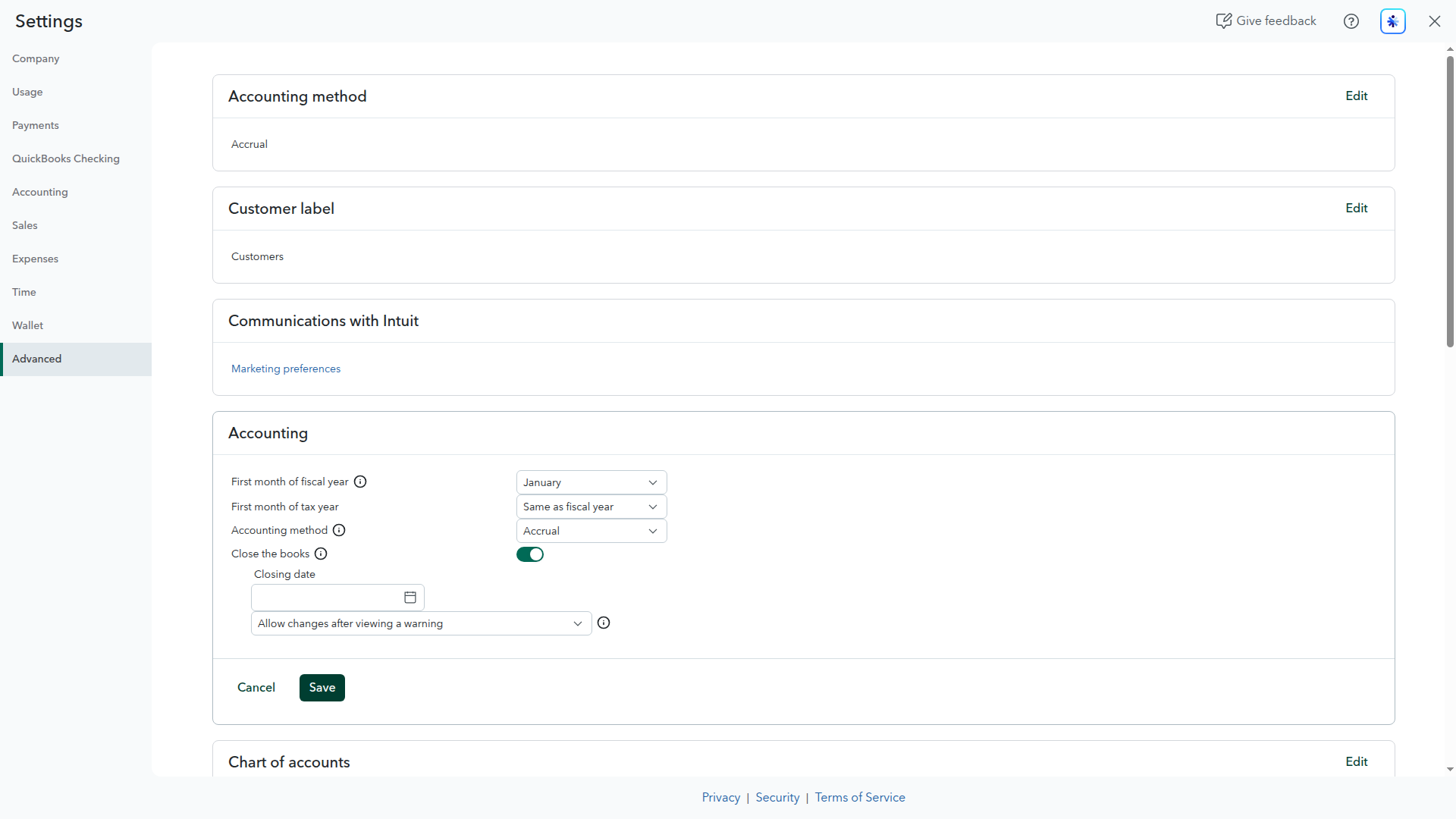
- How (QuickBooks Online): go to Settings (gear) > Account and settings > Advanced > Accounting, switch Close the books on, and set the Closing date to your cutover date. Use Allow changes after viewing a warning (optionally password-protected) so the period is locked but still editable if you ever need it.
- How (Xero): go to Accounting > Advanced > Financial settings and set a Lock Date to your cutover date. This stops changes on or before that date, the same way closing the books does in QuickBooks Online.
- Closing is a recommendation rather than a hard requirement — but it’s the safer path. For the official steps, see the QuickBooks help on closing the books and Xero’s guide to lock dates.
4. Move the leftover clearing balance (clearing-to-clearing journal entry)
- After the cutover point, the old tool’s clearing account may still hold a leftover balance.
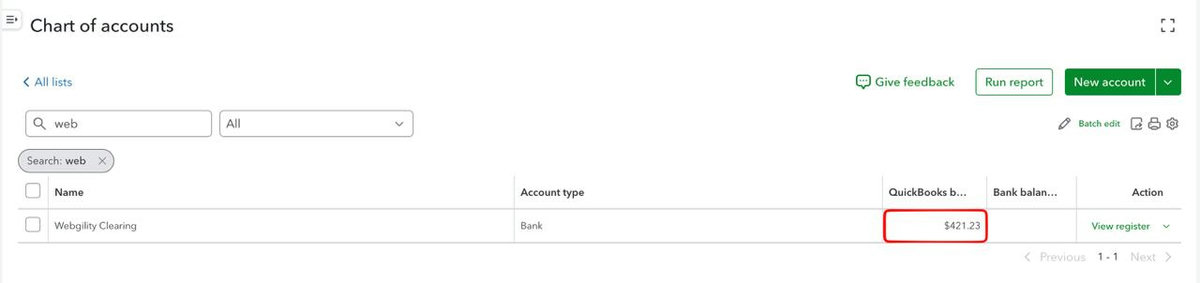
- First, check the leftover balance on the old tool’s clearing account in your Chart of accounts. In the example below it’s a positive (debit) balance of $421.23.
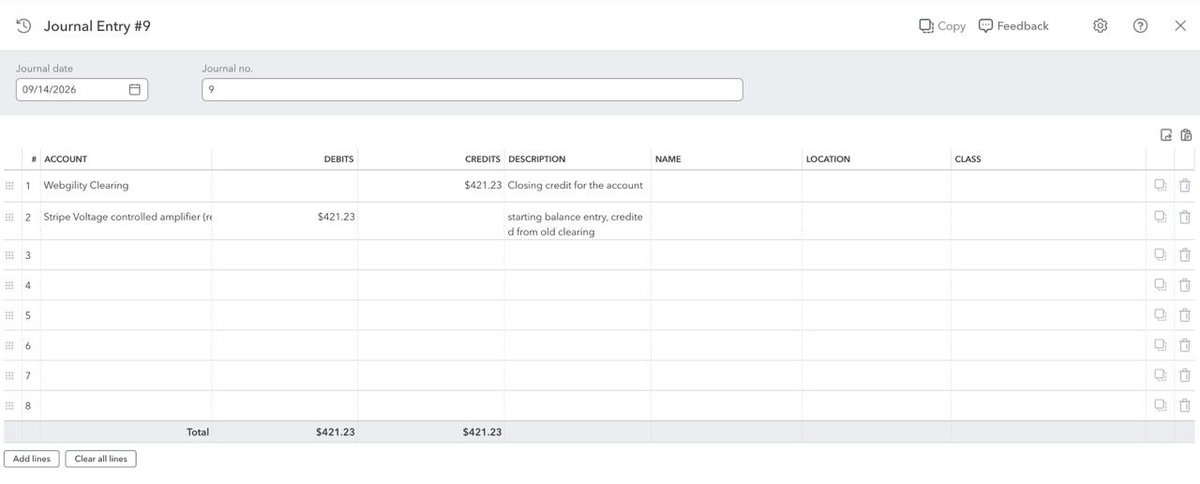
- Move it with a manual journal entry that brings the old clearing account to zero and lands the balance in Synder’s clearing account. The direction depends on which side the leftover balance sits on: to clear a positive (debit) balance, credit the old clearing account and debit the destination account for the same amount (as shown below). If the leftover is a credit balance, reverse it — debit the old clearing, credit the destination. Either way the goal is the same: the old clearing account ends at zero.
- Meanwhile, income and other mapped accounts stay as-is. As long as the clearing cutoff is correct, everything else continues from the right point.
- Note: this journal entry is created manually, so it can’t be rolled back from Synder (true of any manually-created entry, on any accounting platform). Just delete or edit it manually if you need to redo it.
5. Handling post-cutoff transactions that belong to the old period
- If any transactions land in the new period that were already handled by your previous tool (for example, a payout that straddles the line), remove them so they don’t double up:
- If you can roll them back from your previous tool, do that.
- If not, remove them manually from the books.
- Archive the transactions you don’t want Synder to sync (in Synder, select the transactions and choose Archive) so they don’t clutter your dashboard or post to your books.
6. Open invoices and bills across the cutoff (AR/AP) — what to keep in mind
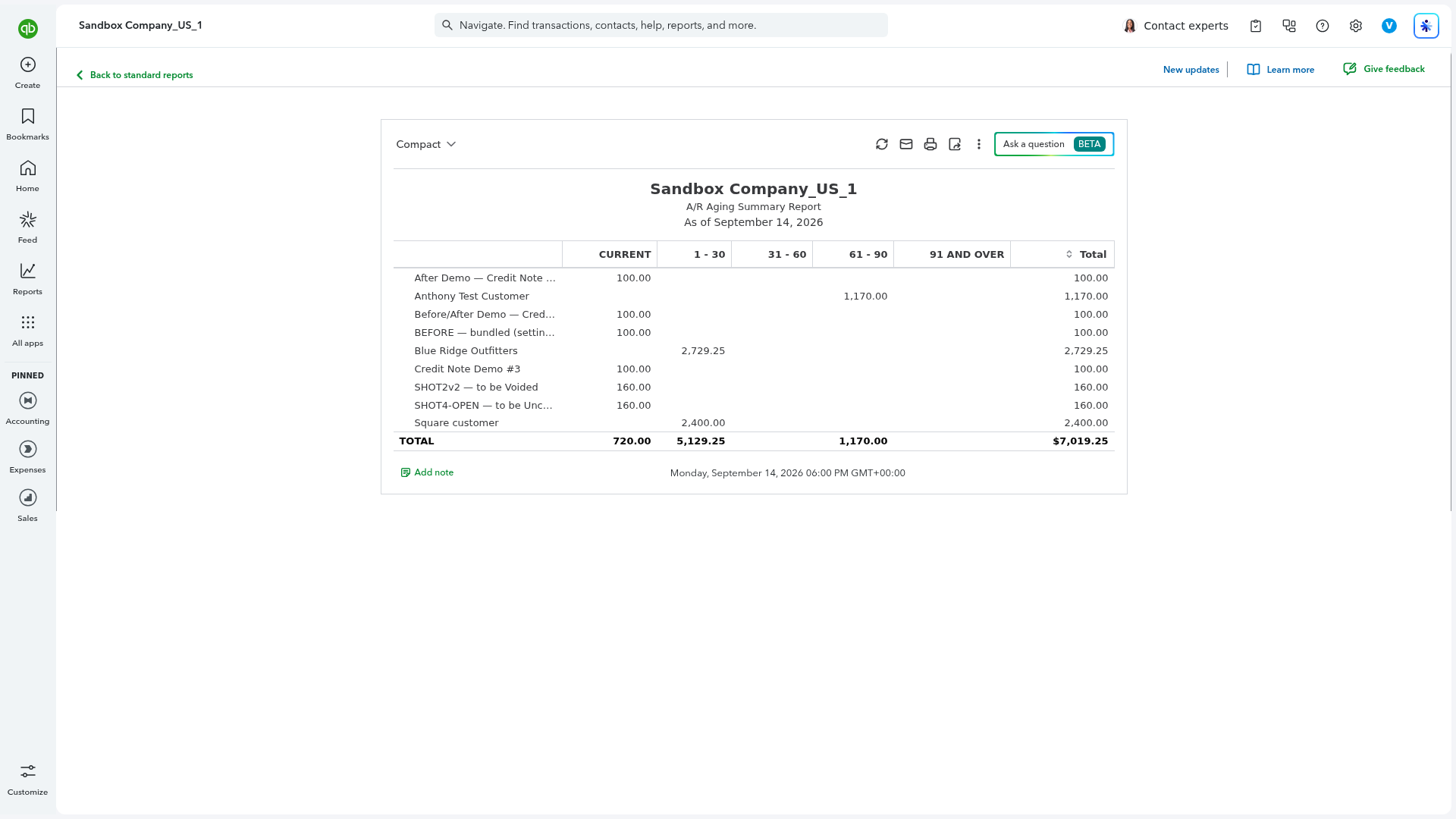
When you close the books, you may have open AR (unpaid invoices) or open AP (unpaid bills) in the closed period that will be settled later by payments Synder brings in. Synder’s behavior here is individual and should be checked per account — it may match the incoming payment to the original open invoice by customer name, or it may create a new invoice and payment.
Three options, depending on what you observe and how much you want to track:
- Path A — it matches. The incoming payment lands on the original open invoice. Nothing to do.
- Path B — it doesn’t match, and you want accuracy. Keep a list of your unpaid invoices as of the cutoff date. When a payment arrives and Synder creates a new invoice and payment to close it, manually credit the paid amount against the original AR so the balance actually goes down (otherwise the old invoice stays open and the AR double-counts).
- Path C — you don’t want to track, and you’re confident every open invoice will eventually be paid (nothing voided or written off). Zero out the AR balance with a manual entry at cutoff, then let Synder create the invoice and payment as each one arrives.
The same logic applies to open AP / bills.
7. Start syncing from Synder
- Turn on syncing from the cutover date forward.
- Historical import best practice: if you’re backfilling any history, import in monthly chunks, not one big job — large imports can hit the platform’s API rate limits and leave gaps. A message like “The import was paused due to reaching the integration’s API limits” is normal; it resumes automatically.
- First reconciliation: reconcile only from the cutover forward. Synder’s reconciliation runs on a selected date range, so don’t reconcile the dates your previous tool already handled. For the step-by-step, see How to reconcile any integration manually in Synder.
Frequently asked questions
Do I need to disconnect or cancel my previous sync tool first?
Yes. Once Synder is live, disconnect the old tool so it stops syncing from your cutover date forward. Running both at once creates duplicate transactions and two subscriptions for the same job. You keep your history, though. The old tool’s transactions stay in your accounting system, and its leftover clearing balance stays on your books until you settle it in step 4. So keep it just long enough to confirm Synder syncs cleanly, then cancel it.
Will switching create duplicate transactions?
Only if both tools sync the same period. Pick a clear cutover date, close the books at that date, and reconcile only from the cutover forward. If a payout straddles the line, remove or roll back the duplicate as described above.
How far back can Synder import my history?
It depends on the platform, not Synder. Amazon financial events go back about 2 years (settlement reports ~90 days); Walmart typically exposes only its 10 most recent reconciliation reports; Shopify, Stripe, PayPal, and eBay have no hard cap (the limit is API rate, not depth). Import history in monthly chunks to avoid hitting those limits.
What happens to open invoices that get paid after the cutover?
Synder may match the incoming payment to the original open invoice, or it may create a new invoice and payment — this is individual and should be checked per account. See the AR/AP section above for the three ways to handle it.
Can Synder handle a partial or split payment across two gateways?
Yes. When an order is paid partly through one gateway and settled through another, Synder can apply both payments to the same invoice, and can match payments by order number rather than defaulting to the oldest open balance.
Does the process differ between Per Transaction and Summary Sync?
No — the cutover mechanics (date, close the books, clearing journal entry, AR/AP handling) are the same in both. The difference is only in how ongoing transactions are recorded afterward.
Quick reference checklist
- Disconnect the old tool after the cutover so it can’t double-sync (keep its clearing balance on your books; cancel the old subscription once Synder is confirmed working).
- Pick a cutover date on a bank-reconciled point; check integration lookback limits.
- Close the books at the cutover date.
- Clearing-to-clearing journal entry: debit old clearing, credit Synder clearing.
- Remove or roll back any post-cutoff transactions the old tool already handled; archive unwanted transactions.
- Decide your AR/AP path (A, B, or C).
- Start the Synder sync forward; import history in monthly chunks; reconcile forward only.
That’s the full path to switch to Synder cleanly: pick your date, close the books, move the clearing balance, handle open items, and then sync forward.
