

Some integrations don’t support automated or assisted reconciliation, so you reconcile them manually — by uploading a transaction report and matching it against your data in Synder. Manual transaction reconciliation applies to Square, WooCommerce, eBay, Etsy, Clover, TikTok, Walmart, BigCommerce, and any other platform you can export a transaction file from, as well as any account not tied to an integration. This guide shows you how to prepare that file, map the columns correctly, and run the match — the same way in both Per Transaction Sync and Summary Sync.
Which integrations use manual reconciliation?
Manual mode is used whenever an integration doesn’t offer Automated or Assisted reconciliation. In practice that’s:
- E-commerce & POS: Square, WooCommerce, Clover, BigCommerce, Ecwid, Wix, Squarespace
- Marketplaces: eBay, Etsy, Walmart, TikTok Shop
- Any account with no integration — pick “Any account” to reconcile a book account directly
Stripe, PayPal, Amazon, and Shopify have their own Automated or Assisted flows — see their dedicated guides. One Shopify exception: only regular Shopify Payments orders reconcile automatically. Shopify POS, Manual, and Other orders don’t flow through Shopify’s payouts — each syncs to its own clearing account and is reconciled manually, exactly as described in this guide (see the Shopify notes under Before you start).
Where to get your report for your platform
Start here. Before you can reconcile, export a transaction report (CSV or XLSX) from your platform. Below is where to find that report for each manual integration. The export path is the same whether you sync in Per Transaction or Summary mode — the report you pull is identical; only the matching happens later. Once you have the file, move on to preparing and mapping it in the sections that follow.
- Square — Dashboard → Transactions → Export → CSV.
- eBay — Seller Hub → Payments → Reports → Transaction Report.
- TikTok Shop — Finances → Overview → Statements → Export (90-day maximum per export)..
- Walmart — Statements screen → Download → Payments / Reconciliation report (consolidate payment and fee first).
- Etsy — Shop Manager → Finances → Payment account → Direct Checkout Payments report (plus Monthly Statement for fees and payouts). There is no unified payout report.
- BigCommerce — Orders Report plus Transactions Report. Gross-only; there is no payout report.
- WooCommerce — Admin → Analytics → Revenue (or Orders) → set the date range → Download CSV.
- Clover — Dashboard → Reports → Sales Report (main report). Since Clover integration does not support payouts and fees, Synder will only reconcile the sales.
- Shopify POS / Manual / Other orders — Analytics → Reports → “Net payments by order” → ⋯ (top right) → Export (CSV). This report excludes fees, which makes it ideal for these order types.
Before you start: prepare your report file
Synder matches on the exact contents of your file — it does not auto-correct formats. Two quick fixes in your spreadsheet prevent almost every “nothing matched” result:
1. Make the Amount column a plain number. Remove any currency symbol or code ($, €, USD) and any CR/DR text. $25.00 is read as text and won’t match — it must be 25.00.
- Supported: 1,234.56 (US) or 1.234,56 (EU); negatives as -12.34 or (2,000.99).
- Not supported: $12, USD 2000, 1 234,56 (space), 1’234.56, trailing 123-, 123 CR/DR.
2. Make the Date column match the expected format exactly. If the mapper expects MM/DD/YYYY, then 8/12/26 fails — reformat it to 08/12/2026 first. Supported formats: MM/DD/YYYY, M/D/YY, DD.MM.YYYY, YYYY-MM-DD.
3. Know which columns you’ll need. Only three fields are required — Primary ID, Amount, Date. Everything else (Secondary ID, Transaction type, Description, Currency) is optional; leave it blank if you’re unsure.
Reconciling Shopify POS, Manual, or Other orders
These sync to their own clearing accounts and reconcile the same way — but keep three things in mind when you prepare the report:
- Mixed cash + card POS orders won’t match as-is. The card portion goes to the main sales clearing account and the cash portion to the separate offline-payments clearing. To reconcile the offline clearing, edit the report so the amount shows only the cash portion.
- Dates can differ. Shopify’s report runs on the order-creation date, but Synder records the payment date. Export a wider period and filter by the report’s payment-date column to match your reconciliation window.
- IDs won’t line up — that’s fine. Synder uses the payment ID; the Shopify report shows the order ID. Matching is based on amount, date, and currency, so it still works.
How to reconcile a manual integration
To reconcile an account that is not tied to a specific integration, select “Any account” from the Integration dropdown — it sits at the bottom of the list. This option shows all accounts in your books under Manual mode, with no integration bound. Manual mode also works for any integration that doesn’t support Automated or Assisted modes: if you have a transaction report in CSV or XLSX format, you can upload it and Synder will run the comparison.
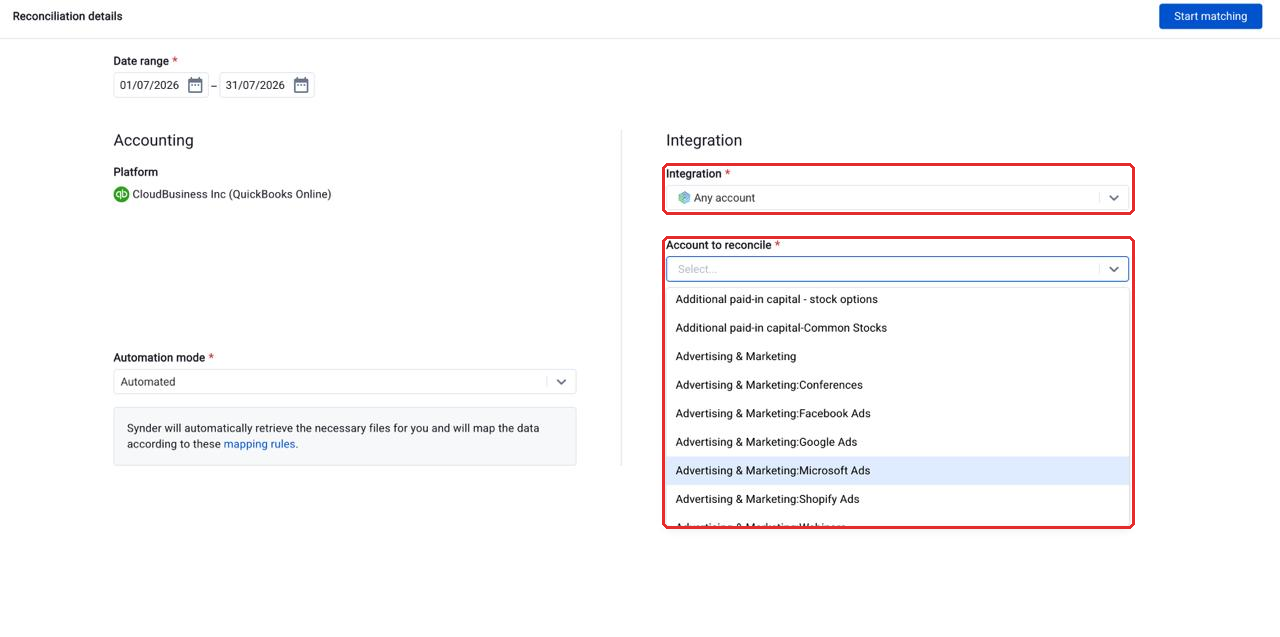
- Go to Transactions → Transaction Reconciliation.
- Click “Run reconciliation”.
- Set the date range.
- Under Accounting (labelled Synder in Summary Sync), set the Import method to “Automated” (or “Manual” if you want to upload your own accounting file too).
- Under Integration, select your payment platform.
- Set the Integration Import method to “Manual”.
- Upload your CSV or XLSX file (up to 100 MB).
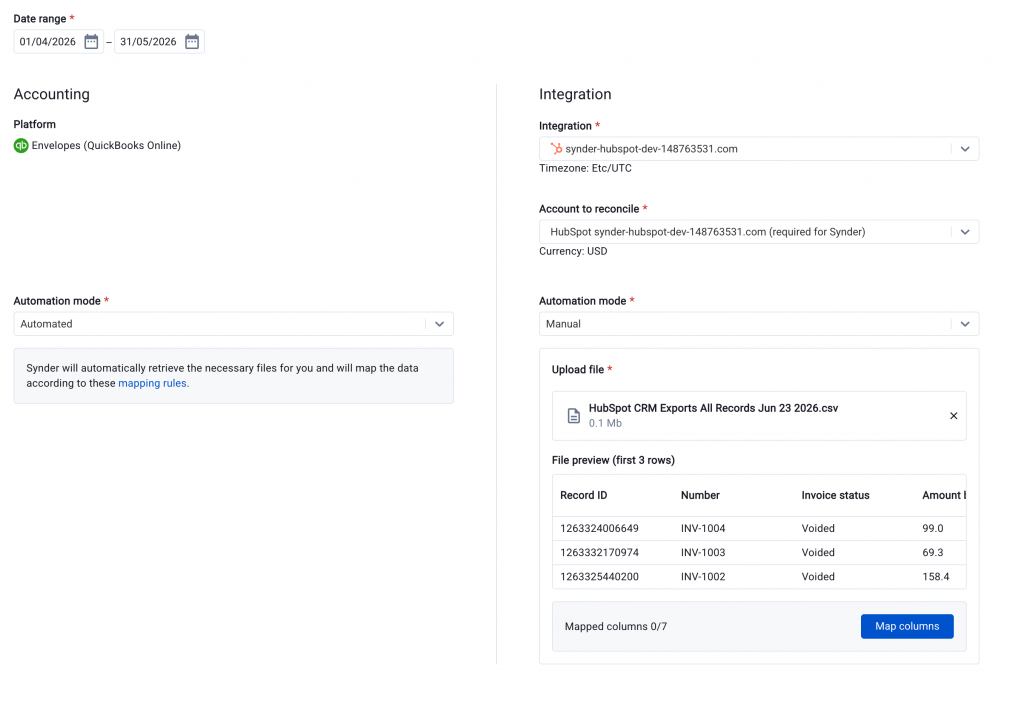
- Click “Map columns.” Mandatory fields are Primary ID, Amount, Date; the rest are optional.
- Amount → map the Net column (usually labelled “Net sales” — the exact name varies by platform). Net is the amount after fees, which is what Synder compares against.
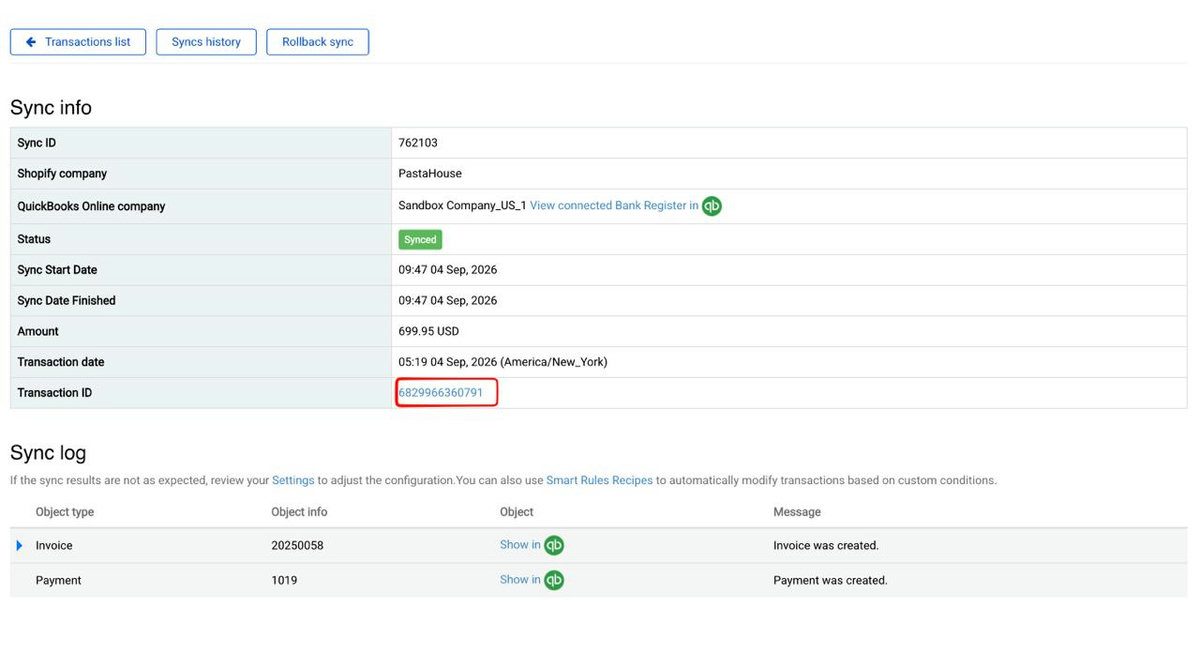
- Primary ID → map the ID Synder actually uses. A report often has several IDs (Order ID, Payment ID, Charge ID…) and only one will match. To find the right one:
- Open any already-synced transaction and click “Explain” to see the ID Synder stored.
- Press Ctrl/Cmd + F and search that ID inside your report.
- The column it appears in is the one to map.
(Long IDs may be shortened in your books — match the format you see in “Explain.”) - Date → map your (now correctly-formatted) date column.
- Optional: Save the mapping as a template to reuse it for the same integration next time.
- Click “Apply mapping,” then “Start matching.”
- Review your results.
Does this differ for Summary Sync?
No. Even in Summary Sync, reconciliation compares your individual transactions against the integration — not a single daily total. So you prepare and map the same per-transaction export in both modes. The only differences are cosmetic: the left column reads “Synder” in Summary Sync and “Accounting” in Per Transaction Sync, and Summary compares against Synder’s own data source rather than your books ledger. Neither changes how you prepare the file.
After the match: understanding your results
Once matching finishes, review the Matched, Discrepancy, Missing source, and Ignored tabs. For what each tab means and how to resolve items, see the full results breakdown in Transaction Reconciliation for Per Transaction Sync or Summary Sync Transaction Reconciliation.
Manually matching leftover transactions
If some transactions don’t match automatically, you can pair them yourself — tick a transaction on each side and click Match manually. See How to Use Manual Matching in Transaction Reconciliation for the full walkthrough.
Related guides
- Transaction Reconciliation for Per Transaction Sync
- Summary Sync Transaction Reconciliation
- How to Use Manual Matching in Transaction Reconciliation
- How to Reconcile Xero with Synder — Per-Transaction
