

This guide explains how to connect a different accounting platform or a different account of the same platform in Synder by creating a new Synder organization.
Use this guide if you:
- Want to connect a different accounting platform to Synder.
- Want to connect another account of the same accounting platform.
- Need to create a new Synder organization for a separate accounting company.
Do not use this guide if you only need to reconnect an existing integration due to connection issues.
Create a New Synder Organization
Each Synder organization can be connected to one accounting platform. To synchronize data to another accounting software or another account, create a new Synder organization.
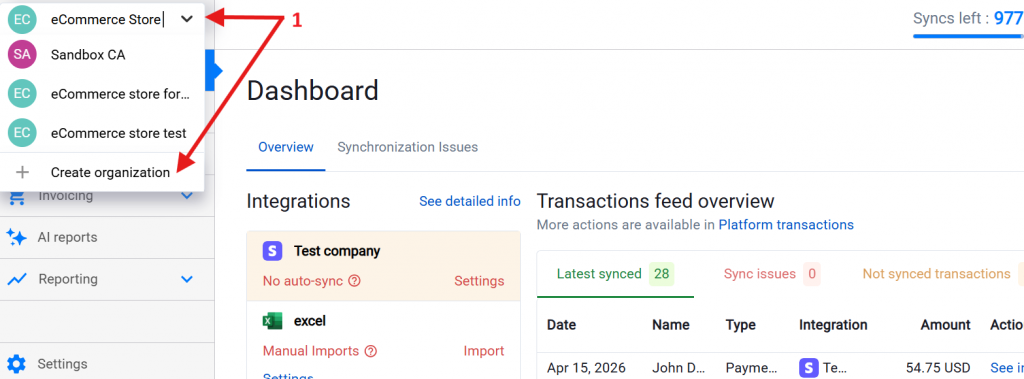
- In Synder, click your current organization name in the upper-left corner.
- Click Create organization.
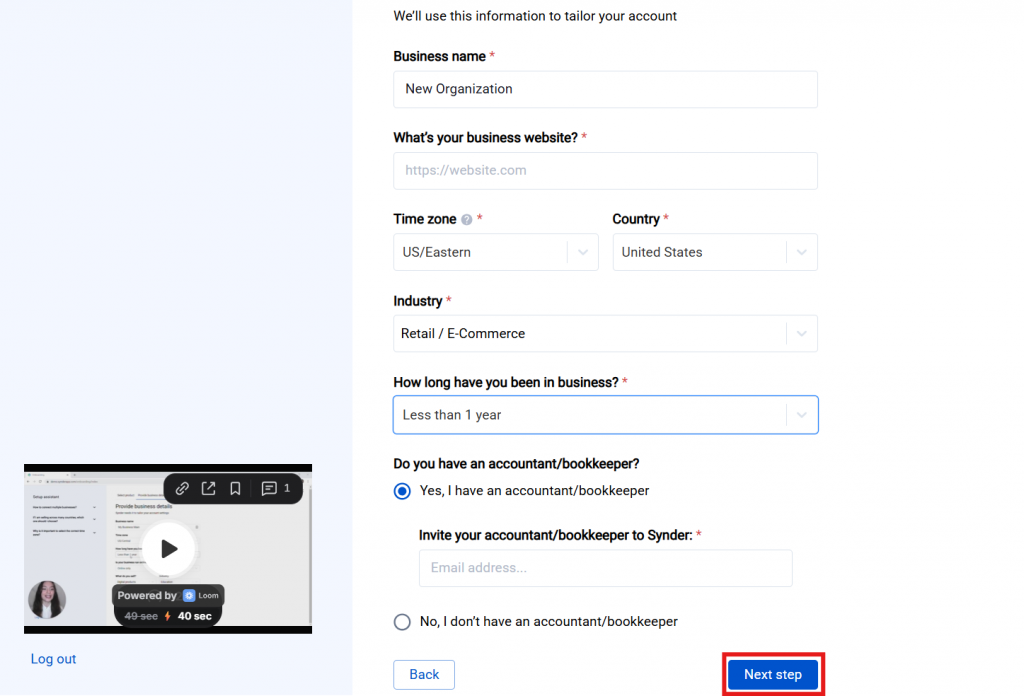
- Enter your business information.
- Click Next step.
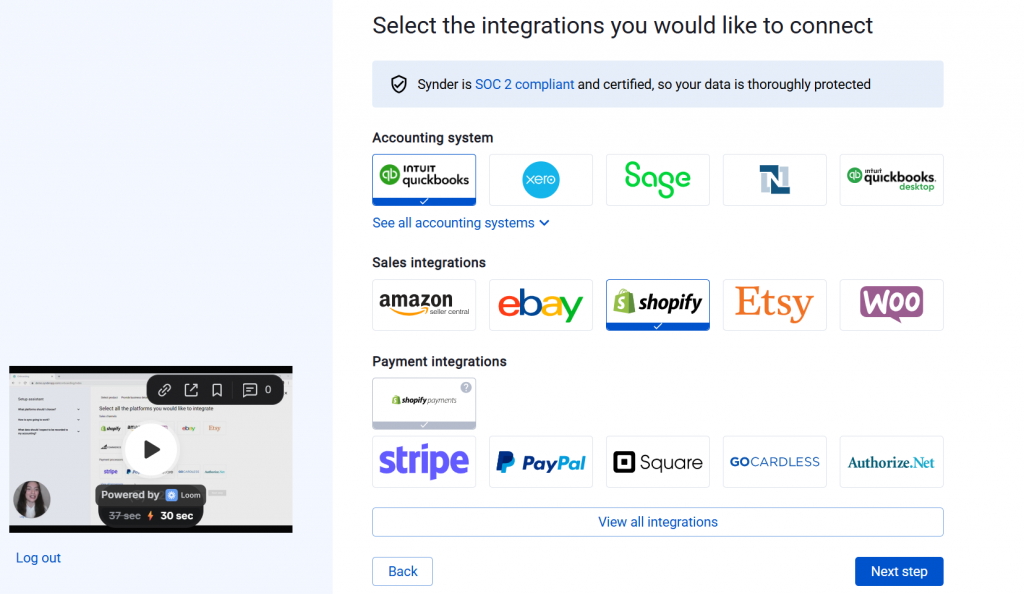
- Select the accounting platform and sales channels you want to connect.
- Click View all integrations to see the list of all available platforms
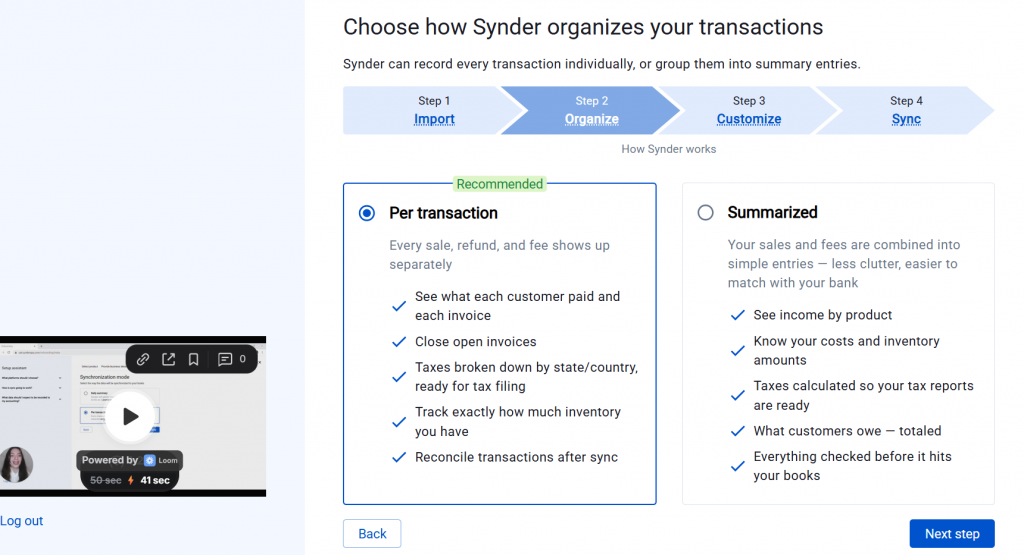
- If you connect QuickBooks Online or Xero, choose the preferred sync mode when prompted.
- Click Connect to your accounting platform and sign in to the correct company account.
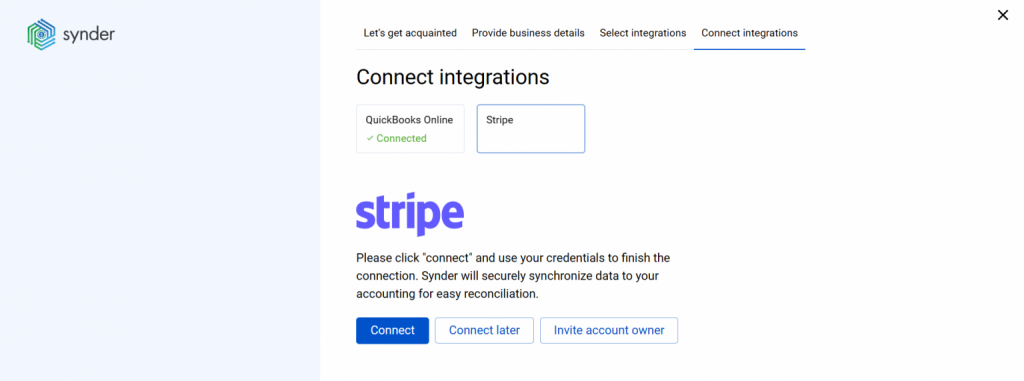
- Click Connect to connect your sales platforms.
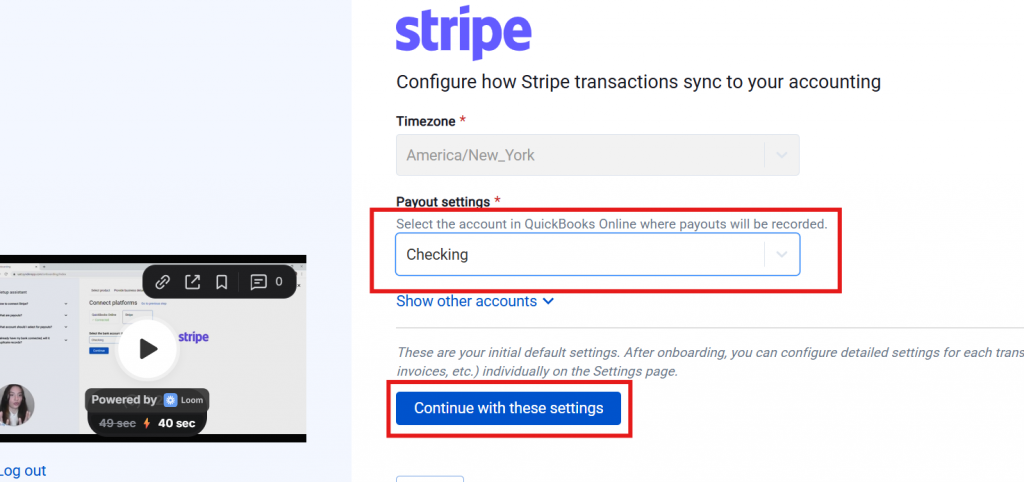
- If payout synchronization is available for your platform, select the account for payouts.
- Choose the starting date for importing data into Synder to finalize setup.
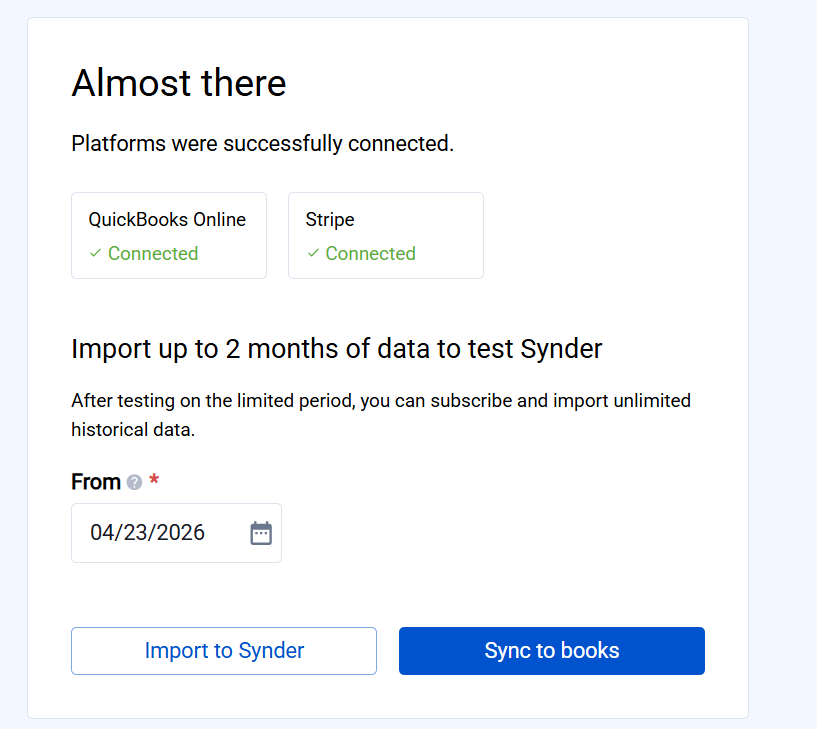
That’s it! After completing these steps, you’ll have a new Synder organization connected to your preferred accounting platform and ready for data synchronization.
Note: If you already have an active subscription in a previous Synder organization, it can be transferred to the newly created one. Contact us at [email protected] and request the subscription transfer.
Important Notes
- Every accounting company is treated as a separate Synder organization with its own subscription and billing.
- You need to have admin rights in the platforms you would like to integrate to connect successfully.
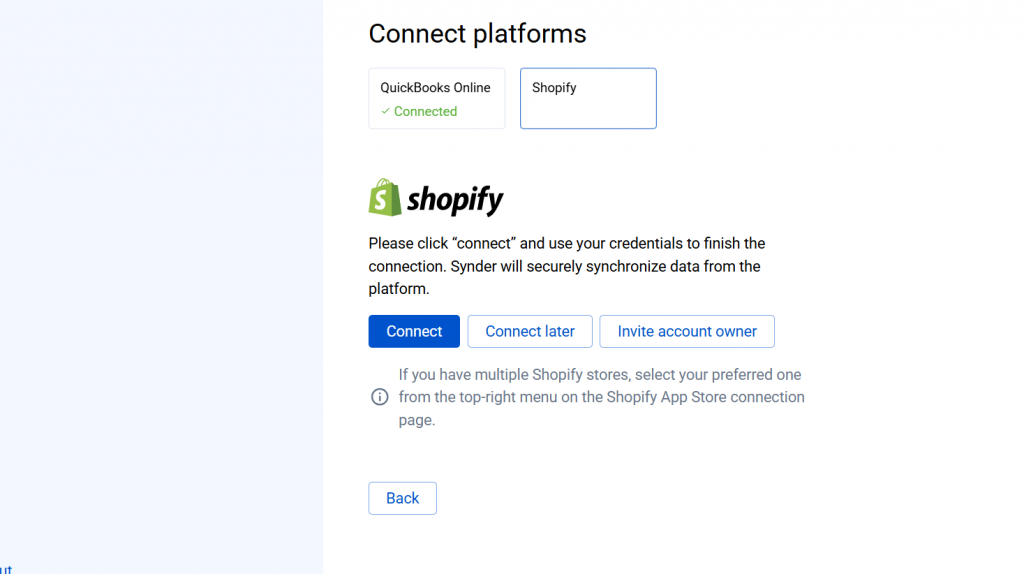
- If you don’t have admin access to a sales or payment platform:
- Click Invite account owner to finalize connection
- Alternatively, click Connect later to skip this step and connect the platform later from Synder settings. Preview this guide on how to connect integration to the existing Synder organization.
FAQ
- Will my historical data transfer automatically to the new organization?
No. If you want to synchronize the historical data to the new accounting platform, initiate the historical data import. Alternatively, select a starting date during setup to determine which data will be imported into the new organization. - What happens to my subscription when I create a new organization?
A new organization is treated separately for billing purposes. If you already have an active subscription, contact Synder Support at [email protected] to request a subscription transfer. - Will my settings be copied to the new organization?
No. Synchronization settings are configured separately for each organization. - What should I do if the wrong accounting company opens during connection?
Log out of the accounting platform in your browser, sign back in with the correct credentials, and reconnect the integration.
Reach out to Synder Team via online support chat or email with any questions you have – we are always happy to help you!
