

Reconciling Stripe payments in NetSuite means tracing each payout back to the charges, refunds, fees, and adjustments behind it, then clearing the deposit against the matching bank line. That’s necessary because Stripe sends payouts in net batches after a delay, while your ledger records gross revenue on the sale date.
Controllers and accountants at ecommerce, retail, and SaaS companies usually run into this during the first week of the close, when the cash balance in NetSuite doesn’t match the Stripe balance report. This guide covers the three Stripe NetSuite integration routes, the accounts to set up first, and the sequence you’ll use to clear them.
TL;DR
- Start by deciding how Stripe and NetSuite will connect: manual reports, Stripe’s native connector, or third-party accounting automation software.
- A Stripe payout rarely matches your total sales: it arrives days after the sale and already reflects processing fees and refunds.
- Post gross activity to a clearing account: fees, refunds, and disputes should each have their own account as well.
- Every payout is cleared the same way: pull the Stripe report, post the deposit, then match it to the bank line.
- There’s a point where manual matching stops being practical: that’s usually when automation starts paying for itself.
What to set up before the first reconciliation
There are two things to take care of before you start reconciling. First, decide how Stripe data will get into NetSuite. Then set up the accounts those transactions will post to. Most reconciliation problems begin at this stage, long before anyone starts matching payouts.
Three ways to connect Stripe and NetSuite
NetSuite integrates with Stripe, and the connection method you choose has a big effect on what reconciliation looks like each month. The best option depends on your transaction volume, how much of your billing runs through Stripe, and whether you have engineering resources available.
Route 1: manual reports and imports
This approach starts with downloading the Stripe balance report or payout reconciliation report, then recording the results as deposits, journal entries, or CSV imports into NetSuite. Excel templates and saved import maps can make the work faster, but they’re still part of the same manual process, not separate methods. There’s no software cost, although the time involved usually becomes difficult to manage when you’re processing more than a few thousand transactions.
Route 2: the Stripe Connector for NetSuite
Stripe’s native app, formerly called SuiteSync, creates records for customers, invoices, income, and receivables, then automates transaction-level bank reconciliation. It requires automatic daily payouts, and the free version only supports payments collected through a payment link. If you’re still using SuiteSync, there’s also a deadline to keep in mind, as the migration must be completed before April 13, 2027.
Route 3: third-party accounting automation software
These tools connect the two systems and are often a better fit for businesses that receive payments from multiple sources. Synder is one example. It syncs Stripe charges, fees, refunds, and disputes into NetSuite as individual records or daily summaries, posts fees to their own account, and clears each payout against the clearing account balance. The same approach also works for historical Stripe data and settlements from Shopify or Amazon. That’s why many teams choose it when Stripe payouts need to be reconciled alongside other platforms’ settlements.
| Manual reports | Native connector | Third-party automation | |
| Best for | Low volume, Stripe-only | Stripe-native billing at scale | Multi-channel, several processors |
| Fee handling | Manual expense lines | Automatic per deposit | Mapped to your fee account |
| Stripe payout matching | By hand | One deposit per payout | Clearing account per platform |
| Main limitation | Time grows with volume | Needs daily automatic payouts | Depends on posting mode |
Learn more about how to automate Stripe accounting.
Set up your NetSuite accounts
Before you import Stripe data, create five accounts in NetSuite. Set them up with the level of detail you want in your reports from the start, because splitting them later usually means restating prior periods. The clearing account is the one that matters most since every Stripe payout passes through it.
- A clearing account (bank type) that holds gross activity until the related payout clears it.
- A processing fee expense account to keep Stripe fees separate from bank charges and other merchant fees.
- A refunds contra-revenue account so refunds reduce revenue instead of increasing expenses.
- A disputed funds account for amounts and fees withheld while a dispute is still in progress.
- An FX gain and loss account if you settle payments in more than one currency.
Two Stripe settings to check before you start
Two Stripe settings have a bigger impact on reconciliation than most people expect.
The first is your payout schedule. Daily automatic payouts keep each batch small enough to review in a few minutes. Weekly payouts group much more activity into a single settlement, which makes it harder to work through when something doesn’t match.
The second is your reporting time zone. It determines which day each transaction falls on, and Stripe reports can run either in your account’s time zone or in UTC. That choice affects both the dates shown in your reports and the results you get when filtering by date.
Why Stripe payouts and NetSuite sales don’t match
Stripe keeps its own running balance, much like a bank account, while NetSuite records each payout as a single cash transaction. If a customer pays $120, Stripe deducts its processing fee and sends $116.32 to your bank. If you record that deposit as revenue, your books understate revenue by $3.68 and never record the processing expense.
The correct approach is to record the full $120 as revenue, post the fee to a separate expense account, and let the difference move through a clearing account. Timing adds another layer. Stripe settles on a rolling schedule, so at month-end you’ll almost always have sales that haven’t been paid out yet. Neither situation is an error, but both can look that way until the data reaches NetSuite in a structure that keeps revenue, fees, and payouts separate.
How Stripe fees, refunds, and disputes are recorded
All three reduce the deposit below gross sales, but each belongs in a different place in the ledger. Deciding where each one should post before the data comes in helps prevent most reconciliation issues later.
Fees
Stripe fees are the most common reason a Stripe NetSuite reconciliation doesn’t balance. The cause is usually the same every time: a net amount gets treated as gross. Stripe separates payment processing fees from platform charges in its reports, and combining them into one category makes it harder to see where the costs actually come from. Processing fees increase as revenue grows. A Stripe Billing subscription, on the other hand, is a software expense.
| Stripe activity | NetSuite treatment |
| Payment processing fees | Expense: merchant processing fees |
| Stripe product fees (Billing, Radar) | Expense: software fees |
| Dispute fees | Expense: dispute fees, not refunds |
Refunds
Refunds reduce revenue, so they belong in credit memos or a contra-revenue account, not in expenses. The timing is what usually causes confusion. A refund for a sale from a previous period reduces the payout without changing the sales already recorded for that period. Post it to the clearing account, then let the refunded fees offset the original fees.
Disputes
When a dispute opens, Stripe immediately withdraws the disputed amount along with a dispute fee. You only get the money back if you win the case. Recording the withdrawal as a refund creates the wrong accounting treatment because the revenue may still belong to you. Keeping disputed funds in a separate account makes the outstanding balance visible until the dispute is resolved.
Handling multi-currency Stripe payouts
Stripe converts funds before paying them out, so a sale in euros arrives as dollars using Stripe’s exchange rate, while NetSuite applies its own. The difference becomes a realized foreign exchange gain or loss, and that’s what this account is meant to capture.
Stripe reports amounts in the smallest unit of each currency. So $11.50 appears as 1150 and needs a 0.01 multiplier. Zero-decimal currencies such as JPY don’t have a minor unit, so ¥500 appears as 500. Applying the same multiplier there inflates every amount by a factor of 100. If you’re using OneWorld, there’s one more detail to account for because each subsidiary has its own base currency.
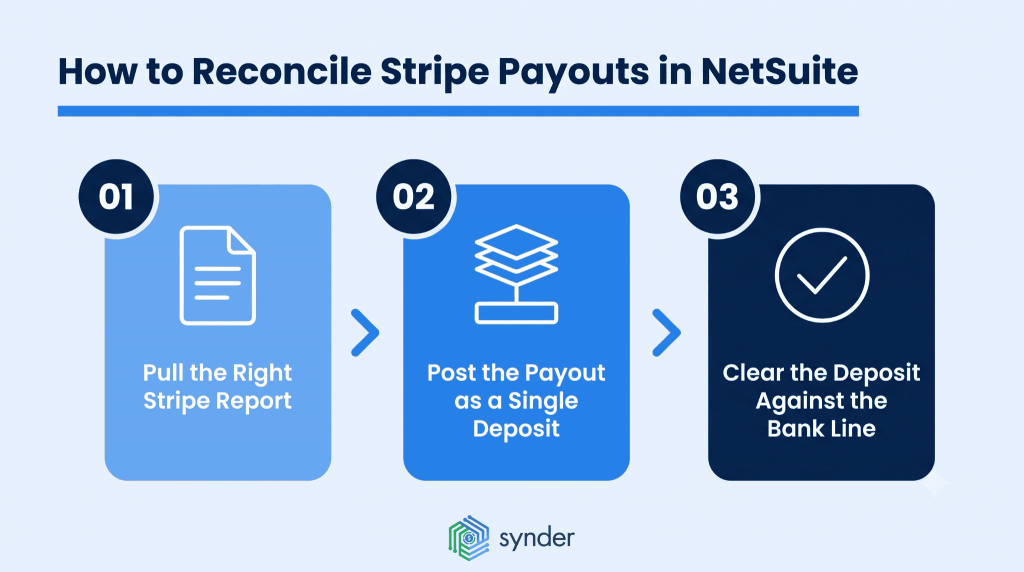
Three steps. Repeat them every reporting period, no matter which connection method you use.
Step 1: Pull the right Stripe report
The Balance report treats Stripe like a bank account. It shows the opening balance, activity, payouts, and closing balance. The Payout reconciliation report groups transactions by the payout they settled into, although it requires automatic payouts. Use the itemized version. Also keep in mind that a day’s report isn’t available until around noon the following day, so it may not be ready if you’re closing on day one.
Step 2: Post the payout as a single deposit
For each Stripe payout, create one deposit record totaling the amount that reached the bank. Record gross charges as positive lines, with fees, refunds, and disputes entered as reductions. The native connector follows the same approach, posting fees and fee refunds as “Cash Back” and “Other Deposit” lines. A single deposit can include up to 10,000 linked lines, which is one more reason daily payouts usually work best.
Step 3: Clear the deposit against the bank line
NetSuite’s current workflow goes through Match Bank Data and Reconcile Account Statement. Intelligent Transaction Matching applies its rules to imported bank lines and leaves any exceptions for manual review. Since the deposit total matches the bank amount, completing the match takes just one click.
Why most teams stop doing this by hand
The manual process works well enough when you’re dealing with a few hundred transactions a month. Once volume grows beyond that, exception handling is usually the first thing to become unmanageable. Finding four unmatched charges inside a 3,000-line payout can easily take an entire afternoon. Synder’s 2025 Emerging Trends in Accounting AI report found that 54% of 424 finance leaders had already automated bank reconciliation, and 92% said automation delivers better accuracy than manual work.
Synder’s auto-reconciliation includes two checks, each tied to a different sync mode. Transaction Reconciliation, which works with Per Transaction sync, compares the NetSuite clearing account against Stripe’s own records for any date range by pulling Stripe data directly through the API, so there’s no need to upload files. The results are grouped into matched, discrepancy, not matched, and ignored. Reconciliation only completes when every transaction matches. If you see a discrepancy, the transaction ID matches but the amounts don’t, and the difference is shown.
Balance Reconciliation is the companion feature for Summary Sync. Instead of checking individual transactions, it compares totals. Enter the beginning balance, ending balance, and ending date from Stripe’s balance summary, then select summaries until the remaining difference reaches zero. The time zones need to match or the balances won’t. Closed periods are logged as well.
Two days of checking, down to 40 minutes
Stape.io, a SaaS company that uses Stripe, reported a 95% reduction in reconciliation time and 180 hours saved per client each year.
Synder drastically speeds up the process of reconciliation and eliminates the need to manually check massive transaction files. While there still might be a few transactions to review, instead of checking thousands, we only need to verify a couple, saving a significant amount of time. It now takes me about 40 minutes to finish and review a month’s data, whereas manually, it would have taken at least two days.
Olena Svoiak, Financial Manager of Stape
| To see how this maps to your chart of accounts and payout schedule, book a Synder demo. |
When can Stripe reconciliation go wrong?
Controllers rarely lose time over fees and refunds alone. The problems below are the ones that usually slow the close, and each has a straightforward fix.
- Time zone mismatch. Stripe reports default to UTC, while your NetSuite ledger runs in local time. Set Stripe’s reporting time zone to match NetSuite, then document that setting so everyone follows the same approach.
- Payouts in transit. Funds may leave Stripe on the 31st and arrive in your bank on the 2nd. Leave those amounts in the clearing account, where they represent cash that’s still held by Stripe.
- Instant payouts. Stripe doesn’t identify exactly which transactions are included. Match them manually against the Balance report, or avoid using instant payouts around period end.
- Reserves. Held funds and balance recoveries move cash without creating a sale. Post them to a reserve account, not to revenue.
None of these are mistakes, and a different spreadsheet won’t make them disappear. They’re built into the way payment processors work. That means someone has to apply the same fixes every reporting period and remember each of these situations. Automation makes the process repeatable. In the same survey, more than half of respondents said it shortened the financial close by three to five days.
Takeaway: how Stripe reconciliation works in NetSuite
At the end of the process, you’re checking one thing: every payout that reached the bank can be traced back to the charges, fees, refunds, and disputes that make it up, while the clearing account contains only the funds Stripe hasn’t paid out yet. Stripe and NetSuite record the same money at different points in time, and the clearing account bridges that gap. Gross activity goes in, the net payout comes out, and whatever remains is money that’s still with Stripe. If every remaining balance can be explained, the period is reconciled, regardless of how the entries were created.
The process itself stays the same as volume grows. Pull the right Stripe report, post each payout as a single deposit, then match it to the bank line. What changes over time is who does the work and how quickly exceptions can be found. Choose the approach that fits your transaction volume and sales channels, because that decision, along with the account structure behind it, has a direct effect on how long your close takes.
Takeaway: What a completed Stripe reconciliation looks like
Every reconciliation ends with the same check. Each payout that reached your bank should tie back to the charges, fees, refunds, and disputes behind it. At the same time, the clearing account should contain only the funds Stripe hasn’t paid out yet.
Stripe and NetSuite record the same money at different stages. The clearing account connects those two views. Gross activity flows in, the net payout flows out, and whatever remains represents funds still held by Stripe. Once all remaining balance has a clear explanation, the reconciliation is complete, regardless of how the entries were created.
The process itself doesn’t change as your transaction volume grows. You still pull the right Stripe report, record each payout as a single deposit, and match it to the bank line. What changes is the amount of time those steps take and how quickly you can spot exceptions. That’s why it’s worth choosing the approach that fits your transaction volume and sales channels. The account structure behind that decision has a direct impact on how long your month-end close takes.
FAQ
How often should I reconcile Stripe payouts in NetSuite?
Don’t wait until month-end if you can avoid it. Matching payouts as they settle keeps the work manageable and makes disputes, failed syncs, and other exceptions much easier to investigate. The clearing account is still worth reviewing monthly to confirm nothing has been left behind.
Can I reconcile Stripe in NetSuite without a clearing account?
You can, but you’ll have much less visibility into what’s happening. Net deposits by themselves don’t show gross sales, Stripe fees, or the timing gap between a customer payment and the payout that eventually reaches your bank. Those are the details you’ll need if someone asks you to explain the numbers later.
How do I reconcile Stripe payments from an in-house billing system?
From Stripe’s perspective, those payments aren’t treated any differently. They still appear in Stripe payouts and clear the same way. What matters is making sure each payment can be tied back to the correct NetSuite invoice, which usually means sending the invoice reference to Stripe as metadata when the payment is created.
Does the Stripe Connector for NetSuite cost extra?
Stripe doesn’t publish a price for the full connector. The free self-service option is limited to an invoice payment link and doesn’t synchronize accounting data. If you need the complete connector, you’ll have to request a demo and work through onboarding with an implementation partner.
What happens to Stripe data recorded before I connect an integration?
That depends on the integration you choose. Most support importing historical Stripe data, although re-syncing periods you’ve already closed can introduce duplicates. Synder, for example, can import any custom date range, including transactions from several years back. A cutover date usually keeps the process much cleaner: reconcile everything before that date first, then let the integration sync new activity going forward.