
The Square reconciliation process in QuickBooks Online revolves around one key concept: your bank always receives less money than the sum of the sales you generated. Square batches all the transactions on a given day, takes its transaction fees first, then nets off any returns before making the net deposits to your account. When matching the deposits to your gross sales, the figures will never tie out.
This guide applies to those who are responsible for closing the month-end accounts including business owners, internal bookkeepers, accountants, and even the controllers who reconcile the accounts each month. It explains why the Square deposits work the way they do, setting up your QuickBooks Online account so the reconciliation works, steps to reconcile your gross sales against transaction fees and deposits, and the common mistakes behind mismatches. The solution is purely structural, and once your reconciliation structure is right, closing month-end accounts becomes much easier.
TL;DR
- Square deposits are net, not gross: fees and refund amounts will be deducted before the payment goes into your bank account.
- A clearing account is the backbone: it stores all the gross sales and the fees to allow the balance to be the same as your deposit.
- The reconciliation process consists of several steps: make gross sale entries, enter fees, make a net deposit entry, and make sure the clearing account balances to zero.
- Issues that appear are usually easy to predict: the major reasons for discrepancies include non-zero clearing accounts, duplicates, split transactions, and refund delays.
- Volume defines the method: a couple of transactions per day can be done manually, while hundreds make you automate the procedure.
Why Square reconciliation in QuickBooks Online is different
Most reconciliation guides assume that when a sale happens, the money shows up, and you match them. Square breaks that assumption on day one, and understanding why saves hours of confusion later. It doesn’t deposit each sale as it happens. Instead, Square groups a day’s transactions, deducts its processing fee, nets out any refunds or disputes, and sends you a single payout. That payout appears in your bank feed, while QuickBooks records the total amount of your sale. In this way, a $1,000 sales day will be credited as $967, with no explanations in your bank feed of how the remaining $33 disappeared into fees and disputes.
Why are fees becoming more important in 2026?
Fees are much more important in 2026 than before. Square increased its online processing fee for its Free Plan from 2.9% + 30¢ to 3.3% + 30¢ on January 13, 2026. This is an increase of about 14 percent for every online transaction. Your input data got larger. This means that poor fee management becomes more costly for you.
The timing issue
In addition to all of the above, there is a timing issue. Since Square uses a rolling deposit system, deposits for one business day may be made the next day or two, which means they may fall within a different period than the sale period. For instance, if the sale occurred on March 31, the deposit will be made on April 1. And if you have to close your books for the month, this difference requires your attention and cannot be ignored.
Read our article on how long it takes Square to process payments and deposits.
How to set up QuickBooks Online before reconciling Square
You cannot reconcile your way out of a poor accounting system design. Virtually every successful Square close follows the same process, and once you get this part right, the rest is routine.
Establish clearing and fees accounts
First, you’ll need to set up a checking account. In the QuickBooks Online chart of accounts, make sure you have a “Square Checking Account” categorized under “Other Current Assets.” All sales revenue and commission fees are deposited into this account, and the net payment amount is then deposited into your bank account. This is necessary because the amount received from Square is not equal to the total sales, and the difference is deposited into your checking account. In addition to your checking account, you’ll also need to create an expense account to reflect the fees you incur for using Square.
One of the bookstore-café owners that we met explained that he faced the problem many Square merchants feel: pulling data from Square, Clover, and a specialized point-of-sale system into QuickBooks without any of it lining up. The clearing account is what makes such mismatched sources reconcilable in the first place.
How to import Square data into QuickBooks
After creating the accounts, determine how Square data is imported into QuickBooks. This way, you have several basic methods to choose from. In any case, the Square payout report should be downloaded from the Square Dashboard because the report includes gross sales, fees, refunds, and net payout for the period, and it acts as the source of truth against which all transactions are checked.
Manual import
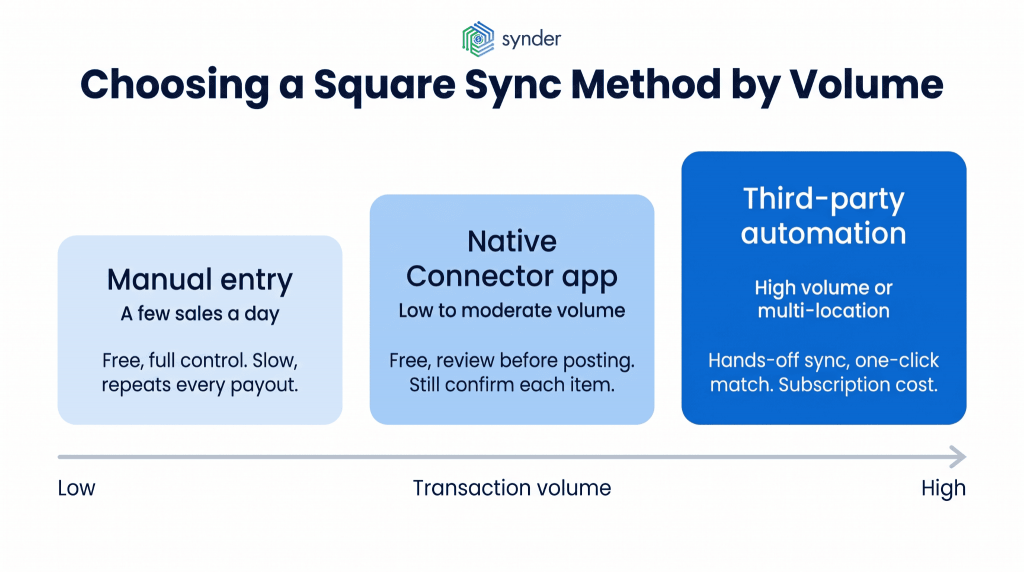
The first method is manual import. It involves downloading the payout report and manually entering the transaction, either as a sales receipt of the gross sale amount plus an expense entry for the fees, or as one journal entry recording the sales, fees, and net payout to the clearing account. This method is free and offers complete control, but the downside is that it takes a lot of time because for every payout, there is a lot of data entry, and accuracy totally depends on the human factor.
When manual becomes unfeasible
Even if a coffee shop processes over 2,000 transactions per month, or a retailer sells through eight different stores, manually reviewing all Square transactions and still meeting deal closing deadlines is impractical. It is true. In 2025, Square handled around $210 billion gross payment volume and had around 4 million merchants – businesses that do not have time to manually enter any information into the books.
Ways to automate
The native Square Connector app
The next way is the native Square Connector by the QuickBooks application that comes for free from the QuickBooks App Center. This app imports your sales and payouts and allows you to verify each transaction or daily summary before posting, with the sales posted as “Payment received” transactions, where the sales will go to an Undeposited Funds (or Payments to Deposit) account until the payout comes. Thus, here too, you verify and post each transaction but save time on typing.
Third-party automation
You can use a third-party layer for automation in cases where manual checking turns out to be a challenge. Synder, a Square Certified Partner, imports information such as cards, cash, refunds, tips, and online orders from Square into QuickBooks in about an hour on a daily basis through its Per Transaction mode, which provides details of each sale transaction, or else through its Summary Sync mode, where information is imported based on each payout or period. The square transactions are posted in a clearing account and transferred to the same net payout that you receive in your bank account.
How automation works for different businesses
Equilibrium Consultants, an accounting company helping clients from the creative industry, used Square, Stripe, PayPal, and other payment solutions in addition to QuickBooks Online and discovered that for certain clients, reconciliation was the most time-consuming process. Using automation through Synder, owner Katherine Scardaville explained how this helped her:
Synder saved me so much time. With one specific client, just reconciling data was a challenge. Before, it would have taken three hours that would drag on endlessly. But with Synder, the same task took just 15 minutes. The difference was huge – it was a game changer.
Katherine Scardaville, Owner of Equilibrium Consultants
Another example is Light a Candle, which is a non-profit from the United States. It had to rely on manual tracking of donations using basic Excel programming, facing problems with delayed reporting and year-end statements. After automating its Stripe, Square, and QuickBooks Online sync, the categorization and class-data work that used to stall the close now runs on its own, and the donor statements go out on time every month.
| To learn more about how it’s done, you can book a demo with Synder. |
Comparing the three methods
Here’s how the three options stack up on cost, effort, and fit:
| Method | Pros | Cons | Best for |
| Manual entry | Free, full control, no setup | Slow, error-prone, repeats every payout | A few sales a day |
| Native Connector app | Free, pulls data in, reviews before posting | Still confirm each item, limited fee handling | Low to moderate volume |
| Third-party automation | Hands-off sync, auto fee and tax mapping, one-click match | Subscription cost, initial setup | High volume or multi-location |
The idea is not that automation will replace understanding the process, but that once you understand it, you might no longer want to do it manually.
Read about how to record Square transactions in QuickBooks Online.
Step-by-step process to reconcile Square deposits in QuickBooks Online
Follow the same steps each period, and your sales, fees, payouts, and bank deposits will consistently line up.
The reconciliation sequence
This is how it works:
- Square sales go through the clearing account, not straight into your bank account.
- Record Square processing fees in your fee expense account, debited from the clearing account. This will ensure that the clearing balance is now on its way to reflecting the net amount.
- Compare the net clearing account balance to the deposit that appears in your bank feeds.
- Confirm the clearing account reaches zero once the payout is matched. A zero balance means gross sales minus fees equals the deposit, exactly as it should.
- Run the QuickBooks reconciliation tool against your bank statement to finalize the period, ticking off the matched deposits.
The clearing-to-zero check in step four is the whole point. If the account balances to zero after each payout, your sales, fees, and deposits are internally consistent. If it doesn’t, you’ve found a problem before it reaches the bank reconciliation, which is far easier than untangling it afterward.
Matching partial payments and grouped deposits
This method also addresses the frequent problem of a partial payment in QuickBooks reconciliation. In cases where a single deposit includes multiple sales, or where sales are split between different payment types, you match the payout to the combined clearing entries rather than trying to find the individual sales transaction that matches the deposit. Since the clearing account contains all the transactions for the same period anyway, the partial transactions will total the net amount of the payment without making any adjustments.
| Element | Where it’s recorded | What it represents | Reconciliation role |
| Gross sales | Square clearing account | Full value of what you sold | Starting balance before fees |
| Processing fees | Fee expense account (from clearing) | Square’s cut per transaction | Reduces clearing toward net |
| Refunds / disputes | Square clearing account | Money returned or held back | Further reduces clearing balance |
| Net payout | Checking account | Cash Square actually deposits | Matched against bank feed |
| Clearing balance | Square clearing account | Sales minus fees minus refunds | Should equal zero after match |
This works out very neatly when the amount is manageable. However, when it’s not, the manual process is what will begin to eat into people’s time – precisely what automation addresses.
Common Square reconciliation errors and how to fix them
All errors will usually fall into one of a few common categories, and when you learn to spot these, the solution is generally an easy one.
Non-zero clearing account balance
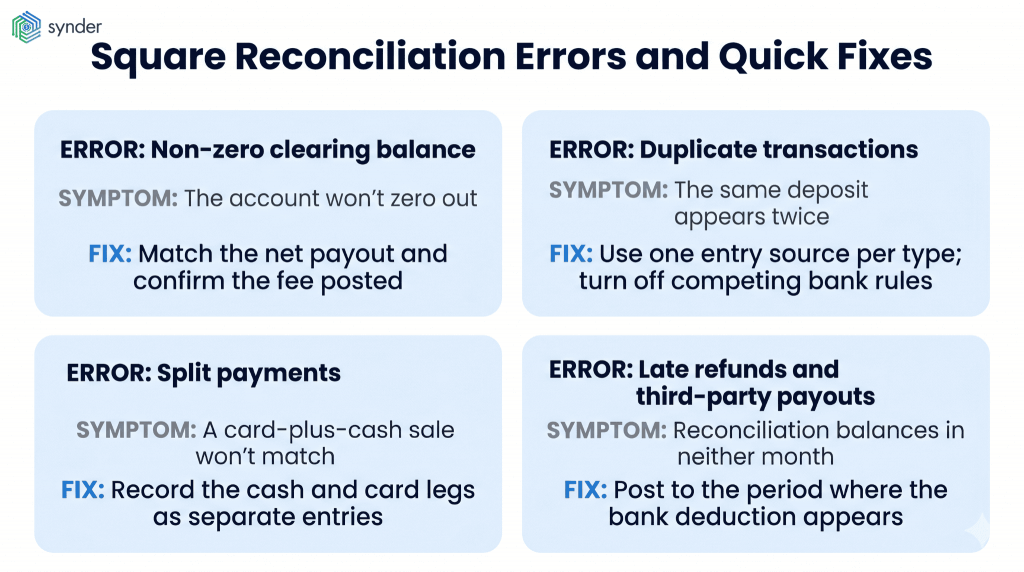
One of the most common is the non-zero clearing account balance, which means you probably booked your payment as gross rather than net, or you forgot to post your fee. If your clearing account will not balance, see whether you’ve properly recorded the net number of your Square payment into your clearing account, along with your fees posted to your expense account.
Duplicate entries
Duplicate entries are another common issue that typically occurs when using automatic sync in combination with manual import or QuickBooks bank rules. When you have the bank account linked, the deposits will be shown twice – from the integration and also in the bank feed.
To resolve the problem, it’s better to select only one entry point for each type of transaction and remove conflicting bank rules so that QuickBooks does not double the same amount. We’ve had several Square clients who required disabling their current QuickBooks Online bank rules before a proper synchronization could be established.
Split payments
A sale paid partly in cash and partly by card creates an unmatched remainder because only the card transaction is included in the Square payout. The solution is to treat cash and card transactions as separate payments, using cash to offset the funds in your cash and undeposited account, and then matching only the card payment with the Square payout.
Late refunds and third-party payouts
Refunds processed after a payout period closes present a more complicated situation. Record any refund based on when the actual deduction happens from the bank, and not when the original sale happened, or else you won’t be able to reconcile in either month. This is true of third-party agreements as well, like if a restaurant takes orders using a food delivery app, which pays out separately from the Square transactions: handle these payouts separately and match them with the actual deduction in the bank.
Conclusion: reconciling Square in QuickBooks Online without the monthly headache
Square reconciliation in QuickBooks Online is fundamentally a structural challenge disguised as a math problem. Receipts do not equal sales because Square subtracts all fees and chargebacks before payment is made, and reconciliation is inherently flawed due to the lack of a clearing account to reflect the discrepancy. Create that clearing account, set up a separate expense account for fees, and follow the same process each and every period: enter gross sales, post the fees, make sure that the net payout matches, and verify that the clearing account balance is zeroed out, and the close becomes routine.
At that point, the only real question is that of volume. For smaller companies, it is possible to use manual reconciliation or the free Square Connector app, whereas the larger retail, food service, or professional service company generally comes to a point when automated bookkeeping is worth its weight in time saved and reduced errors. Regardless, the concept is the same, and once the nature of Square deposit behavior is understood, the task becomes mechanical.
FAQ
Is QuickBooks Desktop going away in 2026?
Not entirely, but it’s being phased out. Intuit stopped selling new Pro Plus, Premier Plus, and Mac Plus subscriptions in September 2024, and QuickBooks Desktop 2023 lost all support, including bank feeds and security updates, on May 31, 2026. Desktop 2024 is supported through September 2027, and Enterprise continues separately.
What are people replacing QuickBooks with?
Most Desktop users moving on aren’t abandoning QuickBooks at all, but shifting to QuickBooks Online for cloud access, automatic updates, and easier third-party integrations. Others evaluate alternatives like Xero. For Square reconciliation specifically, the bigger change is usually adding an automation layer on top of QuickBooks Online rather than switching accounting platforms entirely.
What is a Square clearing account, and where do I create it?
A clearing account is a holding account that temporarily captures gross Square sales and fees before the net payout moves to your bank, so the two sides can reconcile. Create it in your QuickBooks Online chart of accounts as an “Other Current Asset,” then route all Square activity through it. It’s the single setup step that makes the rest of the reconciliation balance.
How often should I reconcile Square transactions in QuickBooks Online?
Match Square payouts as they arrive, ideally a few times a week, so the clearing account never builds up a backlog. Then run the full QuickBooks reconciliation against your bank statement monthly. Reconciling continuously rather than in one month-end push makes discrepancies far easier to spot and trace back to a specific payout.