One account does most of the work when you’re reconciling Square in NetSuite. Card payments go into a clearing account, fees and refunds come out of it, and the remaining balance is transferred to your bank with each Square payout. If that clearing account matches the balance Square reports for the same period, your reconciliation is complete. If even one deduction is missing, the numbers won’t line up.
On paper, that process looks straightforward. In practice, Square adjusts the payout before the money reaches your bank. Processing fees are deducted first, but tips and gift cards don’t follow the same accounting treatment as product sales, and a Square loan repayment can reduce a payout without showing up as an expense in your books. If you manage the close for a multi-location retailer, a restaurant group, or a business that uses both Square POS and an online store, you’ve probably run into these differences already. This guide walks through the points that usually cause reconciliations to fall out of balance, the tools NetSuite gives you to track them down, and the three ways to bring Square data into your ERP before reconciliation begins.
TL;DR
- A clearing account records what happens between the sale and the bank deposit.
- Transaction-level matching and balance-level reconciliation catch different types of reconciliation issues.
- Manual entry, NetSuite Connector, and third-party automation differ mainly in the amount of work and detail they provide.
- Automation reduces manual matching by flagging the transactions that need attention.
What does reconciling Square in NetSuite mean?
The way Square connects to NetSuite only affects how the data gets into your books. Whether your reconciliation balances depends on something else: whether your chart of accounts reflects how Square handles the money before it reaches your bank.
The clearing account keeps everything in sync
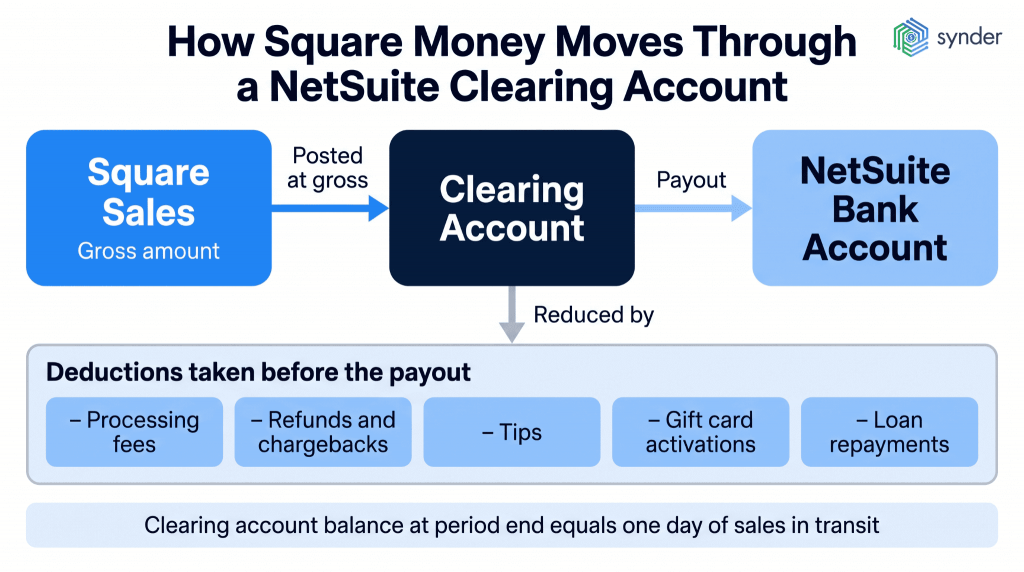
A Square clearing account is a balance sheet account that holds your card sales between the time a customer pays and the time the payout reaches your bank. The money moves through it in the same sequence every time:
- Gross sales debit the clearing account and credit revenue.
- Fees, refunds, chargebacks, and loan repayments reduce the clearing account as they’re deducted.
- When Square sends the payout, the clearing account is credited, and your NetSuite bank account is debited.
- The remaining balance represents money Square is still holding for you, typically about one day’s worth of sales waiting to be paid out.
If the clearing account keeps growing from one month to the next, it’s usually a sign that part of the process isn’t being recorded at all.
Gross sales, net deposits, and why they don’t match
The amount Square deposits into your bank is always lower than the sales total in your Square reports. That’s because processing fees are deducted before the payout is sent. To reconcile the numbers correctly, those fees need to be recorded as their own expense instead of reducing revenue. According to Square’s fee documentation, US businesses on the Free plan pay 2.6% + 15¢ for in-person payments, 3.3% + 30¢ for online payments and card-paid invoices, and 3.5% + 15¢ for manually keyed or card-on-file payments.
Take a retailer that processes $50,000 from 2,400 in-person transactions over a month. Based on those rates, Square would deduct about $1,300 in percentage-based fees and another $360 in fixed per-transaction charges, for a total of roughly $1,660. If that entire amount is posted as one monthly adjustment, the fee expense line no longer shows which sales channel those costs
Two checks you should run every period
Each reporting period calls for two separate checks, and they catch different kinds of problems:
- Transaction-level matching checks that every payment, refund, and fee has been recorded in NetSuite for the correct amount.
- Balance-level reconciliation compares the account as a whole with Square’s balance for the same period, which helps catch anything the transaction-level review didn’t pick up.
If you skip the balance-level check, a missing $4,000 payout can stay unnoticed through several month-end closes before an auditor spots it. That’s why both checks should be part of your regular close process.
Learn how to automate Square accounting.
Where Square and NetSuite stop agreeing
Square and NetSuite are tracking the same money, but they don’t always show it the same way. The timing is different, the level of detail is different, and some amounts have already been deducted before they appear in NetSuite. Each difference has a specific reason, and each one has its own way to handle it.
Timing: the 5 p.m. cutoff and deposits in transit
Square follows a payout schedule that creates timing differences by design. Payments taken before 5 p.m. PT / 8 p.m. ET are available in your bank the next business day. Payments processed after that arrive by the second business day, and Square doesn’t send next-business-day transfers on Saturdays. If your store stays open until 9 p.m., you’ll always have about a one-day gap between when a sale happens and when the cash reaches your bank. At month-end, the gap becomes part of your reconciliation. The sale belongs in the period you’re closing, but the money won’t reach your bank until the next one.
Square recommends setting your transfer schedule to match the end of your business day. For a single location, that can reduce timing differences. Businesses with multiple locations have a more complicated setup because stores may close at different times. Any remaining balance should stay in the clearing account, and your reconciliation should show why it’s still there instead of treating it as a mistake.
Deductions that aren’t sales
A Square payout includes more than customer payments. The transfer to your bank is reduced by several types of deductions, and each should post to its own account:
- Processing fees include the additional 1.5% fee for cards issued outside your account’s country.
- Refunds and chargebacks can show up days after the original sale.
- Tips belong to employees, so they aren’t business revenue.
- Gift card activations create a liability until the card is redeemed.
- Square loan repayments are deducted automatically as a fixed percentage of daily card sales.
Square loan repayments account for many reconciliation questions. The repayment is calculated on gross card sales, including tips and taxes, then deducted from your Square balance before the payout is sent. Square reports those repayments separately from processing fees. During our demo conversations with sellers, unexplained differences between the Square balance and the general ledger often traced back to an active Square loan.
Locations, subsidiaries, and where mappings go wrong
Every payment in Square carries a location ID. NetSuite tracks locations and subsidiaries through its own records, so those fields need to map correctly. Otherwise, sales from three different stores can end up in a single revenue line, making location-level margin reporting impossible. Businesses on Square’s Plus and Premium plans also pay a monthly subscription fee per location, so those costs normally need to be allocated by store.
Currency adds another layer to the reconciliation process. Block reported that Square’s gross payment volume increased 13% year over year in the first quarter of 2026, and international volume grew 35%, according to its shareholder letter. As more sales come from international markets, businesses process more foreign-issued cards, incur more of Square’s additional 1.5% international processing fee, and record more foreign exchange gains and losses in a NetSuite OneWorld environment.
Common reconciliation issues and how to fix them
When the numbers don’t match, the cause is often one of the issues below. Start here before looking for something more unusual.
| If you notice… | The reason is often… | How to fix it |
| Your bank deposit is smaller than your gross sales | Square deducted processing fees before sending the payout | Post the fees to a dedicated expense account instead of reducing revenue |
| The clearing account still has a balance at month-end | Sales were processed after the 5 p.m. PT cutoff | Treat them as deposits in transit and, where possible, align your transfer schedule with your reporting day |
| Revenue looks too high | Card tips were recorded as sales | Post tips to a liability account until they’re paid out |
| Deferred income looks too low | Gift card activations were recognized as revenue | Post gift card activations to a liability account and recognize the revenue when the card is redeemed |
| One period balances, the next doesn’t | Refunds or chargebacks were recorded after the original transaction | Match transactions by the Square transaction ID instead of the transaction date |
| The payout is smaller than expected, but no expense explains the difference | Square loan repayments were deducted automatically | Split the repayment between the loan liability and finance cost accounts |
| Sales from every store appear on one revenue line | Square location IDs weren’t mapped to NetSuite | Map each Square location to the correct NetSuite location or subsidiary before you go live |
Read about automated reconciliation and how to do it right.
Three ways to move Square transactions into NetSuite
Does NetSuite integrate with Square? Yes, though Square doesn’t offer a native NetSuite integration. You can get Square transactions into NetSuite in three ways: export reports and enter the data manually, connect through Oracle’s NetSuite Connector, or integrate Square and NetSuite via a third-party accounting automation platform. Each approach gets the data into your books. The difference is how much manual work comes afterward. In practice, transaction volume and the amount of detail you need in NetSuite matter much more than the subscription cost.
1. Manual entry from Square reports
You can export reports from the Square Dashboard and enter them into NetSuite as journal entries or cash sales. That works well if you’re processing a relatively small number of transactions. The report you’ll use most is the Reconciliation Report under Reports > Accounting > Reconciliation. It shows how Square calculates the bank deposit from total payments after refunds, partial payments, and split deposits.
A café posting one summary journal entry each day can usually keep up with this process. A business handling 8,000 card payments a month across a dozen locations usually can’t. At that point, manual entry takes too much time and doesn’t give you a transaction-level audit trail.
2. NetSuite Connector
Oracle added a Square connector to NetSuite Connector in the 2025.2 release. According to Oracle’s documentation, it imports orders and refunds into NetSuite, sends fulfillment and item updates back to Square, and records POS orders as Cash Sales.
That covers the sales flow. Before you rely on it for reconciliation, confirm how your setup handles processing fees and payouts. Oracle’s documentation focuses on orders, refunds, fulfillments, and items. Because POS transactions are created as Cash Sales, the sale and payment are combined in a single record. Posting tips, gift cards, or processing fees to separate accounts may require additional configuration.
Access works a little differently than many NetSuite features. You don’t sign up for the connector yourself. Your NetSuite account manager arranges access during onboarding.
3. Third-party automation platforms
Third-party accounting automation platforms do more than move data between Square and NetSuite. They also determine how different transaction types are recorded in your books. That’s where the differences between products become more noticeable. Check how processing fees are posted, whether tips go to a liability account, how refunds link back to the original sale, which exchange rates are used for foreign currency transactions, and whether you can import historical data. Those settings affect the transactions you’ll review each month when reconciling the clearing account.
Synder is an example of such solutions. It syncs ecommerce and financial data across more than 30 platforms and offers two ways to bring Square activity into NetSuite. Summary Sync groups transactions by reporting period or payout, which keeps the general ledger concise. Per Transaction Sync records every payment, fee, product, customer, and gift card with full line-level detail. The accounting treatment stays the same, but the records available at month-end depend on the sync mode you choose.
Your account mappings decide where each part of the transaction is posted. Square processing fees go to an expense account, tips to a liability account, and sales, discounts, and taxes to the accounts you’ve assigned. International transactions use the platform’s exchange rates. If you’re catching up on earlier periods, you can import historical data before turning on ongoing syncs. Businesses using more than Square can also sync Stripe, PayPal, and Shopify into the same NetSuite company.
| The difference between Summary Sync and Per Transaction Sync is easiest to see with real transactions. Book a Synder demo for a complete walkthrough. |
Which Square-to-NetSuite approach fits your workflow?
All three options get your Square data into NetSuite, but the biggest difference is what happens next. Some leave you to handle most of the reconciliation yourself, while others organize the accounting before month-end. Pricing isn’t included because it depends on your transaction volume and implementation partner.
| If your priority is… | Manual entry | NetSuite Connector | Third-party automation |
| Best fit for | Businesses processing fewer than ~100 payments a month | Teams already using Oracle’s ecosystem | Businesses with high transaction volume or multiple sales channels |
| What shows up in NetSuite | Only the entries you create | A Cash Sale for each POS order | Summary entries or full transaction detail, depending on the sync mode |
| How fees and tips are recorded | You separate them manually each reporting period | Depends on your GL account mapping | Split automatically during the sync |
| Can you import historical data? | You re-enter it yourself | Limited | Historical import supported |
| Month-end workload | Several hours of manual reconciliation | Mostly reviewing exceptions | Mostly reviewing exceptions |
Month-end workflow for reconciling Square in NetSuite
If Square transactions have been syncing into NetSuite throughout the month, most of the work is already behind you. The order below assumes Square data reaches NetSuite daily and that you have a dedicated clearing account per Square account, or one per location where locations transfer separately.
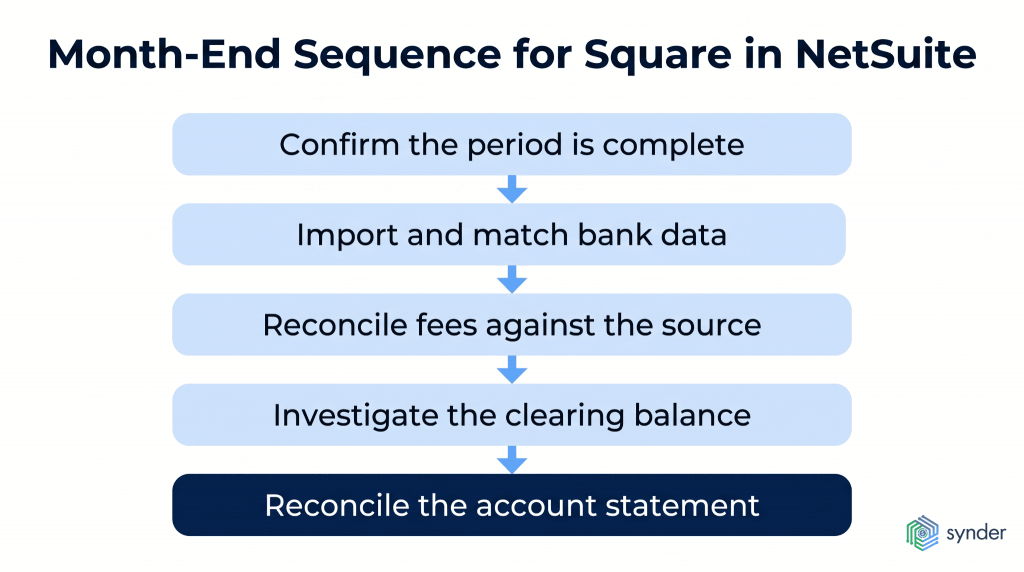
- Confirm the period is complete. Check that every day in the range has synced and that no transactions are still pending or partially imported.
- Import and match bank data. Let reconciliation rules clear the routine payouts, then work the unmatched lines by hand.
- Reconcile fees against the source. Compare the fee expense posted for the period with Square’s Reconciliation Report for the same dates and locations.
- Investigate the clearing balance. Anything beyond one transfer cycle of sales in transit needs an explanation before you close.
- Reconcile the account statement. Submit the matched transactions and reconcile the period, keeping the export as your audit trail.
The time savings become more noticeable when the same process is repeated across dozens of clients. Decimal, for example, manages multichannel clients using Stripe, PayPal, Shopify, Amazon, Square, and Authorize.net. After automating transaction management across those platforms, the firm cut month-end reconciliation time by more than 50% and saved 6–8 hours per client each month. Across a portfolio of 20 clients, that’s roughly a full working week saved every month.
How much of the matching you can automate
Automation speeds up reconciliation by matching the transactions that already agree, leaving your team to review the exceptions. Importing Square data into NetSuite is only one step. The reconciliation itself happens afterward using NetSuite’s built-in tools.
Oracle replaced the original Reconcile Bank Statement page with a new reconciliation experience in the 2021.1 release.
- Match Bank Data compares imported bank transactions with the entries already in your ledger. You can clear matching transactions or exclude items that don’t belong.
- Reconcile Account Statement completes the reconciliation using the matched transactions.
- Intelligent Transaction Matching applies your reconciliation rules automatically. When an imported bank transaction meets those rules, NetSuite creates the matching transaction and reconciles it without manual input.
But NetSuite can only match transactions that already exist in the ledger. If processing fees, tips, or refunds haven’t been recorded, there’s nothing for the matching rules to reconcile. Oracle also notes that editing, deleting, or voiding a matched transaction without a reversing journal entry removes its matched or cleared status across the entire matching group.
Reconciliation rules need maintenance as your accounting processes change. Your team still has to create, test, and update these rules over time.
You may also come across the phrase “NetSuite controversy” online. It’s commonly used for recurring customer concerns about renewal pricing, uplift clauses, and implementation costs, particularly among smaller finance teams.
Where third-party tools help
NetSuite matches transactions that are already in your books. Third-party automation starts one step earlier by comparing your NetSuite records with Square’s own data, helping you catch missing or mismatched transactions before they become reconciliation issues.
Synder’s Auto Reconciliation feature covers both of the checks described earlier. Transaction Reconciliation compares every Square transaction recorded in your clearing account with Square’s own records for a selected date range, then groups the results into Matched, Discrepancy, Not Matched, and Ignored tabs. Only a 100% match is treated as reconciled, so a 97% result still means there’s work to do. Balance Reconciliation handles the second check by confirming that the period summaries match the opening and closing balances reported by Square before those summaries are posted to your books.
The difference shows up in day-to-day bookkeeping. LedgerZ Bookkeeping, an accounting firm serving software, construction, hospitality, and ecommerce clients, automated its Square data entry and now saves more than 10 hours per client each month, or 120 hours a year during month-end close.
Synder saves me at least 10 hours a month on manual data entry and reconciliation. It gives me the ability to manage multiple income streams and separate clearing accounts for different locations, making month-end close so much easier and more accurate. It’s 100% worth the money.
Christina Testolin, Founder and CEO of LedgerZ Bookkeeping
That mention of separate clearing accounts for different locations ties back to the mapping issue discussed earlier. When each location has its own clearing account, it’s much easier to keep payouts, balances, and reporting aligned.
| If you’d like to see how the matching works with your own Square data before deciding on a setup, you can book a Synder demo. |
Wrapping up: reconciling Square in NetSuite is a chart-of-accounts job
Reconciling Square in NetSuite comes down to accounting for everything that happens between the sale and the bank deposit. Square records what your customers paid. NetSuite records what your business earned and the cash it received. The reconciliation explains everything in between, including processing fees, sales that fell on opposite sides of a payout cutoff, tips owed to staff, gift cards that haven’t been redeemed yet, and loan repayments deducted before the payout was sent. When each of the items has a place in your chart of accounts, month-end usually becomes a review of the exceptions instead of a search for missing transactions.
How you bring Square data into NetSuite mainly affects how much of that work is handled for you. With manual entry, you record every part of the process yourself. NetSuite Connector imports the transactions, while you decide how they’re accounted for. Third-party automation combines both by importing the data and applying the accounting treatment. In practice, the right approach usually depends on your transaction volume, the number of locations you manage, and how much line-level detail you need in your reporting.
FAQ
Can I import historical Square payouts into NetSuite?
Yes. With manual entry, you’ll need to re-enter the data or import CSV files one period at a time. And Synder, for example, can import historical Square data alongside your ongoing sync, pulling a selected date range and posting it with the same mappings and account assignments you use for current transactions. It’s best to run the historical import before turning on the ongoing sync so the same Square transactions aren’t imported twice during the overlap.
Why do my Square sales show up twice in my books?
In most cases, duplicate sales happen because two different sources record the same transaction. One entry comes from the Square sync, while another is created when the bank deposit is categorized as income. That records the same revenue twice. Routing bank deposits to a clearing account rather than a revenue account prevents that duplication because only the original sale creates income. Synder does this by posting each payout as a transfer from the clearing account to your bank account, so the bank line matches an existing entry.
Why does my Square clearing account never reach zero?
A small balance at period-end is usually expected. Payments processed after Square’s transfer cutoff haven’t been paid out yet, so they remain in the clearing account until the next transfer. If the balance keeps growing from one month to the next, it’s usually a sign that an entire category of transactions, such as refunds, chargebacks, or loan repayments, isn’t being recorded. Compare the clearing account with the Square Dashboard balance for the same date to see which transactions are missing.
Do I need a separate clearing account per location?
Not necessarily, but it’s often the better option when different locations pay into separate bank accounts or follow different closing schedules. A single clearing account is easier to manage, but it also makes it harder to work out which store a discrepancy belongs to. That’s why many businesses with multiple locations keep a separate clearing account for each one. It makes unexplained balances much easier to trace.