

A Shopify-to-Xero integration moves orders, fees, refunds, taxes, and payouts out of Shopify and into your Xero chart of accounts automatically.
Setting one up takes more than clicking connect, because Shopify reports gross sales while your bank pays out net. Those two numbers never agree on their own.
A lot of merchants are still closing that gap by hand. Shopify merchants moved $101 billion in gross merchandise volume in Q1 2026, up 35% year over year, and Xero closed FY26 with 4.92 million subscribers and US organic revenue up 30%.
In this article, you’ll learn how to connect Shopify to Xero in five steps, set the sync to run automatically every day, and use automated payout matching to clear your Xero bank feed without line-by-line work.
TL;DR
- Past Shopify orders, refunds, and payouts can be backfilled under the same mappings, so the Xero file starts complete instead of mid-history.
- Shopify reports gross sales, while the bank deposit arrives net of processing fees, refunds, chargebacks, and withheld tax. A clearing account in Xero is what closes that gap.
- An automated sync moves orders, fees, refunds, taxes, and payouts into Xero over the API, so nothing is exported from Shopify by hand or keyed into Xero afterwards.
- Per Transaction and Summary Sync modes suit different order volumes, and the choice decides how much detail your Xero file carries.
- Stores running more than one payment gateway need each provider connected separately, or a single sale ends up with two paper trails.
Why Shopify payouts don’t match your bank deposits in Xero
Shopify payouts don’t match your bank deposits in Xero because Shopify reports gross sales while the payout arrives net of processing fees, refunds, chargebacks, and anything Shopify withholds.
What Shopify deducts before the payout reaches your bank
That netting is Shopify Payments doing its job. It deducts its processing fee from each order before batching the rest into a payout, and it handles most of what sells on the platform: $67.1 billion of Q1 2026 volume, or 67% of all Shopify GMV.
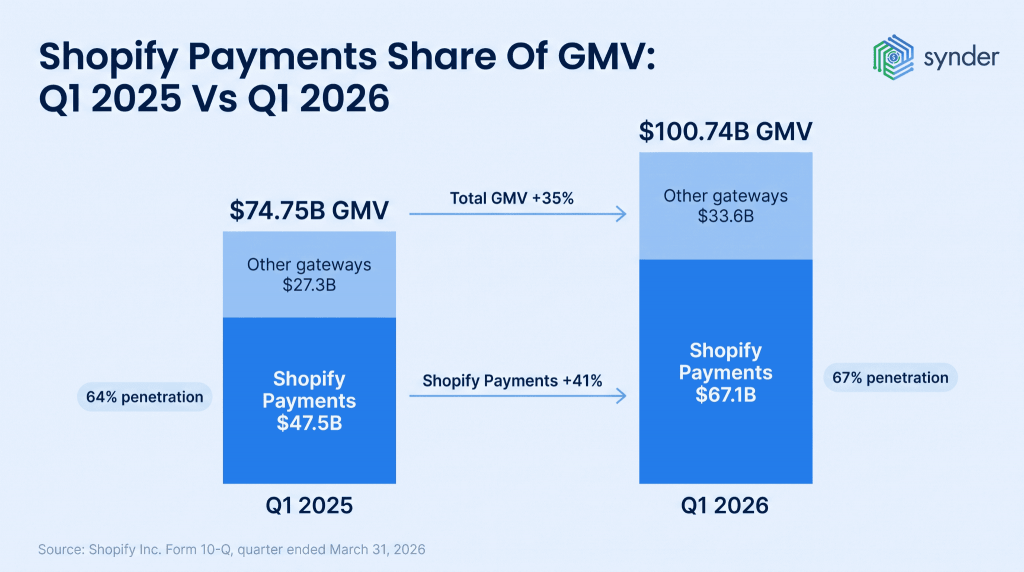
The remaining third moves through PayPal, Stripe, and Shopify’s other gateway options. Each one deducts its own fees on its own payout schedule, so a store running two gateways gets two sets of deposits that need reconciling separately.
Fees aren’t the only thing coming out. “Anything Shopify withholds” mostly means marketplace facilitator tax, the sales tax Shopify collects and remits on your behalf in states with marketplace facilitator laws. Gift-card redemptions separate the cash from the sale as well, since the money came in during an earlier period.
Why payout dates don’t line up with sales dates
A single Shopify payout covers more than one day of orders, so the deposit date and the sales dates behind it are never the same.
Which means a store with zero refunds and zero chargebacks still won’t find a day in Xero that ties to a deposit. Shopify is reporting what sold. Your bank feed is reporting what arrived. Neither system is wrong, and neither one closes the distance between them.
A Xero clearing account closes the gap
A Xero clearing account holds the gross value of every Shopify order until the payout arrives, so fees, refunds, and withheld tax can be deducted against it in the same place Shopify deducts them.
Orders post to the clearing account at gross. Fees and refunds post against that same account as they occur, and the payout moves the net balance across to your checking account.
The clearing account should return to zero. When it doesn’t, there’s a specific transaction to look at instead of a month to re-check.
So does Xero integrate with Shopify on its own? The connection runs through apps in the Xero App Store, and this clearing-account structure is what a Shopify Xero integration does under the hood.
How to connect Shopify to Xero and sync everything automatically
Synder connects Shopify to Xero and posts every order, fee, refund, tax line, and payout into your Xero chart of accounts on a schedule you set. It’s the sales-data product from Synder, an accounting automation app, listed in the Xero App Store and SOC 2 Type 2 certified.
Does Xero sync with Shopify once the connection is live in Synder? Yes, on whatever schedule you pick, with no export step in between. Synder makes Shopify Xero integration simple by syncing all your data automatically without manual work.
1. Connect your accounts in Synder
Log into Synder and connect your Shopify and Xero accounts. It’s a guided process, requiring no tech skills. Once connected, Synder starts pulling in ongoing sales, payouts, and fees in the background.
2. Choose the sync mode
Synder offers two sync options to fit your workflow:
- Per Transaction Sync logs every Shopify order, Stripe payment, refund, fee, and tax as a separate entry in Xero, which is perfect for detailed tracking and clean reconciliation.
- Summary Sync, on the other hand, rolls all your transactions into a single daily entry, making it ideal for high-volume businesses that want simpler books without sacrificing accuracy.
3. Map your products and accounts
Tell Synder which Shopify SKUs and Stripe activity should go into which Xero accounts. You only need to do this once. After that, Synder handles all the matching behind the scenes, without second-guessing where your income or fees landed.
4. Automate ongoing syncing to Xero
Now that everything’s connected and mapped, Synder starts importing new transactions automatically. Every sale, every refund, every Stripe fee shows up in Xero exactly where it should. You don’t have to touch a thing.
5. Reconcile with a few clicks
When Shopify or Stripe sends you a payout, Synder links it to the exact sales and fees behind it. Instead of manually matching numbers in Xero, you just review and confirm. Done.
The net payout total is what your bank sends, so the deposit in your Xero bank feed already has a match waiting against the clearing account. You confirm the pairing in Xero’s Reconcile tab without forcing an adjustment.
How Shopify fees, refunds, chargebacks & US sales tax post to Xero
Synder posts each Shopify data type to its own Xero account, so fees never get buried inside revenue and tax never gets counted as income.
| Shopify data | Where it posts in Xero |
| Gross product sales | Income account per product or SKU group, via Product Mapping |
| Processing fees | Expense account you nominate, as a separate line inside the payout |
| Refunds | Contra line against the original income account, matched to the payout deduction |
| Chargebacks and dispute fees | Separate lines inside the payout, matched to the exact deduction from the deposit |
| Return shipping and restocking fees | Separate expense lines inside the payout |
| US state sales tax | Your Xero tax codes, mapped by jurisdiction |
| Marketplace facilitator (withheld) tax | A dedicated Xero account, kept apart from tax you remit yourself |
Note: Marketplace facilitator tax works differently from tax you collect and remit yourself. Shopify remits it directly to the state, so it never becomes your liability. Posting it to a dedicated Xero account keeps your sales tax payable balance limited to what you actually owe.
The same structure handles UK and EU VAT and Australian GST, mapped to whichever Xero tax codes your accountant already uses.
Connecting Shopify Payments, PayPal & Stripe to one Xero account
Synder connects Shopify Payments, PayPal, and Stripe to a single Xero organization, with each gateway getting its own clearing account.
Those separate deposits are the problem this solves. A customer pays through PayPal, Shopify records the order, PayPal sends its own payout days later on its own schedule, and one sale now has two paper trails that have to be matched by hand.
Connect each gateway to Synder separately. Shopify supplies the order details: items, shipping, discounts, tax. The gateway supplies the money movement: fee, payout date, net amount. Synder joins them and posts one set of entries to Xero, with each gateway reconciling against its own clearing account.
Watch the setup for daily summaries end-to-end:
Why Synder makes your life easier
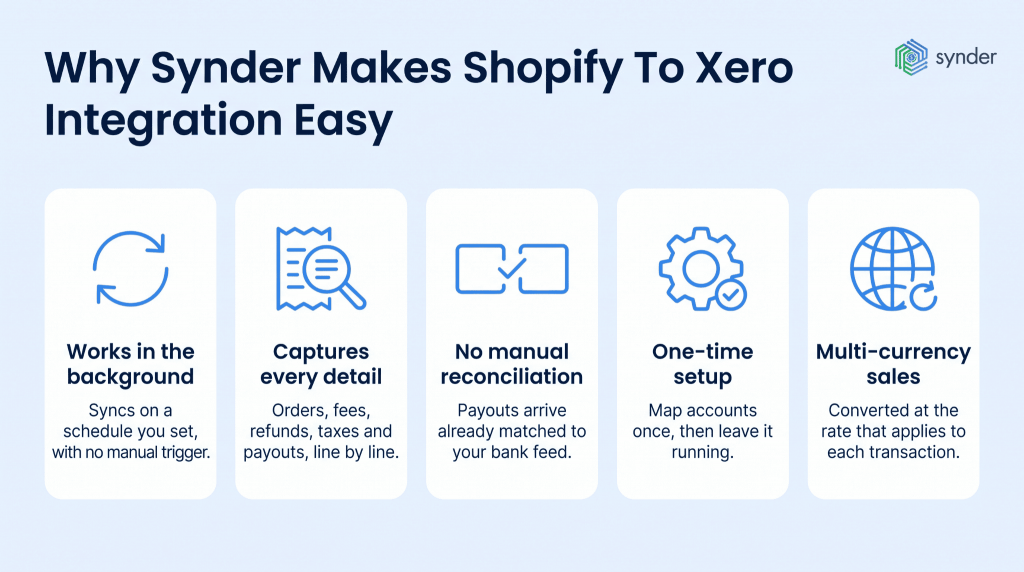
Picture this: you start your day, open Xero, and everything’s already in place. Synder has been humming along quietly all night, sweeping up every Stripe fee and Shopify refund without fuss. You only set it up once, then it takes over, logging each sale, fee, and tax automatically while you sleep.
When payouts hit, it pairs them with the right transactions, sparing you the late-night line-by-line matching. Even your overseas sales glide in effortlessly, converted to your base currency at real-time exchange rates. All that’s left for you to do is glance at the numbers, sip your coffee, and move on with your day.
| If you’re tired of patching Shopify and Xero together by hand, Synder keeps the two in sync for you. Sign up for a 15-day free trial or join our 1-1 demo for a live walkthrough. |
Summing up your Shopify Xero integration
The gap between Shopify’s sales figures and your bank deposits is structural, and no amount of care inside either system closes it. A clearing account does, by holding each order at gross until the payout arrives and letting fees, refunds, and withheld tax come off in the same place Shopify takes them off.
Two decisions shape how to use Shopify and Xero together after that. Sync mode sets how much detail your Xero file carries, and the mapping you do once during setup decides whether the reports built on it are right.
Where more than one gateway takes money for the same store, each one connects separately and reconciles against its own clearing account.
Set up this way, a Shopify Xero integration runs without a monthly export, and the deposits arriving in your Xero bank feed already have a match waiting against the clearing account.
FAQ
Can I sync Shopify to Xero without CSV imports or journal entries?
Synder syncs Shopify to Xero without CSV imports or manual journal entries. Orders, fees, refunds, taxes, and payouts move across the API on a schedule you set and post straight to your Xero chart of accounts. Nothing gets exported from Shopify by hand, and nothing has to be keyed into Xero afterwards.
Can I reconcile Shopify and Stripe payouts automatically in Xero?
Synder links each Shopify and Stripe payout to the individual sales, fees, and refunds inside it, so the net deposit already matches when it reaches your Xero bank feed. Confirming takes a couple of clicks.
How do I set up Synder to sync daily Shopify transactions (including fees) into Xero?
To sync daily Shopify transactions into Xero, connect Shopify and Xero in Synder, then pick a sync mode. Per Transaction posts every order, refund, and fee as its own Xero entry. Summary Sync rolls a day’s activity into one journal entry with fees broken out on their own lines. The same setup applies to Stripe.
Why are my Shopify or Stripe fees landing in the wrong Xero account?
Shopify and Stripe fees post to the wrong Xero account when the expense mappings in Synder point somewhere other than your intended fee account. Open the integration’s settings, check which Xero expense account each fee type is mapped to, and correct it. New transactions then post to the account you chose.
Can I import historical Shopify transactions into Xero?
Synder imports historical Shopify transactions into Xero as far back as Shopify keeps the data. You set the start date, and past orders, refunds, and payouts come in under the same account and tax mappings your ongoing sync uses, so backfilled entries arrive already categorized.
Full walkthrough: How to Import Historical Transactions from Stripe, Shopify, and Amazon into Xero.
How does Synder handle Shopify shipping charges and discounts in Xero?
Synder posts Shopify shipping charges and discounts to Xero as separate line items on each order, mapped to the Xero accounts you choose. Shipping stays visible as its own line instead of being folded into product revenue, and discounts reduce the order total on a line of their own.
How does Synder handle Shopify multi-currency payouts in Xero?
Synder converts Shopify multi-currency payouts into your Xero base currency using the exchange rate that applies to each transaction. Foreign-currency orders are recorded in the currency they were sold in and carried into Xero against your base currency, so month-end reports are accurate without anyone running a manual conversion or a spreadsheet of rates.
Can I connect multiple Shopify stores to one Xero account?
You can connect multiple Shopify stores to one Xero organization. Add each store as its own integration inside a single Synder organization, and every store’s revenue posts to the same Xero file. On Summary Sync, Tracking Categories keep consolidated reporting split by store.
Can I track COGS and product margins from Shopify in Xero?
Synder tracks COGS and product margins from Shopify in Xero through inventory tracking, included from the Basic plan onward. Stock movements and cost of goods sold post to Xero alongside the sales they belong to, so gross margin by product shows up in your Xero reports without a separate spreadsheet.
Can accounting firms standardize Shopify-to-Xero setup across clients?
Accounting firms can standardize Shopify-to-Xero setup across clients by applying one sync mode, one account-mapping pattern, and one set of automation rules to every Shopify engagement. Each client keeps a separate Synder organization and its own Xero file, so a new client follows a documented pattern instead of a fresh build.
More on this: Synder for accounting firms.
What data does a Shopify-to-Xero integration pass through?
A Shopify-to-Xero integration passes through orders and their line items, shipping, discounts, gift-card activity, processing fees, refunds, chargebacks, sales tax and VAT, customer records, and payout totals. Per Transaction mode carries each of these as its own Xero entry. Summary Sync groups them into one journal entry per period or payout, with the same categories broken out inside it.