

If you run a WooCommerce store, you know that the shop side of the business moves much faster than the accounting side. Orders flow in, payouts land later, fees appear in places you didn’t expect, and suddenly the numbers don’t match the way you thought they would. And you’re not alone in this. With roughly 4.65 million active WooCommerce stores worldwide, many sellers experience the same tension between fast store activity and slower financial processes.
Think of WooCommerce accounting as the process that keeps all these moving pieces aligned. When sales activity, fees, taxes, and inventory changes are captured in a structured way, you gain a financial picture you can actually use. It’s similar to switching from a blurry camera lens to a clear one. The activity was always there, but now you can finally see it.
The goal of this guide is to walk you through what WooCommerce accounting involves, how to manage your bookkeeping, and which tools can help you build a system that stays accurate even as your store grows.
TL;DR
- WooCommerce accounting keeps your store’s sales, taxes, fees, refunds, and payouts organized so your financial data stays accurate as you grow.
- Manual bookkeeping breaks down quickly because payouts, fees, and order timing rarely match, which makes automation essential for clean records.
- Tools like Synder help capture full transaction details and keep your WooCommerce data aligned with your accounting platform automatically.
- Choosing the right accounting automation software and setting up a consistent bookkeeping workflow gives you reliable numbers for planning, reporting, and decision-making.
What is WooCommerce accounting?
WooCommerce accounting covers more than recording a few sales at the end of the month. To understand what WooCommerce accounting really involves, it helps to break it into pieces you can clearly see.
What does WooCommerce accounting involve?
- Sales and refunds. Every order needs to land in your books with the right amounts and any refund activity attached. Missing or partial data can make your revenue look better or worse than it really is.
- Processor fees. Stripe, PayPal, and similar platforms remove their fees before the money reaches your bank account. If these fees aren’t captured, your reports won’t reflect the actual profit from each sale.
- Taxes collected. WooCommerce calculates tax at checkout, but accounting makes sure those amounts stay organized by state or country. When filing time comes around, you shouldn’t need to reconstruct anything.
- Shipping and discounts. Both influence the final value of the order, so they need their own place in your records. This helps you see whether certain promotions or shipping rules are actually helping you.
- Inventory activity. Sales reduce inventory, and those reductions affect your cost of goods sold (COGS). When inventory is tracked correctly, you understand your margins instead of estimating them.
- Payout reconciliation. Payouts usually combine several orders, and timing rarely lines up perfectly. WooCommerce accounting helps you compare what the platform sent with the activity that created that payout, so you know everything is accounted for.
When these pieces work together, your financial picture becomes something you can actually rely on. It’s a bit like sorting a box of mixed cables. Once everything is untangled and labeled, you know exactly what connects to what, and the confusion disappears.
Why is automation necessary for WooCommerce accounting?
Manual WooCommerce bookkeeping rarely falls apart because it’s complicated. It breaks down because sales, payouts, and fees follow different timelines. When you’re constantly waiting for numbers to settle, keeping books aligned becomes an ongoing struggle rather than a one-time task.
So why does accounting automation matter here? Because WooCommerce creates a constant stream of data, and the moment you fall behind, accuracy slips. Automated accounting isn’t to replace the human side, but to protect the quality of the information you rely on. Here are a few reasons automation is especially important for WooCommerce.
- Your store doesn’t slow down when you do. Sales can spike at any moment. Automation keeps recording everything the minute it happens, so you don’t have a growing backlog waiting for your attention.
- Payouts almost never mirror daily sales. Payment platforms group orders in their own way. Automation links each payout to the activity behind it, which means you don’t spend time trying to piece things together.
- Tax amounts need to stay clean from day one. With different rates across regions, applying the correct tax to each sale based on the buyer’s location is crucial. Automated systems handle this in the background, keeping every transaction correctly calculated without extra effort.
- Inventory accuracy affects real decisions. When inventory updates automatically, your margin reports reflect the true numbers.
- Fewer manual steps means fewer mistakes. Even careful manual entry can introduce small errors. Automation removes that risk by pulling data directly from your store and payment processors.
Best accounting automation software for WooCommerce
Choosing the right accounting automation software can change how smoothly your WooCommerce accounting runs. The goal is simple. You want your store activity to reach your accounting system without extra work or losing the details that matter. Here are three options sellers often look at, along with what each one does best.
1. Synder
Synder is accounting automation software designed to help online sellers and businesses keep their books accurate and up-to-date. It connects WooCommerce and other platforms to QuickBooks Online, Xero, Sage Intacct, and NetSuite, providing detailed financial data automatically.
Key features
- Automatic sync of WooCommerce orders and payments across connected gateways
- Sales tax calculation and posting based on transaction data
- Inventory and cost of goods sold tracking tied to WooCommerce products
- Sync of fees, shipping, discounts, and refunds
- Payout matching to underlying orders for cleaner reconciliation
- Flexible sync options with detailed or summarized records
- Clean mapping to chart of accounts, tax settings, and product categories
Pricing
| Pricing plan | Price | Features |
| Basic | $52/month | Processes up to 500 transactions, supports 2 integrations, daily synchronization, basic inventory management, multi-currency features. |
| Essential | From $92/month | Supports 500 to 3,000 transactions, unlimited integrations, hourly synchronization, enhanced inventory tracking. |
| Pro | From $220/month | Handles 3,000 to 50,000 transactions, includes product mapping, bundle or assembly sync, and personalized onboarding. |
| Premium | Custom pricing | For high-volume stores or more complex setups (multi-entity operations), with dedicated onboarding and priority support. |
Best for
Synder is a good fit for multi-channel ecommerce stores, SaaS businesses, and accounting teams that need accurate, automated data syncing and seamless reconciliation.
If you’re ready for smoother WooCommerce bookkeeping, open a free Synder account or book a short demo to see how everything stays in sync automatically.
2. WP All Import (CSV and spreadsheet importer example)
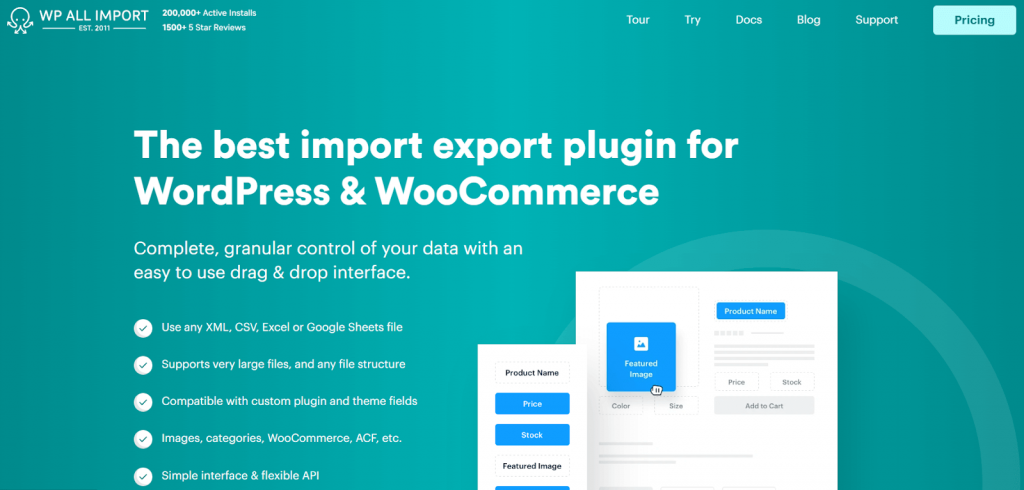
Many small stores rely on a CSV importer when they only need occasional data transfers. Tools like WP All Import let you export WooCommerce orders or products into a spreadsheet and upload them into another system after mapping the fields. It works well when you want complete control over what gets imported, but it depends heavily on manual preparation.
Key features
- Import of CSV, Excel, XML, or Google Sheets files
- Drag-and-drop mapping
- Support for bulk updates and catalog changes
- Flexibility for custom data fields
Pricing
| Pricing plan | Price | Features |
| Import Standalone | $99/year | Imports data from CSV or XML files with flexible field mapping. |
| Export Standalone | $99/year | Export data into CSV or XML files for reporting or backups. |
| Import + Export Standalone | $169/year | Combines access to both import and export tools |
Best for
WP All Import suits small WooCommerce stores and businesses that need occasional data imports or exports, want full control over field mapping, and handle bulk updates or catalog changes manually.
3. WP ERP with WooCommerce extension (general connector example)
WP ERP connects WooCommerce with an accounting and CRM system inside WordPress. Instead of focusing only on bookkeeping, it links orders, products, customers, and simple inventory data into one workspace. This can be helpful if you prefer to manage operational and financial data together.
Key features
- Synchronization of orders, products, and customers between WooCommerce and ERP modules
- Basic accounting tools and expense tracking
- CRM features for customer management
- Centralized dashboard inside WordPress
Pricing
| Pricing plan | Price | Features |
| WP ERP Core | Free | Base ERP plugin with basic features. |
| WooCommerce Integration | $5.99/month per user | Syncing WooCommerce orders, products, and customers. |
| Pro Bundle | $9.99/month | WP ERP Core + 9 premium extensions. |
| Additional modules | $2.49–$9.49/month per user | HRM, CRM, inventory, and other extensions. |
Best for
WP ERP is designed for WooCommerce users who want to manage accounting, customer relationships, and basic inventory in one WordPress dashboard.
With these tools, you can connect WooCommerce to accounting systems in different ways, either inside WordPress or via dedicated automation platforms. Next, we’ll show a practical example of syncing WooCommerce with QuickBooks Online using Synder, so you can see how seamless automatic bookkeeping can be.
How to integrate WooCommerce with QuickBooks Online using Synder (step-by-step)
QuickBooks Online is the most popular accounting platform for small and medium businesses, making it an excellent example for showing how WooCommerce data can be synced automatically. Think of this section as a quick orientation on how to integrate WooCommerce with QuickBooks Online. By the end, you’ll see how easy it is to set up the connection and get your transactions syncing automatically using Synder.
1. Set up your organization. Add information such as your industry, country, and operating start date. These settings help Synder format your data correctly once syncing begins.
2. Create your Synder account. Start by signing up for Synder. During onboarding you enter basic business details. This gives Synder the context it needs to apply the right defaults.
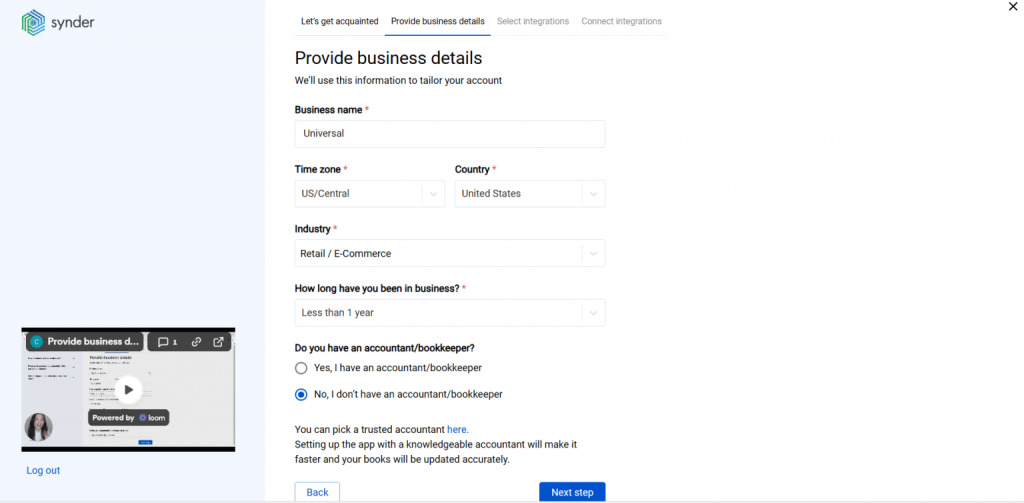
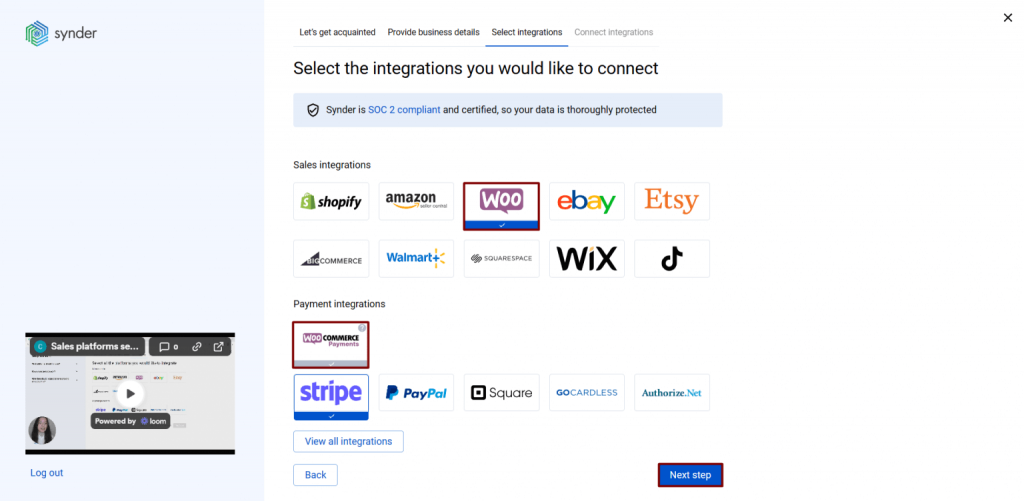
3. Connect WooCommerce and your payment platforms. Select WooCommerce as your sales channel. If you use Stripe, PayPal, or other gateways, connect them here so Synder can capture sales, fees, refunds, and payouts in one place.
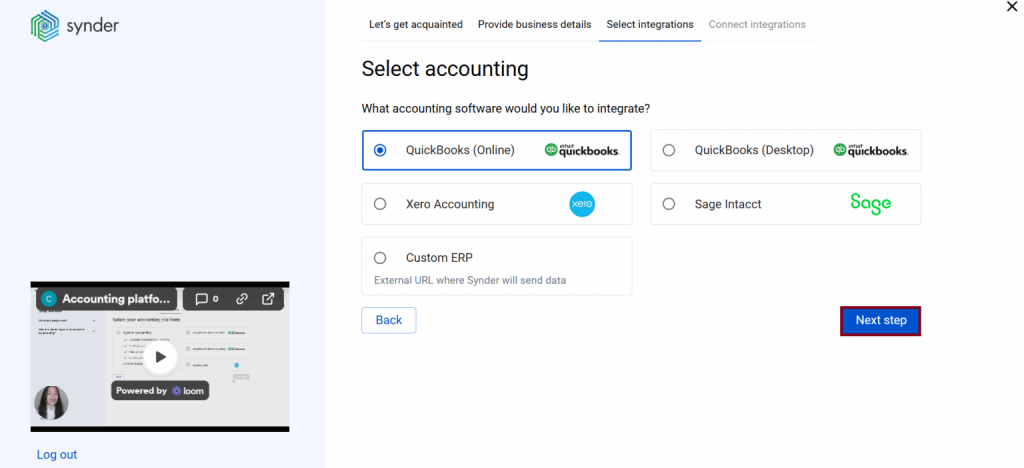
4. Choose QuickBooks Online as your accounting platform. Link your QuickBooks account. This gives Synder permission to create accurate entries directly inside your books.
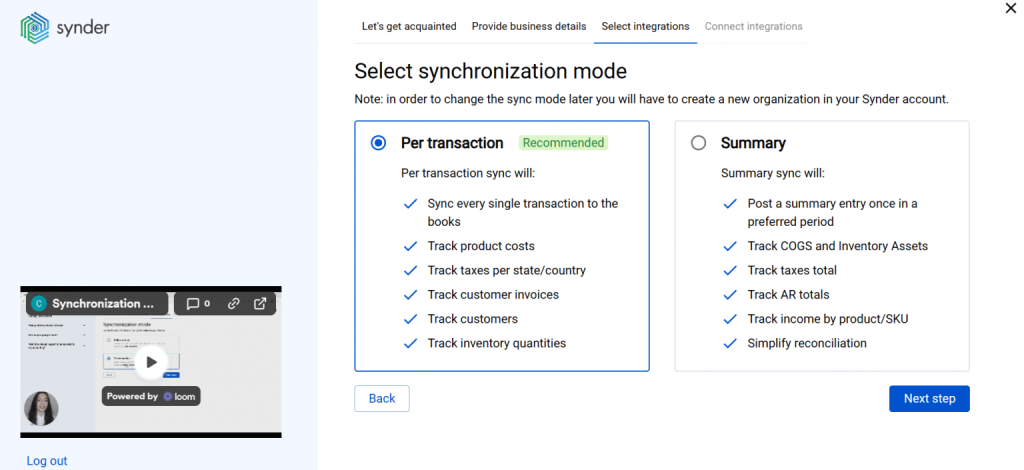
5. Select your sync mode. Pick Per Transaction if you want detailed records of every sale and refund, or choose Summary Sync if you prefer a single combined entry for a specified period or payout.
6. Authorize your connections. Enter your WooCommerce store URL and confirm access. If you added payment gateways, authorize them as well. Then choose the bank account in QuickBooks that represents your payouts.
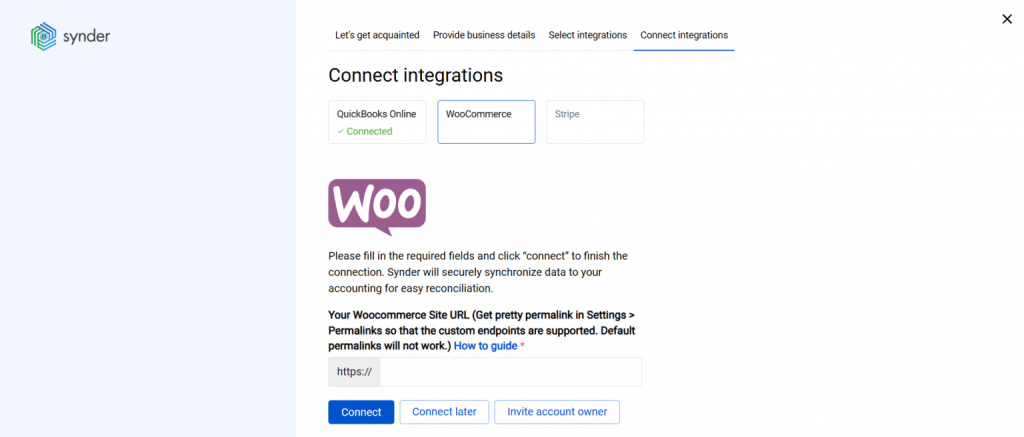
7. Review mapping settings. Tell Synder where to send revenue, fees, taxes, shipping, and refunds inside your chart of accounts. These choices keep your books organized from the beginning.
8. Start the sync. Enable syncing. Synder imports historical data if you requested it and begins pulling new activity automatically. When payouts hit your bank, Synder has already matched them to the correct orders, which makes reconciliation simple.
To sum up: let your accounting work at the speed of your shop
Running a WooCommerce store already gives you enough moving parts to manage. When your accounting system keeps pace with that movement, everything feels lighter. You spend less time fixing numbers and more time understanding what they mean. That is the real value of bringing structure and automation into your bookkeeping, as it gives you a clearer view of your business, not by adding work, but by removing the noise.
Tools like Synde remove the busywork so you can focus on the parts of your business that actually require your judgment. And when your books stay accurate without constant attention, you gain real space to grow.
FAQ
What is WooCommerce?
WooCommerce is a free ecommerce plugin for WordPress that turns a regular website into a fully functioning online store. You can sell physical or digital products, manage orders, accept payments, track taxes, and expand the setup with thousands of extensions. It’s popular because it’s flexible, customizable, and works for both small shops and larger stores.
How do I reconcile WooCommerce payments in Xero in 2026?
Reconciliation in Xero begins by matching the payout you received in your bank feed to the activity that created it. Since WooCommerce payouts often include multiple orders, fees, or refunds, using a tool like Synder helps by linking each payout to the orders behind it. Once the data is synced correctly, you simply open the Xero reconciliation screen, review what Synder matched, and confirm the entry.
How can I integrate WooCommerce with Xero?
You can connect WooCommerce to Xero through automation tools, and Synder is one option that handles the process cleanly. You connect your WooCommerce store, link your payment platforms, and choose Xero as your accounting system.
What are accounting plugins for WooCommerce?
Accounting plugins help move your WooCommerce data into an accounting system or into reports you can use. Some plugins focus on simple exports, while others automate your entire bookkeeping flow. Depending on the plugin, you can sync orders, record taxes, track fees, update inventory, or generate financial reports.