

When Stripe sends a payout to your bank, it bundles dozens of transactions into a single net deposit – customer charges, processing fees, refunds, and dispute debits all combined. Getting each component into the correct NetSuite account is the core challenge of Stripe fee mapping. At scale, handling this manually quickly becomes slow and error-prone.
Many ecommerce, SaaS, and subscription businesses rely on Stripe for payments and NetSuite for their general ledger. But the two systems use different data structures and terminology, and they don’t sync natively, which creates extra reconciliation work and slows the month-end close. Deloitte’s Finance Trends 2026 report found that 63% of finance teams have already deployed AI and automation, with 64% planning to prioritize these capabilities going forward. Automating Stripe fee mapping is exactly the kind of repetitive, high-risk task finance teams are targeting first.
In this article, we’ll explain how Stripe fee mapping works, how to categorize each transaction type correctly, and how to automate the integration so your books reconcile cleanly every time.
TL;DR
- Every Stripe payout bundles multiple transaction types: processing fees, refunds, and disputes all need separate NetSuite account mappings to produce accurate financials.
- Correct categorization starts with a clearing account: a Stripe-specific clearing account keeps gross revenue and net deposits cleanly separated in your GL.
- Refunds and disputes require their own workflow: Stripe refunds should generate credit memos or reversing entries in NetSuite to keep accounts receivable accurate.
- Three integration approaches exist: native connectors, iPaaS middleware, and dedicated sync tools, each with different trade-offs in setup time, flexibility, and cost.
- Synder automates the entire mapping process: it posts payout-aligned journal entries that separate fees, refunds, and sales into the correct accounts automatically.
Why Stripe fees are harder to map in NetSuite than expected
The problem isn’t that NetSuite can’t hold the data. It’s that Stripe structures transactions in a way that doesn’t map directly to standard NetSuite records, and the mismatch causes real accounting problems.
When Stripe pays out, it sends a single net deposit to your bank account. That deposit is the result of many individual events: customer charges minus Stripe’s processing fees, minus any refunds issued, minus dispute debits, plus adjustments. Inside Stripe, you can see the full breakdown. Inside NetSuite – without a proper integration – you see only the deposit amount.
This creates two practical problems:
- If you record only the net deposit, your revenue is understated because you’ve implicitly netted fees against gross sales.
- Stripe’s processing fees don’t appear anywhere in your P&L unless they’re explicitly mapped to an expense account.
For any business reporting GAAP-compliant financials or maintaining a clean audit trail, that gap matters.
The scale of the problem also depends on how Stripe is used. A company processing a few hundred transactions a month may manage manually. A SaaS business handling thousands of subscription charges, or an ecommerce operation running multi-currency transactions across several markets, needs something systematic or the books fall behind.
How to categorize Stripe processing fees in NetSuite
Correct categorization is the foundation of clean reconciliation. The goal is to record gross revenue where it belongs, move the net deposit to your bank account, and post Stripe’s fees to a dedicated expense line, all of which should be tied to the same payout event.
The standard approach uses a Stripe-specific clearing account. When a customer payment comes in, the gross sale is posted to income and to the Stripe clearing account. When the payout arrives, the net deposit moves from the clearing account to your checking account, and Stripe’s fees are posted as an operating expense. The clearing account should zero out after each payout cycle, confirming everything has reconciled cleanly.
Here’s how the key transaction types map across:
| Stripe transaction type | NetSuite record type | Recommended account | GL impact |
| Customer charge | Journal entry / invoice payment | Accounts receivable or income account | Dr Stripe clearing, Cr Income* |
| Processing fee | Journal entry line | Processing fees expense account | Dr Fees expense, Cr Stripe clearing |
| Payout to bank | Bank deposit / journal entry | Stripe clearing → bank checking account | Dr Bank, Cr Stripe clearing |
| Refund issued | Credit memo or reversing entry | Accounts receivable or income account | Dr Income, Cr Stripe clearing |
| Dispute debit | Journal entry | Dispute expense account | Dr Dispute expense, Cr Stripe clearing |
| Dispute recovery (won) | Journal entry reversal | Dispute expense / income account | Dr Stripe clearing, Cr Dispute expense |
* Dr = Debit, Cr = Credit
The clearing account approach matters because it ensures the deposit on your bank statement matches exactly what NetSuite expects. Without it, you’d be matching a net deposit to a gross sales figure, and the fee difference creates a persistent reconciling item that never clears.
| Note: Stripe sometimes assigns two different dates to the same transaction: the created date and the balance date (when it actually affected your Stripe balance). For reconciliation, the balance date is generally more accurate, especially at month-end. |
What else matters: recording Stripe refunds and disputes in NetSuite
Refunds and disputes are where Stripe NetSuite mappings most often go wrong, and they can quickly affect the accuracy of accounts receivable.
Stripe refunds reduce the original charge. In NetSuite, they’re usually recorded as a credit memo against the invoice or as a reversing journal entry. The amount flows back through the Stripe clearing account, reducing both revenue and the next payout. If the refund happens in one period but the payout adjustment arrives in another, the integration needs to handle that timing difference correctly.
Stripe disputes (chargebacks) work differently. Stripe immediately debits the disputed amount plus a dispute fee. This should be recorded as an expense, not as a reduction of revenue. If the dispute is later won, the recovery reverses that expense.
A simple warning sign is a Stripe clearing account balance at month-end. That usually means a payout, refund, or dispute hasn’t been recorded correctly, which is why checking the clearing account should be part of every close process.
Integration approaches for automating Stripe fee mapping
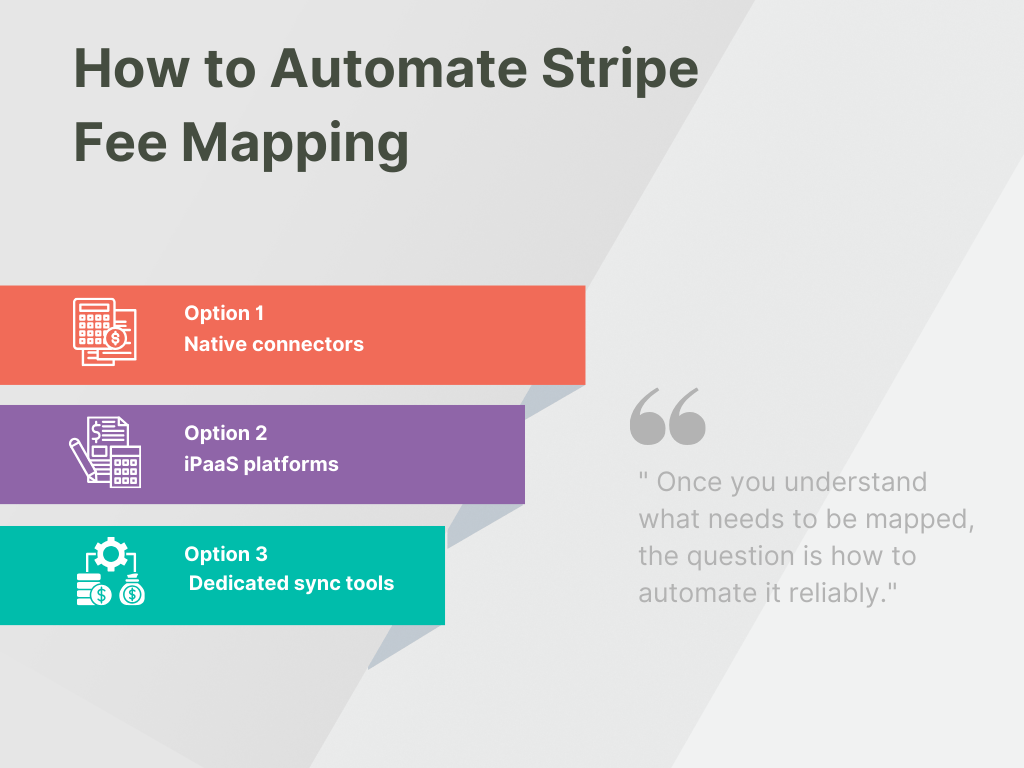
Once you understand what needs to be mapped, the question is how to automate it reliably. There are three main approaches, each suited to different business profiles.
Native connectors – Stripe’s own NetSuite Connector (formerly SuiteSync) automates the import of charges, fees, refunds, and disputes into NetSuite records. It handles standard use cases well and deploys quickly. The trade-off is limited customization: non-standard billing models or complex GL requirements may need additional scripting.
Dedicated sync tools – Accounting automation platforms like Synder built specifically for connecting payment processors to accounting software handle both the data mapping and the reconciliation logic in one place. They tend to be faster to implement than iPaaS platforms and are purpose-built for accountants rather than developers.
iPaaS platforms – Tools like Celigo connect Stripe and NetSuite using configurable workflow templates that can be extended with custom logic. They offer more flexibility and suit mid-market organizations with technical resources or an implementation partner. Setup complexity and cost are higher.
The deciding factors are transaction volume, how much customization your GL structure requires, and whether you want a tool built for finance teams or a general integration platform. Native connectors work well for standard setups; dedicated sync tools and iPaaS platforms make more sense as billing complexity and transaction volume grow.
How Synder automates the Stripe NetSuite mapping workflow
Synder is an accounting automation solution that connects Stripe and NetSuite and automates the entire fee-mapping and reconciliation workflow without any custom code, exports, or manual journal entries.
Synder reads Stripe balance transactions and posts them to NetSuite with the correct account mapping automatically. As a result, you get a payout structure in NetSuite that mirrors what actually hits your bank account, which makes reconciliation straightforward.
What Synder automatically maps
Regardless of the sync mode, Synder categorizes Stripe balance transactions and routes them to the correct accounts:
- Processing fees → expense accounts
- Chargebacks → refund receipt + expense entry
- Stripe financing repayments → expense or liability account via Smart Rules
- Reserve holds/releases → dedicated reserve account to avoid distorting clearing balances
Two sync modes depending on your reporting needs
Synder supports two posting approaches for NetSuite. The right one depends mainly on your transaction volume and the level of detail you want in your general ledger.
- Summary Sync (most common for NetSuite): One aggregated journal entry is created for each Stripe payout. All underlying activity is grouped into categorized lines. It keeps the NetSuite GL clean and easy to reconcile with the bank deposit, which is ideal for high-volume ecommerce or SaaS businesses.
- Per Transaction sync: Every Stripe event is posted as a separate record in NetSuite. This provides a full transaction-level audit trail and works best when finance teams need detailed reporting by customer, product, or other dimensions inside NetSuite.
Additional controls finance teams rely on
Synder also includes features that help maintain clean books:
- Summary Reconciliation to validate Stripe clearing balances before posting to NetSuite
- Historical back-sync to reconstruct past periods when migrating from manual workflows
- Multi-currency support, with exchange differences automatically posted to gain/loss accounts
- Rollback – reversing synced batches and removing imported transactions from NetSuite so you can adjust mappings and sync again cleanly
What real businesses get with Synder
The shift from manual to automated fee mapping tends to be felt immediately in the time it takes to close the books. Stape.io, a SaaS platform running high-volume Stripe transactions, cut its monthly reconciliation process from two full days down to 40 minutes after implementing Synder. The team went from manually reviewing thousands of transaction files to verifying just a handful of exceptions.
Across their client base, that translated to 180 hours saved per client annually on end-of-month data review, and a 95% reduction in time spent on manual reconciliation overall. And the difference wasn’t just speed. Per Transaction sync gave their finance team granular, client-level records in their accounting system that simply weren’t possible to maintain manually at scale.
Still manually splitting Stripe payouts and mapping fees in NetSuite? Start a free trial of Synder or book a demo to see how transactions from Stripe sync automatically into NetSuite with reconciliation-ready journal entries.
Getting Stripe fee mapping right: what it comes down to
Getting Stripe fees mapped correctly in NetSuite is a combination of the right account structure, a clear understanding of how each transaction type flows through your GL, and an integration that handles the mapping automatically rather than requiring manual work every payout cycle.
The clearing account method provides the reliable framework: gross revenue in, fees expensed separately, net deposit to bank, clearing account at zero. Build your integration around that structure, verify it against Stripe’s payout reports at setup, and the reconciliation process becomes predictable. The businesses that struggle most with Stripe NetSuite reconciliation are almost always the ones that have skipped the fee categorization step: recording net deposits, absorbing fees into revenue, or leaving disputes unposted. At scale, those shortcuts build up quickly into close delays and audit findings.
FAQ
How do I record Stripe refunds in NetSuite?
Stripe refunds should be recorded as credit memos against the original invoice or as reversing journal entries that unwind the initial income posting. The refund flows back through the Stripe clearing account, reducing income and adjusting the next expected payout deposit. This process can also be automated with tools like Synder, which sync refunds from Stripe to NetSuite and post the correct accounting entries automatically.
Can I see how my Stripe transactions are linked to NetSuite records?
Yes. With a proper integration, each NetSuite journal entry or bank deposit is linked to the specific Stripe payout batch it corresponds to. Synder provides a transaction-level audit trail so you can trace any NetSuite entry back to the original Stripe activity.
What is the best account to use for Stripe processing fees in NetSuite?
Create a dedicated expense account, commonly labeled “Payment processing fees” or “Stripe fees,” and map all Stripe fee lines to it using the clearing account method. This keeps gross revenue accurate and makes fees visible as a separate P&L line instead of being part of net revenue.
Does Synder support both Summary Sync and Per Transaction sync for NetSuite?
Yes. Synder supports both modes for NetSuite. Summary Sync posts one aggregated journal entry per Stripe payout, grouping all charges, fees, and refunds into a single clean entry. Per Transaction sync creates a separate NetSuite record for each individual Stripe transaction, giving you full transaction-level detail and a granular audit trail.
How do I handle Stripe disputes and chargebacks in NetSuite?
Record dispute debits as an expense in a dedicated account (such as “Dispute losses” or “Chargeback expense”), not as a revenue reduction. If Stripe reverses the debit after a won dispute, post a reversing entry to clear the expense. Treating disputes as revenue adjustments distorts your P&L and complicates reconciliation.