

If you use Summary Sync and a transaction you expected is not showing up inside a summary, this guide explains why it happens and how to fix it. This is different from a summary that is simply still being built — if your summary is stuck on Not Ready, see Why is my summary on Not Ready status in Summary Sync? instead.
- Who this guide is for
- Step 1: Confirm the transaction is actually in Synder
- Step 2: Add the missing transaction to the summary
- Scenario A — The transaction is in “Ready to sync” but not in the summary
- Scenario B — You just imported historical or late transactions
- Scenario C — The transaction failed
- Step 3: Verify the summary now includes the transaction
- Why an already-built summary does not update on its own
- When to contact support
- Related guides
Who this guide is for
Use this guide if a summary has already been generated or synced, but a transaction that belongs in that period is missing from it — for example, after you ran a historical import, reconnected a platform, or imported late or failed transactions.
Step 1: Confirm the transaction is actually in Synder
Before changing any summary, check whether the transaction exists in Synder and what status it has. Open the Platform Transactions tab and locate the transaction by ID, amount, or date.
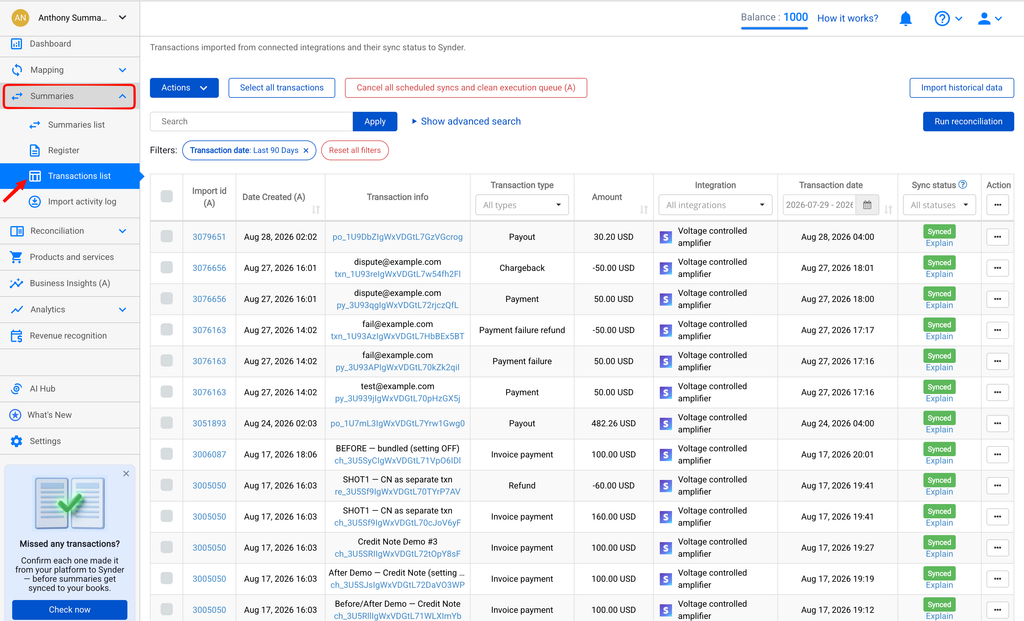
- It is there and marked “Ready to sync” — the transaction exists but is not in the summary yet. Go to Step 2.
- It is not there at all — it was never imported. Import it first (see How to Find Missing Transactions in Synder), then come back to Step 2.
- It is there but failed — see Step 3, scenario C.
Step 2: Add the missing transaction to the summary
Pick the scenario that matches what you found in Step 1.
Scenario A — The transaction is in “Ready to sync” but not in the summary
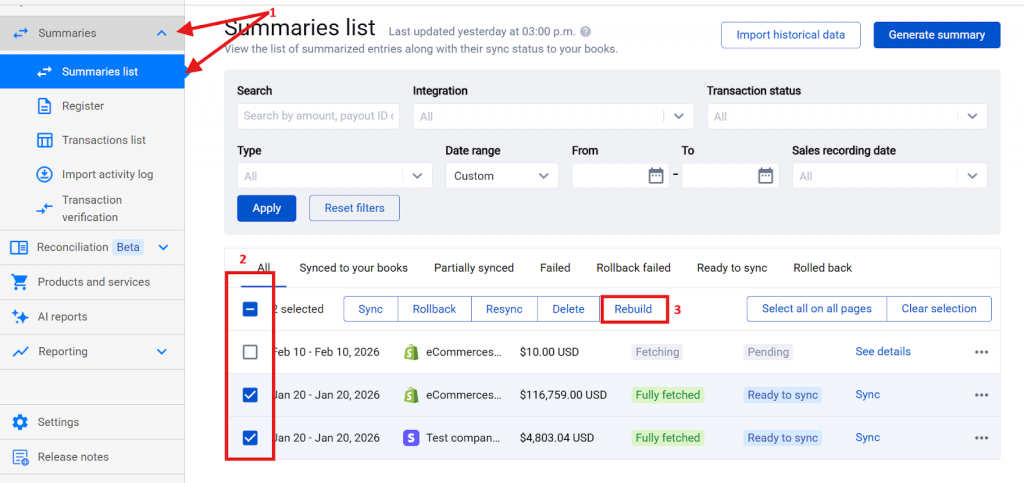
- Open the Summaries List and select the summary for the affected period.
- If the summary is already synced to your accounting platform, roll it back first (this removes the posted entry so it can be rebuilt). See the warning below before rolling back.
- Click Rebuild so Synder regenerates the summary using the current transactions for that period.
- Sync the rebuilt summary again to post the corrected totals to QuickBooks or Xero.
Scenario B — You just imported historical or late transactions
After importing, the new transactions land in Platform Transactions but are not added to any summary that already covers their dates. Use the same fix as Scenario A for each affected period: roll back (if synced) → Rebuild → Sync.
Scenario C — The transaction failed
- Open Synder → Transactions and filter to find the failed transaction(s).
- Archive the failed transactions.
- Refresh/Rebuild the related summary — it should now update automatically.
- Sync the summary again.
Important — before rolling back a synced summary: rolling back removes the journal entry or summary already posted to your books. If that period is already reconciled or closed in QuickBooks or Xero, do not roll it back on your own — contact the Synder team first so the correction can be made safely.
Step 3: Verify the summary now includes the transaction
- Open the rebuilt summary and check the Last updated timestamp to confirm it reflects your latest change.
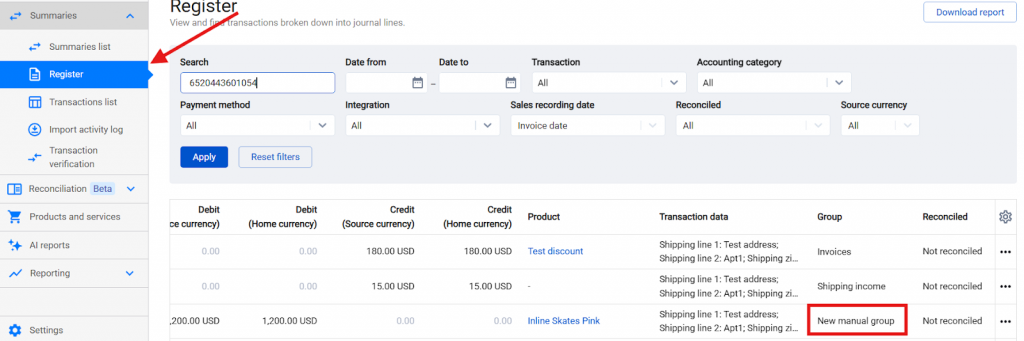
- Use the Register table (Summaries → Register) to search for the transaction by ID or amount and confirm it now appears.
- Reconcile the totals between your payment platform, the Synder summary, and your accounting clearing/bank account.
Why an already-built summary does not update on its own
This is the key point. Once Synder has generated a summary for a period, it does not automatically pull newly added transactions into that summary. If you import historical transactions, reconnect a platform, or a late transaction arrives for a period that already has a summary, that summary keeps its original contents until you rebuild it. This is the same reason that changing your grouping or enabling COGS does not update existing summaries retroactively — the summary has to be rebuilt to reflect new data.
When to contact support
- The transaction is genuinely absent from the data source (never imported and cannot be imported).
- The period is locked and cannot be rebuilt.
- The summary stays incomplete after a rebuild, or totals still do not reconcile.
Reach out to the Synder team via in-app chat or email and include the summary date, the platform, and the transaction ID or amount so we can investigate.
Related guides
- Summary Sync: How to Rebuild Summaries
- How to Manually Generate a Summary in Summary Sync
- Why is my summary on Not Ready status in Summary Sync?
- How to Find Missing Transactions in Synder
- How to Sync Historical Transactions
