

- Step 1 — Check that you can manage Toast integrations
- Step 2 — Open Toast API access in Toast Web
- Step 3 — Create Standard API credentials
- Step 4 — Copy your Client ID and client secret
- Step 5 — Connect Toast in Synder
Synder connects to Toast using Toast Standard API access. You create a read-only set of API credentials in Toast Web (Toast’s back-office site), then paste them into Synder. Toast never gives Synder the ability to change anything in your restaurant — Standard API access is read-only by design.
This guide walks you through the whole connection in five steps. Budget about ten minutes.
Before you start
- Each location you want to connect must be on Toast Restaurant Management Suite Essentials or higher. Locations on a lower package appear grayed out with a lock icon and cannot be selected.
- Your Toast user needs the 8.4 Manage Integrations permission at every location you want to connect. Step 1 shows how to check it.
- You need a Synder account with your accounting company (QuickBooks Online, QuickBooks Desktop, Xero, Sage Intacct or Oracle NetSuite) already connected. New to Synder? Start with connecting QuickBooks Online or Xero or connecting QuickBooks Desktop, then come back here.
- Synder needs only two things from Toast: a Client ID and a client secret. You create both in Steps 2–4. Synder then loads your locations from Toast and lets you pick the one to connect — no Restaurant GUID or other IDs to look up.
Step 1 — Check that you can manage Toast integrations
Toast controls credential access through the 8.4 Manage Integrations permission. If you already know you have it at every location, skip to Step 2.
To check or grant it, a Toast user or restaurant operator with full access needs to:
- Log in to Toast Web.
- Go to Employees > Employee management > Employees and select the employee’s name.
- Open the Jobs & Permissions tab and scroll to the Permissions section.
- Confirm 8.4 Manage Integrations is enabled for every location you plan to connect.
Note: only a Toast user or restaurant operator who already has full-access credentials can grant this permission to someone else.
Step 2 — Open Toast API access in Toast Web
- Open the Toast API access page directly: toasttab.com/restaurants/admin/api-access (log in to Toast Web if prompted).
- Or navigate there from the Toast Web menu: Integrations > Toast API access > Manage credentials.
The Manage credentials page lists every set of API credentials in your management group. The icon next to each name tells you your access level:
- No icon — full access. You can view and edit.
- Warning icon — read-only. You can view but not edit.
- Lock icon — locked. You can neither view nor edit.
Step 3 — Create Standard API credentials
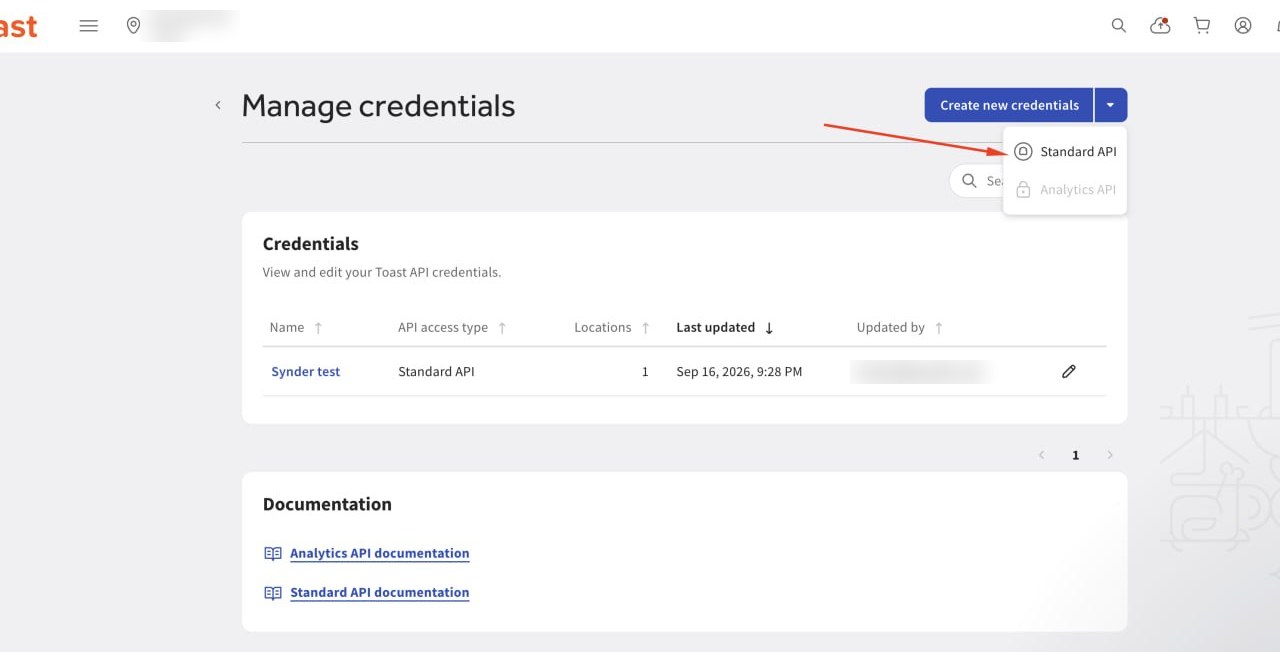
- On the Manage credentials page, select the down arrow on Create new credentials and choose Standard API. The New Credentials page opens.
- Enter a credential name you will recognize later — Synder is a good choice.
- Under scopes, select every scope offered. They are all read-only, so this cannot let Synder change anything in Toast.
- Select the location(s) you want to connect. You can pick every location in the management group or choose them individually, then click Apply.
- Click Confirm.
You can hold up to 100 sets of Standard API credentials per management group.
About scopes. A working Synder connection uses the full read-only set — 14 scopes. Selecting fewer can make the sync fail; selecting all is safe. Toast’s Standard API access scopes reference explains what each one covers.
Toast then emails you a confirmation listing each location the credentials cover, its Restaurant GUID and the scopes granted. You do not need anything from it to connect Synder — Synder loads the locations for you in Step 5 — but it is a handy record of which locations you included.
Step 4 — Copy your Client ID and client secret
After you click Confirm, Toast opens the Credentials page. Copy the following and keep them somewhere secure, such as a password manager:
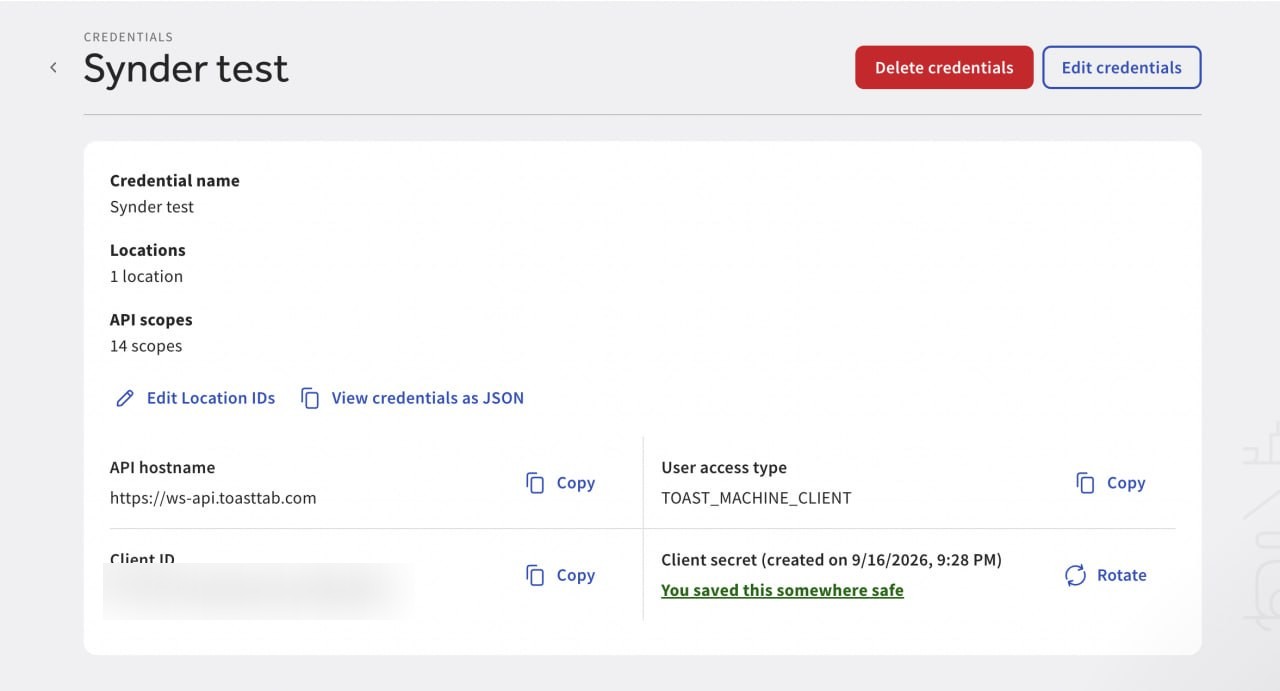
- Client ID — use the copy icon next to it.
- Client secret — shown when the credentials are created or rotated.
The same page also shows an API hostname, a user access type (TOAST_MACHINE_CLIENT) and location IDs. Synder does not ask for any of them — you only need the Client ID and the client secret.
Treat the client secret like a password. Toast recommends storing it in a password manager and never sharing it over email or chat.
Step 5 — Connect Toast in Synder
Log in to Synder. Click the person icon in the upper-right corner, open Organization settings, go to the Integrations section and click Add integration. (If you are still in the first-time setup wizard, pick Toast at the Select the platforms step instead — the same form opens.)
Choose Toast from the “Choose an integration to connect” dropdown. Two fields appear, both required:
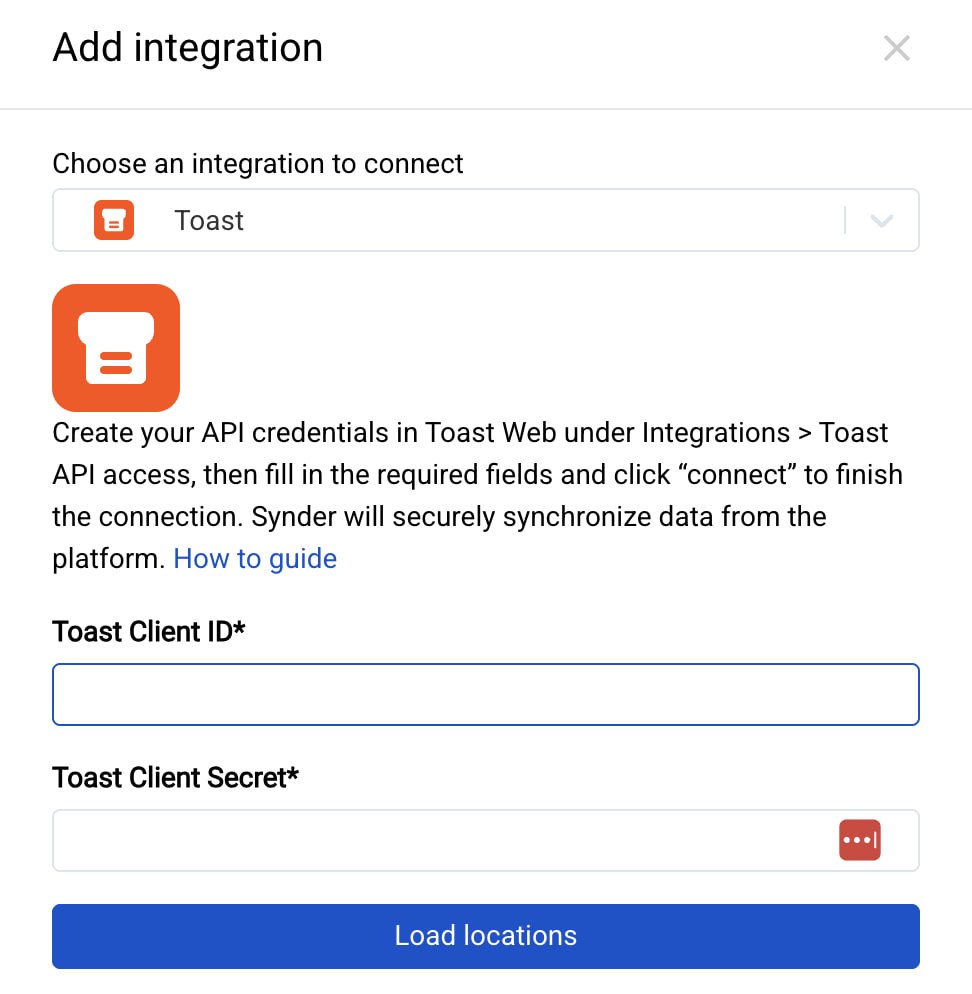
- Toast Client ID — the Client ID you copied in Step 4.
- Toast Client Secret — the client secret from Step 4. Use the reveal icon to check you pasted it correctly.
- Click Load locations. Synder checks the credentials with Toast and lists every location they cover.
- Select one location from the list — each Synder connection covers a single Toast location.
- Click connect to finish.
Synder connects the location and starts importing its Toast data. From here, turn on automatic synchronization so new Toast sales flow into your books on their own, and sync historical transactions if you want past sales in your books too.
One connection per location. Connecting more than one restaurant? Repeat Step 5 with the same Client ID and client secret and pick the next location from the list.
Good to know
- Rotating the client secret breaks any integration using it. If you rotate the secret in Toast, update it in Synder straight away. Tokens already issued stay valid until they expire.
- Deleting credentials is permanent. Toast cannot restore them — you would have to create a new set and reconnect.
- A grayed-out location with a lock icon is not on Toast Restaurant Management Suite Essentials or higher. Upgrade that location in Toast before connecting it.
- Read-only or locked credentials mean you are missing the 8.4 Manage Integrations permission at one or more of the linked locations. Go back to Step 1.
- A location is missing from the list in Synder? The credentials do not cover it. In Toast Web, open the credentials, use Edit Location IDs to add the location, then click Load locations again.
- Standard API access is read-only. Synder can read your Toast data; it cannot change orders, menus or payments in Toast.
Related articles
- Set up automatic synchronization
- Sync historical transactions
- Apply locations to synced transactions
- Toast — Standard API access credentials
- Toast — Standard API access scopes
