.png)

Integrating Klarna with Stripe lets you offer Buy Now, Pay Later (BNPL) options directly at checkout, giving customers the flexibility to split purchases into interest-free installments. The setup involves enabling Klarna as a payment method in your Stripe Dashboard, configuring regional settings, and testing before going live.
According to Empower research, 90 million Americans used BNPL in 2025, with monthly spending increasing 21% from $201.60 in June 2024 to $243.90 in June 2025. For business owners, CFOs, and accounting professionals managing ecommerce operations, adding Klarna through Stripe is about meeting customer expectations while maintaining accurate financial records. This guide covers the technical setup, testing procedures, and accounting considerations for managing this integration effectively.
TL;DR
- Klarna + Stripe lets you offer Buy Now, Pay Later at checkout without a separate integration, as Stripe handles approvals, payments, and settlements.
- Accounting is more complex than cards due to different fees, refunds, and settlement timing, which makes manual reconciliation error-prone as volume grows.
- Setup is straightforward: enable Klarna in Stripe, configure order limits and payment options, then test with Stripe’s test mode.
- Synder automates Klarna accounting by syncing full payout breakdowns (sales, refunds, fees, adjustments) into QuickBooks Online, Xero, Sage Intacct, NetSuite, or Puzzle, so deposits match, fees are categorized correctly, and audits stay clean.
Understanding Klarna and Stripe integration
Klarna works like a short-term financing layer at checkout. Instead of paying everything upfront like with a card, customers split the purchase into installments, while the business gets paid in full right away. When enabled through Stripe, Klarna appears as a checkout option alongside cards.

Stripe handles the integration end-to-end. You don’t connect to Klarna separately; Stripe manages approvals, payment flows, and fund transfers through its unified payment interface, using the account data you’ve already configured.
Accounting considerations for Klarna transactions
In accounting, Klarna payments look similar to card payments but differ in fees and settlement timing. Klarna charges a percentage plus a fixed fee, which varies by market and order value.
Each payout includes multiple components: gross sales, refunds, Klarna fees, and the net bank deposit. When handled manually, this means reviewing settlement reports, separating fees, and matching deposits to sales – work that becomes harder as volume grows.
How Synder automates Klarna accounting
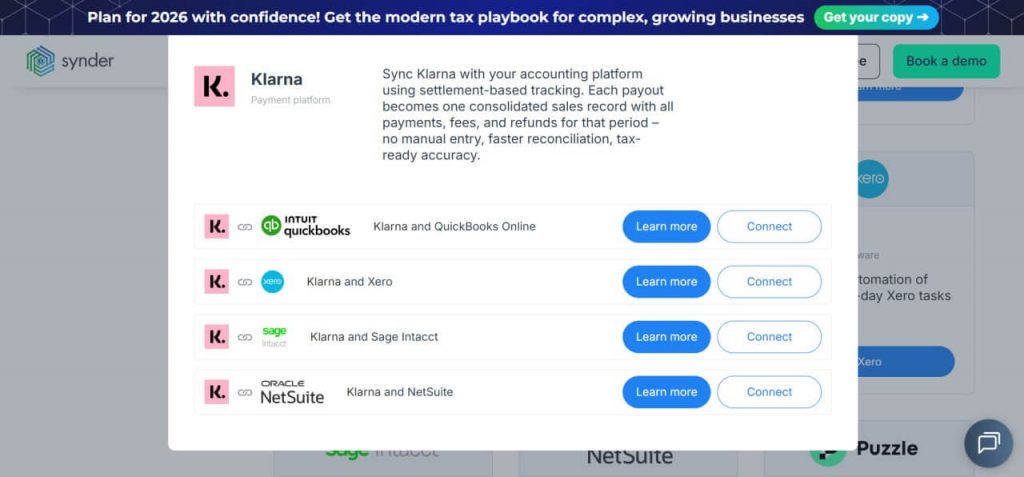
Synder is an accounting automation tool that imports Klarna payouts into QuickBooks, Xero, Sage Intacct, or NetSuite or with a full breakdown. For each settlement, Synder creates a sales receipt that shows:
- Klarna sales (captured orders)
- Klarna returns (refunds)
- Klarna fees (recorded as expenses)
- Klarna adjustments (chargebacks or corrections)
For example, a payout of $850 may reflect $1,000 in sales, $100 in returns, and $50 in fees. Synder records this automatically, with revenue and expenses separated and the total matching the bank deposit.
This automation eliminates hours of manual work extracting data from settlement reports. Businesses using Synder with Stripe have saved 480+ hours and $24,000 annually on transaction categorization alone. The system prevents fees from being recorded incorrectly or missed entirely, and creates a clear audit trail linking each payout to Klarna payment references.
Try Synder free to see how automated Klarna sync works with your accounting system, or book a demo to discuss your specific needs.
Prerequisites for Klarna Stripe integration
You’ll need an active Stripe account registered in a supported country: the United States, the United Kingdom, Germany, Austria, the Netherlands, Belgium, Finland, Norway, Sweden, or Denmark. For new accounts, Klarna is automatically added as a payment method.
Before enabling Klarna, ensure your business details (logo, brand information, contact emails) are complete in Stripe, as these are shared with Klarna. Payment method availability varies by customer location, and specific products (Pay in 4, Pay in 30 days, financing) depend on both merchant and customer regions.
How to activate Klarna as a payment method in Stripe
The activation process follows these steps:
- Sign in to your Stripe dashboard.
- Navigate to Settings > Payments > Payment methods.
- Confirm your logo, brand information, and contact emails are current.
- Optional: Toggle Test mode to test integration without live transactions.
- Find Klarna and click Turn on.
After enabling, configure order value limits (typically $35 to $1,000 in the US) and choose payment options: “Pay in 4” for four interest-free installments, “Pay in 30 days” for deferred payment, or longer-term financing where available. Klarna appears immediately in your checkout for eligible customers.
Testing your integration
This is how to test-drive your Klarna Stripe integration:
- Toggle test mode in your Stripe Dashboard to test the integration without live transactions
- Use Stripe’s Klarna test credentials to simulate successful authorizations, declined payments, and error scenarios.
- Verify Klarna’s redirect flow and confirm your checkout handles redirects correctly
- Test order confirmation and receipt generation
- Confirm post-purchase automation runs as expected (e.g., fulfillment, emails, accounting syncs)
Troubleshooting common Klarna Stripe integration issues
Klarna integrations usually work as expected, but issues tend to come from eligibility rules, settlement timing, and accounting treatment rather than technical setup. The challenges below highlight the most common points of friction and how to address them proactively.
| Challenge | Cause | Solution |
| Klarna not appearing | Customer outside supported countries | Enable backup payment methods |
| High decline rates | Order value outside Klarna range | Display only for eligible amounts |
| Settlement delays | Different schedule from cards | Monitor Stripe balance separately |
| Accounting discrepancies | Klarna fees recorded incorrectly | Use automated sync tools like Synder |
Optimizing checkout performance – tips & tricks
Small adjustments to how Klarna is presented at checkout can noticeably impact conversion rates, order values, and customer confidence. Use these tips to get the most value from BNPL without adding friction.
- Track performance metrics: Monitor Klarna’s effect on conversion rates and average order value in the Stripe Dashboard. BNPL options tend to perform best on higher-value purchases where payment flexibility matters most.
- Be intentional with placement: Display Klarna for specific product categories or order thresholds where installment payments make sense, instead of showing it everywhere. Let real purchase data guide placement.
- Set clear expectations early: Clearly explain that Klarna offers interest-free installment options for approved customers and outline how payment splitting works before shoppers reach checkout.
Let’s summarize: What to know about Klarna Stripe integration
Klarna and Stripe work best when both the payment flow and the accounting flow are set up correctly from the start. Stripe simplifies the technical integration, but Klarna’s fees, refunds, and settlement timing still need to be reflected accurately in your books as volume grows. If those details are handled manually, reporting and reconciliation quickly become harder to manage.
Using Synder ensures Klarna payouts are recorded with the full financial context in your accounting system. Each settlement is broken into sales, returns, fees, and deposits that align with your bank activity and financial reports. This keeps revenue accurate, expenses visible, and month-end close predictable as Buy Now, Pay Later becomes a larger part of your checkout mix.
FAQ
How do I add Klarna to my Stripe payment methods?
Enable Klarna in your Stripe Dashboard under Settings > Payment Methods. Select Klarna from available options, review transaction fees and settlement terms, then save. Integration activates immediately without additional coding for standard Stripe implementations.
Does Stripe offer Klarna and Afterpay as payment options?
Yes, Stripe supports both, though availability varies by country. Klarna works in the US, UK, and several European markets. Afterpay (Cash App Pay) serves the US, UK, Canada, Australia, and New Zealand. Enable both simultaneously if your location supports them.
How does Klarna work through Stripe?
Klarna evaluates purchases in real-time, approving qualified customers for installment plans. Customers complete a quick application, receive instant approval or decline, and finish the purchase. Stripe manages technical communication while Klarna handles customer payments and sends you the full amount minus fees.
Can I test Klarna integration before going live?
Yes. Use Stripe’s test mode with Klarna test credentials to simulate transactions without processing real payments. Test various scenarios, including authorizations, declines, and the redirect flow, to ensure proper checkout handling before customer exposure.
How do Klarna fees compare to credit card fees in Stripe?
Klarna fees range from 3.29% plus $0.30 to 5.99% plus $0.30 per transaction, depending on industry, order value, and market. This compares to Stripe’s standard card fees of 2.9% plus $0.30. Higher Klarna fees reflect payment flexibility and credit risk Klarna assumes.