


You can import historical Stripe transactions into QuickBooks Online in a few different ways: export reports from Stripe and upload them as CSV files, connect the native bank feed, which imports whatever history falls within its lookback window, or use a sync tool that brings in your historical transactions with fees and refunds already organized. The best option depends on how much history you need to import, how many transactions you’re working with, and how much detail you want to see in QuickBooks.
The part that catches most people is that a new Stripe connection only starts syncing from the day it’s turned on. Earlier charges, refunds, processing fees, and payouts stay in Stripe until you import them yourself.
This guide explains why that happens, what each import method does, how to record fees and payouts so your books reconcile properly, and which duplicate and timing issues you can avoid before you begin.
TL;DR
- A new Stripe connection only starts syncing from the day it’s turned on. Older transactions need to be imported separately.
- You can import historical Stripe data in three ways: with CSV files, through the native bank feed, or by using a sync tool.
- To avoid cleanup later, watch for duplicate imports, net payouts being recorded as revenue, and payout dates being used instead of the original sale dates.
Why doesn’t historical Stripe data appear in QuickBooks automatically?
Most people notice it as soon as they connect Stripe to QuickBooks Online. New transactions start syncing, but everything that happened before that is missing.
That’s normal. A Stripe connection only starts recording activity from the day you turn it on. It doesn’t go back and pull in earlier charges, refunds, processing fees, or payouts that are already in your Stripe account. If you need that history in QuickBooks, you’ll have to import it separately.
There’s another limitation too. Connecting a bank or credit card account to QuickBooks Online usually gives you about 90 days of transaction history, although some financial institutions make up to 24 months available. If the transactions are older than that, the bank connection won’t retrieve them.
That’s why historical Stripe imports are usually a separate task. The connection takes care of new activity going forward. Everything that came before still needs its own import.
Can you import historical Stripe transactions into QuickBooks Online?
Yes, you have a few ways to do it, and the right one depends mostly on how much history you’re bringing in. This usually comes up after someone connects Stripe to QuickBooks Online and realizes the old transactions aren’t there. Or they’re moving from another bookkeeping process and want previous years in QuickBooks before they start relying on it.
There are three common ways to import historical Stripe data:
- By entering manually: Export reports from Stripe and upload CSV files, or record the transactions as journal entries in QuickBooks yourself.
- By using the native bank feed: Connect Stripe through the bank feed and import whatever history QuickBooks makes available. That’s usually about 90 days, although some financial institutions allow up to 24 months. The data comes in as payouts, so you don’t get the individual sales, fees, or refunds.
- By using a sync tool: Connect Stripe and QuickBooks, then import your historical transactions with sales, processing fees, refunds, and customer details already separated.
Each method gets your historical data into QuickBooks, but the results aren’t the same. Before choosing one, it’s worth looking at how Stripe payouts work, because that affects every import method. If you skip that part, reconciliation usually becomes much harder later.
Stripe payouts and timing: the problem every method has to solve
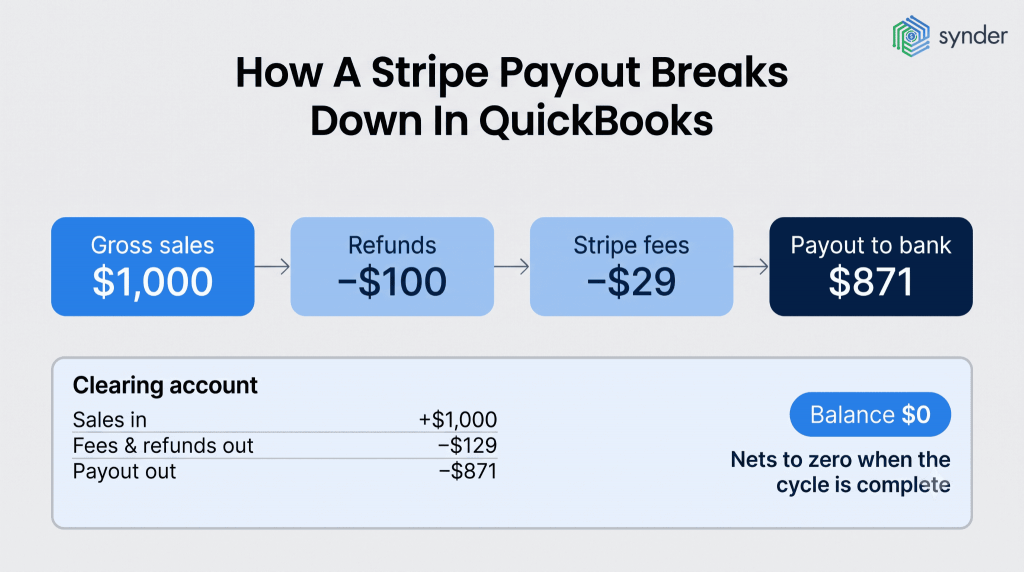
Many businesses run into the same surprise when they import historical Stripe data for the first time. A payout isn’t a single sale. It’s a group of transactions with Stripe’s fees and any refunds already deducted.
The deposit that reaches your bank usually covers activity from several different days, which is why the payout date and the sale dates rarely match. When you’re importing months of historical data, those timing differences are what make reconciliation difficult.
The way around it is to reconcile by payout instead of by day. To do that, create a dedicated Stripe clearing account in your chart of accounts. For every payout you import:
- Record the gross charges as income to the clearing account.
- Record the Stripe fees and refunds against the same clearing account.
- Record the payout as a transfer from the clearing account to your bank account.
Stripe’s payout and balance reports show the opening and closing balance for any date range. Match each payout to the bank deposit it created, and the sale dates no longer have to line up with the deposit date.
This is how a simple payout looks in QuickBooks:
| Stripe activity | Amount | How it’s recorded in QuickBooks |
| Gross sales | $1,000 | Income, into the clearing account |
| Refunds | $100 | Contra-income, against the clearing account |
| Stripe fees | $29 | Expense, against the clearing account |
| Payout to bank | $871 | Transfer from clearing account to your bank |
Your clearing account should end each payout cycle with a zero balance. If money is still sitting there, there’s usually a missing transaction or something has been categorized incorrectly. The remaining balance tells you where to start looking.
Stripe reports have one small quirk. Activity for a given day usually isn’t available until around noon the next day. If you’re reconciling through today, the latest transactions may still be missing. You generally won’t run into that during a historical import because those payouts have already settled. That’s why many people leave the current day out of the reconciliation period.
Here’s how to import the data manually.
How to import historical Stripe transactions using CSV files
Start in Stripe by downloading the reports for the period you’re importing. You’ll use three of them throughout the process:
- Balance summary – shows your opening and closing Stripe balance for the selected date range.
- Balance change from activity – lists the charges, refunds, and Stripe fees that changed your balance.
- Payouts report – shows the deposits Stripe sent to your bank account.
Save each report as a CSV file and keep them handy. You’ll almost certainly refer back to them while checking that everything reconciles.
From there, switch to QuickBooks Online:
- Go to Banking.
- Choose Upload from file.
- Select your CSV.
- Pick the QuickBooks account where the transactions should be imported.
- Map the columns in the CSV to the matching QuickBooks fields.
But the import isn’t the end of the work. A Stripe CSV doesn’t separate gross sales from processing fees or build the accounting entries for you. Record the full charge as income, record the Stripe fee as a separate expense, and use a clearing account until the payout reaches your bank account.
For a month or two of history, this approach is usually manageable. Importing a full year with thousands of transactions is another matter. By then, the time spent preparing files, checking imports, and fixing mistakes can easily cost more than using a tool built for the job.
When you’re dealing with months or years of Stripe history, or you need every transaction in QuickBooks, a sync tool usually saves a lot of time. Stripe and QuickBooks Online don’t have a built-in way to import historical transactions, so some type of connector is always part of the process.
The native bank feed
The native bank feed only imports the payout that reaches your bank account. It doesn’t show the individual sales, refunds, or Stripe fees behind that deposit.
That’s one reason accountants are often cautious about relying on QuickBooks alone for businesses that process a high volume of Stripe payments. QuickBooks doesn’t break a payout into the transactions that created it, and the native bank feed usually only imports about 90 days of history. Without the missing detail, your books may look fine during the year but become much harder to reconcile when it’s time to close the books.
Sync tools
Several tools can import historical Stripe data into QuickBooks. Synder is one of the more widely used options. It syncs ecommerce and payment data from more than 30 platforms, like Shopify, Amazon, and eBay, into accounting software. Historical imports include the related fees, refunds, and customer records, already mapped to the right accounts. Instead of preparing CSV files and building the accounting entries yourself, you choose the date range you’d like to import and review the transactions before they’re synced to QuickBooks.
Here’s how the process works:
- Connect Stripe.
- Open the transactions section and choose Import historical data.
- Select Stripe and choose the starting date.
- Review the imported transactions, then sync them to QuickBooks.
The amount of history you can import depends on your plan and Stripe’s own limits. In practice, this approach works well for the kind of multi-month or multi-year backlog that becomes difficult to manage manually.
Two features make a big difference during historical imports. Automation rules can be applied to older transactions, so the same rules are used from the first imported record instead of cleaning everything up afterward. There’s also rollback. If your mapping needs to change, you can remove the imported transactions from QuickBooks without affecting the original Stripe data, make the adjustment, and import the same period again.
A real example
PlayYourCourt, a membership-based tennis coaching business that uses Stripe with QuickBooks Online, had been categorizing thousands of Stripe transactions by hand. The work took weeks every month. After switching to automation, the company reported saving more than 480 hours and over $24,000 a year on bookkeeping. Historical imports also became easier. Before year-end, they could rerun past transactions and apply Smart Rules to older records, keeping the same accounting rules across their financials.
Here’s how Justin McKelvey, Head of Product at PlayYourCourt, summed it up:
Time is money. Instead of a bookkeeper spending 40 hours a month manually reviewing thousands of transactions each month—clicking into each one, checking metadata, and categorizing it—Synder does it all automatically, the moment the charge happens. Which means we save 480 hours and almost $24K yearly.
Justin McKelvey, Head of Product at PlayYourCourt
| If you’d like to see the process before importing your own history, book a quick demo. |
Manual vs automated: which import method should you choose?
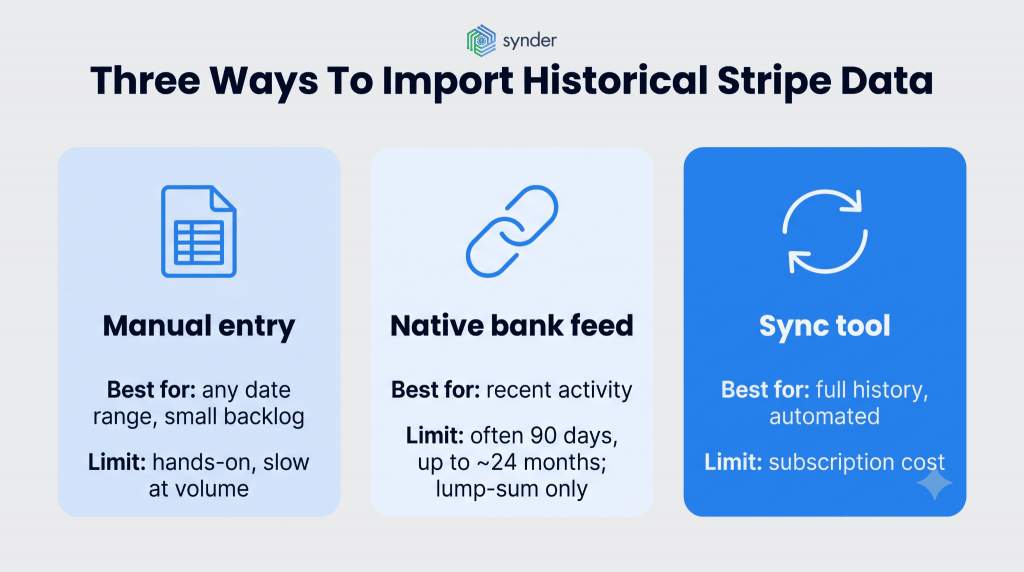
The right choice depends on how much history you’re importing and what you need your books to look like afterward. For some businesses, a manual import is enough. Others reach the point where it’s simply faster to automate.
| Method | Choose it if… | What you’ll get | Keep in mind |
| CSV upload | You’re importing a few months of history | The raw transactions, which you’ll organize yourself | You’ll need to separate fees and payouts manually |
| Sync tool | You’re importing a large history or want to keep syncing afterward | Fully mapped transaction-level data, or summaries if you prefer | There’s a subscription cost and some initial setup |
| Native bank feed | You only need recent Stripe deposits | Lump-sum payouts in QuickBooks | It usually only goes back about 90 days and doesn’t show individual sales, fees, or refunds |
A manual import works well when you’re dealing with a relatively small backlog. The only cost is your time. Fifty Stripe transactions a month are manageable. A few thousand over the course of a year usually aren’t, because every fee, refund, payout, and timing difference still needs to be reviewed.
We’ve seen businesses with thousands of Stripe transactions that needed to be imported. One SaaS finance team had about 8,000 transactions from 2024 split between Stripe and Excel, and entering everything by hand just wasn’t realistic. A sync tool shifts that work from manual entry to setup. It costs more upfront, but it also keeps doing the work after the historical import is finished. That’s usually where automation starts to pay off.
Research points in the same direction. McKinsey found that finance teams spend 20 to 30 percent less time processing data after adopting automation. Synder’s survey showed similar results: 97.4% of 424 senior finance leaders said AI and automation deliver measurable results, even though they still handle some parts of accounting manually.
Troubleshooting common mistakes when importing historical Stripe data
Most historical imports go smoothly, but a few mistakes tend to come up again and again.
- The net payout is recorded as revenue. Stripe deducts its processing fees before sending the payout, so recording only the deposit understates your revenue and leaves out a deductible expense. Record the full charge as income and the Stripe fee separately.
- The clearing account is left out. Sales and payouts happen on different dates, so without a clearing account, it’s much harder to reconcile everything. Every charge, refund, fee, and payout should move through the same Stripe clearing account, which should return to a zero balance after each payout cycle.
- The same transactions are imported twice. This usually happens when a CSV import overlaps with an active sync or bank feed. A clear cutover date, where the historical import stops and ongoing syncing begins, prevents that overlap.
- Sales are matched to payout dates. A Stripe payout often includes transactions from several different days, so the deposit date rarely matches the sale date. Reconcile each payout against the bank deposit it created instead of trying to match individual sales to deposits.
Most of these issues can be avoided with two things: a clear cutover date and a properly configured clearing account. If you do need to rerun an import, a sync tool with rollback lets you remove the imported transactions, adjust the mapping, and import the same period again without correcting every entry by hand.
Conclusion: importing historical Stripe transactions into QuickBooks Online
Getting historical Stripe data into QuickBooks Online is mostly a matter of choosing the approach that fits the amount of data you’re working with. A few months of transactions can often be handled with CSV imports. If you’re bringing over a year or more of history, or you plan to keep Stripe and QuickBooks connected going forward, a sync tool will usually save a lot of manual work.
The accounting doesn’t change, whichever method you use. Record the full sale, record Stripe’s processing fees separately, reconcile by payout instead of deposit date, and use a clear cutover date to avoid duplicates. And when you get these pieces right, your historical import should reconcile cleanly from the start.
FAQ
How far back can I import Stripe transactions into QuickBooks Online?
The native bank feed usually goes back about 90 days, although some banks allow up to 24 months of history. If you need anything older, you’ll have to import it manually with CSV files or use a sync tool. With Synder, the amount of history you can import depends on your plan and Stripe’s own data limits, but importing multiple years of transactions is supported.
Will importing historical data create duplicate transactions?
It can if your historical import overlaps with an active sync or bank feed covering the same dates. The easiest way to avoid duplicates is to set a clear cutover date, where the historical import ends and ongoing syncing begins. If you’re using a sync tool with rollback, you can also remove the import, adjust it if needed, and run it again.
How do I record Stripe processing fees in QuickBooks?
Stripe deducts its processing fee, typically 2.9% plus 30 cents per card charge, before sending you the payout. A $500 sale, for example, might be deposited as about $485. Record the full $500 as income, record the roughly $15 fee as a separate expense, and use a clearing account to account for the difference. Recording only the net deposit understates your revenue and leaves out a deductible expense.
Can accountants import historical Stripe data for multiple clients at once?
If you’re doing it manually, each client has to be imported separately. Tools built for accounting firms make that process much easier by letting you manage multiple client accounts and historical imports from one place. That’s one reason many outsourced finance teams move to a sync tool as their Stripe client list grows.