

If your transactions suddenly stopped syncing — often after Synder shows a Connection lost banner for your accounting platform or a sales/payment integration — this guide walks you through the full recovery in three steps: reconnect, resync the transactions that were held back, and import anything from the period that is still missing.
Work through the steps in order. In most cases Step 1 and Step 2 are enough; Step 3 is a safety net for any gap.
- Step 1: Check the connection and reconnect
- Step 2: Resync transactions that were held back
- Step 3: Run a historical import for the affected period
- Step 4: Verify everything is back in sync
- When to contact support
- Related guides
Step 1: Check the connection and reconnect
When a connection drops, Synder stops importing new transactions from that integration until it is reconnected, which is usually the root cause of “my data stopped syncing.”
- In Synder, look for a red Connection lost banner, or open the Person icon → Organization settings and review your integrations. A connection that needs attention shows a Reconnect option.
- Click Reconnect on the affected integration (your accounting platform, such as QuickBooks Online or Xero, or a payment/sales platform) and complete the authorization prompt.
- Confirm the integration shows as connected again before moving on.
Note: Reconnecting restores the connection without data loss. One banner can cover several affected integrations — reconnect each one that is flagged. For details on connecting an integration, see How to Add a Payment Platform to Synder.
Step 2: Resync transactions that were held back
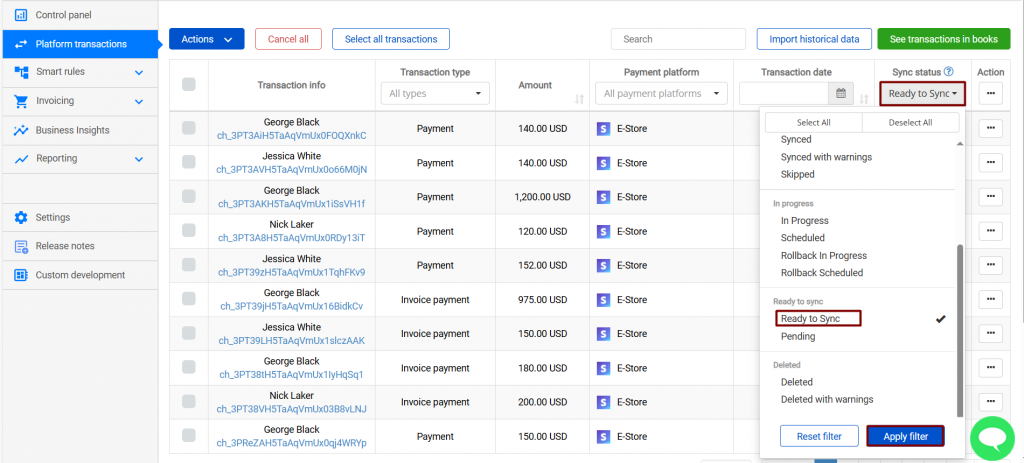
While the connection was down (or interrupted), transactions may have been left in a Ready to sync, Failed, or Canceled status instead of posting to your books. Resync them:
- Go to the Platform Transactions tab. Make sure the correct organization is selected in the top-left corner.
- Filter by status — select Ready to sync (and, if relevant, Failed and Canceled). Click Apply filter. You can also narrow by time range or by a specific payment processor.
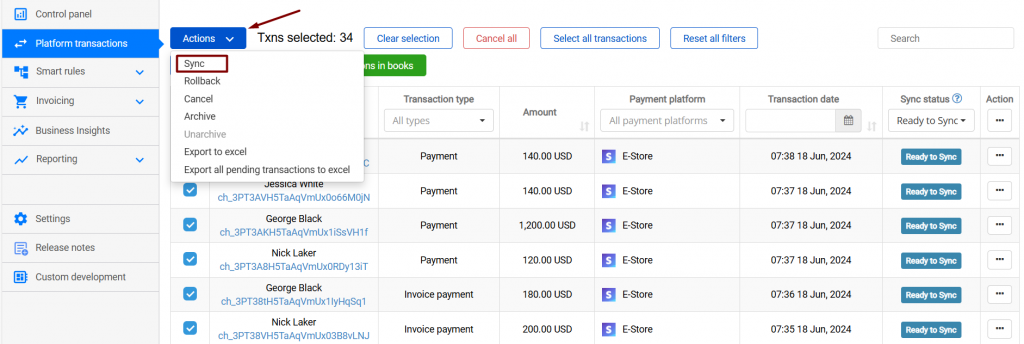
- Select the transactions (use the top checkbox, then Select all transactions to include every filtered page).
- Click the blue Actions button and choose Sync. Wait for the status to turn to the green Synced.
For the full walkthrough, see How to Sync Transactions With the “Ready to Sync” Status — the same filter-and-sync steps apply to failed and canceled transactions.
Step 3: Run a historical import for the affected period
If some transactions never made it into Synder at all while the connection was down, pull them in with a historical import for the dates you are concerned about.
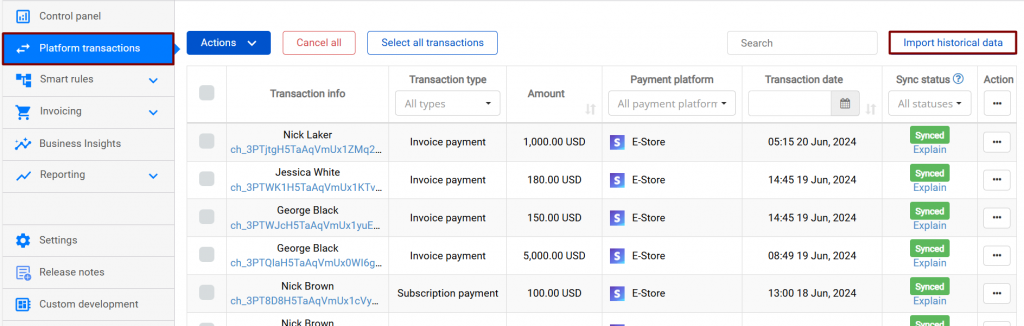
- Go to the Platform Transactions tab and click Import historical data.
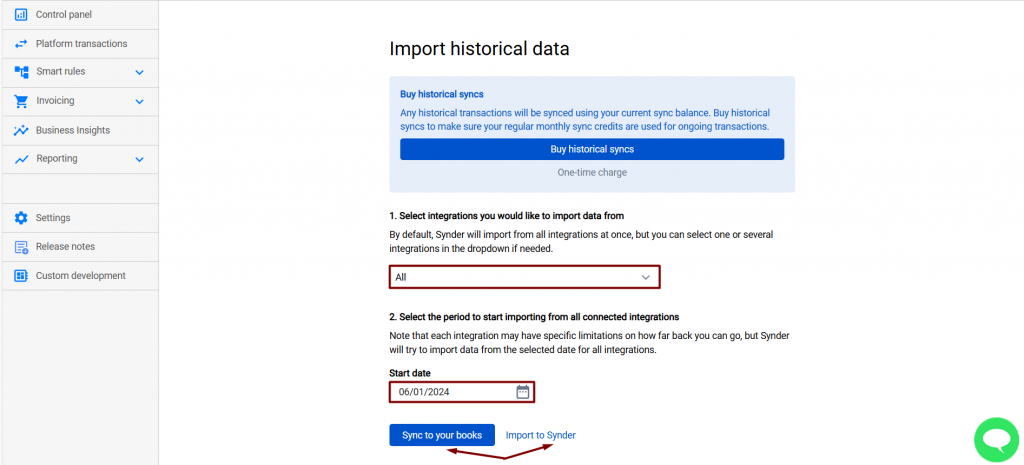
- Select the integration to import from, then set the start date (and period) that covers the gap.
- Click Import to Synder to bring the transactions in for review, or Sync to your books to import and sync in one step.
- Once imported, the transactions appear in Platform Transactions — if you used Import to Synder, resync them as in Step 2.
Summary Sync users: if a transaction belongs to a period that already has a generated summary, importing it will not add it to that summary automatically — you will need to rebuild the summary. See Transactions Missing in Summary Sync: Why It Happens and How to Fix It.
For more detail, see How to Sync Historical Transactions.
Step 4: Verify everything is back in sync
- In Platform Transactions, confirm the previously stuck transactions now show the green Synced status.
- Spot-check a couple of transactions in QuickBooks or Xero to confirm they posted correctly.
- If you use Summary Sync, confirm the affected summaries are complete and synced.
When to contact support
- The integration will not reconnect, or immediately drops again.
- Transactions stay on Failed after a resync, or show a specific error you are unsure about.
- The data is still missing after a historical import for the correct date range.
Reach out to the Synder team via in-app chat or email. Include the integration name, the affected date range, and a screenshot of the transaction statuses so we can investigate quickly.
Related guides
- How to Add a Payment Platform to Synder
- How to Sync Transactions With the “Ready to Sync” Status
- How to Sync Historical Transactions
- How to Find Missing Transactions in Synder
- Transactions Missing in Summary Sync: Why It Happens and How to Fix It
