

- Step 1 — Check your Toast package and permissions
- Step 2 — Open Toast API access in Toast Web
- Step 3 — Create Analytics API credentials
- Step 4 — Copy your Client ID and client secret
- Step 5 — Enter the credentials in Synder
Toast offers two kinds of API access. Standard API access gives Synder your orders, menus and payments — that is what How to Connect Toast to Synder covers. Analytics API access is a separate, read-only credential set that unlocks Toast’s reporting data for your whole management group. This guide shows how to create Analytics API credentials in Toast Web and where they go in Synder.
The steps mirror the Standard API guide, with three differences worth knowing up front: Analytics API access needs a higher Toast package, you can hold only one set of Analytics credentials per management group, and there are no scopes or locations to pick — one credential set covers every location in the group. Budget about five minutes.
Before you start
- Your management group must have an active subscription to Toast Restaurant Management Suite Pro or higher. Standard API access only needs Essentials — Analytics API access does not appear in the Create new credentials menu on a lower package.
- Your Toast user needs the 8.4 Manage Integrations permission, the same one that governs Standard API credentials. Step 1 of the Standard API guide shows how to check and grant it.
- Only one set of Analytics API credentials can exist per management group. If a set already exists, use it (or rotate its secret — see Good to know) rather than trying to create a second one.
- Synder needs two things from this process: the Analytics API Client ID and client secret. You create both in Steps 2–4.
Step 1 — Check your Toast package and permissions
Analytics API credentials are created on the same Manage credentials page as Standard API credentials, so the same access rules apply:
- Package. Check that the management group is on Restaurant Management Suite Pro or higher. If Analytics API is missing from the Create new credentials dropdown in Step 3, the package is the usual reason — contact Toast to upgrade.
- Permission. You need 8.4 Manage Integrations. A Toast user or restaurant operator with full access can grant it under Employees > Employee management > Employees > Jobs & Permissions.
Step 2 — Open Toast API access in Toast Web
- Open the Toast API access page directly: toasttab.com/restaurants/admin/api-access (log in to Toast Web if prompted).
- Or navigate there from the Toast Web menu: Integrations > Toast API access > Manage credentials.
The Manage credentials page lists every credential set in your management group — Standard and Analytics alike. If an existing set is already labeled Analytics API, skip to Step 4 and open it instead of creating a new one.
Step 3 — Create Analytics API credentials
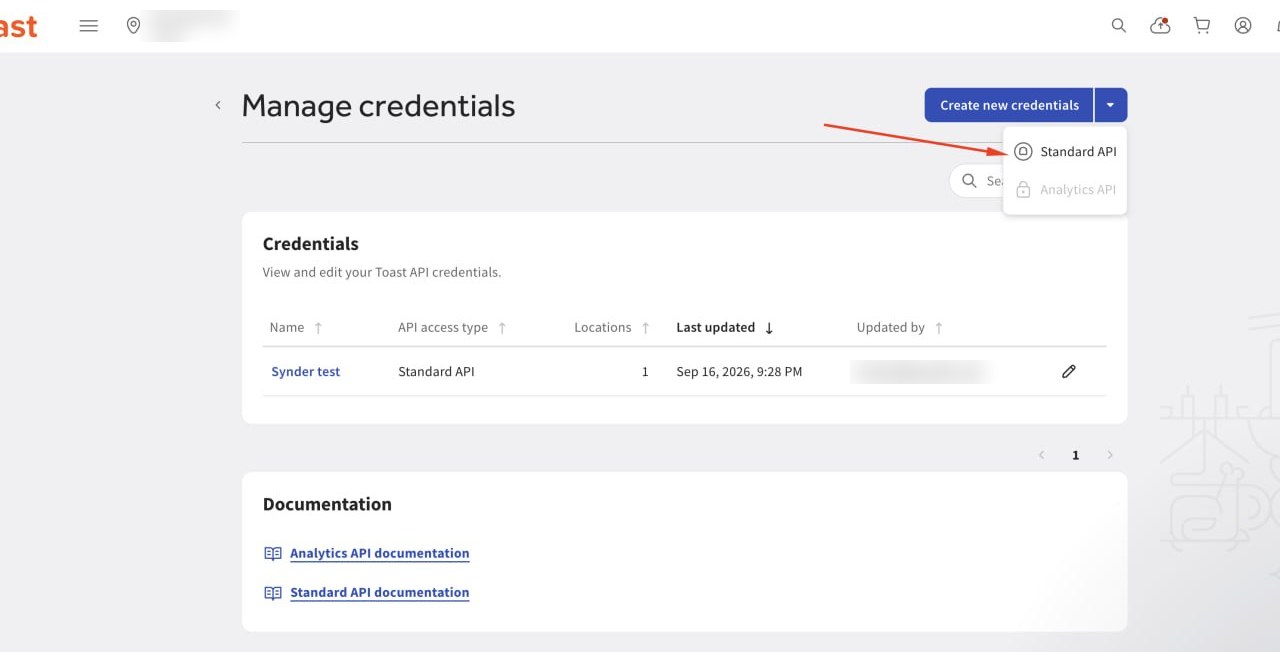
- On the Manage credentials page, select the down arrow on Create new credentials and choose Analytics API. The New Credentials page opens.
- Review the page. It lists the reporting data the credentials will have read-only access to, links to Toast’s documentation, and shows the management group the credentials are for together with the number of locations it includes. There is nothing to select here — Analytics credentials always cover the whole group.
- Enter a credential name you will recognize later — Synder Analytics is a good choice.
- Click Create credentials. Toast opens the Credentials page.
Unlike Standard API credentials, there are no scopes to tick and no locations to choose. Analytics API access is read-only by design.
Step 4 — Copy your Client ID and client secret
On the Credentials page, copy the following and keep them somewhere secure, such as a password manager:
- Client ID — use the copy icon next to it.
- Client secret — click to view it and copy it now. Toast shows the client secret only once. If you navigate away without saving it, you will have to rotate the secret to get a new one (see Good to know).
The same page also shows an API access URL, an API access type, the management group and its location count, and links to Toast’s Analytics API documentation. Synder does not ask for any of these — you only need the Client ID and the client secret.
Prefer JSON? The Credentials page can also display the credential set in JSON format, which some teams find easier to store in a password manager. Either way, treat the client secret like a password and never share it over email or chat.
Step 5 — Enter the credentials in Synder
Log in to Synder. Click the person icon in the upper-right corner, open Organization settings, go to the Integrations section and open your Toast integration (or click Add integration and choose Toast if you have not connected Toast yet — the Standard API guide walks through that first).
- Toast Analytics API Client ID — the Client ID you copied in Step 4.
- Toast Analytics API Client Secret — the client secret from Step 4. Use the reveal icon to check you pasted it correctly.
- Save. Synder verifies the credentials with Toast and starts pulling reporting data for the connected location(s).
Because one Analytics credential set covers the whole management group, you enter the same Client ID and client secret for every Toast location you have connected in Synder.
Good to know
- One set per management group. Toast allows only one Analytics API credential set per management group. If your team already created one for another tool, reuse it — or rotate the secret so you have a copy — instead of deleting it, which would break that tool.
- The client secret is shown once. Lost it? On the Credentials page, select Rotate secret, type ROTATE SECRET to confirm, click Continue, then View secret. Copy the new secret, tick I have copied and saved the client secret and click Finish.
- Rotating the secret breaks any integration still using the old one. Update it in Synder straight away. Tokens Toast has already issued stay valid until they expire.
- Deleting credentials is permanent. Toast asks you to type DELETE SECRET to confirm, and cannot restore a deleted set — you would have to create a new one and update Synder.
- Analytics API is missing from the Create new credentials menu? The management group is not on Restaurant Management Suite Pro or higher, or your user lacks 8.4 Manage Integrations. See Step 1.
- Analytics API access is read-only. Synder can read your Toast reporting data; it cannot change anything in Toast.
Related articles
- How to Connect Toast to Synder (Standard API access)
- Set up automatic synchronization
- Sync historical transactions
- Toast — Creating analytics API access credentials
- Toast — Standard API access credentials
