

- What This Setting Does
- What To Do If Syncs Are Canceled
- 1. Identify the Missing Items
- 2. Choose How to Handle Missing Items
- What Items Does Synder Create
- “Collect Items for Product Mapping” Setting
This guide explains the “Cancel synchronization if item is not found” setting in Synder. Use it if you have a predefined product list or track inventory. It stops Synder from automatically creating new items during sync.
Do not use this guide if:
- You want Synder to create missing items automatically.
- You do not track inventory or have strict product catalog requirements.
- You are not ready to handle canceled transactions or manually create missing items.
What This Setting Does
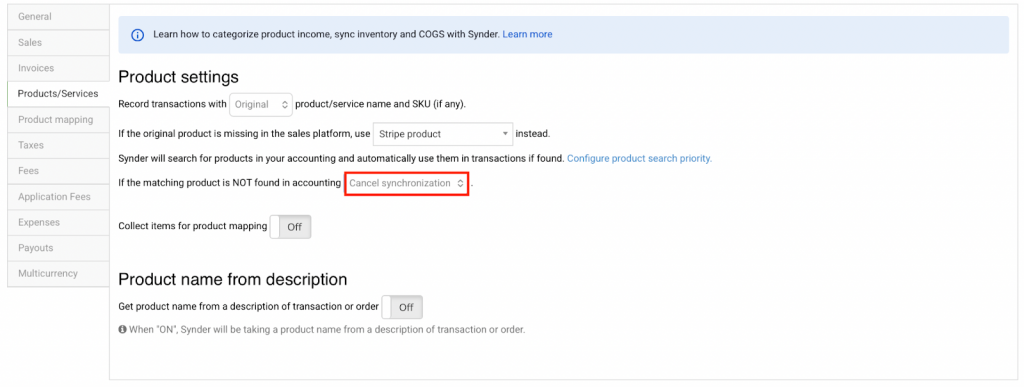
Synder can automatically create new items in your accounting platform if they don’t exist yet, or use existing items for syncing transactions.
The “Cancel synchronization if item is not found” setting gives you the option to stop Synder from creating new items. Here’s how it works:
- First, Synder searches for existing items in your accounting platform. It looks for matches by Product/Service Name or SKU, based on your product search priority. Learn more in the Product Search Priority guide.
- If Synder finds all items, it uses them to post the transaction data.
- If any items are missing and “Cancel synchronization if item is not found” is enabled, Synder cancels the sync for that transaction.
What To Do If Syncs Are Canceled
When Synder cancels a transaction because of missing items, follow these steps to fix it:
1. Identify the Missing Items
- Go to the Platform transactions tab. Find the canceled transaction.
- Note the item names in that transaction.
- Then check whether these items exist in your accounting platform.
2. Choose How to Handle Missing Items
If any items are missing, you have three options:
- Use a Common Item
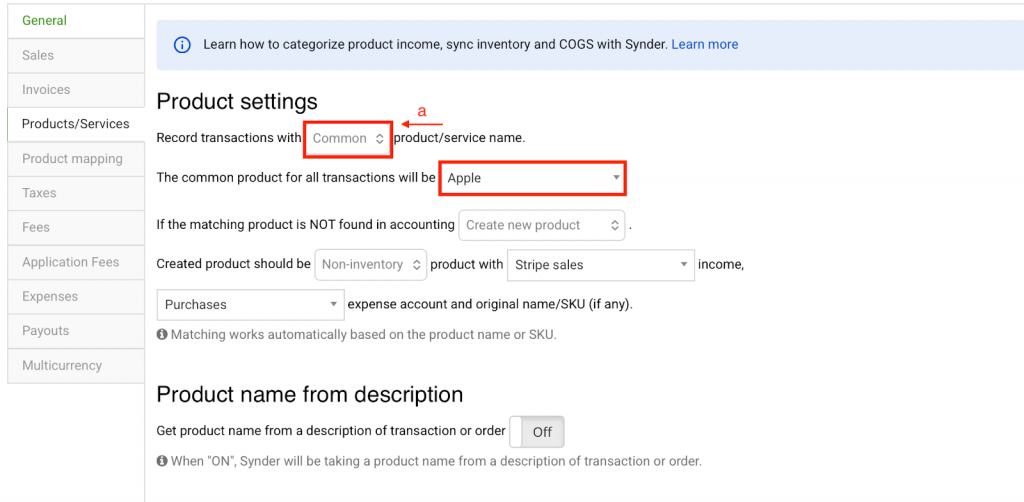
- Select a pre-existing item in your books that can represent the missing product.
- Resync the transaction.
- Make sure the common item exists in your accounting platform.
- Use Product Mapping
- Map items from your payment/ecommerce platform to existing items in your accounting system.
- Resync the canceled transaction.
- Learn more in the Synder Product Mapping Feature guide.
- Create Missing Items Manually
- Add the missing items in your accounting platform with the correct Name and SKU.
- Resync the canceled transaction.
What Items Does Synder Create
Aside from the regular items, Synder sometimes can create its own special items depending on your settings. Examples are:
{providerName} product
{providerName} discount
{providerName} Gift Card
Rounding adjustment
{providerName} adjustment
where {providerName} is the name of your payment/ecommerce platform, e.g., Shopify Gift Card, Stripe product, WooCommerce discount.
These items are sometimes needed to be able to post your data correctly (including but not limited to using correct income or liability accounts, being able to distinguish among different discount types, etc.) in accordance with your specific needs.
Therefore, if you have gone through the basic troubleshooting steps and have made sure that all items which you can see in the payment platform transaction are present in your accounting system, please double-check your settings and the transaction for these kinds of ‘special’ items, and adjust your settings or create the items in your books.
“Collect Items for Product Mapping” Setting
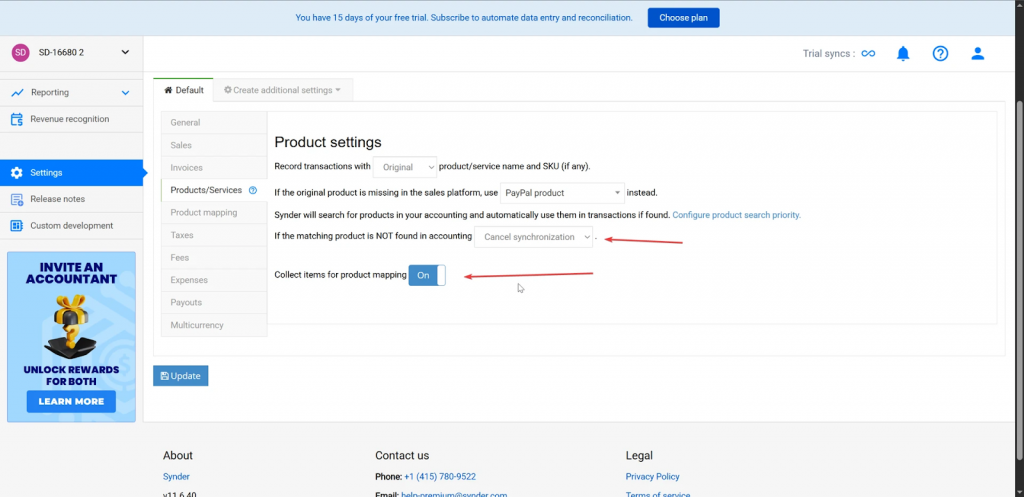
When you enable “Cancel synchronization if item is not found”, Synder shows the “Collect items for product mapping” option (off by default).
How it works:

- After syncing a transaction with missing items, you can go to the Not Mapped page in Product Mapping settings.
- Enter the Name and SKU for each product.
- Map them to existing products in your accounting system.
This helps you:
- Quickly map products for future syncs.
- Ensure transactions are posted accurately.
Works for all payment providers supported by Synder and all accounting systems compatible with Synder (excluding NetSuite).
Reach out to Synder Team via online support chat or email with any questions you have – we are always happy to help you!
